



News Posts With Tag Design & Graphics
EazyDraw: Powerful Drawing and Painting Tool
 Originally downloaded April 7, 2007. I'm not sure how I missed this one when I was looking for a tool to help me envision a home addition last fall... but it just didn't come up in any of the Google searches I did, or in searches on MacUpdate and VersionTracker. And yet two of the screenshots are specifically geared to this drawing application... EazyDraw apparently can be used both for interior design tasks as well as remodeling/architectural drawing tasks. In addition, it offers a host of paint tools, blends, and more. It appears to fully support vector drawing, while also enabling bitmap editing as well. (I think!) The licensing is unusual... for $20, you can try it for 9 months with no restrictions, and a full license is $95.
Version as tested: 2.3.
Update 8/20/12.
Telegraphics - Free plugins for Photoshop …and other software
CrystalClear Interface Update: Version 1.9.1

Update 3/23/08: This release fixes a problem with the uninstaller, and is otherwise the same as 1.9.0. The uninstaller now runs a new utility, GraphicsToggle, after running the installer/uninstaller, and this takes care of making sure the Leopard graphics are fully restored. See the documentation included with the download for more information about GraphicsToggle.
Since releasing the last version of CrystalClear Interface (CCI) in January, I’ve been hard at work on a lengthy—and, it sometimes seems, never-ending—list of bug fixes. Given what CCI is trying to accomplish, I don’t suppose I’ll ever release a bug-free version. However, I’m pleased to say that version 1.9 is much better behaved than 1.8.
Of course, the really fun part for me is seeing what else I can get CCI to do in the way of theming various aspects of Aqua. Many of the experiments in 1.9 are customizations I would have relied on ShapeShifter for if it were available for Leopard. However, it appeared that Unsanity was going to be some time in getting a Leopard-compatible ShapeShifter finished, and (no offense, Apple!) I’ve really gotten bored (sick?) of the Aqua “theme.”
I mean seriously, Aqua is soooo 2001! I don’t know about you, but I’ve been itching for something insanely different for awhile now. Leopard is a marvelous upgrade in many ways, and yes, it did finally introduce the much-requested “unified” theme for OS X windows, a controversial (why?) new menubar, and a cool new Dock, but overall its look and feel is the same-old, same-old Aqua we’ve used since Mac OS X 10.0. Seven years is a long time in the Internet age, Steve! (But you know that, I’m sure… we all have our multiple priorities to juggle.)
There really are too many enhancements in CCI 1.9 to list them all here, but here a few of the highlights:
- Transparent scrollbars. I’ve been trying to make these in ThemePark and ShapeShifter forever, but finally gave up some time ago. I’m pleased to say that I was successful in bringing them to shiny life in CrystalClear Interface 1.9!
- Titlebar Buttons. There’s nothing exciting in titlebar buttons per se, but Leopard windows refuse to use the ones you slip into Extras.rsrc, so I had to try to the CCI route. It worked!
- PopUp Buttons. In another experiment, I tried banishing Aqua from my popup buttons by forcing them to adopt a different, Apple-designed “bezel style.” As I am quite fond of the “recessed” bezel style introduced in Tiger, I chose that one.
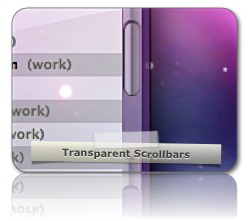
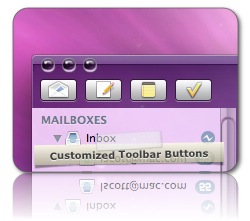
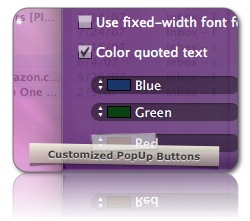
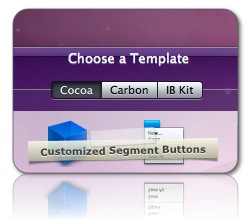
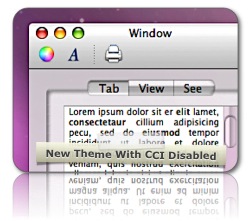
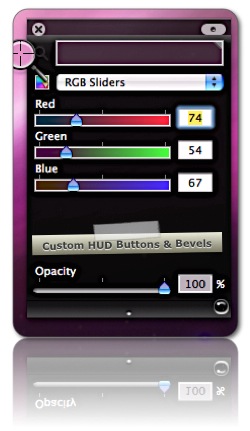
- Other Buttons. The trick I used for popup buttons came in handy for theming other buttons as well… again using alternative “official” bezel styles. You’ll see the shiny metal theme used for segmented buttons and push buttons (including toolbar buttons like those used in Mail). Disclosure buttons also get a tweak.
- HUD Windows. I also did some work on this kind of window, trying to unify the look across the various applications that use them, and across the kind of “utility” window they represent.
- Text Color Contrast. My attempt to make sure all text is readable regardless of the window color, level of opacity, or desktop picture you may prefer has improved in 1.9. Still needs work, but it’s much better.
- System Graphics. I decided to go ahead and release a custom version of Extras.rsrc (and Extras2.rsrc for Intel Macs), since it incorporates some of the system graphics I haven’t had time or been able to customize using Cocoa in CrystalClear Interface itself. In this category are things like tab bars, tab bar background bevels, text field overlays, progress bars, radio and check buttons, and a few others. The CCI 1.9 install program includes an option to install these graphics if you choose. (An uninstall option restores the original system graphics files.) It’s important to note here that most of the graphics in the Extras resource files only work by disabling some of the new Leopard graphics. In the Preferences for CCI 1.9, I’ve added some options to let you choose whether or not to use CCI graphics in this manner. You can opt out of CCI’s graphics either globally or for individual applications.
- New Window, Toolbar, and Titlebar Gradients. I started playing with Leopard’s new NSGradient class and discovered how easy it is to create cool gradients for these window elements. In CCI 1.9, you’ll discover most of these when you set CCI to “Disabled” for a particular application. However, the new gradients also show up in some Carbon applications like the Finder or PhotoShop when you call forth an Open or Save dialogue box. In a future version, I’d like to make this window style an optional variant within CCI Preferences. Along the same lines, you’ll find some HUD style windows popping up even if you have CCI disabled.
Sad to say, all of these enhancements do come at a price.
No, I’m not talking about money (though I’d really like a few bucks one day for all this toil and trouble!) The price is that I’m jettisoning support for Tiger (Mac OS X 10.4) as of CrystalClear Interface 1.9. I had intended to keep CCI running on Tiger for some time, but even though I had coded to keep Leopard-only code out of Tiger’s way, when time came last month to test what I had, it became clear pretty quickly that Tiger just didn’t want to play along. Not only do I have a real shortage of time, but my only Tiger test system is going away soon, so I won’t even have a way to test if I did have the time.
So… sorry, Tiger fans. The good news is that you still have ShapeShifter to satisfy your diet for theming alternatives. In the meantime, save up your money and upgrade to Leopard when you can… if for Time Machine alone, it’s well worth it! (Time Machine seems more awesome too me the more I use it. How did I ever get along without it?)
And Leopard fans, rejoice! CCI 1.9 begins to feel like an actual, complete theme… and one of the only options I’ve got at this point.
What Does CrystalClear Interface Do?
Rather than repeat everything from the January article, I’m just going to link to it. It has a section with the same heading as this one that runs down all of CCI’s features pretty well.
However, because of continuing confusion about where you can access CCI’s Preferences window, I’m reiterating that info here. As with the previous versions, you access CCI Preferences by clicking on the small, round icon in any application in which CCI is loaded. For example, here is where CCI’s menu appears in TextEdit:

Caveats for CCI 1.9
So, CCI 1.9 does all these cool things, but what’s the downside? Well, I wouldn’t be a good wizard if I didn’t warn you that “Yes, Dorothy, there is a dark side to CrystalClear City.”
- Although there are fewer cases that I know of this time around, you will undoubtedly encounter an application that doesn’t work well with CCI turned on. In this case, you should try just disabling CCI for that app by using the checkbox at the top of the CCI Preferences panel.
- Aperture crashes when you terminate it. It works fine otherwise.
- Small scrollbars need a smaller image to go with them. In addition, empty scrollbars may show a small, unnecessary piece of themselves at the top of the scroll track.
- In apps such as Mail and Activity Monitor, the layout of items in a given Preferences panel tab gets messed up if you close and then reopen the panel.
- In some Carbon apps, such as Photoshop, you’ll find that the background window color doesn’t match the background color of button controls and/or text.
- Buttons don’t always get themed when you first open a window or tab item. You can force them to theme themselves by tabbing to a different keyboard input control, or by clicking in an inactive text field.
- The Crystal Menubar still isn’t always showing its state correctly in the CCI menu.
- You may find memory usage higher than usual in some applications… although I’ve done a lot of memory-leak cleanup, you can never do enough, it seems. I find Safari and iWeb, in particular, get draggy over time, but they snap back when I restart it. (I do think CCI makes iWeb more crash-prone than usual.)
- When you have CCI disabled in an application, you may find a window (usually one such as a preference panel or utility window) that refuses to be dragged. This problem occurs when you first disable CCI in an application and will be eliminated by restarting the app.
- If you have CCI disabled and then re-enable it, one of the windows may take on a “shadowy” appearance. You can workaround this by closing the window’s toolbar and reopening it. Or it will go away if you restart the app.
- In Pages with CCI disabled, you will experience a lag in keystrokes initially. To fix the lag, resize the window slightly. The problem will not recur during the current Pages session.
- In Numbers with CCI enabled, attempting to use one of the popup buttons on the toolbar will cause the app to crash. To workaround, either disable CCI or do some work in your spreadsheet before clicking on a toolbar popup button.
- With CCI disabled, some HUD-style, dark-background windows use black text rather than a contrasting white, as they do with CCI enabled.
As before, Crystal Clear has much more of an effect on Mac OS X apps that were developed using the “Cocoa” frameworks than it does on apps developed with the older “Carbon” frameworks. Some apps are a mix of the two frameworks, so some windows may get themed “clear,” while others won’t. Most of the applications Apple builds are Cocoa apps, with the notable exceptions of iTunes and the Finder. Nearly all new Mac apps built today use the Cocoa frameworks, but a number of high-profile apps that have been around for years are still built with Carbon. In this latter category are all apps from Microsoft and Adobe, as well as some older apps from Mac vendors that are now building with Cocoa, such as BBEdit (BareBones).
It’s also important to note that CCI 1.9 will be most enjoyable if you run it on a recent-model Mac with at least 2GB of RAM and a 2Ghz or better processor.
Left To Do For Future Versions
No, I’m not done yet, much to my wife’s dismay.  Although I intend to take a break for awhile (if I can drag myself away…), here are a few things I still want to incorporate into CrystalClear Interface:
- Menus.
- Menubar.
- Focus highlight color.
- Spotlight.
- Did I mention Menus?
- Other applications.
- Finder and other semi-Cocoa Carbon apps.
- Expand CCI Preference options.
- Allow user customization of window elements (backgrounds, buttons, etc.)
What’s in the CCI Download Package?
Not nearly as much as before! Besides some nice desktop pictures, documentation, and a screenshot, the 1.9.1 package just includes the CCI software installer, which lets you do the following:
- Install CrystalClear Interface 1.9.1. This installation also checks to see if you have an old version of SetAlphaValue installed and moves it to a (Disabled) folder, since it can conflict with CCI.
- Optionally install system graphics. This option is off by default, but if you want to use the custom “Extras” resource file included in the CCI installer, click the checkbox before running the installer.
- Uninstall. The Apple PackageMaker program doesn’t make including an uninstaller very elegant, but I’ve put one in anyway. If you want to uninstall CCI and the custom system graphics at any time, run the CCI installer again and select the uninstall option. (Be sure to deselect the install option if you do this.) Note: The install program will still label the Uninstall step as an Install step.
Download CrystalClear Interface 1.9.1 (7.7 MB)
Update 3/16/08: If you uninstalled CCI 1.9.0, and buttons in the Finder and Safari no longer have the new “Leopard” look, download GraphicsToggle and run it. Just doubleclick on the GraphicsToggle icon, and it will do its thing and then quit the Finder. You’ll need to relaunch the Finder to complete the restoration.
Update 3/23/08: The new CCI 1.9.1 package not only includes GraphicsToggle as a separate app, but also incorporates it into the installer/uninstaller, and this takes care of making sure the Leopard graphics are fully restored. See the documentation included with the download for more information about GraphicsToggle.
Note: If you’re looking for the ShapeShifter theme, the Crystal Albook iconset, or other extras, you can download them from the Mars Themes page… select Crystal Clear (for ShapeShifter) version 1.5.

LICENSE
© 2008, Leland Scott, Musings from Mars
Version History
| 1.9.1 | 03/23/08 | Incorporates a new utility as part of the uninstall process that makes sure the Leopard graphics are fully restored to their original state. This program, GraphicsToggle, is also included separately in the download package for users of CCI 1.9.0 who want to use it after uninstalling. |
| 1.9.0 | 03/12/08 | Significant improvement in stability, and numerous extensions in capability. CrystalClear Interface 1.9 begins tackling theming chores previously handled by ShapeShifter, and also makes its presence felt visually on “disabled” apps. The installer optionally installs a system graphics file that replaces some images with those from the ShapeShifter version of Crystal Clear. Note: Starting with this release, CCI will only run on Mac OS X 10.5 (”Leopard”). |
| 1.8.12 | 01/02/08 | Additional round of performance optimizations and bug fixes. Targets include iPhoto, iChat, PhotoBooth, iWeb, and, on Leopard, QuickLook. Crystal Menubar’s launch mechanism still needs work, but it should no longer drop down the screen when you enter full-screen mode in an application. |
| 1.8.0 | 12/1/07 | CrystalClear Interface was numbered early in development, since it was conceived as an extension of the ShapeShifter theme, CrystalClear. However, things turned out a bit differently. The article on Musings from Mars explains. |
| 1.5 | 9/7/07 | Crystal Clear 1.5 was developed to complement CrystalClear Interface, then in development. |
| 1.2 | 6/6/07 | Crystal Clear 1.2 introduces a new approach to the system menubar that attempts to solve the problem created by backgrounds in menu extras there. There are many other new interface elements as well as some fixes to earlier ones. This version does not include the Crystal Albook icons, but they can be downloaded separately. See this article for the latest information on Crystal Clear releases. |
| 1.1 | 4/19/07 | Crystal Clear 1.1 has several major new interface elements as well as a newly designed, full set of Crystal Albook icons (version 1.0). |
| 1.0 | 3/26/07 | Crystal Clear 1.0 provided a complete package, with both “Lite” and “Dark” variants included. This release also included an initial set of Crystal icons based on the Albook icon set. |
| 0.6 | 3/2/07 | Introduced a variant called Crystal Clear Lite, which utilizes translucent white menus instead of translucent black ones. The variant also incorporated numerous other improvements and bug fixes to the original release. |
| 0.5 | 2/13/07 | First release of Crystal Clear. This version is what became known later as Crystal Clear Dark. The development of Crystal Clear was described in this introductory article on Musings from Mars. A few days earlier, this preview article appeared, with many application screenshots. |
Ayluro’s Source Code Snippets
Crystal Clear 1.5 Preview:
Yes! The Term “Opaque Window” Is An Oxymoron
After all, who 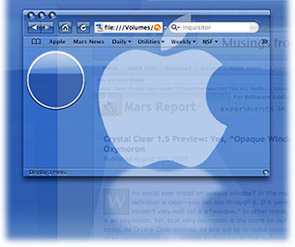 would ever install an opaque window? In the real world, a window by definition is clear—you can see through it. If it weren’t clear, you couldn’t very well call it a “window.” In other words, an opaque window is an oxymoron. Yet, that very oxymoron is the norm on our computer desktops today. As Crystal Clear evolves, its aim is coming closer to making opaque windows as much of an oxymoron on your desktop as they are in that wall over there.
Computer desktops have slowly evolved since 1984, when the first Macintosh was introduced. With each operating system release, Apple has added more realism to the graphics that make up application windows, the desktop, and their various “widgets” and icons. Microsoft and other GUI-design-wannabes have followed along as closely as they could. Through this process, our software windows and icons have gained a little 3D through primitive shading, higher resolution displays, larger icons, better shadows, alpha transparency and compositing, smoother animation and transition effects, and so on. These changes have produced a dramatically more “realistic” look-and-feel today than we had in the beginning. Undoubtedly, this evolution 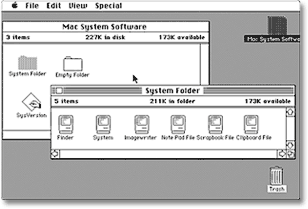 will continue, and desktops 10 years from now will make today’s look similarly primitive.
The Crystal Clear experiment is asking the graphical question, “How about using transparency to improve realism, while enhancing the beauty of our desktops at the same time?”
Up to now, the Crystal Clear theme for Mac OS X has brought clarity to your Aqua window toolbars, titlebars, and menubars. Crystal Albook icons clarified your system and application icons. And there has been much rejoicing.
However, a common question from early users of the theme was, “How about the window edges? How about the status bar? How about Safari’s bookmark and tab bars?” Unfortunately, none of the tools in a Mac OS X themer’s bag of tricks (chiefly, ThemePark ) can help affix transparent colors or graphics onto those bits of Aqua windows, so I had to throw my shoulders up in a major, sad shrug.
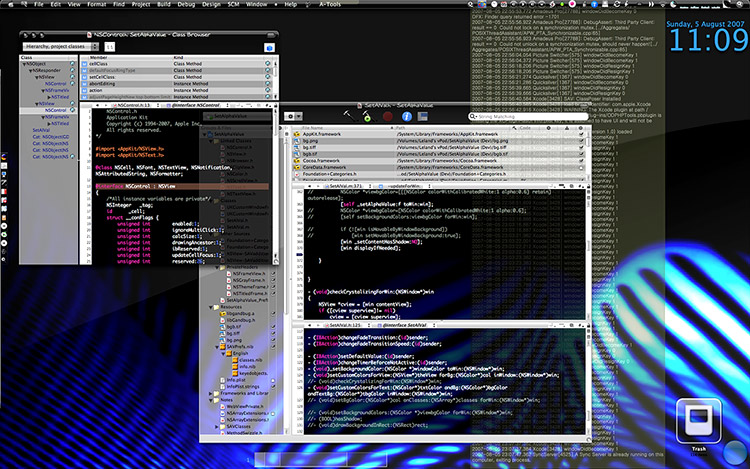
Fortunately, my little experiment in alpha transparency didn’t end there. The SetAlphaValue software that’s been a key part of Crystal Clear’s magic from the beginning has led me on a merry (well, mostly merry) romp through Objective-C and Cocoa Land, the world of geeky wonder that lies behind each object on your Mac OS X desktop. With much open-source Cocoa software code, two excellent books, and the rich universe of web Cocoa resources in hand, I’ve been slowly absorbing the syntax and grammar of Objective-C, the programming language of choice for Cocoa application development. As I got deeper into the “messaging” framework that’s a key part of Cocoa, I realized I could hack SetAlphaValue to do much more than just adjust window transparency.
So, I’ve been experimenting with doing just that. The new version of Crystal Clear isn’t quite ready for release, but I thought I’d publish a few screenshots to see if anyone but me finds this sort of thing irresistable.
TextEdit
Font Panel
Color Panel
Table Panel

iCal
Address Book
Calculator

Amadeus Pro

Xcode
System Preferences
Help Viewer
Character Palette

The new version of Crystal Clear will add these features to the current one:
- Semitransparent text fields
- Semitransparent background color for text composition windows, such as the one in TextEdit
- Nearly transparent window backgrounds
- Semitransparent backgrounds in scrolling lists and table views
- Addition of an “opacity” slider to the Color Panel, so you can use transparent background colors of your choosing in any Cocoa editor, including Xcode and Coda, that do not natively support this. I’m also enjoying using it in nifty little utilities like MemoryStick , which you can see at the bottom of all of the screenshot windows.
- A new, tiny application that adds the Crystal Menubar to your desktop.
- Another tiny app that adds a transparent “gloss” to your desktop.
- Reworking of numerous button and other graphics in the Crystal Clear theme to account for newly transparent backgrounds.
- A workaround for Safari 3.0 that works right with a couple of annoying exceptions.
I’m hoping to finish testing and have something available to release by early September… sooner if all goes well!
Since more transparency in your windows gives you even more reason to eliminate window and desktop clutter, I plan to get that key article on Single Application Mode (SAM) out the door between now and then. If SetAlphaValue worked in all of your apps, SAM wouldn’t be absolutely necessary, but since it doesn’t work in Carbon apps (such as Finder, Microsoft [whatever], Adobe [whatever], iTunes, and many others), I find using SAM essential to making transparent windows usable on Mac OS X. Not that SAM is hard or in any way painful, but it’s definitely something that’ll be new to many Mac users. Sadly, I’ve found that many humans equate “new” with “bad,” even if “new” is clearly “good.”
Of course, if you don’t have beautiful desktop pictures, there’s really no point in having transparent windows. After all, what else is there to “see through” in an application window if you don’t care to see your other windows or desktop-icon clutter? To that end, the new Crystal Clear will ship with a variety of new background pix that I’ve found enjoyable. In the interest of celebrating “gloss” generally, this collection of background pictures shares that theme.
The preview images above have three desktop pictures of my own devising—the first, fourth, and fifth. The second is a simple glossy pic that was aptly named ” YAGW” (yet another glossy wallpaper) by its maker, an artist from Portugal nicknamed Greven. The third is a design called Pastel Dreams by the Almighty Bazaa, to which, with her permission, I added a bit of gloss. Every time I visit a site like Deviant Art, I come away with an armload of great desktop pictures, which I’ve found are just a whole lot more interesting to look at than opaque white and grey, the staples of traditional software windows. Now, with Crystal Clear, I can enjoy my desktop pix and still get all my computing done!
High-Res Screenshots from my deviantArt site
 |
 |
 |
| Screenshot #1: System Preferences |
Screenshot #2: Amadeus Pro |
Screenshot #3: Xcode |
 |
 |
|
| Screenshot #4: TextEdit |
Screenshot #5: iCal |
Website Button Maker: Custom Badges in the Classic Style
New Framework Enables SVG Drawings Using Prototype
ZeusDraw: New Mac Vector Drawing/Painting Tool Debuts
 Originally downloaded March 24, 2007. I have to say I'm very impressed simply by the number and quality of the QuickTime demos of ZeusDraw on this company's website. Chromaticbytes has two products now, ZeusDraw and Shades, which is a cool ColorPicker that I believe is included in ZeusDraw. This looks like a very easy to learn vector drawing/painting tool with powerful tools for managing drawn objects "live." Among the coolest features is ZeusDraw's live gradiant editor, but its ability to edit paths and brushes is also the best I've seen. At $90, ZeusDraw requires a bit of a commitment, but you can download a 30-day unrestricted demo to try it out. I hope the product is half as good as the demo videos lead one to believe!
Version as tested: 1.1.
iScreensaver Designer: A Tool for Making Cross-Platform Screensavers
 Originally downloaded March 24, 2007. I simply have to try this one, given what a sucker I am for cool screensavers. Lately, I've been happy just filling up my screensaver folder with Quartz Compositions, but there are still an enormous number of OpenGL savers and others that are worth having. The fact that you can make screensavers for Windows too isn't a selling point to me... it's the tool's supposed ability to convert savers to QuickTime and Flash that's of interest. iScreensaver Designer has a price scale depending on who you are, including a personal license for only $29.
Version as tested: 3.5.
New Wiki Consolidates Quartz Composer Info
Blender: Open Source 3D Modeling, Animation
 Originally downloaded 12/23/05.Woah! This looks like an incredible open-source tool for 3d modeling, drawing, animation, and more… and it’s available across all platforms! Definitely worth a look-see… great resources for learning and samples as well. A lot of users on MacUpdate complain of bugs and slowness, but for zero dollars it may be perfect for amateur 3D-animator wannabes.
Update 2/21/07. Nope! Sorry, Blender’s just too difficult for me to get my head around. Over the course of more than a year, I’ve opened successive versions of Blender and spent up to an hour with it. In one session, I coaxed an interesting 3D image of my wife’s name, but wow it took forever. When I opened the brand new release tonight, and Blender opened up taking over my entire 23″ Cinema Display, every square inch of trim consumed by tiny, unaliased type and Windows-looking buttons, I promptly got completely lost yet again. The Blender interface has some very cool features, but man, is it inscrutible to the uninitiated! So many of the GUI metaphors come from the Windows world, too, like… Blender doesn’t use the Mac system menubar at all… instead, it clutters up some of your screen real estate with… repetitive functions that all do absolutely nothing. It’s like there’s a secret handshake I haven’t learned yet.
I selected “Text” from one of the GUI widgets that looked important, and then expected to be able to start typing… but, no! I couldn’t find any piece of Blender that would accept text. Then I tried to find the project I was working on before (which Blender couldn’t find either), and wandered into Blender’s file system browser. Ugh! Please don’t make me go there ever again! Not only did it remind me of the worst days of Windows 3.1, but I couldn’t figure out how to make it go away. And the file browser took up the entire middle section of Blender!
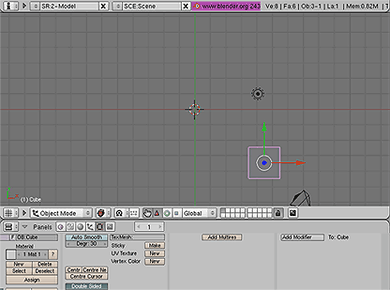
Blender is a very cool project, and I wish them nothing but the best. But guys, you gotta get a Mac person on your team when the group starts debating how to organize the user interface functions. Whoever did this clearly never had any professional training in GUI design, nor do they have any inherent aptitude for the job. Fortunately for me, there are several other 3D drawing/animation packages that are free or very low cost that are still on my tryout list. Hopefully one of em:them will make some sense to me without requiring me to sign up for training.
Update 7/16/06 Downloaded version 2.43.
The Best Cocoa UI components (Aaron’s UI Design Blog)
ImagePlay: Freeware Interactively Adds Layered Effects
 Originally downloaded January 30, 2007. Here's a neat little application that I can't believe is actually free! Not only that, it's open source (RealBasic, but hey... it lets the author make Mac and Windows versions from the same source)! I've been playing around with it for the last few minutes... it's quite addictive! It's in the same class as the CoreImage apps that have been released with the advent of Tiger (ImageTricks, QuickEffect, Chocoflop, LiveQuartz...), but actually the interface and functionality is more immediately useful in some ways. I'll play around with it some more before saying for sure, but this one looks like a no-brainer to have around as a Photoshop supplement. (Among its other virtues, it will even export to Photoshop, has great JPG and PNG export tools, and can build QuickTime movies by layering content and images.)
Version as tested: 0.1.6.
Kinemac: What Apple’s Motion Should Have Been?
 Originally downloaded 1/9/07. Kinemac released a new version of their animation software today, and after looking through the gallery of movies they've got posted I decided it simply had to be tried. Even though $250 is a lot of change for any piece of software, it's not as outrageous as some other 3D tools I've seen. If Kinemac has actually mastered ease-of-use for this category, I'll gladly pay that price. I earlier purchased Apple's Motion software, but frankly never found it that easy to use.
Version as tested: 1.5.
Cheetah3D: An All-in-One 3D Modeling and Animation Tool for Mac OS X
 Originally downloaded 1/3/07. I never realized how many choices you've got for 3D modeling and animation on Mac OS X... one of these days, I'm actually going to spend some time with one of these. Actually, what I mean to say is that one of these days I'm going to find a 3D application that's actually easy to use, while powerful enough to do really interesting things. Of course, if it were em:really easy, everyone will be making stupid little 3D animations, won't they? I really loved working with Groboto, which I discovered recently, but of course it's primarily a morphing tool for fantasy-style renderings. Cheetah and some others have more practical uses if you can learn to use them well. Anyway, I look forward to taking Cheetah3D for a spin! At $99, it's pretty reasonably priced in this category.
Version as tested: 3.6.
Art Text: Easy Text Effects
 Originally downloaded 12/25/06. My son was asking me just the other day what software he could use for "3D text effects", and realized I don't really have any. We have Motion, but I couldn't find my serial number (very lame, I know). I finally showed him what he could do with ComicLife, and that might be all he needs. But this new tool from BeLight Software looks like it might be more what he needs. I only wish it were a bit less than $30.
Version as tested: 1.0.2.
Groboto: Pure 3D Creativity!
 Originally downloaded 12/14/06. This software won me over in less than half an hour. Totally unique and addictive for creative personality types. With Groboto, you use prebuilt or self-made "bots" that you can easily morph into infinite---and infinitely enjoyable---ways. Groboto supplies high quality, professional textures that themselves are thoroughly customizable, as well as full control over lighting and environment variables. The interface itself is beautiful as well as reasonably intuitive, given the amount of power put in front of you. This is by far the easiest 3D software I've yet tried, usable right off the bat.
Groboto comes with numerous example files and excellent tutorials. The website likewise has movies and images of Groboto output to give you an idea of what you can do. The Groboto creations look a great deal like something Tim Burton would have dreamed up for one of his more bizarre animated movies (such as Nightmare before Christmas).
Besides high-resolution images, Groboto can output animated movies of your creations in a variety of formats, including QuickTime. The software itself has animation controls that you can tweak when preparing your morphs, and you can see live previews as you build. One of the most amazing aspects is the endless control you have over the characteristics of your "bots"---everything from color, texture, lighting, width, shape, and much more.
If you're a creative type who just love to make beautiful things, you should check this one out. Among the uses I plan for Groboto is making QuickTime movies for use as screensavers or to run on my desktop. The software can output animations at a resolution up to 1920x1200, though the demo is restricted to an output width of 400 pixels.
To see screenshots of the user interface, check out the screenshots section of the Groboto site galleries. Sample Groboto movies are in the Movies section.
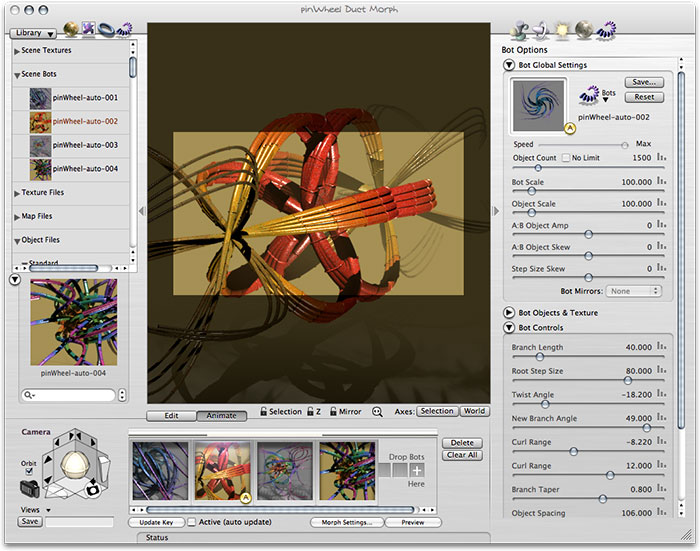
Groboto is available for both Mac OS X and Windows at $79 for a single user.
Version as tested: 2.0.3.
QuickEffect: A New Freeware Core Image Effects Tool
 Originally downloaded 12/7/06. CoreEffect is a free tool that lets you apply CoreImage filters "with a single click." Yes, there are several other freeware tools that do this, too, but where freeware and CoreImage are concerned, I say, "the more, the merrier!" Besides, this developer has some other cool-looking apps on the table, so my hopes are high.
Version as tested: 1.0.0.
DrawIt: Cool New Drawing Program for Mac in Beta Test
 Originally downloaded 12/7/06. Wow, this looks like a really cool new drawing package... I leverages CoreImage (more than 40 filters), masks, and templates in addition to the usual freehand and bezier drawing tools. The developer describes it as being "in the style of the iWork applications." It's still in beta testing, but the price (about $30) seems reasonable. Definitely want to try this out!
Version as tested: 0.2.1.


