



News Posts With Tag Research reports
Googalyzer: Open Source Search Browser Has Great Potential
 Originally downloaded May 3, 2007. I ran across Googalyzer the other day and fired it up briefly this evening. Though it wanted to crash on me a bit, I got a peek at what's developing into a damn good web browser based on WebKit. Googalyzer is a bit like Charlotte in that regard, though it's more specialized, relying almost exclusively on Google knowledge banks, whereas Charlotte ⤴has a more broad-based vision. Googalyzer has a lot more features though, and you won't know it right away, cause they're mostly hidden.
  Take a look at the screenshots on the Googalyzer website if you don't want to just start tinkering with the interface... From those you'll see that Googalyzer has a hidden pane on the left that can be opened, which is used for a list of your research "projects." Then pull up the little doohickey on the bottom window bar and you'll find a wealth of functions I haven't had a chance to try yet:
 - A full Cocoa editor, complete with toolbar, tables, fonts, etc.
- A Bibliography... where you can store your sources, I presume, and a
- Outline viewer... I believe this is where you develop an outline for your research.
Besides those cool toys, Googalyzer lets you take "Web Clips", though I haven't figured out how yet... It's a small window that's where you'd store clips of text and images from the sites you visit. Googalyzer is a real, honest-to-God web browser, too, with bookmarks, history, tabs, and more. It even has a full screen interface. Now, if I can get it to run for more than 10 or 15 minutes, I look forward to seeing what else it's capable of! If it actually proves stable, I'm beginning to think Googalyzer's developers are extending the vision that a tool like Webstractor ⤴started some time back. Disappointingly, though, Webstractor hasn't been enhanced in over a year now, and the developers don't seem responsive to inquiries.
Version as tested: 3.0 b1
Update 8/12/12 Software is no longer available. Obsolete.
More Research Suggests Banning PowerPoint-Style Slides
Even well-meaning, intelligent colleagues of mine who have nothing but disdain for PowerPoint still dutifully prepare their bullet points in PowerPoint whenever giving a presentation. Me, my first act was to just use HTML and a web browser. This was back in the mid-1990's, and I used nothing but HTML (including dynamic HTML, Netscape-style) until Apple released Keynote a few years back. Since then, I've been using Keynote and QuickTime movies.
So it's gratifying to see yet another study pointing out that PowerPoint slides are not only a lazy way to give presentations, they're bad for your audience. Nothing could be more boring (or laughable, if you're from Mars) than watching somebody read along with the bullet points on the screen, trying to make it seem as if they aren't just reading them. Meanwhile, the audience sits with its eyes glued to their printouts, which have the exact same information in the exact same form. No wonder so many people fall asleep in meetings!
I wholeheartedly concur with author John Sweller's conclusions, and hope whoever reads this or any other missives on the subject will step back and think about doing something different next time you step up to a podium:
"The use of the PowerPoint presentation has been a disaster... It should be ditched."
Seriously, if you're a Mac user, get Keynote. It's not just hyperbole to say Keynote is everything PowerPoint should have been. Get one or two of the amazing templates that are available from Apple or third parties, and you'll rediscover the joy of making a truly great presentation slideshow again. Save the bullets for your note cards... use the presentation to show the audience something that actually illuminates what you're trying to say. If you don't believe me or Posen, get a copy of Tufte's books on the subject. Or read the new study by researchers at the University of New South Wales.
MacEnterprise.org: Support Mac OS X Deployment in Business
 I first wandered into this website through a back door that appeared to have closed in October 2004: MacOSXLabs.Org, the original project the led to MacEnterprise.org. I was excited and relieved to see that the rich archive of resources, tools, scripts, tips, and tricks about administering Mac OS X not only lives on in its new home, but appears to be thriving! This is a great place to stop by to do some research on issues that arise for anyone doing system administration on Mac OS X, but particularly useful if you have a fleet of them to worry about.
Rendertests: Lots of useful browser testing here
Webstractor: The Ultimate Web KM Tool?
Webstractor: Capture, Update, Search, Edit, Organize, Assemble Web Content
 Originally downloaded 3/14/06. I was impressed with SoftChaos’ Yoink widget, and meant to try Webstractor at some point. $80 seems like a lot, but if it actually improves on my other ways of saving and accessing web content, it might be worth it. A new release today is an opportunity to add it to my evaluation list.
Update 8/17/06 The first few times I tried Webstractor, I thought it was quite cool and an impressive bit of software engineering. But I didn’t think I’d have much use for it… at least, not enough to pay money to keep it around.
The last few weeks has begun to change my mind on this relatively expensive tool. And it really has nothing to do with doing research so much as a very old fashioned function: Making printouts of just the content I want, and printing articles with the least amount of ink and paper possible. Sounds like a hard way to justify $80, but that’s only because without a license, I can use Webstractor for trimming web pages down and rearranging their contents, but I can’t save my resulting edits.
I still haven’t completely decided to fork over money for a license, but I’m getting close. Besides the mundane, but pretty cool, task of editing web pages down to the essentials, Webstractor will obviously shine at its primary purpose: Letting me browse the web, saving clippings into one mass document that can be easily edited down later, as you would in a word processor.
Other research/knowledge management tools let you get close to this, but nothing quite like Webstractor. (I wonder if there’s an equivalent for Windows?) Its highest calling is probably its “radar” system, which lets you set up “watches” on various bits of web content. Radar will either alert you when a piece of data you’ve used has been updated, or will simply replace the page you were watching with a new version.
Also, Webstractor is somewhat unique in that it maintains your long clipped document in a form that can be easily exported to PDF and shared. In fact, it was this latter function that first made me realize that Webstractor could do one simple thing with web content that no other Personal Information/Knowledge Management tool can. (In this category, I tried the following applications that I either own or am in the process of evaluating: BBEdit, DevonThink Pro, DayLite, EasyNote X, iData 2, Soho Notes, JournalX, Journler, KIT, Mail, Sticky Notes, PadsX, PrintSelection, Quicksilver, ScrapIt Pro X, TAO, TextEdit, TextExpander, Tofu, VoodooPad, Xnippets, Yojimbo, Ecto, iSticky.)
So, what is this mysterious “thing”? As I said, it’s quite simple. What I like to do with web pages that have a lot of junk on them (you know what I mean), or that use a page layout that results in a printout with a huge amount of wasted white space (because the column’s so narrow), is use the PrintSelection application service to print just the part of the page I want. (I’m embarrassed to say that in Windows, this is a native function of the print dialogue box. But at least the great and kind developer Manfred Schubert, who also created that great PDF browser plugin for Safari long before Apple did, thought of it and made a great app service for us to use.) One of the cool things about PrintSelection is that after you invoke it, you get a nice preview of what you’re about to print. The problem print job I could only solve with WebStractor was a WordPress blog and its Comments addendum. Most any WordPress blog article will do, but the case in point was this one: http://alexander.kirk.at/2006/08/09/javascript-tricks-and-good-programming-style/
I had already printed the article and then decided to print the comments as well. So, I selected them and did my usual PrintSelection keyboard shortcut. Then I remembered: The WordPress code for some reason doesn’t print the way the HTML looks. You get a spurious ordered list numbering thing going throughout the comments, with each paragraph in the selection getting its own number and otherwise being treated as an
element. When I print the document normally, it looks fine, but when I extract the selection and try printing it separately… or when I paste it to any other Mac OS X application, I get something that looks like this:
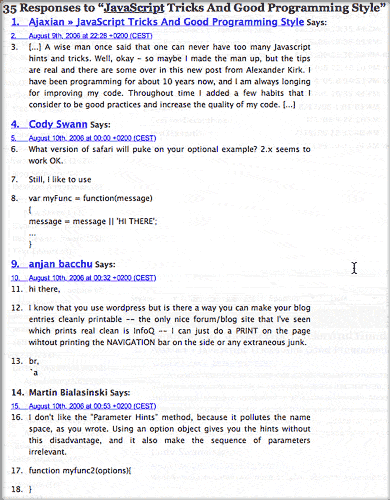
I methodically tried using the web service (or just cut and paste) provided by the entire list of applications I mentioned earlier, and none of them could keep from garbling the code like this. I’m sure it has something to do with a bug in the RTF conversion algorithms Apple has built into the Mac OS X text system, but I couldn’t just wait for Apple to fix it! So then I thought again of Webstractor.
In Webstractor, you just load up the URL you want and then start snipping. Since you’re still viewing HTML when you do this, the comments section looks fine right until you’re ready to print. And that, apparently, is what makes the difference. Because after I trim it down and print, I’m still printing an HTML document, rather than an RTF file that has been converted from HTML. And the HTML segment prints just fine. Webstractor further lets me eliminate table layout problems and backgrounds that make the page look funny.
Later, I’ll be posting a screencast of the editing process for this file here. In the meantime, here’s a list of Webstractor’s feature set as SoftChaos, the developer, describes it:
- Capture as your browse
- Webstractor makes an automatic copy of every page you visit which is then available offline.
- Update your research automatically
- Know when important web pages change. After capturing web pages, Webstractor will periodically check to see which captures have become out-of-date. Using Radar, Webstractor can also automatically capture to your document a new instance of a web page whenever it changes.
- Search content accurately
- Webstractor lets you search for multiple words as a phrase or as independent keywords. If it’s mentioned on any page you’ve captured, it’s just a click away. If you’re a Tiger user, Spotlight also sees into your Webstractor documents.
- Edit the content you need
- Webstractor can organize and give structure to fragmented information you find on the web. Just use the familiar word processing tools to add, remove, highlight, and edit content to suit your needs.
- Organize and retrieve your findings
- Are your bookmark folders becoming large and unwieldy? Get thumbnail previews and keep unique Webstractor documents for each topic. Keep and organize your captured pages in topical documents and easily navigate between the pages using thumbnail previews.
- Assemble everything seamlessly
- Collate information from multiple web pages, add your own content, and create a table of contents and bibliography. (As well as web pages, you can also drag and drop Word, RTF, and text files into your list of documents to collate.) Collate your edited pages in a single document for one seamless information flow.
- Collaborate. Print and share
- Share more than just URLs. With Webstractor you can print or share a document electronically via PDF, but if your recipient has Webstractor, you can distribute annotated text and original websites in a single document so others can extend your research. Change the way you pass on information from the internet.
I do feel like I’m getting close to “closing the deal” with this unique, innovative software, and I look forward to digging in to some of its more advanced features that I’ve been locked out of since the trial period lapsed. The only negative thing to pass along about Webstractor is that I have to force-quit the application every time I quit it. This may be a consequence of running the software in “preview” mode, but it certainly is predictable. Webstractor just won’t quit without being forced to.
One suggestion I have for the developers at this point (I likely will have others after using it more) is to make the edit selection mode toggle a bit easier to find. I’m sure there must be a reason why this seemingly important function is so well hidden, but it’s not obvious to me and is rather an annoyance. (I won’t attempt to explain here, but will point out that there are four different modes, each of which has a slightly different technique for letting you select parts of the web page with your input device: Marquee Hybrid, Marquee Touch, Marquee Enclose, and Layout Flow.) Even now that I know how to change the selection mode, I’d like it closer at hand. Any one (or multiple) of the following places I usually look would be helpful to place this control in the user interface: Contextual menu (top choice), Regular toolbar, Editing toolbar, Status bar, or Drawer.
Version as tested: 1.6
Web Style Guide: Basic Reference on Web Design Principles
SitePoint Tests Ajax Accessibility for Screenreaders
Mac OS X Solves 5 Architectural Flaws in Windows
CED Releases Major Report Calling for Open Standards, Open-Source Software for U.S.
LXer: A Brief History of Microsoft FUD
IT-Enquirer Summarizes a New Pfeiffer Research Report on Cost and Productivity, Mac versus Windows
Advanced Mac OS X Programming Topics and Tools
 This programmer has released a large number of interesting experiments, research results, and software in the course of exploring Mac OS X programming and the OS system architecture. So much I'm bookmarking this for a future visit! I found this since the author is the guy who wrote fslogger.


