



News Posts With Tag System Administration
Spark: Venerable Shortcut-Manager Freeware Gets A Rewrite
 Originally downloaded March 3, 2007. Spark is the second application in the "Shortcuts/Automation" category that I'm putting back on the evaluation list today. First, KeyCue had a major upgrade, and now Spark has been totally rewritten for its version 3.0, now in beta testing. Both of these tools had been tossed in my "rejects" pile for one reason or another in their prior lives, but these updates are giving them a new opportunity to impress me. In particular, I thought I'd love Spark... not only because it's free, but because it's received rave reviews from various sources, including MacWorld. I also love the icon!
Version as tested: 3.0 b2.
Update 9/6/12.
MainMenu: A Menu Extra for Simple System Administration Tasks
 Originally downloaded March 24, 2007. Looking for a free utility to keep in your menubar for those hard-to-remember-where-to-find sysadmin tasks on your Mac? MainMenu may be just the thing! I had downloaded an earlier version and apparently liked it well enough to put it in my Applications folder, but I can't say that I've ever used it much. I'm downloading the new version to see what the latest MainMenu can do.
Version as tested: 1.7.2.
Update 9/5/12.
PlistEdit Pro: Enlist A Pro To Tackle Your Plist Files
PlistEdit Pro Shareware Opens Up pList Files
 Originally downloaded 3/16/06. Apple’s free plist editor is fine for most things, but the files remain a bit cryptic. I’m curious to see if this $25 shareware tool makes it any easier to figure out what preferences there are to be set, not just which ones have been set.
Update 10/17/06. The answer to my earlier question is “Yes,” if what I meant was “which ones have been set” by the application’s GUI Preferences settings. PlistEdit Pro is probably my favorite application for editing and working with application preferences, though it’s taking second place in my toolbox to PrefSetter, since the latter is free and does most of what PlistEdit Pro does for $25. That’s the price of freeware nowadays… possibly pissing a lot of talented developers off. But PrefSetter isn’t the only decent freeware .plist editor out there. Not counting Apple’s, which I mentioned before, there’s also a good one from the developers of TinkerTool. It’s a bit different, but still useful, tool called PrefEdit. So, as good as it is, PlistEdit Pro’s price would have to be at least 50% lower to entice me to buy.
Update 3/30/07. Hold on a minute. I just discovered one or two things PlistEdit Pro can do that just might justify its somewhat high price tag, so I’m putting it back in the evaluation queue for awhile. The one function that was a requirement tonight is the abiliity to search and replace multiple values in a .plist file, something the free tools can’t do. In confirming this, I discovered a host of other very cool features. Clearly, most people can make do fine with PrefSetter, but PlistEdit Pro may just be necessary once your needs get a little beyond the basics.
Update 7/8/07. I actually bought a license for this great software back in May, but I’m way behind in updating the software inventory on Mars.  As a devoted and very happy user of the free tool PrefSetter, I was delighted to find that PlistEdit Pro has some significant enhancements that I’ve found truly unique and useful.
I bought PlistEdit Pro after repeated occasions when this handy utility performed tasks that nothing else in my toolbox could touch, though I still think $25 is a bit steep for a plist editor. Nevertheless, PlistEdit Pro has so many powerful, pro-level features that it’s a must-have for anyone who needs or wants to poke around in their application’s plist files. Here’s just one example of PlistEdit Pro’s killer features: You can search not only across your system for plists by filename, but you can search for plists with keywords in their contents. But that’s not all! You can even restrict the results to only hits where your keyword is in the file’s key fields, or in its value fields.
My notes of the software’s pros and cons follow:
|
Pros |
Cons |
|---|---|
|
|
Version as tested: 1.3.
Launchd Editor: A Pale Subset of Lingon’s Powers Over Launchd
Launchd Editor: An easy way to create and edit Launchd property list files
 Originally downloaded January 31, 2007. Soon after launchd was introduced in Tiger, I discovered Peter Borg’s free, open-source Lingontool and have used it ever since. Lingon is a marvel at exposing the power of Apple’s new Unix command, which can replace cron and startup items as a way of scheduling and managing processes and servers on your Mac. I seem to recall reading about this $5 editor from CodePoetry but dismissing it since I was so happy with Lingon. That said, I’m now curious to see if I could be tempted to part with $5… that is, whether Launchd Editor provides $5 worth of added value beyond what I get with Lingon. So, down it comes to my hard drive!
Update 4/6/07. Well, I’m back… and after trying Launchd Editor, I’ll say right away that I’m not a happy camper. What’s put me in a foul mood? It’s software like Launchd Editor, which is less than half as useful as the free, open source Lingon, and yet has a developer who expects people to pay for it! There are many Mac users who are afflicted with the common human delusion that because one software app has a price tag, it must be better than one that does not. When it comes to software, this just isn’t so. Always look for high quality freeware, or at least donationware, because in so many product categories, you’ll find that’s where the best is. Why? It’s because guys who design high-quality freeware are doing it for the sheer joy of creating something useful, not to make a buck. Guys who put together a lame product like Launchd Editor and ask $5 for it are just looking to make a buck on something they’ve put very little effort into. It’s a shame, and I do hope readers of this site will head in the right direction when the time comes to begin using Launchd effectively.
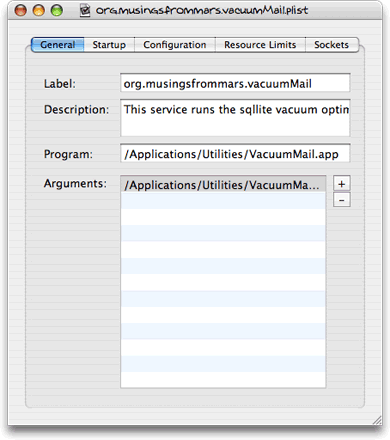
All Launchd Editor does is walk you through filling in the fields and optional tags and attributes of the Launchd XML file format. It does so with the minimum possible user interface style (that is, none). Heck, its author didn’t even bother to make an icon for his shareware. You can open existing launchd .plist files and edit them, or make new ones, but that’s it. In the process, Launchd Editor provides no help whatsoever… no Help file, no inline help, no external links to information on launchd.
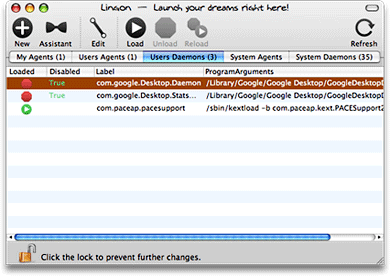
Again, this might seem like a lot if you had never seen Lingon, but once you have, you’re going to hope users of MacUpdate, VersionTracker, and Google don’t go astray merely out of ignorance. This isn’t a review of Lingon, but here’s a short list of the things Lingon does elegantly that go way beyond Launchd Editor:
- Provides an “Assistant” to walk you through making your first Launchd agent. The assistant asks you the essential questions and doesn’t confuse you with all the complicated options, which is great for first-timers.
- Gives you access to all of the Launch agents and daemons on your entire system, and you can open and view them to the extent you have the appropriate privileges. This means all I had to do was open Lingon and select “Users Daemons” (which required authentication) to discover that Google Desktop had installed two separate Launch Daemons to support itself.
- Gives you a friendly interface for starting, stopping, and loading/reloading any given agent or daemon.
- Provides an advanced view of the pure XML code itself, which you can edit by hand if you’re so inclined.
- Provides useful inline explanations of each field a you go. In addition, this freeware provides a useful Help file that the for-fee software does not. Finally, Lingon’s Help menu even includes handy links to the launchd and launchctl man pages.
- Lingon also includes a full-service set of menus that enable keyboard shortcuts for most items, and it even provides a Preferences window that lets you select options like the fonts you’d like to use and the external editor you prefer.
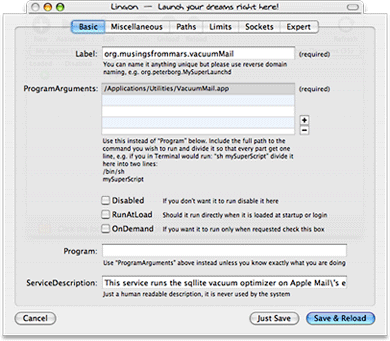
Now, you know that the developer of Launchd Editor is aware of Lingon… right? How do you suppose he justifies charging for software that he knows is inferior to another product users can get for free? He’s counting on the web being a big place, and he knows a lot of people looking for a launchd editor will find his site before they discover Lingon. Does that make it right? Not on Mars, it doesn’t.
Anyway, forget you ever heard of Launchd Editor… Go grab a copy of Lingon if you want to begin harnessing the awesome power of launchd on your Mac! It’s the best launchd editor I’m aware of at any price.
Version as tested: 1.0.1.
FlashMount: Save Time Loading Disk Images on Mac OS X
FlashMount Makes Disk Loading Faster on Mac OS X
 Originally downloaded March 4, 2006. Not that disk loading is slow, mind you… but faster is usually better. There are a couple of caveats, which is why I’m trying this out before recommending it. Free is also good.
Update: I installed the software and changed my .dmg files to use it by default when called. Unfortunately, it turned out that FlashMount couldn’t handle .dmg files that require a license approval before being mounted. It took me a while to figure out what the problem was, because the symptom was just inaction when I tried to mount some .dmg files. This kind of software certainly doesn’t save you any time if you have to open Get Info and change handlers back and forth, or use the “Open with” contextual menu. So, I removed FlashMount and went back to Apple’s default DiskImage Mounter tool.
Version as tested: 1.5.
Update 2/14/07. Just goes to show you that it pays to keep an open mind and “never say never.” Recently I started seeing quirky behavior in Mounty, the free tool that does the same trick as FlashMount. I had recommended Mounty last fall after finding that it worked great and avoided the problem I had originally noted in FlashMount (see above). So, I thought I’d head back to the FlashMount developer and see if he had any updates… and sure enough, he did… two in fact! By version 1.5.2, FlashMount not only avoids the “EULA screen” problem it had originally, it does Mounty one better by simply accepting the EULA for you! Of course, you need to understand what it’s doing, but basically it just saves you a click (I mean, who reads EULA’s, anyway? unless they’re from Microsoft…) In my quick testing tonight, FlashMount worked great. I followed the readme file’s suggestion and turned FlashMount into a background application. This lets FlashMount do its thing without yanking you out of the Finder. More later after I’ve run with it for a few days…
Update 4/6/07. Yes, indeed! FlashMount works flawlessly in the latest version, handling the EULA interrupt screen flawlessly. I highly recommend this freeware if you want to shave a few seconds off the time it takes to load disk images on your Mac.
Version as tested: 1.5.2.
iRepair: Simple Freeware Utility Tries To Manage File/Folder Permissions
iRepair: Mac OS X freeware for setting/fixing permissions on files and folders
 Originally downloaded March 27, 2006. Not sure what this can do that I can’t do with the Get Info screen, but it’s worthwhle taking a peek to see!
Update 4/2/07. As it turns out, there’s not much to see here. This is another piece of software that was created and then abandoned… but at least it’s freeware! If iRepair could do what it claimed, it could possibly provide some value added over the Finder’s native tool, because sometimes you’d like to apply permission settings to an entire folder and all of its files and subfolders, but Finder doesn’t give you the option. iRepair does.
p:Unfortunately, though it has a nice interface for doing it, iRepair doesn’t work as advertised. In half a dozen trials today, I got iRepair to work only once. I tried to discern a pattern to the one success, but found none. It’s possible that iRepair works on file systems that have a more traditional setup… in other words, ones that don’t utilize symbolic links where actual folders usually are. But that’s no excuse… it’s easy enough to get Mac apps to follow symbolic links, if you know it’s a requirement. iRepair probably just didn’t go through much user testing. However, my idea that symbolic links may be tripping it up is pure speculation… I haven’t had the time to test the theory. If anyone does and would like to send in test data, I’ll be happy to amend this. If the developer reads this review, I also invite you to let me know if you revise the software, and I’ll test it again sometime.
Version as tested: 1.0.5.
IFreeMem: Simple Tool To Free Up Inactive Memory
IFreeMem: The Memory Optimizer for Mac OS X
 Originally downloaded March 7, 2007. Ahhh… now here’s a little tool that claims to do what I’ve often wondered was possible… I use a great piece of freeware called MemoryStick, which keeps track of how much of my RAM is being actively used, how much is inactively used, how much is hard-wired used, and how much is freely available. Quite often, I have as much “inactive” memory in play as I do “active” and “wired” memory combined. Is it possible to free up some of that inactive RAM, short of closing some applications down? Usually, the inactive RAM is waiting around for some inactive application to use it again, so I’ve always thought it might be dangerous to play with it. If I read iFreeMem’s writeup correctly, it proposes to play with that inactive RAM somehow. Obviously, I won’t spend $8 if it doesn’t work, but it’s definitely worth a try! (Carefully.)
Update 3/25/07. You know, this little utility actually works… and more than that, it’s actually useful! Even though my PowerMac has 4Gb of RAM, I am surprised at how often I’m running out of memory… at least, out of free memory. So I put iFreeMem to the test and ran it several times over the course of the 15-day trial. I was so impressed after the first test that I almost went ahead and paid my $8 right then and there. Instead, I was curious to see how repeatable iFreeMem’s stunning feat of memory freedom would prove to be.
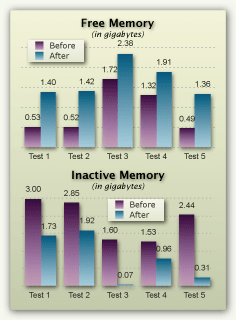
The results are summarized in the accompanying chart, which shows “before” and “after” data for five tests, focusing on the two components of RAM I was most interested in—Free RAM and Inactive RAM. As you can see, although some tests freed up more free memory than others, in each case I gained a significant amount of free RAM—averaging 900Mb. The change in inactive RAM was also quite variable, but even more dramatic: On average I gained 1.25Gb of RAM after running iFreeMem!
In each case, there would be roughly the same amount of “wired” RAM afterwards and a significant pickup in “active” RAM, which on average climbed 400Mb. Put it all together, and each run of iFreeMem gave me a huge boost in RAM “overhead,” so I could continue working without needing to restart, which in the past was the only way to really bring these figures down dramatically. (I’ve found that logging out and back in isn’t nearly as effective, unfortunately.) Note that the screenshots from which the test data is taken were made immediately before running iFreeMem and immediately afterwards. While iFreeMem was running, I didn’t open or close any application or document on my Mac.
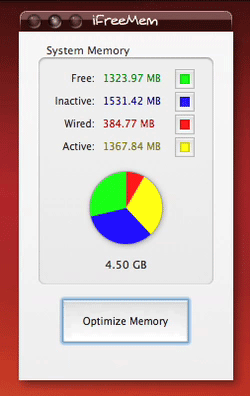

iFreeMem takes about a minute to run, during which it gobbles up all your free and inactive RAM, which can be a bit disconcerting the first time you do it. Shortly, though, the iFreeMem pie charts shift, and suddenly you’re lookin’ good again! The small QuickTime movie I’ve added to the article is speeded up, but gives you a good idea of how iFreeMem looks when it’s doing its thing.
This software has several other tricks besides this one, and the author is very careful to explain the minuses as well as the pluses to this memory “defrag” process. All I can say is, if you have 8 bucks and a need to stretch your RAM time, go get yourself a copy of this little miracle. So far, I’ve seen nothing in the course of 3 weeks or so using it that is in the least bit alarming. (I do always close large open documents and applications like iPhoto that keep your work in memory first, just in case.)
|
Pros |
Cons |
|---|---|
|
|
Version as tested: 1.1.1.
Bash Reference Manual
SMARTReporter: Keeps An Eye on Your Hard Drives
SMARTReporter will warn you of impending hard drive failures
 Originally downloaded 4/27/06.This freeware app polls your hard disks using the Self-Monitory Analysis and Reporting Technology (SMART), which is supposed to act as an early warning system of drive failures. This was recommended by Macworld, and it’s got a nice, configurable menubar icon if you want a constant reminder. The software is supposed to send you an email (which you configure) if a “red” signal is received. I’m going to try this out for a few weeks before adopting it permanently.
Update 3/14/07. Well, I meant to move this to the “recommended” list long ago… it’s become a permanent fixture in my menubar and has caused no trouble at all in the many months since I first downloaded it. The software continues to be improved, and there was another upgrade last month. If you want the assurance of a constant presence in your menubar that everything with your hard disks is A-OK, you can’t do better than this. The list of possible ways to customize its behavior keeps growing, but the bottom line is you can specify which disks you want it to monitor and how often, and there are also several ways you can be alerted to trouble, should it occur: Popup message, Email, or launch an application.
Version as tested: 2.2.5.
MacEnterprise.org: Support Mac OS X Deployment in Business
 I first wandered into this website through a back door that appeared to have closed in October 2004: MacOSXLabs.Org, the original project the led to MacEnterprise.org. I was excited and relieved to see that the rich archive of resources, tools, scripts, tips, and tricks about administering Mac OS X not only lives on in its new home, but appears to be thriving! This is a great place to stop by to do some research on issues that arise for anyone doing system administration on Mac OS X, but particularly useful if you have a fleet of them to worry about.
DasBoot: Freeware Utility To Turn An Old iPod Into Bootable Mac First-Aid Tool
 Originally downloaded March 3, 2007. The design of this website is so, um, PC-like that I hesitate to even download one of their products. However, the concept behind DasBoot is one that's intrigued me lately. Micromat, the makers of TechTool Pro and other hits, have come out with a similar piece of software called Protogo , which is a software-only version of a hardware product they'd already started selling. But if DasBoot can do the important half of what Protogo does em:for free, I'm sold! I figure I definitely want to try DasBoot before shelling out $135 for Protogo... With DasBoot, you basically turn an old iPod into a bootable Mac, on which you can then install whatever diagnostic utilities you already own... like TechTool Pro, DiskWarrior, Drive Genius, and the like.
Version as tested: 1.0.2.
KeyCue: Your [Intrusive] Keyboard-Shortcuts Assistant
KeyCue - Find, remember, and learn menu shortcuts
 Originally downloaded 6/10/06. Another year, another new version of software like KeyCue. I had indeed tried version 1.1, but didn’t find it useful enough to pay $15 for. Now I see the software has been rewritten in Cocoa, and it includes missing features like support for MenuMaster shortcuts, Services shortcuts, and more. So… down it comes for another try. What fun! KeyCue works as an unobtrusive assistant that you pop up in a floating window when you’d like to know what shortcuts are available to you. It knows the system shortcuts as well as those specific to your application context. Dismiss the window easily when you’re done.
Update 9/2/06 Well, I’ve had KeyCue loading as one of my login items for 3 months now, and I’m sorry to say I haven’t felt anything for it but irritation. Being sad about being irritated seems strange, but it’s simply because KeyCue really wants to be a friend to my workflow. Unfortunately, he’s the kind of friend who comes around way too often, pestering me to play when I just don’t feel like it. And in all of these weeks, I haven’t felt the need to summon KeyCue to my aid, despite his persistent presence, reminding me that he wants to help. I increased the key-hold delay so KeyCue wouldn’t show up so often, but there are still times when I just lean on the Command key more than necessary while deep in thought. It’s at these moments that KeyCue arrives, distracting me from my current project and requiring attention. Unfortunately, there’s no option to simply summon KeyCue with a keyboard shortcut.
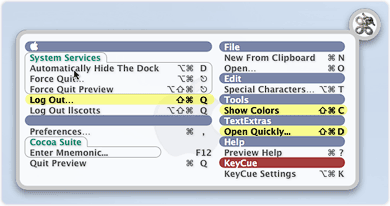
Then there’s the fact that when accidentally summoned, KeyCue just doesn’t improve my desktop’s ambiance in any meaningful way. In fact, the KeyCue window just looks overloaded and jumbled… fonts too big sometimes and too small another. Too many colors, too many styles—and I can’t figure out what each one represents. The design is just too “busy”, and the contrasts are too strong. Obviously, presenting all of this important information is a design challenge, but the current attempt falls short of the mark for me.
So, although KeyCue is ingenious, wants to please, and is chock-full of useful information, I have to put it away now.
Version as tested: 2.0.1
Update 3/3/07. Well, a new 3.0 version of KeyCue was recently released, and this is still a tool I’d dearly like to love, so I’m going to give it another shot. From the screenshot, it appears they’ve added some skinning capability to the tool, and hopefully addressed some of its earlier shortcomings as well.
Version as tested: 3.0.
Rudix: Great Collection of Popular Unix Apps for Mac OS X
BackityMac: Freeware Backup Software Good for Basic Tasks
BackityMac: Easily Back Up Your Home Folder… and More
 This sounds useful… I still haven’t settled on a backup strategy for my whole system. But I’d really like to be able to take my home setup with me to the office. Since I don’t have a laptop, that means synching in some way. I’ll see if this is easy and quick enough to do the trick. The freeware BackityMac also has some system optimization tasks in its bag of tricks.
Update 5/18/06. Finally getting around to trying this out today… a few updates have made the software even more useful, if it works as advertised. First, for $10 you can upgrade to a version that will let you backup to CD’s or DVD’s, and second, BackityMac now has a scheduling feature. At the moment, I’ve chosen the option (one checkbox) to backup my Home folder, and we’ll see how that goes… More later.
Update 2/19/07. Last year, I concluded that BackityMac wasn’t flexible enough for my rather idiosyncratic file system. BackityMac would be fine for a managed user who never strays from putting files neatly in the places Apple has provided. But if you’ve ever partioned your hard disk and put your user folder on another partition, or perhaps linked your Library folder somewhere from there, BackityMac will get confused real fast. Besides, I was more interested in a synchronization tool than simple backup, and that’s not something BackityMac can do. If I were to choose today between this and the newly updated Carbon Copy Cloner, that’s a no-brainer. CCC has years of experience doing this kind of thing and a lot more flexibility to customize the experience. Plus, it can make bootable CD’s for you for free, whereas BackityMac wants $10 for the privilege.
One more thing… The developer sells BackityMac partly on its ability to migrate your “home” data to another Mac. But surely Mac users know by now that you no longer need a third-party tool for this. Apple’s built-in Migration Assistant is one of the best things about using Mac OS X: You can very easily migrate data from one Mac to another. The only people who might need this capability are the few stuck with very old hardware that doesn’t have a FireWire cable.
Actually, there’s one more last thing… One of the reasons my interest in backup software waned last year is that Apple’s new operating system, Leopard, will incorporate a system called Time Machine that I’m betting will take care of backing up all of my home data–as well as any other stuff I want it to manage–quite nicely. Backup software developers are going to have to work real hard to draw users from Time Machine if it’s as good as everyone thinks it’ll be. However, Time Machine won’t do synchronization… that’ll still be a useful third-party function.
Version as tested: 1.3.6.
Yank: Uninstall Shouldn’t Be This Hard
 Originally downloaded July 19, 2006. I recently got around to trying out Yank, as I was also trying CleanApp and AppDelete. All of these try to do the same basic thing: Delete an application and all of its scattered pieces from the system. Mac apps are actually very tidy... especially compared with Windows. But some do install things like contextual menus and preference panes, and most install preferences files (.plist), application support files, cache files, and so on. Of the apps in this category, Yank is by far the most expensive, and in my opinion is the least user-friendly.
So, what's so unfriendly about Yank? Unlike the other comparable apps, in order to uninstall anything, you have to use Yank as the app's installer in the first place! When you do, Yank keeps track of everything that gets installed and creates a "yank" file. If you want to uninstall the app later, you drag the "yank" file to Yank's window. This process isn't easy or intuitive in the first place, but consider a new customer trying out Yank: The application opens up, and there's nothing you can do! In order to uninstall any app, you have to have a "yank" file. Ah, of course!
Now, I do like the attempt to be precise and comprehensive here, but seriously, this is way too much work. CleanApp has a more elegant solution: Start using CleanApp's background "watcher," and you'll have a comprehensive, accurate list of all apps you install from then on. Yank's concept is just way too complicated for what is a pretty simple problem.
For apps you have already installed, Yank's developer maintains a library of "yank" files, and you can download any of them that you like to uninstall your legacy apps. You can also share any "yank" files you make with that library. But you know what? The items in the library don't always identify which version of the application the yank file corresponds to, so how accurate are these going to be for em:your particular versions? Kind of misses accuracy points there, in my book. This means, if you can't trust the shared "yank" files, or if there simply isn't one available for an app you want to delete, you have to first install it with Yank... and then uninstall it with Yank.
Seriously, folks at Matterhorn Media, this seems like an awful lot of work, doesn't it? Especially since you're asking customers to pay $20 (on sale... it's usually $30!) instead of $10 for the privilege. Just thought I'd point this out.
Oh, and I didn't mention that Yank is a Carbon app made with RealBasic. And I didn't say whether I thought that was a plus or a minus. Just info.
Version as tested: 1.3.1.
AppDelete: A Freeware Uninstaller for Mac OS X
AppDelete: will delete the application you choose and any associated items
 Originally downloaded 12/6/06. Earlier in the year, I bought AppZapper for $10 to help delete old apps and their associated files. It works fine, but I’ve been meaning to try out CleanApp for some time now. It came out around the same time as AppZapper and gets good reviews. Now, AppDelete is here, and it sounds like the same sort of product, but with no price tag attached. From the website, it’s clear that this is the developer’s first Mac application, so I’ll tread carefully. But it’s worth trying out!
Update 2/19/07. OK, I definitely advise Mac users who have $10 to go buy CleanApp instead of using AppDelete. In my tests, AppDelete simply didn’t find all the pieces a typical Mac OS X app leaves behind when you delete the application package. For example, in several tests today, AppDelete didn’t even find and delete my preferences file. This is simply incomplete programming, I think. I keep my home folder on another partition, and AppDelete probably doesn’t handle that use case. Besides this rather critical function, AppDelete doesn’t give you any kind of preview of what it will be doing. Fortunately, it does leave a folder in the Trash showing what it found to delete. But I’d prefer to know this ahead of time. I do like AppDelete’s droplet functionality (very simple, just drag an app on its icon to invoke it), but this reveals yet another critical flaw for anyone with more than a few apps to delete at one sitting: AppDelete can’t handle more than one at a time.
As anyone who regularly reads this site knows, I’m a huge fan of good freeware, but in this case you really don’t get much for free, and a huge amount for just $10 more.
Version as tested: 1.0.2.
CleanApp: Much More Than An AppZapper Clone
CleanApp thoroughly deletes programs from your Mac
 Originally downloaded 5/4/06. Yeah, sounds just like AppZapper… but maybe they’ve got an idea or two that improves the process somehow. Hard to imagine, but no one ever accused me of not having an open mind.
Update 2/19/07. Don’t you just hate it when you finally buy a piece of software and then discover something better the next week or whatever? That’s kind of where I am with CleanApp and AppZapper. I really loved AppZapper from the start, and it still works great. But I have to confess I now have a new love when it comes to cleaning up behind old demo applications. CleanApp has it all over AppZapper in nearly every way, for the same price ($10).
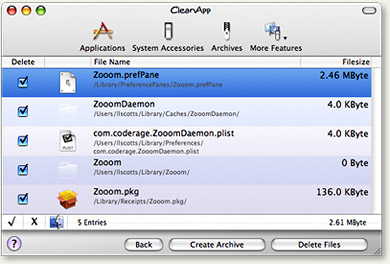
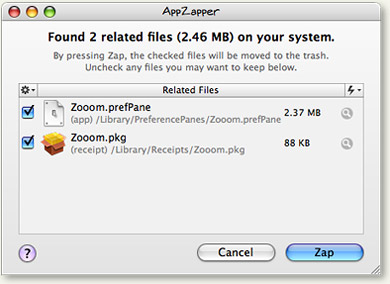
Since I took meticulous notes on CleanApp, I’m just going to do a brain-dump of them here in case you want the details. Note that there are still a number of “Cons” for CleanApp, but they’re mostly ways that the developer could make a great tool even better, rather than show-stoppers. For those who want an executive summary, here’s an example that illustrates one way in which CleanApp gets it better than AppZapper. I was trying to delete the Zooom! preference pane demo from my system and used both CleanApp and AppZapper to find all the pieces that had to go. The attached screenshots show the result… CleanApp found some critical components that AppZapper simply missed. In addition to this, CleanApp offers three cool features that AppZapper doesn’t:
- CleanApp assigns a hotkey so you can invoke it by pointing to an app in the Finder use the hotkey to ask CleanApp to go and find all of the app’s installed components.
- It will install a background daemon process that will log all files added or modified by software installers. This way, when CleanApp uninstalls the app, it’ll get pieces that the installer put somewhere it’s not supposed to.
- CleanApp also provides a Dashboard widget. With this, you just drag an app from the Finder to the widget, and CleanApp will go a-hunting.
There’s much more, but you’ll have to read the Pros to find ‘em.
|
Pros |
Cons |
|---|---|
|
|
Version as tested: 2.2.2.
OpenMenu: A Powerful Contextual Menu Builder for Mac OS X
OpenMenu: Freely Customize Contextual Menus
 Originally downloaded 3/22/06. A Tiger version of this utility has now been released, so I’m going to give it a go. I absolutely live and die by contextual menus, and would love to be able to arrange them a bit more intelligently. We’ll see… This shareware is only $10, which will be worth it if it works!
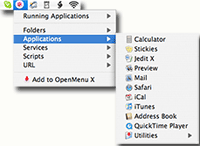 Update 2/15/07. Well, it took a few months for the developer to get all the bugs worked out, but I did eventually purchase a license for OpenMenu last month. OpenMenu is one of those “swiss army knives” for Mac OS X that does many more things that you’d ever dream of using. Billed primarily as a contextual menu builder, OpenMenu is also a launcher that puts a configurable menu right in your status bar. When I say “configurable,” I mean seriously customizable! Most launchers can only put applications and maybe documents in their menus, plus some custom tricks that the developer may provide (iTunes controls, search tools, pasteboard, and so on). But all OpenMenu menus can also contain scripts (right, Applescripts) and services (meaning, Service menu services!)
With a Preference Pane to control its settings, OpenMenu provides a nifty, compact interface for adding pretty much anything you’d ever want to your custom menus. It has a separate screen for additionally including submenus for Recent Items and Running Applications to the contextual menu, and you can even have OpenMenu provide a submenu for navigating into application packages if you like. The same screen lets you disable OpenMenu in specific applications, or you can just restrict it to the Finder by default.
 Many of these features are available in other utilities I already use, but for me the killer feature is OpenMenu’s ability to add Services items to its menu. Given my heavy reliance on Services, I had already employed every possible trick for making them more accessible—ICeCoffEE, which adds a “Services” submenu in the contextual menu—and HotService , which puts the Services menu right in the status bar for each application. However, OpenMenu goes a step beyond those in two ways:
- It lets you organize your list of services into custom menus and submenus, making the list much more manageable when you have a whole lot (as I do).
- Just as important, OpenMenu lets you assign custom keyboard shortcuts to every service menu item, just as you can for all the other items in your OpenMenu menus. This is fantastic, since now invoking a service is just a matter of hitting that keystroke.
To add particular application services to OpenMenu, you browse the service menu list from within its preference pane and select the ones you want. You can then organize them as you would any other contextual menu in OpenMenu and optionally assign shortcuts to them. This was the functionality I was most interested in, and it was the feature that wasn’t working right until the last release or two. But once it started working for me, wow! I’ve already started building my services menus, but still have much more that could be done.

OpenMenu is so powerful that I haven’t begun to take full advantage of it, but for $10 I can assure you it’s a steal! Its ability to run AppleScripts is also very cool and may let me drop FastScripts from my toolset, though I haven’t yet tested OpenMenu’s scripting powers enough to do that. However, it’s worth noting that OpenMenu comes with over 80 useful scripts, organized into categories. It also includes a very useful tutorial on building scripts for OpenMenu that’s part of the software’s excellent, comprehensive Help file. The scripts that come out of the box with OpenMenu provide a wealth of functionality, and it’s clear that the developer is a scripting expert with a strong commitment to its support in his software.
I have noticed one quirk that can be disconcerting. Occasionally, the OpenMenuX process will quit unexpectedly, and it’s not as easy as it should be to start it up again, I’ve found. This is because you can’t just open the Preferences Pane and “enable” OpenMenu again. That appears to do nothing. Aside from logging out and in again, the only way to restart OpenMenu is to tunnel into the Preferences Pane application and execute the OpenMenu X application that’s hidden away in its Resources folder. I’m going to make a shortcut to it on my Finder toolbar to make finding it easier, but hopefully the developer will do something a little more straightforward in a future release.
P.S. One thing OpenMenu cannot do—in fact, I know of no tool that can—is to actually organize all of your contextual menus, including those added by other applications. I’d love to have such a thing one of these days, but in case you were looking to OpenMenu for that functionality, I have to tell you it ain’t there.
Version as tested: 1.0.3.
Sandbox: A Free GUI for Managing Mac OS X ACLs
 Originally downloaded February 4, 2007. As the developer notes, managing access control lists (ACLs), which were introduced for enhancing secure computing in Tiger, is not for the faint of heart. If you're a sysadmin working on Mac OS X, you probably already have Mac OS X server running, in which case you have the Apple-supplied ACL GUI manager. But if not, or if you're just curious to learn more about ACLs, Sandbox proposes to help out. It comes with what looks like good documentation, as well as a link to Apple's more in-depth description of ACLs in Tiger.
Version as tested: 2.11.
Application Wizard: Update Adds Single Application Mode to Established App Launcher
 Originally downloaded 1/18/07. I remember Application Wizard from early in my Mac OS X user life, and it still has the four colored balls as its signature "dock." Like all launchers, Application Wizard has added innumerable features to its menus as time has passed, and it just came out with another update. I downloaded this latest version partly out of curiosity and partly because I noticed that it now includes support for Single Application Mode (SAM), about which I've opined positively in the past. I'm not looking to adopt another launcher, but I'm interested in any tool that supports SAM.
Version as tested: 2.1.


