



Resource Posts In Category
Theming A Web Page With Crystal Black:
A CSS Design for Web Inspector
One of the many challenges of building a usable black theme for Mac OS X is making it work with web pages. If you use Safari, the buttons, scrollbars, and other interface widgets on web pages get their marching orders from the system's graphics files—the same ones that regular applications use.
So, if a web page has a pushbutton, the button will by default take on the style of the active theme. If you're running Crystal Black, this means that the button inherits the Crystal Black style. We like this.
Color for the button's text, on the other hand, gets its marching orders from the browser's default Cascading Style Sheet (CSS) file—which, naturally, makes the text black, and therefore unreadable on top of a black button. We don't like this.
On first glance, the solution seems to merely design a special CSS file for Crystal Black and make Safari use it. 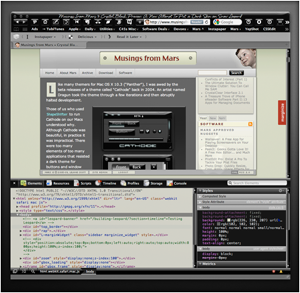 And that does work for many web sites and many buttons. However, many folks who design web pages like to fiddle with the CSS style for their pages' buttons, and such fiddling means that there's nothing "mere" about designer a Crystal Black style sheet.
Further, many Mac applications these days have views that are simply embedded web content using Apple's WebKit framework. The practical implication here is that Mac apps don't know how to read a Crystal Black CSS file, so Crystal Black must do some fiddling under the hood to avoid having unreadable buttons in such web views.
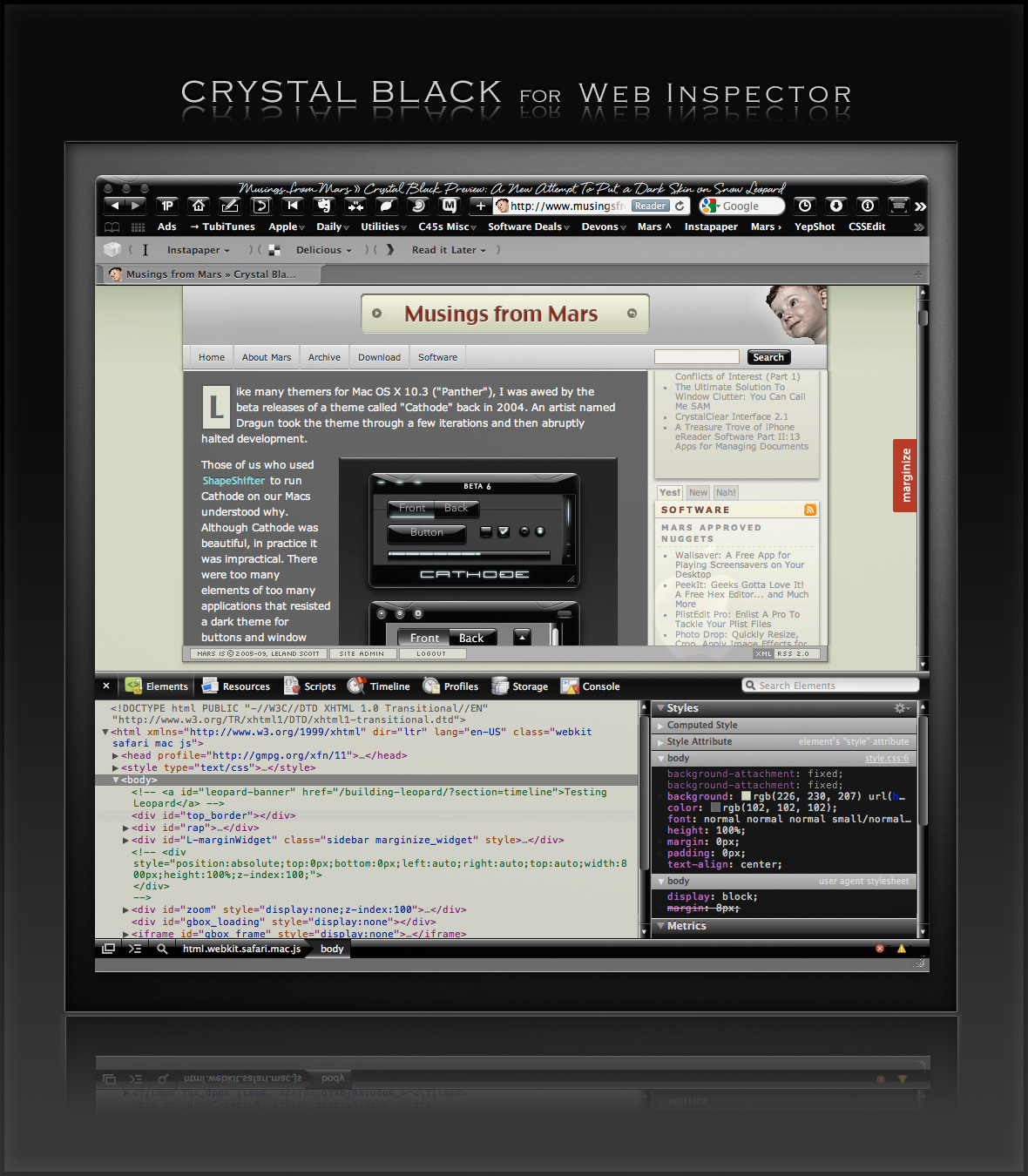
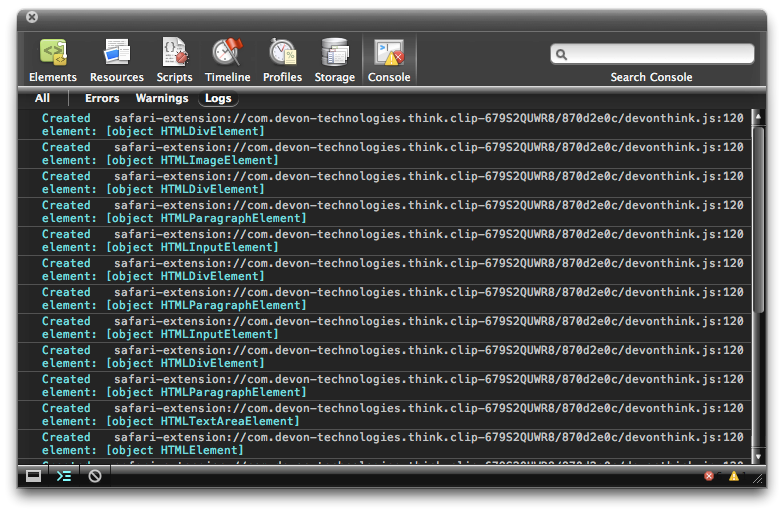
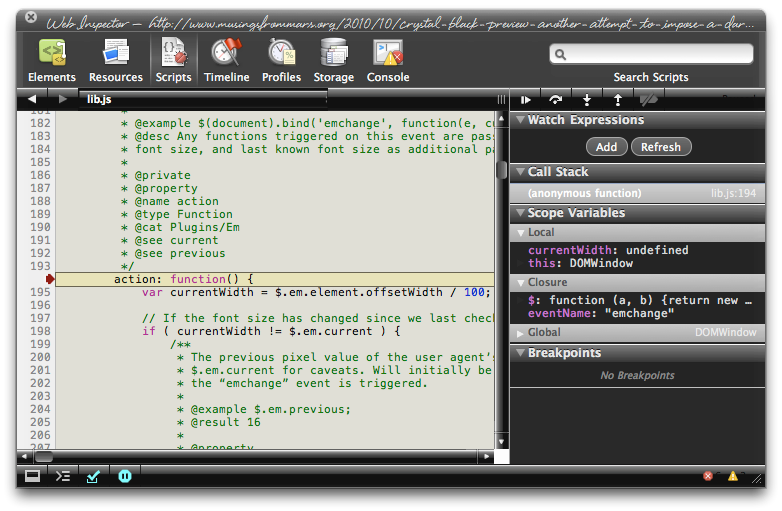
Then there's Safari itself. I really wanted to theme the Web Inspector—the incredibly useful built-in website viewer/debugger/designer assistant—with the Crystal Black look and feel, but it wasn't immediately obvious how to do this. I assumed that the tool was just a part of Safari, and therefore built with classes and widgets from the Cocoa AppKit (which is the framework all Cocoa apps are built with). However, when I began to inspect the Inspector, I discovered that everything contained within its borders was simply web content: HTML, CSS, JavaScript, and images.
In other words, the Web Inspector tool is nothing but an intricate, sophisticated, and extremely well designed web page!
Having built a Crystal Black CSS file for web pages in general, and with my past expertise in CSS, I attacked this challenge with relish! It reminded me of the time I realized that Dashboard widgets are, at their core, nothing but little web pages (as are simply apps for the iPhone). In tackling this one, the main question was, How should the various elements look? And the hardest part was inspecting the various parts in of the Inspector in great detail to determine which CSS rules governed their default appearance and behavior.
As I discovered, the WebKit has a a sub-framework called "WebCore," which in turn has a folder of resources specifically for the Web Inspector. In the Inspector folder, among other things, is a suite of CSS files that handle different aspects of the Inspector's design and behavior. Of these, the primary one I needed to tweak was called simply "inspector.css."
Besides controlling the usual attributes of a web page—document elements, text elements, image elements, layout elements, form elements, and so on—this style sheet applies various advanced CSS properties that serve the purpose that in years past would have been handled by many individual images. As I've described this CSS 3.0 magic previously, there's no longer a need for using graphics and JavaScript to add box shadows, rounded box corners, borders, gradients, and reflections to your web pages.
Naturally, since the open-source WebKit project was initiated by Apple, and since that project zoomed ahead of all other browser engines in developing new ways to design with CSS, that's how the Web Inspector is built. This approach—using a command syntax rather than images to design a user interface—is one that Apple has been adopting for its desktop applications. In recent years, Apple has been adding new classes and methods to the AppKit that make it a trivial matter to build a window frame, a border, a toolbar, or a button using code rather than individual graphics.
While this is a logical and efficient approach, it also presents challenges for theming Mac applications, a challenge that Crystal Black is often unable or unwilling to overcome. (The story of all the challenges in building Crystal Black are described in this article.)
Not so with the Web Inspector, fortunately.
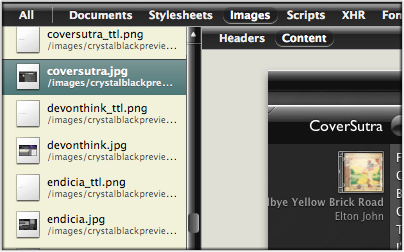
The Inspector does use a few images in its design, but most of the toolbar, separators, and section headers are built with CSS gradients. Very cool indeed!
This bit of Crystal Black will eventually be bundled with the whole theme, but for now I offer it as a free download. Admittedly, the audience for such software is small—you have to like Crystal Black, and you have to be a regular user of the Web Inspector—but it might be of interest to others who are curious about how such things are done.
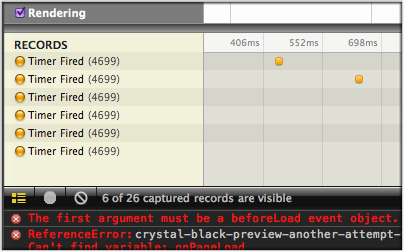
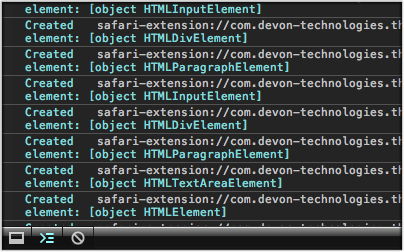
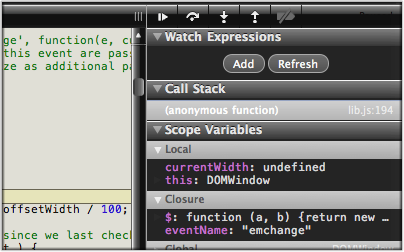
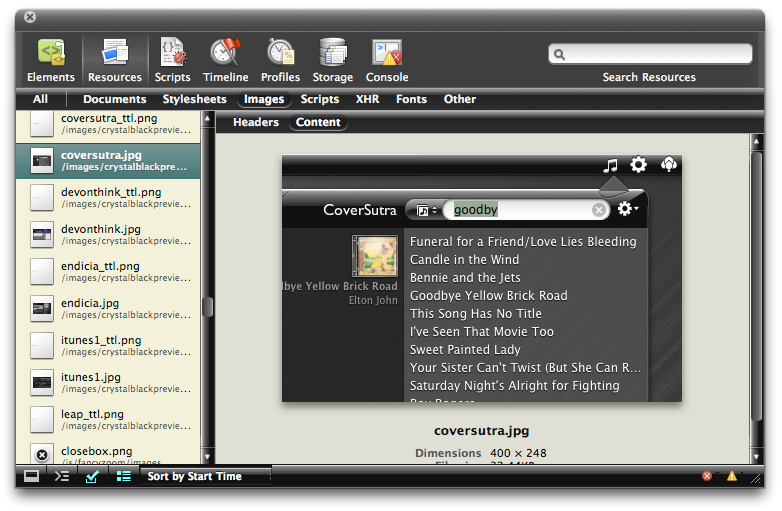
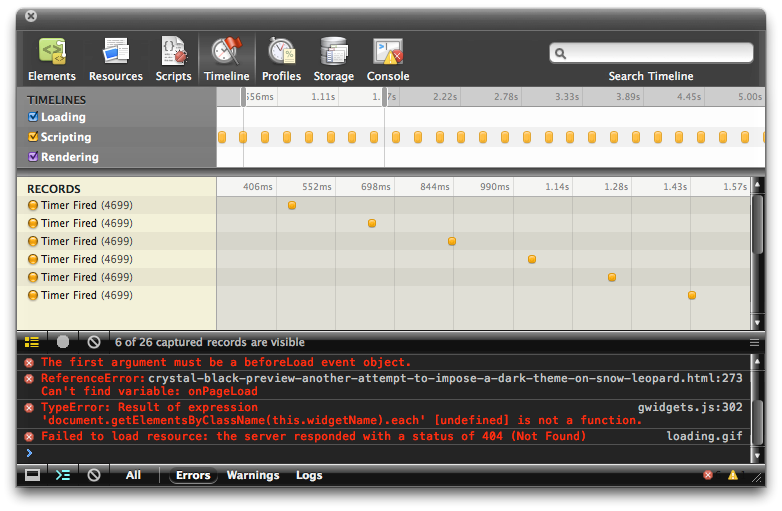
One caveat in viewing the screenshots... The scrollbars that appear, as well as the HUD window style, are part of the overall Crystal Black theme and are not part of the Web Inspector theme itself.
Enjoy!
Update 4/18/11: The full Crystal Black 1.0 theme is now available from the Crystal Black website.
Installing Crystal Black for Web Inspector
The download contains a small application that you can use to install—and to uninstall—the theme. Simply double-click and select "Install" to apply the theme. Or select "Uninstall" to restore the default CSS files and graphics.
After installing or uninstalling the theme, you'll need to quit and restart Safari for the theme to take effect.
Crystal Black for the Web Inspector (Download file is 1.0MB)







WebKit Introduces Styleable Scrollbars
WebKit’s Web Inspector Tool Gets Major Workover
For my money, Safari's Web Inspector has been a strong rival to the excellent Firebug that Firefox deveopers use. Its capabilities and usability have been growing by leaps and bounds since it was first introduced in January 2006.
I wrote a brief article on the enhancements that came in August 2006, and since then the improvements have just kept coming:
- June 2007, total redesign with beaucoup added features.
- December 2007, adding inline CSS editing, a database browser, downloadable fonts, several CSS properties, and more.
- September 2008, redesigned interface and way too many terrific features to list here. Go read the WebKit blog article for details.
At this point, I don't think there's any question among those of us who've used both Firebug and Web Inspector that the bar has now been raised far beyond what's available to Firefox developers.
Note: At this time, the new web inspector--like the hugely faster Squirrelfish JavaScript engine--is only available in the nightly WebKit builds. But that doesn't mean you can't use it in place of Safari!
Analyst Pushes WebKit Over Google’s Chrome Browser
Of course, I completely agree with Yager, but I'm delighted to see a nationally prominent technology analyst come out with this opinion. I can't try Chrome yet because it's not available for Mac OS X (that's strike one against it!), and besides, Chrome uses the WebKit engine under its hood.
The latest builds of WebKit, and in preview builds of Safari 4, provide developers with the richest set of tools for building advanced Web 2.0 applications yet. Sadly, most tech writers are totally oblivious to this, even some who use Macs. Firefox is still the new and most politically correct kid in town, despite the fact that WebKit is just as open source but has a much faster-moving and forward-thinking engineering team.
Phishing and Safari (Part 2): A Sheep in Wolf’s Clothing
And to think I used to like Consumer Reports!
They keep writing me to "come back" and resubscribe, but I've told them that won't happen until they become objective and truly knowledgeable about the Mac... at least as knowledgeable as they are about Windows PCs.
And now, it turns out they're recommending that Mac users "dump Safari," which just happens to be the best web browser on the Mac platform. Oh, and since this article also appears on ZDNet, while other industry journals gave it little play, I begin to conclude that ZDNet is a rats nest of Microsoft zealots.
So, here's the little note I left them today about their latest phishing/Safari scare tactic:
There is nothing in common between phishing and viruses, adware, spyware, or other malware. Phishing is just an old-fashioned scam dressed up in new HTML clothing. Consumers need to be educated about it, and no anti-phishing technology is going to save them. For one thing, most phishing schemes come to consumers through their email client, not their browsers.
Oh, and 6 or 7 years ago, why didn't Consumer Reports advise Windows users to ditch IE? That would have been the single best way for them to avoid Internet malware, but I never heard them do such a thing. The phishing problem pales in comparison to the security nightmares we experienced after IE6 was released (and before SP2), and which millions of Windows users continue to experience today. Active/X is the most dangerous technology out there as far as security is concerned, but is MS being pressured to remove it from IE?
Unfortunately, I don't think we've heard the last of this... At least, until Apple goes ahead and joins the other browsers in adding "anti-phishing technology" to Safari. Like I noted above, it really makes a lot more sense to add this capability to users' mail clients, since phishing is just a form of junk mail in the end.
Phishing and Safari (Part 1): A Sheep in Wolf’s Clothing
There has lately been a rash of articles about how "insecure" Safari is because it has no anti-phishing mechanism. Frankly, I think this is a bunch of hogwash. It's an attempt to show how lax Apple is about security, and, by implication, how great Microsoft is.
It's not that I don't think phishing is a serious problem... I do! It's just that phishing is not a security issue, which is how the anti-Apple, pro-Microsoft (and pro-Firefox) zealots are trying to portray it.
Here's the comment I left on ZDNet's site about this article, dated 7/23/08:
Phishing scams are very bad, but they are not the same as viruses or malware that gets installed on your operating system. Not even in the same category. They are simply a sophisticated con, and unfortunately there are a lot of naive, clueless web users who will click on any link they're offered. Then again, I know people who are so paranoid they won't click on any link in an email at all... even if it comes from a trusted source (like a friend). I'm not at all convinced that anti-phishing software will work any better than junk-mail filters have, though I understand the need to try.
All you guys who are so hot to jump on Apple need to at least know what you're talking about. Though the companies who make money on security vulnerabilities like to lump phishing in with "security" flaws, in my opinion they aren't. Why? Because they pose no threat to the integrity of your computer or to your network.
Later, in reply to a reader who thought I was kidding with this opinion, I wrote:
Of course it's bothersome... on the same plane as the scum who trick old ladies out of their social security checks by conning them into some phony investment.
Phishing is more insidious, but if you have an ounce of common sense, it's easily avoided.
Not so with viruses and spyware, which can invade your system without any action on your part... not even clicking on a link. If following a link loads a virus, that's not phishing, defined as [blockquote] the activity of defrauding an online account holder of financial information by posing as a legitimate company[/blockquote].
My point is, phishing is not so much a security liability as it is a privacy issue... Phishing amounts to identity theft.
I'm not arguing that phishing isn't a serious concern that needs to be addressed. But I'm saying it's not a security issues in that it doesn't install software on your system, invade your network, or propagate itself to others.
I am arguing that it's more like spam, which is likewise a serious problem that can lead individuals to dangerous websites or tempt them into bad decisions. Like spam, I'm doubtful that any software solution to eradicate phishing is possible.
In this light, the urgency to correct a phishing vulnerability is much lower than that to correct a security vulnerability, and the fact that such a vulnerability exists should not alarm users to the same degree.
Turns out this "phishing" scam isn't over with the iPhone or Safari. See more of my ranting in Part 2 of this topic.
A Close-Up Look At Today’s Web Browsers: Comparing Firefox, IE 7, Opera, Safari
My, we've come a long way in browser choices since 2005, haven't we? It's been a very heady time for programmers who dabble in the lingua franca of the World Wide Web: HTML, JavaScript, Cascading Style Sheets, the Document Object Model, and XML/XSLT. Together, this collection of scripting tools, boosted by a  technique with the letter-soup name "XMLHttpRequest," became known as "Ajax." Ajax spawned an avalanche of cool, useful, and powerful new web applications that are today beginning to successfully challenge traditional computer-desktop software like Microsoft Word and Excel. As good as vanguard products like Goodle's Maps, Gmail, Documents, and Calendar apps are, one only has to peek at what Apple has accomplished with its new MobileMe web apps to see how much like desktop applications web software can be in 2008.
That this overwhelming trend toward advanced, desktop-like applications has happened at all is the result of the efforts of determined developers from the Mozilla project, which rose from the ashes of Netscape's demise to create the small, light, powerful and popular Firefox browser. The activity of the Mozilla group spurred innovation from other browser makers and eventually forced a trend towards open standards that made the emergence of Ajax possible.
This article starts with a brief history of web browsers and then jumps into a look at the feature set of the four primary "modern" web browsers in 2008. The comparison of browser features begins by listing the core features that all these browsers have in common. The bulk of the article lists in detail "special features" of each browser and each browser's good and bad points, as they relate to the core browser characteristics. Following that, I present some recent data on the comparative performance of these browsers. The article concludes with recommendations I would make to organizations interested in making the switch from IE6 in 2008.
- Web Browsers in 2008: A Brief History
- Comparison of Browser Features
- Browser Performance
- Conclusions
- Bookmarks for Further Reading
Web Browsers in 2008: A Brief History
In 2008, web designers and programmers can finally see the light at the end of the very long, dark tunnel that began with the first browser wars of the late 1990's. That war introduced "browser incompatibility," as both Netscape and Microsoft struggled to establish their own, incompatible standards. At that time, the standards approved by the World Wide Web Consortium (w3c) were somewhat skimpy and behind the times in terms of what those companies wanted to do.
It wasn't long before the w3c approved a standard for JavaScript, which Netscape had introduced a couple of years before, as well as a standard for CSS Level 2.0, which was to be a major advance in the "designability" of web pages. CSS 2.0 promised an end to the ubiquitous use of "font" tags, invisible graphics, and HTML tables on which designers relied to convert their ideas, typically developed using visual design tools such as Photoshop, to HTML. However, those new standards were too late, since Microsoft was making aggressive use of its monopoly on corporate desktops to promote Internet Explorer at the expense of Netscape. That effort, of course, eventually succeeded, and Microsoft was found guilty of antitrust violations (though never effectively punished for them).
Even though IE eventually garnered a monopoly in corporate browser usage equal to Windows' monopoly as an operating system, web programmers and designers who developed content for the general public were still obliged to support two completely different and incompatible "standards," neither of which was truly standards-compliant. The dual nature of  the browser market caused programmers to shy away from JavaScript and CSS entirely, since it was too much of an effort to deploy them in a way that would render well on both browsers. Unfortunately, this meant that the state-of-the-web art remained stuck in 1998 until just the last couple of years, when Mozilla's Firefox and Apple's Safari browsers began slowly whittling away at IE's dominance.
Like earlier versions of Internet Explorer, IE 6, introduced in 2001 as part of Windows XP, maintained its own set of proprietary standards that largely ignored the leadership of standards bodies like the w3c. At that time, they could  afford to do so since there was virtually no competition left. However, by 2004, Firefox had emerged from the open-source Mozilla group (which evolved from Netscape's decision to open-source the Netscape browser code) as a very interesting, lightweight browser that prided itself on close adherence to w3c standards.
Meanwhile, in Europe, the Opera browser was moving in the same direction as Firefox--toward full implementation of w3c standards for JavaScript and CSS 2. In 2005, Opera became a totally free browser choice, where previously it had used advertising as a source of revenue for non-paying customers. At this point, Opera became a more significant player, which, despite its very small market share outside of Europe, continues today.
In 2003, Apple introduced Safari 1.0 for Mac OS X, and shortly thereafter Microsoft ceased support of Internet Explorer for the Mac platform. Safari was based on the open-source code used for the Linux browser Konqueror, and in 2005 Apple released the core Safari code--its "rendering engine"--as open source through establishment of the WebKit project. Since then, the WebKit team has made rapid progress in adopting w3c standards and bringing its code base up to the state-of-the-art as defined by those standards. Safari is the dominant browser on Mac OS X, with Firefox a strong second, and the increasing market share of Mac OS X in the last couple of years has resulted in corresponding increases in the market share of Safari. Now that Safari is available for Windows and is being used for Apple's iPhone platform, Safari's market share will likely continue to rise in coming years.
In 2007, Microsoft finally responded to the growing competition from Firefox and Safari, and released Internet Explorer 7.0 in concert with its release of Windows Vista. Although IE 7 maintains a significant lag behind the other browsers in adopting open standards, it has made important improvements over IE 6. And the early beta releases of IE 8, accompanied by assurances from Microsoft's technical engineers, suggest that IE 8 will make even more significant improvements in becoming standards-compliant.
It is the convergence of these trends that is causing that glow at the end of the tunnel at last. With the demise of IE 6 (whose market share is rapidly collapsing), the final major remnant of the ugly browser war of 1998-2000 will be a thing of the past. Since Microsoft appears serious about getting IE 8 to market in less than the 6 years that elapsed between IE 6 and IE 7, web developers can be hopeful that their use of JavaScript, CSS, and HTML will no longer be a struggle to find the right "hack" to accommodate all the browser choices out there. At that moment, the web will finally be ready to evolve into the platform that Java aspired to, but never managed to become: A platform on which developers can build applications that are agnostic both of the user's client and of their operating system.
That outcome is a win-win for everyone… except, perhaps, Microsoft, since it will bring to fruition the open Internet it has tried so long to keep at bay.
The next section of this report will look in detail at the feature set of the four primary "modern" web browsers in 2008, by market share. Following that, the report presents some recent data on comparative performance for these browsers, and finally I conclude with a brief set of recommendations. The browsers have all been tested primarily on a Windows Vista Ultimate platform, and the recommendations are geared to organizations that have been relying on IE 6 or IE 7 as their default browser. Safari, Firefox, and Opera have also been tested on a Mac OS X 10.5 "Leopard" system.
Comparison of Browser Features
This section looks in detail at the many features that both bind and distinguish the four browsers included in this study:
The first part of this section pulls together all of the features these four browsers have in common. This set of features can be considered a baseline that defines what a "modern" browser can do. Naturally, some of the browsers are more "modern" than others, so they go far beyond these features in distinguishing themselves from the others.
For each browser reviewed, the write-up begins with a list of the browser's "Special Features"--that is, its features that are unique or especially distinguishing. Following that, each browser's features are listed in comparison with each other in a list of "Good Points" and "Bad Points." Each item in these lists is categorized using the set of "Baseline Features" below.
Baseline Features
- Ability to define page colors and page fonts.
- Ability to set personal style sheets.
- Ability to easily resize fonts.
- Ability to prevent automatic loading of page images.
- Ability to set bookmarks for web pages visited
- Ability to organize bookmarks into folders.
- Ability to arrange bookmarks in a special toolbar. Toolbar can contain folders of bookmarks as well as individual links.
- Ability to import and export bookmarks as HTML.
- All of the tested browsers support use of a proxy server and use of an automated configuration file on the network for applying browser settings.
- Ability to define proxy and SSL (secure socket layer) settings, as well as supported HTTP protocols.
- Ability to identify errors (JavaScript at a minimum) when loading a web page.
- No common features.
- Ability to view browser history by date and to sort history items.
- Ability to search stored history items.
- Ability to set home page and define basics about what browser shows when opened.
- Ability to view page HTML source.
- Ability to define basic settings for cookies.
- Ability to define how long history items are stored, or whether they're stored at all.
- Ability to subscribe to and view RSS feeds.
- Pages that contain RSS feed information are identified with special symbol or option.
- Web search field located in the browser toolbar.
- Web search options include some basic customization.
- Ability to find words in the current web page.
- All browsers offer the ability to turn off JavaScript and plugins.
- Ability to block pop-up ads/windows.
- Ability to define level of encryption.
- Support for HTML 4.0
- Support for CSS 1.0
- Support for JavaScript/EcmaScript
- Support for DHTML
- Support for XMLHttpRequest
- Support for Rich Text Editing
- Support for basic image formats (JPEG, GIF)
- Support for tabbed browsing (viewing web pages in tabs rather than individual windows)
- Ability to rearrange tabs by drag/drop
- Ability to direct links and new pages to tabs rather than windows
The following matrix summarizes my analysis of each browser. The "positive" aspects of each are indicated with a light-green gradient, and where the positives are exceptionally strong, you'll see a darker green gradient. Likewise, the "negative" aspects are indicated with a light-red gradient, and negative traits that are especially bad have a darker red gradient. Where the background is white, the browser basically meets the baseline expectations listed above.
Firefox 3.0 |
IE 7.0 |
Opera 9.5 |
Safari 3.1 | |||||
Browser Characteristics |
Positives |
Negatives |
Positives |
Negatives |
Positives |
Negatives |
Positives |
Negatives |
Accessibility |
||||||||
Bookmark management |
||||||||
Configuration mgmt |
||||||||
Connection settings |
||||||||
Developer tools |
||||||||
Downloads management |
||||||||
History tools |
||||||||
Home page settings |
||||||||
Page information details |
||||||||
Privacy settings |
||||||||
RSS feed management |
||||||||
Search engine support |
||||||||
Search-in-page support |
||||||||
Security settings |
||||||||
Standards support |
||||||||
Tab management |
||||||||
Usability |
||||||||
Firefox 3.0
- Firefox lets users search within a page simply by typing (without invoking search function), a very useful feature.
- Ability to tag bookmarks and history items, and to organize those items using tags.
- Best range of add-ons that can provide a greatly expanded feature set.
- Ability to apply "themes" to customize the browser's look and feel.

- Firefox's import function is very good and easy to use… not only does it import bookmarks, but most other browser settings as well (cookies, history, etc.) However, on the Mac it imports only from Safari, and on Windows it supports only IE and Opera.
- Bookmark folders offer option of opening all links at once in a single window.
- Users can drag page links into folders on the bookmark bar directly, rather than having to visit the bookmark management page to do so. (Safari also has this feature.)
- Fine-grained tools for customizing security and connection settings.
- Full-featured Downloads window allows you to find downloads on your hard drive, open downloads, and search them. The window also displays the time/date of the download.
- Excellent history panel with lots of options for sorting/viewing and searching, as well as support for tagging history items.
- Great page info panel with all the detail you'd want.
- Easy to use, customizable web-search field on toolbar, which includes optional "suggest" feature. Like IE, Firefox users can also import new search engines from a web page.
- Excellent in-page search functionality.
- Fine-grained tools for customizing security and connection settings.
- Support for most non-basic web standards, including:
- CSS 2.1
- XHTML
- PNG, SVG
- HTML Canvas
- DOM 1, DOM 2
- Minimal CSS 3.0
- Supports dragging URLs to tab bar to open new pages.
- Offers the option of saving currently open tabs for the next session.
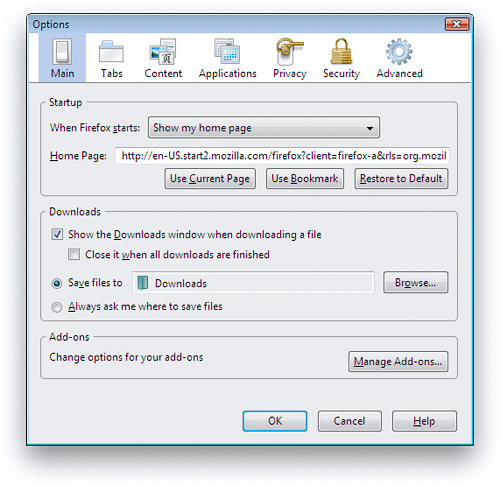
- Firefox's Preferences window is very similar to Opera's. It has grown more complex over the years, but retains the deliberate simplicity it adopted as distinguished from the full-blown Mozilla browser it evolved from. Except for the label "Applications," its tabs are intuitive. As with the other implementations, one could argue about the emphasis placed on the various settings, but in general Firefox provides a very easy way to customize user settings.
- Like Opera, Firefox is available for a wide variety of platforms, including Windows, Mac, Linux, and other Unix systems.
- Open source code means browser improvements and security fixes come more quickly.
- No support for Safari bookmarks on Windows.
- Only basic developer tools in the default configuration.
- Firefox's RSS implementation is noticeably weaker than that of the other browsers. While plugins exist to improve its support, this review looks only at the browsers' default options. One major problem with Firefox's RSS support is that if you choose to always use "Live Bookmarks" for a feed, without knowing what that means, you can't change your mind later on. Live Bookmarks are an inferior method of selecting items to read, since it doesn't show the textual summary or graphics that may be provided in the feed. Rather, it shows only the headlines. Further, I could find no way to manage my feeds by deleting them or organizing them into folders once I had subscribed. Even if you opt out of using Live Bookmarks from the get-go, Firefox places a large box at the top of each RSS feed page asking you whether you want to use Live Bookmarks. Firefox also provides no way for users to mark articles as "read," to sort or search articles, or whether to view headlines or full article summaries… options offered by all the other browsers.
- Only minimal support for major CSS 3.0 features, including lack of support for resizable text fields.
- Plugins and themes require reliance on third-party developers, who may or may not update a given plugin or theme for a new version of Firefox. They also require some user maintenance to keep updated, and users must restart the browser to install themes and plugins.
- Like IE, Firefox does not preserve information entered on a form if you use the back button and then forward again. Anything you've entered is wiped out, unlike Opera and Safari.
- Firefox is noticeably slower than the other browsers to launch and load the home page.
- Firefox cannot open PDF files natively in the browser window without requiring a plugin.
Internet Explorer 7.0
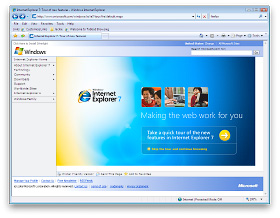
- IE 7 is the only browser that allows users to set more than one home page.
- IE7's tab implementation has a feature that the other browsers could benefit from: A view showing large thumbnails of all current tabs, along with their page titles. This feature is standard in Shiira, a WebKit based browser, but not in any other browser that I know of. (There is, however, a plugin for Firefox and one for Safari that accomplishes this.)

- IE has a large number of settings to help system administrators customize the browser configuration for users.
- Fine-grained tools for customizing security and connection settings.
- IE 7 has fine-grained tools for customizing privacy settings.
- A welcome addition to IE7 is its support for RSS feed subscriptions. Its implementation is quite good, and as with other browsers you can manage your subscriptions in the "Favorites/History" area.
- IE 7 adds a search field to the toolbar. It can be customized, but comes with Live Search as the default rather than Google or Yahoo (the industry leaders). You can, however, customize the choice of search engines by visiting a Microsoft website and adding items to the list. This is a very easy process.
- IE 7 lets you disable each plugin individually, so you can easily disable Flash once it's installed. (However, even after installing Flash, IE 7 could not load any pages on the website I was testing.)
- Fine-grained tools for customizing security and connection settings.
- IE 7 includes a "phishing" blocker, which should help users identify sites that attempt to steal user passwords by appearing to be standard e-commerce websites like Amazon, eBay, or banks.
- Unlike IE6 and earlier, IE7 joins the other browsers in partially supporting the PNG-24 standard, which allows designers to use images with alpha transparency.
- IE can bookmark a set of tabs into a folder.
- Design is clean and easy to understand for the most part.
- Like Safari, IE 7 offers users the ability to email full page contents as well as page links.
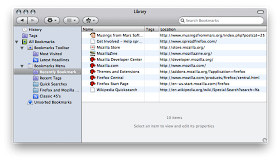
- The "Favorites Center" is missing a couple of essential features:
- There is no way to search your bookmarks (although you can search your history)
- I couldn't figure out how to add folders to the list.
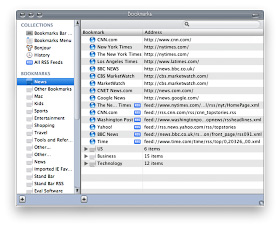
- In addition, the process of changing URL's is cumbersome when compared with Safari or Firefox. For example, here is Firefox's excellent panel for managing history, tags, and bookmarks. It allows you to edit properties directly.
Likewise, here is Safari's view for the same functions (screenshot below that for Firefox).
By contrast, in IE you have to right-click and select a Properties window to change a URL. - Another shortcoming of IE's Bookmarks implementation is its inability to let users open an entire folder of links at once. This has become standard practice for awhile on modern browsers, by allowing users to quickly access a group of websites they use frequently as part of a single activity. Firefox, Safari, and Opera all offer this option.
- IE has very basic import/export functions for bookmarks. Like Safari, it requires users to browse the hard drive for the HTML bookmarks file to import. IE offers no other import features.
- IE is the only browser that provides no way for users to search their bookmarks.
- Only basic developer tools in the default configuration.
- I couldn't find a way in IE to set a folder for Download files other than the default folder.
- IE is the only browser that provides no "Downloads" window, by which users can see the files they've downloaded and navigate to and/or open those files.
- I found it annoying that there is no way to view your page history without opening the Favorites window/sidebar. Firefox and Safari both have a top-level menu item called "History" that shows your visited-page history. The only tool provided is a pull-down menu adjacent to the URL address field--the same approach as Opera--but this isn't nearly as convenient or comprehensive. And unlike Opera's single-click access to history, IE 7 requires a multi-click approach, unless you keep its sidebar open all the time (which isn't as easy to do as in IE 6).
- Unlike most other browsers, IE7's source code view merely launches Notepad (which it's done since IE 3) and has no method for viewing the CSS or Javascript sources or for making changes to those and viewing results in the browser window. (This feature is standard in Firefox and Safari.)
- IE's cookie manager is buried in an "Advanced" panel within the Privacy options. Unlike the other browsers, IE offers no way to delete all cookies, delete individual cookies, search cookies, or even view stored cookies.
- IE is the only browser that provides no way to identify all instances of search terms in the current web page.
- Because of the very large number of malware exploits that have targeted Internet Explorer, especially since the release of IE 6 in 2001, the IE Security settings have become far too complicated for the ordinary user to comprehend. Even system administrators who wish to secure IE 7 would need to have some specialized training in order to do so.
The biggest problem with IE, which has also been one of the main reasons for its high adoption by IT shops, is its strong support for Active X controls. Because IE is so tightly woven into the Windows operating system, Active X programs present a huge security risk, and it is largely through this channel that viruses, worms, spyware, and other malware has infected Windows PCs over the years. IE 7 has a plethora of settings designed to minimize the risk of Active X programs, but given the amount of work required both on developers--to secure their Active X programs in order to run in IE 7--and on administrators--to apply settings that strike the appropriate balance for users between usability and security, ensuring security for IE remains a negative aspect of this browser.
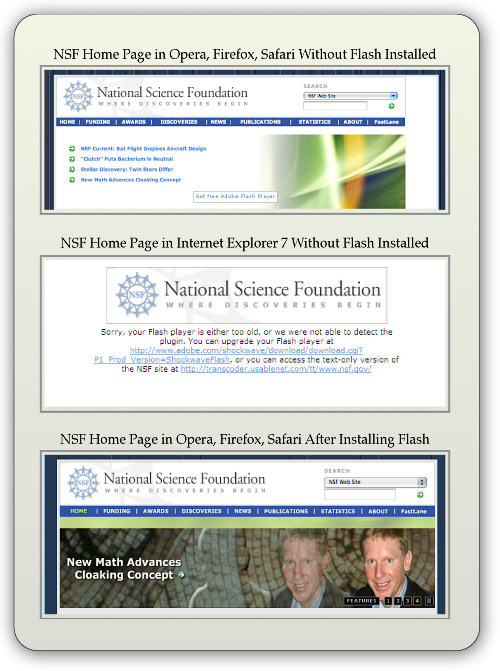
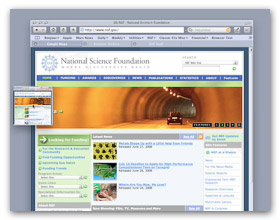
- Visiting some web pages--for example, the home page of the National Science Foundation--I found that IE 7 could not display the Flash content, so the home page wouldn't load. Apparently, there is a problem using Flash with IE7 under Vista. I noticed the warning about IE 7's "old" Flash player when visiting a number of websites that use Flash. On Windows Vista, IE7 was the only one of the browsers tested that could not load the NSF home page in its default configuration. Though Opera, Safari, and Firefox likewise did not have the Flash plugin, they displayed the static alternative (see top screenshot) and the rest of that page instead. Since nsf.gov uses Flash for its navigation bar, this means IE 7 cannot access any page on the NSF website.
- IE is the only browser that does not fully support CSS 2.0 standards.
- IE does not support any CSS 3.0 features.
- IE is the only browser that supports neither SVG images nor the HTML Canvas tag.
- IE 7's tab implementation is similar to the existing standard but doesn't offer as many options for managing tabs when you right-click on one of them. (For example, Safari offers the option of letting you bookmark or reload the current set of tabs.)
- Most Windows users--and Mac users as well--will be disoriented by the absence of a menubar in the default configuration. You can add a menubar, but it doesn't appear at the top of the window as user's will expect. In this regard, IE 7 works a lot like Opera has for awhile. As a Mac user, it's interesting to note that the IE 7 model of eliminating each window's menubar is the same as the Mac OS's traditional approach. However, unlike the Mac approach, Windows Vista has no persistent, system-wide menubar, which on the Mac changes contextually depending on the currently active application. Removing the menubar from IE 7's windows is merely reducing, not enhancing, usability.
- IE 7 departs from the standard browser design by removing the home button from the toolbar and moving the reload and "stop loading" buttons to an unexpected location. As a result, the URL field is far longer than is necessary, and the design creates a subordinate toolbar that could just as well be served by the missing menubar.
- More than once, I was asked if I wanted to turn on "Sticky Keys," a rather annoying intrusion.
- Users of IE6 and earlier will find using the sidebar more difficult. For one thing, there is no link to open it within the set of menu items. The sidebar opens up only by interacting with a new drop-down window that appears when you click on the Star icon (Favorites Center) at the left-hand of the tab bar (which doubles as the second toolbar).
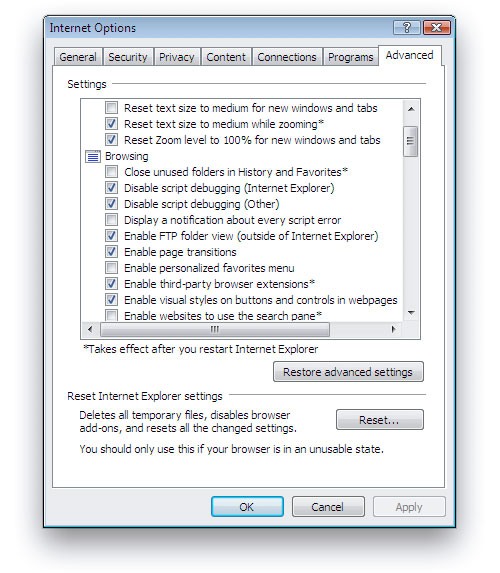
- IE 7's Preferences (Internet Options) window remains the worst of any major browser. It's cluttered, has nonintuitive section titles, and features an "Advanced" set of preferences that are virtually impossible to use. Why? First, the type is too small for many users to read, second, the various options are all treated as if they have equivalent importance (but they don't), and third, the view provides no explanation for what each option means. This window is the same as that in IE 6.
- Like Firefox, IE does not preserve information entered on a form if you use the back button and then forward again. Anything you've entered is wiped out, unlike Opera and Safari.
- IE 7 is the only one of the browsers tested that is not available for Mac OS X or any other operating system besides Windows.
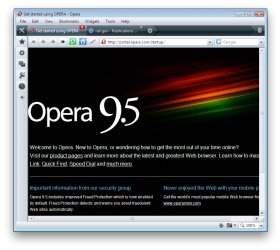
Opera 9.5
- Ability to apply "themes" to customize the browser's look and feel. Even better than Firefox, Opera can display and apply themes in the live browser without having to be restarted.
- A built-in, full-featured email client that integrates well with the browser content.
- Opera has the best and most useful sidebar of any browser, and with 9.5 they've integrated it much better than before into the interface.
- A built-in Notes tool for jotting down and storing notes. The tool lets you organize and search your notes.
- Opera lets you tag RSS feeds with "labels."
- Opera has a large inventory of available web widgets for various purposes, similar to those in Apple's Dashboard, Yahoo's widgets, and Microsoft's "gadgets," all of which run outside the browser. Unfortunately, Opera's widgets only work when Opera is running.
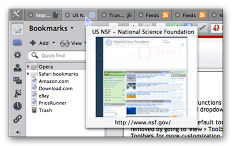
- Opera is the only one of the tested browsers that displays page
- thumbnails of the web pages in each tab, a very useful feature.
- The most customizable interface of any reviewed browser. Nearly every component of the interface can be rearranged, and there are a wide variety of buttons that can be added to or subtracted from each component. Further, Opera has a large stock of preset "setups" that comprise theme, button, and toolbar settings in one package.
- A "Small Screen" view that reformats the page to emulate what a user would see on a smartphone-type display.
- A "Links" function that pulls a list of all page links into a panel in the sidebar.
- Opera has easily accessible tools for customizing preferences for individual websites.
- Other unique features such as
- Trashcan history (for pages whose tabs you've deleted),
- "Speed dial," which lets you organize top bookmarks and see them each time you open a new tab, and
- A print preview feature that shows the print view immediately within the browser window.
- Robust session management, allowing you to save multiple sessions and return to them at another date.

- Opera has the most advanced and easiest to use tools for testing accessibility of any reviewed browser.
- Great tools for managing bookmarks... good sort and search options.
- Great new UI features... much more organized and logical from the get-go. I like the toolbar icon in upper left, and the standard home/navigation buttons with the URL field. The new Opera standard skin is also great.
- Folders in the bookmark bar can open all bookmarks at once in a single window.
- Opera has the most options for exporting bookmarks… either all or selected, and either HTML or formatted ASCII.
- Powerful and simple functions for importing bookmarks from other browsers--Firefox, IE, or Konqueror on Windows, and Firefox and IE on Mac OS X.
- Fine-grained tools for customizing security and connection settings.
- Full-featured "Transfers" window allows you to find downloads on your hard drive, open downloads, and search them. The window also displays the time/date of the download.
- Excellent built-in tools for web developers, including a JavaScript debugger and DOM viewer.
- Great tools for managing browsing history... good sort and search options.
- Excellent built-in options for subscribing and viewing RSS feeds. Opera also lets you tag feeds with various "labels."
- Full customization options for the toolbar search field, although the options are not as simple as those for Firefox and IE.
- Fine-grained tools for customizing security and connection settings.
- Support for most non-basic web standards, including:
- CSS 2.1
- XHTML
- PNG, SVG
- HTML Canvas
- DOM 1, DOM 2
- Minimal CSS 3.0
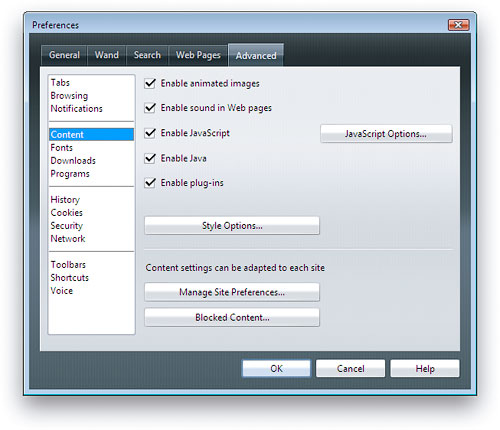
- Opera's Preferences window is well organized and reasonably simple.
- Like Safari, Opera preserves form information you've typed in case you need to go back a page or two and return to the form again. You can use the back button to revisit earlier pages and then the forward button to return to the form, and your entered data will still be there.
- Opera includes a feature called "Wand," which lets users store and reuse data for any of the forms they fill in on the web. This feature is similar to Safari's "Autofill," though it's more complicated to use.
- Opera offers a synchronization feature that lets users sync their browser data across different PCs that they use. This service is similar to that offered by Safari through Apple's for-fee .Mac (soon to be renamed "MobileMe") service.
- Like Firefox, Opera is available for a wide variety of platforms, including Windows, Mac, Linux, and other Unix systems.
- No support for Safari bookmarks on Windows, and import function doesn't cover history, cookies, passwords, etc. as does Firefox.
- Opera is the only browser that doesn't have an option to bookmark all currently open tabs, though it does have powerful session management features that offer similar capabilities.
- I found it annoying that there is no way to view your page history without opening the History sidebar. Firefox and Safari both have a top-level menu item called "History" that shows your visited-page history. The only tool provided is a pull-down menu adjacent to the URL address field--the same approach as IE 7--but this isn't nearly as convenient or comprehensive. However, at least Opera provides a single-click tool in its sidebar to access history, unlike IE 7, which requires a multi-click approach unless you keep its sidebar open all the time (which isn't as easy to do as in IE 6).
- Opera has no Page Info panel like Shiira or others that show in detail the resources loaded by the page.
- Opera has no advanced, in-page search capability like that of Safari or Firefox. However, you can see all instances of search terms using a function hidden in the main search field on the toolbar.
- Opera is overly zealous in identifying "insecure" websites in its default state. It expects all web pages to be encrypted, and doesn't honor standard SSL certificates.
- Setting many security preferences require knowledge that most web users don't possess.
- Little support for up-and-coming CSS 3.0 features.
- You can't drag URLs to the tab bar to open them, as you can in Safari and Firefox. There's also no contextual menu item to open the URL. Thus, the only option is copy and paste into the URL field.
- Doesn't support drag and drop text from browser. This is a drag!
- Dragging image from browser gave me the URL rather than an image.
- Notes view has no formatting abilities.
- Opera's mail client only supports ASCII text mail for formatting, though it can view HTML mail.
- Opera cannot open PDF files natively in the browser window without requiring a plugin.
- Some of Opera's "Advanced" preferences are not really that advanced, and I'd argue that individual tabs should be devoted to some of them rather than burying them here. For example, Opera devotes an entire tab to "Wand", which is their autofill implementation and another for "Search." Instead of these, most users would probably want to customize how the browser handles Tabs or Security more urgently. In addition, the tab labeled "Web Pages" is pretty meaningless and should probably be labeled "Appearance" or "Style" instead.
- Opera's interface can be confusing at times… for example, if you have the "Manage bookmarks" page open and select "History" from the side panel, the "Manage bookmarks" page doesn't get replaced with the corresponding History page. This pattern recurs throughout the sidebar/full-page functions. To further confuse users, the access links/menus to full-page details for each sidebar item aren't located in equivalent places in the interface. Some are easy to find… others hard. They should all work the same way.
Safari 3.1
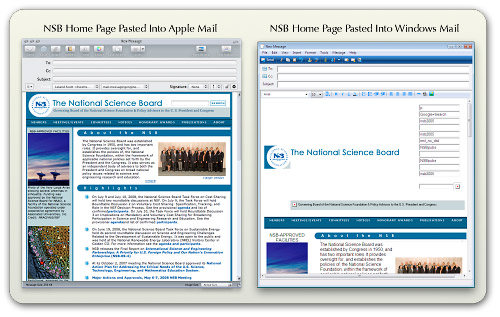
- Safari features excellent drag/drop and copy/paste to word processing documents. Such copies preserve links and formatting. To the standard RTF Mac editor, TextEdit, such drags also include images and other media. Paste or drag to Apple Mail preserves almost an identical HTML copy of the original page. By contrast, the same page copied from IE 7 to Windows Mail loses most formatting while preserving links and images, but Wordpad,
 Microsoft's equivalent Rich Text editor, could only accept unformatted ASCII text. Neither Opera nor Firefox can copy and paste formatted HTML (with images) to word processing or RTF document editors. (See accompanying screenshots of the NSB home page. Shot on the left shows home page pasted into Apple Mail client. Shot on the right shows home page pasted into Windows mail.
 - Unique features such as
- Trackback, which makes it easy to get back to the web page that started a browsing session for a particular site (including Google searches),
- The ability to drag tabs from the tab bar to make new windows or to add them to other windows.
- On the Mac, Safari also features "WebClip," which lets you create live "widgets" from any part of a web page. This lets you easily view a given snippet--live--at any time without loading the web page in Safari.
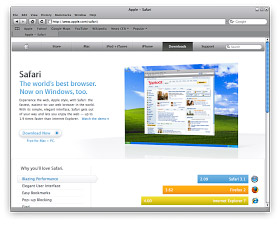
- Best support of advanced CSS 3.0 features, including native support for resizable text fields. In addition, Safari adopts the following CSS 3.0 standards:
- Border image, which lets web page designers use a single image (either tiled or stretched) to create borders around box text.
- Box-shadow, a previously difficult--but very popular--design element that puts a drop shadow on page elements.
- Background-size, a technique that lets designers use a single background image for HTML page elements and resize the image as needed.
- Multiple backgrounds, which lets designers specify multiple images to form a composite background for HTML page elements.
- And many other advanced CSS techniques (some of which go beyond what's been drafted for CSS 3.0), including:
- Text shadows
- Transformations
- Animations
- Gradients
- Reflections
- Form styling
- Support for "Private browsing," which makes it very easy to let someone else use your computer without compromising your personal information. When private browsing is turned on, webpages are not added to the history, items are automatically removed from the Downloads window, information isn't saved for AutoFill (including names and passwords), and searches are not added to the pop-up menu in the Google search box. Until you close the window, you can still click the Back and Forward buttons to return to webpages you have opened.
- Very easy to use, integrated window for searching and organizing bookmarks, history, and RSS feeds.
- Folders in the bookmark bar can open all bookmarks at once in a single window.
- Users can drag page links into folders on the bookmark bar directly, rather than having to visit the bookmark management page to do so. (Firefox also has this feature.)
- Built-in synchronization of bookmarks through a .Mac ("MobileMe") account.
- Support for offline data storage, enabling more robust web applications by putting database info on the client rather than requiring a round-trip to the server.
- Top-notch built-in tools for web developers, similar to the Firebug add-on that's available for Firefox and much more powerful than Opera's native JavaScript debugger.
- Full-featured Downloads window allows you to find downloads on your hard drive, open downloads, restart stalled downloads, and identify the download URL.
- Very easy to use, integrated window for searching and organizing bookmarks, history, and RSS feeds.
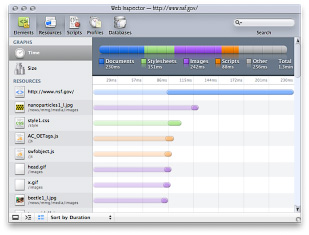
- Along with Safari's "Page Inspector," which developers can use for debugging and probing detailed information about a given page's or element's structure and metrics, you also get an amazing tool for inspecting the page's resources. Each script, CSS file, HTML component, and image is listed along with information on download times and size. Clicking on an item lets you see the file contents (images or source code). The Page Inspector also has a search feature by which you can search the entire set of data it includes. (Firefox has an add-on called Firebug that provides information very similar to Safari's Inspector… but it's not included as part of Firefox itself.)
- Safari has the easiest, most accessible tool for emptying your browser cache. When you need to free up memory, make sure you're pulling a fresh copy of a web page, or remove the cached pages on your hard drive for privacy reasons, Safari's "Empty Cache" item in the main menu is very handy. Firefox's analogous function is called "Private Data," but without configuration in a sub-page of Firefox's preferences, this category includes a lot more data than simply the browser cache. Both Opera and IE 7 have this feature, but buried in various menus and preference panels and more obscurely named.
- Safari pioneered integration of RSS subscriptions into the web browse, and it still has the easiest and best RSS feed manager. Some reviewers consider Safari's inability to set separate "fetch" schedules for each feed a negative attribute; however, I'm not sure why anyone would want to do this nowadays. After all, the update schedule is really determined by the publisher of the feed... not by the end user.
- Safari offers the option to view and subscribe to feeds through Apple Mail as well, but still use Safari when it's more convenient.
- Safari has an excellent implementation of this feature, which was pioneered by the Firefox browser.
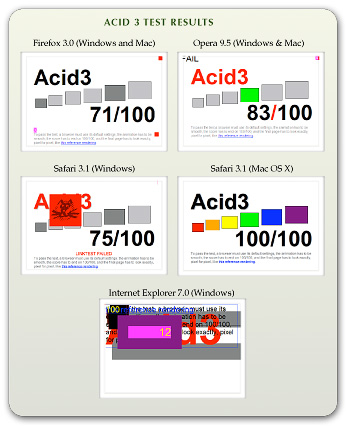
- Safari is the only browser that has passed the CSS "Acid 3" test developed by The Web Standards Project. Safari was also the first browser to pass the WSP's "Acid 2" test, which has now been conquered by all the browsers in this review except for IE 7. (See box "Acid 3 Test Results.")
- As previously noted, Safari is far ahead of the other browsers in adopting upcoming w3c standards for CSS 3.0.
- Safari supports the broadest range of image formats among the tested browsers. Besides the additional formats supported by Firefox and Opera, Safari also supports JPEG 2000 and TIFF images.
- Safari is the only browser that lets you delete links from your bookmark bar simply by dragging them off. With the others, you can delete using a right-click action, but Safari's method is much faster since there's no menu to navigate with the mouse.
- Supports dragging URLs to tab bar to open new pages.
- Offers the option of saving currently open tabs for the next session.
- Opera and Firefox both have a feature that lets you email the URL of the current page, but Safari goes one better and lets you email the entire page contents as well. IE 7.0 has this ability as well.
- Safari has the best support for form "autofill" of any of the browsers. Opera comes in second, only because it's a bit more work to enable this feature. With autofill, Safari can fill in data on most web forms you've used before. On the Mac, Safari data is protected by a master password using the Mac OS X "Keychain" feature.
- Preserves form information you've typed in case you need to go back a page or two and return to the form again. You can use the back button to revisit earlier pages and then the forward button to return to the form, and your entered data will still be there.
- Safari has a feature that lets you reopen all windows from your last session.
- On Mac OS X, Safari opens PDF files natively in the browser window without requiring a plugin, or they can be opened in the full-featured Preview application. On Windows Vista, Safari could not open PDF files in the browser window. In fact, like Firefox, IE 7, and Opera on Windows Vista Ultimate, Safari couldn't open PDF files at all without installation of the Adobe Reader.
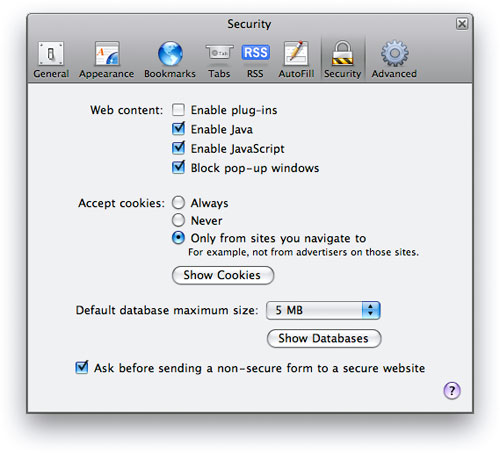
- Safari has a very simple set of Preferences with 8 clearly labeled sections: General, Appearance, Bookmarks, Tabs, RSS, Autofill, Security, and Advanced. Users of the other major browsers may find the settings provided by Safari to be too sparse; however, as a Mac user I would argue that in general Windows software provides customizable settings that are far more complex than necessary. Safari provides settings for all major user requirements, without the distraction of having to decide on settings you don't really care about.
- Safari is built on the open-source WebKit project, so, like Firefox, browser improvements and security fixes come very quickly. (The Opera team also innovates rapidly, but Microsoft's browser development has proceeded very slowly over the years.)
- Safari has very basic import/export functions for bookmarks. Like IE, it requires users to browse the hard drive for the HTML bookmarks file to import. Safari offers no other import features.
- Relatively weak features for customizing privacy settings. However, Safari includes a unique "Private Browsing" option, described earlier.
- Search form on toolbar only supports Google and Yahoo. (Of course, those are the top two search engines today.)
- Relatively weak features for customizing security settings.
- Safari is the only browser that does not allow users to customize its popup-ad blocker settings.
- On Windows Vista, I found that Safari 3.1 sometimes had issues with its window display… the window seemed to frequently require refreshing in order to display the toolbar components correctly.
- Safari's feature set on Windows isn't quite the same as on Mac OS X. The main missing features I noticed were support for in-browser PDF files without a plugin, support for bookmark synchronization, and availability of the Webclip feature.
- Safari is only available for Mac OS X and Windows and has no support for Linux or other Unix systems.
Browser Performance
Measuring the performance of web browsers is an evolving science, and it seems that new tools for this purpose come out each year. There are three main measurements that these tests concentrate on:
- Speed of parsing JavaScript,
- Speed of parsing CSS, and
- Speed of loading HTML and graphics.
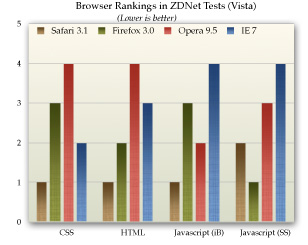
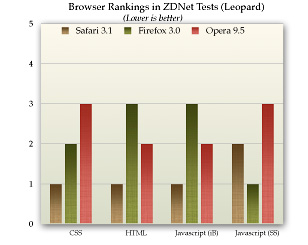
This section presents data from a few recent, representative studies that have analyzed these browser characteristics. Nearly all of them conclude that Safari is the fastest browser on both Windows and Mac OS X. Typically, Opera comes in second, followed by Firefox and IE 7.
ZDNet (May 2008)
This article, written by ZDNet staff in Germany, covers all four of the browsers reviewed in this report, looking at the performance characteristics listed above as well as measures of memory management. The article provides in-depth data on the testing equipment and methodologies used and displays numerous informative charts of the data results. The accompanying charts summarize ZDNet's data on JavaScript, CSS, and HTML page loads for each browser.
Lifehacker (June 2008)
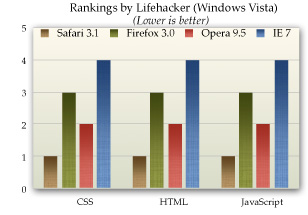
Lifehacker, an award-winning technology-oriented blog, published a study of browser performance in June, looking at a variety of measurements. Its results, which are less ambiguous than those of ZDNet, are summarized in the accompanying chart.
Web Performance Inc. (October 2007)
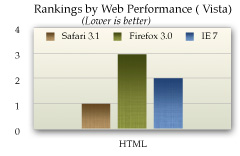
Web Performance, a company that produces for sale a variety of products designed to measure performance of web applications, conducted a study last October that--ironically enough--largely eschews the use of automated tools. Their tests were designed to measure performance as a typical user would perceive it. Web Performance's test concentrate exclusively on the speed with which the tested browsers load a set of predefined websites, and doesn't look specifically at JavaScript or CSS parsing. Further, its results are based on Firefox 2.0 (since 3.0 wasn't yet released) and on a beta version of Safari 3.0 (rather than 3.1). In addition, the study does not include Opera. The study's results cover load times using the browser cache as well as from the live servers, and it also presents data for load times when the browsers are pulling data from a LAN-based proxy server. The accompanying chart summarizes these results for the three tested browsers.
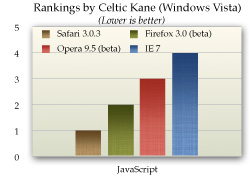
Celtic Kane (March 2008)
From a respected web technology-related blog comes the latest in a series of tests looking at browser JavaScript speed. The author's previous tests have been widely cited and well documented. (The report page has a button that lets users run tests on their own browser to compare them to the report's benchmarks.) In the author's first test from August 2006 (before Apple had released Safari for Windows), the winner was Opera 9.0 (by a long shot), followed by IE 6 and Firefox 1.5. The previous test, from September 2007, found Opera 9.23 maintaining the lead, closely followed for the beta of Safari 3.0.3, IE 7, and--much further down the list--Firefox 2.0. The chart below summarizes results from the latest tests, conducted with the most recent browser releases in March 2008. He found that Safari 3.1 had taken the lead and was 1.5 times faster than Firefox 3.0 (a beta version), while finding that Firefox 3.0 had made an astounding performance leap over Firefox 2.0 in JavaScript parsing. The Opera 9.5 beta was nearly on a par with Firefox, while IE 7 was 3 times slower than Safari 3.1.
Coding Horror (December 2007)
JavaScript results from this widely-ready programmer's blog are based on the newly available SunSpider test, which by a wide consensus (based on its usage), is now considered to be the Rolls Royce of web browser JavaScript tests. One of the best things about this report is that the author takes some time to explain the meaning of the large range of individual metrics that the SunSpider test comprises. The chart below summarizes the results. A major finding that you can observe on the Coding Horror page but isn't reflected in the chart here, is that IE 7 is two times slower than Firefox 2.0 and four times slower than Opera, the front-runner in this test.
Ars Technica (April 2008)
In response to the recent swelling of interest in comparing the speed of Safari (and its open-source cousin, WebKit) with that of the newly released Firefox 3.0, Ars Technica used the SunSpider test to take a look recently. Their test only includes Firefox and Safari, leaving out Opera and, because it was run on an iMac, IE 7.0. Their test is one of the very few that also includes the nightly WebKit release, which typically runs several months ahead of Safari in its code base. Ars Technica found that WebKit was the fastest browser in parsing JavaScript, followed closely by Safari, and then--a good distance back--Firefox 3.0.
Additional Test Results
Zimbra.com: And The Winner of the Browser Wars is….
Computerzen.com: Windows Browser Speed Shootout - IE7, Firefox2, Opera9, Safari for Windows Beta
Summary
In nearly all of these tests, Safari is currently leading the pack on both Windows and Mac OS X systems in overall measurements of speed for loading web pages and for parsing JavaScript and CSS. For second place, the results are a mixed bag, with some studies showing Opera ahead and others showing Firefox. However, overall it appears that Firefox 3.0 has been given a major speed boost, and it tops the latest Opera release on Windows Vista. However, Opera remains significantly faster than Firefox on Mac OS X "Leopard."
Also not contested is the browser bringing up the rear in these tests. In virtually all of the recent browser tests, IE 7 measures significantly slower than the other modern browsers, especially in tests of JavaScript performance. That said, there are some tests of HTML-load performance that show IE 7 somewhat faster than Firefox 3.0.
Conclusions
From a purely objective standpoint, based on the performance characteristics and feature set of each browser in this study, I would make the following recommendations to organizations seeking to get beyond their reliance on the outdated Internet Explorer 6.0, or to offer their employees the best browsing experience today:
- Eliminate support for IE 6 as soon as possible, since it is a legacy browser with a dramatically inferior feature set as well as inferior performance. Originally, I had planned to include a section here that would go into detail to explain IE 6's shortcomings. However, the reader will infer from the fact that none of the recent industry studies even include IE 6 in their analyses, and from IE 6's rapidly dwindling market share, that IE 6 will be totally obsolete soon. I predict IE 6's market share will drop below 10% in 12 months.
- Add support for Firefox 3.0 as your organization's primary browser. Even though Firefox may not be the best browser in all categories, it is more familiar to those who have tried alternative web browsers, and its interface is not dramatically different from IE 6, so users can be migrated with minimal disruption. My only concern about Firefox is the many extensions that are available for that browser. Users will want to try these out, and it's not clear whether they will have the rights to do so in a tightly controlled network environment. Even if they do, users who have a large number of different extensions in their configuration could make support for that browser more difficult. Extensions can cause problems with the browser itself, and unknown extensions can make it more difficult for Help Desk personnel to determine the cause of problems that may arise. Extensions also increase the memory load required to support Firefox. My recommendation for this potential problem is that the organization's IT group canvas users and industry reports to determine a standard set of extensions that it will support. Beyond that, it may be wise to lock down Firefox so that users can only add further extensions with some sort of approval process.
- If you still run Windows XP on users' desktops, I'd strongly recommend that you make IE 7 available as a download and encourage everyone to upgrade from IE 6. However, IE 7's quirky interface will likely cause confusion among users who will already have questions about the use of tabs and RSS feeds, thereby increasing the resource cost of supporting them in such a transition. In addition, because IE 7 is so far behind the other browsers in adopting and adhering to current web standards, development of experimental web interfaces for your Intranet will be difficult. The Intranet is the best "sandbox" in which developers can try out new web technologies, adopting those that succeed in major internal web applications and rejecting those that do not. Therefore, it's very important that your primary web browser maintain parity with the state of the art in this regard.
- Make Safari 3.1 available as a download, both for Mac users and for Windows users who want to try it out. Safari 3.1 is, by a variety of measures, the best web browser now available, and IT organizations should make such a browser available to its employees. Safari's interface is extremely simple and easy to use, so training and help costs should be minimal. Further, Safari's inclusion in Apple's iPhone makes it an interesting platform for application development--not only for internal use but possibly for customers as well. There will be an explosion in the availability of iPhone applications this year and next, and your organization could certainly be part of that by providing tools useful to staff and customers.
Bookmarks for Further Reading
- Wikipedia: Timeline of Web Browsers
- Wikipedia: Usage Share of Web Browsers
- Net Applications: Browser Market Share
- ZDNet Australia: Browser faceoff: IE vs Firefox vs Opera vs Safari
- Web Browsers: Speed Testing the Latest Web Browsers
- Apple Safari 3 Performance Testing – Web Performance
- Web Browser Javascript Benchmark
- The Great Browser JavaScript Showdown
- Ars Technica:
- Squirrelfish
- And The Winner of the Browser Wars is….
- Large select list slow in IE 6
- No, Internet Explorer did not handle it properly
- Explorer Exposed!
- Hixie's Natural Log: Buzz: Hallucinogenic drugs?
- internetexplorerbugs
- The Web Standards Project
- CSS:
- IE 7 Conditional Comments (working around problems with CSS in IE 7)
Apple Weighs In To Web 2.0 With Sproutcore Framework
InfoWorld Article Dispels Many Enterprise Mac Myths
My only quibble is the author's assertion that enteprise reliance on Microsoft Office means unequal time for Macs. He points out that OpenOffice is a viable alternative but makes no mention of Apple's own terrific iWork suite, which is quite compatible with the basic aspects of Microsoft Office. Likewise, he fails to acknowledge Apple's effective collaboration suite in the form of iCal, Mail, iChat, and Address Book. Perhaps it's because those aren't cross-platform. However, even if that's the case, since they are able to interoperate with Office, they should be considered by businesses seeking to support their growing numbers of Mac users.
WebKit/Safari Keep Blazing the Trail to CSS 3.0
A lot has happened in the world of web browsers and CSS 3.0 since I wrote this article last summer at the time Safari 3.0 became available as a public beta. Besides WebKit/Safari, Opera, iCab, Konqueror, and Firefox have all made progress in adopting CSS 3.0 specifications, the next generation of the W3C's Cascading Style Sheets standard.
However, the WebKit team continues to lead the pack, as they have since I first contemplated this article over a year ago. In the last 6 months, that team has not only adopted more of the CSS 3.0 specs ahead of the others, but they have proposed several exciting new specs of their own, which the W3C is taking up as draft recommendations.
In addition to updating the state of CSS 3.0 in WebKit/Safari, I've also added some new demos for the Backgrounds section of my CSS playground at the end of the article.
Here are the CSS 3.0 features I wrote about in July 2007:
- Box-shadow: Yes! Add drop shadows through CSS!
- Multi-column layout: Can we really do this now? With HTML?
- Resize: Give JavaScript hacks a rest and let users relax when typing input on web pages.
- Rounded corners: The corners of any
element can be made round to any radius you specify. - Colors with transparency: There goes another ugly hack from way back!
- Background image controls: Remember how great it was when you could add images as well as colors to an element's background CSS style? Well, it's about to get a whole lot better!
And since then, WebKit and Safari 3.1 have adopted the following bleeding-edge CSS features:
- Adopted last October, WebKit introduced its first take at CSS Transforms, which it has submitted to the W3C for consideration. With CSS Transforms,
s can be scaled, rotated, skewed and translated... all without using JavaScript! - Announced at the same time is the equally exciting implementation of CSS Animations. At the moment, the only type of animation that's documented and demonstrated on the WebKit blog is based on CSS Transitions, which let you define how an object or attribute changes over time from one state to another. Using this specification, you can now program many kinds of animations with CSS alone.
- Also in October, WebKit added the CSS Web Fonts feature, which lets designers beam fonts to users through CSS and HTML, approximating the capabilities of PDF in a much lighter-weight form.
- Then, after a lull, things started to heat up again last month, when Apple released Safari 3.1. Safari 3.1 incorporated all of the CSS 3.0 features WebKit had pioneered earlier, plus it added a bunch of things the WebKit team hadn't blogged about. Chief among these was support for CSS Attribute Selectors. This is something of a holy grail to advanced web developers, since it opens up a whole world of possibilities for using the Document Object Model (DOM) to build better web interfaces. When released, WebKit was the first and only browser to fully support this geeky, but highly practical feature. (Some of the other browsers have implemented partial support.)
- And then, just today, WebKit added support for CSS Gradients to its portfolio. Gradients are not yet a CSS 3.0 specification, but they are part of the HTML 5.0 spec. No doubt Apple's implementation will be referred to the W3C for consideration. (This is the only new feature in this list that as yet works only in the latest WebKit nightly build.)
This article lists the CSS 3.0 features that were first available in Safari or the nightly WebKit browser. Besides listing them, I've tried to keep up with what the features can actually do for me as a web designer, so each feature is accompanied by a demo or two and some explanatory notes. Since some of the features are a bit complex, and almost totally lacking in documentation from either W3C (which only lists the standards, not the implementation details), Apple, or the WebKit team, I've had to experiment to discover what some of the attributes do.
Fortunately, a forward-thinking group of techno-weenies is keeping a close eye on the emerging details of the CSS 3.0 implementations, and they have done some experimenting of their own. Since they're in the same boat I am (actually, they have a much better boat!), it's not surprising that I'm finding ambiguities in the way they've built some of their demos. Still, it's the closest thing to documentation that I've found, and I highly recommend that anyone interested in learning more about CSS 3.0 pay a visit to the terrific CSS3.info website. In fact, you'll find links to their pages throughout this site.
Following CSS3.info's lead, I'm organizing the (at this time) CSS 3.0 available in Safari into four categories: Borders, Background, Effects, and User Interface. These correspond to the W3C draft modules for CSS 3.0. The fifth tab in the navigation control below gathers the CSS 3.0 specifications that have been implemented by Safari and at least one other major browser. As you browse through these up-and-coming features, I think you'll understand my excitement about the benefits they offer to web graphic- and user-interface designers.
In the first release of this article, I only had demos for the section on Borders. Today I've added demos for CSS Backgrounds, and I plan to continue experimenting with the rest as time permits. In the meantime, as mentioned before, do pay a visit to CSS3.info for their demos of each, or follow the links to demos at the WebKit site. I hope you're inspired to take up a keyboard and pound out some experiments of your own!

Mac Hack Makes for Good Headlines, But…
Even if you believe these things would have happened if Apple's OS held the monopoly (which is a demonstrably false opinion), the burden of computer security has fallen exclusively on Windows users over the last 7 years. Exclusively... not just 90-95% of the burden. I have never spent a dime on security software or subscriptions, nor have I spent a moment worrying about going online. I've never had my machine hijacked by malware, or had my browser go haywire because I visited the "wrong" website. I take sensible precautions about suspicious emails, and I don't download files from suspicious websites.
If someone has developed a true exploit for hacking Mac OS X, I'm sure it'll be quickly squashed by Apple. And one or two such exploits in 7 years is a far more intelligent risk than dealing with thousands of such exploits a year over that period, don't you think?
Apple Posts Major Update to Safari
Apple - Support - Downloads - Safari 3.1
This update brings in all the latest standards implementations and innovations in the open-source WebKit project, plus a few interface enhancements as well. The Windows version gets some important updates too. From Apple’s tech document on Safari 3.1:
Performance
- Improves JavaScript performance
Standards
- Adds support for CSS 3 web fonts
- Adds support for CSS transforms and transitions
- Adds support for HTML 5 <video> and <audio> elements
- Adds support for offline storage for Web applications in SQL databases
- Adds support for SVG images in <img> elements and CSS images
- Adds support for SVG advanced textÂ
Developer
- Adds option in Safari preferences to turn on the new Develop menu which contains various web development features
- Allows access to Web Inspector
- Allows access to Network Timeline
- Allows editing CSS in the Web InspectorÂ
- Allows custom user agent string
- Improves snippet editor
Other
- Double clicking on the Tab Bar opens new tab
- Includes URL metadata when images are dragged or saved from browser
- Opens Download and Activity window in current Space
- Supports trackpad gestures for back, forward, and magnify on MacBook Air and compatible MacBook Pro computers
- Shows Caps Lock icon in password fields
Safari 3.0’s Hidden Jewels
By the way, before any defensive Firebug fans (I love Firebug, too, by the way) start a reflexive reply, you should know that in a recent podcast for Ajaxian, Firebug developer Joe Hewitt made clear he's now working on iPhone development and has been won over by WebKit from Firefox. He now thinks WebKit/Safari is the best platform for web development out there. I'd say his opinion is pretty significant! I see he's also built an early version of Firebug for the iPhone.
Mac Users Get A New Web Browser Choice: Demeter Started Life As “Super Shiira”
Apple Releases Public Beta of Safari 3… For Windows, Too!
Shiira 2.0 Finally Launched!
 The Shiira Project has at long last launched version 2.0 of their alternative-Safari browser. Ever since the first beta last summer, Mac tech writers in the know (me included) have been extolling its virtues, waiting anxiously for a version with all of its features intact. Although the 2.0 version released today still has a few small screws loose, I could easily write a whole new article describing some of its cool new features and the polish its put on the ones revealed in beta. Chief among the new features I love are
- The full-screen mode, which comes with a mouse-activated menu at the top of the screen that lets you navigate to other websites, change font size, and other basics.
- The final look and feel of the new HUD-style panels is awesome, although the “action gear” icon at the bottom of each is still out of comission.
- The RSS reader tool, which could still use some polish but has some nice alternative features not found in Safari.
- The final configuration and content of the Page Info window is tops in its class! You’ll find that the “links” pane now neatly and powerfully ties each item in its list to the actual page, so as you select a link, the page scrolls to that point. If the link has an image, the image is shown in the information pane below, along with the full HTML of the link–including any javascript. Awesome! I also highly approve of the way the image browser pane turned out. The DOM browser is pretty basic, and I would highly encourage the Shiira folks to figure out how to integrate WebKit’s page inspector into Shiira—it likewise is the best around (well, neck and neck with Firebug for Firefox).
- The PageDock is even better than originally, and Shiira still has the very best “Tabs Expose” feature of any browser around.
- The Shiira folks have wisely updated some of the underlying WebKit components, as a result of which Shiira now speaks “ContentEditable” like 95% of the other browsers in use. (See my recent article on this topic if you don’t know why that’s important to Mac users.)
I’m going to try running Shiira instead of WebKit for a day or two. At the moment, my chief gripes from very limited use (since last night) are that
- Shiira doesn’t integrate with Inquisitor, the awesome Cocoa search plugin for Safari,
- Shiira doesn’t have a built-in JavaScript debug tool or a DOM/CSS inspector like WebKit does,
- Shiira hasn’t incorporated WebKit’s CSS3 support bits. As a result, it can’t do things like rounded corners, drop shadows, multicolumn text, and the rest. (See this CSS3 Preview site to check them out.) The main CSS3 feature I use daily is resizable textareas… indispensible if you’re trying to get text entry work done in a browser.
- The browser’s feedback showing it’s loading the page is a bit weak… It relies on the PageDock icon “filling with water”, but if the icon is quite small, it’s hard to notice. I prefer Safari’s use of the address bar for this.
In any case, I’m glad to see Shiira returning back to life as a truly excellent, native Cocoa alternative WebKit-based browser for Mac OS X.
Latest Performance Tests Make WebKit’s Superiority Hard To Deny (But Some Still Try)
Adobe’s WebKit-Driven Apollo Desktop Now Available in Alpha Release
 I was too busy last week to report this in a timely manner, but it's potentially big news: Last October, Adobe announced that it would use Apple's open-source WebKit code (on which Safari is based) for a new web application runtime for desktop software, and it's now fulfilled that promise. Apollo can be downloaded in first-release alpha form from Adobe's Labs website, and there's one example application built on the platform that you can also try. Apollo installs as a framework on Mac OS X, and it's also available for Windows. Adobe intends Apollo to be a framework for building web-based applications for the desktop, and I don't know too much more at the moment, but do intend to find out. It sure seems odd to peer into the Apollo framework folder and find the WebCore and JavaScriptCore frameworks, which are the heart of WebKit itself!
Quietly, Safari Finally Gains WYSIWYG Editing Powers
A quiet revolution has taken place for Mac OS X Safari users, but I haven’t seen anyone celebrate it… and I’ve looked! There isn’t even a mention of this dramatic change in Safari’s powers on the Surfin’ Safari blog, where the open source team that’s evolving the WebKit rendering engine used in Safari announce new features and updates. Lately, this team has implemented a number of really amazing features from the CSS 3.0 specification, and each has been trumpeted with some eye-popping examples. But not a word about this.
Well, I for one am celebrating the upgrade with this article and proclaiming to the world that finally, at last, Safari is gaining parity with the other modern browsers in letting users perform WYSIWYG editing whenever the application calls for it. Mac users like me who have simply done without rich-text editing in their WordPress blogs and Gmails, bristling with an unfamiliar envy at the vast majority of users who take this functionality for granted by now, can finally save ourselves some typing and edit in our web browser with the same ease we do in a word processor.
A Little Browser History
Since its debut in June 2003, Apple’s Safari web browser has had a hard time gaining respect among web developers. This has a little to do with its Mac OS X platform restriction, but it’s mostly because of incompatibilities in its underlying rendering engine that have taken its developers a long time to correct.
From the beginning, Safari was incompatible with a fairly large number of websites, but most of this was because those websites were poorly designed to work only in Microsoft’s Internet Explorer browser. Apple encouraged its users to report bugs, through use of a convenient toolbar button in Safari, and I’m sure its developers’ energy was consumed with bug fixes for the first year of its life—when they weren’t implementing novel functionality like a built-in RSS reader.
After Firefox 1.0 was released in November 2004, interest in that browser slowly began to turn the minds of developers away from pure IE compatibility to a more cross-browser mindset based on open standards. Thus, in 2005-06, Firefox began to eat significantly into IE’s market share, to the point that no one could ignore Gecko compatibility anymore. Most Windows-based developers are surprised to learn that the share of Safari also rose dramatically during that time (from 1.5% to 4.5%), though remaining at a much lower level than Firefox (which rose from less than 4% to more than 13%). In mid-2005, Apple open-sourced WebKit, the core rendering engine used by Safari, and since then, interest in—and respect for—Safari has steadily increased. (Note to those who know… the underlying HTML rendering engine in Safari is actually called “WebCore”, but it’s a distinction that would simply confuse this history and provides no useful information. If you want to learn more, here’s a nice, brief summary on the Apple developer website.)
Part of that newfound respect is due to the WebKit team’s vigorous pursuit of web-standards compliance, and this improved compliance with standards dovetailed perfectly with the shift away from developers’ reliance on IE’s non- and sub-standard implementations of CSS and JavaScript. Thus, by the time Ajax became a buzzword in 2006, consensus in the web developer community was strongly aligned with adherence to standards, and Safari was by then just as standards-compliant as the Mozilla browsers and Opera… and in some cases more so. (Safari was the first browser to pass the Web Standards Project’s Acid2 test in 2005.)
Safari Remains “contentUnEditable”
And yet, many developers continued to grumble about problems dealing with Safari in discussion forums and blogs. When pressed for the reason, it nearly always boiled down to one of two things:
- The developer hadn’t worked with Safari in at least a year, or
- The developer was frustrated at not being able to deploy a web-based rich text editor that would work in Safari.
As far as number 2 is concerned, you can count me among the developers who’ve had that little problem. I’ve worked on development teams to build several Intranet systems for web content management over the years, and early on, we just had to give up on Mac users. Ironically, the scripting functionality that lets a developer make any element of a web page editable with WYSIWYG editing controls originated with Internet Explorer, beginning in 1999. After a fair amount of public nose-holding, the Mozilla team incorporated the Microsoft specification into its browsers fairly early on, and most projects developing rich-text editors for browsers were able to achieve Mozilla compatibility several years ago.
Yet still Safari lumbered on with little or no acknowledgment of the admittedly non-standard (but still vital) “contentEditable” property. And so the browser continued to receive scorn, even as it was leading the browser pack in other areas of standards compliance and functionality. It’s true that Apple incorporated what turned out to be very buggy support for contentEditable in Safari in late 2004, starting with Mac OS X 10.3.9. But this implementation was apparently so unreliable that it probably just angered developers who tried to use it more than it impressed anyone. (To find out just how angry, try Googling the phrase “Safari contentEditable” some time…) Fortunately, the new implementation appears to me as a user to be the real thing!
The Wait Is Over!
So it was with a great deal of surprise and delight that I awoke one morning a couple of weeks ago and realized that the long wait was finally over! On one of the Apple rumors websites, I read that a key feature of the latest beta release of Mac OS X 10.5 (”Leopard”), is support for rich-text editing in Safari 3.0 that’s fully compatible with the “ContentEditable” specification.
But that isn’t the really exciting part for me personally. Since Safari 3.0 is simply incorporating the latest build of WebKit, I surmised that WebKit itself was probably now capable of handling standard rich-text-editing duties on the web. Perhaps all of those sites that couldn’t be made Safari compliant because Safari didn’t properly handle ContentEditable might now be opened to me without reaching for Firefox, Camino, or Opera!
At first I assumed that I’d have to turn on some silent default in WebKit to make this happen, as I did with the resize-textarea CSS 3.0 feature. Not the case. The latest WebKit nightly build can handle WYSIWYG editing with nothing more than a download.
Well, that’s not completely true, but only because many websites and WYSIWYG editing tools are hard-coded to not let Safari or WebKit use their tools. But nearly all of these can be “spoofed” into thinking WebKit is IE 6.0 or Firefox, and will then open their toolbox for me to use. About the same number of sites are built correctly—that is, to identify whether a given web client recognizes a given DOM property, rather than merely asking for its name and number—and would let me edit content with no spoofing at all. Among the badly coded pages is WordPress’ administration area (at least through version 1.5), and among the well coded sites is Google’s Gmail.
Not Something To Brag About . . .
For Mac users, this is huge news. We like to think our platform is the best there is, and that Apple is way out in front on new technologies and usability standards. But in this case, the Mac has been way behind for a long time, and it will be very pleasant to put this behind us.
I first started researching WYSIWYG editing tools in late 1999, and even though Safari and Mac OS X didn’t even exist then, finding WYSIWYG editing tools that would work on the Mac has been an ongoing struggle and source of embarrassment.
How could Apple have ignored such core functionality for so long? That’s a rhetorical question, but it’s a clear demonstration of the fact that Steve Jobs and the brilliant folks at Apple aren’t flawless by any means. I think I was on the early side of recognizing the key value to web-based content management of letting end users edit content using tools that mirrored what they were used to in a word processor. It was clear to me that if you want to spread use of the browser in an organization as a tool for managing content on your website or in a database, you have to give them something more than a course in HTML and a good book.
Given their druthers, they would return to Microsoft Word every time to do their editing. And why not? Why should a nontechnical user struggle to piece together an HTML table for her data, or be forced to type code to tease a bullet list out of her content, when this problem had already been solved in the computer interface? Of course, they shouldn’t, and support for WYSIWYG editing in the browser clearly had no champion at Apple for a long time.
The only other end-user technology that Apple, unfortunately, remains way behind the curve on is video screen capture. I hope someone there realizes that static screenshots no longer suffice for many purposes, and that the screencast is a tool of immense strategic importance for marketing and education uses in the 2007 World Wide Web. Yet Mac users still don’t have a free tool for simple video capture, as Windows users do. But the purpose of this article isn’t to grouse, so I’m not going to grouse further on this subject here. 
Some Evidence for the Skeptics
For those of you who simply aren’t happy unless you can see what I’m talking about, as well as those who require physical (or at least visual) evidence of what I’m saying here, I’m providing a few screenshots that you can peruse at your leisure.
For the web developers out there who have built websites that shut Safari users out by name and number, now is the time to fix your site so that it asks the browser whether it understands the ContentEditable property. This will let folks like me who are using the nightly WebKit in, and will let the hordes who upgrade to Leopard see what they’ve been missing once Apple releases it. It will also let users of the WebKit-based shareware browser OmniWeb enjoy the new trick. OmniWeb incorporates WebKit code faster than Safari in most cases… or at least, on a different schedule… and the latest release supports WYSIWYG editing just as WebKit does. OmniWeb is the only WebKit-based browser I could find that does, however… the rest appear to use the core built in to Mac OS X 10.4 (”Tiger”).
For Mac OS X web users who’d like to start using Writely, Google Spreadsheets, and WYSIWYG editing in tools like WordPress and Gmail while staying in Safari or OmniWeb, by all means download the nightly WebKit browser or the latest OmniWeb release and start living life a little more fully!
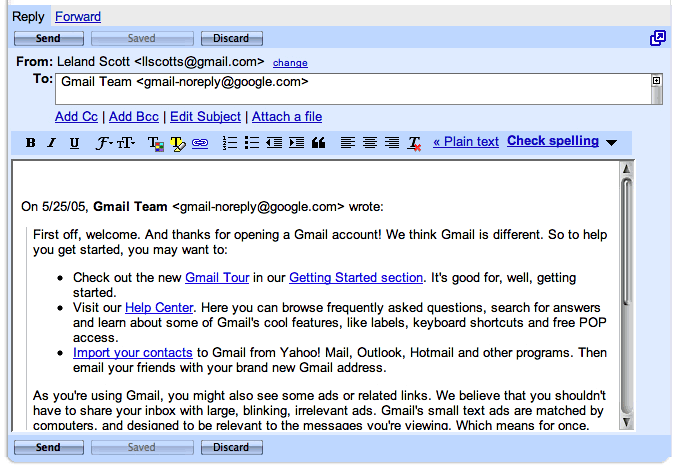
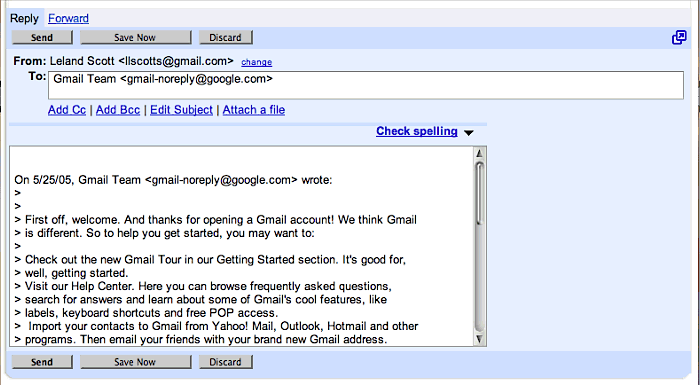
From the Genii Software’s comprehensive list of web-based WYSIWYG editors, which they have been maintaining in recent years after “the list” started at the University of Bristol, I quickly tested the following tools which had online demos and were listed as supporting IE and Firefox but not Safari. Here’s a summary of the results when testing with WebKit (latest nightly build):
Free or Open Source:
- ConceptRTE. Worked when spoofed as IE 6.0.
- Cross-Browser Rich Text Editor (RTE). Worked fine without spoofing.
- FCKeditor. Couldn’t spoof.
- CMSimple. Worked fine without spoofing.
- TinyMCE. Worked fine without spoofing.
- Through The Web Rich Text (WYSIWYG) Editor. Worked fine without spoofing.
- whizzywig editor. Worked fine without spoofing.
- Xinha. Couldn’t spoof.
Commercial:
- Ektron eWebWP. Worked when spoofed as IE 6.0
- Rad Editor for ASP.Net. Worked fine without spoofing.
- WYSIWYG PRO. Couldn’t spoof with a recent enough client, but it’s clearly spoofable based on what happened when I spoofed as IE 6.0.
Web Kit DOM: Unbelievably Rich Documentation of WebKit’s DOM Implementation
WebKit Browser Adds Support for CSS3 Multi-Column Text Layouts
WebKit Adds Support for CSS Box Shadows
WebKit Team Adds New CSS Methods for Text-Stroke
Now that the WebKit team's made this code available, it suddenly seems so obvious, I wonder why the designers of CSS 3.0 didn't think of it? Oh well, you can't think of everything, can you?
Creammonkey: Greasemonkey for Safari Slowly Gaining Traction
Creammonkey: Free Input Manager for Safari runs Javascript extensions
 Originally downloaded 2/20/06. Many Safari users have gazed with envy at the plethora of add-ons for Firefox, though in the final analysis there are only 3 or 4 that I really wish would come to Safari. One was Greasemonkey… and now we have Creammonkey, which will try to fill those shoes… Worth a try!
Update 10/29/06. Well, eight months after launch, there are still only a tiny handful of scripts that work with Creammonkey. I’m going to watch it awhile longer, but if the usefulness quotient doesn’t go up soon, I’ll pack Creammonkey in. Now that SafariScript is available—with a lot more scripts behind it—Creammonkey may not make it anyway. The fatal flaw seems to be its lack of compatibility with the hundreds of Greasemonkey scripts that already exist. That’s probably not the developer’s fault, but it may doom the effort in the end.
p:OK, even though Creammonkey still isn’t anywhere near as useful for Safari as Greasemonkey is for Firefox, I’ve found at least two scripts that make me want to keep it around. The first one I stumbled on quite by accident… it’s a cool little script called Greased Lightbox, which adds the popular “lightbox” effect to any image you link to from the page. The site designer doesn’t need to do anything but add links to an image… which is quite typical on sites that show thumbnails with links to larger versions. The script’s page has some sample images you can test it with, and also suggests that Google’s image search is a good place to use it. Personally, I’ve been surprised to find how often Greased Lightning is invoked as I browse the web these days… The first time I saw it, I honestly thought it was another lightbox javascript that was being served from the site owner’s HTML page. Greased Lightning alone is worth installing Creammonkey for.
Yesterday, I went searching for more Greasemonkey scripts that are compatible with Creammonkey. Unfortunately, I didn’t find many. The large repository at userscripts.org turns up only a handful, and if you follow some of those links, you might find a few more. For example, this programmer’s site has a number of Greasemonkey scripts, and he believes some of them may work with Creammonkey. I installed a couple of them but didn’t have any success. (I didn’t have time to be exhaustive…)

Nevertheless, I did turn up one other very cool script that works great in Creammonkey: RSS Panel X. RSS Panel X reads the HTML page’s RSS meta tags and then parses and displays the linked feeds in a tiny floating, collapsible window that appears in surprising, bright pastel colors. The script also reads a selection of microformats you may have embedded on your page and adds them to the RSS feed info. I haven’t been able to get this script to work in “automatic” mode in the manner of Greased Lightning, so I added a bookmarklet to my Safari bookmark panel.
Creammonkey is free, has been improved to the point that it no longer degrades Safari’s performance, and now has at least two really useful scripts that lets it show what it can do. Here’s hoping more will be coming along as time goes on.
Version as tested: 0.8.
Apple Publishes New “How-To” for Manipulating Quartz Compositions with JavaScript
Protopage Adds Support for Safari
One More Reason Why Discerning Mac Users Choose Safari Over Firefox
(I hypothesize that one of the reasons Firefox sucks at type is that it doesn't use the Cocoa frameworks... but you could test this by trying the same pages in Camino.)
Ajax Framework Qooxdoo 0.6.2 Adds Support for WebKit/Safari 3.0
Google Web Toolkit Now Supports Safari/WebKit
Streampad developer adds Ajax page history support for Safari
Apple Publishes Developer Tips for Testing the Nightly WebKit Builds
Inquisitor: Instant, Expanded Search for Safari
Inquisitor is Like Spotlight for the Web
 Originally downloaded 3/3/06. When I first tried this last year, it just didn’t work well enough to pay for. But it still sounds like a great idea, and I’ll be happy to see whether this new version meets the promise.
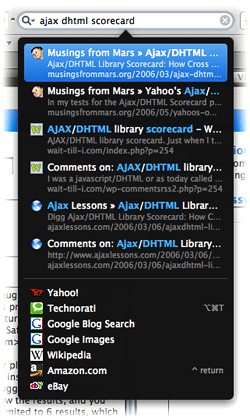 Update 11/12/06. Well, Inquisitor 2.5 didn’t impress me enough to pay for it, partly because the demo version didn’t reveal the full functionality… which was probably a mistake on the developer’s part. Either that, or Inquisitor 3.0 has so many more features that it’s something I am definitely using happily in place of AcidSearch as a replacement for Safari’s toolbar search field. Not only that, the developer has made Inquisitor 3 available as freeware! This makes Inquisitor a real bargain and nearly a no-brainer.
For those of you who haven’t tried Inquisitor, it’s a Mac OS X InputManager plugin that lets you define alternative search sites for Safari, implements a very visually slick instant-search capability, including customizable autocomplete, and provides search suggestions a la Google Suggest. You can have the suggested terms appear either above or below the results, and you can define how many suggestions and results you get (although you’re limited to 6 results, which is my only significant complaint at this point). For the default search, you can choose between Yahoo and Google, but you can define any number of other sites to search if those don’t cut it.

Inquisitor installs as a preference pane in Safari, providing a compact, convenient way of customizing its behavior. When setting up additional search sites, you can define a shortcut key for each one, and the results list itself can be navigated with the keyboard. So, feast your eyes on the pretty picture of Inquisitor’s search results, and then go get Inquisitor, install it, configure it, and try it out for yourself. For now, it’s only available for Safari, though I suspect the developer will make a Firefox-compatible version available sooner or later, since he had done so for version 2.5.
Version as tested: 3.0 Beta 1 (v34).
Adobe Chooses WebKit for Its Apollo Project
Inquisitor 3 for Safari Is Now Freeware
Inquisitor 3. Spotlight for the web.
 This is great news! I’ve tried Inquisitor a few times and never found it to be superior in functionality to AcidSearch, which is free. Inquisitor is definitely sexier in appearance, but I couldn’t justify paying for that. Besides, it wasn’t nearly as flexible as AcidSearch. The latest version of Inquisitor, though, is not only free, but it’s also much improved. It now sports a full preference pane inside Safari’s preferences window, which adds a number of useful new customizations. The results list is also much better. Perhaps some of these tools were always there, but only if you paid for the software. In any case, I may be making Inquisitor a permanent addition to my list of Safari add-ons here soon… I’ll try it out for awhile first. Oh, and Inquisitor’s interface is sexier than ever, too.
Cooliris: Preview Links Without Clicking
 Originally downloaded 10/14/06. OK, I’ll bite. Cooliris is an extension to web browsers (supports IE, Firefox, and Safari) that pops up a preview of web pages when you hover the mouse pointer over hyperlinks. Since it’s free, I’m definitely curious to see how well it performs.
Update 10/29/06. Cooliris is indeed a cool browser plugin, but personally I find it a bit too aggressive and intrusive. Having used it now for a couple of weeks, I find that it pops up without warning, and I hardly ever intentionally use its magic powers. Occasionally, it’s really pissed me off. For example, I find that when I log into Digg.com (for example) from a Cooliris window, my main browser window doesn’t acknowledge the login. Why this should be so is totally mysterious to me… since I understand the way cookies work, it makes no sense unless the Cooliris window isn’t actually being served from the same host as the “regular” Digg page. In any case, it’s a real time-waster to think you’ve logged in only to find you have to do so again.
Bottom line is, I don’t need Cooliris. I find that it doesn’t load “previews” of pages so much as tries to transfer browser activity from the main window to its own… and its in that process that Cooliris goes from being a help-mate to being a nuisance.
Version as tested: 1.3b.
How Many Firefox Extensions Does It Take To Make One SafariStand?
The title of this 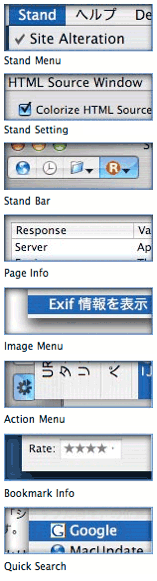 article is deliberately provocative: I don't know the answer to the question, and I don't really care. But having been there with Firefox many times, all I can say is that Safari add-ons like SafariStand make me grateful that I don't have to find out. For me, it's much easier to utilize and keep track of one extension rather than keeping, say, six or more in sync and up-to-date.
Our culture is generally dominated by a "more is More" attitude, so that the browser with the most plugins is believed by definition to be the best horse to bet on. This is the same argument some Windows users have made for years with respect to their choice of operating system: I want to use the computer that has the most software to choose from. This argument is proven empty when you actually sit down and compare the quality of Mac software in a given functional category versus that of Windows software (don't take my word for it: Actually do it yourself sometime), and that emptiness carries over to the issue of browser plugins. Certainly, there are some software categories that you legitimately need access to a Windows PC for. But if you notice, nearly all such categories cover business, rather than personal, requirements, and they're for very narrow fields of interest indeed. The only personal software category where the Mac actually lags Windows is gaming, and I predict that the gap in gaming titles won't be nearly so large a year or two from now as it is today.
As far as the supposed dearth of plugins for Safari in comparison with Firefox, SafariStand is an excellent case-in-point. There are other excellent multifunction Safari add-ons (Saft, PithHelmet, Safari Extender, for example), but I'm highlighting SafariStand because it's not only great, but also free. After all, if a Safari user finds they are starting to buy plugins, they really should consider paying for a browser that has dozens of plugins already built in, like OmniWeb. Being the cheapskate I am, I like free things, and SafariStand is one of my favorite freebies for Safari. Besides, most Firefox extensions are free, so it seems only fair to restrict this plugins conversation to those that Safari users can add without paying extra.
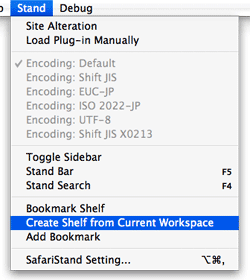 In this article, I'm going to focus on just a couple of the best bits from the latest SafariStand beta, which are too wonderful to remain obscure from the Safari-loving hordes. But very briefly, here is a list of the main functions that SafariStand adds to Safari. To gather these functions into Firefox would require the gathering of a half-dozen or more separate extensions, each of which would have to be authorized and kept up to date, etc.
- Option to restore your last workspace, or any of the pages you had open, on launch.
- Add sidebar with thumbnail tabs.
- Customize search engines available in the standard Google search form.
- Automate "find" function without having to type Cmd-F.
- Add color labels to your bookmarks.
- Enable site alteration, customizing allowable plugins, images, JavaScript, style sheets, and more for any website.
- Colorize the HTML source window, and make it editable.
- Reorder tabs in a window (this is a native feature of Firefox and will be one in Safari 3.0).
- Use the "Stand Bar", a floating palette with searchable bookmarks and history, as well as customizable SafariStand folders and RSS feeds.
- Configure your "Bookmark Shelf," a floating palette that lets you build and access saved "workspaces," which are lists of sites you open up in a browser session and want to save for later use.
- Access one of the best "Page Info" stores now available for any browser.
- For any site you're visiting, easily see a list of all the cookies the site has set, examine their contents, and/or delete one or more of them.
 Believe me, that's not the entire list... but I think you get the idea. SafariStand is free, is continuously being developed, and works seamlessly and quietly with Safari. You access SafariStand's settings either by the "Stand" menu that's added to the top-level menubar, or via one of two new icons you can add to your Safari toolbar. (If you try SafariStand, be sure to customize your Safari toolbar in order to add at least the SafariStand Actions Menu icon... it's the only way to access the new Page Info window, which I'll describe in a moment.)
Yet Another Improvement To Browser Tabs
The two features I want to provide more information about just showed up a few weeks ago in the latest beta release. One is a really useful, but simple, enhancement to SafariStand's thumbnail-icon sidebar that actually makes this tool usable for me. A couple of months ago, I went into detail about the design of the forthcoming Shiira 2.0's graphical tabs, comparing them with those in the new OmniWeb 5.5. As it turns out, as much as I like Shiira's thumbnail tab implementation, SafariStand's innovation is a brilliant improvement. I hope the Shiira developers are paying attention!

The main problem I've had with thumbnail tabs up to now is that if you make them small enough so that they don't consume too much screen real estate, you can't (or rather, I can't...) distinguish them clearly enough to be useful. You might as well click on the tab to see what page the tab is for, since the teeny icon is too muddy to be recognizable. You could make the tabs big enough to see the thumbnail, but then you're eating up valuable screen space. (An approach some browsers have tried, including Opera and the forthcoming Safari 3.0, is to enable tooltip-like page previews when you hover the mouse over your tabs. This is another great way of letting users distinguish tab content, although it arguably takes more effort than well-implemented thumbnail tabs.)
 What SafariStand's developers have done is to add a cropping tool that lets you select the portion of web pages you want to see represented in the thumbnail. This lets you tell the browser to make a thumbnail of only a certain rectangular portion of a given web page. Since most web pages have their main graphical identification in the upper left-hand corner, you can now basically tell the browser to "blow up" that portion into your tiny thumbnail. This also lets you define how high the thumbnails will be, since you can define the height and width of the rectangle to be "iconized."
This is very cool indeed. It's also the kind of feature that a small movie can describe better than words, so check out the accompanying QuickTime animation if you're having trouble visualizing this functionality.

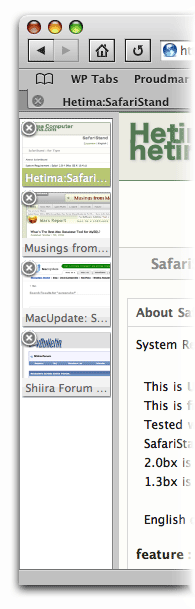 The new SafariStand sidebar has also been cleaned up in small ways that bring it up to date with the latest and greatest Mac OS X software: You now have the light-blue background from Mail, Ecto, iTunes, and dozens of other Mac apps, and you have the "new" standard drag bar that you can use to resize the sidebar. The new sidebar preferences let you decide whether the drag bar goes at the top of the sidebar or at the bottom. All in all, I really, really like the new sidebar. I also like the fact that I can use it while still keeping my regular Safari tab bar, because I like it, too... for different reasons.
"Page Info" Goes Graphical
The second big news in SafariStand is the "Page Info" window. I swear these developers must have read my raves about Shiira's new "Page Info" window back in August, because the new SafariStand window bears a striking resemblence to the one planned for Shiira 2.0. I find this new window invaluable, since as a developer it lets me very easily identify and peruse all the components of a given web page.
Inside the new window, you've got a screen with the basic page information: File size, referrer, user-agent string, and server headers. Next, a pane showing the page's "Sub Resources," a list similar to Safari's standard "Activity" window.
Then we get to the really good parts. First, a pane listing all the CSS files used in the page. Like Shiira's, just click on one, and the CSS file's contents can be browsed in the pane below. The list of the page's JavaScript resources works the same way. Both of these are the easiest way I've seen of quickly peeking at the scripts and CSS instructions used for a web page.
 Finally, SafariStand's Page Info window has a paneful of the page's images. Here, rather than simply mimicking Shiira's excellent implementation, SafariStand's developer has improved on it. Where Shiira's window gives you a list of filenames, which you can then click to see each image in the lower pane (the same model used for CSS and JavaScript files), the latest SafariStand provides an instant preview of all the page's images, arrayed as in a Finder window set to Icon View. You also get a slider at the top of the window, which lets you set the scale factor for the icon view, so you can make the images larger or smaller. Click on an image, and a form at the bottom of the pane fills in information about it: Its filename, dimensions, and file size.
This is again so great, I had to capture a quick screencast of the way it works. Hopefully it's clear enough that you can get an accurate picture of how the window works.
Making Safari The Best That It Can Be
Now, it would be great if Apple would simply build some of these features into Safari. What I hear so often is that users think Safari simply can't do this thing or that thing... when I know for a fact that it can. You just have to find the right plugin. And there's a plugin for nearly everything you really want Safari to do. No, you can't have weather forecast information displaying in your status bar, and there's nothing quite like the Scrapbook you can use with Firefox. But honestly, there's probably more free stuff you can get for Safari than you realize.
 To begin exploring, start with Jon Hicks' great compilation of Safari add-ons at PimpMySafari.com. Here, you'll find over 50 great plugins for Safari, as well as an extensive collection of "bookmarklets," which are little JavaScripts you can add to your bookmark bar to perform a variety of useful tricks. (Hicks also maintains a similar site for Camino, Firefox's native Cocoa cousin that like Safari is viewed as "plugin poor" compared with Firefox and Mozilla. )
In a quick inventory of my own Safari add-ons, here's what I'm currently using in addition to SafariStand:
- SafariBlock, an excellent ad-blocking tool comparable to Firefox's AdBlock extension. It can block Flash as well as image content, is free, reliable, and very easy to use.
- The aforementioned Safari Extender, a $10 plugin that adds a variety of functions to your contextual menu in Safari.
- Acid Search, a free plugin that adds extensive search engines and customization to the Google search bar, as well as find-as-you-type.
- Safari Tidy, a terrific free plugin that validates web pages for (x)html compliance using HTML Tidy, and puts error and warning messages in your status bar. It also does some great upgrades to Safari's standard "View Source" window.
- SafariScript, a terrific extension that takes advantage of the fact that Safari can do a heckuva lot with AppleScript that other browsers simply can't. The developer's website is a wonderland of great scripts that you can add to your new Safari Script menu, including some which are full-fledged plugins themselves.
- WebDevAdditions, a plugin that corresponds roughly with Firefox's terrific Web Developer extension. It adds an array of menu items and contextual menus that let you parse, poke, and peek at a web page's structure, design, and functionality. It's gotten steadily better since it was first introduced in mid-2005.
 I highly recommend all of these add-ons to Safari, but if you're intrigued, be sure to pay a visit to PimpMySafari.com, where you'll find plenty more where those came from, with even more being added each month. You'll certainly find a prominent link to SafariStand as well! With all of these riches, there really is no need for Safari users to look enviously at the more than 1,500 extensions available for Firefox. After all, a huge number of the Firefox extensions merely cover functionality that Mac OS X "Tiger" users can get through Dashboard widgets (which are just little web pages, after all). And how many Dashboard widgets are available now, a year and a half after they were introduced? That's right... almost 2,400 as of today. Believe me, widgets are a heckuva lot more fun than browser extensions, and they're available when your browser isn't running, too.
Uh-oh, you got me started on widgets... So, just to keep this in perspective, if you don't have Tiger and want widgets, Konfabulator is now free and living at Yahoo. Wouldja believe there are now over 3,200 Konfabulator-style widgets at Yahoo's widget portal? Like the Apple-style widgets, nearly all of these are free for the taking.
If that weren't enough, Google is now in the widget business, and though fledgling at this point, has a gallery with hundreds of little web widgets that you can add to your browser to do nearly anything you can think you might want to do on the web.
Now, I don't know about you, but that's more than enough "stuff" I can get nowadays to make accessing web content easier and more enjoyable on my Mac, no matter which browser I'm using. And isn't your ability to access content and services on the web faster, easier, and more fun the final measure of success for whatever web-browsing tools you use?
Apple May Have New Google Cards Up Its Sleeve for Safari 3.0
delicious2safari: Freeware imports deli.cio.us bookmarks into Safari in different ways
delicious2safari: Import your deli.cio.us bookmarks into Safari
 Originally downloaded 6/1/06. This looks like a neat little app that gives you yet another way to use your delicious bookmarks. You can import them organized into folders (by tag) or not, and use them wherever you like in Safari. I have so many delicious bookmarks now that browse is not an option… only search will do. If this lets me search them faster than the deli.cio.us site itself, it’ll be worth it!
Update 10/9/06. Naw… just not good. I’ve now got all my del.icio.us bookmarks replicated here on Mars, and there are numerous fast ways for me to search them. Putting them in Safari would just gum up Safari, which I don’t really use for bookmarks much anymore… O, how times change.
Version as tested: 1.2.1.
SurfRabbit: Customize Web Sites in Safari
SurfRabbit: The Web, The Way You Want
 Originally downloaded 1/26/06. What a great idea! It’s an extension of the idea of using custom style sheets, but has an interactive tool for actually changing columns and other content blocks around. Can’t wait to try it! It’s only for Safari and Shiira.
Update 2/6/06. When first trying SurfRabbit (version 1.0.1), some really strange things started happening to my browsing sessions. Rather than spend time trying to debug the problem, I turned SurfRabbit off.
Update 10/6/06. SurfRabbit still strikes me as a potentially marvelous tool that goes way beyond ad-blockers and such to let the end user see the content they want… rather than the irrelevant content the publisher foists on you. However, when I tried it again today after many months, I wasn’t able to customize any sites at all. SurfRabbit comes with prebuilt “Rabbits” (customized websites) for a lot of the sites I visit—particularly Mac-related sites like MacSlash, AppleInsider, MacRumors, MacDailyNews, etc.—and those do seem to work. But I can’t seem to get access to the tools SurfRabbit provides for building new “Rabbits.” I sent an inquiry to the developer, and we’ll see how that goes. I’m not giving up on it yet…
Version as tested: 1.2.1.
SafariScript: Put A Script Menu in Safari’s Menubar
 Originally downloaded 10/4/06. With all the great Applescripts available for Safari, you'd think Apple would have done this first... or made it an option. But at least someone thought of it... in fact, it's the developer who did similar favors for Camino. There's also a nice script repository onsite. Oh, and the developer says you can define keyboard shortcuts for any of the scripts! (Gee, I wonder if they'll work in Safari 3.0?)
Version as tested: 1.2.


