



Resource Posts In Category
Shortcuts Nirvana, Part 2
Since writing an article on home automations and Shortcuts earlier this year, I have continued to find and make shortcuts and recently passed 800 in my library. I thought this milestone would be a good time to reflect on what I've been doing with these shortcuts and how I managed to gather so many.

First, let me say that many of these shortcuts have really changed my life... for the better, as I'm sure Apple would be glad to hear. I spend more time in my Shortcuts app than I do in any other app on my iPhone at the moment, and having all this information available in one app like this makes it more accessible and rewarding. Sure, I have a lot of shortcuts I don't need, but I'll be focusing in this article on the ones I actually use, any automations associated with them, and what they do for me. You can find the list of folders in the first part of this article.
Quick Links
This folder has a number of shortcuts that act as quick links to actions that would otherwise take more time.
App Launcher: Something I read gave me the idea for this shortcut. It's simply a menu of my most-often-used apps, which I can then launch with a quick selection. I keep this shortcut in my Home Screen folder for ready access. It's much faster than browsing for an app.

Apple Feedback: I keep this shortcut handy because I always have a hard time finding where I can send feedback to Apple. This launches the Feedback Assistant app.

App Store: Arcade: This is simply a quick link to the Arcade section of the App Store.

Shine Light: This handy shortcut toggles on the camera's flash bulb. If you run it again, it turns the flash off.

New! Screenshot: I wrote this simple shortcut because there are times when I'd like to ask Siri to take a screenshot rather than fiddling with the external buttons. It starts by waiting 5 seconds to give you time to get the screenshot set up and then takes a screenshot and saves it to your Recents folder in Photos.

Say Family: This shortcut counts down from 5 to 1, giving people enough time to assemble for a group photo. After it says "Say Cheese," it takes a picture with the back camera and saves it to your photo library. From RoutineHub.

Quick Music
This folder has quite a few shortcuts, all designed to get music playing quickly. I'm only going to describe three of them here.
Automix: This shortcut lets you choose several options for quick music playing. It was originally designed to write a playlist with the selected music, but I've eliminated that part of the shortcut. I'm not sure where I found this, so I'm linking to my copy in iCloud. The choices are "Casual," meaning your whole library, "Artist," letting you select an artist from your library, "Genre", letting you hear music by genre, and "Year," playing songs you added in a certain year. I've modified the shortcut to in all cases play only 5-star songs. By default, the shortcut only returns 50 items, but you can change that behavior in the shortcut.

Latest 5 Stars: This shortcut plays 5-star songs from my library, sorted by the latest additions. This is nice when I sync my library with the iPhone and add a lot of new songs. This lets me hear the new songs first. I have a similar shortcut for 4-star songs.


Quick Music Artists
I have a slew of shortcuts set up to play particular artists. To date, I have shortcuts for the Beach Boys, Chuck Berry, Van Morrison, Neil Diamond, Elton John, the Rolling Stones, Bob Dylan, John Cougar Mellencamp, CCR, the Beatles, James Taylor, the Eagles, and Cat Stevens. I also have one for "Singer-Songwriters," which is a bit different because it plays multiple artists. Most of these have a 5-star version, a 4-star version, and one for both 4 and 5 stars. I'm showing an example using the Rolling Stones shortcuts. These shortcuts are great to use with Siri... a very quick way to start playing your favorite artists.
Rolling Stones: This shortcut gets my 5-star-rated Rolling Stones tunes and starts playing them. I believe this is based on a "Play Artist" shortcut in the Apple Gallery of Shortcuts.

Rolling Stones 4: This shortcut gets my 4-star-rated Rolling Stones tunes and starts playing them.

Rolling Stones All: This shortcut gets my 4- and 5-star-rated Rolling Stones tunes and starts playing them.

Singer Songwriters: This shortcut is a little different from the others in this folder. It searches my library for 5-star singer-songwriters' music and plays it. The artists included in the search are Carole King, James Taylor, Jackson Browne, Cat Stevens, Jim Croce, Carly Simon, Joni Mitchell, Neil Young, Gordon Lightfoot, Graham Nash, Michael Nesmith, Van Morrison, Bob Dylan and Kris Kristofferson.

Quick Music Genres
This folder has a lot of shortcuts designed to play music by genre. I discovered that making some of these is an extension of the "smart playlist" option in iTunes. Many of these shortcuts are "mash-ups" of genres that I've really enjoyed listening to. I'm giving an example of that with the Techno Funk genre. I'm also including a few other shortcuts that in one way or another conglomerates artists and genres into great playlists.
Techno Funk: This is an example of a "mash-up" of genres from my music library. In this case, the shortcut merges my Techno/Synth Pop and Funk/Hip-Hop/Go-Go genres. It's set to play songs rated 5 stars. Other similar shortcuts I have include "Philly Disco", which merges Philly style Soul with Disco, and Southern Soul, which merges Funky Soul and Deep Soul. The following two shortcuts are the same as this one, but for different star ratings.

Techno Funk 4 Stars: This is the same as the previous shortcut, but set to play only songs rated 4 stars.

Techno Funk All: This shortcut is the same as the previous two, but set to play both 4- and 5-star tunes from my library.

Northern Soul: This shortcut is a mash-up of four genres... Philly-style Soul, Motown-style Soul, Other Northern Soul and Soul Instrumentals. It's set to play only 5-star tunes from my library.

Motown: You'd think this would be covered in the Northern Soul shortcut, but I wanted one that's specific to Motown artists, not merely music based on the Motown sound. So this shortcut fetches the following artists and plays 5-star songs of theirs from my library: Marvin Gaye, Supremes, Miracles, Four Tops, Martha & the Vandellas, Elgins, Isley Brothers, Temptations, Gladys Knight & Pips, Velvelettes, Mary Wells, Stevie Wonder, Edwin Starr, Jr. Walker & the All-Stars, David Ruffin, Jackson 5, Spinners, Eddie Holland, Brenda Holloway, and Barrett Strong. Because some of these artists recorded outside the Motown fold, the shortcut also specifies that the genre be Motown soul.

World: I've particularly enjoyed listening to this mash-up of my genres Reggae/Ska, Latin and Calypso. It pulls 5-star-rated songs in those genres from my library.

Settings
This folder contains shortcuts that pertain to the iPhone's settings. It also has some shortcuts for the Mac and the Apple Watch. I have automations set up for my battery life, with an automation every 5% of battery life. Some of these shortcuts are used in managing the battery as well as brightness in these automations.
Open Settings:
This shortcut provides a menu that's a window into the various screens in the Settings app. It's a quick way to navigate to a particular Settings screen. I'm not sure where this one came from.
Display Settings: This shortcut links to the display settings screen in Settings, which is one I seem to refer to more often. I believe this shortcut was made by the next shortcut in this list.

Settings Shortcut Generator: This nifty shortcut can be used to create a new shortcut for a specific screen in the Settings app. I include it as much for the innovative approach as for my use of it. From RoutineHub.

Max Brightness: This shortcut makes your iPhone as bright as it can be, toggling several settings as well as maxing out the brightness. Just the thing for a sunny day, but use sparingly as it will use your battery faster. From RoutineHub.

Brightness To Battery: This brilliant shortcut sets the brightness setting to your battery percentage. I use it with Siri all the time, and it's built into many of my shortcuts for breaks and for the battery automations. It dims your display at the same rate that your battery declines, helping to save battery life. I don't know where I got this one, but I couldn't do without it!

Super Low Brightness: This Siri command simply sets the brightness to a very low (15%) level to save battery life. I usually use it when Super Low Battery Mode is turned on.

Super Low Battery On: This and the next shortcut are based on the Super Low Battery Mode shortcut from ShortcutsGallery.com. This one turns off cellular data, turns on low power mode, sets brightness to 15%, and turns down the volume to 15%. I use this in my Breaks and Battery automations and shortcuts. I also use it from Siri. I left Bluetooth and WiFi on, because my iPhone is pretty much useless without those.

Super Low Battery Off: This and the previous shortcut are based on the Super Low Battery Mode shortcut from ShortcutsGallery.com. This one turns on cellular data, turns off low power mode, runs the Brightness to Battery shortcut, and sets the volume at 50%. I use this in my Breaks and Battery automations and shortcuts. I also use it from Siri.

Set Battery Charge Mode: I use this shortcut for automations when my iPhone is connected and disconnected from power. It lets me choose whether to turn Super Low Battery on or off and runs one of the previous two shortcuts.

Battery Charged: I use this shortcut in my automations for battery levels 90 and 100 percent. If the time is between 7 AM and 7 PM, it speaks the battery level; otherwise, it sends a notification.

When Battery Falls Below 5%: I have this shortcut tied to an automation when my battery level reaches 5%. If during the day, it speaks an urgent warning about connecting to power. If at other times, it sends a notification. It also turns on Super Low Battery mode.

iPhone Disconnected: This is another shortcut that's tied to an automation. In this case, it's run when my iPhone is connected or disconnected from power. It plays the "Approved" sound (see folder Sounds) shortcut (because I like the sound  and runs the Set Battery Charge Mode shortcut so I can decide whether or not to turn on super low batter mode.

Mac Sleep: This shortcut lets you sleep your Mac remotely. For it to work, you need to populate the shortcut's SSH command information and make sure your Mac's sharing settings allow for remote access. Once I got this set up, I find it very handy.

Wake Mac: This shortcut lets you wake your Mac remotely. For it to work, you need to populate the shortcut's SSH command information and make sure your Mac's sharing settings allow for remote access. Once I got this set up, I find it very handy.

Change Watch Face: I use this shortcut as part of my battery automations. I run it every 10% of battery life to change my watch face. I like so many of the watch faces, it's nice to see a different one as the day goes on.

Water Eject: There are a ton of variations of this shortcut out on the web, and some are among the most popular shortcuts. I haven't had a need to use this one yet, but I tested it, and I'm sure it will do a good job of ejecting fluid from my iPhone should the need arise. From RoutineHub.

Share Sheet Only
This folder has shortcuts that can only be run from the Share Sheet. They only take input when you're in some application (like Safari or Photos) and hit the "share" icon.
Zip and Save Encoded: This shortcut takes files as input, and it first zips them up. Then it converts the files to Base64 format, copies the result to the clipboard, and lets you save the file to iCloud. I have a similar shortcut that skips the Base64 step and simply saves the zip file.

Tweet Web Page Info: This shortcut gets the title and URL from the current web page and pastes them into a Twitter message window. You can edit the message before sending it off.

Get Images: This shortcut pulls all the images from the current web page and displays them for you. You can select which photos you want to save to your photo library, after which the photos get saved to the album you specify. I don't know where I found this one, but it does have a credit comment inside.

Find RSS Feed: This shortcut looks into the code of the current web page and returns any RSS feeds it finds. It shows you the title of the RSS feed if it finds one and copies its URL to the clipboard. I couldn't find the original source for this one.

Change Text Case: This shortcut takes input from the share sheet and lets you choose how to change the text's case. It lets you choose Uppercase, lowercase, initial caps, and more. It copies the result to the clipboard and then shows the result in a Quick Look window. I'm linking to my version in iCloud since I don't know where I got this shortcut.

Translate Input: This handy shortcut will translate into English any language it encounters. It shows you the translation and then copies it to the clipboard. I used this heavily in translating non-English shortcuts. Very reliable.

Apple Notes Clipper: This shortcut gets the title and body of the current web page (Safari Article) and shows it to you in Quick Look. It then opens a Notes compose sheet and lets you save to Notes. I believe this one comes from the Apple Gallery in Shortcuts.

Safari Article to Mail: This is the same as the previous shortcut, but instead of saving to notes, it lets you compose an email with the current web page's article.

Get URL: This shortcut simply returns the URL of the current web page and copies it to the clipboard.

Read Selection: This shortcut will speak whatever text you have selected when run from the share sheet.

Read Article: This shortcut finds the body (Safari Article) of the current web page and reads it aloud.

New! Summarize: This shortcut uses the website smmry.com and their AI summarizing algorithm to summarize a given web page. You invoke it from the share sheet in Safari, and it works most of the time, returning a 7-paragraph summary of the given page. I'm not terribly impressed with the summarizing, but it's still a cool shortcut. From RoutineHub.

New! View Source Code: This shortcut saved my hide recently when for some reason Safari on the Mac wouldn't display the source code for my weekly newsletter. With this shortcut, I could easily view the source code in Safari on my iPhone and then share the code with my Mac through AirDrop. Source unknown.

New! Reverse Image Search: This shortcut does a cool trick: It lets you select an image and then do a Google search based on that image. So the results returned are a lot of images and links to the image you searched for, as well as to similar images. From RoutineHub.

Shortcuts Items
This folder has a number of shortcuts websites and feeds for when you're looking for shortcuts. It has others that help when working with shortcuts.
Newest RH Shortcuts: This shortcut returns a list of about 25 of the latest shortcuts added to RoutineHub. Selecting one opens the RoutineHub page in the Safari view controller. This is a German shortcut from RoutineHub. I'm linking to my translated version.

Latest Update RoutineHub: This shortcut returns the list of recently updated shortcuts on RoutineHub. It's a bit slow.

RoutineHub Search Pro: This shortcut lets you enter a term and search RoutineHub for shortcuts. You can also search for shortcut authors. From RoutineHub.

New! Search RoutineHub: I wrote this simple shortcut because the previous one takes longer to produce results. Instead of showing the results in a menu, it loads RoutineHub in the Safari view controller. When launched, you just enter a search term to start the search.

Share Shortcuts Feed: This shortcut displays the RSS feed for the ShareShortcuts.com website. It's nice because it shows the date of the shortcut in the returned list.

Shortcuts RSS: This shortcut gets three feeds at once... From RoutineHub, ShareShortcuts and ShortcutsGallery. It presents a long list, some of which have information about publishing dates, which you can choose from to open a Safari sheet.

Siri Shortcuts Search: This shortcut lets you search across several shortcuts sites, entering a search term and getting a Safari view with the Google results.

New! Shortcuts Searcher: This shortcut uses a custom Google search engine that indexes about 7 different sites with shortcuts. It's similar to the preceding shortcut, but is more comprehensive. You enter a search term, and get results in the Safari view controller.

Shortcuts Websites: This shortcut presents a lengthy list of shortcuts websites. Great when you're looking for new sources of shortcuts.

Open Shortcuts User Guide: This shortcut is a quick link to the Shortcuts User Guide on Apple's website. Definitely worth perusing if you get serious about shortcuts, either from a user or a creator perspective.

Shortcuts Release Notes: This shortcut links to the release notes for the Shortcuts app on Apple's website. It's interesting to see how the capabilities of Shortcuts evolved in the first few years. I'll be interested to see the notes for iOS 15 when they're released.

Open Discord Channel: This shortcut opens a deep link into the Discord app to locate the shorcuts channel, which is pretty active with new shortcuts. I found this one through Matthew Cassinelli's newsletter.

Sounds
This folder has a lot of shortcuts that are mostly for amusement: They simply play sounds of various kinds.
Apple Sounds: This is one of several shortcuts I've collected that play sounds from Apple and its devices. This one is the most comprehensive, covering iOS, watchOS, MacOS, TVOS, and more. From RoutineHub.

iOS Sound Explorer: This one is a comprehensive shortcut for listening to the various sounds your iPhone makes. It's fun to explore, after which it copies the sound file URL to your clipboard. I'm not sure where I got this one.

Mac Startup Chime: Just as you'd suspect, this one simply plays the sound a Mac makes when it starts up. Having to restart my Mac happens so rarely that it's nice to play this now and then. From RoutineHub.

Approved Sound: I use this one in some of my shortcuts, since I like this particular sound, which happens when an ApplePay transaction is approved. I use the sound in my Meditation shortcuts and in my connecting/disconnecting from power shortcut. I think I got this on RoutineHub.

Star Trek Sounds: This shortcut revives such splendid sounds from the original Star Trek series, such as the communicator, the transporter, the bridge, red alert, and more. I'm not sure where this one came from.

Star Wars Sfx: This shortcut has a few iconic sounds — both music and voice — from the Star Wars universe, including the theme and imperial march music. I'm not sure where I got this one.

Iconic Soundtracks: This shortcut plays part of the theme song from some iconic movies, including The Lion King, Mission Impossible, The Good, Bad and Ugly, and Pirates of the Caribbean. This came from RoutineHub, I think, but the site notes that the shortcut has been "abandoned" by the author, so I'm linking to my copy, which seems to work fine.
NASA Soundboard: This shortcut has an incredible array of sounds from NASA missions, including the iconic "Eagle Has Landed" and "A First Step for Man..." from the first landing on the moon. If you're a NASA fan, you'll be delighted with this one. From RoutineHub.

New! Built-in Sounds: It turns out that the iPhone has several hidden "background sounds", and this shortcut gives you access to them. The sounds are things like Rain, Ocean, and Stream. You can optionally set a timer for 15 minutes or for 1-2 hours. From RoutineHub.

Sitcom Laugh: For those moments when a little levity might help, here's a shortcut that plays a typical sitcom laugh track. Not sure where this one came from.

Halloween Evil Laugh: This is Vincent Price's evil laugh, which I believe was used in "Thriller" by Michael Jackson. From RoutineHub.

iFart+: I know... I'm deteriorating into real banality here. But this may get a laugh if played at the right time and with the right people. I couldn't find the original source for this simple, but effective fart sound.

Test and Sample Shortcuts
This folder has a lot of shortcuts that I've started working on but never finished, as well as old versions of current shortcuts. None of these are worth publishing.
Travel and Events
This folder has shortcuts pertaining to travel and events, mostly using the Maps and Calendar apps.
Directions Home: This useful Siri command maps me home from wherever I happen to be. This comes from the Apple Gallery of shortcuts.

Directions To Next Event: This shortcut, great when run from Siri, finds your next event with location information and maps you to it. If you have more than one upcoming event with a location, it will show you the options and let you choose. Also from the Apple Gallery.

New! Where To?: I wrote this simple shortcut recently because I thought it would be faster and easier to ask Siri to find something in Maps than locating the Maps app and entering a search there. When invoked, the shortcut asks where you want to go, and your reply can be a business name, an address, a neighborhood name, a landmark, or a city. The shortcut then opens Maps and shows the location with a Get Directions link. I'm amazed at how flexible the response can be, and Maps will still find what you're looking for.

GPS Pins: This great shortcut lets you "pin" an event and its location to your calendar. You can choose among different kinds of events and give the event a name. The shortcut also lets you navigate to a saved pin. From RoutineHub.

Directions To Picture: This shortcut lets you choose a photo and launches Maps to show you where the photo was taken. This only works for photos that have location information in them, which is true of all the photos you take yourself. I'm not sure where this shortcut came from.

Garage Park: This shortcut lets you enter detailed information about where you parked in a garage... level, lot number etc... and helps you navigate back to your car. From RoutineHub.

Travel Time To Next Event: This shortcut estimates how long and how far you have to drive to your next calendar event with location information. Original source unknown.

Gary's Storage Unit: I have several shortcuts like this one, which simply open Maps and get directions to a specific location. You can make this kind of shortcut by opening Maps and navigating to a location. Then, open Shortcuts and make a new shortcut using Maps actions, and you'll find an action for the location you just entered. Very handy.

Record Stores: I have several shortcuts like this one, which opens Maps and shows me nearby record stores. Again, you can make this with a custom Maps action in Shortcuts.

New! Record Stores Search: The previous shortcut shows you record stores in your current location, but what if you want to search record stores in a different location? Now you can, with this simple shortcut. It asks for a location and then will open Maps and show you record stores in that location.

New! Antique Store Search: This is the same as the previous shortcut, but it searches for antique stores rather than record stores. As you may have guessed, these are two searches my wife and I do when traveling or planning travel. You can modify these to search whatever flips your lid.

Explore Nearby Landmarks: This shortcut searches for Landmarks near your current location and displays a list of sites. Choosing one opens Maps and gets directions. Source unknown.
Charlotte Trip: I made this shortcut for a vacation and shopping trip we took recently. It presents a menu of all the record stores and antique malls we planned to visit on the way to Charlotte, as well as to our location in Charlotte. I arranged the menu in approximately chronological order, ending with our trip to Sunset Beach, NC. Almost all of the actions were made using custom Maps actions as described for Gary's Storage Unit and the Record Stores shortcuts above. This shortcut really saved us time and let us do away with writing down addresses.

Concert Mute: This shortcut simply lets you silence your iPhone when attending a concert or movie. You can turn off the mute settings when you're done by running the shortcut again. From RoutineHub.

Create Event: This shortcut lets you set up an event in your calendar. It asks for title, location, start and end dates, and any notes about the event. Sometimes easier than using Calendar itself.

Upcoming Events: This shortcut pulls the next 5 events from your calendar and displays them in a menu, showing date, time and location for each. Source unknown.

Past Events: This shortcut looks at the last 30 days of your calendar and displays those events with location information. It shows date, time, title and location for each event. Source unknown.

Today's Events: This shortcut shows all the events recorded for the current day in Calendar. I use this during the day to make sure I've taken all my medications and vitamins, which are logged to my calendar. Source unknown.

Holidays and Events: This shortcut has several functions, but I use it mainly to see upcoming National holidays. From RoutineHub.

Special Day Countdown: This shortcut simply takes a date you select and tells you how many days remain until that date. From the Apple Gallery.

New! How Long To: I wrote this shortcut because I was researching destinations for a winter vacation. Instead of using Maps to look up how long it would take to get to a given city, the shortcut simply asks you for a city and returns the information you need. It tells you the route you'll travel, how long it will take to get there, how far the city is, and when you'll arrive if you leave now. Great when run from Siri.

Search Calendar History: This handy shortcut lets you search your calendar history for an event title. Very useful for checking when you started and/or stopped taking a prescription or for seeing how long it's been since you saw the dentist. Source unknown.

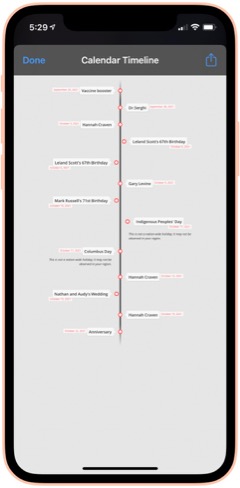
Calendar To Timeline: This shortcut lets you visualize your upcoming calendar events an attractive timeline, which you can save or share. When run, you choose how many months of your calendar to include in the timeline. From RoutineHub.

Utilities
This folder has a variety of shortcuts, most of which involve converting from one thing to another.
Translate: This shortcut lets you enter text or use your clipboard as input. You can convert from English to any other language, and vice versa. At the end, it will pronounce the phrase in the language you choose. The source of this shortcut is unknown, so I'm linking to my iCloud version.

Convert: This shortcut lets you convert between liters and gallons, among other fluid measures. Source unknown.

Convert Length: This shortcut lets you convert between centimeters and inches. We U.S. citizens need all the help with metric measures we can get. Source unknown.

Convert Temperature: This shortcuts lets you convert between Celsius and Fahrenheit. This really helps me at times, because I just can't think in Celsius when it comes to temperature. Source unknown.

Hex To RGB Converter: I've needed this one from time to time. It takes a hex color code and returns the equivalent in RGB values. Source unknown.

Morse Code Converter: This shortcut will convert plain text to dots and dashes and copy the result to your clipboard. It will also convert morse code to plain text. Source unknown.

Utilities Menu: This is an elaborate, all-in-one shortcut that contains a wide variety of utilities for working with text, the web, media, and more. I don't honestly use this one very much, but it's pretty cool. From RoutineHub.

Time Activity: I wrote this shortcut to help me track how long certain activities take. When run, the shortcut will tell you when it started the activity. When run again, it will tell you how long the activity took and ask if you want to start a new activity. The shortcut requires DataJar to store global variables.

New! Currency Converter: It took me forever to find a currency converter app that actually works. This one is the result of merging two shortcuts to get a working product. You simply choose the currency you're converting from, the currency you're converting to, and the amount you want to convert. The shortcut then shows the result and copies it to the clipboard.

Wallpaper
I spend a lot of time working with wallpaper images of various kinds, and I have automations that change my lock screen wallpaper with every 5% change in battery level. This folder has shortcuts that provide images for wallpaper use as well as shortcuts that enhance and modify images for use as wallpaper.
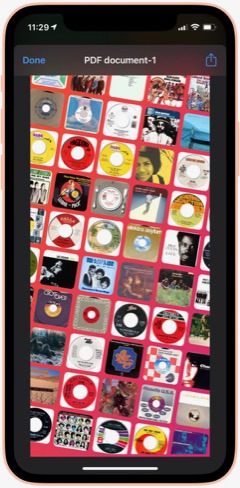
Album Wallpaper: This cool shortcut looks at what I've listened to in the last 14 days, finds the art associated with those songs, and prepares a wallpaper image with the art arrayed in an angled pattern across the screen. I used this for a long time before switching to my current wallpaper "strategy." From RoutineHub

WallCreator Automated: This shortcut generates beautiful gradient images, using two colors and varying direction of the gradient, for use as wallpaper. I've modified it to let me choose whether or not to save the image. If I elect to save, the shortcut will let me apply the wallpaper to my lock or home screen.

Gradient Paper: This shortcut also generates gradient wallpaper images, but it uses 4 different colors and wider variety of angles and origin points. It automatically previews the image for you and then saves the image to the Recents album and offers to set the home screen wallpaper. I couldn't find the original, so I'm linking to my iCloud version.

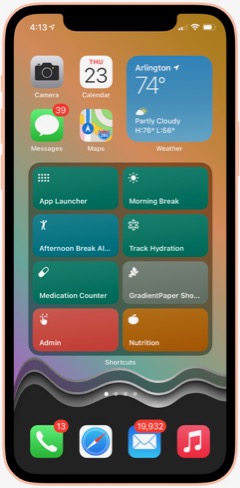
Gradient Paper ShowDock: This shortcut combines the Gradient Paper shortcut (above) with parts of the ShowDock shortcut (below). When run, it previews the image, saves it to Recents and then offers to let you add one of three ShowDock images (using the three separate ShowDock shortcuts, below) to the bottom. After that, you can set the Home Screen with the new wallpaper. I use this frequently to update my Home Screen wallpaper, so I keep it in my Home Screen folder for quick access.

ShowDock: This cool shortcut has about 20 different enhancements you can add to your wallpaper. The enhancements are designed to highlight the Dock area of your iPhone home screen and range from ones that fade the bottom of the image out to ones that add colorful and interesting dividers above the Dock area. You select an image and then one of the enhancements, and the shortcut previews the enhanced image before offering to set your home or lock screen with the new wallpaper. I couldn't find the original for this, but it does have a credit comment inside.

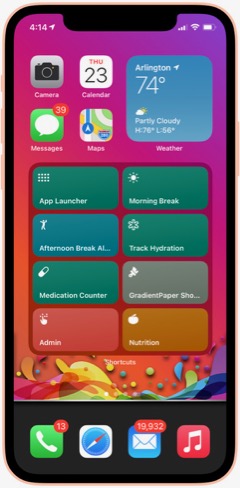
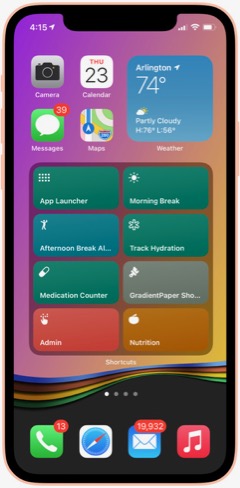
ShowDock Color Splash: This is one of three shortcuts that pull my favorite enhancements from the ShowDock shortcut. I run it inside the Gradient Paper ShowDock shortcut (above). It takes the latest image saved to Recents and applies an enhancement that looks like a splash of a rainbow of colors. It then lets you save the enhanced image as your Home Screen wallpaper.

ShowDock Rainbow: This is one of three shortcuts that pull my favorite enhancements from the ShowDock shortcut. I run it inside the Gradient Paper ShowDock shortcut (above). It takes the latest image saved to Recents and applies an enhancement that looks like wavy rainbow of colors. It then lets you save the enhanced image as your Home Screen wallpaper.

ShowDock Wavy Chrome: This is one of three shortcuts that pull my favorite enhancements from the ShowDock shortcut. I run it inside the Gradient Paper ShowDock shortcut (above). It takes the latest image saved to Recents and applies an enhancement that looks like a chrome wave, which lets in some of the background color. It then lets you save the enhanced image as your Home Screen wallpaper.

Calendar Homescreen: This useful shortcut takes a photo you select and adds the next 7 events from your calendar to the bottom. You can then set the image as your wallpaper. I use a modified version of this shortcut on my lock screen (Calendar on Lock Screen Auto). I couldn't find the original, so I'm linking to my iCloud version.

Calendar on Lock Screen Auto: I call this shortcut from within the "Add Battery Level and Calendar" shortcut. This is an embeddable version of Calendar Homescreen (above), and it keeps my calendar up to date on my lock screen... Very handy!

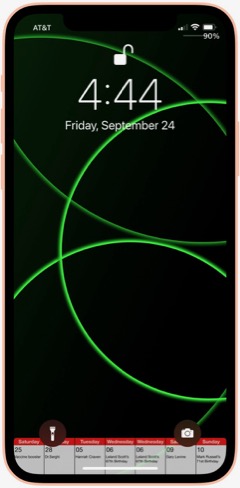
Add Battery Level and Calendar: This shortcut is a modification of one I found that modifies a wallpaper image to add the current battery level below the level indicator on your lock screen. I've missed seeing the percentage since Apple did away with it, and this brings it back. I've combined this shortcut with the Calendar Homescreen shortcut so that it adds my calendar to the lock screen as well. The shortcut contains some logic that pulls wallpapers from 5 different "buckets" that I maintain — NASA images, Landscapes, Cats, Fine Art and Google Earth. It uses the seconds of a minute and picks a wallpaper depending on what second of the minute it is. This shortcut requres Toolbox Pro (I think the paid version) to do the battery level function.

GradCircle Wallpaper: This cool shortcut uses the free app Scriptable to generate stark, modern-looking wallpapers with curving lines of different colors... a sort of mid-century modern look. After previewing the wallpaper, it gives you the option of saving it or setting it as wallpaper. I don't know where I found this.

Set Art Wallpaper: This shortcut pulls a fine art image and lets you use it as your wallpaper. I've modified it so that after a preview you can decide whether to save the image or not. If you save it, the shortcut will then let you set it as wallpaper. Source unknown.

Random Cat Wallpaper: This shortcut pulls an image of cats from a seemingly bottomless supply. I've modified the original to let you choose whether or not to save the image, and you can see it previewed as wallpaper. Source unknown.

Wallpaper Engine: This shortcut lets you search for wallpapers on unsplash.com, or you can choose a random image. You can specify how many images you want to see, after which you can elect to save one or more of them or use them as wallpaper. I use the search function a lot. The shortcut returns images in the proper size for your device's lock or home screen. From RoutineHub.

Daily Wallpaper - Landscapes 4K: This shortcut uses a downloadable zip file of 85 beautiful landscape images and picks a random image from the zip file. I've modified it to let you decide whether or not to keep a given image. If you decide to save the image, you can see the landscape previewed on your lock screen. From RoutineHub.

Resize Images To Wallpaper: I use this shortcut to make all the images I pass to it the height of my iPhone screen. This is part of my process for preparing wallpaper-sized images for the various "buckets" I maintain (NASA, Cats, Landscapes, Fine Art).

Wallz Reborn: This shortcut finishes the job of the "Resize Images To Wallpaper" shortcut, taking images passed to it and cropping them horizontally to wallpaper size. You can also use it to resize to other screen resolutions. From RoutineHub.

Daily NASA Wallpaper: This shortcut contains a downloadable zip file of my NASA wallpapers (about 150 of them). It previews a random image from the zip file and offers to set it as your wallpaper. I use this same basic pattern for the following three shortcuts.

Daily Cats Wallpaper: This shortcut contains a downloadable zip file of my cats wallpapers (about 100 of them). It previews a random image from the zip file and offers to set it as your wallpaper.

Daily Fine Art Wallpaper: This shortcut contains a downloadable zip file of my fine art wallpapers (about 100 of them). It previews a random image from the zip file and offers to set it as your wallpaper.

Daily Landscape Wallpaper: This shortcut contains a downloadable zip file of my landscape wallpapers (about 100 of them). It previews a random image from the zip file and offers to set it as your wallpaper.

New! FStopper PTOD Wallpaper: Always looking for good sources of photos in various categories, this one occasionally has a daily image that grabs me, so I check it daily.

New! Google Earth: I think I discovered this one on RoutineHub, but I made a few changes to it to suit my needs. It turns out that Google Earth satellites take a lot of amazing photos, and you can see some of them through this shortcut. It originally was intended just to make the image your lock screen or home screen wallpaper, with no way of saving the image. I fixed that, so the shortcut now saves a single copy of the image to a specified folder in Photos, in addition to offering to make the photo your wallpaper. I like these images so much I've made them part of my rotation of lock screen papers, as described in the "Add Battery and Calendar" shortcut.

New! LS Weather: This shortcut and the next one are complicated and difficult to set up. They require Scriptable, and you have to find and download a Scriptable script and install it manually in Scriptable. The results are very cool, and I use them both from time to time. Essentially, LS Weather adds weather information in various configurations to your lock screen. It has other functionality as well, but I didn't set it up for that. From RoutineHub.

New! LS Forecast: This shortcut and the previous one are complicated and difficult to set up. They require Scriptable, and you have to find and download a Scriptable script and install it manually in Scriptable. The results are very cool, and I use them both from time to time. Essentially, LS Forecast adds weather forecast information to your lock screen in an attraction manner. From RoutineHub.

New! Wallpaper Mixer: This cool shortcut takes two images from your photo library and crops/combines them horizontally into wallpaper size. You can come up with some interesting effects with the right photos. From RoutineHub.

New! Unsplash Collections: This shortcut pulls images from Unsplash.com's extensive collection. It's organized to find images in certain categories of Unsplash Collections that I collect: Landscapes, Space, Cats, and Fine Art. When run, you select a collection, and the shortcut returns an image, which you can choose to save or not. If you do save, the shortcut will preview your home screen with the photo. If you don't save, the shortcut will ask if you want to search again.

Weather
This folder contains shortcuts that show the weather in various ways.
Total Weather: This is the most comprehensive textual summary of the weather data available for your current location. It also gives a briefer summary of tomorrow's forecast. Useful when run from Siri to have her read the weather for you. From RoutineHub.

New! Feels Like: This handy shortcut (just say, "Hey Siri Feels Like") gets the current temperature and reads it along with the Feels Like temperature and the wind speed. Perfect for when you're heading outside.

My Weather: This simple shortcut opens the Weather app to show weather in your current location.

Weather In City: This shortcut presents a menu of all the cities you've bookmarked in the Weather app and lets you choose which city's weather to view. It then opens the Weather app to the chosen city.

NOAA Multi-Day Forecast: This shortcut lets you choose the length of time in days for the forecast and then pulls up the latest official NOAA forecast for your current location in a Quick Look screen. I often find the NOAA forecast to be more accurate than the source Apple uses, so I like being able to quickly refer to it in this shortcut. From RoutineHub.

Weather Chart: This shortcut uses Charty to present the 12-day forecast as an attractive line chart, showing high, low, and average temperatures expected. Source unknown.

New! Weather Chart With Average High: This is the same as the preceding shortcut, but I've added a data series for Average High, which superimposes on the high/medium/log graph lines. I need to edit the shortcut daily to enter the latest average high temperature data.

New! Log Average High: I decided to start keeping track of the average high temperature, so this shortcut logs the data to my calendar each day.

New! Average High: This shortcut simply reads my calendar and shows me the Average High data for the last 30 days.

New! UV Index: This shortcut gets the UV Index from today's weather and logs it to the Health app.

New! UV Index Chart: This shortcut charts the last 30 days of UV Index data from the health app, using Charty.

Precipitation: This shortcut shows expected precipitation percentages in a bar-type chart. It presents the information for the next 12 days in a menu. Source unknown.

Pollen: This shortcut opens the Pollen.com website in a Safari sheet. It presents the page showing the 5-day allergy forecast for your current location. Source unknown.

Severe Weather: This shortcut was made from a custom Siri action in the News app. It opens News and shows stories about severe weather.

New! U.S. Climate Data: I think I found this shortcut on RoutineHub, but it didn't work when I tried it out. The problem is that the site it pulls data from had changed their chart strategy. The original shortcut was expecting an image to grab, but the new site shows the graph in an interactive manner. So I changed the shortcut to load the final page in the Safari view controller instead. This shortcut lets you choose a State and city and returns a graph showing average, high and low temperatures for the year by month, as well as precipitation amounts.

New! Weather Report For: I modified a shortcut I found that produces a summary of the current weather. Instead of restricting it to finding your current location data, I introduced a search feature that lets you enter any location to find the weather there. I figured out how to make this work for any U.S. city as well as for international cities. You can even enter the name of a neighborhood.

Daily Forecast: This handy shortcut brings up the next 12-day forecast for your location, showing date, temperature and conditions expected. Source unknown.

New! Daily Forecast For: This is the previous shortcut, but it first prompts you to specify a location. The shortcut routes the inputted location through the Maps app to get a location Weather can use. Very handy for getting a daily forecast for some location other than your own.

Hourly Forecast: This shortcut is much like the previous one (same original source, I believe), but it shows the temperature and conditions expected for the next 24 hours.

New! Hourly Forecast For: This is the previous shortcut, but it first prompts you to specify a location. The shortcut routes the inputted location through the Maps app to get a location Weather can use. Very handy for getting an hourly forecast for some location other than your own.

Precipitation Hourly Forecast: I think I made this one based on the previous shortcut. It shows the expected percent chance of precipitation for the next 24 hours.

New! Precipitation Forecast For: This is the same as the preceding shortcut, but it gives you the option to enter a location rather than using your current location by default.

New! U.S. Cities Weather Report: This shortcut runs through about 35 U.S. cities, giving a summary of their weather today and forecast for the next 2 days. It announces the name of the city and state and then presents the information, one city at a time. This substitutes for my long-time habit of perusing the cities weather data in the paper each day.

New! International Weather Report: This is the same as the preceding shortcut, but it fetches data for about 20 international cities instead of for U.S. cities.

Is It Raining: I wrote this shortcut one day when I was sitting in my windowless office and wondering if it was raining outside. It looks at the precipitation chances (in percent) for the current time and tells you whether or not rain is likely. It also gets the chance of rain for the next two hours and reports that as well.

Is It Raining (Conditions): I wrote this shortcut as a different way to answer the question. Instead of looking at percent chance of precipitation, the shortcut uses text matching to see if the current conditions suggest rain. If the conditions match "Thunderstorm," "Rain," or "Showers," it's probably raining. If none of those things match, then the answer is no. I've found this to be a bit more accurate than the previous shortcut.

Web Sites and Feeds
This folder has a number of shortcuts that load web sites or their RSS feeds. I've found "bookmarking" websites by making a shortcut is faster than using Safari.
Mars: This shortcut simply loads this website (Musings from Mars) in a Safari view window. I find shortcuts like this more convenient than going to Safari. An interesting thing about the Safari view window... In the lower right corner is an icon that will load the page in Safari itself if you choose to do that.

Discogs: Here's another website that I load frequently. It's convenient to have it as a shortcut.

Wayback Machine: This shortcut loads the "Wayback Machine" at web.archive.org. This site lets you search the web's past by loading old versions of any website the machine has crawled.

New! White House: This shortcut provides links in a menu to the White House home page, the briefing room, and speeches and remarks pages. I use this with Read Article in the Share Sheet to have the latest releases read to me.

9 To 5 Mac: This shortcut loads the news feed for this Mac-related website.

Mac Stories: This shortcut loads the news feed for this Mac-related website.

C45 Jukebox: This loads the RSS feed for the Classic 45s "Jukebox" podcast. In this version, selecting an item loads the page in the Safari view window.

C45 Jukebox Text: This shortcut also loads the Classic 45s "Jukebox" feed, but instead of taking you to a web page on selecting an item, it pulls the text and image from the feed and presents it in a QuickLook window. I'd like to grab the audio file, too, but haven't figured out how to do that yet.

New! Jukebox: This shortcut finds the latest episodes of the Podcast Classic 45s Jukebox. When you choose an episode, the shortcut starts playing the song and presents the descriptive information included in the Podcast in a preview window.

New! Animal Shelter: I made this simple shortcut when we started looking for a new cat when our much loved Coach died recently. The shortcut simply loads the Arlington, VA, animal shelter's web page, set to screen only male kittens. This is an example of a shortcut that took perhaps a minute to make but saves me time by making it super-quick and easy to load the page, which I check several times a day for new arrivals. You could bookmark the page or save a tab in Safari, but the time required to find and follow the bookmark or find and load the tab in Safari is greater than simply clicking on this shortcut.

New! Google Search for 45s: One of the things I check Google often for is the position of my business in search results listings. So I made a shortcut that does four searches for 45 rpm records, pausing each time to let me view Google results in the Safari view controller, and then proceeding to the next keyword search. It's a very efficient way of quickly seeing whether my business' position has changed.



Shortcuts Nirvana: How I Accumulated 800 Shortcuts
Since writing an article on home automations and Shortcuts earlier this year, I have continued to find and make shortcuts and recently passed 800 in my library. I thought this milestone would be a good time to reflect on what I've been doing with these shortcuts and how I managed to gather so many.
First, let me say that many of these shortcuts have really changed my life... for the better, as I'm sure Apple would be glad to hear. I spend more time in my Shortcuts app than I do in any other app on my iPhone at the moment, and having all this information available in one app like this makes it more accessible and rewarding. Sure, I have a lot of shortcuts I don't need, but I'll be focusing in this article on the ones I actually use, any automations associated with them, and what they do for me.
A quick note about the shortcuts links in this article: Some of my shortcuts came from German and Chinese sources, and I meticulously translated them to English. In these cases, I'll be linking you to my English translation rather than the original version. Where possible, I will link to the actual sources, but many of the links will be to my own iCloud library. Many of the shortcuts were written by me or adapted from third-party shortcuts. All of these shortcuts work in IOS 14. I have been testing them on IOS 15.3, and most work reasonably well. I still find Shortcuts in IOS 15 to be buggy compared with IOS 14, but IOS 15.3 fixed a bug that was keeping the MediaKit Badges shortcut from working. That's the shortcut I use to create the download images for this article, so I'm relieved that it's working again. One of the most annoying bugs is that you can no longer get an iCloud link by asking for it in a shortcut. Shortcuts says the shortcut isn't stored in iCloud, so no link is available. You can get around this by sharing the shortcut and selecting "Get iCloud Link" in the share sheet. But it was so much easier when I could backup my shortcuts to iCloud using a shortcut.
Finding Shortcuts
The first step to finding shortcuts is to check out the "Gallery" tab in the Shortcuts app, where you will find dozens of useful shortcuts made by Apple. I've used many of these and customized others to my personal situation. In addition, there are a lot of websites out there with "galleries" of shortcuts for the taking. (Any non-Apple shortcut is considered "untrusted," and you have to allow untrusted shortcuts to use them in Settings.) The most popular and largest site is RoutineHub, where you will find more than 300 pages of shortcuts. Rather than list all the sites here, I'm going to mention one more, which is kind of a directory of shortcuts information, including many of the gallery sites: Shortcuts Directory.
As you may imagine, there are also a lot of shortcuts that contain links to shortcuts websites, and I use these daily to check what's new. Here are a few of my favorite shortcuts for shortcuts info:
- Newest RH Shortcuts. Displays the latest 20 or so shortcuts added to RoutineHub.
- Shortcuts Websites. Lists a variety of gallery sites as well as providing links to shortcuts groups on YouTube and Reddit.
- Siri Shortcuts Search. This is a link to Sharecuts.com's shortcut for searching Google for shortcuts.
- RoutineHub Search Pro. I use this a lot when searching, because RoutineHub is the richest vein of shortcuts out there.
Building Shortcuts
I've either built from scratch or heavily customized many of the shortcuts I use. Although I do have a programming background, I feel strongly that making shortcuts should be easy for any reasonably intelligent human with a little study and understanding of what your options are and how to use things like actions, variables, menus, and the like. It's a visual interface, and you just click the + sign to start building your shortcut. Apple provides a user guide for Shortcuts, and I recommend you peruse that if you really want to get serious about building your own. I also highly recommend opening up shortcuts made by others and studying how they're made. You can do this by clicking the "..." (three dots) in the top-right corner of any shortcut.
One of the things I love about shortcuts is not only how easy they are to make and share, but how transparent they are. It's easy to examine a shortcut's actions by clicking on the "..." in the icon. I have one shortcut that lets me copy blocks of code from one shortcut and insert it in another: It's not stealing! It's re-using good code. This is the same model that the web is built on. You can see the HTML, JavaScript, CSS, and other source code easily in any browser, so you can learn how things are done.
There are a lot of good tutorials on the web, especially on YouTube, so I won't try to construct one here. Just keep in mind: It's easy! Look inside shortcuts! Reuse code that works!
Third Party Apps Used in My Shortcuts
There are a lot of third-party apps that let you do more with shortcuts than Apple's Shortcuts app alone can. A number of my shortcuts make use of some of these, and I recommend that you download and install them on your iPhone before trying out my shortcuts. All of them are free, though one or two have a for-fee "Pro" option.
- Charty for Shortcuts. Enables charting of data from any source accessible from the Shortcuts app.Some of my shortcuts require the $4.99 "Pro" upgrade for charting.
- Data Jar. A simple database-like app that lets you define Global Variables in shortcuts, among other things.
- Day One. A free journaling app that I've started using since it has rich ties to shortcuts actions.
- Jayson. A free editor for files in the .json format. I use it to edit my "pills" dictionary for one of the shortcuts.
- Scriptable. Enables rich scripting inside shortcuts.
- Toolbox Pro. Adds a host of useful actions for Shortcuts and provides dozens of sample shortcuts demonstrating their use.
My Shortcuts Library
I have 975 shortcuts in my library as I write this today. The number changes daily and always seems to trend upward. Fortunately, Apple lets you organize your shortcuts into folders, and I have made the following folders for my shortcuts (the number beside the folder name is the number of shortcuts in that folder).
- Breaks and TV (24)
- Clipboard and Text (22)
- COVID 19 (9)
- Daily Shortcuts (32)
- Day One and Notes (14)
- Developer Tools (56)
- Emergency (4)
- Family (33)
- Files and iCloud (8)
- For Fun (31)
- Health and Fitness (42)
- Home Screen (8)
- Images and Pictures (62)
- Information (22)
- Mail and Messaging (6)
- Morning Routine (6)
- Music (31)
- News and Stocks (22)
- Nutrition (59)
- Playback and HomePod (13)
- Quick Classical Music (12)
- Quick Leland Music (31)
- Quick Links (14)
- Quick Music (15)
- Quick Music Artists (25)
- Quick Music Genres (34)
- Settings (30)
- Share Sheet Only (28)
- Shortcuts Items (34)
- Sounds (15)
- Test and sample shortcuts (54)
- Travel and Events (40)
- Utilities (26)
- Wallpaper (38)
- Weather (33)
- Web Sites and Feeds (27)
By the way, if you add the numbers up, you won't get to 975, because I have a dozen or so that are unfiled (they aren't in a folder). I think it will be easiest from here to walk you through these folders and let you know what shortcuts I really use and how I use them. I'll be providing links to shortcuts I particularly like or use most often: About 355 shortcuts in all. One big caveat about these shortcuts, especially the ones I'm linking directly from my iCloud library, is that these have only been used on the iPhone with iOS 14 and iOS 15.3.I don't know how they will work on the iPad or on the Mac (Monterey). One big difference I noted right away when I tried a few on my iPad (after upgrading to the latest iPadOS) is that there is no Health app on iPad. This seems like a real miss for Apple, and hopefully they plan to migrate Health to both iPad and the Mac in short order.
Breaks and TV
I use this folder and the various "breaks" shortcuts several times a day as I go through my work routine. Also in here are specific shortcuts for accessing and controlling my Apple TVs.
Morning Break: This shortcut starts my morning break by turning off the Music Room lights, turning on a light in the Great Room, starting some classical music from my library (different for each day of the week), and issuing reminders to take and log some prescriptions. It also sets the brightness on my iPhone and turns off Do Not Disturb, which I have on while I'm working. I built this shortcut pretty much from scratch.
Break Over: I use this shortcut after both my morning and afternoon breaks. It's very simple: Sets the lights on in the Music Room, turns off the Great Room light, turns on Do Not Disturb, and runs my Super-Low Battery On shortcut to enable fast charging while I work.
Afternoon Break Albums: This is a variant of a shortcut I've used for a long time now for my afternoon break. Where earlier, the shortcut relied on the Indie Music shortcut provided by Apple, I've been using the break to listen to one of the 500 Greatest Albums according to Rolling Stone magazine. It incorporates a shortcut you'll meet later in my Music folder, which cycles through the 500 albums. Besides the music, the shortcut turns off Super-Low Battery, sets lighting appropriately, turns off Do Not Disturb, and sets the playback destination to my Kitchen HomePod. It closes by showing me the Apple stock price in the Stocks app.

New! Great Room Break: This is the Afternoon Break Albums shortcut without the call to the 500 Albums shortcut. It lets me start whatever music I like, with playback set to the Kitchen HomePod.

Work Done: I use this shortcut at the end of the work day to turn off lights in the Music Room, turn off Super-Low Battery mode, and turn off Do Not Disturb.

TV Time: I made this simple shortcut to quickly set two groups of lights and turn on the basement Apple TV. It ends by showing the remote for the TV. I use it every day. 
Netflix Basement: I have a variety of shortcuts for my two Apple TVs... ones that simply wake and put them to sleep and others that load specific apps on them. This one simply wakes and loads Netflix on the basement TV and is representative of this type of shortcut. I have ones for HBO and for Fitness+ as well, but you can easily adapt this one to your needs.

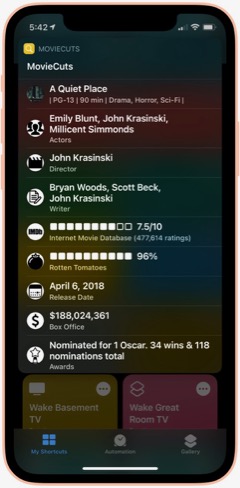
MovieCuts: This is a great third-party shortcut from RoutineHub that ties in to the OMDb API to get IMDB and Rotten Tomatoes information about any movie you search for. You have to get your own free API key, and the page linked below tells you how. It's definitely worth it!

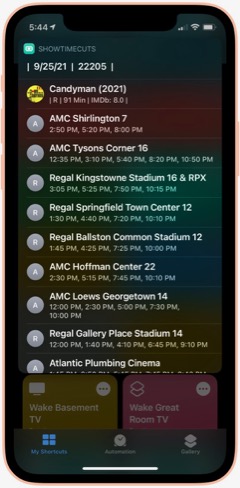
ShowTime Cuts: This shortcut is by the same author who wrote MovieCuts. It lets you search for movie times at local theaters, using your location. You'll have to get a couple of free API keys to make it work, but it's easy and well worth the effort. The only problem I've had is that the menu with specific theater times doesn't properly load Maps to show you the theater location. Also from RoutineHub.

Clipboard and Text
This folder has shortcuts that let you manipulate, save and retrieve your clipboard information, as well as shortcuts for working with text. The clipboard shortcuts are somewhat redundant of each other, but I like each one for different reasons and end up using them all at this point. These are all third-party shortcuts, and I'll provide links to the source when possible.
Save To Clips: I like this one because it's a Siri command that's easy to use. You can also use it from the Share sheet. I couldn't find the source where I found this originally, so I'm linking to my iCloud library. This shortcut works with the "Get Clips" shortcut, and both by default let you save and retrieve up to 15 items from your clipboard, using a file saved to iCloud.

Get Clips: This is the companion command to "Save To Clips" that lets you retrieve your clipboard history, as saved to iCloud. See my description of "Save" above for more about this shortcut.

Clip: This is a relatively new shortcut from RoutineHub that I like a lot. It lets you save clipboard items and give a name to them. You can use it to save the current clipboard or retrieve a saved clip.

Clipboard: I like this one because it lets you edit your clipboard as well as view and share it. For the times when you need to add something to or change your clipboard, it's just right.

Symbols: I'm not sure where I found this shortcut, but it's a good one for the times when you need a special symbol. Just launch and select the symbol, which is then copied to your clipboard.

Word & Character Count: This handy shortcut takes your clipboard or share sheet input and returns the number of words, number of characters, and number of lines in the text. I don't remember where I found this one, so I'm linking you to my iCloud version.

Upside Down Text: This one is just for fun, but it's so cool I just couldn't resist. It lets you type or paste in some text and returns a version with upside-down letters, saved to your clipboard. I like sending messages like this now and then for laughs.

Vertical Text: Another one just for fun, this shortcut takes your clipbaord and arranges the text vertically, one word on each line. It ends by saving the result to your clipboard. I like to do this sometimes in conjunction with the Upside Down Text shortcut.

New! Font Switcher: This new shortcut from RoutineHub has 31 different font effects you can apply to your chosen text. The most comprehensive font utility I've found, it even includes upside down text! You just enter some text and choose which effect to apply, after which it previews the effect and copies it to your clipboard.

New! Save Text As Audio: This nifty shortcut lets you dictate text and then converts it to an audio file, which you can either save or share. You can choose which voice to use for the audio file.

New! Count By Type: This shortcut takes a file or text and calculates the number of words, characters, sentences or lines. From RoutineHub.

Unicode Font Variants: There are a number of shortcuts out there that let you apply different font effects, but this is the best one I've found. It lets you enter some text and then choose from among 15 different font effects to apply to it. From RoutineHub.

Covid-19
This folder has a few shortcuts that return data and charts about the Coronavirus. Sadly, I still find it useful to refer to these occasionally. (When will it end?)
Covid-19 Charts: This shortcut lets you choose a data type (e.g., "confirmed," "deaths") and the countries you want to see charted. It's a bit slow, but it returns a cool chart (using Charty) comparing the countries you've selected.

Corona Stats By State: This shortcut not only lets you choose the States you want to see data for, but you can save your selection for later reuse. It returns a detailed page with data for each State and then offers to chart the data for you. Very handy, though sometimes not up-to-date with the latest information. Available from RoutineHub.

Coronavirus Stats: This shortcut lets you choose any country or group of countries and returns detailed information about Covid-19 there. You can save your country selections for later reuse. From RoutineHub.

Show Vaccine Card: This handy shortcut lets you store a picture of your vaccine card for quick and easy display when needed. You just take a picture of your card, run the shortcut and browse to the picture you just took. From then on, your card will be one click away with no need to search through your photos. I found this one through Matthew Cassinelli's newsletter.

Corona Update: I like this shortcut because it lets you see data for specific countries and U.S. States, which you can enter into the shortcut itself. It grabs the latest 28 days of data on new cases, new deaths, and totals, and it always seems to have the latest data. From RoutineHub.

New! CDC Guidance: This shortcut simply links to the CDC's February 24, 2022, release of county-level guidance on masks. You can lookup any county in the U.S. or see a map of the U.S. showing risk levels of green, yellow, or orange.

New! Dr. Fauci In The News: This shortcut opens a page on the Government's website that has links to remarks made by Dr. Fauci at different forums.

New! CDC News Voice: This shortcut provides easy access to three news feeds from CDC related to COVID-19. Selecting an item will have the shortcut read the text to you.

Daily Shortcuts
This folder has some shortcuts I use every day. Other than daily usage, the shortcuts have little in common. I keep them in this folder for quick access.APOD: I don't know where I got this great shortcut... Perhaps from a Chinese site, after which I meticulously translated the shortcut into English. This shortcut shows the NASA Astronomy Picture of the Day. There are others that do this, but this one is unique in that it lets you go back and retrieve images from any day you like. I've mined the NASA library back to 2014 now and continue to find amazing images of the universe, in stunning, high-def detail. The shortcut also shows the description that accompanies each image on the APOD website.

Random Obscure Fact: This simple shortcut is a delight! Just for fun, it spits out obscure facts on every subject. I have the shortcut set to let me share the fact after I've read it. I couldn't find the source for this, so feel free to download my version.

Today In History: I'm not sure where I got this originally, but I've made some modifications to it that make it more readable for me. This shortcut gets 20 items from the History.com daily news feed and presents them as a single HTML page for easy reading. I've found this to be an enjoyable daily activity.

Today's Historical Events: I'm not sure where this one came from, but I've made a few changes to make it more readable. It's a comprehensive list of historical events for the current day, starting way back in time and going to the present in chronological order.

New! History of Today: This one duplicates some of the items in the previous two shortcuts, but it has a lot of information not available in the others. It returns just one fact from the history of the current day, but if you load it many times it comes up with many facts. I like the way they're presented better than in "Today's Historical Events," although the latter is much more comprehensive. From RoutineHub.

Time Machine: You can find this shortcut in the Apple Shortcuts Gallery. It simply looks at the photos you took a year ago and presents them in a Quick Look window. The only difference I've made is that it looks at one year ago plus 2 months rather than plus 2 weeks as in the Apple original. Again, I've found this to be a pleasurable daily activity.

Quote of the Day: This shortcut gets the latest quote from BrainyQuote.com and lets you view and/or share it. This was adapted from a shortcut I found on RoutineHub.

New! Daily Fact Reading: This shortcut is based on an older one that never worked quite right. It pulls the latest facts submitted to reddit and sends you to one of the sites cited. Instead of loading a web page or trying to show text, this shortcut runs the "Read Article" shortcut you'll encounter in the "Share Sheet Only" folder of shortcuts. It gets the title and body of the submitted web page through Safari's Reader functionality and reads the resulting text to you.

New! National Geographic Daily Photo: This shortcut grabs images from National Geographic's picture of the day web page and filters to the first large image on the page. It displays the latest image in a Quick Look window, and you can save it if desired from the share sheet. Not sure where I found this, but I had to make a few changes to get it to work the way I wanted it, so I'm linking to my iCloud version.

Horoscope+: I don't know why I saved this one, since I don't really believe in astrology. But it's fun to read from time to time. This shortcut lets you set a default sign for quick work, or you can select a sign from the menu. It uses two different data sources and can provide up to 6 different readings for a single day. Available from RoutineHub.

Daily Summary: I have several of these journaling shortcuts, which ask you a number of questions, such as "What did you learn today?", and sticks the questions and answers in your Day One journal. This is the one I use most frequently. Day One is a great, free journaling app, and shortcuts like this one have really encouraged me to keep a journal. I don't know where I found this shortcut, so I'm linking to mine on iCloud.

Meditate: I have several meditation shortcuts now, but this is the first one I downloaded and I still use it. One of the challenges of meditation shortcuts is that Apple hasn't provided a "slideshow" action for your photos. I like to view images while meditating, but I want to require minimal interaction with my phone while doing so. This shortcut uses one workaround — namely, it pulls a random animated GIF from my photos and plays it in Quick Look. I created the animated GIFs using the "HighRes GIFs" shortcut I'll discuss in the Images and Pictures section. The shortcut turns on Do Not Disturb, starts playing some meditation music, sets a timer for the amount of time you provide each time, turns brightness to 100% and logs the time you set to your Mindfulness data in the Health app. It finishes when the timer goes off and you close the Quick Look screen.

Meditate NASA: This shortcut tries to get around several problems in setting up the meditation session. As mentioned before, ideally I would be able to start a slideshow in Shortcuts itself, but since that's not possible, this one attempts to keep the shortcut running while opening Photos to a specified album, where you can start the slideshow manually. Normally, it's very hard to keep shortcuts running when you switch apps for more than 2-3 minutes, so completing the meditation cycle (turning off Do Not Disturb, and stopping the music) is hard for longer meditation sessions. This one gets around the problem by setting up a loop and playing a sound every 30 seconds (in this case, I use the "approved" sound from Apple Pay). It gets it right most of the time, and the shortcut ends by returning you to the Shortcuts app and completing the meditation session. The big shortcoming to this approach is that this shortcut is hard-wired for a 5-minute session. I have a similar shortcut that extends the session to 10 minutes.

Day One and Notes
This folder has some shortcuts that use my Day One journal, as well as shortcuts that work with the Notes app.
Audio Note: This shortcut uses Toolbox Pro to let you quickly record an audio note, which Toolbox Pro transcribes to text. The text is presented in a Quick Look sheet and then added as an entry to Day One. I use this for many additions to my Day One Journal.

New! Listening To: I wrote this shortcut to save myself a little time over using Audio Note (above) when entering my brief reviews of Rolling Stones' Top 500 Albums. Since all my reviews start with "Listening To," I embedded that text in the shortcut, which also adds a tag to the entry to make searching easier. Once run, you just say the name of the album and the artist, followed by your review. This sends the entry to Day One, where you can edit it further or add a photo, etc.

Smoked: I wrote this simple shortcut because I wanted to start keeping track of how often I smoke. Saying "Smoked" to Siri adds the phrase "Smoked at [current time]" to my Day One journal, with a tag of "Smoked" to make searching possible.

New! Smoked History: This simple shortcut finds the last 30 entries in Day One with the tag "Smoked" and shows them in Day One. A very convenient way to see my smoking history.

Great Albums: I started this shortcut as part of my project to listen to the Top 500 albums (according to Rolling Stone magazine). It lets me append to a note called "Great albums from Top 500" any album I deem "great" after listening, thus over time compiling a list of "great" albums.

Find in Notes: This shortcut simply lets me search my Notes for a particular word or phrase. It returns a list of notes by title, and I can then open the note I want.

Developer Tools
This folder has a lot of shortcuts, all of them geared to the work of developing shortcuts. Most of them demonstrate some Shortcuts technique or other, and there are several that help you publish your shortcuts to RoutineHub. I'm only providing a link to one of them, which is the shortcut I used to make the graphics for this article.
MediaKit Badges: This shortcut creates an image suitable for publishing your shortcuts and as noted is the one I used to make the download images you see here. It lets you define the type of image you want, gives you some visual choices for the image, lets you enter a category for the shortcut as well as the shortcut's name. After you navigate your shortcuts to find the one you're creating an image for, it uses the shortcut's image in the newly made "badge" and delivers it in Safari for download. This shortcut comes from RoutineHub and is part of a suite of "MediaKit" shortcuts for publishing there.

Emergency
This folder has a few shortcuts I might need in an emergency.
Find Closest ER: For times when you need it, this is a great little shortcut. It gets your location and then shows you the closest hospitals and emergency rooms. It estimates the time required to get there for you and then opens Maps to show you directions. From RoutineHub.

SOS: This shortcut uses the flash on your camera to blink out an SOS signal. You can set it to repeat more than once. From RoutineHub.

911: This full-featured shortcut lets you text to 911 or call 911, while also sending a note to your chosen emergency contact. It includes other features as well, including a link to the "Find Closest ER" shortcut mentioned above. From RoutineHub.

Family
This folder has shortcuts pertaining to my family, either involving communications with family members, information relevant to family events, or family photos.
I'm Home Safe: This shortcut simply sends a quick message to loved ones letting them know that you've arrived safely home after (usually) extended travel.

Wife Love Notes: I use an automation and this shortcut to send a random love note to my wife every weekday at a certain time. You can populate the shortcut with any number of messages customized to your own relationship. My wife really loves this one! From RoutineHub.

New! Love Poems: From RoutineHub, this shortcut contains 52 short love poems. To set it up, you need to enter a "To" address, and the shortcut will send the poems in listed order to your special loved one. I've set up an automation to send one of these to my wife each week (Tuesday, I think).

Text To Jackie: I have shortcuts like this one set up for my immediate family members. It simply saves some time over using the Messages app and lets you quickly send a message to a loved one.

Call Jackie: Again, I have several shortcuts like this one, which are simply speed-dial actions to specific phone numbers.

Face Jackie: This is another example shortcut I have set up for family members. It lets me quickly set up a FaceTime call to a particular phone number. Shortcuts like this do nothing more than save a few words when communicating with Siri.

Where Should We Eat: For those times when you can't decide where to eat, this shortcut may help. Populate it with the restaurants you visit, and it will surprise you with a random choice.

Scott Family: This is an example shortcut that uses Toolbox Pro to preview images from one of my photo albums.

Family Trips: This is one of several shortcuts I have set up to quickly view particular albums from my Photos library. You set these up with a little Siri magic: Simply navigate to a particular album, then open Shortcuts and create a new shortcut. In the actions for the "Photos" app, you'll find an action for linking to the album you just viewed. Similar magic applies to the Maps app, which I'll get to eventually in this article.

Files and iCloud
This folder has some backup utilities and one file utility.
Backup To iCloud: I use this one once a week or so... it simply writes out a file in iCloud with the iCloud URLs of all your shortcuts. Since I have so many, it can take a few minutes to finish, but this is how I got the download links to my shortcuts in iCloud that I'm providing in this article. Since your shortcuts all reside in the cloud, and Apple doesn't allow writing or loading actual shortcut files, this is a good means of backing up your shortcut set.

Automatic Backup: I have an automation that runs this shortcut every Monday morning at 10:00 a.m. It makes me feel good to know I have a physical backup (in addition to a link) of the files in my shortcuts. This one simply zips the files up and writes out a time-stamped archive to iCloud when it runs. As I understand it, I couldn't actually replace files on the iCloud server with these backups, but I like knowing they're there. From RoutineHub.

Backup Shortcuts: I like this one because it lets me save my shortcuts in zip files according to their folders. This way, I could unzip them into their corresponding folders, which would save me so much time over having to recreate and/or re-populate all of my folders. I'm not sure where I got this one, but the anal part of me likes using it from time to time.

New! Text From PDF: I recently had the need to get a text file from a PDF file I exported from Day One. It was a simple matter to write this shortcut, which lets you select a PDF either through the share sheet in Files or by browsing your iCloud files. Once selected, the shortcut extracts the text from the PDF file and starts a new Note with the contents, which you can edit before saving.

Encode to Base64: It turns out that you can include binary files inside a shortcut by converting the file to Base64. This is used a lot in the shortcuts I have, and I used it myself in the Meditate NASA shortcut to include the "approved" sound from ApplePay. This shortcut can be run from the share sheet or on its own, and it ends by copying the converted file to the clipboard.

For Fun
This folder has some games, random facts, jokes, and other amusements.
Games!: This shortcut includes a dozen or so games and amusements, including Hangman, some memory games, and things like rock-paper-scissors. From RoutineHub.

Tic Tac Toe: This is a really cool implementation of this game in a shortcut. It lets you play against the computer or against a friend. From RoutineHub

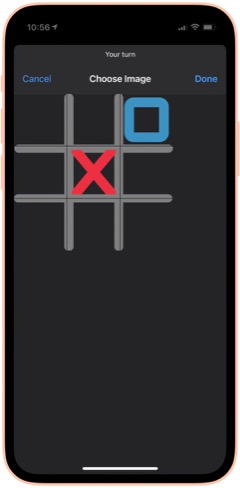

50 States Plus: My wife and I use this on every road trip... great fun! It lets you record a license plate from a list of those you haven't seen. You can also choose to see the license plates you have seen. It's easy to start over when you finally give up on Alaska or Hawaii. From RoutineHub. There is also a voice add-on that I haven't tried yet, available as a separate shortcut.

Blackjack 2: There are a lot of Blackjack shortcuts out there. I like this one because it shows you images of the cards you and the dealer hold. It lets you bet for money, too, though that's not a feature I plan to use. From RoutineHub.

New! Wordles: This shortcut lets you play the popular Wordles game in Shortcuts. You have to guess a 5-letter word, and the shortcut fills in the blanks as you go, indicating place hits and right letter/wrong space.

New! Number Guessing Game: This fun game lets you choose a minimum number and a maximum number, then select how many attempts you want to have. As you guess, the shortcut tells you if you're high or low, so you can tease out the correct number.

Cat Fact: This fun shortcut simply displays a random fact about cats, which you can then choose to share with others. I'm not sure where I found this and the Dog fact companion shortcut, but I enjoy them a lot!

Dog Fact: This fun shortcut simply displays a random fact about dogs, which you can then choose to share with others. I'm not sure where I found this and the Cat fact companion shortcut, but I enjoy them a lot!

Humorz: This shortcut provides a lot of jokes in various categories from Reddit feeds, including at least one that's naughty. A fun diversion, especially in the car. From RoutineHub.


Twitter Memes: This shortcut lets you use one of a large collection of Twitter text memes to share your message. Some of them, such as person holding a sign, are quite cool, and it's impressive how they've implemented the functionality. You can share your meme at the end, and it gets copied to your clipboard. I couldn't find the original shortcut, but the one I'm linking has full credits inside.

AR Animals: This shortcut, which I got from a Chinese website, uses Augmented Reality (AR) to let you view about a dozen different animals. The animals are in motion and incredibly detailed. You can resize them and move them around the room (or whatever else amuses you).

Rude Siri: I made this shortcut from one I found on the web. It simply contains a list of a dozen or so rude things for Siri to say out loud. Quite amusing from time to time, but not in front of children, please!

Health and Fitness
This folder contains a variety of shortcuts for logging, measuring and viewing health and fitness data such as weight, heart rate, sleep, activity and more. It also includes a medication logger.
Log Weight: This is identical to one in the Apple Gallery called "Log My Weight." I may have modified it from that one. In any case, I use this every day to log my weight into the Health app. Doing this has let me keep a good eye on my weight... much better than relying on memory... as you'll see in some of the following shortcuts.

Weight Chart: I use this every day to check my weight for the last 60 days. (I can change the time period to whatever I want... it's set at 60 days at the moment.) The shortcut uses Charty to make an image, pulling data from the Health app, and show that image in a QuickLook screen. I'm not sure where I got this shortcut, but I have several on the same basic pattern. You can customize it to chart any Health-app data that's recorded daily. It makes a nicer graph than what you get in the Health app, in my opinion.

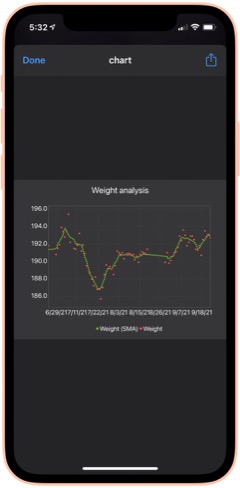
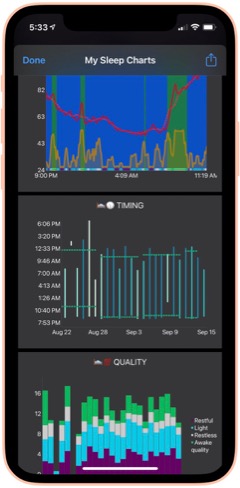
Weight Analysis: I check this shortcut daily also. It uses the same basic pattern as Weight Chart (above), but presents the data in a scatter graph with a moving average line as well. I find it informative in addition to the basic data presented in Weight Chart.

Monthly Weight Report: I check this simple shortcut daily. It gets your current weight and compares it with your weight a month ago, telling you the difference.

Heart Rate Chart: This shortcut uses Charty to conglomerate and present in chart form a daily snapshot of my heart rate data (collected by Apple Watch) for the period beginning in March 2021. For this period, it shows the maximum for each hour of the day, the average and the minimum, respectively. You can change the shortcut to present data for any time period you want to study. I'm not sure where this one came from, but I find it a handy reference.

Heart Rate Analysis Premium: This shortcut uses Charty to present two interesting data sets on my heart health: Resting Heart Rate and Heart Rate Variability. I've found the latter measure to correspond with some health issues I had recently. I couldn't find the source for this one, and there are no credits in the shortcut itself.

Log Nausea: I have some difficulty with morning nausea, so I made this shortcut to help me keep track of it. The shortcut lets me log my nausea on a scale of 1-10, and writes the result to my calendar. It then opens the Health app and lets me add my nausea data there. I do it this way because the Health app only counts "mild", "moderate" and "severe" nausea, or you can mark it present or not present.

Nausea History: This shortcut simply displays my nausea scores by searching my calendar for the last 30 days.

Active Energy Chart: This shortcut pulls data on Active Energy from the Health app and uses Charty to display a bar graph for the last 30 days. It also includes a moving average.

New! Cardio Fitness: This shortcut pulls data collected on your Cardio Fitness and presents it through Charty in a line graph for the last 6 months. The graph includes a moving average. Cardio Fitness data is added to your Health app when you do exercises with an Apple Watch. I decided to start monitoring this measure because the Health app reports that I'm consistently "below average" in Cardio Fitness.

Recent Workouts: This shortcut uses Toolbox Pro to get my latest workout data and present it in a chronological list. It appears to cover about 2 months of data. I believe this is a shortcut that came with Toolbox Pro.

Mindfulness: This shortcut uses Charty to pull data for my Mindful minutes for the last 2 weeks from the Health app and graph them.

Sleep Charts: This is a complex shortcut that spawns half-a-dozen additional shortcuts when you install it. The shortcut analyzes sleep patterns and uses Charty to present data for an overall Sleep Widget, Sleep Progress Rings, Sleep Quality Trend, Sleep Timing Trend, Sleeping Heart Rate Trend and Sleeping Noise Trend. You can have it generate one chart at a time, or you can have it do all 6 at once. It can be a little slow for some of the charts. From RoutineHub.

New! Sleep Widget: This terrific shortcut does a really good job at the hard task of analyzing your sleep data (if you wear your Apple Watch to bed). It presents a comprehensive chart (using Charty) of your sleep data, showing times of restful and light sleep as well as motion and noise. Below the chart is a lengthy textual walk-through of the data. From RoutineHub.

Medication Logger: I use this great shortcut to keep track of my prescriptions. Before you run it, open it and populate the Pills dictionary with the medications you take, entering the amount you have for each. Then, when you use it, the shortcut decrements the amount and logs the medication to your calendar. It includes a reminder for getting refills when you run low. The shortcut uses a file on iCloud called Pills.json, and you will need to use the free utility Jayson to edit the file when you get refills. Again, I don't know where this one came from, and there are no credits in the shortcut itself.

New! Log Sleep: This shortcut works with the next one to log your sleep time. I use an Apple Watch, so I ordinarily don't need this shortcut, but it would be useful if my Watch's battery were low or I otherwise couldn't use my watch. It saves a time to the iCloud drive which is read by the Log Wake Up shortcut.

New! Log Wake Up: When you run this shortcut, it checks the time saved to iCloud by the Log Sleep shortcut and saves the amount of sleep time to the Health App.

New! Record My Workout: This shortcut is useful for recording workouts while not wearing your Apple Watch. It lets you enter the type of activity, the number of active calories burned, and the length of time for the workout. From RoutineHub.

New! Health Report: I found this abandoned shortcut on the web that showed daily Steps data from the Health app. It presents the data in a very nice HTML page. I expanded the shortcut to include other Health data — specifically, Walking distance, Flights climbed, consumption of Sugar, Water, and Fiber, total Calories, Heart Rate, and Weight. For each statistic, the report shows an average for the last 30 days followed by the reading for the current day. I can't take credit for the HTML presentation, which is really nice, but I did build the shortcut out toward what I think the author originally intended.

New! Steps Chart: This shortcut uses Charty to present a chart of the last 30 days of Steps data from the Health app, including a moving average line over the daily bars. It's designed to read data from an Apple Watch, but if you don't use a Watch, you can change that to a different source (e.g., your iPhone) by editing the shortcut.

New! Flights Chart: This shortcut uses Charty to present a bar chart of the last 30 days of your Flights Climbed data from the Health app, including a moving average over the daily bars.

New! Blood Pressure: This shortcut lets you log your systolic and diastolic readings to the Health app. Works great with Siri. I found this one on RoutineHub.

New! Blood Pressure Chart: This shortcut uses Charty to look at the last 30 days of your blood pressure readings in Health and displays a line chart of whatever readings it finds. This may require the upgrade version of Charty.

New! Blood Pressure List: This shortcut presents your blood pressure data in list form. It starts by asking how far back you want to look for data and then displays the results. Same data as shown in the previous shortcut, but in tabular form rather than chart. This comes from RoutineHub.

New! Blood Oxygen Chart: I made this shortcut as a scatter chart using Charty, with a moving average line highlighting significant changes over time. It looks at your last 30 days of your blood Oxygen Saturation data in the Health app. It turns out that if you sleep with your Apple Watch on, as I do, the watch records 4-5 blood oxygen readings during the night. You can also add data by running your watch's Blood Oxygen app.

New! Blood Oxygen Chart Today: This shortcut is much like the previous one, but it only presents your readings for the current day. See note about the Apple Watch in the previous description.

Home Screen
This folder has eight shortcuts that I use frequently and hence are designed to show up in the Shortcuts "widget" on my home screen. I'm describing and linking to the eight in the separate folder sections. They are: App Launcher (Quick Links), Morning Break (Breaks and TV), Afternoon Break Albums (Breaks and TV), Track Hydration (Nutrition), Medication Logger (Health and Fitness), GradientPaper ShowDock (Wallpaper), Admin (Web Sites and Feeds) and Automix (Quick Music).
Images and Pictures
This folder has a lot of shortcuts designed to view, append, or manipulate images as well as to get information about images.
File Images: I wrote this handy shortcut, which I use every day, to keep my photo library straight. If you organize your photos into albums, you will enjoy this one. It looks at my Recent pictures and, after determining which are not in a lengthy list of albums, shows me the "unfiled" images. I have it set to look at the last 30 days, but you can make it a longer time frame if you like. You select one or more images from the viewer and then can file them in one of the many photo albums the shortcut offers. You can also choose to preview an image, or you can elect to delete images using this shortcut. You can customize the shortcut with whatever albums you have set up in the Photos app.

New! Search for Stock Photos: This shortcut uses a paid action from ToolboxPro to search Pexels photo library. It returns a menu of images, which you can then preview and/or save. If you don't like the preview, you can go back, and the shortcut will remember your search term. From RoutineHub.

High Res GIFs: There are a lot of shortcuts out there that convert live photos into animated GIFs, but this is the only one capable of doing it without degrading the original images. I use this also to create an animated GIF of a whole album of images, which I then use in one of my meditation shortcuts (as a workaround to the fact that you can't set up a slide show in shortcuts). The shortcut also lets you convert videos. Available from RoutineHub.

Combine Images: This shortcut simply lets you select a number of images from your photo library and then combine them either horizontally, vertically, or in a grid. The shortcut resizes the photos so they're all the same size. From RoutineHub.

Overlay Text on Image: This shortcut lets you select an image and then enter some text to superimpose on it. The shortcut then shows you the image in an edit window, and you can reposition the text and make other changes to it there. Click Done and you see a preview of your new image, which you can save or share.

Text Above Or Below Image: This shortcut lets you select an image and then add some text to display above or below it. It centers the text in a white banner at the top or bottom of the image, lets you preview the modified image and then offers to save or share it.

MEME Generator: This shortcut does a number of things, but I use it to create image MEMEs. In this mode, you choose an image and then enter the top text and the bottom text. The shortcut then previews the image, which uses large capital letters with a white border for your text, which is overlaid on the image. Quite effective. From RoutineHub.

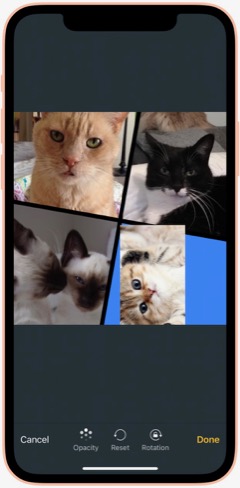

Mosaic: This cool shortcut uses a template for a mosaic of photos. The template has four "slots" for you to overlay images on, and you can resize the images as you position it over the "slot." Once you have all four "slots" full, you can view the mosaic and then save or share it. I think I found it on a non-U.S. website, and it has credits inside, but I can't find the original.

Photo Framer: This shortcut takes an image and adds an iPhone "frame" around it. It's particularly effective for screenshots, which then look like you shot the physical hardware as well as the image. I like this one because you can choose a color for the iPhone "frame." It's also capable of framing images that are not screenshot-sized. From RoutineHub.

Face Thumbnails: This nifty shortcut lets you choose an image with faces in it, and it will process the image to make thumbnails of the faces. You can resize the thumbnails (wide view, full view, etc.) and choose which ones you want to save. It will even straighten crooked faces if you like. Overall, it does a really good job at making full images of faces from group photos. From RoutineHub.

Cartoon Image: This delightful shortcut does its best to make a cartoon out of whatever photo you throw at it. Sometimes it can't do it, but when it can, the results are really cool. By the way, there's another cartoon shortcut out there called Cartoonify, and this one, from a Chinese source, is much better and far less scary.

New! Change Image Background: This cool shortcut requires an API key to work (it's easy to get one). Once you have it set up, the shortcut does an amazing job of removing the background from images with foreground subjects. You can then save that background-free image or choose to combine it with another photo. By combining it with another image, you can achieve some very cool effects. From RoutineHub.

Get Image Size: This simple shortcut lets you choose an image, either from Photos or from the share sheet, and it will return the height and width in pixels.

EXIF Photo Details: This handy shortcut, which lets you browse to a photo or can take one from the share sheet, presents all the details about a given image you could possibly want. It shows modification and creation dates as well as Album information, Camera information, etc. From RoutineHub.

HighRes Artwork (Apple Music): I use this shortcut to get the album art from whatever is playing on my iPhone at the time. I have tried other similar shortcuts, but none are as reliable as this one, and it really does return a high-res image, which you can save and/or share. I think I found this on Reddit.

NASA Wallpaper: This is an example of several shortcuts I have set up to view specific albums in my Photos library. As described earlier under Family, this type of shortcut can be created with a bit of siri magic: Just browse to the folder you want a shortcut for in Photos. Then go to Shortcuts and create a new shortcut. Search for the photos app actions, and you'll find one just for the album you want!

New! Dance!: This fun shortcut has two animations of a dancing person meme, and you get to select a photo and position someone's head in the animation. The result is you or your friends doing the dancing meme, which you can then save or share.

New! Video Trimmer: This shortcut lets you select a video and then divide it into segments. You can select how many segments you want, and then the shortcut presents you with a video editing interface that lets you select your segments to save. You can share the segments, which are saved to your Recents folder in Photos.

New! Join Videos: This shortcut lets you choose two or more videos from your library and combines them with no quality loss. It requires use of the a-shell mini app (a free download from the app store). From RoutineHub.

New! Change Image Size: This shortcut does just what the title suggests: It lets you change the size of any image in your library either to one of about 20 presets or to a custom size. If you choose custom, you can set just the height or just the width or both. After you select, you get to see a preview of the result, which you can save to your photo library if desired. Origin unknown.

New! Invert Image: This shortcut takes a photo and returns it with colors inverted. From RoutineHub.

New! Image Converter: I recently needed to convert an image I downloaded from Google to jpg, because my shortcuts for resizing images wouldn't work on the format the image was in. A quick search yielded this shortcut, which lets you convert an image from your photo library in any format to a range of other supported types.

Information
This folder contains a variety of shortcuts that provide information of one sort or another. There are search tools and shortcuts that retrieve information such as Tides, US Constitution, Cocktails, etc. A couple of the shortcuts would be helpful to writers.
Infinity Search: This all-in-one search shortcut lets you choose from over a dozen sources, including Google and things like Maps, the App Store, iTunes, YouTube and more. From RoutineHub.

Glyph Search: Have you ever wanted to find a glyph but couldn't? This might help... it lets you search Apple's glyph library by name and lets you know what glyphs apply. I really only use this when choosing glyphs for my shortcuts, but there may be other applications as well. From RoutineHub.

Tides: I used this recently while vacationing at the beach. This terrific little shortcut lets you search for tide markers in a nearby radius and then presents a list of places. Select one and you can tell it how many days of information to provide. It ends with the tide information in a jiffy! I'm not sure where I found this one, but it does have a username credit inside.

US Constitution: Yes, this shortcut contains the entire U.S. Constitution, broken up into bite-sized chunks in .json format for quick reference. It's nice to be able to refer to the actual language in this document now and then. If you invoke from Siri, she will read the articles etc. to you. From RoutineHub.

Cocktails: From the sublime to the banal: This shortcut lets you look up a wide range of cocktails. It shows you a picture of the drink and then displays the recipe. No, I'm not a lush, but I thought this would be useful from time to time, especially when on vacation. I'm not sure where this one came from, but it does have a credit inside.

Rhymes: This shortcut produces an astonishing number of word rhymes for any word you give it. It can even do multi-syllable rhymes and near-rhymes. A great resource if you're feeling poetic. Not sure where this one came from, but I'm glad I've got it!

New! Wikipedia Search: This simple shortcut lets you enter natural language queries (without underscores) to search Wikipedia. It then loads Wikipedia in a Safari view controller.

New! The Shortcut Dictionary: Besides serving as a dictionary, this shortcut offers to help you with pronunciation and spelling. It also has a translate tool built in. From RoutineHub.

New! iOS App Release Notes: I found this on MacStories, I believe, but I couldn't get it to work as written. I changed the shortcut to ask for an app name instead of trying to parse a URL for the app ID (as the original shortcut was doing). It isn't perfect, but you can find the latest release notes for most any iOS app as long as the name isn't so common that it misses the mark in retrieving the data, which is presented in a preview window. The shortcut ends by copying the release notes to the clipboard.

What Would Steve Say: This shortcut contains a huge resource of Steve Jobs quotes on various subjects. When you run it, it picks a random quote and presents it. From RoutineHub.

Mail and Messaging
This folder has a few shortcuts pertaining to Mail and Messages.
Send Later: This shortcut lets you create a new shortcut containing a message to somebody. To "send later," you set up an automation to run this shortcut on a specific day and time. You can then delete the temporary shortcut and remove the automation afterwards. From RoutineHub.

Dictate And Share: This shortcut simply lets you dictate a message and send it to a group or individual. I believe this one comes from the Apple Gallery of shortcuts.

Vertical SMS: This fun shortcut takes your message and sends it either one word at a time or one letter at a time. Goofy, but it gets attention if you don't do it too often. I'm not sure where this one came from, but it does have a credit comment inside.

Personal Contacts: This shortcut simply looks in Contacts for those in the Personal Contacts group and displays them in Quick Look.

Move Contact To Group: I wrote this shortcut because there's no way to move a contact to a group on the iPhone. This shortcut lets you choose a contact and add it to one of your contact groups.

Morning Routine
This folder has some shortcuts that I use in my morning routine, before I start work for the day.
I'm Awake: This shortcut is the first thing I say to Siri in the morning. It turns my reading lamp on, runs the Brightness To Battery shortcut (see folder Settings) and runs the Morning Greeting shortcut (see below). Once the morning greeting is over, the shortcut sets the playback destination to the kitchen HomePod and starts playing some classical music (specific to each day of the week).

Morning Greeting: There are a slew of "good morning" shortcuts out there that have Siri give you a day's summary, but I ended up liking this one best. I don't know where I found it, but I've made a few modifications to it over time. The greeting announces the date, the current weather and forecast for the day, and the next item on my calendar. I use this in my "I'm Awake" shortcut (above).

Paper Finished: This simple shortcut turns off the reading lamp and then hands off playback of the classical music in the kitchen to my bedroom HomePod mini, so it's playing there when I head up to get dressed.

Music
This folder contains a number of shortcuts pertaining to music listening and finding tunes on Apple Music.
Add to New List: This shortcut gets the currently playing song and adds it to a playlist in my library called "New Music." I use this to keep track of new songs I hear that I want to hear again. I believe this one came from Apple's Gallery of shortcuts.

Song Info: This shortcut displays information about the currently playing song, including rating, artist, and any art associated with it. I don't know where I found this one, but it does have a credit included in it.

I Am Genius: I use this shortcut to get lyrics for songs. You can get lyrics for the currently playing song, or you can search for a song. You can copy or share the lyrics. From RoutineHub.

500 Albums: This shortcut contains all 500 of Rolling Stone magazine's top albums. When you run it, it starts playing a random album from the list, displays wikipedia info about the album, and logs the album number to a list in Notes. The shortcut keeps track of the albums you've heard so it doesn't repeat an album. I'm not sure the source for this one, so I'm linking to my iCloud library.

Indie Radio: I got this shortcut from Apple's Gallery. It lets you choose one of the Indie Radio genres in Apple Music and starts playing it.

Open Genre Playlists: This shortcut also comes from Apple. It displays a list of all the curated genres in Apple Music and starts playing the one you select.

Electronic Radio: Also from Apple, this shortcut displays a list of Apple Music stations in the Electronic genre and starts playing the one you select.

Dance Radio: Similar to the previous shortcut, but for Dance genres.

Music By Decade: This Apple shortcut displays a list of decades and lets you choose one to start playing in Apple Music.

Playlist Tool: This is a modification of the shortcut Apple Music Tool, which didn't work for me in several respects. This shortcut lets you find duplicates in your playlists and then offers to make a new playlist containing just the duplicates or all the playlist songs minus the duplicate(s). Very useful for finding duplicates in your library. You can also use the shortcut to sort a playlist, writing out a new playlist with the sort order you define.

Shazam This and Share It: This shortcut is the easiest way to share something playing on Apple Music with a friend. Shazam identifies the song, and you can then choose who you want to share it with. Source unknown.

New! Find Duplicate Songs: This shortcut will find all the duplicate songs in your library by comparing artist name and title. It will then make a new playlist containing the duplicates. My library is so big I found I needed to edit the shortcut to look through segments of my library at a time, but it did work as advertised. From RoutineHub.

New! Song.Link: This amazing shortcut lets you shazam or search for a song and then shows you all the streaming services through which it's available. You can then easily share a link to the song or open the link. It includes dozens of services, including all the big ones (Apple, iTunes, Spotify, Amazon, Napster, YouTube). From RoutineHub.

News and Stocks
This folder contains links to sources of news as well as some stock information.
Browse Top News: This shortcut displays half-a-dozen sources of general news (e.g., CNN, New York Times, BBC) and lets you browse their news feeds. Selected a story opens the Safari window in the shortcut. I don't know the source of this one.

New! Browse Top News Voice: This is the same shortcut as the previous one, but instead of opening the chosen item in Safari, it reads the item to you. In this case, the shortcut parses the Safari Reader Article from the chosen item and reads the article title and body.

Tech News: This shortcut displays seven sources of Apple Tech news (e.g., Mac Stories, Mac Rumors, Daring Fireball) and lets you browse their news feeds. Selecting a story opens it in the Safari window. I'm not sure where I got this shortcut.

New! Tech News Voice: This shortcut is the same as the preceding one, but instead of presenting your chosen item in Safari, it reads the item to you. In this case, the shortcut gets the URL from the chosen item and parses the Safari Reader Article, reading the article title and body.

Apple News: This shortcut displays the 20 latest items in the official Apple news feed. Selecting one opens the Safari window in the shortcut.

New! Apple News Voice: This shortcut gets the same news feed as the previous shortcut, but instead of presenting it in Safari, it reads the news item to you. It took me awhile to get this right, but I finally found a regular expression that captures the news release while ignoring all the extraneous information on the page. Trying to get the text from the feed itself doesn't work because that yields only the title and summary paragraph.

New! Apple Investor: I made this simple shortcut because I always have to spend time in Safari finding the tab (if it still exists) or navigating the Apple website when they release earnings. As an Apple shareholder, I wanted a faster way to get there, and that's precisely what this shortcut does: It loads the Apple Investor page in a Safari view controller window.

HomeKit Stories: I made this simple shortcut with a little help from Siri. Like the Maps and Photos apps, the News app will display actions based on your latest activities in the app. After displaying HomeKit stories in News, I found an action for that in Shortcuts. This simply opens the News app and displays stories about HomeKit. You can make shortcuts like this for whatever topic you like. I have another one for Severe Weather.

Any Stock Report: I use this shortcut as a template for ones I made for individual stocks I own. With this generic shortcut, you enter the symbol for a stock you want to look up as well as the number of shares you own. The shortcut will display the latest price for the stock, and if you enter shares it will tell you how much the holding is worth and how much it changed.

Stock Market Indexes: This shortcut is based on the previous one. It simply gets the information for the S&P 500, Dow Jones, and NASDAQ composite and displays the latest values in separate notification windows.

Nutrition
I use the shortcuts in these folders to log, track and view information about what I eat and drink.
Nutrition: This complex shortcut actually comprises about 8 different shortcuts working together. I use it to log my meals, snacks and certain drinks, the detailed ingredients of which get then logged into my Health app data. The shortcut has a flaw that limits its ability to show meal history, but I implemented a workaround that keeps its basic functionality intact. You log meals etc. either through a "Quick Log", which shows you your recent consumption items, or through a longer logging process. The longer process involves either searching (in this case, the shortcut uses the MyFitnessPal database) or scanning a barcode for a particular item. You can choose to log "right now," or specify a particular time and date. This is handy for logging items in a previous day that you forgot to do. I find the search and scanning mechanisms to be fast and easy. By keeping track of my consumption, I'm populating the Health app with a lot of rich data that I can then use other shortcuts to view. From RoutineHub.

Today's Food: This is part of the Nutrition shortcut. It shows you, in a prettified .json format, the nutrients you've consumed on the current day.

Log Water: I think this came from the Apple Gallery in Shortcuts. It simply presents a menu of choices in fluid ounces, and you select the amount you've consumed. I think I added some choices that weren't in the original shortcut, but you can customize it to your liking. I usually use this with Siri.

Log Daily Vitamin: I made this one to log my daily vitamin to the Health app. I believe it's for One-A-Day for Senior Men, but again you can customize it to whatever vitamin you take. I have another one that simply logs Vitamin D, which I take separately. Again, I usually invoke this one from Siri.

Log Meta-Mucil: This and the next three are shortcuts I made for food I consume every day. It became easier to make the shortcut than use Nutrition or Track Hydration to log the items. This one is for the pill version of Meta-Mucil and assumes you take one serving. I log this twice daily and write the info to my calendar as well as the Health app to keep track of my intake.

New! Log Meta-Mucil Gummies: This shortcut logs the gummy version of Meta-Mucil into the Health app. I take this twice a day and substitute it for the previous item in that case.

Log Muscle Milk: This shortcut logs the sugar-free 11-ounce bottle of Muscle Milk to the Health app.

New! Log Muscle Milk Large: This shortcut logs the sugar-free 14-ounce bottle of Muscle Milk to the Health app.

Log V8 Energy: This shortcut logs an 8-ounce can of V8 Energy drink to the Health app.

New! Log Super Coffee: This shortcut logs an 11-ounce can of Super Coffee, sending all the detailed ingredients to the Health app.

Track Hydration. This is another complex third-party shortcut that lets you log drinks (and your weight, but I don't use it for that) of various kinds to the Health app. I use it to log my tea, coffee and alcoholic drinks, as well as the occasional soft drink or juice. It's easy to use, though I think I customized the Tea list because it didn't originally have a bottle of iced tea on the menu. Besides your fluid intake, the shortcut also logs things like caffeine, alcohol, and carbohydrates. I use this one so often I keep it on my Home Screen. From RoutineHub.

Water Today: I usually invoke this one from Siri. It simply tells me how much water I've consumed so far on the current day.

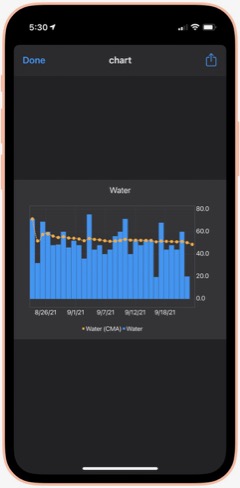
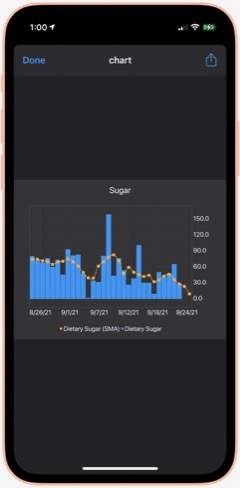
Water Chart: Using Charty, this shortcut shows me my water consumption for the last 30 days as a bar chart, with a moving average line as well. I'm not sure where I got this, but I have replicated it for several other important (to me) metrics.

Sugar Today: Sugar is another important metric for me to track. By using the Nutrition shortcut, all of my sugar consumption gets logged. This shortcut simply tells me how much sugar (in grams) I've consumed so far on the current day. Besides, sugar and water, I also have shortcuts to show me my daily consumption of protein, fiber and caffeine. They all use the pattern in this shortcut, so you can modify it to measure the things that matter most to you.

Sugar Chart: Using Charty, this shortcut shows me my sugar consumption daily for the last 30 days as a bar chart, including a moving average. I've modified this shortcut to chart other metrics that matter to me — specifically, caffeine, fiber, protein and sodium. You can modify this one to measure the things that matter most to you.

Calories Chart: I forgot to mention calories... I have shortcuts to show me Calories Today as well as this one, which shows me my calories (active energy) consumption for the last 30 days as a bar chart, with a moving average line. The data all comes from using the Nutrition shortcut and is stored in the Health app. Speaking of which, I find all of these shortcuts do a better job of helping me visualize my data than what Apple shows in the Health app. Much quicker to get what you're after as well.

Playback and HomePod
The shortcuts in this folder let me control playback on my iPhone and on my HomePods. I have a number of shortcuts specific to certain HomePods, but I see no reason to include them here.
Play/Pause: This shortcut does what its name implies: It either pauses or starts playing music. If you're playing to one or more HomePods, it also pauses playback on those.

New! Silence Audio: This shortcut turns off any background sounds (ocean, rain, etc.) that may be playing.

Change The Volume: This simple shortcut lets you choose among a number of volume settings, which you can customize to your liking. It applies the volume you choose to the music that's playing.

Play On HomePod: This shortcut has only one action: It lets you choose which AirPlay device (in my case, HomePods) to be the "playback destination" for your music.

Hand Back To iPhone: This shortcut stops any HomePods that are playing and redirects the music to your iPhone's speakers.

All HomePods: This shortcut sets each of my HomePods as the "playback destination", thereby turning them all on with one simple command.

Quick Classical Music
This folder simply has links to 11 classical music albums I have stored on my iPhone. It's much easier getting to them here than browsing my Music library. But there's no point in distributing them here, as they are very simple and redundant of some others I will be including.
Quick Leland Music
In my early adult life, I aspired to be a songwriter and made what I eventually compiled into about 8 albums-worth of material, most of it quite rough from a production values standpoint. My music is available on Apple Music, iTunes, and Spotify, for example. You can read more about it on my MarsTunes website. This folder simply has quick links to my music, which I play either through Apple Music or through my library. I'll provide a couple of examples.
I Am The Passenger: This is simply a link to one of my more popular songs in Apple Music. I believe you have to have an Apple Music subscription for this to work, but I'm not sure. That's true for the following two shortcuts as well.

Play Dancing Any: This is a link to the most recent album of demos in the series of eight. The album is called "Dancing In The Sun." The "Any" in the name refers to the fact that the shortcut ends by offering to let you play the music on an AirPlay device if you have one. (The same is true for the following shortcut.)

Play Darkness Any: This is a link to my personal favorite of the eight albums of demos, titled "The Darkness In Love."

This article continues here.
An Audiophile Listening Room with Apple’s HomePod
Apple's HomePod has been the underdog in the "smart speakers" category since its introduction last year. It's more expensive than the offerings from Google and Amazon, and Siri doesn't seem to be as powerful. I haven't used Alexa or the Google AI assistant, so I can't say what the difference may be. But let me just say that HomePod is a revelation in audio quality, and its "smart" features are more than adequate for my needs. The most surprising aspect of HomePod is that it has finally let me put together an audiophile listening room without taking out a second mortgage!
At its most basic, HomePod is a smart speaker with Siri built in and truly gifted sound quality. It's a breeze to set up... you just use your iPhone to pair and copy settings, which takes about a minute. My first use was to add some smart light bulbs to the house, and with Apple's HomeKit app on the iPhone that's a simple matter too. To activate a new device, you just scan an icon on the packaging and then assign it to a "room" in your house. (In HomeKit, you can set up rooms and "scenes" for your devices.) Once set up, it's a simple matter to say "Hey Siri" and then turn on or off a given bulb. HomeKit also makes automation simple, so you can easily have lights come on and off at different times of the day. With scenes, you can automate multiple devices with a single command. For example, when I go to bed, I say, "Hey Siri, Goodnight," and Siri turns off the basement family room light and the foyer light.
I also subscribed to Apple Music as part of my movement to the HomePod, and I've thoroughly enjoyed being able to listen to any given album by voice command. Of course, HomePods are also AirPlay speakers, so you can easily play music to them from your iPhone, iTunes, or other devices. It's simple to play to multiple HomePods at once, and Siri can move the music from room to room by voice command if you so choose.
But the most surprising aspect of HomePod has been its audiophile sound quality. Even bass response is great, which is amazing given the small size of these speakers.
I got a new HomePod for Christmas (I already had two) and decided to put it in the living room. It sounded so wonderful I decided to buy another one and set them up as a stereo pair. That's when the true value of these little speakers became clear.
With two HomePods now in my living room, I finally have achieved an audiophile listening environment at a truly reasonable price. The two little speakers pump out amazing sound, and they only cost me about $700. To replicate a listening environment with traditional high-fidelity speakers would cost at least $2,000, because you need not only the speakers (minimum: $1,000), but also you would need a receiver/amplifier and some components to get music into the system: A CD player or turntable, for example. On top of that, you would need some place in the living room to house the speakers (much larger than HomePods) as well as the stereo components... and that means another piece of furniture as well as considerably more space than my current setup requires.
With my paired HomePods, I just need to plug them into the wall and put them on a shelf. And voila! Instant audiophile listening without all the other setup headaches and at a much lower cost.
And I love the fact that the speakers have Siri built in, which means I can raise or lower the volume by voice, get information on what's playing, skip a song, or repeat... all by simply asking Siri.
The HomePod's audio quality is more than just a differentiating factor when you compare it to Google and Amazon speakers. It truly is great enough to compete with high-end speakers costing much more, and you can easily set up a listening environment that will tickle the ears of even the pickiest audiophile. A surprising punch for such a tiny device.
HTML5 Audio and Video Guide
Detailed examples of how to play audio from a web page
Cocoa with Love: Drawing gloss gradients in CoreGraphics
The Ultimate Solution To Window Clutter:
You Can Call Me SAM
Or, Everything You Always Wanted To Know About Single Application Mode But Didn't Know Who To Ask
One flaw in Single Application Mode (SAM), alluded to but not sufficiently stressed in the article, is its impact on the Mac OS X application switcher (accessed with the keyboard shortcut Cmd-Tab), which is a function of the Dock. When SAM is running (regardless of which software you're using to run SAM), the switcher doesn't automatically toggle to the previously selected application when activated. Instead, it typically defaults to the current app. So if you want to repeatedly toggle between the front two applications, SAM is troublesome.
The solution for me has been to substitute LiteSwitch for the built-in application switcher. With LiteSwitch (which has its own SAM implementation), this problem disappears, and you get a much more powerful app switcher to boot. However, LiteSwitch isn't freeware (I think it's $15). I haven't found a freeware solution, but will keep looking. Perhaps I'll figure out how to build it myself! Stay tuned.
I've observed that one of the most intractable problems bedeviling computer users, which makers of operating system software never seem to solve, is that of "Window Clutter." The inability to …
- Stay focused on the window you're working in, while
- Keep auxiliary windows handy and visible when needed,
- Avoid confusing any of these windows with those of other running applications, and
- Maintain some reasonable level of aesthetic quality to your computer desktop.
… is a nettle that keeps on pricking. At least, judging from continued user grumbling about it and the continued, less-than-satisfactory, though often valiant, solutions that user-interface experts keep offering users as the final salvation from this longstanding hindrance to productivity, I conclude that the nettle is alive and well.
That Window Clutter should still be a topic of conversation among engineers at Apple (I don't think Microsoft has any high-level staff who really care about or understand the issues surrounding interface usability, and Linux developers don't have the time to do so) is testament to their failure to stamp out a problem that appears from Mars to have a fairly simple solution, namely:
- Make it so that only one application's windows are visible at any one time.
Being highly curious creatures, we Martians find it hard to resist interrupting our work to find out more about something unknown, like the peculiar way humans endow the use of words like "nettle," "wazoo," and so on, with meanings they didn't originally have.  Fortunately, doing such a trivial thing on the Mac is so simple it's hardly an interruption. As I wrote at length in an article some years ago, all you need do is right-click on the word that interests you, select "Look Up In Dictionary" from the context menu, and Boom! You've got your definition without having to leave your document. The magical thing is that this works in any application on the Mac that's built with Apple's Cocoa frameworks (which is just about everything nowadays).
Affectionately referred to as Single Application Mode, or SAM, this is the default desktop environment on Mars. It's also widespread on Earth, though its human adherents often practice SAM quietly or even in secret because it's not an official, supported Mac OS X desktop environment.
Still, we find SAM the best way of dealing with today's large monitors, huge RAM capacity, and equally huge software options—all of which spell Window Clutter at a scale never before experienced.
SAM does require some adaptation and adoption of new tools and techniques, which I'll go into in more detail later in the article. If you're interested in SAM but afraid it would be too disruptive to your work habits, let me remind you that one of the proudest characteristics of homo sapiens is your ability to quickly adapt to changes in your environment.
On Mars, we learned to love SAM when using DragThing a few of years ago… We noticed that DragThing offered the option to hide other apps when switching to a new one. Further, it allows you to specify certain apps that you don't want to hide when you switch to other particular ones. After adopting Quicksilver, I discovered that it offered the same option, but without any customization. After that, I started noticing the Single Application Mode option offered in a surprising number of applications. (You can find a large list of such apps later in the article.)
So, if you're not satisfied with Apple's previous attempts to diminish Window Clutter on your Mac (Expose, Spaces, and Visual Differentiation), and if you abhor the idea prevalent among Windows users that one should simply zoom every window to the full size of your display, this article intends to share with you Everything You Always Wanted To Know About SAM (But Didn't Know It Was A Topic).
There's a lot to cover here, so I'll give you just a few hints up front that you should remember even if you don't read the whole tome. By the end of the lesson, you should at least know the meaning of the following terms, and how to use the software they refer to on your Mac:
- Single Application Mode, and how it differs from Single Window Mode.
- Application Switcher, referring to the one built in to Mac OS X.
- Running Dockless, meaning an application that runs without a Dock icon and without a main menu, but which is able to spawn its own windows of various types. The term also covers Dockless applications that run inside other apps.
- Tear-Off Menus, a technology that dates back to the NeXTSTEP operating system, the foundation on which Mac OS X was built.
This article is presented in several sections. Here's a list of the sections so you can easily jump around to one of the topics that particularly interests you.
- How Bad Is Window Clutter, Anyway?
- "Tradition Myths" About SAM
- From Apple's Archives: Single Window Mode and the Dock
- Getting Started With SAM
- Window Clutter: A Little History
- Alternatives To SAM For Slaying Window Clutter
- Glossary of SAM Speak
How Bad Is Window Clutter, Anyway?
The problem of window proliferation today is not so much a factor of the number of windows you have open in a particular app, but rather how many apps you have open. Figure the average user has five or six apps open, each with one or two windows. You can easily end up with 10-15 windows vying for your attention on the screen, and even with monitor resolutions of 1920x1200 or higher, that's a lot of f*cking windows!
By using SAM to limit the number of visible applications to one, you can immediately reduce the number of onscreen windows by a factor of n, where n is the number of running applications that have open windows.
To demonstrate this mathematically (we love algebra on Mars!), consider the Mac OS X computing environment of a typical professional user these days. In this scenario, our user is running the following apps, each with its own set of windows and auxiliary panels (names shown are just typical examples):
| Application | Windows | Panels | Persistent Windows |
|---|---|---|---|
| Finder | 4 (or more) | 0 | 4 |
| 2 | 2 (Activity panel, Preferences) | 4 | |
| iTunes | 1 | 0 | 1 |
| iChat | 1 | 3 (Video preview, buddy lists, etc) | 4 |
| Safari | 1 | 1 (Downloads) | 2 |
| Preview | 1 | 1 (Inspector) | 1 |
| iPhoto | 1 | 2 (Effects, Adjust) | 1 |
| Pages | 1 | 3 (Colors, Fonts, Inspector) | 1 |
| Third-Party App One (DevonThink Pro) | 2 | 1 (Inspector) | 2 |
| Third-Party App Two (Amadeus Pro) | 2 | 3 (Playback, Markers, Actions) | 2 |
| System Preferences | 1 | 0 | 1 |
Note that the calculation of Window Clutter doesn't include any number of other applications that run only from the global Menubar (or Statusbar), and which don't have a main menu of their own. This doesn't stop them from wanting to take up screen real estate, however. Typical applications in this category include:
- menuCalendarClock iCal (may have one persistent window)
- Quicksilver (pops up when summoned)
- CoverSutra (may show current playing tune and/or a tune controller)
- Edgies (may want to keep one of these stickies-like items onscreen)
- A system monitor of some kind (for example, I always keep MemoryStick onscreen)
- Helpful edge-tab tools (e.g., DragThing, Fresh, DevonThink Pro, Yojimbo, the Dock)
We also won't include the multitude of tiny windows called "desktop icons" (yes, they are windows) that users typically keep visible. (Can you feel me shuddering from way down there?) Remind me to share the secret of eliminating that source of Window Clutter as well.
There is another class of applications (of which we dare not speak!) which have no user interface of their own, per se, but rather live inside the interface of other apps. I use some of these religiously, and they all require screen real estate even though they aren't really "there:"
- StepMenus. An invaluable open-source app that provides a movable, "tear-off" copy of an app's main menu.
- CrystalClear Interface. Also invaluable to me—but hey, as the developer I guess I'm biased—as a way of making Mac OS X even more beautiful and functional than it already is.
- SafariStand. This free add-on to Safari has more useful features than you can shake a fistful of Martian sand at. (I devoted a whole article to SafariStand some years back.) This app has several useful panels that I may have open from time to time.
- Visor. A SIMBL plugin that enhances the interface to Apple's Terminal utility.
Now, into our equation we must figure that some auxiliary panels hide themselves when the application to which they belong isn't active. For example, color and font panels are only visible when the app that spawned them is active, or "in front." On the other hand, the very useful "Special Characters" panel persists across apps. (However, most folks don't know that if you click its Maximize button, you actually minimize the panel to a tiny square.) Apple is pretty careful about following its own user interface standards and makes sure that all "Inspector" windows (including the Effects, Image Adjust, and Media Browser panels that typically accompany the iLife apps) only show up when their particular application is active.
Even in Apple's apps, however, exceptions do arise. In Safari, the Downloads panel is visible even when Safari isn't active. In Mail, the Activity panel likewise stays visible. And in virtually all apps, any preferences panels you may have opened stay visible even if they have no relevance to the application you're working in.
So, back to our equation.
Let n = Number of open applications
Let v = Average number of visible windows per app
Let x = Number of persistent windows
Let y = Number of persistent auxiliary panels
Let z = Total number of visible windows
Given these variables,
z = (x1 … xn) + w
v = z/n
For the hypothetical desktop listed previously, this yields:
- z = 23 + w
v = (23 + w) / 11
If we let w = 1, then
v = 24/11 = 2.2
By this calculation, then, in all likelihood there will be 24 visible windows on your desktop under the usual setup. And if you eliminated all but the active application's windows, the total would fall to between 2 and 3 windows.
A dramatic end, indeed, to the problem of Window Clutter… wouldn't you say?
Now, to graphically answer the question posed by this section, let's take a moment to visualize the above scenario. The screenshots below have the same application/window configuration, based on the preceding table: 11 applications running, together generating 24 visible windows. The first image is a default Snow Leopard desktop, without Single Application Mode. The second image has CrystalClear Interface 2.5 running, but with SAM turned off. The last image shows the dramatic difference when SAM is activated.
"Tradition Myths" About SAM
Despite its demonstrable power in dealing with Window Clutter, Single Application Mode is embraced by only a relatively few "power users" and, of course, by Martians everywhere—those of us who live among you as well as those on Mars. However, Martians have no real influence on the way humans interact with their computers, and in fact we have some difficulty articulating our ideas in a way humans refer to as "evangelizing." Therefore, despite its rational foundation, SAM continues to be shunned as a solution by Apple and by influential Mac pundits… Why?
There are several reasons, all of which are based in "tradition myth," and none of which outweigh the true virtues of SAM.
- I need to be able to see windows of other applications so I can drag text from one to the other. No, you don't. Using Apple's Application Switcher (invoked by ⌘-Tab), it's a simple matter to select text in one application and drag it to a given window in another. Simply:
- Select your text.
- ⌘-Tab. While holding ⌘-Tab, select the application you want to drop the text in, using either your mouse or moving the cursor with an arrow key.
- Release -Tab and drop the text where you want it in the other application.
Alternatively, of course, you can copy and paste rather than drag. - I need to be able to drag images or files from one application to another. This is a variation of the first myth and has the same solution.
- I need to be able to see values (numbers, text, colors, images) in two applications at the same time. This is not a myth but is a real need that any solution to Window Clutter must address. Fortunately, virtually all SAM implementations make this relatively simple.
- The base solution is to hold the Shift key while selecting a second (or third, etc) application from the Dock. Just hold the Shift key each time you need to switch from one application to the other while working.
- Better solutions let you define which applications you never want to have hidden while using SAM or, better still (but requiring more configuration), define groups of applications that should remain visible together. Several applications that implement SAM offer this functionality.
- Why bother when I can just use the "Hide Others" keyboard shortcut (Option-⌘-H) as needed? Well, my response is that if you want to use the keyboard shortcut each time you switch apps, then you should be using SAM. SAM is mainly a convenience, automating the task hiding other apps rather than adding the task to your regular workload.
Finally, the most insidious deterrent to the use of SAM is one that arises from ignorance or from age-old blinders that keep their wearers from seeing full 360-degree panoramas about the issue. To explain what I mean by this, I need to take a quick detour into some history about a relative of SAM's called "Single Window Mode."
From Apple's Archives:
Single Window Mode and the Dock
It's strange, but true, that the Mac OS X Dock has a "single application" mode of its own. To try it out, install Secrets, a GUI tool from Blacktree—the company that brought us the incredible open-source workhorse, Quicksilver. Secrets lets you enable the hidden Dock setting for "Single App Mode." You can also activate this Dock setting by typing these two commands in the Terminal (the second command restarts the Dock):
com.apple.dock single-app
killall dock
That the Dock has an implementation of SAM is curious, and it may be useful for some. However, it has several drawbacks from the Martian point of view:
- You have to use the Dock alone (read: click on Dock icons) to launch and switch apps, in order to make other apps hide when you do.
- Launching apps from Spotlight doesn't trigger SAM.
- Launching apps from the Finder—or from any other application launcher—won't trigger SAM.
- Switching apps using the Application Switcher doesn't do it, either.
- Curiously, you don't go into SAM mode even if you launch an app from a Dock Stack, such as one showing recently launched apps.
So, the Dock version of SAM is only useful if you use the Dock for all app launching and switching, which obviously isn't practical or efficient.
 Another tantalizing remnant of Apple's flirtation with SAM is found in the graphics bundle that's been used by Mac OS X since day one. In addition to the usual red/yellow/green "stoplight" indicators at the top of every window, there's a purple one that's never been seen outside the few developers who worked on the earliest builds of Mac OS X… plus all those who saw Steve Jobs' Keynote presentation at MacWorld in January 2000, when Apple first unveiled its new Aqua interface.
For those of us who are fans of SAM, it's validating to listen to Steve extol the virtues of what was then dubbed "Single Window Mode." In fact, he spoke of it at length in a demo that concluded his entire presentation about the coming greatness of Aqua. During that speech, Jobs describes a solution Apple was building into Aqua in order to conquer the challenge of Window Clutter (see video of this segment below):
Let me go ahead and click a button that's on the right side of the top of the window pane. And this button is pretty cool. What it does is it says, "You know, when we have a lot of windows around on our system, it can get rather confusing for beginners, and even for pros.
If you're working back and forth between Illustrator and Photoshop or Photoshop and something else … These things can get very complicated on the screen.
What could we do to make life easier for our pro customers and for beginners? We came up with something pretty neat. You can click it from any window. You can turn it off and on.
And it's called Single Window Mode. So you just click this, and every other window on the screen is miniaturized. And when I click another window… Boom! They switch places.
It's very easy.
Wow… even from Mars we were impressed with Jobs' insight. Here's a guy who really understands user interfaces to software. He understands the needs of computer users, often even before they do. We had observed Steve Jobs and his return in 1997 to the promising company he helped found, and it was clear that this guy knows what he's talking about when he says things like, "Boom!"
What the heck is a wazoo? And what do people mean when declaring something is "out the wazoo?" 
Hmmm… Does "wazoo" really mean "anus"? Now we're really confused! To clarify, I click on the little "More" button in the lower right-hand corner of the pop-up, and I'm whisked to the Dictionary app itself, which explains:

Sure enough, our early impressions of Jobs were correct, and he's clearly not only a transplanted Martian, but that extraordinary Martian who is able to mind-meld successfully with humans. Since then, we've been importing Apple products "out the wazoo," as you say here on Earth.
Sadly, however, Apple didn't pursue this initial idea for a Single Window Mode. From the snapshot we were given, it appears that SWM was somewhat flawed, and I'm not referring to its unfortunate acronym. If SWM worked the way Jobs demoed it, it would have minimized all the other windows in the current application, as well as those in other applications. Clearly, that's not going to work, which may be why Jobs was talked out of it.
As one of the major gurus of Mac-Think, John Gruber gave us a clear explanation for the opposition to SWM in those early days of Mac OS X. This excerpt is from an interview by Marcin Wicary, keeper of the marvelous website covering the history of computer GUIs, Guidebook Gallery, in July-August 2005:
Q: Was single-window mode such a bad idea? Moved from the purple button to the confines of System Preferences, wouldn’t it be useful for beginners or refugees from the Windows world?
A: It might be a good idea for some entirely new system, but I think it was incompatible with the existing Mac UI paradigm. The Mac UI was, and is, meant to revolve around multiple windows. If you’re only going to show one window at a time, what’s the use of even calling it a “window”? Just take up the whole screen.
TiVo, for example, effectively is a computer with a single-window UI paradigm. But it’s screen-based, not window-based. In the same way that it didn’t make sense for Apple to add a single-window mode to Mac OS X, it wouldn’t make sense for TiVo to add a new multiple-windows mode.
As for beginners and Windows refugees, I don’t think they need protection or shielding from the true Mac UI. What would – and does – help them is when the regular UI is consistent, obvious, and intuitive.
My current theory is that this antipathy for SWM has swallowed any official support SAM might have had all these years. And yet, SAM is the solution that SWM was not.
- SAM is SWM evolved.
Getting Started With SAM
But perhaps the best reason SAM isn't more widely adopted is that, especially for experienced Mac users, it takes some getting used to. This is why I refer to it in the CrystalClear Interface Preferences as a "new paradigm." The rewards of embracing SAM are great, but embracing SAM also means unlearning certain behaviors, and learning new ones. If SAM were openly incorporated into Mac OS X, its adoption could be more seamless than it is, of course.
So, OK, say I want to try using SAM. Where do I start?
Despite its relative obscurity, SAM is implemented as an option in a great many Mac OS X applications that have some application-switching functionality. Here are some of the apps I know of that offer SAM as an option. I've personally used Quicksilver, LiteSwitch, and DragThing for this functionality and ultimately settled on LiteSwitch as the best option.
I chose LiteSwitch not just for its SAM-ability, but for its many other irreplaceable virtues. I now use CrystalClear Interface for SAM, but I cherish LiteSwitch because it improves on the Mac OS X switcher in so many ways. Of particular relevance to SAM is LiteSwitch's inherent app-switching behavior.
Apple's switcher doesn't allow you to repeatedly and quickly toggle two applications with one simple ⌘-Tab shortcut. After you toggle once, it forces you to navigate (with arrow key or mouse) to the other application you want to toggle.
For me, this is key, since without the quick toggle, I end up doubling the toggling effort. LiteSwitch doesn't have this drawback, and I would be hard-pressed to do without it. (By all means take a look at the more in-depth review of LiteSwitch I wrote a few years back.)
I am pleased to see that Proteron, the company that built LiteSwitch, appears to be back in business after a 2-year hiatus. What a relief to know that it'll be available and supported once again!
Here's that list of SAM-capable apps I mentioned earlier:
- Application Wizard
- CrystalClear Interface
- Desktopple Pro
- DragThing
- Flying Windows
- Keyboard Maestro
- LiteSwitch
- MenuStrip
- MultiXFinder (free)
- Quicksilver (free)
- Shoo Apps
- Spirited Away (free)
- TransparentDock
- Window Cleaner (free)
- Make the Mac OS X Application Switcher your best friend. Once this mode of switching apps is second nature, SAM will also seem completely natural (if it doesn't at first), and you'll wonder why you suffered so long with all those windows cluttering up your screen! To invoke the Application Switcher, use the keyboard shortcut ⌘-Tab to show all your running applications. As an alternative to Expose, you might also find it convenient to start using ⌘-Tilde, which toggles through the various open windows in your current application.
- Hold the Shift key to add windows of other applications to the visible mix. For me, this requirement pops up when I use an application like the delightful color utility iPalette, and want to capture colors from another window and experiment with them while keeping the source window in view.
- Get used to the idea that drag and drop is just as easy between two windows that can't see each other as it is between two that can (setting aside for a moment the notion that windows can "see"). Think of this technique as an analogue to the Finder's spring-loaded folders, where you drag a file from one visible folder to another that only becomes visible after you've passed through one or more folder "dimensions."
Only, dragging from window to window is easier. To do this, just make your selection and start to drag. Then, switch applications using the Application Switcher (⌘-Tab) and drop the item into your document as you normally would. You can use this technique for dragging text, files, images, etc., just as you would if the two windows were visible at the same time.
One thing that's even nicer about this approach is that you don't have to move windows around to set up the right view for dragging between visible windows. (What a drag that can be! "Oh, Martha, he thinks he's such a wit, don't he?") However, you do have to make sure that the target window is active in the the target application, since you won't be able to switch windows in the target app during the drag.

As those of you who've tried to get used to Spaces know, many attempts to solve Window Clutter create new problems rather than really solving the old ones. This isn't true of SAM, because it really does solve the problem of Window Clutter. However, it does introduce some problems that need to be solved somehow. Fortunately, we Martians have found free and easy solutions to all of them!
- Problem 1.
- Many applications let you set a given window as "floating" so that it stays "on top" of your window hierarchy even when you switch to another application. Only problem is, the window's "floatiness" is tied to the visible window hierarchy itself rather than to your workspace as a whole. As a result, the supposedly "floating" window gets hidden along with its application when you switch apps using SAM.
Typically, this problem occurs with respect to user interface elements that you want to remain visible no matter what other apps are active. Apps in this category typically include:
- Launchers
- Sticky notes
- To-Do lists
- Monitoring tools (e.g., clocks, system info)
- Interfaces with inactive apps
- iTunes controllers
- Screen capture tools
- Automation tools (scripts/shortcuts/workflows)
- Desktop customizers
These kinds of apps play a role similar to the one that the Color and Font panels play in an application. If you open them, you want them to stay open—and not to hide behind other windows or apps—while you're working. In the context of SAM, tools of the categories above are ones you want to remain visible even if you switch to another app.
Apple provides many such interfaces to its own applications, including the following:
Yeah, well, if you rely on iTunes' floating controller, and aren't willing to part with it, SAM won't work for you.  Thankfully, there are dozens of free alternatives that provide more functionality than the iTunes floater, so if you're willing to give one of them a try, you can still use iTunes to the full extent, but control playback with something else. For some ideas, refer to an article I wrote a couple of years back on iTunes controllers. It's out of date now, but still worth a look. Some newer alternatives are listed in the table below.
- The Dock
- Spotlight
- Various statusbar items:
- Airport
- iSync
- Time Machine
- Sound preferences
- Fast user switcher
- Script menu
- Application Switcher
- Dashboard
- Expose
- Time Machine
- Front Row
Solution: Find applications that allow themselves to be removed from the dock and to appear without a Main Menu. Such apps are referred to in the Apple developer documentation as "agent" applications, and many of them make themselves available as a statusbar item. There are quite a few apps that can morph from a regular app to an agent as a user option, and many that are agents from the get-go. Here are some of the apps I've used that I always want to remain visible while open, and which can accommodate that need nicely with SAM without any special effort. (I've organized these according to the category of apps listed above.)
Note: The apps with links in the table are ones that are not linked elsewhere in the article. Other than that, I'm not making any kind of particular statement about them.
| Category | Application |
|---|---|
| Launchers |
Quicksilver ClawMenu DragThing Butler Overflow iKey |
| Sticky notes |
Sticky Notes Edgies |
| Monitoring tools |
Growl BackTrack BwanaDik MenuMeters iStat Menus |
| To-do lists |
MenuCalendarClock iCal Pluto Menubar |
| Persistent interfaces to inactive apps |
DevonThink Pro Yojimbo DropCopy Quicksilver Fresh BackTrack Evernote LiteSwitch |
| iTunes controllers |
CoverSutra YouControl Tunes Butler ClawMenu Quicksilver |
| Screen capture |
Little Snapper Mac OS X keyboard shortcuts |
| Automation tools |
Quicksilver AutoPilot iKey OpenMenu TextExpander Hazel Shortcuts Spark |
| Desktop Customization |
Picture Switcher DeskShade Wallsaver QCDesktop |
- Problem 2.
- What about applications that don't offer an option to run outside the Dock and without a menubar? I have several such apps that I run daily or frequently, and SAM really wouldn't be feasible if I hadn't found an easy way to "bend such apps to my will," so to speak. Here are some of my "problem," essential apps:
- QuartzClocks. A freeware app, this is simply the best desktop clock I've ever seen. Sadly, its developer had abandoned it the last time I looked, but you can still download it from MacUpdate.
- Sticky Notes. There are oodles of sticky-note apps in the Mac universe, but this is one of my favorites. The feature that makes Sticky Notes stand out from the crowd is that you can bind individual notes to particular applications. This is exactly what I want from a notes application… it's like putting a sticky right on the app itself! It's also perfect for SAM, because the notes are always there when the relevant app is open. The only problem arises for notes that aren't tied to a particular app…
- FlySketch. The very best app for annotating screen captures. Incredibly innovative… there's nothing like it.
- PixelStick. Great freeware for measuring screen coordinates when doing pixel-based design.
- iPalette. Terrific freeware for experimenting with colors. For developers, it's a great way to easily get RGB values for NSColor in your apps.
Solution: What you need is an easy way to toggle any app on your system between being a regular Dock/Menubar app and being an "agent" app that doesn't hide when you're using SAM. If you're a programmer or are otherwise technically savvy about the inner workings of Mac OS X, you could do this manually by editing a small file that appears in every Cocoa app's "bundle." But how much fun would that be? Although there aren't many utilities that will perform this feat automatically, there are a couple I know of, both free.
- Dockless does precisely what you want. Dockless is reliable, simple, robust, free, and open-source! (Another cool thing about Dockless is that it also lets you go the other way: Make normally "dockless" (agent) apps appear with a menubar and Dock icon.) (For more words from me about Dockless, refer to my 2006 review.)
- Configure Application Dock Tile has a trés ungainly name, but it can be more useful than Dockless for quick changes. The best way to use this app is to add it to the toolbar of Finder or Path Finder, and then use it as a "droplet." To toggle an app between having a menubar/dock and not having one, just drag the app to the toolbar icon for Configure Application Dock Tile (yuck!), change the checkbox state and save.

- Problem 3.
- If you use Dockless or Configure App… to eliminate an app's menubar, how do you gain access to the menubar when you need to? After all, most such apps have Preferences to set, or Help to access, or various functions that only appear in their menubar. Apps that offer a built-in Dockless mode take this into consideration and make their menu functions available in other ways, but apps that are coerced into running Dockless don't.
 Solution: As with problem #2, there aren't many options that address this. But fortunately, the one I've used for ages still works great on Snow Leopard and, like Dockless, is free and open-source: StepMenus. By default, StepMenus provides a small floating panel that duplicates an app's main menu. You can position this menu panel wherever you like, or you can use the StepMenus System Preferences interface to exclude it from running in a particular application. (If you're a user of CrystalClear Interface, you'll undoubtedly see a similarity between the StepMenus preferences pane and the one for CCI. The similarity isn't accidental: I used some of the StepMenus code for CCI, since it was precisely what I needed for that app.)
Window Clutter: A Brief History
In the beginning, there was the very low resolution monitor for working with graphical operating systems, like the Mac and, eventually, Windows. For a very long time (in computer years), resolution was so low (600x800 pixels or less) that the only sensible way of working was to zoom each window to its maximum extent.
This hardly hindered one's productivity, of course, because it wasn't until the mid-1990s that computers had enough built-in memory to run multiple applications reliably. Still, you quite often needed to have two or more windows open in a given application—for example, in word-processing apps like Microsoft Word or WordPerfect. The number of windows you needed to work with doubled or tripled once sophisticated design applications like Photoshop and PageMaker came on the scene. At this point, working with multiple zoomed windows became a real pain, yet squeezing them to smaller sizes seemed to only make things worse.
For the longest time, it seems that a great deal of my time was spent repositioning windows so I could see what I was doing. Working in a word processor was one thing. Working in Aldus PageMaker was another thing entirely.
In a word processor, it's often desirable to see only one window at a time, as a way of reducing distractions. In fact, a few years ago it became de rigeur (at least in the Mac world) for such apps to enable a full-screen mode for composing text. This became a major selling point for rich-text editors like WriteRoom, and it soon became a standard feature of most apps that included a writing function.
When one is word-processing, having a single window consuming all of your screen real estate is not a bad thing, especially since you can specify margins so the text doesn't spread across the entire area.
As screen resolution rapidly rose through the 1990s, however, the habit of zooming every window to the full size of your monitor began to look pretty silly, and could actually dampen productivity. It's a known fact that humans read less efficiently when a column of text is too wide, because the eye has trouble making its way back to the left-hand margin while keeping each line in sequence. (For examples, see this or this in Google Books.)
When monitor resolution was 640x480, this was not a consideration. But on a 1024x768 monitor, line length in a word processor (or PDF file, web browser, or whatever you may be trying to read) becomes far too great to read efficiently. Still, zooming windows to the max remained the preferred, and expected behavior (especially on Windows)… readability be damned!
The first great idea for dealing with multiple applications and windows on a PC actually appeared first in Microsoft Windows 3.x. It was then (and, I think, still is now) a feature known and used mainly by power users, but it was a brilliantly simple implementation. I refer here to the Alt-Tab keyboard shortcut, which displays a horizontal band of all your currently active apps and windows. The Windows implementation was fairly rudimentary, and it didn't change much (if at all) until the release of Windows Vista.  To navigate the Windows switcher, you had to to everything with those two keys. In other words, you had to hold down the Alt key, press Tab, and then keep pressing Tab to navigate through the items (you could go backwards by throwing a Shift into the mix, but still had to keep holding Alt as well). This was useful, but seemed downright awkward after Apple finally implemented a similar feature in Mac OS X 10.3 (Panther).

Apple's innovations to the application switcher were not only visual (and it was very cool visually), but greatly enhanced functionality as well. You could navigate like in the Windows switcher, but you could also navigate using the arrow keys, select with the mouse, use the scrollwheel to navigate, drag items onto the applications to launch them, and hit Q to quit an application. There are a variety of other keyboard shortcuts as well. (See here.)
I understand that in Windows Vista, Microsoft has incorporated some of Apple's enhancements: You can now navigate through the items with arrow keys or your mouse. Unfortunately, from what I've read, the Windows switcher doesn't expand horizontally beyond its size in earlier versions of Windows; rather, it expands vertically in rows.
One of the most irritating aspects of the Windows switcher is that it displays both documents and applications. Therefore, it's not strictly speaking an application switcher, and there doesn't seem to be any way of making it so. (This is the main reason I can't bring myself to use Witch, an otherwise useful, once-free-but-now-shareware switcher alternative on the Mac. Witch has no way to limit its display to applications, either.)
Instead of displaying both windows and applications at the same time, Apple has sensibly separated the two, providing a different shortcut—⌘-Tilde—to navigate your open windows.
It wasn't long before monitors got bigger not only in resolution but also in physical dimensions. Can you imagine working on a 15-inch monitor nowadays? And yet, this was the standard size throughout the 1990s (unless you were very special indeed). With such a small monitor, most people didn't max out their screen resolution because at 1024x768, for example, screen type becomes way too small to read.
Soon enough, though, monitor size zoomed to 17-inch, then 20-inch, and now 24-inch as the expected standard for your basic computer system. Heck, the current model iMacs sport a 27-inch monitor in the top two configurations. (And here I thought my 23-inch Cinema Display of a few years back was so huge. And it is!)
For creative professionals, the problem of dealing with Window Clutter has long been handled by using multiple monitors. That's fine if you can afford it, but using multiple monitors introduces its own set of problems. I won't go into them now, but those of you who work that way know them all too well.
In the meantime, computer memory soared, so that what application developers, users, and hardware makers considered a baseline standard was an ever-shifting target. And no one ever seemed to get it quite right. Technical standards have simply moved far more swiftly than humans could adapt to them. (I wryly note that this deficiency is not shared by your Martian neighbors.)
It's sobering to actually review the timeline of the amount of random-access memory (RAM) that personal computers have relied on. As we all know, in 1984, Apple Computer introduced the Macintosh—the first commercially available personal computer with a graphical operating system. It was also the first computer to boast 128KB of RAM! By the end of the year, for only $10,000, you could buy AT&T's new microcomputer and luxuriate in a full 512KB of RAM.
The race for more memory had begun, but it seemed to remain in Lilliputian dimensions for a very long time. By the end of 1989, Apple's Macintosh was still in the lead, with its top-end system boasting 4MB of RAM. IBM and Compaq PCs maxed out at 2MB. A decade later, top-of-the-line systems still peaked at 512MB or 1GB of RAM, while consumer systems like the iMac were holding 256-512MB.
Since 2000, It was in the last decade that RAM size really took off. The amount of RAM a desktop computer can consume nowadays seems ridiculously huge, a reflection of the transition to 64-bit operating systems. My 2-year-old Mac Pro can hold 32GB, and I've got 16GB installed. To buy a consumer system with less than 4GB these days is to buy a computer that won't run modern operating systems or the latest versions of the most apps. Heck, the $599 Mac mini has 2GB, and the $799 model has 4GB! The standard RAM for Microsoft Windows-based systems is similar, starting at 2GB for entry-level computers and rising from there.
For the purposes of this article, the main impact of exploding system memory has been to increase the number of applications one can keep open at the same time. It has become habitual for a typical user to leave applications open indefinitely, and then to not understand why their system may be slowing down after a few days. (For a followup to this discussion, refer to the earlier section of this article, How Bad Is Window Clutter, Anyway?)
Alternatives For Slaying Window Clutter
I still think Expose is a visually cool way to view your open windows, but I frankly have never used it much because it just doesn't work for me. Rather than spending many more words explaining Expose, take a look at the preceding link and let Apple do the talking.
Basically, Expose has three modes, with the following default keyboard shortcuts:
- F9. This displays all the windows of all active applications on your system. Curiously, however, this doesn't show windows of applications that are hidden. Therefore, if you're using SAM, there is no difference between F9 and F10. (Perhaps that's one reason I've never taken to Expose…)
- F10. This displays all the windows of your current application.
- F11. This hides all windows and displays your desktop.
A very useful feature of Expose (which may not be widely known) is that whether you start with F9 or F10, you can navigate through your other applications and their windows by hitting the Tab key. Each click of Tab takes you to the next application set. Within an application set, you can navigate using the mouse or the arrow keys.
Still, Expose is at best a useful way of finding windows on your Mac, and is neither a practical application switcher nor a solution to Window Clutter. After all, as soon as you exit Expose, your cluttered Desktop returns, like Cinderella at midnight, to its former unlovely self.
Back in 2006, I opined at great length about why Virtual Desktops as a technique--and why  Spaces in particular--are poorly suited as a solution to Window Clutter. Rather than repeat all those arguments and observations here, I invite you to read the article, "Leopard’s Spaces: Virtual Desktops for the Rest of Us?", which I wrote while having access to developer releases of Mac OS X 10.5.
Even after I discovered Hyperspaces, a marvelous enhancement to Spaces that adds all the features I felt were missing in Apple's implementation, the basic problems inherent in Virtual Desktops remain:
- They simply create more confusion than they eliminate,
- They make it harder for you to find your application windows, and
- They aren't really practical since the idea of segregating your different kinds of work into different desktops is impossible if you have even modestly complex kinds of work involving more than one application.
Apple has progressively enhanced the visual distinction between your active window (typically the one you're typing in or whose controls you're manipulating) and the others in your active application. Windows in inactive applications have a slightly different appearance than inactive windows in your active application. (Say that twice fast.) But practically speaking, it's impossible to tell them apart.
This is why those who don't use SAM either must use something like Expose or ⌘-Tilde, or forever find themselves activating the wrong window.
Even when using SAM (either with or without CrystalClear Interface), distinguishing between your top-level window and the others in your window hierarchy is very important. By default, Apple helps differentiate the active window by adding an extra-huge, 3-D shadow (introduced in Leopard), as well as hints in the button widgets (color vs. no color, or faded vs. active appearance, or bright vs. dim, etc.).
In addition to Apple's visual techniques, CrystalClear Interface lets you further distinguish windows by their transparency, which is completely user-customizable. By default, the front window is mostly opaque, and the inactive windows are 50-60 percent transparent. Utility windows (Find panels, Color panels, and the like) retain the opaque appearance of the main window and are distinctively themed as translucent black (HUD) panels. Besides setting default values for all inactive windows, users can also set the transparency of individual windows that have unique titles to some custom value, retained across sessions.
In addition, CCI provides the option of turning shadows off for your inactive windows. This just takes Apple's approach one step further: Rather than minimized shadows in background windows, you can remove shadows from background windows entirely.
The bottom line is that Visual Differentiation as a strategy of solving Window Clutter is absolutely necessary and quite helpful. However, it is not sufficient to eliminate the problem entirely.
And that explains why here on Mars, we use Single Application Mode as the solution to Window Clutter.
- Agent
- An application that does not show a dock icon or have a Main Menu in the menubar. This type of application sometimes has an icon for accessing its functions and preferences in the Statusbar.
- Dockless
- An application that runs as an Agent.
- Statusbar
- The part of the System Menubar that extends from the Spotlight icon on the right to a point on the left that's not occupied by the current application's Main Menu.
- System Menubar
- The narrow strip at the top of the Mac workspace that contains the application's Main Menu and the Statusbar.
- Main Menu
- The part of the System Menubar occupied by the current application's menu items. The Main Menu usually starts with an item with the application's name, just to the right of the Apple Menu, and extends to an item named "Help" on the right.
- SAM
- Acronym for Single Application Mode.
- Tear-Off Menu
- An item from the Main Menu, or one of its submenus, that can be "torn off" and positioned as a free-floating window.
- Auxiliar Panel
- A window that contains tools used to change settings of various kinds in the main window. Such windows include the Font and Color panels, as well as Inspector panels such as those in Apple's iWork applications, or the ones in Preview and QuickTime.
- Floating panel
- A window that by default always appears above other windows in the application's hierarchy, except those that are also floating panels.
- Single Application Mode
- A Macintosh workspace configured so that only one applications windows are visible at any one time. Other application's windows can be configured to be temporarily visible as well. Any open windows of Agent applications also remain visible.
- Single Window Mode
- A Macintosh workspace configured so that only one window is visible at any one time. SWM exists in concept only.
- Active [Window/Application]
- The Active application is the one the user is currently working in. The Active window is the window of the Active application the user is currently working in, using either the mouse or the keyboard (or some other input device).
Mac | I Love Code
Very Clear and Useful Article on Cocoa Debugging and Dead-Code Stripping
Very glad I found this one... now I hope I remember I've put it here in my Cocoa bin!
Blow-By-Blow Description of How an NSApplication Comes Alive
CocoaDev’s “How To Program In OS X”: A Great Resource, But A Lousy Pointer
Courtesy of Borkware: Quickie Cocoa Code Snippets
My Passionate Fling With iWeb Is Wearing Me Out!
Since  releasing of Crystal Clear and VacuumMail earlier this year, my download traffic has overridden my .Mac account ... and twice (so far) I've had to upgrade my account to accommodate the bandwidth. I don't mind that, nor do I mind the additional traffic on the Mars Downloads pages. What I do mind is the time it takes me to keep those pages updated! In fact, it takes so long I haven't been able to keep them in sync with the new stuff I was making.
I've been a pro webmaster for, well, a long time... since 1994, in fact. So keeping a couple of simple pages updated shouldn't make me break a sweat, right? Damn right! Problem is, the Download pages started as an experiment with Apple's iWeb software last year, and iWeb and WordPress don't mix well. To help them get along, I devised a simple checklist so all I'd have to do was:
- Generate the raw HTML from iWeb
- Massage the HTML by
- Tweaking a few CSS styles,
- Doing a few search/replaces,
- Doing a bit of reformatting, and
- Plopping the iWeb HTML in the WordPress template, and
- Moving the iWeb graphics and other files to the server.
At least, that's how I thought it was going to go. As it turns out, the convoluted HTML and CSS code that iWeb generates invariably causes problems when running inside Mars. This means each update can turn into a 2-3 hour scavenger hunt, with each contestant (Me, Me, and Me) trying to find a lost px in a huge block of unreadable code.
So last week I vowed to find another way, and I think I have. The end solution means more work up front in generating the site to begin with, but should make it very easy to rearrange, add, or rewrite content or images on those pages.
iWeb: Lovely Siren for Mac Web Designers
The great thing about iWeb is that it's so easy to design beautiful web pages, and the process of designing beautiful pages is so much fun! In fact, even though I had decided to swear off iWeb from now on, going back to her last week just rekindled my affection. Yes, as an HTML pro, there are many missing pieces and frustrating aspects to iWeb. But as a designer, I can't help but have a good time putting designs together.
 And if you use iWeb to manage your site, it's equally easy: Just make the change in iWeb and click a button to push the site out the door. iWeb follows in the footsteps of older products like NetObjects Fusion, which pioneered this kind of totally visual approach. And iWeb's HTML code may even pass w3c validation tests, because it's not using any proprietary, browser-specific junk like Microsoft does with FrontPage.
My problem is that the iWeb code cannot be updated by hand. It just can't! Paragraphs of text get split into individual spans, each with their own lengthy inline CSS styles, and even more horrifying, the page content isn't presented in any understandable order. My best guess is that the iWeb code is generated as you add content to your page. This works because most DIVs on the page have a CSS style of position:absolute, meaning they are positioned by x and y coordinates, and each has the equivalent of a PostScript "bounding box" with a known width and height. As long as you change the content from within iWeb, this model, clearly derived from printing, works, since iWeb can recalculate the width and height and x and y positions of each "box" when it regenerates the code. But just try to do that on your own.
Fuggedaboudit!
And that's the main source of my frustration. Some users have complained about the size of the graphics files iWeb produces, but honestly I think that problem was either overblown, or has been remedied with iWeb updates. The way Apple handles drop shadows that you add to images in iWeb, for example, is ingenious for its ability to retain high output quality with small file sizes. It's an approach, again, that is difficult or impossible to replicate by hand. What iWeb does is generate a JPEG file for the main image, and a separate rectangular, 24-bit PNG image for the underlying shadow. (See the two examples here.) In the HTML, iWeb makes separate DIV layers for each, and positions the shadow layer precisely under the main image so that just its edges show.

 The reason this is smart is that JPEG is the most efficient format for full-color images (although iWeb could be improved by giving authors the ability to set a sliding scale of quality for those images... Apple opts for the highest possible quality), while 24-bit PNG is the only format that retains the shadow's alpha layer so it can be composited against any kind of background seamlessly. Apple could have used PNG for the entire image in order to preserve the alpha layer in the shadow (in fact, I think that's what was happening in early releases of iWeb), but that would produce real, unsustainable image bloat. 24-bit PNG files are huge compared with equivalent JPEG files, except for files like this drop shadow that are mostly transparent and consist of a single color. In this case, the 24-bit PNG shadow is actually more than 50% smaller than an equivalent JPEG file... even though it still retains that cool transparency. So iWeb is doing the most intelligent thing possible with these images from both a quality and a file-size angle: JPEG is best for the heart of the image (both in quality and file size), and 24-bit PNG is best for the shadow area (both in quality and file size).
And yet... iWeb has this totally annoying and so-far-unresolvable habit of giving the image files it generates names that are either impossible to decipher, because they bear no relation to anything on the web page, or way too long to be absorbed by human eyes. The only approach to control image naming I'm aware of is to name files in iPhoto and then bring them into iWeb. But that's just not going to fit in my workflow very well, and besides, it doesn't help when iWeb goes to name the shadow file behind that image of Crystal Clear. No, it resorts to names like "imageEffectsBelow_desktop_preview_full_cclite.png." Or if you define an area in iWeb with a gradient background (for example), you get names like "shapeimage_7.png", which don't do much for the readability of the page code.
Anyway, I don't know if I'll be able to keep away from iWeb the next time I feel a web page design coming on, but I do know I'm not going to try to use iWeb's page code on Mars anymore.
If Not iWeb, What?
My search for an alternative was frustrating as well. Without going into detail (maybe another day), let me just relate the visual HTML editors I tried and tossed aside this week:
 Dreamweaver CS3. Yep... that's right, in my opinion the spanking new version of Dreamweaver, released as part of Adobe's Creative Suite 3.0, simply sucks. And I don't say that lightly, since I have been a Dreamweaver evangelist in all of my jobs since the very first version in 1998, although I began to drift /Volumes/Files/Sites/mars/images/away from it for personal projects a couple of years ago. Talk about feature and user-interface bloat! Man, and I used to pitch Dreamweaver as a good tool for beginners! Even though I'm familiar with Dreamweaver interfaces through MX 2004, as well as with the terminology of the web, CS3's convoluted interface simply boggled my mind. The simplest tasks are impossibly hidden in a submenu somewhere or a floating palette's hidden tab, or it wasn't there at all. In any case, I certainly won't be putting in for an upgrade to CS3 in order to get Dreamweaver!
 Sandvox. I'll keep watching Sandvox, but to date (through version 1.1.2) it's struck me as less flexible than iWeb for designing sites or pages from scratch. It is developing a raw HTML capability that will come in handy for pros, but its templates are more rigid than I'd like, with elements that can't be changed in any normal way. Unlike iWeb, you can't just drag images to Sandvox and place them wherever you like... and Sandvox has none of the advanced design tools for image alignment and enhancement (iWeb now includes an image adjustment HUD like iPhoto), or for fully flexible web "parts" like rectangles (rounded or not), lines, and other shapes, or even for typographic niceties like paragraph, character, or line spacing. Heck, you can't even insert a bullet list. Sandvox works best if you want to use one of their prebuilt templates, but is just frustrating as heck otherwise. Even if you add existing HTML using a raw HTML "pagelet," you can't edit it visually within Sandvox... it sits there like an alien "other thing," even though it's just HTML.
 RapidWeaver. I actually bought a license for RapidWeaver a couple of years ago, but found it totally incomprehensible from an underlying code perspective. RapidWeaver is a close cousin of Sandvox, but a bit older and in some ways wiser one. There certainly are a lot more, and more interesting themes, plugins, and add-ons for RapidWeaver by now. But like Sandvox, it doesn't really help you with the design aspect of the web, which is what iWeb does so well.
That left Freeway Pro from Softpress, which I would have tried again except they make it so hard to get a trial version, and the old one I had already downloaded no longer works. Besides, Freeway Pro is almost as expensive as Dreamweaver. I'm not sure whether GoodPage can do visual HTML editing, because likewise I couldn't get the software to run again after having exhausted the first trial last fall. (I think I opened it twice.)
 But wait! I nearly forgot... ! I also did a very interesting, though ultimately not usable, experiment with Apple's new Dashcode software, which will be officially released as part of Leopard in September (??) It's been available as a public beta since December. Dashcode is a visual IDE tool for building Dashboard widgets, but since such widgets can be nothing but HTML, JavaScript, CSS, and images, they are, as I've pointed out in the past, just little web pages. That being the case, could Dashcode be used to design a web page? The answer turns out to be, "Sorta." If you want to see a quickie sample made from one of my iWeb pages, you can download it here. Just for fun, of course! No, although Dashcode is fun to use in the same way iWeb is, it's even worse when it comes to writing out HTML and CSS code you could edit later by hand. Each element from the Dashcode library becomes a "part" that a special JavaScript file sets up when the widget runs. And then there's the very practical limitation of widget size. You can use big content for your widget, but Dashcode won't let you scroll down to see it while working. It's just not meant to be used that way. Still, it was a fun experiment.
In addition, I tried the following programmers' text editors to see if they could clean up the iWeb code in any way, or make it easier to manage. None of them could help:
 Smultron. Has no particular facility with HTML, although it does have a web-page preview that works well unless you have a bunch of images that aren't located where Smultron can see them. This can be fixed by adding a meta tag for the base URL, but it would be nice to be able to set this up as part of the project definition. Still, Smultron remains a favorite for general programming since it offers great syntax coloring options, code folding, tabbed windows, and split views. Its syntax smarts aren't so good on cross-language files, though, as is typical with web code: HTML with CSS and JavaScript, or PHP with HTML etc.
 TextMate. This is probably the best of the lot for HTML, because it has a terrific built-in web preview and is enjoyable to use. But it's not exactly easy to troubleshoot HTML in TextMate, nor is it a good place to think about refactoring your HTML code. TextMate does offer code-folding, split views, tabbed editing (if you're working in a project), and much more. Unfortunately, its code folding smarts could use a brain boost, since they can be foiled by inconsistent indentation.
 BBEdit and TextWrangler. I'd used BBEdit for years in working with HTML, and though it does some things extremely well (code blocking anyone?), it's incredibly boring and ugly, and has no preview facility. The best thing about BBEdit is that it can open extremely large text files, which isn't something you find in HTML very often. It's worth noting that the recent upgrade to BBEdit 8.6 requires a license upgrade, even though the only noticeable difference to someone interested in HTML editing is a new icon. TextWrangler is a popular free version of BBEdit, minus various power tools and sporting a different icon.
 Coda. This new kid on the block has a lot of promise, but at the moment it's mostly a website management tool and can't replace the best text editors available for coding. I'll be doing a more complete review of Coda later on, but for now I'll just note that it falls down in several important respects: No searching across files, no code-folding or way of tracking HTML code blocks, weak code completion and indentation functionality, no code reformatting options. It does, however, have excellent built-in previewing, amazing eye-candy, split-view editing, and a parser that tracks and presents a list of
 DIVs withIDreferences. Its full-featured CSS editor looks great, but can't see or help with inline styles. JEditX. I had tried this earlier and rejected it mainly because it has no support for tabbed editing or anything similar.
 Xcode 3.0. As Apple has revealed in its Leopard "sneak peek," Xcode 3.0 has some rocking new features. Although it's still not exactly designed as a tool for building web pages or editing HTML code, Xcode 3.0 has a feature that beats everything on the above list in terms of making sense of your HTML (or any other language) and determining context, code block closures, etc: Apple's calling it a "focus ribbon," but I tend to think of it as code-folding on steroids. The worst thing about using Xcode for HTML is that it has no built-in preview function (though you can launch the page in a browser). Still, like Smultron, it's free!
 There are a few other text editors I've either tried before or plan to try soon, but didn't open them specifically for this project:
- Komodo Edit. The freeware version looks very good.
 SEEdit Maxi. I wasn't impressed with this when I reviewed it last year, but then, at the time I really thought I'd find a lot of HTML editors that offered basic WYSIWYG editing for things like tables and lists, so perhaps I was too hard on SEEdit.
 skEdit. Wouldn't open when I tried it last week in Leopard.
 Taco HTML Edit. I like Taco, but it feels very much like a project that got a great start and then stalled. I guess that can happen when you're not getting any income... but if Taco were actively being developed, it's appealing enough in various ways to tempt me away from Smultron or Xcode. See my recent review for more info on Taco HTML Edit.
 WebDesign. I had tried this out last year some time because of its tie-in to the terrific CSS tool StyleMaster, but didn't care for its interface. That said, WebDesign might be a good choice for beginners who don't mind actually working with the HTML code, and it's got a nice built-in preview window.
- WebScripter IDE. Has a wonderful-sounding feature set, but nothing works in Tiger as far as I could tell.
 HyperEdit. Sounds good... handles PHP and JavaScript as well as HTML.
 Eclipse (I've tried Eclipse several times in the past, but keep planning to give it another go. My main problem with Eclipse is its complex interface and way-too-complex set of preferences. Eclipse does so many things it can't keep track of context, presenting the user with irrelevant choices to what their currently doing. Still, I'm curious to see if anyone has beefed up the tool's ability to manage HTML, CSS, and JavaScript by now.)
 Aptana. This is a new open-source IDE specifically for website development.
And That Left... Photoshop?
Having exhausted all these options, I somehow remembered good old Photoshop. Then, after using it a few times to convert a design to HTML, I realized why none of the otherwise highly visual HTML tools previously mentioned (like Coda?) include the logical functionality of WYSIWYG design. Nearly all professional Mac designers use Photoshop, and that's been their tool of choice all along. I myself used Photoshop to design Mars... but I didn't use its HTML output capabilities. Instead, I made individual graphics from Photoshop designs and did the HTML by hand in BBEdit or Smultron. However, there's an easier way, which is probably what folks coming from the design side of the business are used to. So, even though I've used Photoshop frequently to design web pages and sites, I've never made the leap to thinking of Photoshop as a web design tool.
 I'd even used Photoshop a few times to generate HTML, but it was for very simple pages consisting totally of sliced-up graphics. I'd never consider using Photoshop as a website maintenance tool, because then you get into the same sorts of issues you do with iWeb. That said, the HTML code you can get from Photoshop isn't as bad as you might think, and it's way better than what you get from iWeb. That's because Photoshop's output options give you some control over file naming and code handling that iWeb doesn't. As a result, when you look at the images output by Photoshop after you've set up your "slices," you know what they are by name. And you can block out the page in slices in a logical way that makes sense to you, rather than trying to figure out the logic behind iWeb's automated slicing and dicing.
As a result, what I ended up doing was recreating the iWeb Download page design in Photoshop and then putting the pieces of HTML, CSS, and images together by hand... in Xcode. iWeb still came in handy, because nothing in Photoshop makes it so easy to generate a reflection, or quickly design a page layout or a few buttons, and it's still easier to construct the text in iWeb than in Photoshop. Of course, the text bits now get copied from iWeb to TextEdit, which does a great job of generating clean HTML. iWeb and Photoshop also work well together when sharing data: Anything copied and pasted from iWeb goes into Photoshop as a vector "smart image", which can be edited in Adobe Illustrator if you have it on your system. Or you can rasterize them in Photoshop and work with them as bitmaps. The point is, you lose no quality, and even the iWeb effects get transferred.
So now that I've got the Download section set up with HTML code I can actually read, keeping it updated should be a breeze. When it's time to put up a new version of Crystal Clear (next week?), I won't have to spend an hour or two just to make a few changes to the text!
As good as this new process will be for me, what I really want is for Apple to release the new version of iWeb with all the silly bits fixed. As I said, in her current state there's no denying she is gorgeous, and I can hardly resist her when she calls, but for a sustained relationship she's far too high-maintenance for my health.
How To Use TextEdit as an HTML Editor

Like most geeky Mac users, I delight in the little "easter eggs" I discover from time to time as I use my Mac. It's especially satisfying when I stumble across something cool about apps I thought I knew... even mundane little apps like TextEdit. This article describes how I learned to use TextEdit as an HTML editor (!!) It's the first in a planned series I'll be publishing to share and preserve my personal Mac OS X "easter eggs." I've already got a long Edgies note that's full of little tips and tricks on topics like Pages, Quicksilver, contextual menus, PackageMaker, and DevonThink Pro, as well as more on TextEdit.
I originally published this particular tip on MacOSXHints last summer, and I always intended to republish it here... but, well, I'm only now getting around to it. MacOSXHints is a great resource for Mac users, and I search its archives frequently. However, as a purveyor of tips, it's a bit limiting, since you can't include images or movies in your writeup, and you don't have much control over how it's presented. One of the main reasons I purvey tips, by the way, is to try to counteract the drivel a Google search often dredges up. For example, I searched again today to see if anyone had published this useful tidbit about TextEdit and couldn't find it anywhere... for the most part, Google gave me articles like this one on About.com, which just don't tell the full story.
Ever since I went cold-turkey on Dreamweaver, I've been floundering a bit without a reliable HTML editor. In my view, HTML editors should do more than autocomplete or provide menus for choosing commands, etc. That's the approach of most plain-text editors like TextMate, BBEdit, and TacoHTML. But one of the most time-saving features of a good HTML editor is helping you format HTML tables and lists. These are structures that aren't just content... they're rigid, require precise and voluminous code, and simply shouldn't have to be typed in full.
For this reason, having a WYSIWYG HTML editor isn't something to be ashamed of... it's simply a no-brainer when you're trying to format a data table, for example, or a definition list. What's turned me and a lot of other HTML coders off is the bad HTML that most of the WYSIWYG tools write. Lately, the biggest sin is their insistence on converting all of your type styles to inline CSS code. Blech! Do you know how much work it is to take such code and make an external style sheet from it?
The other thing they tend to do is make a lot of the page elements absolutely positioned using CSS. But unless you're designing a page layout, you usually don't want absolutely positioned content in your article. iWeb, bless its little heart, is a fun HTML design tool, and you can do things easily with it that would take you hours by hand. However, the code it generates is so full of itself, and so obtuse, that you would never want anybody trying to modify it, let alone study it. (As an experiment, I've used iWeb for a few of the pages on this site, and man, though they're fun to design, they're a bear to update. Of course, this is because my experiment calls for modifying iWeb's horrible code to fit into a WordPress template, rather than letting iWeb manage the site itself.)
So, I want the convenience of a WYSIWYG editor when I'm formatting simple text and table structures, but I want clean, vanilla, pure-standards-based XHTML code underneath. That's proved something of a challenge lately.
As a quick aside, I gave up Dreamweaver when I finally decided I couldn't stand its deadly slow behavior and inexhaustible RAM appetite anymore. I'd used Dreamweaver since the very beginning (1998, wasn't it?), and I'd been patient. I'd used it on both Windows and the Mac. But Dreamweaver has always been slow as hell. I just couldn't take it anymore. Prior to Dreamweaver, I'd been a big fan of the old SoftQuad software, HotMetal Pro. It did a very good job of the basics I'm describing, but fell behind in adapting to CSS, JavaScript, and DOM coding, which is why I switched originally. (Later on, SoftQuad abandoned HotMetal, selling it to Corel, in favor of its XMetal XML software, which it still maintains today.)
Since Dreamweaver, I've mostly done coding by hand... but I always resent having to type all those TD tags. I mean honestly, that's one thing computers are really good at... so why not let them do it? I've also turned occasionally to the open-source Mozilla-based Nvu, which, though a bit buggy, is surprisingly similar to HotMetal in its approach to HTML. With Nvu, which is a direct descendent of Netscape Composer, you get four basic views of the code, accessible via tabs at the bottom of the page: WYSIWYG, HTML structure, Source code, and Preview. It's the HTML structure view that I always found so useful in HotMetal... Dreamweaver has a lightweight version of it as well, but it's not quite so "in your face." But Nvu is quirky and hasn't been updated since June 2005.
I've also tried most of the currently available WYSIWYG HTML tools for the Mac: RapidWeaver, Sandvox, Freeway, GoLive and iWeb. None of them are what I'm looking for, though several have some very nice features for designers---particularly if you're not concerned about the kind of code you end up with. I haven't tried Stone Design's Create or GoodPage yet, and there may be one or two others I have in the queue.
Dealing with tables is one of the reasons I want a spreadsheet authoring tool that will convert its content to decent HTML, and so far I've come up short in finding that ideal combination (RagTime 6 doesn't do a bad job, but as I explained in my spreadsheets roundup, it's gotten too expensive). It would be nice, of course, if your basic word processor could export to plain, honest-to-god XHTML code, but with Microsoft leading the pack, Word-type apps have always really sucked at this. It's because such software is focused on trying to get the HTML output to look just like the rich text format, assuming that's what users require. But in its native state (that is, undressed, without CSS), it simply can't. Not to pick on Microsoft unduly (a hard thing for me!), Apple takes the same approach with Pages, which converts its beautifully-formatted documents to HTML using CSS styles so verbose and convoluted (yet so WYSIWYG accurate) that no self-respecting webmaster would ever want to claim ownership of the code, much less actually post it on a server.
Through some extremely difficult maneuvers, it's possible to convert a Pages (or Word) file to HTML, open it in TextEdit, and save it two or three times in order to cleanse the file of its nonstandard and genuinely ugly underlying code ... ending up with an HTML file clean enough to actually work with. But I wouldn't want to do that on a regular basis!
However, last summer I discovered a really cool trick that TextEdit can do, which actually makes it a halfway decent HTML editor... for some very specific tasks. In combination with Ecto, a great blogging tool that can actually be used in WYSIWYG mode (but I don't because it rewrites my code when I switch back and forth), and a handy Mac OS X application service that helps me tag content, I've now got most of the basics covered.
What I discovered is that TextEdit can convert rich text constructed using the native Cocoa text, font, and style features (including lists and tables) to well-formed HTML by selecting the proper setting in the Open and Save tab of TextEdit's Preferences window. This preference has been available since at least 10.4.6, but I don't know how long before that.
Instead, what I discovered is that if you work in a native Cocoa application like TextEdit using only the tools Apple provides for word processing (which admittedly take some getting used to, and handle only basic formatting needs -- much like basic HTML itself), you can easily work in a WYSIWYG mode and then convert the file to clean HTML that you won't be embarrassed to call your own. (For any geeks among you who'd like to learn more about the Cocoa text system, here's a link to get you started.)
Yes, there are many native, non-WYSIWYG HTML editors for the Mac that can do this as well -- which don't likewise introduce extraneous code -- but I was delighted to find I could basically develop HTML in any native Cocoa app as well! For example, I currently do a lot of data entry in DevonThink Pro, which -- like SohoNotes, Journaler, Yojimbo, Curio, VoodooPad, and many others -- enables word processing through the native Cocoa toolset. If you do the same, you'll find that you can build tables, lists, and any other text you like in such an application and then, if you need to convert it to HTML, simply copy and paste it into TextEdit. You don't need to export the file to RTF or HTML or whatever from the application in question.
Until last July, I thought TextEdit's HTML conversion ability was on a par with that of Microsoft's Word and Apple's Pages. That's probably because in its default mode, it is. If you select "Save as HTML" when saving a rich-text-formatted document, TextEdit defaults to saving the file with CSS styles so the end product looks just like the original. However, it doesn't have to be that way, as it turns out.
 The surprisingly powerful TextEdit provides some very handy, simple options to produce clean HTML when you need that, something that no other word processor can do, so far as I know. Here's a brief set of steps to take advantage of this capability:
- Copy and paste your Cocoa-formatted text into a new TextEdit document, or format the content directly in TextEdit while it's in Rich Text mode. (Hint: TextEdit provides an Application Service (New Window Containing Selection) in the Services menu for grabbing content once you select it in the originating app.)
- Open TextEdit's Preferences and select the Open and Save tab.
- Change Document Type to either HTML 4.01 Strict or XHTML 1.0 Strict, depending on whether you want your code to be XHTML compliant or not.
- Change Styling to "No CSS." Note that this will strip all font, style, and positioning information from the file, except for the basics like bold and italics.
- From the TextEdit menubar, select File/Save As.
- In the Save As dialog box, give your file a name and hard disk location. Then, change the File Format selection to HTML, and click Save. TextEdit will add the .html extension on its own.
 Now, when you doubleclick on your new HTML file in the Finder, it will open with your default web browser. If you examine the source code, you'll see nothing but simple, pure HTML (or XHTML). The only 'bad' thing I noticed was that the Cocoa HTML Writer that does the conversion still uses <b> for boldface rather than the 'correct' <strong>. But that's easy enough to fix... or ignore.
You can now take the HTML code and plop it into your blog post or any other standard HTML file (which probably already has its own CSS styles defined), and it will add nothing but pure content to that file. This has proved to be a real time-saver for me, since it lets me format lists and tables in any Cocoa app and not have to worry about how I'm going to convert the data to HTML later on!
What's equally cool is that TextEdit can turn right around and open that same WYSIWYG file as plain-text HTML. In its default mode, when you open an HTML file in TextEdit, the software will basically convert the HTML to RTF style constructs, assuming that's what you want. However, you can override this behavior, again in the Preferences, by selecting the checkbox "Ignore rich text commands in HTML files." With this checked, you can open HTML files as pure source code and edit them further if you like. Since TextEdit is a Cocoa app, it will always have the "Open Recent..." menu item in the File menu, and you'll find that the HTML file you just saved from TextEdit's WYSIWYG mode is at the top of the list. So what I do is just
- Save the formatted file as HTML.
- Select "Open Recent..." and open it again.
Now I have my HTML source I can just tweak or copy/paste to WordPress, Ecto, or anywhere else I need to use HTML-formatted code.
 My one big gripe about TextEdit is that it has no image formatting controls. It would be nice to be able to do basic align, float, spacing, and resizing with images you bring into TextEdit, and it would be awesome to have TextEdit likewise convert such documents to HTML. As it stands now, though you can add images--and even video and audio content--to a TextEdit file, your only HTML export option is to write a "WebArchive", which unfortunately is a WebKit/Safari-only format that stuffs the text and graphics into a single, non-editable binary file. (This is a whole other topic... for Microsoft has a similar, yet different proprietary format for doing the same thing.) So the HTML editing trick is limited to content that has no images... you have to add and format the image links in some other tool.
Still, I've been using TextEdit a ton more than I ever did before, and it's saved me untold effort in preparing content for Mars these last 6 months. I'll have more tips about TextEdit in a future article!
Note to the readers who want to take issue with my statement above about the <STRONG> being "correct." Just so you know I didn't make that up, check out the w3c accessibility guidelines on this subject. I'm sure that my sensitivity and technical training in web accessibility issues is where I got the impression that <STRONG> is preferable to <B> these days.
Daemons and Agents in Mac OS X: Apple Technical Note
Far Out Menu Highlighter with JavaScript and CSS
Parallax Web Page Background Using Javascript and CSS
MacEnterprise.org: Support Mac OS X Deployment in Business
 I first wandered into this website through a back door that appeared to have closed in October 2004: MacOSXLabs.Org, the original project the led to MacEnterprise.org. I was excited and relieved to see that the rich archive of resources, tools, scripts, tips, and tricks about administering Mac OS X not only lives on in its new home, but appears to be thriving! This is a great place to stop by to do some research on issues that arise for anyone doing system administration on Mac OS X, but particularly useful if you have a fleet of them to worry about.
The Best Cocoa UI components (Aaron’s UI Design Blog)
Prototype.js Gets A New Home, With Actual Rooms!
 Ah, now this is more like it! No more having to scrounge around the web for documentation, examples, and tutorials on Prototype.js, the Ajax-wise JavaScript library that's taken the web developer world by storm over the last year and a half. Now, thanks to a lot of dedicated developers working on the project, the library finally has its own website that's more than just a billboard page. Besides being able to download the library, the new site provides a blog, a section on tips and tutorials, and a full set of API documentation! Can't wait to step inside and look around.
MacResearch Website Tutorials Cover AppleScript, Cocoa
Background Gradiants with CSS
CNET’s Clientside Group Posts Mootools Primer/Tutorial
What If Growl Displays Were Just Little Web Pages?
If you’re a Mac user who’s  wandered in to this article and don’t know what Growl is yet, you might want to stop by that essential open-source project’s home page to get acquainted. Once your Mac starts Growling, you’ll understand how fitting it is that Apple’s naming all their OS X releases after large cats.
If you’re a Windows user, you’re still welcome to read up on Growl and why it’s become a standard component of so many Mac users’ desktops even though it’s still only at version 0.7.4. If you find Growl cool, too, you know what to do.
This article isn’t about Growl, though. It’s about Growl displays—the part of Growl you actually see when an event occurs you’ve asked to be notified about. You see, like many other cool apps nowadays (Adium, Synergy, Menuet, etc.), Growl is “skinnable.” Part of the fun—and the utility—of Growl is that users can customize the appearance of different kinds of alerts. In fact, Growl provides you with an astonishing degree of control over your customizing, and this flexibility is one of Growl’s coolest aspects. Using the Growl Preference Pane, you can:
- Set a default Growl style as your starting point.
- Customize certain aspects of each Growl style. Some styles let you set different attributes for up to 5 different priority levels.
- Assign a default style to each different application that’s registered with Growl. (Here’s a growing list of Mac OS X applications that now include support for Growl event notifications.)
- Override the default for any specific notification event, or for a given event priority.
With so many options, it’s no wonder that Growl users collect Growl styles like some Mac users collect system icons or desktop pictures!
Growl notifications can take several forms: Email, speech (using the Mac’s built-in vocal chords), or visual displays. The visual display types are roughly broken down into two kinds:
- Displays you build with AppleScript or xCode (those with the extension .growlView), and
- Displays that are basically just little web pages (those with the extension .growlStyle).
It’s the latter type I want to briefly shout about today.
One of the things I still find most amazing about Mac OS X is how transparent its applications are. To peek inside a Mac application, all you have to do is right-click (or Control-click if you haven’t got a Mighty Mouse yet) on the application in the Finder and select “Show Package Contents.” Behind the scenes, every Mac application has a “Contents” folder that holds all of the application’s files, and in fact the application itself (that is, the icon you click on to launch it) is just a special kind of folder that Apple calls a “package.” This setup makes browsing around inside your Mac apps a trivial exercise, and—for geeks like me—a heckuva lot of fun! (By contrast, Windows applications—at least, through XP—are totally opaque. No peeking allowed, period. Not only that, it’s difficult to know where all the files for a given application reside… they could be anywhere, which is one of the many reasons why Windows is so much easier to infect with malware. Outside of their own “package,” Mac OS X applications only read input from a small number of known locations on the file system as they launch.)
Since Growl installs itself as a Preference Pane in your ~/Library/PreferencePanes (or in the system-level Library) directory, just mosey on over there and peek into the Growl.prefPane folder. In Mac apps, the “good stuff” is usually found in the application’s “Resources” folder. In the case of Growl, you might think the styles are stored somewhere else when you first peek in. That’s because they’re actually hidden away in a second application, GrowlHelperApp, which is stored in the Growl.prefPane’s Resources folder. Just open this little fellow up, and you’ll find another set of folders inside. Check out the Plugins folder inside GrowlHelperApp, and you’ll find all the default Growl styles. (Describing this process is a whole lot harder than actually doing it, by the way!)
OK, so there you are… looking at the style plugins. Now what? Did I hear someone say, “Show Package Contents”? Absolutely… each style has either a .growlView or a .growlStyle extension that marks it as a special kind of folder for Growl, and you can peek in these just like any other Mac OS X package! The .growlStyle packages are the ones we want to inspect this time around.
 So, if you open, for example, the Crystal.growlStyle package, you’ll discover that the style consists of nothing more than an HTML file, a CSS file, and some images. Gee, does this sound a little like a Dashboard widget? Um, yeah!
Of course, the style also has an Info.plist file that accompanies all Mac OS X software, which contains a list of the software’s properties. As with widgets, this is no big deal… you just fill in properties that are appropriate for your software (e.g., version number, author name, software name, etc.).
Being an inveterate tinkerer, I naturally couldn’t move on with my life until I’d built a Growl style or two. In fact, It’s so much fun I may build some more! Using one of these HTML-based Growl styles as a template, I made some graphics, fiddled with the CSS file to set default font styles, colors, and text positions.
 If you open the HTML file in your browser, you’ll see that there are a couple of variables that Growl processes when displaying the style: %title% and %text% are common to most of these. The HTML file simply has these variables placed in layers, which you position and style with CSS. There’s also the icon variable, which is passed from the application that sends the Growl notification. You can position the icon likewise… pretty much wherever you want.
Now, not being satisfied with this, I experimented to see if JavaScript could also be included in my Growl style. Sure enough, it can! I added a simple Date object that cycles through five different background graphics depending on which second of the minute it happens to be. The script also changes the color of the text’s CSS style to match the background image.
This is really too wonderful, especially if you are a web-type tinkerer. Now, rather than waiting for new Growl styles to trickle in to the ResExcellence archive, I can make my own whenever inspiration strikes! The hardest part about building the style was fine-tuning the Photoshop images.
Besides the Preference Pane, Growl also maintains a presence in your ~/Library/Application Support directory. Here, you’ll find two folders:
- Plugins. This is where you’ll find all the Growl styles you’ve installed from other sources. (To install a Growl style, you simply doubleclick on the .growlView or .growlStyle file, and Growl will take it from there.)
- Tickets. Each application that “registers” with Growl puts its ticket (a configuration file that explains to Growl what notifications it expects to handle) here.
(My apologies to the Growl developers if I’ve mangled the technical explanation here… This is the way I think about the process.)
 So, my new Growl style, which I’ve dubbed “GlassCandy”, is now installed and merrily materializing in different colors whenever an alert is due. The accompanying screenshot shows the contents of the GlassCandy package, which is available for download if you like.

Since Growl is an open-source project, anyone can download the entire Growl code base, which includes all the styles that use AppleScript and Cocoa as well as the HTML variety. Peeking at the Cocoa code for .growlView styles is also very easy if you’ve installed Apple’s free Developer Tools (they come on DVD with every Mac), but you have to know what you’re looking at… and what to do about it! I’m taking this as a great opportunity to try my hand at a simple Cocoa project using xCode, since I’d love to use some of Cocoa’s built-in animation and bezel views to cook up some Growl styles that would be really hard to replicate in HTML.
Wish me luck! And don’t forget to peek into those beautiful Mac OS X software packages now and then… you never know what you’re going to find! If nothing else, prowling around in a Resources directory is an easy way to “borrow” an image file now and then.
QT Bridge: QuickTime Resource Warehouse (in French)
Apple Publishes Developer Tips for Testing the Nightly WebKit Builds
Rendertests: Lots of useful browser testing here
How To Crop A QuickTime Movie
Web Inspector Gains New Eyes for Metrics, Properties
 Like many of you who develop on the Mac, I was amazed and very impressed by the WebKit team’s Web Inspector tool when it was unveiled in January. However, it was clearly not yet complete… two critical tabfulls of data were missing, which kept me turning to other tools—like the excellent Firebug for Firefox—when getting into a serious debugging session.
Well, tonight I was delighted to discover that the wait is over! On downloading a new build of WebKit today, I found that Web Inspector finally can provide those critical Metrics and Properties of each DOM element on my web pages. And boy, have they done a great job in the implementation! Every bit as cool and functional as the original bits, so I can now get all the details on any element of the page with a right-click of my mouse (control-click for some folks) and a simple selection of “Inspect Element.” Now come on Firebug fans, don’t you wish you could inspect an element that easily? Not that it’s hard with Firebug, but I always say, “Save a millisecond here and a millisecond there, and pretty soon you’ve saved a whole second!” (Just kidding… I never said that before.)
Seriously, though, Web Inspector’s chief virtues—the characteristics that have made me anticipate this day for so long now—are its ability to let me quickly focus on one part of a page at a time, and to just as quickly and easily expand the scope of my focus to take in a larger context.
So what the heck does that mean? Simply that if I want to see the properties, metrics, attributes, and so on of a particular DIV on my page, I just right-click on it and select “Inspect Element” from the contextual menu. At that point, Web Inspector displays a really useful DOM tree that I can navigate, but it doesn’t show me the whole dang tree! Typically, Web Inspector shows the element I’m inspecting, and its context up to the second parent. Usually, that’s quite enough context to get the picture I need, but if I need more, it’s child’s play to expand the context up the DOM tree, one parent at a time.
Another way to quickly focus is to search. No other tool has a search feature like Web Inspector’s, and it alone will keep me glued to WebKit for development from now on. (Or until another tool matches or beats it, anyway!) The search field lets me find text from the page content, or—and here’s the really cool part—I can enter any id, class name, HTML element… basically, any DOM node and its attributes. The results list shows each blade of code that matches the search, not the entire code meadow. To see the context for any line, I simply select it and then clear the search field. Ta da! My node is highlighted in context with its brothers and sisters (and parents and cousins). Could hardly be simpler.
 But this part is nothing new… it’s been a basic part of Web Inspector since it was launched. What’s new are the Metrics and Properties tabs.
Web Inspector has four tabs of data: Node, Style, Metrics, and Properties. Combined, they comprise the entire set of attributes that are obtainable for any DOM node on the page. The Node tab has your basic Node name and the other attributes of your selected node. For example, selecting an anchor node will show you the HREF attribute.
 The Style tab has been my favorite up to now… Here, you can see the computed style of the selected DOM node. Notice my emphasis on “computed.” Unlike any other tool except for the terrific Xyle scope, the Web Inspector Style tab shows not only the style as it is finally rendered by the browser, but all of the style declarations in my CSS file that were evaluated in determining that style. This is really useful information when you’re trying to debug CSS. Firebug and other tools show the computed style, but not the “raw” CSS code as well.
But oh, how I’ve missed the Metrics and Properties tabs!
The new Metrics tab shows the information that in Firebug appears in the Layout tab, although naturally Web Inspector comes up with a cool new… and very intuitive… presentation method that I haven’t seen before. Metrics presents each node as a rectangle containing the node’s height and width attributes (if  it has such). That rectangle is surrounded by three more concentric rectangles with other metrics. The first shows the padding measurements, followed by the border and finally the margin measures. Take a look at the screenshot… much easier than trying to envision it from my lame description. Needless to say, this is going to be a big hit with me!
The Properties tab is the catch-all category that has everything else you want to know about the element: innerHTML, offsetTop, scrollHeight, clientWidth, and all the rest. It’s a nice, compact presentation that’s much easier on the eyes and mind (speaking for myself!) than, say, Firebug’s DOM tab. (Some of these measures appear conveniently in Firebug’s Layout tab along with the node’s metrics.)
So… all I can say is “Thanks, WebKit team! This has made my day!”
But before the wise WebKit ones get too relaxed and doe-eyed from my praise, I do have to close by asking, “So… When will it be available for Safari?”
A Guide to OS X Software for Switchers
Quick Lessons in How To Optimize AirPort Reception
An Interesting Approach for Implementing Global Ajax Activity Indicators
Use Your Own Groupings for System Preference Panes
Best Tips for Working with Text in Cocoa Apps
Beautiful CSS Experiment in Equal Text Columns
Still Solving Windows.Onload Problem: This Is It! (?)
Tell Me One Thing You Can Do With a Mac that I Can’t Do With Windows! (Part 3)
3. Use Real Productivity Applications To Get Work Done Faster, Easier
As inventors of new tools have done throughout human history, the visionaries who designed and built the first personal computers saw them as tools that would provide an immense boost to human productivity. And they weren’t just thinking about business productivity, folks. They were also thinking of personal productivity: Getting more things done faster so we’d have more leisure time.
 Today, in our Microsoft-Windows dominated world, we use the term “productivity application” to refer to Microsoft Office, and we think of the personal computer as a business tool. (Quick: Do a Google search for that term–”productivity application”–and see what you get.) But has Microsoft Office provided us with more leisure time? Of course not. Microsoft Office is a business tool that replaced prior, non-electronic tools like the typewriter and pencil. If it has enhanced productivity at all (and that is arguable), the productivity gain has come in the form of more output per worker… not more leisure time for the individual. In any case, whatever productivity impact Microsoft Office and its ilk had on the business world was completed many years ago. Yet even for businesses, productivity didn’t stop with improving our ability to prepare reports and memos, or compile numbers in spreadsheets, or do overlays for a presentation in PowerPoint.
Productivity goes up whenever you can suddenly do a task in less time than before, either at home or at work. Since its beginnings with the original Apple computer, Apple has appeared to be pursuing a vision that steadily expands the personal computer’s potential to save you time… to do complicated things simpler. Apple’s operating system recognizes that this kind of productivity gain begins with the simplest interface to the computer: Finding things, opening applications, printing, opening documents, organizing information, and the like. As a result of this vision, Mac OS X has two built-in features that are simply lacking in Windows, and they enable “productivity” applications that are truly the envy of the Windows world:
Applescript and Application Services.
These two technologies work together to make possible software like Quicksilver, Automator, Butler, Launchbar, Proxy, iKey, and many many others that make working with applications, files, and folders on the Mac a joy rather than a headache. In fact, the web is littered with plaintive conversations among Windows users trying to find a Windows app that’s like Quicksilver or Butler. There simply aren’t any such apps. Yet on the Mac, there are numerous apps that are similar to Quicksilver, which itself is still free in its beta mode. Automator and Proxi are also free. So is the amazing Butler. Mac users love to argue amongst themselves about which is better, Quicksilver or Launchbar or Butler, when in fact they’re all simply excellent. On Windows, the options are slim and only half-baked (in that they do only a small subset of what the best Mac OS X tools do):
I’m sure there must be others, but that’s all I could find quickly. On Mac OS X, I could list literally dozens of apps that do what the Windows utilities do, plus a lot more. Quicksilver, Butler, Automator, and the others are simply the cream of the crop.
As a demonstration of this, I went to VersionTracker to compare the number of tools in this category between Windows and Mac OS X. Unfortunately, VersionTracker has no such category… they lump all of these into a “System Utilities” category. On Windows, this means “backup, defray, disk space”, and on the Mac it means “repair, customize, optimize, synchronize, backup.” Even though Windows has 95% of the market for PC’s (supposedly), it has only 1,745 items listed on VersionTracker, where Mac OS X has 949. If the proportions were true to the market share numbers, Mac OS X would have only 87 “System Utilities” apps.
But it gets even more interesting when you try to narrow this category down. I typed “Launcher” into both databases, and on Windows VersionTracker found 82 apps, yet on Mac OS X there are 90 “launcher” apps. Looking for “shortcuts”, I find 30 apps for Windows, but 28 for Mac OS X. The term “workflow” finds 38 Mac apps, 36 Windows ones. How can this be? If the apps were distributed according to market share, Windows would have 1,800 “launcher” apps, 560 “shortcuts” apps, 760 “workflow” apps, and a whopping 18,980 “system utilities.” (Who says Windows has more software?) In this one particular category, the huge difference simply demonstrates how much easier it is to write applications for the Mac that
- Launch applications, open files, and do other related tasks,
- Enable keyboard shortcuts that combine multiple steps across multiple applications into one step, and
- Design workflow systems that do even more complicated sets of inter-Application tasks much more quickly than is possibly with a manual process.
And the reason this is easier is that Apple provides the fundamental building blocks of Applescript and Application Services as part of the Mac OS X operating system.
Before I begin, let me make clear that I am no expert in either of these topics… my admiration for them comes strictly from my perspective as a Mac OS X end-user. Though I have tinkered with a few Applescripts, I have never written one from scratch. All the scripts mentioned here were obtained from the resources cited.
Applescript has been around forever, it seems… at least since I got my first Mac in 1996. (Here’s a nice, concise history of Applescript in the Mac OS.) The closest equivalent on Windows is Visual Basic, but my experience as a programmer makes clear that these are not, in fact, equivalent technologies. For one thing, Applescript is not a compiled language like Visual Basic, and it’s not reliant on process-intensive run-time libraries. More important perhaps, Applescript is designed for programming in natural language rather than machine-talk. From this excellent and very helpful comparison of the two scripting environments on xvsxp.com, here’s a brief example of what a script to display your startup volume’s free disk space looks like in each language:
Mac OS X:
tell application "Finder" to display dialog (free space of startup disk) as string
Windows XP:
Set objWmiService = GetObject("winmgmts:")
Set objLogicalDisk = objWmiService.Get("Win32_LogicalDisk.DeviceID='C:'")
WScript.Echo objLogicalDisk.FreeSpace
Now clearly, Applescript is more concise, easier to read, and easier to build other scripts from than the Windows scripting language. Perhaps this is why Applescript websites are filled to the brim with thousands of scripts, whereas Windows scripting sites such as this one offer just a handful of Visual Basic scripts. On Mac OS X, Applescript is used for inter-application communication, not so much for system administration. For that, Mac users are more likely to use the standard Unix shell scripts or Perl. The Windows Script Host (WSH) that Visual Basic communicates with works primarily at the lower level of the sysadmin rather than the higher level of the end-user.
Further, unlike Windows, which provides nothing for a budding scripter other than Notepad, Apple provides a couple of free first-class tools to help users build Applescripts: Script Editor, and Applescript Studio. These are designed to help prepare scripts of varying complexity, from a simple one-command script to a complex GUI tool that looks like any other Mac OS X application.
 In Mac OS X, you can easily make use of the incredibly huge universe of prebuilt Applescripts and related tools by turning on Apple’s context-aware “Script Menu.” Once enabled, you can fill it up with a vast array of useful productivity scripts by first visiting Apple’s own library and then, as the need arises, explore the many other third-party libraries of AppleScripts. Then, when you’re in Safari, for example, the Script Menu will display Safari-related scripts; when in Mail, mail scripts; when in iTunes, iTunes scripts; and so on. The Script Menu is always present until you turn it off, or replace it with an excellent script menu like FastScripts. Besides this system-level script, many Mac applications come with their own set of Applescripts, which they provide in a separate menu: BBEdit, Adobe Photoshop, Endo, Growl, Soundtrack, DevonThink Pro, PulpFiction, and Ovolab Phlink are just some of the ones I have open at the moment which provide Script menus of their own.
So, what are some examples of scripts I use this menu for? I knew you’d ask!
- Every day I use a script called FinderDuo that takes my jumble of Finder windows and rearranges them per my specifications into two neatly organized windows, one on top of the other. The script also opens the windows to my specified folder and view options.
- Two scripts make it easy to turn Dashboard on and off with the click of a menu item.
- I have separate scripts for Safari, Mail, BBEdit, and others that automatically position and resize the application’s front window per my specifications.
- In iTunes, I have a set of scripts that lets me rate songs from 1 to 5. The set of scripts also lets me start and stop iTunes, move to the next song, increase the volume, etc. For iTunes scripts, be sure to check out the amazing Doug’s Scripts for iTunes.
- I use a script that lets me switch to the Finder by pressing Control-F.
- There are many more, but I want to move on to the next topic, which covers another kind of script.
In addition to the Script Menu, you can attach Applescripts to file folders. The advantage of doing this takes awhile to sink in, but once it does… Woah! The possibilities are enormous for enhancing productivity. Apple provides a contextual menu that lets you enable/disable/configure Folder Action scripts for any folder on your file system. You can attach Applescripts (including Automator workflows) to do anything you can dream up. Here are some examples, which I benefit from many times every day:
- FolderOrg. This script automatically organizes any files dropped into a folder by date. It will create a folder for the date the file was added, and add any other files added on that day to the folder. It’s particularly useful for software downloads.
- Growl notification. Growl is another app that has no equivalent on Windows and could be the subject of an entire article. I use a folder action script from Growl that pops up a notification whenever a new preference file is added to my Preferences folder, or a new file is added to the Application Support folder.
- Upload Mars Images. I built this script with Apple’s Automator, and it saves me many steps in uploading images for this website. The script (1) checks to see if the added file is a PNG image, (2) renames it to lowercase and removes spaces, (3) FTP’s it to specific directories on both my test server and my production server, and (4) uses Growl to display a notification when done.
There are many other possibilities for what Windows users think of as “hot folders,” and I’m sure I’ll be expanding my use of them as time permits. On Windows, by the way, the main company that has provided this kind of functionality is Adobe. They were also the first to enable the use of “droplets” on Windows, as well as widespread use of drag and drop. All of these ideas come from Apple’s operating system, building software for which used to be Adobe’s bread and butter.
This brings me to the topic of Automator, the workflow automation tool Apple built as a new feature of Mac OS X 10.4 (”Tiger”). Automator has no equivalent on Windows whatsoever, and it really is a huge leap for improving your productivity with computer tasks. Automator is built on top of Applescript and in fact can be thought of as an “Applescript programming tool for the rest of us.” Like Applescript, Automator has in less than a year produced an entire ecosystem of websites, developers, and tools to take advantage of it. One of the coolest aspects of Automator is that it’s totally free, including nearly all of the prebuilt workflows you can download from the web. This includes the comprehensive set of Automator actions for Photoshop that Ben Long is providing on his digital photography website.
Most Mac OS X applications released these days now provide Automator actions that you can use as building blocks for a workflow. Where before an application would be “scriptable” by publishing its Applescript dictionary, it now also provides prebuilt Applescripts as Automator actions. As a result, my personal library of Automator actions has grown exponentially since Tiger was released last year (I now have 460 actions), and as the library grows, the possibilities of enabling cross-application automation grows likewise.
If you’re a Mac user and haven’t begun to play with Automator, it’s time to do so. Just pick one of these great websites and start reading, learning, and downloading:
If you’re inclined to be a bit more geeky, check out Apple’s “Working with Automator” article on its Developer website. It’s for folks who want to build actions themselves rather than folks who want to build workflows with the actions, but it’s quite informative to understand a bit about what’s going on under Automator’s “hood.”
 Every time I open Automator, I come out armed with another useful little workflow that shaves a few seconds or minutes off my workday. Those seconds and minutes add up, folks, and they are the true measure of whether an application is improving your productivity. Keep in mind that before Automator, I was never able to learn enough Applescript to write any scripts myself and was reliant on web resources and the kindness of its many Applescript gurus. With Automator, I can now build a custom workflow involving several different applications in a matter of minutes. Here are a few of the workflows I use regularly:
- Upload PNG-24. This workflow is similar to the folder action I built to move files to this website, but for a variety of reasons, I launch the workflow manually rather than automatically through folder changes. I keep the action on my Finder toolbar (see screenshot below), so all I have to do is drag the image I want to move to the toolbar icon, and this launches the workflow. The workflow connects to my Classic 45’s website and FTP’s the file to a particular folder there.
- Unmount Volumes. I built this workflow to unmount two backup partitions on my computer, and I put the workflow in my login items so it’s launched when I log in. Automator can run Unix shell scripts as well as separate Applescripts, and that’s how this one works.
- Musicstack and Froogle. For Classic 45’s, I mirror my inventory of records on both of these websites. I have a PHP script that writes my inventory into a format that works with the Froogle XML API, and that is uploadable to Musicstack through
 their web form. With Froogle, the procedure is to FTP the file to a Froogle server. These Automator workflows (1) run the appropriate PHP scripts, (2) save the resulting browser output to a file on my hard drive, (3) FTP the file to Froogle, and (4) email me a notice that the work has been completed. No more manual inventory updates for Leland! Incidentally, the way this works is through an iCal plugin. Yes, you can save your Automator workflow in various ways, one of which is a plugin to iCal. When you do, you can easily schedule the workflow through iCal. I have the Musicstack and Froogle workflows set to launch on alternating days at 9:00 in the morning. Sweet, eh?
 - Music workflows. I have a couple of workflows for handling new music recordings. In each case, I use Automator’s contextual menu in the Finder to run the workflows, which simply move the AIFF files I record in Soundtrack Pro to particular playlists in iTunes.
- Upload to Jukebox. This workflow, also launched from a Finder contextual menu, connects to a folder on .Mac and moves the file I’ve selected to it. Easier than drag-and-drop!
- Convert to PDF and Combine. Have you ever wanted to combine a bunch of text files into one PDF? I needed to do this one day, so I wrote a workflow and saved it as a Finder plugin. Now all I have to do is select the text files, click the contextual menu item, and Poof! Instant multi-document PDF.
I have more, but hopefully you get the idea. Believe me, these examples just barely scratch the surface, but take a look at the various websites linked here to get other ideas. The possible applications of Automator are literally endless, limited only by your imagination. Now, whenever I think of a way to combine some steps, I don’t have to go hunting the web for an Applescript. I just open up Automator, and 9 times out of 10, I have the actions I need to do the job. I also subscribe to Apple’s RSS feed for new Automator Action downloads as they’re published.
Despite all of its flaws, Apple gains the respect of users when it unleashes advancements in computing like Automator. It opens up enormous new doors to both developers, in devising ways to improve the functionality of their applications, and to users, in taking a fresh look at how we work. Other automation tools for the Mac helped lay the groundwork for this, and I’m still a very heavy user of iKey, for example. But Automator simply expands the automation universe in ways Apple’s customers hadn’t thought possible before.
Recently, Griffin Technologies released a free tool called Proxi that has characteristics similar to Automator. Though it’s optimized for automating Griffin’s own input devices to the Mac–like AirClick, Power-Mate, and RadioShark–it also interacts with dozens of other Mac OS X applications in very different ways. It’s promising to see Proxi released, and it’ll be interesting to see how it develops. From my perspective, Proxi is yet another example of how easy this kind of application is to build and provide for free to Mac customers nowadays.
Apple is understandably proud of both Applescript and Automator, and it’s easy to find information about them on the Apple website. The second broad technology I’ll describe in part two of this article, Application Services (”System Services”), is not so easy to find. I’ll explain why, as well as why, in spite of Apple’s reluctance to “market” them, Services are such a huge boon to Mac users’ productivity. They let us do things that are simply not possible with Windows.


