



Resource Posts In Category
Shortcuts Nirvana, Part 2
Since writing an article on home automations and Shortcuts earlier this year, I have continued to find and make shortcuts and recently passed 800 in my library. I thought this milestone would be a good time to reflect on what I've been doing with these shortcuts and how I managed to gather so many.

First, let me say that many of these shortcuts have really changed my life... for the better, as I'm sure Apple would be glad to hear. I spend more time in my Shortcuts app than I do in any other app on my iPhone at the moment, and having all this information available in one app like this makes it more accessible and rewarding. Sure, I have a lot of shortcuts I don't need, but I'll be focusing in this article on the ones I actually use, any automations associated with them, and what they do for me. You can find the list of folders in the first part of this article.
Quick Links
This folder has a number of shortcuts that act as quick links to actions that would otherwise take more time.
App Launcher: Something I read gave me the idea for this shortcut. It's simply a menu of my most-often-used apps, which I can then launch with a quick selection. I keep this shortcut in my Home Screen folder for ready access. It's much faster than browsing for an app.

Apple Feedback: I keep this shortcut handy because I always have a hard time finding where I can send feedback to Apple. This launches the Feedback Assistant app.

App Store: Arcade: This is simply a quick link to the Arcade section of the App Store.

Shine Light: This handy shortcut toggles on the camera's flash bulb. If you run it again, it turns the flash off.

New! Screenshot: I wrote this simple shortcut because there are times when I'd like to ask Siri to take a screenshot rather than fiddling with the external buttons. It starts by waiting 5 seconds to give you time to get the screenshot set up and then takes a screenshot and saves it to your Recents folder in Photos.

Say Family: This shortcut counts down from 5 to 1, giving people enough time to assemble for a group photo. After it says "Say Cheese," it takes a picture with the back camera and saves it to your photo library. From RoutineHub.

Quick Music
This folder has quite a few shortcuts, all designed to get music playing quickly. I'm only going to describe three of them here.
Automix: This shortcut lets you choose several options for quick music playing. It was originally designed to write a playlist with the selected music, but I've eliminated that part of the shortcut. I'm not sure where I found this, so I'm linking to my copy in iCloud. The choices are "Casual," meaning your whole library, "Artist," letting you select an artist from your library, "Genre", letting you hear music by genre, and "Year," playing songs you added in a certain year. I've modified the shortcut to in all cases play only 5-star songs. By default, the shortcut only returns 50 items, but you can change that behavior in the shortcut.

Latest 5 Stars: This shortcut plays 5-star songs from my library, sorted by the latest additions. This is nice when I sync my library with the iPhone and add a lot of new songs. This lets me hear the new songs first. I have a similar shortcut for 4-star songs.


Quick Music Artists
I have a slew of shortcuts set up to play particular artists. To date, I have shortcuts for the Beach Boys, Chuck Berry, Van Morrison, Neil Diamond, Elton John, the Rolling Stones, Bob Dylan, John Cougar Mellencamp, CCR, the Beatles, James Taylor, the Eagles, and Cat Stevens. I also have one for "Singer-Songwriters," which is a bit different because it plays multiple artists. Most of these have a 5-star version, a 4-star version, and one for both 4 and 5 stars. I'm showing an example using the Rolling Stones shortcuts. These shortcuts are great to use with Siri... a very quick way to start playing your favorite artists.
Rolling Stones: This shortcut gets my 5-star-rated Rolling Stones tunes and starts playing them. I believe this is based on a "Play Artist" shortcut in the Apple Gallery of Shortcuts.

Rolling Stones 4: This shortcut gets my 4-star-rated Rolling Stones tunes and starts playing them.

Rolling Stones All: This shortcut gets my 4- and 5-star-rated Rolling Stones tunes and starts playing them.

Singer Songwriters: This shortcut is a little different from the others in this folder. It searches my library for 5-star singer-songwriters' music and plays it. The artists included in the search are Carole King, James Taylor, Jackson Browne, Cat Stevens, Jim Croce, Carly Simon, Joni Mitchell, Neil Young, Gordon Lightfoot, Graham Nash, Michael Nesmith, Van Morrison, Bob Dylan and Kris Kristofferson.

Quick Music Genres
This folder has a lot of shortcuts designed to play music by genre. I discovered that making some of these is an extension of the "smart playlist" option in iTunes. Many of these shortcuts are "mash-ups" of genres that I've really enjoyed listening to. I'm giving an example of that with the Techno Funk genre. I'm also including a few other shortcuts that in one way or another conglomerates artists and genres into great playlists.
Techno Funk: This is an example of a "mash-up" of genres from my music library. In this case, the shortcut merges my Techno/Synth Pop and Funk/Hip-Hop/Go-Go genres. It's set to play songs rated 5 stars. Other similar shortcuts I have include "Philly Disco", which merges Philly style Soul with Disco, and Southern Soul, which merges Funky Soul and Deep Soul. The following two shortcuts are the same as this one, but for different star ratings.

Techno Funk 4 Stars: This is the same as the previous shortcut, but set to play only songs rated 4 stars.

Techno Funk All: This shortcut is the same as the previous two, but set to play both 4- and 5-star tunes from my library.

Northern Soul: This shortcut is a mash-up of four genres... Philly-style Soul, Motown-style Soul, Other Northern Soul and Soul Instrumentals. It's set to play only 5-star tunes from my library.

Motown: You'd think this would be covered in the Northern Soul shortcut, but I wanted one that's specific to Motown artists, not merely music based on the Motown sound. So this shortcut fetches the following artists and plays 5-star songs of theirs from my library: Marvin Gaye, Supremes, Miracles, Four Tops, Martha & the Vandellas, Elgins, Isley Brothers, Temptations, Gladys Knight & Pips, Velvelettes, Mary Wells, Stevie Wonder, Edwin Starr, Jr. Walker & the All-Stars, David Ruffin, Jackson 5, Spinners, Eddie Holland, Brenda Holloway, and Barrett Strong. Because some of these artists recorded outside the Motown fold, the shortcut also specifies that the genre be Motown soul.

World: I've particularly enjoyed listening to this mash-up of my genres Reggae/Ska, Latin and Calypso. It pulls 5-star-rated songs in those genres from my library.

Settings
This folder contains shortcuts that pertain to the iPhone's settings. It also has some shortcuts for the Mac and the Apple Watch. I have automations set up for my battery life, with an automation every 5% of battery life. Some of these shortcuts are used in managing the battery as well as brightness in these automations.
Open Settings:
This shortcut provides a menu that's a window into the various screens in the Settings app. It's a quick way to navigate to a particular Settings screen. I'm not sure where this one came from.
Display Settings: This shortcut links to the display settings screen in Settings, which is one I seem to refer to more often. I believe this shortcut was made by the next shortcut in this list.

Settings Shortcut Generator: This nifty shortcut can be used to create a new shortcut for a specific screen in the Settings app. I include it as much for the innovative approach as for my use of it. From RoutineHub.

Max Brightness: This shortcut makes your iPhone as bright as it can be, toggling several settings as well as maxing out the brightness. Just the thing for a sunny day, but use sparingly as it will use your battery faster. From RoutineHub.

Brightness To Battery: This brilliant shortcut sets the brightness setting to your battery percentage. I use it with Siri all the time, and it's built into many of my shortcuts for breaks and for the battery automations. It dims your display at the same rate that your battery declines, helping to save battery life. I don't know where I got this one, but I couldn't do without it!

Super Low Brightness: This Siri command simply sets the brightness to a very low (15%) level to save battery life. I usually use it when Super Low Battery Mode is turned on.

Super Low Battery On: This and the next shortcut are based on the Super Low Battery Mode shortcut from ShortcutsGallery.com. This one turns off cellular data, turns on low power mode, sets brightness to 15%, and turns down the volume to 15%. I use this in my Breaks and Battery automations and shortcuts. I also use it from Siri. I left Bluetooth and WiFi on, because my iPhone is pretty much useless without those.

Super Low Battery Off: This and the previous shortcut are based on the Super Low Battery Mode shortcut from ShortcutsGallery.com. This one turns on cellular data, turns off low power mode, runs the Brightness to Battery shortcut, and sets the volume at 50%. I use this in my Breaks and Battery automations and shortcuts. I also use it from Siri.

Set Battery Charge Mode: I use this shortcut for automations when my iPhone is connected and disconnected from power. It lets me choose whether to turn Super Low Battery on or off and runs one of the previous two shortcuts.

Battery Charged: I use this shortcut in my automations for battery levels 90 and 100 percent. If the time is between 7 AM and 7 PM, it speaks the battery level; otherwise, it sends a notification.

When Battery Falls Below 5%: I have this shortcut tied to an automation when my battery level reaches 5%. If during the day, it speaks an urgent warning about connecting to power. If at other times, it sends a notification. It also turns on Super Low Battery mode.

iPhone Disconnected: This is another shortcut that's tied to an automation. In this case, it's run when my iPhone is connected or disconnected from power. It plays the "Approved" sound (see folder Sounds) shortcut (because I like the sound  and runs the Set Battery Charge Mode shortcut so I can decide whether or not to turn on super low batter mode.

Mac Sleep: This shortcut lets you sleep your Mac remotely. For it to work, you need to populate the shortcut's SSH command information and make sure your Mac's sharing settings allow for remote access. Once I got this set up, I find it very handy.

Wake Mac: This shortcut lets you wake your Mac remotely. For it to work, you need to populate the shortcut's SSH command information and make sure your Mac's sharing settings allow for remote access. Once I got this set up, I find it very handy.

Change Watch Face: I use this shortcut as part of my battery automations. I run it every 10% of battery life to change my watch face. I like so many of the watch faces, it's nice to see a different one as the day goes on.

Water Eject: There are a ton of variations of this shortcut out on the web, and some are among the most popular shortcuts. I haven't had a need to use this one yet, but I tested it, and I'm sure it will do a good job of ejecting fluid from my iPhone should the need arise. From RoutineHub.

Share Sheet Only
This folder has shortcuts that can only be run from the Share Sheet. They only take input when you're in some application (like Safari or Photos) and hit the "share" icon.
Zip and Save Encoded: This shortcut takes files as input, and it first zips them up. Then it converts the files to Base64 format, copies the result to the clipboard, and lets you save the file to iCloud. I have a similar shortcut that skips the Base64 step and simply saves the zip file.

Tweet Web Page Info: This shortcut gets the title and URL from the current web page and pastes them into a Twitter message window. You can edit the message before sending it off.

Get Images: This shortcut pulls all the images from the current web page and displays them for you. You can select which photos you want to save to your photo library, after which the photos get saved to the album you specify. I don't know where I found this one, but it does have a credit comment inside.

Find RSS Feed: This shortcut looks into the code of the current web page and returns any RSS feeds it finds. It shows you the title of the RSS feed if it finds one and copies its URL to the clipboard. I couldn't find the original source for this one.

Change Text Case: This shortcut takes input from the share sheet and lets you choose how to change the text's case. It lets you choose Uppercase, lowercase, initial caps, and more. It copies the result to the clipboard and then shows the result in a Quick Look window. I'm linking to my version in iCloud since I don't know where I got this shortcut.

Translate Input: This handy shortcut will translate into English any language it encounters. It shows you the translation and then copies it to the clipboard. I used this heavily in translating non-English shortcuts. Very reliable.

Apple Notes Clipper: This shortcut gets the title and body of the current web page (Safari Article) and shows it to you in Quick Look. It then opens a Notes compose sheet and lets you save to Notes. I believe this one comes from the Apple Gallery in Shortcuts.

Safari Article to Mail: This is the same as the previous shortcut, but instead of saving to notes, it lets you compose an email with the current web page's article.

Get URL: This shortcut simply returns the URL of the current web page and copies it to the clipboard.

Read Selection: This shortcut will speak whatever text you have selected when run from the share sheet.

Read Article: This shortcut finds the body (Safari Article) of the current web page and reads it aloud.

New! Summarize: This shortcut uses the website smmry.com and their AI summarizing algorithm to summarize a given web page. You invoke it from the share sheet in Safari, and it works most of the time, returning a 7-paragraph summary of the given page. I'm not terribly impressed with the summarizing, but it's still a cool shortcut. From RoutineHub.

New! View Source Code: This shortcut saved my hide recently when for some reason Safari on the Mac wouldn't display the source code for my weekly newsletter. With this shortcut, I could easily view the source code in Safari on my iPhone and then share the code with my Mac through AirDrop. Source unknown.

New! Reverse Image Search: This shortcut does a cool trick: It lets you select an image and then do a Google search based on that image. So the results returned are a lot of images and links to the image you searched for, as well as to similar images. From RoutineHub.

Shortcuts Items
This folder has a number of shortcuts websites and feeds for when you're looking for shortcuts. It has others that help when working with shortcuts.
Newest RH Shortcuts: This shortcut returns a list of about 25 of the latest shortcuts added to RoutineHub. Selecting one opens the RoutineHub page in the Safari view controller. This is a German shortcut from RoutineHub. I'm linking to my translated version.

Latest Update RoutineHub: This shortcut returns the list of recently updated shortcuts on RoutineHub. It's a bit slow.

RoutineHub Search Pro: This shortcut lets you enter a term and search RoutineHub for shortcuts. You can also search for shortcut authors. From RoutineHub.

New! Search RoutineHub: I wrote this simple shortcut because the previous one takes longer to produce results. Instead of showing the results in a menu, it loads RoutineHub in the Safari view controller. When launched, you just enter a search term to start the search.

Share Shortcuts Feed: This shortcut displays the RSS feed for the ShareShortcuts.com website. It's nice because it shows the date of the shortcut in the returned list.

Shortcuts RSS: This shortcut gets three feeds at once... From RoutineHub, ShareShortcuts and ShortcutsGallery. It presents a long list, some of which have information about publishing dates, which you can choose from to open a Safari sheet.

Siri Shortcuts Search: This shortcut lets you search across several shortcuts sites, entering a search term and getting a Safari view with the Google results.

New! Shortcuts Searcher: This shortcut uses a custom Google search engine that indexes about 7 different sites with shortcuts. It's similar to the preceding shortcut, but is more comprehensive. You enter a search term, and get results in the Safari view controller.

Shortcuts Websites: This shortcut presents a lengthy list of shortcuts websites. Great when you're looking for new sources of shortcuts.

Open Shortcuts User Guide: This shortcut is a quick link to the Shortcuts User Guide on Apple's website. Definitely worth perusing if you get serious about shortcuts, either from a user or a creator perspective.

Shortcuts Release Notes: This shortcut links to the release notes for the Shortcuts app on Apple's website. It's interesting to see how the capabilities of Shortcuts evolved in the first few years. I'll be interested to see the notes for iOS 15 when they're released.

Open Discord Channel: This shortcut opens a deep link into the Discord app to locate the shorcuts channel, which is pretty active with new shortcuts. I found this one through Matthew Cassinelli's newsletter.

Sounds
This folder has a lot of shortcuts that are mostly for amusement: They simply play sounds of various kinds.
Apple Sounds: This is one of several shortcuts I've collected that play sounds from Apple and its devices. This one is the most comprehensive, covering iOS, watchOS, MacOS, TVOS, and more. From RoutineHub.

iOS Sound Explorer: This one is a comprehensive shortcut for listening to the various sounds your iPhone makes. It's fun to explore, after which it copies the sound file URL to your clipboard. I'm not sure where I got this one.

Mac Startup Chime: Just as you'd suspect, this one simply plays the sound a Mac makes when it starts up. Having to restart my Mac happens so rarely that it's nice to play this now and then. From RoutineHub.

Approved Sound: I use this one in some of my shortcuts, since I like this particular sound, which happens when an ApplePay transaction is approved. I use the sound in my Meditation shortcuts and in my connecting/disconnecting from power shortcut. I think I got this on RoutineHub.

Star Trek Sounds: This shortcut revives such splendid sounds from the original Star Trek series, such as the communicator, the transporter, the bridge, red alert, and more. I'm not sure where this one came from.

Star Wars Sfx: This shortcut has a few iconic sounds — both music and voice — from the Star Wars universe, including the theme and imperial march music. I'm not sure where I got this one.

Iconic Soundtracks: This shortcut plays part of the theme song from some iconic movies, including The Lion King, Mission Impossible, The Good, Bad and Ugly, and Pirates of the Caribbean. This came from RoutineHub, I think, but the site notes that the shortcut has been "abandoned" by the author, so I'm linking to my copy, which seems to work fine.
NASA Soundboard: This shortcut has an incredible array of sounds from NASA missions, including the iconic "Eagle Has Landed" and "A First Step for Man..." from the first landing on the moon. If you're a NASA fan, you'll be delighted with this one. From RoutineHub.

New! Built-in Sounds: It turns out that the iPhone has several hidden "background sounds", and this shortcut gives you access to them. The sounds are things like Rain, Ocean, and Stream. You can optionally set a timer for 15 minutes or for 1-2 hours. From RoutineHub.

Sitcom Laugh: For those moments when a little levity might help, here's a shortcut that plays a typical sitcom laugh track. Not sure where this one came from.

Halloween Evil Laugh: This is Vincent Price's evil laugh, which I believe was used in "Thriller" by Michael Jackson. From RoutineHub.

iFart+: I know... I'm deteriorating into real banality here. But this may get a laugh if played at the right time and with the right people. I couldn't find the original source for this simple, but effective fart sound.

Test and Sample Shortcuts
This folder has a lot of shortcuts that I've started working on but never finished, as well as old versions of current shortcuts. None of these are worth publishing.
Travel and Events
This folder has shortcuts pertaining to travel and events, mostly using the Maps and Calendar apps.
Directions Home: This useful Siri command maps me home from wherever I happen to be. This comes from the Apple Gallery of shortcuts.

Directions To Next Event: This shortcut, great when run from Siri, finds your next event with location information and maps you to it. If you have more than one upcoming event with a location, it will show you the options and let you choose. Also from the Apple Gallery.

New! Where To?: I wrote this simple shortcut recently because I thought it would be faster and easier to ask Siri to find something in Maps than locating the Maps app and entering a search there. When invoked, the shortcut asks where you want to go, and your reply can be a business name, an address, a neighborhood name, a landmark, or a city. The shortcut then opens Maps and shows the location with a Get Directions link. I'm amazed at how flexible the response can be, and Maps will still find what you're looking for.

GPS Pins: This great shortcut lets you "pin" an event and its location to your calendar. You can choose among different kinds of events and give the event a name. The shortcut also lets you navigate to a saved pin. From RoutineHub.

Directions To Picture: This shortcut lets you choose a photo and launches Maps to show you where the photo was taken. This only works for photos that have location information in them, which is true of all the photos you take yourself. I'm not sure where this shortcut came from.

Garage Park: This shortcut lets you enter detailed information about where you parked in a garage... level, lot number etc... and helps you navigate back to your car. From RoutineHub.

Travel Time To Next Event: This shortcut estimates how long and how far you have to drive to your next calendar event with location information. Original source unknown.

Gary's Storage Unit: I have several shortcuts like this one, which simply open Maps and get directions to a specific location. You can make this kind of shortcut by opening Maps and navigating to a location. Then, open Shortcuts and make a new shortcut using Maps actions, and you'll find an action for the location you just entered. Very handy.

Record Stores: I have several shortcuts like this one, which opens Maps and shows me nearby record stores. Again, you can make this with a custom Maps action in Shortcuts.

New! Record Stores Search: The previous shortcut shows you record stores in your current location, but what if you want to search record stores in a different location? Now you can, with this simple shortcut. It asks for a location and then will open Maps and show you record stores in that location.

New! Antique Store Search: This is the same as the previous shortcut, but it searches for antique stores rather than record stores. As you may have guessed, these are two searches my wife and I do when traveling or planning travel. You can modify these to search whatever flips your lid.

Explore Nearby Landmarks: This shortcut searches for Landmarks near your current location and displays a list of sites. Choosing one opens Maps and gets directions. Source unknown.
Charlotte Trip: I made this shortcut for a vacation and shopping trip we took recently. It presents a menu of all the record stores and antique malls we planned to visit on the way to Charlotte, as well as to our location in Charlotte. I arranged the menu in approximately chronological order, ending with our trip to Sunset Beach, NC. Almost all of the actions were made using custom Maps actions as described for Gary's Storage Unit and the Record Stores shortcuts above. This shortcut really saved us time and let us do away with writing down addresses.

Concert Mute: This shortcut simply lets you silence your iPhone when attending a concert or movie. You can turn off the mute settings when you're done by running the shortcut again. From RoutineHub.

Create Event: This shortcut lets you set up an event in your calendar. It asks for title, location, start and end dates, and any notes about the event. Sometimes easier than using Calendar itself.

Upcoming Events: This shortcut pulls the next 5 events from your calendar and displays them in a menu, showing date, time and location for each. Source unknown.

Past Events: This shortcut looks at the last 30 days of your calendar and displays those events with location information. It shows date, time, title and location for each event. Source unknown.

Today's Events: This shortcut shows all the events recorded for the current day in Calendar. I use this during the day to make sure I've taken all my medications and vitamins, which are logged to my calendar. Source unknown.

Holidays and Events: This shortcut has several functions, but I use it mainly to see upcoming National holidays. From RoutineHub.

Special Day Countdown: This shortcut simply takes a date you select and tells you how many days remain until that date. From the Apple Gallery.

New! How Long To: I wrote this shortcut because I was researching destinations for a winter vacation. Instead of using Maps to look up how long it would take to get to a given city, the shortcut simply asks you for a city and returns the information you need. It tells you the route you'll travel, how long it will take to get there, how far the city is, and when you'll arrive if you leave now. Great when run from Siri.

Search Calendar History: This handy shortcut lets you search your calendar history for an event title. Very useful for checking when you started and/or stopped taking a prescription or for seeing how long it's been since you saw the dentist. Source unknown.

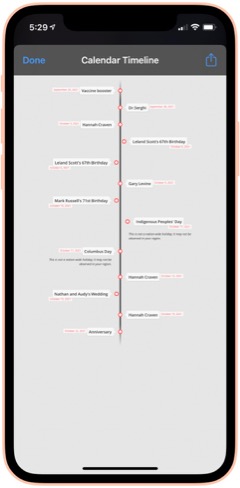
Calendar To Timeline: This shortcut lets you visualize your upcoming calendar events an attractive timeline, which you can save or share. When run, you choose how many months of your calendar to include in the timeline. From RoutineHub.

Utilities
This folder has a variety of shortcuts, most of which involve converting from one thing to another.
Translate: This shortcut lets you enter text or use your clipboard as input. You can convert from English to any other language, and vice versa. At the end, it will pronounce the phrase in the language you choose. The source of this shortcut is unknown, so I'm linking to my iCloud version.

Convert: This shortcut lets you convert between liters and gallons, among other fluid measures. Source unknown.

Convert Length: This shortcut lets you convert between centimeters and inches. We U.S. citizens need all the help with metric measures we can get. Source unknown.

Convert Temperature: This shortcuts lets you convert between Celsius and Fahrenheit. This really helps me at times, because I just can't think in Celsius when it comes to temperature. Source unknown.

Hex To RGB Converter: I've needed this one from time to time. It takes a hex color code and returns the equivalent in RGB values. Source unknown.

Morse Code Converter: This shortcut will convert plain text to dots and dashes and copy the result to your clipboard. It will also convert morse code to plain text. Source unknown.

Utilities Menu: This is an elaborate, all-in-one shortcut that contains a wide variety of utilities for working with text, the web, media, and more. I don't honestly use this one very much, but it's pretty cool. From RoutineHub.

Time Activity: I wrote this shortcut to help me track how long certain activities take. When run, the shortcut will tell you when it started the activity. When run again, it will tell you how long the activity took and ask if you want to start a new activity. The shortcut requires DataJar to store global variables.

New! Currency Converter: It took me forever to find a currency converter app that actually works. This one is the result of merging two shortcuts to get a working product. You simply choose the currency you're converting from, the currency you're converting to, and the amount you want to convert. The shortcut then shows the result and copies it to the clipboard.

Wallpaper
I spend a lot of time working with wallpaper images of various kinds, and I have automations that change my lock screen wallpaper with every 5% change in battery level. This folder has shortcuts that provide images for wallpaper use as well as shortcuts that enhance and modify images for use as wallpaper.
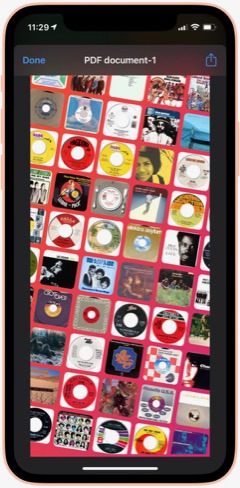
Album Wallpaper: This cool shortcut looks at what I've listened to in the last 14 days, finds the art associated with those songs, and prepares a wallpaper image with the art arrayed in an angled pattern across the screen. I used this for a long time before switching to my current wallpaper "strategy." From RoutineHub

WallCreator Automated: This shortcut generates beautiful gradient images, using two colors and varying direction of the gradient, for use as wallpaper. I've modified it to let me choose whether or not to save the image. If I elect to save, the shortcut will let me apply the wallpaper to my lock or home screen.

Gradient Paper: This shortcut also generates gradient wallpaper images, but it uses 4 different colors and wider variety of angles and origin points. It automatically previews the image for you and then saves the image to the Recents album and offers to set the home screen wallpaper. I couldn't find the original, so I'm linking to my iCloud version.

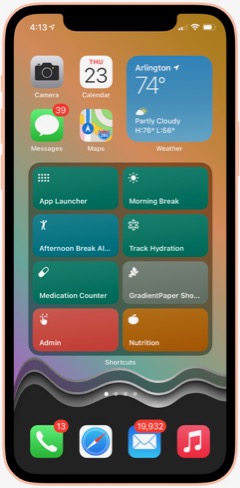
Gradient Paper ShowDock: This shortcut combines the Gradient Paper shortcut (above) with parts of the ShowDock shortcut (below). When run, it previews the image, saves it to Recents and then offers to let you add one of three ShowDock images (using the three separate ShowDock shortcuts, below) to the bottom. After that, you can set the Home Screen with the new wallpaper. I use this frequently to update my Home Screen wallpaper, so I keep it in my Home Screen folder for quick access.

ShowDock: This cool shortcut has about 20 different enhancements you can add to your wallpaper. The enhancements are designed to highlight the Dock area of your iPhone home screen and range from ones that fade the bottom of the image out to ones that add colorful and interesting dividers above the Dock area. You select an image and then one of the enhancements, and the shortcut previews the enhanced image before offering to set your home or lock screen with the new wallpaper. I couldn't find the original for this, but it does have a credit comment inside.

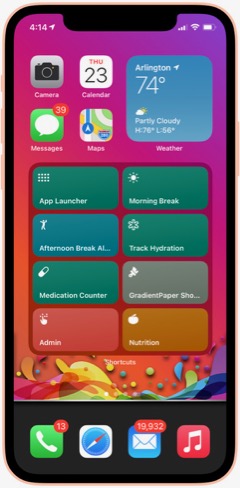
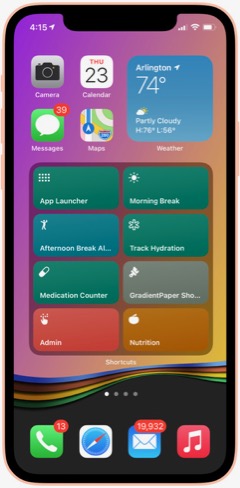
ShowDock Color Splash: This is one of three shortcuts that pull my favorite enhancements from the ShowDock shortcut. I run it inside the Gradient Paper ShowDock shortcut (above). It takes the latest image saved to Recents and applies an enhancement that looks like a splash of a rainbow of colors. It then lets you save the enhanced image as your Home Screen wallpaper.

ShowDock Rainbow: This is one of three shortcuts that pull my favorite enhancements from the ShowDock shortcut. I run it inside the Gradient Paper ShowDock shortcut (above). It takes the latest image saved to Recents and applies an enhancement that looks like wavy rainbow of colors. It then lets you save the enhanced image as your Home Screen wallpaper.

ShowDock Wavy Chrome: This is one of three shortcuts that pull my favorite enhancements from the ShowDock shortcut. I run it inside the Gradient Paper ShowDock shortcut (above). It takes the latest image saved to Recents and applies an enhancement that looks like a chrome wave, which lets in some of the background color. It then lets you save the enhanced image as your Home Screen wallpaper.

Calendar Homescreen: This useful shortcut takes a photo you select and adds the next 7 events from your calendar to the bottom. You can then set the image as your wallpaper. I use a modified version of this shortcut on my lock screen (Calendar on Lock Screen Auto). I couldn't find the original, so I'm linking to my iCloud version.

Calendar on Lock Screen Auto: I call this shortcut from within the "Add Battery Level and Calendar" shortcut. This is an embeddable version of Calendar Homescreen (above), and it keeps my calendar up to date on my lock screen... Very handy!

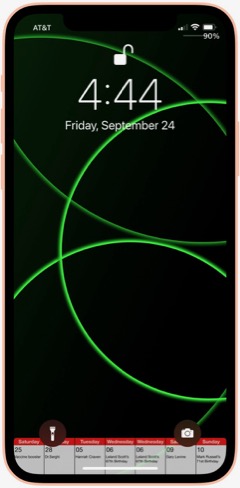
Add Battery Level and Calendar: This shortcut is a modification of one I found that modifies a wallpaper image to add the current battery level below the level indicator on your lock screen. I've missed seeing the percentage since Apple did away with it, and this brings it back. I've combined this shortcut with the Calendar Homescreen shortcut so that it adds my calendar to the lock screen as well. The shortcut contains some logic that pulls wallpapers from 5 different "buckets" that I maintain — NASA images, Landscapes, Cats, Fine Art and Google Earth. It uses the seconds of a minute and picks a wallpaper depending on what second of the minute it is. This shortcut requres Toolbox Pro (I think the paid version) to do the battery level function.

GradCircle Wallpaper: This cool shortcut uses the free app Scriptable to generate stark, modern-looking wallpapers with curving lines of different colors... a sort of mid-century modern look. After previewing the wallpaper, it gives you the option of saving it or setting it as wallpaper. I don't know where I found this.

Set Art Wallpaper: This shortcut pulls a fine art image and lets you use it as your wallpaper. I've modified it so that after a preview you can decide whether to save the image or not. If you save it, the shortcut will then let you set it as wallpaper. Source unknown.

Random Cat Wallpaper: This shortcut pulls an image of cats from a seemingly bottomless supply. I've modified the original to let you choose whether or not to save the image, and you can see it previewed as wallpaper. Source unknown.

Wallpaper Engine: This shortcut lets you search for wallpapers on unsplash.com, or you can choose a random image. You can specify how many images you want to see, after which you can elect to save one or more of them or use them as wallpaper. I use the search function a lot. The shortcut returns images in the proper size for your device's lock or home screen. From RoutineHub.

Daily Wallpaper - Landscapes 4K: This shortcut uses a downloadable zip file of 85 beautiful landscape images and picks a random image from the zip file. I've modified it to let you decide whether or not to keep a given image. If you decide to save the image, you can see the landscape previewed on your lock screen. From RoutineHub.

Resize Images To Wallpaper: I use this shortcut to make all the images I pass to it the height of my iPhone screen. This is part of my process for preparing wallpaper-sized images for the various "buckets" I maintain (NASA, Cats, Landscapes, Fine Art).

Wallz Reborn: This shortcut finishes the job of the "Resize Images To Wallpaper" shortcut, taking images passed to it and cropping them horizontally to wallpaper size. You can also use it to resize to other screen resolutions. From RoutineHub.

Daily NASA Wallpaper: This shortcut contains a downloadable zip file of my NASA wallpapers (about 150 of them). It previews a random image from the zip file and offers to set it as your wallpaper. I use this same basic pattern for the following three shortcuts.

Daily Cats Wallpaper: This shortcut contains a downloadable zip file of my cats wallpapers (about 100 of them). It previews a random image from the zip file and offers to set it as your wallpaper.

Daily Fine Art Wallpaper: This shortcut contains a downloadable zip file of my fine art wallpapers (about 100 of them). It previews a random image from the zip file and offers to set it as your wallpaper.

Daily Landscape Wallpaper: This shortcut contains a downloadable zip file of my landscape wallpapers (about 100 of them). It previews a random image from the zip file and offers to set it as your wallpaper.

New! FStopper PTOD Wallpaper: Always looking for good sources of photos in various categories, this one occasionally has a daily image that grabs me, so I check it daily.

New! Google Earth: I think I discovered this one on RoutineHub, but I made a few changes to it to suit my needs. It turns out that Google Earth satellites take a lot of amazing photos, and you can see some of them through this shortcut. It originally was intended just to make the image your lock screen or home screen wallpaper, with no way of saving the image. I fixed that, so the shortcut now saves a single copy of the image to a specified folder in Photos, in addition to offering to make the photo your wallpaper. I like these images so much I've made them part of my rotation of lock screen papers, as described in the "Add Battery and Calendar" shortcut.

New! LS Weather: This shortcut and the next one are complicated and difficult to set up. They require Scriptable, and you have to find and download a Scriptable script and install it manually in Scriptable. The results are very cool, and I use them both from time to time. Essentially, LS Weather adds weather information in various configurations to your lock screen. It has other functionality as well, but I didn't set it up for that. From RoutineHub.

New! LS Forecast: This shortcut and the previous one are complicated and difficult to set up. They require Scriptable, and you have to find and download a Scriptable script and install it manually in Scriptable. The results are very cool, and I use them both from time to time. Essentially, LS Forecast adds weather forecast information to your lock screen in an attraction manner. From RoutineHub.

New! Wallpaper Mixer: This cool shortcut takes two images from your photo library and crops/combines them horizontally into wallpaper size. You can come up with some interesting effects with the right photos. From RoutineHub.

New! Unsplash Collections: This shortcut pulls images from Unsplash.com's extensive collection. It's organized to find images in certain categories of Unsplash Collections that I collect: Landscapes, Space, Cats, and Fine Art. When run, you select a collection, and the shortcut returns an image, which you can choose to save or not. If you do save, the shortcut will preview your home screen with the photo. If you don't save, the shortcut will ask if you want to search again.

Weather
This folder contains shortcuts that show the weather in various ways.
Total Weather: This is the most comprehensive textual summary of the weather data available for your current location. It also gives a briefer summary of tomorrow's forecast. Useful when run from Siri to have her read the weather for you. From RoutineHub.

New! Feels Like: This handy shortcut (just say, "Hey Siri Feels Like") gets the current temperature and reads it along with the Feels Like temperature and the wind speed. Perfect for when you're heading outside.

My Weather: This simple shortcut opens the Weather app to show weather in your current location.

Weather In City: This shortcut presents a menu of all the cities you've bookmarked in the Weather app and lets you choose which city's weather to view. It then opens the Weather app to the chosen city.

NOAA Multi-Day Forecast: This shortcut lets you choose the length of time in days for the forecast and then pulls up the latest official NOAA forecast for your current location in a Quick Look screen. I often find the NOAA forecast to be more accurate than the source Apple uses, so I like being able to quickly refer to it in this shortcut. From RoutineHub.

Weather Chart: This shortcut uses Charty to present the 12-day forecast as an attractive line chart, showing high, low, and average temperatures expected. Source unknown.

New! Weather Chart With Average High: This is the same as the preceding shortcut, but I've added a data series for Average High, which superimposes on the high/medium/log graph lines. I need to edit the shortcut daily to enter the latest average high temperature data.

New! Log Average High: I decided to start keeping track of the average high temperature, so this shortcut logs the data to my calendar each day.

New! Average High: This shortcut simply reads my calendar and shows me the Average High data for the last 30 days.

New! UV Index: This shortcut gets the UV Index from today's weather and logs it to the Health app.

New! UV Index Chart: This shortcut charts the last 30 days of UV Index data from the health app, using Charty.

Precipitation: This shortcut shows expected precipitation percentages in a bar-type chart. It presents the information for the next 12 days in a menu. Source unknown.

Pollen: This shortcut opens the Pollen.com website in a Safari sheet. It presents the page showing the 5-day allergy forecast for your current location. Source unknown.

Severe Weather: This shortcut was made from a custom Siri action in the News app. It opens News and shows stories about severe weather.

New! U.S. Climate Data: I think I found this shortcut on RoutineHub, but it didn't work when I tried it out. The problem is that the site it pulls data from had changed their chart strategy. The original shortcut was expecting an image to grab, but the new site shows the graph in an interactive manner. So I changed the shortcut to load the final page in the Safari view controller instead. This shortcut lets you choose a State and city and returns a graph showing average, high and low temperatures for the year by month, as well as precipitation amounts.

New! Weather Report For: I modified a shortcut I found that produces a summary of the current weather. Instead of restricting it to finding your current location data, I introduced a search feature that lets you enter any location to find the weather there. I figured out how to make this work for any U.S. city as well as for international cities. You can even enter the name of a neighborhood.

Daily Forecast: This handy shortcut brings up the next 12-day forecast for your location, showing date, temperature and conditions expected. Source unknown.

New! Daily Forecast For: This is the previous shortcut, but it first prompts you to specify a location. The shortcut routes the inputted location through the Maps app to get a location Weather can use. Very handy for getting a daily forecast for some location other than your own.

Hourly Forecast: This shortcut is much like the previous one (same original source, I believe), but it shows the temperature and conditions expected for the next 24 hours.

New! Hourly Forecast For: This is the previous shortcut, but it first prompts you to specify a location. The shortcut routes the inputted location through the Maps app to get a location Weather can use. Very handy for getting an hourly forecast for some location other than your own.

Precipitation Hourly Forecast: I think I made this one based on the previous shortcut. It shows the expected percent chance of precipitation for the next 24 hours.

New! Precipitation Forecast For: This is the same as the preceding shortcut, but it gives you the option to enter a location rather than using your current location by default.

New! U.S. Cities Weather Report: This shortcut runs through about 35 U.S. cities, giving a summary of their weather today and forecast for the next 2 days. It announces the name of the city and state and then presents the information, one city at a time. This substitutes for my long-time habit of perusing the cities weather data in the paper each day.

New! International Weather Report: This is the same as the preceding shortcut, but it fetches data for about 20 international cities instead of for U.S. cities.

Is It Raining: I wrote this shortcut one day when I was sitting in my windowless office and wondering if it was raining outside. It looks at the precipitation chances (in percent) for the current time and tells you whether or not rain is likely. It also gets the chance of rain for the next two hours and reports that as well.

Is It Raining (Conditions): I wrote this shortcut as a different way to answer the question. Instead of looking at percent chance of precipitation, the shortcut uses text matching to see if the current conditions suggest rain. If the conditions match "Thunderstorm," "Rain," or "Showers," it's probably raining. If none of those things match, then the answer is no. I've found this to be a bit more accurate than the previous shortcut.

Web Sites and Feeds
This folder has a number of shortcuts that load web sites or their RSS feeds. I've found "bookmarking" websites by making a shortcut is faster than using Safari.
Mars: This shortcut simply loads this website (Musings from Mars) in a Safari view window. I find shortcuts like this more convenient than going to Safari. An interesting thing about the Safari view window... In the lower right corner is an icon that will load the page in Safari itself if you choose to do that.

Discogs: Here's another website that I load frequently. It's convenient to have it as a shortcut.

Wayback Machine: This shortcut loads the "Wayback Machine" at web.archive.org. This site lets you search the web's past by loading old versions of any website the machine has crawled.

New! White House: This shortcut provides links in a menu to the White House home page, the briefing room, and speeches and remarks pages. I use this with Read Article in the Share Sheet to have the latest releases read to me.

9 To 5 Mac: This shortcut loads the news feed for this Mac-related website.

Mac Stories: This shortcut loads the news feed for this Mac-related website.

C45 Jukebox: This loads the RSS feed for the Classic 45s "Jukebox" podcast. In this version, selecting an item loads the page in the Safari view window.

C45 Jukebox Text: This shortcut also loads the Classic 45s "Jukebox" feed, but instead of taking you to a web page on selecting an item, it pulls the text and image from the feed and presents it in a QuickLook window. I'd like to grab the audio file, too, but haven't figured out how to do that yet.

New! Jukebox: This shortcut finds the latest episodes of the Podcast Classic 45s Jukebox. When you choose an episode, the shortcut starts playing the song and presents the descriptive information included in the Podcast in a preview window.

New! Animal Shelter: I made this simple shortcut when we started looking for a new cat when our much loved Coach died recently. The shortcut simply loads the Arlington, VA, animal shelter's web page, set to screen only male kittens. This is an example of a shortcut that took perhaps a minute to make but saves me time by making it super-quick and easy to load the page, which I check several times a day for new arrivals. You could bookmark the page or save a tab in Safari, but the time required to find and follow the bookmark or find and load the tab in Safari is greater than simply clicking on this shortcut.

New! Google Search for 45s: One of the things I check Google often for is the position of my business in search results listings. So I made a shortcut that does four searches for 45 rpm records, pausing each time to let me view Google results in the Safari view controller, and then proceeding to the next keyword search. It's a very efficient way of quickly seeing whether my business' position has changed.

Shortcuts Nirvana: How I Accumulated 800 Shortcuts
Since writing an article on home automations and Shortcuts earlier this year, I have continued to find and make shortcuts and recently passed 800 in my library. I thought this milestone would be a good time to reflect on what I've been doing with these shortcuts and how I managed to gather so many.
First, let me say that many of these shortcuts have really changed my life... for the better, as I'm sure Apple would be glad to hear. I spend more time in my Shortcuts app than I do in any other app on my iPhone at the moment, and having all this information available in one app like this makes it more accessible and rewarding. Sure, I have a lot of shortcuts I don't need, but I'll be focusing in this article on the ones I actually use, any automations associated with them, and what they do for me.
A quick note about the shortcuts links in this article: Some of my shortcuts came from German and Chinese sources, and I meticulously translated them to English. In these cases, I'll be linking you to my English translation rather than the original version. Where possible, I will link to the actual sources, but many of the links will be to my own iCloud library. Many of the shortcuts were written by me or adapted from third-party shortcuts. All of these shortcuts work in IOS 14. I have been testing them on IOS 15.3, and most work reasonably well. I still find Shortcuts in IOS 15 to be buggy compared with IOS 14, but IOS 15.3 fixed a bug that was keeping the MediaKit Badges shortcut from working. That's the shortcut I use to create the download images for this article, so I'm relieved that it's working again. One of the most annoying bugs is that you can no longer get an iCloud link by asking for it in a shortcut. Shortcuts says the shortcut isn't stored in iCloud, so no link is available. You can get around this by sharing the shortcut and selecting "Get iCloud Link" in the share sheet. But it was so much easier when I could backup my shortcuts to iCloud using a shortcut.
Finding Shortcuts
The first step to finding shortcuts is to check out the "Gallery" tab in the Shortcuts app, where you will find dozens of useful shortcuts made by Apple. I've used many of these and customized others to my personal situation. In addition, there are a lot of websites out there with "galleries" of shortcuts for the taking. (Any non-Apple shortcut is considered "untrusted," and you have to allow untrusted shortcuts to use them in Settings.) The most popular and largest site is RoutineHub, where you will find more than 300 pages of shortcuts. Rather than list all the sites here, I'm going to mention one more, which is kind of a directory of shortcuts information, including many of the gallery sites: Shortcuts Directory.
As you may imagine, there are also a lot of shortcuts that contain links to shortcuts websites, and I use these daily to check what's new. Here are a few of my favorite shortcuts for shortcuts info:
- Newest RH Shortcuts. Displays the latest 20 or so shortcuts added to RoutineHub.
- Shortcuts Websites. Lists a variety of gallery sites as well as providing links to shortcuts groups on YouTube and Reddit.
- Siri Shortcuts Search. This is a link to Sharecuts.com's shortcut for searching Google for shortcuts.
- RoutineHub Search Pro. I use this a lot when searching, because RoutineHub is the richest vein of shortcuts out there.
Building Shortcuts
I've either built from scratch or heavily customized many of the shortcuts I use. Although I do have a programming background, I feel strongly that making shortcuts should be easy for any reasonably intelligent human with a little study and understanding of what your options are and how to use things like actions, variables, menus, and the like. It's a visual interface, and you just click the + sign to start building your shortcut. Apple provides a user guide for Shortcuts, and I recommend you peruse that if you really want to get serious about building your own. I also highly recommend opening up shortcuts made by others and studying how they're made. You can do this by clicking the "..." (three dots) in the top-right corner of any shortcut.
One of the things I love about shortcuts is not only how easy they are to make and share, but how transparent they are. It's easy to examine a shortcut's actions by clicking on the "..." in the icon. I have one shortcut that lets me copy blocks of code from one shortcut and insert it in another: It's not stealing! It's re-using good code. This is the same model that the web is built on. You can see the HTML, JavaScript, CSS, and other source code easily in any browser, so you can learn how things are done.
There are a lot of good tutorials on the web, especially on YouTube, so I won't try to construct one here. Just keep in mind: It's easy! Look inside shortcuts! Reuse code that works!
Third Party Apps Used in My Shortcuts
There are a lot of third-party apps that let you do more with shortcuts than Apple's Shortcuts app alone can. A number of my shortcuts make use of some of these, and I recommend that you download and install them on your iPhone before trying out my shortcuts. All of them are free, though one or two have a for-fee "Pro" option.
- Charty for Shortcuts. Enables charting of data from any source accessible from the Shortcuts app.Some of my shortcuts require the $4.99 "Pro" upgrade for charting.
- Data Jar. A simple database-like app that lets you define Global Variables in shortcuts, among other things.
- Day One. A free journaling app that I've started using since it has rich ties to shortcuts actions.
- Jayson. A free editor for files in the .json format. I use it to edit my "pills" dictionary for one of the shortcuts.
- Scriptable. Enables rich scripting inside shortcuts.
- Toolbox Pro. Adds a host of useful actions for Shortcuts and provides dozens of sample shortcuts demonstrating their use.
My Shortcuts Library
I have 975 shortcuts in my library as I write this today. The number changes daily and always seems to trend upward. Fortunately, Apple lets you organize your shortcuts into folders, and I have made the following folders for my shortcuts (the number beside the folder name is the number of shortcuts in that folder).
- Breaks and TV (24)
- Clipboard and Text (22)
- COVID 19 (9)
- Daily Shortcuts (32)
- Day One and Notes (14)
- Developer Tools (56)
- Emergency (4)
- Family (33)
- Files and iCloud (8)
- For Fun (31)
- Health and Fitness (42)
- Home Screen (8)
- Images and Pictures (62)
- Information (22)
- Mail and Messaging (6)
- Morning Routine (6)
- Music (31)
- News and Stocks (22)
- Nutrition (59)
- Playback and HomePod (13)
- Quick Classical Music (12)
- Quick Leland Music (31)
- Quick Links (14)
- Quick Music (15)
- Quick Music Artists (25)
- Quick Music Genres (34)
- Settings (30)
- Share Sheet Only (28)
- Shortcuts Items (34)
- Sounds (15)
- Test and sample shortcuts (54)
- Travel and Events (40)
- Utilities (26)
- Wallpaper (38)
- Weather (33)
- Web Sites and Feeds (27)
By the way, if you add the numbers up, you won't get to 975, because I have a dozen or so that are unfiled (they aren't in a folder). I think it will be easiest from here to walk you through these folders and let you know what shortcuts I really use and how I use them. I'll be providing links to shortcuts I particularly like or use most often: About 355 shortcuts in all. One big caveat about these shortcuts, especially the ones I'm linking directly from my iCloud library, is that these have only been used on the iPhone with iOS 14 and iOS 15.3.I don't know how they will work on the iPad or on the Mac (Monterey). One big difference I noted right away when I tried a few on my iPad (after upgrading to the latest iPadOS) is that there is no Health app on iPad. This seems like a real miss for Apple, and hopefully they plan to migrate Health to both iPad and the Mac in short order.
Breaks and TV
I use this folder and the various "breaks" shortcuts several times a day as I go through my work routine. Also in here are specific shortcuts for accessing and controlling my Apple TVs.
Morning Break: This shortcut starts my morning break by turning off the Music Room lights, turning on a light in the Great Room, starting some classical music from my library (different for each day of the week), and issuing reminders to take and log some prescriptions. It also sets the brightness on my iPhone and turns off Do Not Disturb, which I have on while I'm working. I built this shortcut pretty much from scratch.
Break Over: I use this shortcut after both my morning and afternoon breaks. It's very simple: Sets the lights on in the Music Room, turns off the Great Room light, turns on Do Not Disturb, and runs my Super-Low Battery On shortcut to enable fast charging while I work.
Afternoon Break Albums: This is a variant of a shortcut I've used for a long time now for my afternoon break. Where earlier, the shortcut relied on the Indie Music shortcut provided by Apple, I've been using the break to listen to one of the 500 Greatest Albums according to Rolling Stone magazine. It incorporates a shortcut you'll meet later in my Music folder, which cycles through the 500 albums. Besides the music, the shortcut turns off Super-Low Battery, sets lighting appropriately, turns off Do Not Disturb, and sets the playback destination to my Kitchen HomePod. It closes by showing me the Apple stock price in the Stocks app.

New! Great Room Break: This is the Afternoon Break Albums shortcut without the call to the 500 Albums shortcut. It lets me start whatever music I like, with playback set to the Kitchen HomePod.

Work Done: I use this shortcut at the end of the work day to turn off lights in the Music Room, turn off Super-Low Battery mode, and turn off Do Not Disturb.

TV Time: I made this simple shortcut to quickly set two groups of lights and turn on the basement Apple TV. It ends by showing the remote for the TV. I use it every day. 
Netflix Basement: I have a variety of shortcuts for my two Apple TVs... ones that simply wake and put them to sleep and others that load specific apps on them. This one simply wakes and loads Netflix on the basement TV and is representative of this type of shortcut. I have ones for HBO and for Fitness+ as well, but you can easily adapt this one to your needs.

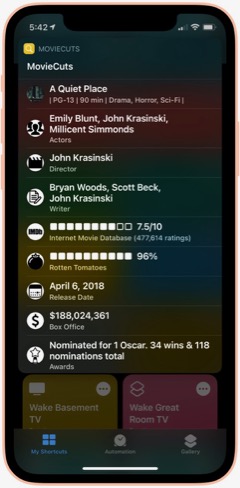
MovieCuts: This is a great third-party shortcut from RoutineHub that ties in to the OMDb API to get IMDB and Rotten Tomatoes information about any movie you search for. You have to get your own free API key, and the page linked below tells you how. It's definitely worth it!

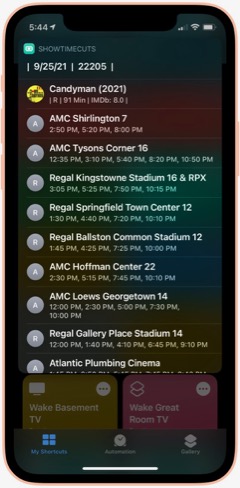
ShowTime Cuts: This shortcut is by the same author who wrote MovieCuts. It lets you search for movie times at local theaters, using your location. You'll have to get a couple of free API keys to make it work, but it's easy and well worth the effort. The only problem I've had is that the menu with specific theater times doesn't properly load Maps to show you the theater location. Also from RoutineHub.

Clipboard and Text
This folder has shortcuts that let you manipulate, save and retrieve your clipboard information, as well as shortcuts for working with text. The clipboard shortcuts are somewhat redundant of each other, but I like each one for different reasons and end up using them all at this point. These are all third-party shortcuts, and I'll provide links to the source when possible.
Save To Clips: I like this one because it's a Siri command that's easy to use. You can also use it from the Share sheet. I couldn't find the source where I found this originally, so I'm linking to my iCloud library. This shortcut works with the "Get Clips" shortcut, and both by default let you save and retrieve up to 15 items from your clipboard, using a file saved to iCloud.

Get Clips: This is the companion command to "Save To Clips" that lets you retrieve your clipboard history, as saved to iCloud. See my description of "Save" above for more about this shortcut.

Clip: This is a relatively new shortcut from RoutineHub that I like a lot. It lets you save clipboard items and give a name to them. You can use it to save the current clipboard or retrieve a saved clip.

Clipboard: I like this one because it lets you edit your clipboard as well as view and share it. For the times when you need to add something to or change your clipboard, it's just right.

Symbols: I'm not sure where I found this shortcut, but it's a good one for the times when you need a special symbol. Just launch and select the symbol, which is then copied to your clipboard.

Word & Character Count: This handy shortcut takes your clipboard or share sheet input and returns the number of words, number of characters, and number of lines in the text. I don't remember where I found this one, so I'm linking you to my iCloud version.

Upside Down Text: This one is just for fun, but it's so cool I just couldn't resist. It lets you type or paste in some text and returns a version with upside-down letters, saved to your clipboard. I like sending messages like this now and then for laughs.

Vertical Text: Another one just for fun, this shortcut takes your clipbaord and arranges the text vertically, one word on each line. It ends by saving the result to your clipboard. I like to do this sometimes in conjunction with the Upside Down Text shortcut.

New! Font Switcher: This new shortcut from RoutineHub has 31 different font effects you can apply to your chosen text. The most comprehensive font utility I've found, it even includes upside down text! You just enter some text and choose which effect to apply, after which it previews the effect and copies it to your clipboard.

New! Save Text As Audio: This nifty shortcut lets you dictate text and then converts it to an audio file, which you can either save or share. You can choose which voice to use for the audio file.

New! Count By Type: This shortcut takes a file or text and calculates the number of words, characters, sentences or lines. From RoutineHub.

Unicode Font Variants: There are a number of shortcuts out there that let you apply different font effects, but this is the best one I've found. It lets you enter some text and then choose from among 15 different font effects to apply to it. From RoutineHub.

Covid-19
This folder has a few shortcuts that return data and charts about the Coronavirus. Sadly, I still find it useful to refer to these occasionally. (When will it end?)
Covid-19 Charts: This shortcut lets you choose a data type (e.g., "confirmed," "deaths") and the countries you want to see charted. It's a bit slow, but it returns a cool chart (using Charty) comparing the countries you've selected.

Corona Stats By State: This shortcut not only lets you choose the States you want to see data for, but you can save your selection for later reuse. It returns a detailed page with data for each State and then offers to chart the data for you. Very handy, though sometimes not up-to-date with the latest information. Available from RoutineHub.

Coronavirus Stats: This shortcut lets you choose any country or group of countries and returns detailed information about Covid-19 there. You can save your country selections for later reuse. From RoutineHub.

Show Vaccine Card: This handy shortcut lets you store a picture of your vaccine card for quick and easy display when needed. You just take a picture of your card, run the shortcut and browse to the picture you just took. From then on, your card will be one click away with no need to search through your photos. I found this one through Matthew Cassinelli's newsletter.

Corona Update: I like this shortcut because it lets you see data for specific countries and U.S. States, which you can enter into the shortcut itself. It grabs the latest 28 days of data on new cases, new deaths, and totals, and it always seems to have the latest data. From RoutineHub.

New! CDC Guidance: This shortcut simply links to the CDC's February 24, 2022, release of county-level guidance on masks. You can lookup any county in the U.S. or see a map of the U.S. showing risk levels of green, yellow, or orange.

New! Dr. Fauci In The News: This shortcut opens a page on the Government's website that has links to remarks made by Dr. Fauci at different forums.

New! CDC News Voice: This shortcut provides easy access to three news feeds from CDC related to COVID-19. Selecting an item will have the shortcut read the text to you.

Daily Shortcuts
This folder has some shortcuts I use every day. Other than daily usage, the shortcuts have little in common. I keep them in this folder for quick access.APOD: I don't know where I got this great shortcut... Perhaps from a Chinese site, after which I meticulously translated the shortcut into English. This shortcut shows the NASA Astronomy Picture of the Day. There are others that do this, but this one is unique in that it lets you go back and retrieve images from any day you like. I've mined the NASA library back to 2014 now and continue to find amazing images of the universe, in stunning, high-def detail. The shortcut also shows the description that accompanies each image on the APOD website.

Random Obscure Fact: This simple shortcut is a delight! Just for fun, it spits out obscure facts on every subject. I have the shortcut set to let me share the fact after I've read it. I couldn't find the source for this, so feel free to download my version.

Today In History: I'm not sure where I got this originally, but I've made some modifications to it that make it more readable for me. This shortcut gets 20 items from the History.com daily news feed and presents them as a single HTML page for easy reading. I've found this to be an enjoyable daily activity.

Today's Historical Events: I'm not sure where this one came from, but I've made a few changes to make it more readable. It's a comprehensive list of historical events for the current day, starting way back in time and going to the present in chronological order.

New! History of Today: This one duplicates some of the items in the previous two shortcuts, but it has a lot of information not available in the others. It returns just one fact from the history of the current day, but if you load it many times it comes up with many facts. I like the way they're presented better than in "Today's Historical Events," although the latter is much more comprehensive. From RoutineHub.

Time Machine: You can find this shortcut in the Apple Shortcuts Gallery. It simply looks at the photos you took a year ago and presents them in a Quick Look window. The only difference I've made is that it looks at one year ago plus 2 months rather than plus 2 weeks as in the Apple original. Again, I've found this to be a pleasurable daily activity.

Quote of the Day: This shortcut gets the latest quote from BrainyQuote.com and lets you view and/or share it. This was adapted from a shortcut I found on RoutineHub.

New! Daily Fact Reading: This shortcut is based on an older one that never worked quite right. It pulls the latest facts submitted to reddit and sends you to one of the sites cited. Instead of loading a web page or trying to show text, this shortcut runs the "Read Article" shortcut you'll encounter in the "Share Sheet Only" folder of shortcuts. It gets the title and body of the submitted web page through Safari's Reader functionality and reads the resulting text to you.

New! National Geographic Daily Photo: This shortcut grabs images from National Geographic's picture of the day web page and filters to the first large image on the page. It displays the latest image in a Quick Look window, and you can save it if desired from the share sheet. Not sure where I found this, but I had to make a few changes to get it to work the way I wanted it, so I'm linking to my iCloud version.

Horoscope+: I don't know why I saved this one, since I don't really believe in astrology. But it's fun to read from time to time. This shortcut lets you set a default sign for quick work, or you can select a sign from the menu. It uses two different data sources and can provide up to 6 different readings for a single day. Available from RoutineHub.

Daily Summary: I have several of these journaling shortcuts, which ask you a number of questions, such as "What did you learn today?", and sticks the questions and answers in your Day One journal. This is the one I use most frequently. Day One is a great, free journaling app, and shortcuts like this one have really encouraged me to keep a journal. I don't know where I found this shortcut, so I'm linking to mine on iCloud.

Meditate: I have several meditation shortcuts now, but this is the first one I downloaded and I still use it. One of the challenges of meditation shortcuts is that Apple hasn't provided a "slideshow" action for your photos. I like to view images while meditating, but I want to require minimal interaction with my phone while doing so. This shortcut uses one workaround — namely, it pulls a random animated GIF from my photos and plays it in Quick Look. I created the animated GIFs using the "HighRes GIFs" shortcut I'll discuss in the Images and Pictures section. The shortcut turns on Do Not Disturb, starts playing some meditation music, sets a timer for the amount of time you provide each time, turns brightness to 100% and logs the time you set to your Mindfulness data in the Health app. It finishes when the timer goes off and you close the Quick Look screen.

Meditate NASA: This shortcut tries to get around several problems in setting up the meditation session. As mentioned before, ideally I would be able to start a slideshow in Shortcuts itself, but since that's not possible, this one attempts to keep the shortcut running while opening Photos to a specified album, where you can start the slideshow manually. Normally, it's very hard to keep shortcuts running when you switch apps for more than 2-3 minutes, so completing the meditation cycle (turning off Do Not Disturb, and stopping the music) is hard for longer meditation sessions. This one gets around the problem by setting up a loop and playing a sound every 30 seconds (in this case, I use the "approved" sound from Apple Pay). It gets it right most of the time, and the shortcut ends by returning you to the Shortcuts app and completing the meditation session. The big shortcoming to this approach is that this shortcut is hard-wired for a 5-minute session. I have a similar shortcut that extends the session to 10 minutes.

Day One and Notes
This folder has some shortcuts that use my Day One journal, as well as shortcuts that work with the Notes app.
Audio Note: This shortcut uses Toolbox Pro to let you quickly record an audio note, which Toolbox Pro transcribes to text. The text is presented in a Quick Look sheet and then added as an entry to Day One. I use this for many additions to my Day One Journal.

New! Listening To: I wrote this shortcut to save myself a little time over using Audio Note (above) when entering my brief reviews of Rolling Stones' Top 500 Albums. Since all my reviews start with "Listening To," I embedded that text in the shortcut, which also adds a tag to the entry to make searching easier. Once run, you just say the name of the album and the artist, followed by your review. This sends the entry to Day One, where you can edit it further or add a photo, etc.

Smoked: I wrote this simple shortcut because I wanted to start keeping track of how often I smoke. Saying "Smoked" to Siri adds the phrase "Smoked at [current time]" to my Day One journal, with a tag of "Smoked" to make searching possible.

New! Smoked History: This simple shortcut finds the last 30 entries in Day One with the tag "Smoked" and shows them in Day One. A very convenient way to see my smoking history.

Great Albums: I started this shortcut as part of my project to listen to the Top 500 albums (according to Rolling Stone magazine). It lets me append to a note called "Great albums from Top 500" any album I deem "great" after listening, thus over time compiling a list of "great" albums.

Find in Notes: This shortcut simply lets me search my Notes for a particular word or phrase. It returns a list of notes by title, and I can then open the note I want.

Developer Tools
This folder has a lot of shortcuts, all of them geared to the work of developing shortcuts. Most of them demonstrate some Shortcuts technique or other, and there are several that help you publish your shortcuts to RoutineHub. I'm only providing a link to one of them, which is the shortcut I used to make the graphics for this article.
MediaKit Badges: This shortcut creates an image suitable for publishing your shortcuts and as noted is the one I used to make the download images you see here. It lets you define the type of image you want, gives you some visual choices for the image, lets you enter a category for the shortcut as well as the shortcut's name. After you navigate your shortcuts to find the one you're creating an image for, it uses the shortcut's image in the newly made "badge" and delivers it in Safari for download. This shortcut comes from RoutineHub and is part of a suite of "MediaKit" shortcuts for publishing there.

Emergency
This folder has a few shortcuts I might need in an emergency.
Find Closest ER: For times when you need it, this is a great little shortcut. It gets your location and then shows you the closest hospitals and emergency rooms. It estimates the time required to get there for you and then opens Maps to show you directions. From RoutineHub.

SOS: This shortcut uses the flash on your camera to blink out an SOS signal. You can set it to repeat more than once. From RoutineHub.

911: This full-featured shortcut lets you text to 911 or call 911, while also sending a note to your chosen emergency contact. It includes other features as well, including a link to the "Find Closest ER" shortcut mentioned above. From RoutineHub.

Family
This folder has shortcuts pertaining to my family, either involving communications with family members, information relevant to family events, or family photos.
I'm Home Safe: This shortcut simply sends a quick message to loved ones letting them know that you've arrived safely home after (usually) extended travel.

Wife Love Notes: I use an automation and this shortcut to send a random love note to my wife every weekday at a certain time. You can populate the shortcut with any number of messages customized to your own relationship. My wife really loves this one! From RoutineHub.

New! Love Poems: From RoutineHub, this shortcut contains 52 short love poems. To set it up, you need to enter a "To" address, and the shortcut will send the poems in listed order to your special loved one. I've set up an automation to send one of these to my wife each week (Tuesday, I think).

Text To Jackie: I have shortcuts like this one set up for my immediate family members. It simply saves some time over using the Messages app and lets you quickly send a message to a loved one.

Call Jackie: Again, I have several shortcuts like this one, which are simply speed-dial actions to specific phone numbers.

Face Jackie: This is another example shortcut I have set up for family members. It lets me quickly set up a FaceTime call to a particular phone number. Shortcuts like this do nothing more than save a few words when communicating with Siri.

Where Should We Eat: For those times when you can't decide where to eat, this shortcut may help. Populate it with the restaurants you visit, and it will surprise you with a random choice.

Scott Family: This is an example shortcut that uses Toolbox Pro to preview images from one of my photo albums.

Family Trips: This is one of several shortcuts I have set up to quickly view particular albums from my Photos library. You set these up with a little Siri magic: Simply navigate to a particular album, then open Shortcuts and create a new shortcut. In the actions for the "Photos" app, you'll find an action for linking to the album you just viewed. Similar magic applies to the Maps app, which I'll get to eventually in this article.

Files and iCloud
This folder has some backup utilities and one file utility.
Backup To iCloud: I use this one once a week or so... it simply writes out a file in iCloud with the iCloud URLs of all your shortcuts. Since I have so many, it can take a few minutes to finish, but this is how I got the download links to my shortcuts in iCloud that I'm providing in this article. Since your shortcuts all reside in the cloud, and Apple doesn't allow writing or loading actual shortcut files, this is a good means of backing up your shortcut set.

Automatic Backup: I have an automation that runs this shortcut every Monday morning at 10:00 a.m. It makes me feel good to know I have a physical backup (in addition to a link) of the files in my shortcuts. This one simply zips the files up and writes out a time-stamped archive to iCloud when it runs. As I understand it, I couldn't actually replace files on the iCloud server with these backups, but I like knowing they're there. From RoutineHub.

Backup Shortcuts: I like this one because it lets me save my shortcuts in zip files according to their folders. This way, I could unzip them into their corresponding folders, which would save me so much time over having to recreate and/or re-populate all of my folders. I'm not sure where I got this one, but the anal part of me likes using it from time to time.

New! Text From PDF: I recently had the need to get a text file from a PDF file I exported from Day One. It was a simple matter to write this shortcut, which lets you select a PDF either through the share sheet in Files or by browsing your iCloud files. Once selected, the shortcut extracts the text from the PDF file and starts a new Note with the contents, which you can edit before saving.

Encode to Base64: It turns out that you can include binary files inside a shortcut by converting the file to Base64. This is used a lot in the shortcuts I have, and I used it myself in the Meditate NASA shortcut to include the "approved" sound from ApplePay. This shortcut can be run from the share sheet or on its own, and it ends by copying the converted file to the clipboard.

For Fun
This folder has some games, random facts, jokes, and other amusements.
Games!: This shortcut includes a dozen or so games and amusements, including Hangman, some memory games, and things like rock-paper-scissors. From RoutineHub.

Tic Tac Toe: This is a really cool implementation of this game in a shortcut. It lets you play against the computer or against a friend. From RoutineHub

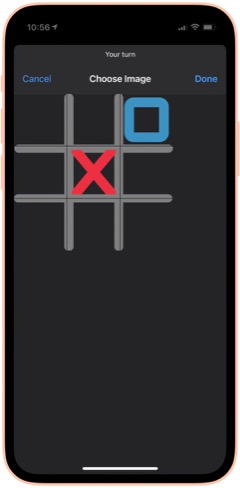
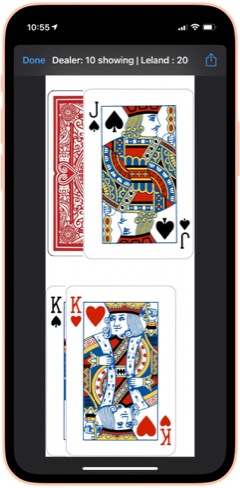
50 States Plus: My wife and I use this on every road trip... great fun! It lets you record a license plate from a list of those you haven't seen. You can also choose to see the license plates you have seen. It's easy to start over when you finally give up on Alaska or Hawaii. From RoutineHub. There is also a voice add-on that I haven't tried yet, available as a separate shortcut.

Blackjack 2: There are a lot of Blackjack shortcuts out there. I like this one because it shows you images of the cards you and the dealer hold. It lets you bet for money, too, though that's not a feature I plan to use. From RoutineHub.

New! Wordles: This shortcut lets you play the popular Wordles game in Shortcuts. You have to guess a 5-letter word, and the shortcut fills in the blanks as you go, indicating place hits and right letter/wrong space.

New! Number Guessing Game: This fun game lets you choose a minimum number and a maximum number, then select how many attempts you want to have. As you guess, the shortcut tells you if you're high or low, so you can tease out the correct number.

Cat Fact: This fun shortcut simply displays a random fact about cats, which you can then choose to share with others. I'm not sure where I found this and the Dog fact companion shortcut, but I enjoy them a lot!

Dog Fact: This fun shortcut simply displays a random fact about dogs, which you can then choose to share with others. I'm not sure where I found this and the Cat fact companion shortcut, but I enjoy them a lot!

Humorz: This shortcut provides a lot of jokes in various categories from Reddit feeds, including at least one that's naughty. A fun diversion, especially in the car. From RoutineHub.

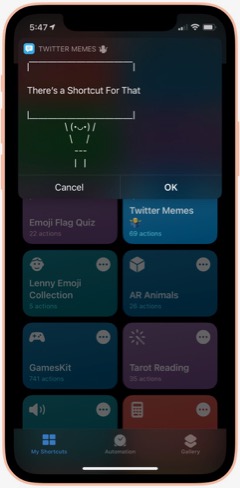
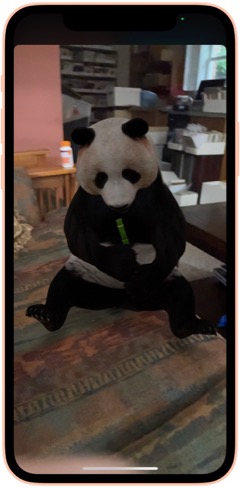
Twitter Memes: This shortcut lets you use one of a large collection of Twitter text memes to share your message. Some of them, such as person holding a sign, are quite cool, and it's impressive how they've implemented the functionality. You can share your meme at the end, and it gets copied to your clipboard. I couldn't find the original shortcut, but the one I'm linking has full credits inside.

AR Animals: This shortcut, which I got from a Chinese website, uses Augmented Reality (AR) to let you view about a dozen different animals. The animals are in motion and incredibly detailed. You can resize them and move them around the room (or whatever else amuses you).

Rude Siri: I made this shortcut from one I found on the web. It simply contains a list of a dozen or so rude things for Siri to say out loud. Quite amusing from time to time, but not in front of children, please!

Health and Fitness
This folder contains a variety of shortcuts for logging, measuring and viewing health and fitness data such as weight, heart rate, sleep, activity and more. It also includes a medication logger.
Log Weight: This is identical to one in the Apple Gallery called "Log My Weight." I may have modified it from that one. In any case, I use this every day to log my weight into the Health app. Doing this has let me keep a good eye on my weight... much better than relying on memory... as you'll see in some of the following shortcuts.

Weight Chart: I use this every day to check my weight for the last 60 days. (I can change the time period to whatever I want... it's set at 60 days at the moment.) The shortcut uses Charty to make an image, pulling data from the Health app, and show that image in a QuickLook screen. I'm not sure where I got this shortcut, but I have several on the same basic pattern. You can customize it to chart any Health-app data that's recorded daily. It makes a nicer graph than what you get in the Health app, in my opinion.

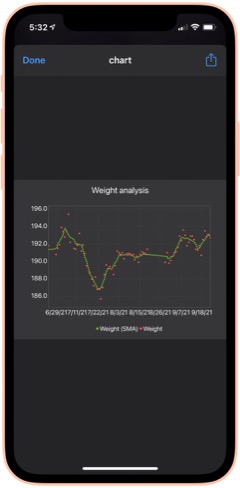
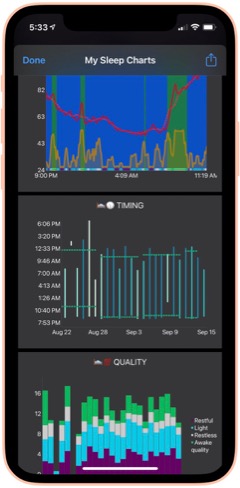
Weight Analysis: I check this shortcut daily also. It uses the same basic pattern as Weight Chart (above), but presents the data in a scatter graph with a moving average line as well. I find it informative in addition to the basic data presented in Weight Chart.

Monthly Weight Report: I check this simple shortcut daily. It gets your current weight and compares it with your weight a month ago, telling you the difference.

Heart Rate Chart: This shortcut uses Charty to conglomerate and present in chart form a daily snapshot of my heart rate data (collected by Apple Watch) for the period beginning in March 2021. For this period, it shows the maximum for each hour of the day, the average and the minimum, respectively. You can change the shortcut to present data for any time period you want to study. I'm not sure where this one came from, but I find it a handy reference.

Heart Rate Analysis Premium: This shortcut uses Charty to present two interesting data sets on my heart health: Resting Heart Rate and Heart Rate Variability. I've found the latter measure to correspond with some health issues I had recently. I couldn't find the source for this one, and there are no credits in the shortcut itself.

Log Nausea: I have some difficulty with morning nausea, so I made this shortcut to help me keep track of it. The shortcut lets me log my nausea on a scale of 1-10, and writes the result to my calendar. It then opens the Health app and lets me add my nausea data there. I do it this way because the Health app only counts "mild", "moderate" and "severe" nausea, or you can mark it present or not present.

Nausea History: This shortcut simply displays my nausea scores by searching my calendar for the last 30 days.

Active Energy Chart: This shortcut pulls data on Active Energy from the Health app and uses Charty to display a bar graph for the last 30 days. It also includes a moving average.

New! Cardio Fitness: This shortcut pulls data collected on your Cardio Fitness and presents it through Charty in a line graph for the last 6 months. The graph includes a moving average. Cardio Fitness data is added to your Health app when you do exercises with an Apple Watch. I decided to start monitoring this measure because the Health app reports that I'm consistently "below average" in Cardio Fitness.

Recent Workouts: This shortcut uses Toolbox Pro to get my latest workout data and present it in a chronological list. It appears to cover about 2 months of data. I believe this is a shortcut that came with Toolbox Pro.

Mindfulness: This shortcut uses Charty to pull data for my Mindful minutes for the last 2 weeks from the Health app and graph them.

Sleep Charts: This is a complex shortcut that spawns half-a-dozen additional shortcuts when you install it. The shortcut analyzes sleep patterns and uses Charty to present data for an overall Sleep Widget, Sleep Progress Rings, Sleep Quality Trend, Sleep Timing Trend, Sleeping Heart Rate Trend and Sleeping Noise Trend. You can have it generate one chart at a time, or you can have it do all 6 at once. It can be a little slow for some of the charts. From RoutineHub.

New! Sleep Widget: This terrific shortcut does a really good job at the hard task of analyzing your sleep data (if you wear your Apple Watch to bed). It presents a comprehensive chart (using Charty) of your sleep data, showing times of restful and light sleep as well as motion and noise. Below the chart is a lengthy textual walk-through of the data. From RoutineHub.

Medication Logger: I use this great shortcut to keep track of my prescriptions. Before you run it, open it and populate the Pills dictionary with the medications you take, entering the amount you have for each. Then, when you use it, the shortcut decrements the amount and logs the medication to your calendar. It includes a reminder for getting refills when you run low. The shortcut uses a file on iCloud called Pills.json, and you will need to use the free utility Jayson to edit the file when you get refills. Again, I don't know where this one came from, and there are no credits in the shortcut itself.

New! Log Sleep: This shortcut works with the next one to log your sleep time. I use an Apple Watch, so I ordinarily don't need this shortcut, but it would be useful if my Watch's battery were low or I otherwise couldn't use my watch. It saves a time to the iCloud drive which is read by the Log Wake Up shortcut.

New! Log Wake Up: When you run this shortcut, it checks the time saved to iCloud by the Log Sleep shortcut and saves the amount of sleep time to the Health App.

New! Record My Workout: This shortcut is useful for recording workouts while not wearing your Apple Watch. It lets you enter the type of activity, the number of active calories burned, and the length of time for the workout. From RoutineHub.

New! Health Report: I found this abandoned shortcut on the web that showed daily Steps data from the Health app. It presents the data in a very nice HTML page. I expanded the shortcut to include other Health data — specifically, Walking distance, Flights climbed, consumption of Sugar, Water, and Fiber, total Calories, Heart Rate, and Weight. For each statistic, the report shows an average for the last 30 days followed by the reading for the current day. I can't take credit for the HTML presentation, which is really nice, but I did build the shortcut out toward what I think the author originally intended.

New! Steps Chart: This shortcut uses Charty to present a chart of the last 30 days of Steps data from the Health app, including a moving average line over the daily bars. It's designed to read data from an Apple Watch, but if you don't use a Watch, you can change that to a different source (e.g., your iPhone) by editing the shortcut.

New! Flights Chart: This shortcut uses Charty to present a bar chart of the last 30 days of your Flights Climbed data from the Health app, including a moving average over the daily bars.

New! Blood Pressure: This shortcut lets you log your systolic and diastolic readings to the Health app. Works great with Siri. I found this one on RoutineHub.

New! Blood Pressure Chart: This shortcut uses Charty to look at the last 30 days of your blood pressure readings in Health and displays a line chart of whatever readings it finds. This may require the upgrade version of Charty.

New! Blood Pressure List: This shortcut presents your blood pressure data in list form. It starts by asking how far back you want to look for data and then displays the results. Same data as shown in the previous shortcut, but in tabular form rather than chart. This comes from RoutineHub.

New! Blood Oxygen Chart: I made this shortcut as a scatter chart using Charty, with a moving average line highlighting significant changes over time. It looks at your last 30 days of your blood Oxygen Saturation data in the Health app. It turns out that if you sleep with your Apple Watch on, as I do, the watch records 4-5 blood oxygen readings during the night. You can also add data by running your watch's Blood Oxygen app.

New! Blood Oxygen Chart Today: This shortcut is much like the previous one, but it only presents your readings for the current day. See note about the Apple Watch in the previous description.

Home Screen
This folder has eight shortcuts that I use frequently and hence are designed to show up in the Shortcuts "widget" on my home screen. I'm describing and linking to the eight in the separate folder sections. They are: App Launcher (Quick Links), Morning Break (Breaks and TV), Afternoon Break Albums (Breaks and TV), Track Hydration (Nutrition), Medication Logger (Health and Fitness), GradientPaper ShowDock (Wallpaper), Admin (Web Sites and Feeds) and Automix (Quick Music).
Images and Pictures
This folder has a lot of shortcuts designed to view, append, or manipulate images as well as to get information about images.
File Images: I wrote this handy shortcut, which I use every day, to keep my photo library straight. If you organize your photos into albums, you will enjoy this one. It looks at my Recent pictures and, after determining which are not in a lengthy list of albums, shows me the "unfiled" images. I have it set to look at the last 30 days, but you can make it a longer time frame if you like. You select one or more images from the viewer and then can file them in one of the many photo albums the shortcut offers. You can also choose to preview an image, or you can elect to delete images using this shortcut. You can customize the shortcut with whatever albums you have set up in the Photos app.

New! Search for Stock Photos: This shortcut uses a paid action from ToolboxPro to search Pexels photo library. It returns a menu of images, which you can then preview and/or save. If you don't like the preview, you can go back, and the shortcut will remember your search term. From RoutineHub.

High Res GIFs: There are a lot of shortcuts out there that convert live photos into animated GIFs, but this is the only one capable of doing it without degrading the original images. I use this also to create an animated GIF of a whole album of images, which I then use in one of my meditation shortcuts (as a workaround to the fact that you can't set up a slide show in shortcuts). The shortcut also lets you convert videos. Available from RoutineHub.

Combine Images: This shortcut simply lets you select a number of images from your photo library and then combine them either horizontally, vertically, or in a grid. The shortcut resizes the photos so they're all the same size. From RoutineHub.

Overlay Text on Image: This shortcut lets you select an image and then enter some text to superimpose on it. The shortcut then shows you the image in an edit window, and you can reposition the text and make other changes to it there. Click Done and you see a preview of your new image, which you can save or share.

Text Above Or Below Image: This shortcut lets you select an image and then add some text to display above or below it. It centers the text in a white banner at the top or bottom of the image, lets you preview the modified image and then offers to save or share it.

MEME Generator: This shortcut does a number of things, but I use it to create image MEMEs. In this mode, you choose an image and then enter the top text and the bottom text. The shortcut then previews the image, which uses large capital letters with a white border for your text, which is overlaid on the image. Quite effective. From RoutineHub.

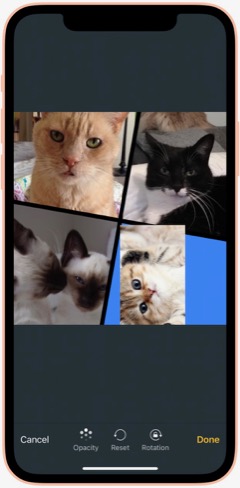

Mosaic: This cool shortcut uses a template for a mosaic of photos. The template has four "slots" for you to overlay images on, and you can resize the images as you position it over the "slot." Once you have all four "slots" full, you can view the mosaic and then save or share it. I think I found it on a non-U.S. website, and it has credits inside, but I can't find the original.

Photo Framer: This shortcut takes an image and adds an iPhone "frame" around it. It's particularly effective for screenshots, which then look like you shot the physical hardware as well as the image. I like this one because you can choose a color for the iPhone "frame." It's also capable of framing images that are not screenshot-sized. From RoutineHub.

Face Thumbnails: This nifty shortcut lets you choose an image with faces in it, and it will process the image to make thumbnails of the faces. You can resize the thumbnails (wide view, full view, etc.) and choose which ones you want to save. It will even straighten crooked faces if you like. Overall, it does a really good job at making full images of faces from group photos. From RoutineHub.

Cartoon Image: This delightful shortcut does its best to make a cartoon out of whatever photo you throw at it. Sometimes it can't do it, but when it can, the results are really cool. By the way, there's another cartoon shortcut out there called Cartoonify, and this one, from a Chinese source, is much better and far less scary.

New! Change Image Background: This cool shortcut requires an API key to work (it's easy to get one). Once you have it set up, the shortcut does an amazing job of removing the background from images with foreground subjects. You can then save that background-free image or choose to combine it with another photo. By combining it with another image, you can achieve some very cool effects. From RoutineHub.

Get Image Size: This simple shortcut lets you choose an image, either from Photos or from the share sheet, and it will return the height and width in pixels.

EXIF Photo Details: This handy shortcut, which lets you browse to a photo or can take one from the share sheet, presents all the details about a given image you could possibly want. It shows modification and creation dates as well as Album information, Camera information, etc. From RoutineHub.

HighRes Artwork (Apple Music): I use this shortcut to get the album art from whatever is playing on my iPhone at the time. I have tried other similar shortcuts, but none are as reliable as this one, and it really does return a high-res image, which you can save and/or share. I think I found this on Reddit.

NASA Wallpaper: This is an example of several shortcuts I have set up to view specific albums in my Photos library. As described earlier under Family, this type of shortcut can be created with a bit of siri magic: Just browse to the folder you want a shortcut for in Photos. Then go to Shortcuts and create a new shortcut. Search for the photos app actions, and you'll find one just for the album you want!

New! Dance!: This fun shortcut has two animations of a dancing person meme, and you get to select a photo and position someone's head in the animation. The result is you or your friends doing the dancing meme, which you can then save or share.

New! Video Trimmer: This shortcut lets you select a video and then divide it into segments. You can select how many segments you want, and then the shortcut presents you with a video editing interface that lets you select your segments to save. You can share the segments, which are saved to your Recents folder in Photos.

New! Join Videos: This shortcut lets you choose two or more videos from your library and combines them with no quality loss. It requires use of the a-shell mini app (a free download from the app store). From RoutineHub.

New! Change Image Size: This shortcut does just what the title suggests: It lets you change the size of any image in your library either to one of about 20 presets or to a custom size. If you choose custom, you can set just the height or just the width or both. After you select, you get to see a preview of the result, which you can save to your photo library if desired. Origin unknown.

New! Invert Image: This shortcut takes a photo and returns it with colors inverted. From RoutineHub.

New! Image Converter: I recently needed to convert an image I downloaded from Google to jpg, because my shortcuts for resizing images wouldn't work on the format the image was in. A quick search yielded this shortcut, which lets you convert an image from your photo library in any format to a range of other supported types.

Information
This folder contains a variety of shortcuts that provide information of one sort or another. There are search tools and shortcuts that retrieve information such as Tides, US Constitution, Cocktails, etc. A couple of the shortcuts would be helpful to writers.
Infinity Search: This all-in-one search shortcut lets you choose from over a dozen sources, including Google and things like Maps, the App Store, iTunes, YouTube and more. From RoutineHub.

Glyph Search: Have you ever wanted to find a glyph but couldn't? This might help... it lets you search Apple's glyph library by name and lets you know what glyphs apply. I really only use this when choosing glyphs for my shortcuts, but there may be other applications as well. From RoutineHub.

Tides: I used this recently while vacationing at the beach. This terrific little shortcut lets you search for tide markers in a nearby radius and then presents a list of places. Select one and you can tell it how many days of information to provide. It ends with the tide information in a jiffy! I'm not sure where I found this one, but it does have a username credit inside.

US Constitution: Yes, this shortcut contains the entire U.S. Constitution, broken up into bite-sized chunks in .json format for quick reference. It's nice to be able to refer to the actual language in this document now and then. If you invoke from Siri, she will read the articles etc. to you. From RoutineHub.

Cocktails: From the sublime to the banal: This shortcut lets you look up a wide range of cocktails. It shows you a picture of the drink and then displays the recipe. No, I'm not a lush, but I thought this would be useful from time to time, especially when on vacation. I'm not sure where this one came from, but it does have a credit inside.

Rhymes: This shortcut produces an astonishing number of word rhymes for any word you give it. It can even do multi-syllable rhymes and near-rhymes. A great resource if you're feeling poetic. Not sure where this one came from, but I'm glad I've got it!

New! Wikipedia Search: This simple shortcut lets you enter natural language queries (without underscores) to search Wikipedia. It then loads Wikipedia in a Safari view controller.

New! The Shortcut Dictionary: Besides serving as a dictionary, this shortcut offers to help you with pronunciation and spelling. It also has a translate tool built in. From RoutineHub.

New! iOS App Release Notes: I found this on MacStories, I believe, but I couldn't get it to work as written. I changed the shortcut to ask for an app name instead of trying to parse a URL for the app ID (as the original shortcut was doing). It isn't perfect, but you can find the latest release notes for most any iOS app as long as the name isn't so common that it misses the mark in retrieving the data, which is presented in a preview window. The shortcut ends by copying the release notes to the clipboard.

What Would Steve Say: This shortcut contains a huge resource of Steve Jobs quotes on various subjects. When you run it, it picks a random quote and presents it. From RoutineHub.

Mail and Messaging
This folder has a few shortcuts pertaining to Mail and Messages.
Send Later: This shortcut lets you create a new shortcut containing a message to somebody. To "send later," you set up an automation to run this shortcut on a specific day and time. You can then delete the temporary shortcut and remove the automation afterwards. From RoutineHub.

Dictate And Share: This shortcut simply lets you dictate a message and send it to a group or individual. I believe this one comes from the Apple Gallery of shortcuts.

Vertical SMS: This fun shortcut takes your message and sends it either one word at a time or one letter at a time. Goofy, but it gets attention if you don't do it too often. I'm not sure where this one came from, but it does have a credit comment inside.

Personal Contacts: This shortcut simply looks in Contacts for those in the Personal Contacts group and displays them in Quick Look.

Move Contact To Group: I wrote this shortcut because there's no way to move a contact to a group on the iPhone. This shortcut lets you choose a contact and add it to one of your contact groups.

Morning Routine
This folder has some shortcuts that I use in my morning routine, before I start work for the day.
I'm Awake: This shortcut is the first thing I say to Siri in the morning. It turns my reading lamp on, runs the Brightness To Battery shortcut (see folder Settings) and runs the Morning Greeting shortcut (see below). Once the morning greeting is over, the shortcut sets the playback destination to the kitchen HomePod and starts playing some classical music (specific to each day of the week).

Morning Greeting: There are a slew of "good morning" shortcuts out there that have Siri give you a day's summary, but I ended up liking this one best. I don't know where I found it, but I've made a few modifications to it over time. The greeting announces the date, the current weather and forecast for the day, and the next item on my calendar. I use this in my "I'm Awake" shortcut (above).

Paper Finished: This simple shortcut turns off the reading lamp and then hands off playback of the classical music in the kitchen to my bedroom HomePod mini, so it's playing there when I head up to get dressed.

Music
This folder contains a number of shortcuts pertaining to music listening and finding tunes on Apple Music.
Add to New List: This shortcut gets the currently playing song and adds it to a playlist in my library called "New Music." I use this to keep track of new songs I hear that I want to hear again. I believe this one came from Apple's Gallery of shortcuts.

Song Info: This shortcut displays information about the currently playing song, including rating, artist, and any art associated with it. I don't know where I found this one, but it does have a credit included in it.

I Am Genius: I use this shortcut to get lyrics for songs. You can get lyrics for the currently playing song, or you can search for a song. You can copy or share the lyrics. From RoutineHub.

500 Albums: This shortcut contains all 500 of Rolling Stone magazine's top albums. When you run it, it starts playing a random album from the list, displays wikipedia info about the album, and logs the album number to a list in Notes. The shortcut keeps track of the albums you've heard so it doesn't repeat an album. I'm not sure the source for this one, so I'm linking to my iCloud library.

Indie Radio: I got this shortcut from Apple's Gallery. It lets you choose one of the Indie Radio genres in Apple Music and starts playing it.

Open Genre Playlists: This shortcut also comes from Apple. It displays a list of all the curated genres in Apple Music and starts playing the one you select.

Electronic Radio: Also from Apple, this shortcut displays a list of Apple Music stations in the Electronic genre and starts playing the one you select.

Dance Radio: Similar to the previous shortcut, but for Dance genres.

Music By Decade: This Apple shortcut displays a list of decades and lets you choose one to start playing in Apple Music.

Playlist Tool: This is a modification of the shortcut Apple Music Tool, which didn't work for me in several respects. This shortcut lets you find duplicates in your playlists and then offers to make a new playlist containing just the duplicates or all the playlist songs minus the duplicate(s). Very useful for finding duplicates in your library. You can also use the shortcut to sort a playlist, writing out a new playlist with the sort order you define.

Shazam This and Share It: This shortcut is the easiest way to share something playing on Apple Music with a friend. Shazam identifies the song, and you can then choose who you want to share it with. Source unknown.

New! Find Duplicate Songs: This shortcut will find all the duplicate songs in your library by comparing artist name and title. It will then make a new playlist containing the duplicates. My library is so big I found I needed to edit the shortcut to look through segments of my library at a time, but it did work as advertised. From RoutineHub.

New! Song.Link: This amazing shortcut lets you shazam or search for a song and then shows you all the streaming services through which it's available. You can then easily share a link to the song or open the link. It includes dozens of services, including all the big ones (Apple, iTunes, Spotify, Amazon, Napster, YouTube). From RoutineHub.

News and Stocks
This folder contains links to sources of news as well as some stock information.
Browse Top News: This shortcut displays half-a-dozen sources of general news (e.g., CNN, New York Times, BBC) and lets you browse their news feeds. Selected a story opens the Safari window in the shortcut. I don't know the source of this one.

New! Browse Top News Voice: This is the same shortcut as the previous one, but instead of opening the chosen item in Safari, it reads the item to you. In this case, the shortcut parses the Safari Reader Article from the chosen item and reads the article title and body.

Tech News: This shortcut displays seven sources of Apple Tech news (e.g., Mac Stories, Mac Rumors, Daring Fireball) and lets you browse their news feeds. Selecting a story opens it in the Safari window. I'm not sure where I got this shortcut.

New! Tech News Voice: This shortcut is the same as the preceding one, but instead of presenting your chosen item in Safari, it reads the item to you. In this case, the shortcut gets the URL from the chosen item and parses the Safari Reader Article, reading the article title and body.

Apple News: This shortcut displays the 20 latest items in the official Apple news feed. Selecting one opens the Safari window in the shortcut.

New! Apple News Voice: This shortcut gets the same news feed as the previous shortcut, but instead of presenting it in Safari, it reads the news item to you. It took me awhile to get this right, but I finally found a regular expression that captures the news release while ignoring all the extraneous information on the page. Trying to get the text from the feed itself doesn't work because that yields only the title and summary paragraph.

New! Apple Investor: I made this simple shortcut because I always have to spend time in Safari finding the tab (if it still exists) or navigating the Apple website when they release earnings. As an Apple shareholder, I wanted a faster way to get there, and that's precisely what this shortcut does: It loads the Apple Investor page in a Safari view controller window.

HomeKit Stories: I made this simple shortcut with a little help from Siri. Like the Maps and Photos apps, the News app will display actions based on your latest activities in the app. After displaying HomeKit stories in News, I found an action for that in Shortcuts. This simply opens the News app and displays stories about HomeKit. You can make shortcuts like this for whatever topic you like. I have another one for Severe Weather.

Any Stock Report: I use this shortcut as a template for ones I made for individual stocks I own. With this generic shortcut, you enter the symbol for a stock you want to look up as well as the number of shares you own. The shortcut will display the latest price for the stock, and if you enter shares it will tell you how much the holding is worth and how much it changed.

Stock Market Indexes: This shortcut is based on the previous one. It simply gets the information for the S&P 500, Dow Jones, and NASDAQ composite and displays the latest values in separate notification windows.

Nutrition
I use the shortcuts in these folders to log, track and view information about what I eat and drink.
Nutrition: This complex shortcut actually comprises about 8 different shortcuts working together. I use it to log my meals, snacks and certain drinks, the detailed ingredients of which get then logged into my Health app data. The shortcut has a flaw that limits its ability to show meal history, but I implemented a workaround that keeps its basic functionality intact. You log meals etc. either through a "Quick Log", which shows you your recent consumption items, or through a longer logging process. The longer process involves either searching (in this case, the shortcut uses the MyFitnessPal database) or scanning a barcode for a particular item. You can choose to log "right now," or specify a particular time and date. This is handy for logging items in a previous day that you forgot to do. I find the search and scanning mechanisms to be fast and easy. By keeping track of my consumption, I'm populating the Health app with a lot of rich data that I can then use other shortcuts to view. From RoutineHub.

Today's Food: This is part of the Nutrition shortcut. It shows you, in a prettified .json format, the nutrients you've consumed on the current day.

Log Water: I think this came from the Apple Gallery in Shortcuts. It simply presents a menu of choices in fluid ounces, and you select the amount you've consumed. I think I added some choices that weren't in the original shortcut, but you can customize it to your liking. I usually use this with Siri.

Log Daily Vitamin: I made this one to log my daily vitamin to the Health app. I believe it's for One-A-Day for Senior Men, but again you can customize it to whatever vitamin you take. I have another one that simply logs Vitamin D, which I take separately. Again, I usually invoke this one from Siri.

Log Meta-Mucil: This and the next three are shortcuts I made for food I consume every day. It became easier to make the shortcut than use Nutrition or Track Hydration to log the items. This one is for the pill version of Meta-Mucil and assumes you take one serving. I log this twice daily and write the info to my calendar as well as the Health app to keep track of my intake.

New! Log Meta-Mucil Gummies: This shortcut logs the gummy version of Meta-Mucil into the Health app. I take this twice a day and substitute it for the previous item in that case.

Log Muscle Milk: This shortcut logs the sugar-free 11-ounce bottle of Muscle Milk to the Health app.

New! Log Muscle Milk Large: This shortcut logs the sugar-free 14-ounce bottle of Muscle Milk to the Health app.

Log V8 Energy: This shortcut logs an 8-ounce can of V8 Energy drink to the Health app.

New! Log Super Coffee: This shortcut logs an 11-ounce can of Super Coffee, sending all the detailed ingredients to the Health app.

Track Hydration. This is another complex third-party shortcut that lets you log drinks (and your weight, but I don't use it for that) of various kinds to the Health app. I use it to log my tea, coffee and alcoholic drinks, as well as the occasional soft drink or juice. It's easy to use, though I think I customized the Tea list because it didn't originally have a bottle of iced tea on the menu. Besides your fluid intake, the shortcut also logs things like caffeine, alcohol, and carbohydrates. I use this one so often I keep it on my Home Screen. From RoutineHub.

Water Today: I usually invoke this one from Siri. It simply tells me how much water I've consumed so far on the current day.

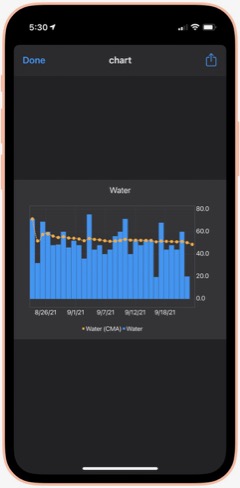
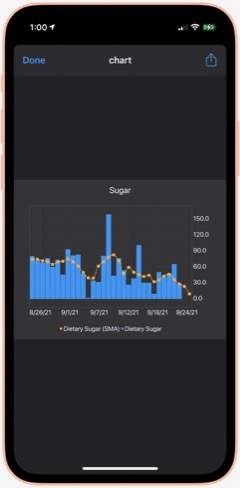
Water Chart: Using Charty, this shortcut shows me my water consumption for the last 30 days as a bar chart, with a moving average line as well. I'm not sure where I got this, but I have replicated it for several other important (to me) metrics.

Sugar Today: Sugar is another important metric for me to track. By using the Nutrition shortcut, all of my sugar consumption gets logged. This shortcut simply tells me how much sugar (in grams) I've consumed so far on the current day. Besides, sugar and water, I also have shortcuts to show me my daily consumption of protein, fiber and caffeine. They all use the pattern in this shortcut, so you can modify it to measure the things that matter most to you.

Sugar Chart: Using Charty, this shortcut shows me my sugar consumption daily for the last 30 days as a bar chart, including a moving average. I've modified this shortcut to chart other metrics that matter to me — specifically, caffeine, fiber, protein and sodium. You can modify this one to measure the things that matter most to you.

Calories Chart: I forgot to mention calories... I have shortcuts to show me Calories Today as well as this one, which shows me my calories (active energy) consumption for the last 30 days as a bar chart, with a moving average line. The data all comes from using the Nutrition shortcut and is stored in the Health app. Speaking of which, I find all of these shortcuts do a better job of helping me visualize my data than what Apple shows in the Health app. Much quicker to get what you're after as well.

Playback and HomePod
The shortcuts in this folder let me control playback on my iPhone and on my HomePods. I have a number of shortcuts specific to certain HomePods, but I see no reason to include them here.
Play/Pause: This shortcut does what its name implies: It either pauses or starts playing music. If you're playing to one or more HomePods, it also pauses playback on those.

New! Silence Audio: This shortcut turns off any background sounds (ocean, rain, etc.) that may be playing.

Change The Volume: This simple shortcut lets you choose among a number of volume settings, which you can customize to your liking. It applies the volume you choose to the music that's playing.

Play On HomePod: This shortcut has only one action: It lets you choose which AirPlay device (in my case, HomePods) to be the "playback destination" for your music.

Hand Back To iPhone: This shortcut stops any HomePods that are playing and redirects the music to your iPhone's speakers.

All HomePods: This shortcut sets each of my HomePods as the "playback destination", thereby turning them all on with one simple command.

Quick Classical Music
This folder simply has links to 11 classical music albums I have stored on my iPhone. It's much easier getting to them here than browsing my Music library. But there's no point in distributing them here, as they are very simple and redundant of some others I will be including.
Quick Leland Music
In my early adult life, I aspired to be a songwriter and made what I eventually compiled into about 8 albums-worth of material, most of it quite rough from a production values standpoint. My music is available on Apple Music, iTunes, and Spotify, for example. You can read more about it on my MarsTunes website. This folder simply has quick links to my music, which I play either through Apple Music or through my library. I'll provide a couple of examples.
I Am The Passenger: This is simply a link to one of my more popular songs in Apple Music. I believe you have to have an Apple Music subscription for this to work, but I'm not sure. That's true for the following two shortcuts as well.

Play Dancing Any: This is a link to the most recent album of demos in the series of eight. The album is called "Dancing In The Sun." The "Any" in the name refers to the fact that the shortcut ends by offering to let you play the music on an AirPlay device if you have one. (The same is true for the following shortcut.)

Play Darkness Any: This is a link to my personal favorite of the eight albums of demos, titled "The Darkness In Love."

This article continues here.
Mars Themes and OS X Mavericks
I'm sad to announce that the Mars Themes software, both commercial and free, will not be supported on Apple's newly released Mac OS X "Mavericks" operating system. This announcement will be of particular interest to all of you who have purchased a license for CrystalClear Interface (CCI), Crystal Black (CB), or AppMenu Magic. With the latest release of CCI (version 2.8.3) and CB (1.6.6) in July, the software can be installed and uninstalled safely on the developer preview of Mavericks. Neither package has been tested on the release version of Mavericks, but compatibility is expected without risk of damaging the operating system. That said, I highly recommend that you uninstall CCI if you plan to upgrade to Mavericks.
The latest versions of CCI and CB incorporate a safer approach to dealing with inter-OS compatibility, and I am keeping my fingers crossed that the approach will avoid previous disasters (for me) as Apple has moved so aggressively to upgrade the Mac OS X operating system in recent years. Rather than possibly replacing critical system graphics files with ones that aren't compatible with Mavericks, the software should now quietly fail to do the fundamental file handling tasks that could cause problems on Mavericks.
This means that while users should be safe from the problems that plagued earlier upgrades (Lion in particular) if they upgrade to Mavericks, CCI and CB will be prevented from doing some of the fundamental things that make the theme work. Specifically, on Mavericks the software will prevent you from applying button themes and menubar styles. As tested on the developer preview in July, CCI and CB will still function in other respects--for example, setting background colors, transparency, and window frames. But those tests also revealed an abundance of new bugs, which is one reason why I've decided to not support my software on Mavericks.
Since the meltdown of my Snow Leopard partition last fall, using the Apple developer tools to compile the Mars Themes software has become too cumbersome for me to deal with. One issue is that I've never migrated the software to Xcode 4, preferring the Xcode 3 interface and use of InterfaceBuilder instead. Now the prospect of upgrading to Xcode 4 is blocked by not only the huge effort of importing the project but because CCI relies on third-party Interface widgets (the BWToolkit Framework, for example) that aren't compatible with Xcode 4. For some reason, I also can't compile the projects in Xcode 3 on Mountain Lion, so I must boot into the development instance of Snow Leopard to do that, then switch back to Mountain Lion to use other software like Photoshop. It's a nightmare, and I'm sorry to say I've decided to call it quits.
Since development of CCI and CB is now at a dead-end, I'm considering releasing the source code in case some developer with more talent and energy than I has an interest in moving the code forward. If enough interest is generated, I'll think about getting the code ready for some kind of release.
To those of you with active licenses, I apologize for having finally burned out on the experience of keeping CCI and CB updated in the last few years. In the past, I've upgraded my software fairly promptly because I had planned to upgrade to Apple's latest OS anyway, and wanted to keep using the various Mars themes. This time, I have no current plans to upgrade my main operation to Mavericks. If my plan changes, and I do upgrade, like you I'll probably have to leave my beloved themes behind for the first time since I began this journey back in 2005. My long-running enterprise to develop and support interesting, alternative interface themes for Mac OS X has now come to an end.
Trying To Tame Mountain Lion Without A Hat
 Remember my angst about whether I should migrate my computing life to Mountain Lion? Well, that story's now over, and Mountain Lion has won.
Once I had the Mountain Lion virtual disk, I could import that as a new virtual instance in Parallels on Snow Leopard. Doing so was simple and straightforward, and I don't recall running into any glitches. After the import, I could "boot" into Mountain Lion as an instance of Parallels desktop, and then switch back and forth between the two OS's as I would between two applications.
The reason I abandoned this effort is that when I installed CrystalClear Interface (CCI) or Crystal Black (CB) on the Mountain Lion instance, Safari would repeatedly crash. Disabling CCI for Safari made no difference. Only by uninstalling my software would Safari work again. I tried various other tricks to overcome this, but failed. Since debugging Safari on Mountain Lion was one of the primary goals of this whole effort, this failure effectively shut the project down.
At that point, I was stalled on CCI vs. Mountain Lion, so I turned my attention to migrating from the old Quicken 2007 for the Mac, because it won't run on Mountain Lion. That migration could be an article on its own.
In those few moments, the unthinkable happened. Suddenly, the dark shade of death descended from the top of the screen, signaling the warning that all the busy bits we rely on to keep the trains running on our Macs had given up and gone home — and we had better do so as well.
Well OK... no big deal, right? I've experienced this kind of kernal panic message before and come out unscathed after a restart. But not this time.
This time, after the reboot, rather than returning to Snow Leopard, I found myself in Mountain Lion.
How could that be? And why couldn't I find the regular volume for Snow Leopard in the Finder? Likewise, why did Disk Utility show new partition names for the volume that used to have Snow Leopard on it? And why couldn't Disk Utility mount either of the two partitions on that volume?
It turns out that the volume files — the ones that store information about the folders and files on the volume — had been corrupted, and none of the tools I used to try to repair the partitions or volume worked.
Anybody who wants to bail on the rest of this story now are well advised to do so, since it's just going to get more boring from here. I'm doing this mostly so I can remember what happened and what I did... just in case.
Eventually I gave up on the old volume, and after confirming that Time Machine had the files I'd need to restore, I proceeded to set up the two partitions anew. Though I thought I'd be able to restore everything, I was hardly feeling nonchalant as I clicked the button that erased all my files and settings for my old Snow Leopard partition.
I was able to restore all the files on the second partition, which houses most of my third-party apps, but when I attempted to reinstall Snow Leopard on its partition, I realized my stay in Mountain Lion would be even longer than I'd imagined.
It turns out that my install disk for Snow Leopard was corrupted, and I had no other way of getting Snow Leopard onto my Mac.
On the phone with Apple support, I paid $19 for a one-time technical support incident. The upshot of that call was that Apple would express-mail new install disks to me for Snow Leopard — at their expense. As nice as this was, it was late on a Friday afternoon, and I knew it would be at least Monday before the disks arrived.
Fortunately, as it turns out, most things I need to do daily work fine on Mountain Lion. There are just enough "gotchas" that I still don't feel quite at home here, but it's working out better than I'd feared. Which is a good thing, because after the Snow Leopard disks appeared and I reinstalled the OS on my old partition, I discovered that restoring my user account was not going to be easy.
Normally, on the Mac you use an app called Migration Assistant to restore user accounts and files from another Mac, another partition, or Time Machine, and it's a painless and reliable process. That's how I set up my user account on Mountain Lion — I cloned it from my user account on Snow Leopard.
I had planned to do the restore from my Time Machine backup, but when I attempted this, Migration Assistant couldn't find any user accounts on the Snow Leopard backup. The only accounts it found were on other partitions on my Mac, including my account on Mountain Lion.
After much gnashing of teeth, I decided to try to restore my account from the one on Mountain Lion. Since this was a clone of my Snow Leopard account, I thought this might work.
The restore did indeed work, and I thought I was a little closer to returning to my beloved Snow Leopard.
Unfortunately, the restore didn't move all the files needed for various applications to work, and it contained Mountain-Lion-specific preferences that merely confused some apps. This meant I had to try manually restoring files from Time Machine, a time-consuming and error-prone exercise that took several hours. Most of the files I was trying to restore reside in the top-level /Library folder, which is why they didn't get properly migrated with my home Library.
I finally got my iWork apps to run, but Photoshop simply wouldn't. "Your license has stopped working," is the error message Photoshop gives me. Now, I could reinstall Photoshop, but this might screw up Mountain Lion, where Photoshop works pretty much as expected. (I'm still using Photoshop CS4.) On the other hand, my developer tools — Xcode and Interface Builder (I'm still using Xcode 3.x) — worked fine on Snow Leopard. All of my projects could be opened and compiled, and each still had its whole history of "snapshots," which I use to track changes in the code. On Mountain Lion, by contrast, I keep running into permissions problems in editing project files, and compiling fails with inscrutable messages. Just as serious, Xcode refuses to read the Snapshots disk image for my projects, so I have no code history.
At this point, there is really only one barrier to my feeling completely comfortable on Mountain Lion: Xcode. If I can get Xcode to behave reliably on Mountain Lion, I'd have no compelling reason to boot into Snow Leopard. But as it is, I have to do all my design work on Mountain Lion and then compile code on Snow Leopard. When time permits, I'm going to figure out what I need to do to reconnect my snapshots to Xcode, and then Snow Leopard will be as obsolete for me as Leopard, Tiger, Panther, and Jaguar before it. (If any reader knows how to reconnect Xcode snapshots on a new volume, let me know!)
So, what does this mean for CrystalClear Interface and Crystal Black?
For now, the MarsThemes software is in maintenance mode, meaning I'll be releasing updates to keep the software working, but not adding any new features. Bug fixes will be included in maintenance releases, but without my Snow Leopard debugging power I can't address any application-specific bugs. On Mountain Lion, Safari remains an enigma, and it troubles me that I have to keep CCI and CB disabled for it to run. It's extremely frustrating to not be able to debug Safari on Mountain Lion, but that was a problem before I found myself facing Mountain Lion without my lion-tamer hat.
So here I am, using Mountain Lion as my default OS and running back to Snow Leopard to use Quicken and Xcode. It's not the migration I would have planned — if I decided to migrate at all — but at least I'm through the worst of it and have survived.
The good news is that CCI and CB both run reasonably well on Mountain Lion, and I now go weeks without having to provide customer support. Who knows... maybe in a few more months I'll actually learn to love my new OS. I just hope Apple waits longer this time around before trying to move everyone to a new platform!
Coda: New Web Development App Mimics xCode/Dashcode
 Originally downloaded April 24, 2007. Would you like an application specifically designed for building websites, with an interface that draws direct from Apple's much-admired Xcode and Dashcode tools? It looks like you just got your wish, from Mac developer Panic (Transmit, for example). Code is brand new, and its website is worth a visit even if you're not a web developer. If they developed this site in Coda, I'm signing up now! Cutting edge Ajax, cool graphics and javascript effects work seamlessly to pull the website together in any easy-and-fun-to-navigate package. Coda is supposed to cover site management (including built-in FTP), text editing, preview functionality, CSS support, and integration with the command line. Quite a bit more sophisticated approach than iWeb, to be sure! It retails for $89, but if you're a Transmit 3.0 licenseholder, it's yours for $69 now.
Version as tested: 1.0.
Update 8/14/12.
Introducing Smooth Black: A New Button Theme for CrystalClear Interface
 In my previous article I spoke of a desire to get back to theming, and specifically mentioned a desire to do that "black matte" theme I've been thinking about. I guess the article helped spur me on, because after several weeks of work I'm now ready to release Smooth Black, a new button theme for CrystalClear Interface (CCI).
Smooth Black complements existing CCI components, including its Black Gradient menubar and Smooth Black window theme. It rides on top of existing code that made Crystal Black possible, so the implementation went rather, ah, smoothly.
At this time, the theme is missing graphics for all of the "mini" components in Mac OS X buttons. As a fill-in, Smooth Black incorporates the Black Gloss graphics for the "mini" buttons. On Lion and Mountain Lion, the theme also needs to be fleshed out with a complete set of "small" buttons.
Again, implementing Smooth Black hit a reality wall when time came to take it from Snow Leopard to Lion and Mountain Lion. Because the Lion systems require a tedious manual process to update their buttons, this wasn't any fun. But CCI 2.7.6, released today, does incorporate the buttons for all three operating systems.
Note: Smooth Black owes a debt of gratitude to the authors of the ShapeShifter themes Rhino and Carbon Polymer.
On Theming Mac OS X: How Long Can I Hold On?
CrystalClear Interface and Crystal Black are marvelous, foolhardy, and frivolous experiments in theming the Mac OS X user interface. As they were in the beginning, so they remain today: Elegantly imperfect software products, which will always be buggy. It's just the nature of the experiment. Why? Because they try to do something Apple works hard to prevent, and therefore are outlaw apps: Only able to pop up here and there with a sparkling, think-different approach that just isn't meant to be.
I am the foremost user of these two themes, and I continue to develop them because (1) it's still possible and (2) I really like them. As the author, I'm tolerant of their occasional misbehavior, but I understand that not all observers are so patient. Nobody likes a screaming 3-year-old while enjoying a quiet evening at one's favorite restaurant. I'm no different in that, but I do try to make sure my children learn how to behave as new situations arise that cause them to flare up.
Still, there are always new situations, and, well, children will be children. My children are still quite young, but the day may come when either they are banned from new restaurants for their behavior, or I become too exhausted from apologizing for them to take them out in public any more.
With each release of its operating system, Apple drives me one step closer to that edge. It's not intentional, I'm sure... In the interest of providing a safe OS environment, Apple continues to tighten the knot around inter-application interactions — especially those that allow third-party software, like CrystalClear Interface (CCI), to load itself into other applications, such as the Finder or TextEdit. And yet, without that kind of interaction, CCI and Crystal Black (CB) could not function.
For now, it appears that CCI will survive the transition to Mountain Lion (Mac OS X 10.8), but as with every release of Mac OS X since Tiger (Mac OS X 10.4), the amount of effort to do so is greater. And I fear that as the technologies introduced by Apple for increased security in Lion and Mountain Lion are more widely adopted by software developers, the number of applications that won't run CCI properly will increase.
In some future update, Apple could introduce a change that will turn off the lights for CCI and CB for good, as well as those for AppMenu Magic and my freeware Text Tools. Such a change would mean I could no longer develop the software, let alone support it.
On a personal level, this would mean giving up an obsession that's outlived enormous odds. When I first took up theming for Mac OS X back in 2005, it was strictly a design job, with lots of time spent in Photoshop working with teeny, tiny bits of buttons and other interface elements. And there was a stable theming environment provided by a third-party application called ShapeShifter, which became obsolete when Apple released Mac OS X 10.5 ("Leopard').
CrystalClear Interface became possible only after I learned how to make application windows with transparent-capable backgrounds. And I learned how to do that only by gradually teaching myself how to write programs for Mac OS X using Apple's Cocoa frameworks and its native language, Objective-C.
I didn't sit down tonight to write a history of CCI, so suffice it to say that as CCI evolved, the programming component grew in inverse proportion to the design/graphics component. In fact, the design work is now quite subservient to the code.
This means I can no longer amuse myself by designing new themes. Instead, I spend most of my time making sure the existing theme designs will work on Apple's new Mac OS X releases. I already gave up the Glossy design on Lion, but I'd really love to rescucitate it — And I'll have to if I actually upgrade to Mountain Lion. Why? Because I really like the Glossy theme, and I'd want to use it myself. And then there's the matte black theme I keep dreaming about...
On a side note, have you noticed that in Lion Apple has almost eliminated the Aqua interface? In fact, the button theme they're using for most items looks and works suspiciously like CCI's "Unified Gradient" theme, which I introduced in 2009 to uniformly apply to all interface elements a button style Apple had added to Leopard. In Lion today, the main elements that remain candy-colored are Apple's "stop light" buttons, the progress bars, and odd pieces like the titlebars of list-view tables. Otherwise, Aqua is gone, though not replaced with anything so memorable. And hard-core themers continue to weep and satisfy themselves with such trivia as themes for the Dock (easy) or Menubar (much harder). Some also try theming buttons and such, but with Lion Apple has made even that mundane endeavor mysteriously difficult. (Buttons are composited against window backgrounds in a mysterious way that requires providing whole separate sets of buttons for Snow Leopard and Lion.)
Which brings me to the crux of this overly-long, overly-dreary essay: CrystalClear Interface exists today only because once I had seen how beautiful it could be, I couldn't let that beauty go. I simply can't stand working with gray-gradient windows all day, no matter how elegant they may be. And there are times when I really want/need a dark interface like the Black Gloss theme from Crystal Black.
So either I sever the cord with Apple's future OS X updates, or I sever the cord with CCI. It will have to be one or the other, and I'm not yet sure which that will be.
In the current setting, supporting Lion (and soon, Mountain Lion) has been royally painful. So much so that for the last 6 months I've spent most of my time getting CCI to run on Lion, or merely keeping it running. Not very satisfying for me, since I don't use Lion myself (yet).
An earlier article discussed the grief involved in updating CCI for Lion, and I mention it here because the problems haven't gone away. They've merely formed a continuous obstacle that becomes more and more tedious to work around.
In other words: Most of the fun of developing CCI has been held at bay, and the drudge work of keeping up with Apple has made me wonder how long I can hold out.
My fondest hope is that next time, Apple will make us wait longer than one year before throwing a new OS our way.
AppMenu Magic Conjures A Simpler, More Elegant Menubar
 AppMenu Magic is a small, simple application with only one cool trick: It replaces the application’s name with its icon in the system menubar. The functionality of AppMenu Magic has been part of CrystalClear Interface (CCI), as well as Crystal Black (CB), since those applications were first released. I am releasing the app separately because of continued requests for it. This app lets users take advantage of the improved appearance and reduced “screen real estate” of their menubar that AppMenu Magic offers, without having to use either CCI or CB.
This application could hardly be simpler to use. Simply run the installer, and voila! No more long application titles consuming precious space in your menubar. In its place, you’ll see the application’s icon — which is usually much prettier than its title in any case.
AppMenu Magic (AMM) does have a small Options panel — with only one option: You can elect to turn the “Show application’s icon in menubar” functionality on or off.
After installing AMM, you can find its menu in the application’s main menu, just above the “Quit” item (assuming it has one... unlike the Finder). The menu is quite brief: In addition to the Preferences item, it has an “About” item as well as “Purchase,” “Help,” “Check for Updates” and “Uninstall” items. Each of these is pretty self-evident, so I won’t discuss them separately.
AppMenu Magic is compatible with other plugins from MarsThemes — including Text Tools, CrystalClear Interface and Crystal Black. If you are using CCI or CB, you don’t need to use AMM, but if you do, the two plugins won’t conflict with each other.
AMM will load into any application that supports the MarsThemes Loader scripting addition. Typically, this means it will work with any native Mac OS X application that you use. It also means it won’t load into some older Mac apps or into apps built with pure Java or with a scripting language like Python. The overall footprint AMM makes on your Mac is very small.
If you run into any problems while trying out AppMenu Magic, please use the Contact item in the app’s menu to let me know.
This little app is shareware, so give it a try! You can use AMM freely for 15 days. After that, you’ll need a license, which costs $5.00. Hope you enjoy it as much as I do.
The software will be added as a permanent item on the MarsThemes website, under Software. You can download it there.
Version History
1.0 6/22/12. Initial release.
Technical Notes
AppMenu Magic runs as a plugin to the Mars Theme Loader (MTL) framework. If you don't have MTL installed, the AMM installer will do that for you. If you uninstall AMM, the uninstaller will disable or remove the MTL agent at that time.
There are very few components to AppMenu Magic:
- The plugin (AMMagicFilter.bundle) located at /Library/Application Support/MarsThemes/plugins, and
- A folder containing this document (as a PDF file) and the Uninstall program. That folder is at /Library/Application Support/MarsThemes/AMM. If you purchase a license, the license is also stored in this folder.
To uninstall AMM, open an application where it’s active, open the AppMenu Magic menu from the application’s main menu, and select "Uninstall AppMenu Magic.” Alternatively, you can simply run the standalone UninstallAMM program.
Dress Up Your Mac’s Authentication Panel With Crystal NIBs!
 This little application provides two alternative styles for the “Authenticate” panel that appears whenever you’re required to enter a password on your Mac. It works by substituting different “NIB” files — the files that define the window’s interface — for the default system versions. (Jargon Alert: NIB stands for “NeXT InterfaceBuilder,” which was the original IB app developed on the NeXT operating system — the predecessor of Mac OS X.)
The application lets you switch among three different styles:
- HUD (Heads-Up Display) style,
- Metal (Textured) style, and
- Default system style.
Using the Crystal NIBs
 To use, just launch and enter your password at the prompt. Afterward, a small window appears that lets you choose one of the three styles from a pull-down menu. You can cancel the action or submit the form to change the NIB style.
After you submit your choice, run the application again to verify that the choice is now active. A logout or restart is not required.
When you want to uninstall the app, just run it and select the default system style.
The application has been extensively tested and used on both Snow Leopard and Lion systems, and it contains the default system files for both, as well as the Crystal alternatives. (Note: Use of this free software affirms that MarsThemes will not be held liable for any damage to your system that may result from using this application. Further, use that does not follow the above instructions is forbidden and will not be supported.)
These styles were developed to complement the MarsThemes applications CrystalClear Interface and Crystal Black, but they are free to use whether you’re using those themes or not.
Enjoy!
Download
Crystal NIBs for SecurityAgent (Download file is 1.0MB)

Text Tools for Mac OS X: Free At Last!
Some variation of these text tools have been included in CrystalClear Interface, as well as Crystal Black, since those applications were first released. However, the tools have nothing to do with the theming of buttons and windows, or with the general appearance of Mac OS X. I added them because they address a real need of mine, which no other software could do.
As a writer, I need ready access to a range of text functions, and I need them in whatever application in which I happen to be writing. In most of the rich text editors I use, those functions are available somewhere in the app’s menus, but typically they're in different places within each app. Some apps don’t include one or two key functions at all.
Mac OS X has a rich text framework that provides just the set of editing tools I require, and it would be extremely handy to be able to access those tools consistently across apps. This is precisely what the MarsThemes Text Tools do: Grant easy access to the key Cocoa text tools that writers and editors need but can’t find.
So, what text tools am I talking about? Here’s a list of the key tools:
- Tables. I often find formatting content into rows and columns an extremely useful way of organizing information, but few RTF applications seem to agree with me. Mac OS X includes a quite functional table-editing tool that I can quickly use when needed without opening a
 professional word processor such as Pages, or reaching for a spreadsheet app like Numbers.
 - Lists. From time immemorial, both humans and Martians have found organizing information as lists to be an essential tool for viewing and encapsulating that information. Again, finding the built-in list feature can be a problem, especially in apps that don’t let you access Mac OS X’s RTF “Ruler” tool (more on that momentarily).
- Links. In the internet age, writers often need to add hyperlinks to their documents, yet finding the built-in hyperlinking tool can be a challenge. The tool either isn’t there, it’s buried in a set of menus, or it’s somewhere that doesn’t make sense.
- The Ruler. If you’ve ever used a Mac OS X RTF editor such as TextEdit or Bean, or some kind of information management application like DevonThink Pro, EagleFiler, or Journler, you’re probably familiar with The Ruler (though didn’t know it had a name). The Ruler is the strip of tools that appears above whatever text document you’re working on. It contains a menu of handy (and customizable) text styles, alignment tools, a customizable menu for setting line and paragraph spacing, a menu for setting and customizing lists, and a group of tools for setting margins, tabs, and indentation. Sometimes The Ruler appears automatically, but other times you must hunt for access to it. Unfortunately, many applications feel the need to replicate these functions in some quirky unique way (such apps include Evernote and MacJournal). In my ideal editing environment, I want to summon The Ruler when needed, and dismiss it when it’s not.
- Strikethrough. Oddly, the only straightforward way of striking through text (a very useful thing to do!) is to open the Mac OS X Font panel, which has a menu that includes strikethrough and underlining functions.
- Copy and Paste text styles. Yes, there are standard keyboard shortcuts for these functions, but I find they don’t work in all applications, and I often forget what they are. Yet I use the functions frequently.
One of my favorite uses of the Text Tools is in applications or text fields that support rich text but provide no access to RTF editing tools. An obvious example of this is Apple’s Stickies application, which apparently assumes that users only want to type paragraphs with no formatting. Using the Text Tools, you can add The Ruler, a table, and all the rest.
Other note-taking apps I use heavily likewise provide no way to toggle The Ruler or add a table are Edgies and Sticky Notes. Both have some of the Text Tools accessible in their menus, but using their menus may be awkward. Since the MarsThemes Tools provide a contextual menu, the tools are always at your fingertips.
Other examples I like to point out are the Comments field in Xcode’s snapshots window and in the application Packages, the Notes field in Interface Builder, any text view you’re formatting in Interface Builder’s edit window, the image description field in Little Snapper, and various others. (For my developer colleagues, I should point out that using the tools in Interface Builder is especially nice, because it lets you enter attributed text without having to format it in an external RTF editor and then copying/pasting it into IB. Note also that I still use Xcode 3.2, so IB is a separate application.)
Then there are applications like Yojimbo, which should provide a way to format text, but don't. Here, the Text Tools let you add The Ruler, a table, etc.
As mentioned, the Text Tools are activated as a contextual menu — using either a right-click or a Ctrl-click — in the field or document you want to edit. The Tools also provide a keyboard shortcut — ^⌥ Y — to pop up the menu. The shortcut is particularly handy in fields  (such as those in Interface Builder) that usurp the field’s normal contextual menu.
The MarsThemes Text Tools have only two user options, which you can access from the “Manage tools” item in the Text Tools menu, or from the “Text Tools” item in the application’s menu. The two options are:
- Show more text tools
- Show Manage Tools menu at top.
 Selecting the first option adds the following tools to the menu:
- Styles (used for adding a custom style to your personal list)
- A “More Tools” menu, which includes the Capitalize functions, which normally appear in a submenu, as well as access to two handy formatting tools to control inter-letter spacing and baseline setting.
- Access to the Substitutions setting panel.
- A link to open the very handy Special Characters panel.
 By default, the Manage Tools menu appears at the bottom of the Text Tools menu, but you can change that.
The Manage Tools menu also includes functions for checking updates, uninstalling, and getting help.
Finally, the Text Tools application is programmed so that it only loads into software that it detects has some kind of editing functionality. There’s no use loading the Text Tools into System Preferences or the Finder, for example. This keeps its overall footprint on your Mac as small as possible.
Text Tools is freeware, so give it a try! Hope you enjoy it as much as I do.
The software will be added as a premanent item on the MarsThemes website, under Software. You can download it here.
The Text Tools run as a plugin to the Mars Theme Loader (MTL) framework. If you do not have MTL installed, the Text Tools installer will do that for you. If you uninstall the Text Tools, the uninstaller will disable the MTL agent at that time.
There are very few components to the Mars Text Tools:
- The plugin (TTFilter.bundle) located at /Library/Application Support/MarsThemes/plugins, and
- A folder containing this document (as a PDF file) and the Uninstall program. That folder is at /Library/Application Support/MarsThemes/TextTools
To uninstall the Text Tools, open an application where they're active, open the Text Tools menu (easiest way is from the Application's main menu) and select "Uninstall Text Tools." If you have trouble finding an application that's running the Tools, open the folder referenced above and run the UninstallTextTools application.
In The Works On Mars: CrystalClear Interface 2.6
As I wrote in a brief post yesterday, I am not using Lion myself, and don't plan to. So it's particularly hard to develop for. I expect to revisit this decision when Mountain Lion is released in a few months. I'll be installing the developer preview soon to see what I'm in for.
I'm sorry to leave my Lion users out of the party, but at least they still have stable versions of CCI and CB to fall back on.
Work on programming and graphics is now far enough along that it's safe to say that CrystalClear Interface 2.6 will be ready for release soon. How soon? Don't ask, because my answer is always wrong.
CCI 2.6 will be a major upgrade, with some features customers have wanted for quite awhile now. The upgrade will be free for current CrystalClear Interface license-holders, but after release the software's price will increase to $18. The price increase reflects the major amount of work required to push CCI's functionality to the new level, and a lot of that work has to do with making it work — and look right — on Lion (Mac OS X 10.7).
Briefly, the main new features in CCI 2.6 will be:
- Incorporates the Crystal Black button theme for users on both Snow Leopard and Lion.
- Adds eight menubar themes users can mix and match with their chosen button theme.
- Seamlessly swaps custom application graphics for a given theme with the chosen new one.
- Fleshes out the custom system graphics for Lion, so that both the Gradient and the new Black Gloss button themes are almost in parity with Snow Leopard.
- Adds two new window frame styles — "Black Gloss" and "Black Gradient."
- Incorporates two new preset themes — "Black Gloss" and "Smooth Black" — to take advantage the new window styles.
- Adds numerous new Crystal Docs icons, and improves the icons tab to show previews of the various icons.
- Automates the installation of third-party Crystal Docs icons, so the user isn't interrupted and prompted to install for each app as they open it.
- Provides a new set of Crystal Desktop pictures, mainly for users who want a dark desktop. This set of "Deco Bubbles" desktops has six dark variations and four light ones.
- Adds code to enable readable statusbar text for the clock and username "menu extras." (Note: This feature currently doesn't work consistently on Lion.)
In addition to those features, the release incorporates numerous bug fixes and enhancements. Of those, the most noteworthy are:
- Lets you collapse the CCI Preferences window when you need to temporarily minimize it.
- Adds new menu extra icons for some third-party apps: Tags, Proxi, TotalFinder, and My Living Desktop.
- Adds a "Refresh" button to the list of disabled apps in the CCI Preferences Pane, letting you force the table to update if it doesn't do so automatically.
- Fixes a bug in Mail that could cause the app to crash when the user closes a window with the Cmd-W shortcut.
- Adds a better workaround to the problem of black test on dark background for Safari's URL field on Lion.
- Improves theming of text colors on buttons in disabled apps.
So, you may be wondering why building CCI 2.6 has been so hard. No problem... I'm dying to explain. The four main areas of work that have kept me up late nights are (1) Designing workable graphics for Lion, (2) making sure text colors change appropriately as the user changes button themes from or to Black Gloss, (3) making sure all the customized app and system graphics change to match a new button theme, and (4) writing the new menubar function to be smart enough to provide only options appropriate for each button theme, and to swap out the menubar text and "menu extras" icons as necessary.
 Lion introduces a whole new paradigm for a large swath of its button graphics. Prior to Lion, Apple's graphics have always been opaque, though for many of them a themer could substitute translucent ones. However, Lion has a whole class of transparent graphics, which are widely used for segment buttons and popup/popdown buttons. This wouldn't be a problem except that the way these buttons are composited on window frames is altogether different from Snow Leopard and any earlier Mac OS X release. Thus, making substitute graphics requires a large amount of trial and error.
Even for graphics unchanged from Snow Leopard — including those for titlebar buttons, radio and checkbox buttons, and tab bars — Lion's algorithm for displaying the graphics on a window makes it impossible to simply reuse Snow Leopard graphics. In particular, Lion is picky about graphics with white in them, and is also unfriendly to graphics that try to cast a light shadow under the button. Again, solving these problems has required a huge amount of trial and error — including a reboot on Lion to test each change.
Since it isn't possible to simply reuse graphics from the previous operating system version — a procedure that's made transitioning themes to new versions much easier in the past — I've had to build by hand an unfair number of tiny graphics. For each theme, Lion has two art files — one that has graphics for the menubar, other menu highlights, drawer frames, apple menubar icons, and various graphics that appear on buttons (arrows, text items, disclosure images, and so on). The second file has all the button graphics, which total 2,668. That's 2,668 graphics that could be themed in Gradient and Black Gloss style for CCI 2.6. So this is an exercise in sheer drudgery.
Prior to Lion, the theming world was blessed with a tool called "ThemePark," which greatly simplified the process of adding and changing this vast universe of button parts. However, given the issues with Lion, ThemePark has not been available. Instead, we have a couple of Unix executable files which are run from the command line. Thus, all the work in incorporating buttons must take place in Finder (or another file browser) and then compiled in Terminal.
Another issue that's made theming Lion drive me crazy is that Apple changed the Art Files from 10.7.1 to 10.7.2 — meaning that you couldn't use the files from one with the other. The files are not just incompatible, they double the graphics workload. With double the workload, the job of keeping track of the various art files and of making sure changes in one are in sync with the other becomes not only difficult but dangerous. Keep in mind that covering both sets of Lion art files, as well as those for Snow Leopard, means that there are 6 art files for the button graphics to manage. Because CCI 2.6 includes 8 menubar options, as well as seamless changes in text color for the various menu graphics (which is controlled by a third system graphics file), the total number of art files explodes to 58 — 22 for Black Gloss, 26 for Gradient, and 10 for Glossy.
Because of the unreasonable effort required and the great risk of error — which could disable users' application usage — I decided a couple of weeks ago to abandon support for 10.7.1. Thus, CCI 2.6 will only support Snow Leopard and Lion 10.7.2 (and greater).
- Making sure text is readable as users change background colors or use different window styles has always been a challenge. With Crystal Black, the problem is somewhat less because the window background style doesn't change, and users have fewer options for changing colors in the interface. However, combining the Glossy Black window style and buttons with CCI's light varied window styles and gradient buttons more than doubles the programming logic required.
- Adding eight menubar styles to the software requires multiple text-color options instead of the single option in CCI and Crystal Black. Some of the menubars require white text for inactive menus and white text for selected ones, some require white text with black text, others require black text with white text, and then there are those that require black text with black text. Further, there are variations in the colors needed for selected menu items on open menus. Some must be white, and some black. The various combinations mean I need to prepare 18 different versions of the art file that controls the text color.
 Adding the Crystal Black button theme to CrystalClear Interface also means that all the custom application and system graphics included with Crystal Black must go away when a user switches to the Gradient or Glossy buttons. Likewise, the Gradient and Glossy themes come with a set of their own graphics. These must be swapped out with whatever button theme the user switches to. Though the Black Gloss theme has far more custom graphics than the other two, the functions to handle BG would necessarily have to work with Gradient and Glossy. To build functions that automatically toggle sets of graphics — the set of which differs with each theme — has required developing logical structures and routines for storing the files, for determining the set of default graphics that are common to all three themes, and for determining which files are unique to each. These tasks have proven much more difficult than I had anticipated.
- Because it includes so many custom graphics, Crystal Black provides a set of tools that CCI does not: Tools for uninstalling and reinstalling graphics for Applications, Preference panes, and System frameworks. CCI 2.6 needed to add these functions to handle the tasks described in the previous item, but the code required to enable them in CCI turned out to be far more complicated than that for CB. The end result is a new tab in the CCI Preferences panel called "Manage Installed Graphics." The functions here need to know which applications, preference panes and system frameworks pertain to the current theme, and it provides a dynamic list showing users what items are affected by the "Reinstall" or "Uninstall" actions.
 Providing menubar options in CrystalClear Interface — a much-requested enhancement — threatened to mushroom the number of a particular system graphics file unless I could restrict the options to some reasonable extent. In the past, each button theme came with one "SArtFile.bin" file. This file contains the menubar graphics, as well as graphics for drawers, apple icon, and numerous PDF files used for symbols throughout the OS — things like arrows, gears, disclosure triangles, magnifying symbols, and many more. If users could choose any menubar type with any button theme, each button theme would have to maintain eight "SArtFile.bin" files — one for each theme. In the interest of my sanity and code maintenance, I cut that number in half, so each theme can use only four menubar styles at a time. To access the other menubars, the user will have to switch button themes.
- In addition to managing the switching out of different menubars, this function also needs to coordinate with the system file, "Extras.rsrc," to make sure the text used with each menubar is readable. As previously described, each menubar has unique requirements, and since on Snow Leopard the "Extras" file also provides the system graphics for scrollbars and a few other interface widgets, the menubar function must swap out the appropriate "Extras" file not only for itself, but also for the current operating system. Needless to say, this ended up being a pretty complex function.
So, was it worth the effort? I've certainly been enjoying the flexibility of CrystalClear Interface 2.6, but ultimately you'll have to tell me once the software is released. Keep an on the MarsThemes or CCI websites for the latest news.
I don’t like the App Store, but in case I need it someday…
HTML5 Audio and Video Guide
Detailed examples of how to play audio from a web page
“Just Say No To Flash”
Join The Campaign! Add A Banner To Your Website
 In the past few years, Adobe Flash has become more than an annoyance that some of us have kept in check by using "block Flash" plugins for our web browsers. More and more, entire web sites are being built with Flash, and they have no HTML alternative at all! This goes way beyond annoying, into the realm of crippling.
I had noticed the trend building for quite awhile, but it only really hit home when I realized that Google, of all companies, had redesigned its formerly accessible Analytics site to rely heavily on Flash for displaying content. This wouldn't be absolutely horrible except for the fact that Google provides no HTML alternative. I tried to needle the company through its Analytics forums, but only received assurance that yes, indeed, one must have the Flash plugin running to view the site.
Keep in mind that content like that on Google Analytics is not mere marketing information, like the sales pitch on the Analytics home page.
Those of us who are disturbed by the trend need to be a bit more vocal about our opinion. Hence, I'm starting a "Just Say No To Flash!" campaign, with its own web page, graphics for a banner, and the CSS and HTML code to deploy it on your own web pages.
I've mentioned this to some of my family and friends, and they often come back with: "So, Why should I say no to Flash?" I admit that as a power browser and a programmer geek type who, shall we say, makes more efficient use of the web, I'm more keenly aware of the ways that Flash is chipping away at the foundation of web content.
In the beginning, it seemed harmless: Flash was an alternative to animated GIFs, and an easy way to embed movies on web pages. But then advertisers wrapped their meaty mitts around it, and that's when Flash started to be annoying. However, one could block Flash in the browser, as part of a strategy of shutting out obnoxious advertising.
But publishing content via Flash is just wrong, for a number of reasons.
➠It's A Proprietary Technology
I don't think Flash is what Tim Berners-Lee had in mind when he created the first web browser and the markup language called HTML to run the web. Then, as now, the web is meant to be open to all. It is meant to be built using open standards that belong to no individual or company. The main open formats that should be used to build websites are simply:
- HTML
- CSS
- JavaScript
- Images (open formats)
Open standards for video, audio, vector graphics, virtual 3D graphics, animated graphics, and others are also available to be thrown into the mix.
Adobe PDF is also a common format for distributing final-form documents, and PDF is based on open specifications for both PDF and PostScript that Adobe published back in the 1990s.
➠ It Isn't Backwards-Compatible
If you install a Flash plugin today, there's no guarantee you'll be able to view Flash content created 2 months from now.
If you have a Flash plugin from 5 years ago, it's probably useless today.
Flash is designed with built-in obsolescence, forcing users to repeatedly visit the Adobe website to get an upgrade. This is not only a bother, it forces one company's advertising into the world's face every time it releases a software update.
➠It Can't Be Customized
From time immemorial (well, at least since the beginning of web time), a web page's text could be customized to suit the user's taste and needs. All web browsers provide the tools to increase/decrease the font size, as well as to specify custom fonts for different page elements (headers, paragraphs, etc).
Flash throws all of that out the window with a terse shrug, "Let 'Em Eat Helvetica 10pt."
➠Its Content Is Inaccessible
No, you can't drag and drop images or text from Flash content. This most basic method of interacting with a web page—dragging images off the page, or selecting sections of the page to drag onto an email or text processor—is a non-starter if it's part of a Flash file.
Copy and paste? If the Flash programmer has been thoughtful, you should be able to copy and paste text. But don't even try to copy any other page element.
And that includes copying a link's URL. Right-click (Ctrl-click) anywhere in a block of Flash content, and you get the standard Flash popup menu. Not very helpful.
➠You Can't Save The Page
Another common task many web users take for granted is the ability to save a web page as text, as HTML, or as a format like rich-text format. With Flash, this is impossible.
You may be able to save the file as a web archive, but there's no open standard for a "web archive," and getting at the content inside one is almost as hard as getting inside a Flash movie.
➠Flash Consumes More Of Your Computer
When I'm running Flash — as I am now while shopping at Adobe — my Activity Monitor shows it's consuming a continuous 5-percent of my processing power, and about 130 MB of my RAM.
For What? There's nothing a Flash movie can deliver that can't be delivered using open formats. its heavy resource drain is one reason I keep Flash turned off when browsing the web.
➠You Can't View Flash on an iPhone or iPad
Apple has very good reasons for not supporting Flash on its tiny devices. As the previous point makes clear, Flash isn't a delicate, lightweight technology that your processor and RAM won't notice.
When trying to build hardware and software for small devices that work well and don't lead to memory problems or application crashes, why wouldn't you ditch unnecessary technologies like Flash?
Obviously, Steve Jobs stepped into a hornets nest here, but I think the hornets were wrong.
Make Your Site Say No To Flash
It's easy! Just follow these two steps:
1. Download the Image(s)
You can copy and save one of the following images, or download the Photoshop source and make your own.


2. Add the CSS
Here are two CSS styles for positioning the Just Say No To Flash banner on your web page. One positions the banner at the top-right, and the other at the bottom-right. To use the styles, just copy and paste the following code into the <HEAD> portion of your HTML.
<style>a#noFlash {position: fixed;z-index: 500;right: 0;top: 0;display: block;height: 160px;width: 160px;background: url(images/noFlashTR.png) top right no-repeat;text-indent: -999em;text-decoration: none;}</style>
<style>a#noFlash {position: fixed;z-index: 500;right: 0;bottom: 0;display: block;height: 160px;width: 160px;background: url(images/noFlashTR.png) bottom right no-repeat;text-indent: -999em;text-decoration: none;}</style>
3. Add the HTML
Add the following to the beginning of your HTML, just below the <BODY> tag, or at the end, just before the closing </BODY> tag:
<a id="noFlash" href="http://www.musingsfrommars.org/notoflash/" title="Just Say No To Flash!"> Just Say No To Flash! </a>
Please always link your image to http://www.musingsfrommars.org/notoflash/ so everyone can find the information associated with the image.
Thanks to the "Too Cool for Internet Explorer" campaign run by w3junkies for the concept behind "Say No To Flash," as well as for the general outline of information that campaign provided.
Theming Snow Leopard:
How Hard Could It Be To Paint A Leopard Black?
Dark interface themes are extremely popular with a small, but very passionate, group of Mac users. Sadly, since Apple introduced Leopard (Mac OS X 10.5), the old, relatively simple method of creating such themes on the Mac can't be used, and it took the theming community a good year and a half to figure out the current, relatively hobbled tools to theme the few bits of the interface that can be themed.
Given the weakened state of theming on the Mac, it's not surprising that the number of themes available has dwindled to a mere handful. And even those only go part of the way compared with what we used to be able to achieve with ShapeShifter. Still, the yearning for Mac themes remains strong among this community, and black themes are virtually nonexistent now.
Black themes have always been a challenge, because the frameworks used to build applications were designed to assume that text would always be black and the color of windows and buttons always light. Apple introduced a dark-theme paradigm a few years ago with its Heads-Up Display window style, which, with its translucent black background actually assumes that text will be white.
Starting with Leopard, developers using Xcode could tap into the HUD window style and use it whenever they want to, but most application windows aren't well suited to this, and Apple's user interface library still assumes that regular windows will be light, with black text.
It's not only desktop applications that make this assumption. Web pages with button widgets also assume that the widgets will be light and their text black. On the Mac, it's becoming common for desktop applications to embed the WebKit for parts of their user interface—meaning that the button widgets are HTML- and CSS-based, not AppKit-based.
In addition to this basic problem, there's also the challenge of handling legacy applications based on Apple's earlier Carbon frameworks, as well as apps that are a blend of Cocoa and Carbon. Complicating this issue is that, as it turns out, applications built for the older PowerPC processor platform use a different part of the system graphics than those built for Intel chips.
If you try to design a theme that introduces black interface controls, you run into another challenge that has nothing to do with text. Many interface widgets use images rather than text to convey their purpose, so what if—as is usually the case—the application designer provides only black images for these buttons? Is a themer supposed to provide white images for every application a themee might want to use?
One specialized case of the images problem is the Mac OS X statusbar. Here, applications represent themselves almost exclusively as images, and nine times out of ten, the images assume that the menubar is light, so they should be black. Some enterprising themers have tried to solve this one by providing alternative white images for the most common statusbar applications, but usability can still suffer if someone using a black menubar launches an application that insists on putting a black icon up there.... one for which no white alternative exists.
Given all this, why would anyone undertake an effort to introduce a fully black theme for Snow Leopard?
I suppose it's because we Martians just can't step back from a challenge. Not to mention the fact that we, too, are afflicted with the passion for dark themes that many Earthlings suffer from. I also have a good starting point, having developed some useful techniques for the challenge through building CrystalClear Interface.
That said, the best I can offer still has compromised usability, which I detail below. But for the most part, I think I've succeeded in bringing to life a useable version of the legendary Cathode theme for ShapeShifter, in a redesign appropriate for Snow Leopard. The theme covers window backgrounds, background colors for tables and outline views, interface buttons, menubar, and text colors. It also coerces various types of windows to theme themselves in HUD style.
To acknowledge the theme's heritage, I've dubbed the theme Crystal Black. Crystal Black will be available for download soon, with a 15-day trial period and a purchase price of $6.00
It's important to note that Crystal Black and CrystalClear Interface can not coexist on the same system. You can't install Crystal Black until you uninstall CCI.
For my own documentation of this work, as well as to highlight the theme's strengths and weaknesses, the following list shows the various unique challenges I've faced in building Crystal Black and the solutions, if any, devised. Other challenges have been faced—and largely solved—in developing CrystalClear Interface, so I won't spend time on them here.
In the list, I've used a small graphic to indicate the degree of success in addressing each challenge:
★ Solid solution
☆ Partial solution
∅ No solution
For Cocoa applications:- Images on buttons and in column headings ★
- Images and icons in the statusbar ★
- Text color of buttons in web pages ★
- Applications that use non-standard buttons and GUI frameworks. ☆
- Text color on Finder items with color labels ∅
Cocoa applications that can't or won't take theming by Crystal Black ☆(Problem solved 4/13/11.)- Cocoa applications that are on the user's "Disabled Applications" list ☆
- Text color for control widgets ☆
- Color of titlebar and toolbar text ∅
- Window and control object background colors ☆
Cocoa applications
- Challenges
-
- All images need to be made white, but without making custom button images for every possible application. Somehow, black images must be inverted as windows load.
- Some images are already "templates," easy to invert. However, other images look like "templates," but aren't, and making them templates isn't a reliable technique.
- Images with color (hue > 0) need to be distinguished from black/white ones. Knowing the image's color space doesn't help.
- Some images are "Core Image" images, which don't have a bitmap representation that can be easily analyzed. In this case, Crystal Black must create a bitmap representation in check it out.
- Images in column headings aren't buttons, so they require extra processing. In many cases, they change often so must be analyzed repeatedly. Some have proven inaccessible.
- Solution
- Each button and column heading in application windows are analyzed as they load to determine whether—and how—they require inverting. If inverting is needed, Crystal Black generates a new image and sets in place of the original.
 Still, there are a few cases that haven't yet been addressed. One is the case where a pull-down menu contains an image. I hope to deal with this in a future update.



- Challenges
-
- For nearly all applications that have a statusbar item and associated image/icon, the image/icon is black in normal state and white when highlighted. This means the image is unreadable against a black menubar.
- Unfortunately, the solution to the problem of images on buttons can't be applied to images and icons in the statusbar. In a few cases, the technique of inverting "template" images works, but applications with statusbar helpers that have invertable images are in a large minority.

- Solution
- Most of your applications that have a presence in the statusbar—including all of Apple's—must have custom-built images. In Crystal Black, these images are installed in the application's Resources folder, while maintaining a backup of the original images. Crystal Black also runs an inversion method that works in a few cases, but can't be relied on for most.
- Challenges
-
- Requires digging through the page's document object model and checking for buttons. Technique for theming push buttons is quite different from that for pop-up buttons.
- Many pages use nonstandard button styles, themed through CSS, and these are much trickier to coerce into using white text.
- Solution
- Crystal Black installs a custom CSS style sheet, which can be used with browsers that support custom style sheets. In the case of Safari, Crystal Black enables the style sheet automatically. Although this works, it manages to destroy a lot of custom-designed buttons along the way...

- Challenges
- Many newer Mac applications have buttons that are subclassed from the standard Cocoa button class and therefore don't respond to theming. Similarly, various open-source frameworks for building windows and buttons are in use, with similar challenges to theming.
- Solution
- Unfortunately, since Crystal Black cannot convert such buttons to its dark theme, it must apply a custom modification for each application to ensure buttons are readable. This means that some apps will have buttons with white text, since they aren't accounted for in Crystal Black.
- Challenges
-
- When the Finder is in column or list view, and these views have the dark background users normally prefer in themes like Crystal Black, the names of files and folders that have colored labels cannot easily be read.
- Despite numerous attempts, I have not discovered any method for changing the colors of these labels to provide ☆suitable contrast for white text.
- In addition, because of the way the Finder's file browser works, it's not possible to coerce a specific file or folder to use black text instead of white, when the item uses a label.
- Solution
- There is no good solution to this problem. To keep Finder's column and list views readable, Crystal Black prevents the background color for these views from darkening to the point that would trigger the use of white text. In other words, the names of files and folders in the Finder will always display as black.
 Challenges
- If a user disables Crystal Black for a specific application, the software no longer has a way to transform text or images from black to white.
Without some action, this would be the same as a user downloading the (free) Crystal Black system graphics files and installing them without the software: You wouldn't be able to read a lot of the interface elements.
 Solution
- The problem can't be totally solved. However, Crystal Black does three things to maintain usability. First, the CB filter module (which is what determines whether to load Crystal Black or not) installs a minimal set of color instructions before declining to load the core software. These colors keep text on buttons readable. Second, the old Extras resources files have a few text-color settings that still have an effect, and these take care of text color on segment tabs. Third, Crystal Black sets some specific defaults for the disabled application that prevent it from using a totally black window frame. These defaults are swapped out if the user re-enables the app for CB.
Carbon applications
Carbon applications are incapable of loading Crystal Black to any meaningful extent. However, some such applications have components built with the Cocoa frameworks, and these components will load Crystal Black (unless the app is in CB's disabled apps list). An example of the latter is Adobe Photoshop CS4, which itself is a Carbon-based lifeform, but may have plugins that are Cocoa-based. In this case, the plugin will load Crystal Black as long as Photoshop itself does not have CB disabled.
At the time of this writing, the Carbon universe is split into two difference species: Those that will only run on PowerPC chips, or under Rosetta on an Intel chip, and those that will run natively on both kinds of chips. The distinction is important, because the different species, it turns out, use different system resources for some of their graphics.
In any case, the challenge for affecting Carbon applications with a dark theme is that it must be done in the "old-fashioned" way—using the graphics files that used to enable theming in the age of ShapeShifter.
- Challenges
- How to enable white text on black buttons and other interface elements without using software or the post-Leopard system resources.
 Solution
- To a large extent, this is solved by relying on the pre-Leopard Extras resources files. Carbon applications make more use of these than Cocoa ones do, and Carbon apps that require Rosetta under Leopard make even more use of them.
 Challenges
- How to enable white text on the labels of toolbar buttons and on window titlebars, without using software or post-Leopard system resources.
- Solution
- No solution found. This is one challenge Crystal Black has been unable to overcome. Since toolbars are an interface element that's uncommon on Carbon applications, the toolbar label problem isn't a huge issue. (The only such app I use is Yummy FTP.) However, nearly all windows have a title, and it remains black against a black background.
 Challenges
-
- The background colors of various objects on a Carbon window are drawn from ancient system resources that aren't straightforward to use and that can mix with unexpected results.
- The elements that must mesh to make a smooth, pleasing, darker-than-white color are nested, and some resources are used for more than one level in the nest.
- One complication that became clear from this exercise is that resources used differ between Universal-binary applications and apps that must run under Rosetta.
- The background color must remain light enough to provide contrast for both white and black text.
- Solution
- Ultimately, this goal required detailed mapping of resource "PPAT" (pattern) objects in the Extras files to observed results. Thereafter, a good deal of trial and error was required to get the colors to mesh—for example, the background color of a "group box" nested in a "tab view", and the background color of buttons and other controls nested inside the "group box."
I couldn't theme some elements to my satisfaction, however. In particular, I wanted the background color of a group box within a tab view to be lighter than that of the tab view. This isn't a problem, but, because the background color of objects within the group box use the same pattern resource as the tab view, the objects have a darker background than that of the group box itself. You can set distinct background colors of control objects that are inside a tab view from those that are outside the tab view, and of those that are in a tab view from those that are nested inside "secondary group boxes" within the tab view. But you can't do the same for objects within the tab view and those within nested group boxes.


Theming A Web Page With Crystal Black:
A CSS Design for Web Inspector
One of the many challenges of building a usable black theme for Mac OS X is making it work with web pages. If you use Safari, the buttons, scrollbars, and other interface widgets on web pages get their marching orders from the system's graphics files—the same ones that regular applications use.
So, if a web page has a pushbutton, the button will by default take on the style of the active theme. If you're running Crystal Black, this means that the button inherits the Crystal Black style. We like this.
Color for the button's text, on the other hand, gets its marching orders from the browser's default Cascading Style Sheet (CSS) file—which, naturally, makes the text black, and therefore unreadable on top of a black button. We don't like this.
On first glance, the solution seems to merely design a special CSS file for Crystal Black and make Safari use it.  And that does work for many web sites and many buttons. However, many folks who design web pages like to fiddle with the CSS style for their pages' buttons, and such fiddling means that there's nothing "mere" about designer a Crystal Black style sheet.
Further, many Mac applications these days have views that are simply embedded web content using Apple's WebKit framework. The practical implication here is that Mac apps don't know how to read a Crystal Black CSS file, so Crystal Black must do some fiddling under the hood to avoid having unreadable buttons in such web views.
Then there's Safari itself. I really wanted to theme the Web Inspector—the incredibly useful built-in website viewer/debugger/designer assistant—with the Crystal Black look and feel, but it wasn't immediately obvious how to do this. I assumed that the tool was just a part of Safari, and therefore built with classes and widgets from the Cocoa AppKit (which is the framework all Cocoa apps are built with). However, when I began to inspect the Inspector, I discovered that everything contained within its borders was simply web content: HTML, CSS, JavaScript, and images.
In other words, the Web Inspector tool is nothing but an intricate, sophisticated, and extremely well designed web page!
Having built a Crystal Black CSS file for web pages in general, and with my past expertise in CSS, I attacked this challenge with relish! It reminded me of the time I realized that Dashboard widgets are, at their core, nothing but little web pages (as are simply apps for the iPhone). In tackling this one, the main question was, How should the various elements look? And the hardest part was inspecting the various parts in of the Inspector in great detail to determine which CSS rules governed their default appearance and behavior.
As I discovered, the WebKit has a a sub-framework called "WebCore," which in turn has a folder of resources specifically for the Web Inspector. In the Inspector folder, among other things, is a suite of CSS files that handle different aspects of the Inspector's design and behavior. Of these, the primary one I needed to tweak was called simply "inspector.css."
Besides controlling the usual attributes of a web page—document elements, text elements, image elements, layout elements, form elements, and so on—this style sheet applies various advanced CSS properties that serve the purpose that in years past would have been handled by many individual images. As I've described this CSS 3.0 magic previously, there's no longer a need for using graphics and JavaScript to add box shadows, rounded box corners, borders, gradients, and reflections to your web pages.
Naturally, since the open-source WebKit project was initiated by Apple, and since that project zoomed ahead of all other browser engines in developing new ways to design with CSS, that's how the Web Inspector is built. This approach—using a command syntax rather than images to design a user interface—is one that Apple has been adopting for its desktop applications. In recent years, Apple has been adding new classes and methods to the AppKit that make it a trivial matter to build a window frame, a border, a toolbar, or a button using code rather than individual graphics.
While this is a logical and efficient approach, it also presents challenges for theming Mac applications, a challenge that Crystal Black is often unable or unwilling to overcome. (The story of all the challenges in building Crystal Black are described in this article.)
Not so with the Web Inspector, fortunately.
The Inspector does use a few images in its design, but most of the toolbar, separators, and section headers are built with CSS gradients. Very cool indeed!
This bit of Crystal Black will eventually be bundled with the whole theme, but for now I offer it as a free download. Admittedly, the audience for such software is small—you have to like Crystal Black, and you have to be a regular user of the Web Inspector—but it might be of interest to others who are curious about how such things are done.
One caveat in viewing the screenshots... The scrollbars that appear, as well as the HUD window style, are part of the overall Crystal Black theme and are not part of the Web Inspector theme itself.
Enjoy!
Update 4/18/11: The full Crystal Black 1.0 theme is now available from the Crystal Black website.
Installing Crystal Black for Web Inspector
The download contains a small application that you can use to install—and to uninstall—the theme. Simply double-click and select "Install" to apply the theme. Or select "Uninstall" to restore the default CSS files and graphics.
After installing or uninstalling the theme, you'll need to quit and restart Safari for the theme to take effect.
Crystal Black for the Web Inspector (Download file is 1.0MB)





A Black Gloss Theme for CoverSutra
I recently posted another member of the coming Crystal Black theme for Snow Leopard on my deviantART site. This new component is a glossy black theme for the popular iTunes controller CoverSutra.
Crystal Black is a theme for Mac OS X "Snow Leopard" that I'm still refining and plan to release eventually. I published a preview of the theme last fall, and a few weeks ago released a Crystal Black theme for iTunes. The skins for both iTunes and CoverSutra will, of course, be included in the full theme once it's out.
One more application-specific Crystal Black theme I plan to release soon will be of interest primarily to web developers: It's a theme for Safari's Web Inspector module. Stay posted for more on that, and for more about Crystal Black as a whole.
Update 4/18/11: The full Crystal Black 1.0 theme is now available from the Crystal Black website.


Installing Crystal Black for CoverSutra
The download contains a little application that installs the Crystal Black theme for CoverSutra. To install, simply doubleclick the application and select "Install." You can also use the app to restore the default CoverSutra theme. To restore, doubleclick the app and select “Uninstall.”
After installing or uninstalling the theme, you'll need to quit and restart CoverSutra for theme theme to take effect.
Also included in the download is a folder containing CoverSutra's default (black) menubar icon, as well as a white alternative for those who use a dark menubar.
Crystal Black for CoverSutra (Download file is 1.5MB)

Scripty2: In Beta, A Rewrite of Scriptaculous
Peter Hosey Weblog: Musings of a Cocoa Developer
Crystal Black Preview: A New Attempt To Put a Dark Skin on Snow Leopard
Like many themers for Mac OS X 10.3 ("Panther"), I was awed by the beta releases of a theme called "Cathode" back in 2004. An artist named Dragun took the theme through a few iterations and then abruptly halted development.
 Those of us who used ShapeShifter to run Cathode on our Macs understood why. Although Cathode was beautiful, in practice it was impractical. There were too many elements of too many applications that resisted a dark theme for buttons and window backgrounds.
For me, however—and I'm sure for many theming fans—the dream of using a beautiful black theme like Cathode was a siren call impossible to forget. Over the years, the dream receded further from our grasp because of roadblocks Apple erected—intentionally or not—to the existing mechanisms of theming Mac OS X.
Starting with Mac OS X 10.5 ("Leopard") in 2007, the main tool for applying Mac themes, ShapeShifter, went bye-bye and has never returned. This is one of the main reasons I continued development of CrystalClear Interface, because it was the only way for me to apply a fully realized theme to Mac OS X.
Since Leopard, themers have been able to finesse the problem by changing the system graphics files that apply buttons, menubar background, basic window shape and color, and a few other items to your window appearance. Despite best efforts to unravel the secrets of the Mac's new ways of drawing itself, this mechanism isn't able to consistently change text color in the many contexts in which it appears in a window, thus making design and use of dark theme impractical.
As I'll describe in a future article, tackling the design of Crystal Black, a new theme inspired by Cathode, has been far from easy. And there remain user interface elements that totally resist its charms. But for me, those elements are few enough to make Crystal Black practical.
At this point, I'm confident that I'll be able to complete Crystal Black and release it at some point for all Mac users of Snow Leopard (Mac OS X 10.6). The theme is an offshoot of CrystalClear Interface (CCI) and uses much of the same code. However, Crystal Black is much simpler, has a smaller impact on the operating system, and is compatible with many more applications than CCI. Also unlike CCI, Crystal Black provides a complete theme for iTunes 10.
During early development of Crystal Black, I had intended it to be a feature of the next major release of CCI—and eventually it will be. In mid-September, though, I got the bright idea of forking Crystal Black as a separate application, mostly because I thought it would simplify its development and allow me to get it into user's hands more quickly.
Like all software development, it seems, the code cooperates only so far, and timelines end up stretching beyond intentions. That's been the case with Crystal Black, but I'm happy to say that not only is it nearing the end of its core development, but a lot of the Crystal Black code will be able to optimize CrystalClear Interface. It's kind of like what Jobs talked about in the recent keynote about Mac OS X and the development of the new Macbook Air: Things I've learned in developing Crystal Black will ultimately make CCI a better product as well.
As an aside to CCI users, I'm planning to put out a minor update soon that will incorporate the Crystal Black-enabled optimizations as well as address bugs and other changes made since the release of version 2.5.6.3 in August.
This post, then, is simply a preview of Crystal Black, showing how it appears in various widely used Mac applications as well as in full desktops. I hope you find it to be as gorgeous as I do!













Cocoa with Love: Drawing gloss gradients in CoreGraphics
SimpleMachines Forums: Open Source Forum Software
A Browser for Core Data
Mac Stuff: A wealth of sample code for AppleScript
CrystalClear Interface 2.5:
Taming a Leopard in Winter
I recently released a major new version of CrystalClear Interface (CCI). Among the most significant enhancements in version 2.5 are its full compatibility with Mac OS X 10.6 ("Snow Leopard") and its ability to finally theme the Finder. Because of new limitations to system add-ons imposed by Apple, taming Snow Leopard has been a daunting challenge, but the final outcome is a version of CCI that's the most stable, robust, and compatible yet. The extended struggle with Snow Leopard over the winter is one of the primary reasons I've decided to require a license fee for CCI 2.5 ($12.00).
The solution would not have been feasible without use of an updated SIMBL framework, which now relies on a ScriptingAddition rather than an InputManager for its magic. However, using SIMBL is not without a pretty noticeable drawback. Specifically, when loading into 64-bit applications, CCI must wait until SIMBL loads, and this produces a delay in theming windows when you first launch such an app. (This problem doesn't affect 32-bit apps, because CCI still uses an InputManager for those.) So far, I haven't found a workaround to this. If you find the delay unacceptable, you have two choices:
- Don't use CrystalClear Interface 2.5.
- Modify your 64-bit apps to run as 32-bit ones. (This involves opening the Info window for the app in Finder, and then selecting the checkbox "Open in 32-bit mode.")
I've completely rewritten the CCI User's Guide, which I encourage you to peruse in order to get a feel for the breadth and depth of CCI's power. But for this article, I'm confining myself to listing the highlights of version 2.5.
- Compatibility with Snow Leopard. CCI 2.5 not only now works with Snow Leopard, it's actually more stable and app-compatible than on Mac OS X 10.5. As noted above, the only significant downside is that the initial loading of CCI into 64-bit applications takes longer than with traditional 32-bit apps. The delay is due CCI 2.5's use of the SIMBL framework for 64-bit applications, which must be loaded before CCI can.
- Support for Finder on Snow Leopard. Finally, CCI can theme the Finder! In Snow Leopard, Apple transformed Finder into a Cocoa application, so it can be themed like all the other Cocoa apps you use. CCI's Finder functionality was added fairly late in the development of version 2.5, so its implementation isn't complete. Look for a more thorough and robust implementation in a future update.
- New "Glossy" button theme. Designed for Snow Leopard, the Glossy button theme is also available for Leopard.
 (For now, the original "Gradient" CCI button theme is only available for Leopard.)
 - Robust toggling between button themes. You can now quickly, easily and fully switch between Aqua and the CCI button styles.
 Crystal Docs Icon set. This set of icons is designed to complement the Crystal Albook icon set I released a few years ago. In CCI 2.5, you can easily install or uninstall these document icons for various groups of Apple applications as well for an initial set of third-party apps. The Crystal Docs icon settings now occupy a separate tab in the CCI Preferences panel. (For a visual preview of the icons, refer to this Mars article from January.)
- A new set of eight preset themes. The new themes are designed to complement the set
 of eight "Frosted Crystal" desktop pictures introduced with CCI 2.2. (The themes were previewed, with full screenshots, in this February 2010 Mars article.)
 Window overlay options. An earlier version of CrystalClear Interface experimented with using a glossy (shiny) overlay for windows, but I removed it some time ago because the implementation was buggy. For CCI 2.5, however, the overlay idea is back and much better than before. You can set this Interface Fluff option to one of two different kinds of "shine," or elect to have no shine at all.
- New preference settings:
- Make all toolbars customizable. Gives you access to settings that are often hidden—for example, rearranging toolbar buttons in application preferences windows, changing the size of icons, or showing or hiding icon labels.
- Make (almost) all windows resizable. Adds a resize corner to windows that don't normally have them.
- Specify a different color for window "panels" and application preferences windows. Previously, windows and panels had the same color, though they could use different window frames.
 Redesigned window frames. The "Gradient" style has been completely redesigned as well as reprogrammed, so it's totally stable now. The "Glass HUD" frame has also been refined.
- Experimental theming of focus color. This is an attempt to replace the usual blue or graphite keyboard focus color with one that matches your current window color. At this time, it only affects one or two types of buttons.
- Check for CCI updates from the global menu. Now you don't have to open System Preferences to check for updates.
- CCI Contextual Menu. You can now access the CCI global menu by right-clicking on virtually any window that has a titlebar.
- Redesigned and expanded "Extras" Tab. With the various major additions to CCI "Extras," this tab now has four tabs of its own:
- Alternate Interface Paradigms
- Graphics Options
- Interface Fluff, and
- Other Options
- Expanded implementation of Text Tools. The text tools available in the CCI global menu have not only been expanded to include full Mac OS X Format and Styles submenus. Of even greater use to those of you who love contextual menus, CCI adds a contextual menu that's available wherever you can write and edit rich text. The menu, labeled "Format," has the same set of tools as the Format menu in the CCI Menu's Text Tools section.
- Numerous Bug Fixes and Enhancements To Earlier Features. CCI 2.5 has made still further progress in handling text color for best contrast (including the need for correct contrast colors on buttons when using the new Glossy theme), covers more of the many non-standard elements found in some Cocoa applications, and makes further strides in ensuring reliability and stability.

There are a few differences between the way CCI works on Snow Leopard than it does on Leopard. I wouldn't characterize them as "bad news," per se, but they may annoy or disappoint some users.
- App icon in menubar. I have succeeded in making this happen in 64-bit apps on Snow Leopard, but not in 32-bit apps. So for these apps, you'll have to make do with the app name, as the Good Apple intended.
- Carbon windows don't hide. When you're using Single Application Mode (SAM), windows from some applications constructed mainly from Apple's older, "Carbon" frameworks refuse to hide as other app windows do. There are exceptions, fortunately. For example, Adobe Photoshop does obey SAM. (For the full scoop on Single Application Mode, refer to my recent Mars article, "The Ultimate Solution To Window Clutter: You Can Call Me SAM".
CCI 2.5 does have a few known bugs that you are likely to notice. Fortunately, each has a fairly simple workaround.
On Snow Leopard:
- Exposé does not work correctly in CCI's default configuration. Most windows show up with only their bounding rectangles and titles showing.
Workaround: Disable window blurring. Open CCI Preferences, select Extras tab, then the Fluff tab, and deselect the second checkbox on that screen. You'll need to restart any open apps to see the change. Spaces is affected by the same bug. - Finder sometimes will unexpectedly restart when you eject a disk image.
Workaround: fThis bug occurs when you eject an image while you have the image selected in the sidebar. So, to keep the bug at bay, select another item in the sidebar either before or just after ejecting the disk image.
On Leopard:
- When you enable the option to show the application's icon in the menubar, you end up disabling that app's Services Menu.
Workaround: Deselect the CCI option that replaces the application's name with its icon in the menubar. Open CCI Preferences, select the Extras tab, then the Other tab, and deselect the second checkbox on that screen. You'll need to restart any open apps to see the change.
- Espresso
- Picturesque
- CSSEdit
- Burn
- Times
- Sandvox
The following are still a problem, however, for one reason or another:
- VoodooPad (sometimes)
- iFreeMem 2.0
- XTorrent
- Coda
In version 2.5, CCI now explains the compatibility issue when it pops up a warning about a particular app.
More information about CrystalClear Interface, including screenshots and documentation, are now available on the CrystalClear Interface website.
If you find a bug—particularly one that affects one of your favorite apps—you can either leave a comment to this article, or contact me through this page.
CocoaOniguruma: Objective-C Framework for Regular Expressions
Getting Started With Cocoa Scripting
Adding An Apple Help File To Your Cocoa App
CocoaLab: New source of info for Cocoa programmers
Quartz Composer Lab: qtzlcodex.com
Eight New Themes Coming in CrystalClear Interface 2.5
Besides the set of Crystal Document icons previewed recently, another feature of the forthcoming CrystalClear Interface 2.5 is a new set of eight beautiful preset themes, shown below. (Click the images for a closer look.) The themes are designed to complement the eight Frosted Crystals desktop pictures released with CCI 2.2. Of course, you can still set colors, frames, and transparency settings for Mac OS X windows to your own taste, as always. The preset themes are ones I've enjoyed and find a convenient shortcut to designing custom themes.










Introducing Crystal Documents:
A Set of Document Icons for CrystalClear Interface
This is a set of 74 document icons intended to complement CrystalClear Interface and the set of Crystal Albook system and application icons I released a couple of years ago. The set covers most of the document types used by Apple's applications as well as a limited set of document types for third-party applications. The icon set for third-party apps will be augmented substantially as time permits.
These icons are available for download now, and they will be included in the forthcoming release of CrystalClear Interface 2.5 (more on that in another article). In CCI 2.5, you will be able to automatically install and uninstall the various icon sets displayed below, including any of the Crystal Docs icons for any of the third-party applications you use. The new icon install feature will be included in the new CCI Preferences window.
Enjoy!







CrystalClear Interface 2.2

I posted the new version of CrystalClear Interface a few days ago, and then proceeded to hunt down and squash a couple of last-minute bugs. Yesterday, I was also moved to make one of the hard-wired features a configurable option. While not as dramatic an upgrade as version 2.1, CCI 2.2 nevertheless has a large number of new features, enhanced features, and bug fixes, as well a great deal of code optimizing. What follows is a summary of the more significant changes since version 2.1 was released in June.
- Rewrite of Text Contrast Code. The new code in version 2.2 is much more compact, requires less processing, and is more robust and accurate to boot! It also now handles text labels on form fields.
- Window of Quick Tips for New Users. A lot of what CrystalClear Interface does—as well as how it’s done—is not your average application fare. It’s won’t even be familiar to users who have previously tried theming software on the Mac. So, I put together a small panel that shows up the first time a user launches an application hosting CCI. The new panel briefly points out some of the features and methods a new user needs to know to make the most out of CCI.
- Identifying Incompatible Applications. Starting in vertsion 2.2.0, CCI is maintaining a list of applications known to be incompatible with CrystalClear Interface. Whenever a user launches one of these apps, an alert notice will appear explaining the problem and offering to let them either “minimize” or disable CCI. It would be best if no such applications existed, but given the complexity of what CCI is doing, that’s never going to happen! The following applications are already on this list: Espresso, CSSEdit, Times, and Burn.
If you encounter an application that doesn’t work in CCI’s default mode, please email me a note so I can do some testing and add it to the list. - Additions to the CCI Global Menu. CCI 2.2 squeezes a lot of functionality into its newly designed global menu. Here’s a brief rundown on the major changes:
 Minimizing and Disabling CCI. Now you can turn CCI off or minimize/maximize it right from the menu! Disabling adds the current app to the list maintained in the CCI System Preferences pane, and you’ll have to go there if you want to enable CCI for that app again. Minimizing and Maximizing can take place right from within the menu. Note that for any of these actions you’ll be asked to restart the current app.
- Specify Your Desktop’s Brightness. Since CCI can’t see through your windows to account for the brightness of your desktop picture, it’s never been able to re-set the contrast text color when your desktop picture changes. If, like me, you have a rotating set of desktop images you like to use, this required either some compromise in appearance or some time to change the CCI theme to work best with the new background. In CCI 2.2, you’ll find a handy setting in the global menu that lets you tell CCI that you have a Dark Desktop at the moment, or a Light Desktop. CCI will then take that information and intelligently apply it to the text in your current windows, including all your other open applications. It’s not perfect, but I’ve really enjoyed having it available!
- Text Tools. I added these out of frustration that many of the fine apps I use for formatting text leave out one or more of the various text format panels that are part of Apple’s Cocoa frameworks. Sometimes you can’t find a Color panel, sometimes the Font panel is hidden, and outside of RTF editors like TextEdit, Bean, and DevonThink Pro, you hardly ever have easy access to the Table panel. Besides those, there’s one incredibly useful text panel that I’ve never seen implemented in any Mac OS X application: The Font Options Panel.
 Once you get your hands on this, you’ll want it at the ready, as I do. (Apple has built many of its features into the Font panel you can find in iMovie.) And if you want to make a list or use your defined text styles, you can toggle the formatting Ruler on and off as well. All of these now appear in the new Text Tools submenu:
 - Fonts
- Colors
- Table
- Font Options
- Add/Edit Link
- Toggle Ruler (which gives you access to lists, alignment, and styles, among other things.)
- New Window Frame. Based on a frame developed a few years ago for ShapeShifter called "Cathode," the new "Shiny Dark" frame is perfect for those of us who like a rich, dark, sleek look for windows now and then. This frame is now the default for CrystalClear Interface.
- Browser and Icon Views. File browser views, such as those in Save/Open panels, now get a complementary color, as do icon views.
- New "Extras" Option. The "Extras" tab now includes an option to enable or disable the blur effect for window backgrounds. The effect helps readability and overall usability, but on some systems may also cause some distracting flickering of page elements. If you disable the blur, the change will take effect with the next window you open, not with your current one.
- "Frosted Crystals" Desktop Pictures. The CCI 2.2 download includes the set of 8 desktop pictures featuring a "frosted glass" look that were previewed in a recent Mars article.
- Redesigned Preferences Panel. The preferences panel for CrystalClear Interface has been redesigned for version 2.2. The new panel has a different tab style and coloring, is somewhat smaller, includes more labeling and explanatory text, and accommodates more window frame styles.
 Custom Application Mods. Added some CCI theming to iMovie, iPhoto, Leap 2.0, and a few others. Also made some changes to handle Safari 4.0. In addition, I’ve just about finished theming the widgets in Apple’s iWork suite (Numbers, Pages, Keynote).
- New Window Animations. Yes, I'm still fiddling with these! This time around, the windows fade in as in version 2.1, but they zoom out more like Quick Look panels.
- Poor Man's Contextual Menu. I plan to rework this in a future update, but here's what you get in 2.2. In most of your applications running CCI 2.2, right-click (or Ctrl-click) on the window titlebar, and you'll gain access to the application's main menu, including, of course, the CCI global menu. This is a convenience for those of us who are too lazy to drag the mouse all the way to the system menubar. You won't be able to access the menu in applications with toolbars that extend their own menus into the titlebar (e.g., Safari).


More information, including screenshots and documentation, are now available on the CrystalClear Interface website. As noted there, this is likely to be the last free version of CCI, given the rather huge amount of time that's been devoted to it. I'm hoping that if you download and use version 2.2, you will make a donation to the cause.
One final note, regarding Snow Leopard, due to be released in a couple of days. CCI does work on Snow Leopard (Mac OS X 10.6), but will not load into applications running under the standard 64-bit memory system. Most of Apple's own applications run as 64-bit apps by default, and some newer third-party ones do as well. For these applications, you can load CCI by opening the application's Info window in the Finder and selecting the "Open 32-bit" checkbox. In addition, the CCI graphics module is not yet compatible with Snow Leopard, so you'll see the default Snow Leopard buttons and other widgets rather than CCI's. I'm hoping the latter problem can be solved soon.
Introducing Frosted Crystals for CrystalClear Interface
These are snippets of the 9 "Frosted Crystal" desktop pictures that'll be distributed with CrystalClear Interface 2.2. The look of frosted glass looks terrific when viewed through CrystalClear windows! I hope you enjoy using them as much as I have.
















WebKit Introduces Styleable Scrollbars
Mac | I Love Code
CrystalClear Interface 2.1
- CCI Load Filter. CCI 2.1 adds a new component that acts as a gatekeeper to apps you designate as "disabled" in the CCI Preference Pane. With this in place, you can reliably turn CCI off for individual apps as needed, or disable CCI entirely using the Preference Pane button for that purpose.
- Background Blur Filter. Another major improvement is the use of a blur filter behind all windows, which is one more way to enhance focus on the frontmost window by minimizing background distractions. This blur filter is similar to the one Apple uses for its default sheet windows.
- Preset Themes. In the CCI Preferences window, you'll find a 5th tab called "Themes." I view this as a starting point for a more robust, extensible system of theming down the road (time permitting!) For me, the four themes included in CCI 2.1 are designed to complement the four desktop pictures I most commonly use, which by the way are included in the CCI download package. They are simply a fast shortcut for switching the frame style, transparency, and color of windows and text areas. Now, rather than having to do this each time I pick a different desktop picture (which is, I must admit, rather tedious), I can easily pick one of the four that works best.
- Matching Table Row Colors. Instead of seeing the same grey and white alternating row colors for tables all the time, CCI 2.1 dynamically sets the colors to match the color you've chosen for your outline views.
- Three new "Extra" options. In CCI 2.1, you can now
- Opt to suppress the horizontal scroll bar in multicolumn file-browser views if you want,
- Have the ability to move windows by any exposed background areas, not just by their titlebars.
- Use the small scrollbar style for all your applications instead of the regular size.
- New Window Animations. CCI 2.1 uses a "fade-in" animation rather than the "move-in" animation used previously. I find this a bit smoother and less intrusive, and it causes less wear and tear on your windows by not leaving their screen positions in awkward places (like with their titlebars floating at the bottom with the dock) should you turn CCI off for some reason. In addition, I couldn't resist adding some new eye candy for windows as they close; now, the closing animation varies a little based on the kind of window that's closing.
- Modified Graphics. Some of the CCI system widgets have been redesigned... most noticeably, the titlebar buttons and the scrollbars.
- Clean HUD Windows. This has been on my to-do list for quite a while now, and I finally figured out how to do it right. In previous versions of CCI, the HUD window style that's applied to "utility" windows like inspectors, info panels, and utilities like the font and color panels didn't display the smooth rounded corners at the top and bottom edges that you expect from those Apple includes. Instead, you'd see a faint horizontal highlight artifact at the top, and the bottom edges would be squared off. Now, that design flaw is gone, and all CCI HUD windows look the way they should have all along. The screenshots below show the "before" and "after" views.
- Support for "Garbage Collection."A growing number of Mac applications utilize the "garbage collection" feature of Objective-C Apple introduced in Mac OS X 10.5 ("Leopard"). This version of CCI can be used by these apps, which include Xcode, Smultron, and others.
- Myriad of Smaller Enhancements. One example is that the CCI Help window is now resizable, so it should be somewhat easier to read.


More information, including screenshots and documentation, is available on the CrystalClear Interface website.


