



News Posts In Category
Apple: Optimizing Web Applications and Content for iPhone


Photo Drop: Quickly Resize, Crop, Apply Image Effects for Free
 Originally downloaded May 8, 2007. Now here’s a widget worth adding to my collection and writing a little about… Photo Drop was first released a couple of weeks ago, but the first few versions didn’t get the Reflection effect quite right. With this latest release, it’s definitely time to make a recommendation: If you ever need to quickly resize an image, add a background color, do a quick autocolor, do a quick crop job, and then apply one of 10 terrific effects, you’ll find Photo Drop an essential widget for your Dashboard.

All you do is drag an image from the Finder or your Desktop, activate Dashboard, and drop it in Photo Drop. From there, you can easily resize and reposition the image, or you can resize the widget and then enlarge or shrink the image. On the back is a selection for effects, backgrounds (including transparent), and for the image output format you desire. If you like, you can have Photo Drop do an image correction and/or add a watermark. Then flip the widget back over and click the “Done” button. Photo Drop instantly displays your new image with two quick choices to copy it to the clipboard or save it to your desktop. Alternatively, you can just drag it from the widget and into whatever application you need it.
A couple of other details about Photo Drop that makes it really useful for professionals are that it displays height and widgth, as well as a grid, as you resize it. So if you need an image of a certain size, you can get there without opening your regular image editor. In addition, you can paste the clipboard into Photo Drop. Finally, you can drag applications or folders to PhotoDrop to extract their icons. I made the accompanying image by
- Dropping QuickTime onto PhotoDrop,
- Adding the Aqua background and reflection effect,
- Resizing the image and widget to my liking and clicking Done.
- Next, I had PhotoDrop copy to the clipboard,
- Pasted the clipboard back into PhotoDrop,
- Changed the background to Black,
- Had PhotoDrop copy that image and pasted it back again.
- Next I used the keyboard shortcut Cmd-Ctrl-Shift-4 to make a screen snapshot of the widget on the clipboard,
- Pasted that image into PhotoDrop,
- Resized the whole thing to exactly 200 pixels wide,
- Added a PushPin effect and a transparent background, and then
- Had PhotoDrop save that image to my Desktop.
Writing it down, that seems like a lot of steps, but I sure couldn’t have done it any faster with any other tool I know about. Sweet, simple, and elegant: This is a Dashboard widget at its best, and it does things that, sad to say, other widget frameworks simply can’t. But that’s OK, you’re already using the best one anyway. 
Version as tested: 0.5.4.
Automator Development Tip
Firebug Lite: Simulate Firebug Calls in Opera and Safari
Weather Channel Widget: It’s A Must To Avoid
Weather Channel Dashboard Widget: Your Local Weather Forecast on Your Desktop
 Originally downloaded 11/24/06. The Weather Channel has finally weighed in to the Mac market with a Dashboard widget and screensaver you can download. Excited by a review on TUAW, I did just that… and man, was I disappointed! The editors at TUAW usually do a better job screening out the chaff from the wheat, but not this time.
This widget is like a lot of the ones we saw in the early days of Dashboard… widgets whose main purpose isn’t to inform you or provide useful functionality, but rather to lure you to the developer’s or company’s website. That isn’t what widgets are for, and I advise you to avoid the Weather Channel widget if you feel the same way. All you get here is a smidgen of info about the current weather, plus a sparse 3-day forecast and a radar image that’s too small to be useful.  Click on anything else (e.g., a 10-day forecast, an hourly forecast, or details for a particular day), and you’re unceremoniously yanked from Dashboard and taken to the Weather Channel site in your default web browser. (Incidentally, in case you’re wondering, the screenshot here shows the widget after I’ve clicked on the “Forecast” tab…)
There are plenty of other decent weather widgets (including Apple’s own) that have more information than this… and just because it’s from the Weather Channel doesn’t mean it’s worth getting the temperature from. Compare this with the amazing widget Fidelity gave Mac users last month, and it becomes clear this widget is a throwaway. And I’m throwing it away, too! Don’t let companies like Weather.com get away with this kind of foolishness, folks.
Version as tested: 1.0.
Widgets 1.0: W3C Drafts A Widget Spec
Fidelity Market Monitor Widget: The Best Stock Market Widget Bar None
 Originally downloaded 11/1/06. This is an incredible Dashboard widget... far better than the stock widget Apple ships with Mac OS X. Fidelity has gone all-out to provide a comprehensive tool for folks who want to monitor a list of stocks quickly and easily. Not only do you get a configurable "monitor" of your list's performance on the current day, when you select one of the stocks, you can drill down to see a range of charts for the stock, details, and a long list of recent news items. Just like you could by going to one of the stock market websites, but far easier and without interrupting your current activity unduly. The widget's design is superior as well, with thoughtful touches such as a "widget" that lets you slim the widget down to a smaller footprint when it's not in use. If you like to track stocks, you've got to get this one!
Version as tested: 1.0 beta.
Amnesty Singles: Convert Dashboard Widgets for Desktop Use
Amnesty Singles: Widgets flying solo
 Originally downloaded 10/9/06. Mesa Dynamics has now released three widget-related applications under the Amnesty moniker. I’m among those who’ve felt that the original Amnesty application was way too expensive at $20… partly because I think Apple should add Amnesty-like functionality to Dashboard. However, Mesa has had a smaller idea in Amnesty Singles, which is half the price of the full version. Written up recently in Macworld, Singles sounds like it might be worthwhile. Rather than letting widgets run temporarily in desktop space—as Amnesty does—Singles actually converts widgets to full-fledged Mac OS X applications with menubars, spot in the dock, etc. Could be quite nice, especially since apparently you can still adjust the window layer and other widget-related gimmikry of Amnesty for your new applications.
Update 10/29/06. It’s still early in the lifespan of Amnesty Singles, but for now it’s not a tool I can use. The main problem is that the widgets become regular applications rather than remaining widgets, as with the regular Amnesty software. This means that in a case where you’re using Quicksilver, DragThing, LightSwitch, or some other tool to enable “single application mode,” the widgets disappear when you switch applications. This is the whole idea behind single application mode, and I find it’s a terrific strategy for minimizing desktop clutter. But widgets should be omnipresent, like your menubar or like tools such as iPulse or DropCopy. You don’t want to have to switch applications in order to use them (at least, I don’t). A developer at Mesa said they’d consider building that capability into a future version of Amnesty singles, and if they do, I’ll take another look
If that time comes, hopefully Mesa will have worked out the kinks in the way Amnesty Singles converts some widgets, because at the moment, the process is spotty. Some widgets work fine, others work sorta, and others don’t work at all. Growing pains, no doubt. But I certainly don’t want to pay for the pleasure of watching this little baby grow.
Version as tested: 1.1.1.
Desktop Picture Imperium: A Widget for Controlling Your Desktop Pics
 Originally downloaded 10/22/06. The tag line for this Dashboard widget says it all. This is the most unique widget implementation I've seen to date... extremely thoughtful and innovative. It's a little finicky, but definitely worth the download.
Version as tested: 1.2.
Does Anybody Really Know What Their IP Address Is?
Further Update 10/24/06: BwanaDik has been updated to eliminate the unnecessary CPU cycling when you’ve turned auto-update off, so I once again highly recommend this app for your menubar.
Update 10/12/06: A couple of readers wrote with excellent suggestions which I’ve incorporated into the article. One noted that DynDNS and similar services should be mentioned and another pointed out that BwanaDik uses more system resources than necessary. Those changes jogged my memory and I’ve also added information about two other menubar IP utilities: IPMenu and IP Broadcaster.
In our modern, interconnected, always-on age, knowing one’s IP address comes in real handy at times. Knowing your IP address isn’t quite as important as knowing what time it is, but it helps to have an IP clock handy when you need it.
I’ve dabbled with quite a few solutions to this problem over the last few years, and there are a large number of decent IP clocks available… most of them for free. In my IP ramblings, I’ve ruled out solutions that work only in the Dock and ones that put an IP address right in your menubar. I don’t use the Dock that much anymore (between Quicksilver, ClawMenu, Dashboard, and menubar widgets, I don’t need it), except in its application switcher form. And IP addresses printed directly in the menubar take up too much valuable space and are invariably ugly. Note that for your primary external (WAN) IP address, many users are taking advantage of free services like DynDNS to maintain a static hostname even if their IP address changes. This doesn’t keep your IP address constant, but the DynDNS client (there’s even a Dashboard widget now) can let you know what your current address is.
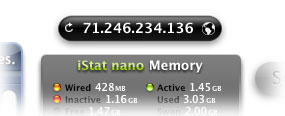 Since Dashboard and widgets became available in Mac OS X 10.4 (”Tiger”), I’ve been using a very handy free widget simply called IP Widget. This slim little fellow sits right on my desktop, always displaying my external (WAN) IP address. Since it’s a widget, I could run more than one of them if knowing multiple IP’s instantly were important to me (it’s not). Instead, with IP Widget, I can flip it over and select a different network port to display (e.g., one of my ethernet or wireless ports). On the front, there’s a refresh button that will reload the address, and if I click on the IP address itself, the widget will copy it to the clipboard for pasting in another app. The widget automatically refreshes the IP address when you open Dashboard. Of course, since I keep it on my desktop rather than in Dashboard, it never refreshes unless I logout or click on the refresh button.
As much as I love keeping widgets on my desktop, there are times when I turn Dashboard off to save system resources. When I do, IP Widget is of no use to me at all. The time it would take to turn Dashboard on and wait for all the widgets to reload is greater than I can stand. (Sorry, I’m an impatient guy!)

So, non-widget solutions came back on my radar screen. One that’s ever-present and fairly simple is Quicksilver. Yep, it can do IP address lookups, too. If you have enabled the QS Extras AppleScripts module, one of the extra scripts is “Get External IP.” So, just invoke Quicksilver and start typing “Get Ext…” and then hit Return. Up will pop your external IP address in Quicksilver’s “Large Type” display. To copy it, just hit Cmd-C. You could set up a shortcut Trigger in Quicksilver to save keystrokes here… for example, I have one (Option-Shift-X) that then just instantly loads the Large Type display for my IP address. This is great, except when I’m having a Senior Moment and can’t remember the shortcut. Or when I need more than just my external IP.
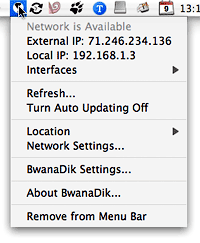 That’s where the other four solutions I’ve tried come in. All of these are simple menubar extras that put an icon in the menubar, which display a menu full of IP info:
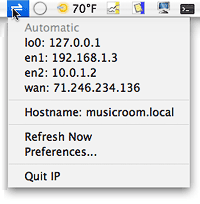 None of these developers will be winning any app-naming contests, and the only one that might be considered for an icon design award is IP Broadcaster. But these are all very handy little menubar applications, and three of the four offer many more options than either the IP widget or Quicksilver. The primary extras they offer are:
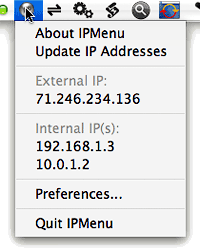
- Multiple IP-address displays. By clicking on their icons, you can instantly see the IP addresses for all your network ports at once. Well, unlike the others, BwanaDik shows only your WAN and active Ethernet addresses in the main menu, but not your Bonjour address. IP even shows your localhost address.
- Automatic Updates. All of the tools can be set to periodically refresh the IP address information, at a user-specified interval.
- Notification of IP address changes. A recent update to IP added Growl support for onscreen notifications, which can be configured to display whenever an IP address changes, or a network comes back online. BwanaDik has the same basic notification options, but uses a regular Cocoa window for the notifications rather than Growl. IPMenu doesn’t offer a local notification option, and IP Broadcaster none at all.
- Email notification. All these tools except IP Broadcaster let you configure them to email you a notice when IP information changes. IP also lets you FTP the information somewhere.

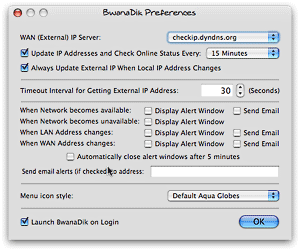 Each tool has a couple of extra bells and whistles that the other doesn’t. Probably the most convenient one for mobile users is that BwanaDik lets you easily change network sets (”Locations”) from within its menu. Another thing about BwanaDik that I like is that it offers several different icons to choose from. In addition, BwanaDik’s menubar icon changes color (or shape) as the status of your network connections change. Finally, the BwanaDik developer has managed to cram all of the tool’s settings into one preference pane, while still making them very easy to understand and change.
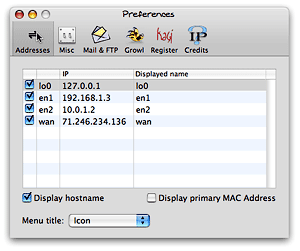 One of the reasons that IP’s preferences are split into multiple panes is so the developer could add one that lets users buy and register the application through Kagi. Which brings me to the main difference between the two: BwanaDik is totally free (and always has been), whereas IP is free only up to a certain point, after which you need to cough up $6 to enable the additional features. And what features don’t work without a license? You can’t use the email or FTP notification options without registering, and you can’t customize the “Displayed name” of your network ports (e.g., you can’t display “FIOS” instead of “wan” or “Vicky” instead of en1).
 IPmenu is a favorite of mine in this category going back a couple of years… When I first prepared this article, I had frankly forgotten about it, since the software hasn’t been updated in awhile. IPmenu gets the basics down perfectly, making quickly seeing and copying one of your IP addresses from its menu child’s play. It doesn’t have as many bells and whistles as IP or BwanaDik, but it does a basic email notification if you want that, and you can set the refresh time easily. Plus, one thing it does that the others don’t is let you easily customize the menubar icon. Where BwanaDik gives you a choice of a few, IPmenu lets you paste or drag whatever image you want to its image well if you don’t like its default “globe.”
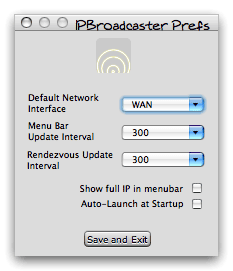 IP Broadcaster is a free tool from 10base-t, the group of developers that gave us the wonderful DropCopy bonjour utility. Compared with the other three here, it’s pretty bare bones. It has a much nicer icon to start out with, but beyond that it’s not as easy to use. For one thing, copying an IP address is a two- or three-step process, depending on which IP address you want. You can set up a default, but if you happen to want a different one, you have to “toggle” the setting and then select “Copy to clipboard.” The IP addresses themselves are grayed out and can’t be selected or copied without doing this. Further, there’s nothing in the display that indicates which IP address is active for copying, so it can be trial and error. This pretty much rules it out for me.
Among IP, IPmenu, and BwanaDik, it’s a very close call, frankly. Each application is quite worthy of a place in my toolbox. But in the end, I may be going back to IPmenu, my old favorite. In the first version of this review, I had chosen BwanaDik–the Software Whose Name I Blush To Speak Aloud. After I noticed BwanaDik’s wayward CPU usage, I leaned back to IPmenu, my old favorite. Now, I have both of them in my menubar (temporarily)! But after noticing how much time it spends in the top 10 of my Activity Monitor CPU hogs, I’ve had second thoughts. Now that BwanaDik has its CPU usage under control, here’s an updated QuickTime movie showing how well it behaves. I’ve left the original version here for comparison purposes, as well as the movie showing the IP widget, IPmenu, and IP, each recorded for 10 random seconds:
Good BwanaDik (version 3.0.4):
Bad BwanaDik:
The Other Three:
Now, calling BwanaDik a CPU hog is a bit of an exaggeration… nevertheless, it’s troubling that it uses any cycles at all when I’ve set its preference to not “auto-refresh” anymore. With this little piece of data to distinguish among them, I’ll be putting IPmenu back in my menubar, and taking BwanaDik down. (Whew! I really was embarrassed to have a BwanaDik in my menubar!)
No matter which one of these great freeware packages I end up with (or maybe I’ll just rotate them), one thing’s for sure… Between BwanaDik, IPmenu, Quicksilver, and the IP widget, I’ll never be without my IP address again!
Virtual Dashboard: Virtual Desktops for Dashboard
Virtual Dashboard can create widget sets
 Downloaded 10/5/06. My first thought when I saw this item was, “Isn’t that what MultiDash does?” (MultiDash is a cool, free widget that does pretty much the same thing.) Yep… it is. Two big differences… Virtual Dashboard is not itself a widget… it’s an application that lives in your menubar. As such, it has access to a bunch of regular Cocoa app GUI bits that widgets typically don’t. Second, the guy wants $10 for it. Is it worth it compared with MultiDash? Don’t know yet… stay tuned.
Version as tested: 1.1.1
Amnesty Generator: Convert Google Gadgets to Dashboard Widgets
 Downloaded 10/5/06. From the developers who brought us Amnesty comes a new freeware tool that aims to let you turn Google's thousands of web-page "gadgets" into Dashboard widgets. Now, if only they'd do the same with Yahoo widgets, we'd be cookin'! Seriously, though, I guess my next stop is to the Google gadget repository to see if there's anything there worth converting. Google's gadgets are free web page plugins, obviously built with the same Javascript/HTML/CSS brew as Dashboard widgets.
Version as tested: 0.5b
Widgetbox Is An Amazing New Resource for Web 2.0 Site Developers
Widgetbox › Widget Directory
 Wow! This is one slick site and service, and it’s as yet only in “beta” mode. It worked perfectly for me, coming in for the first time with Safari, and I’m amazed by the variety and quality of the available widgets! This is going to be a great way to add interesting content to blog sites the world over! Bless, you Widgetbox guys! If I have time, I’d love to develop a widget for you, too. FYI, in case anyone’s interested, it looks like the site itself is built with the Yahoo User Interface Ajax toolkit.
Apple Releases New “Resizer” Sample Widget
AppButton: A Powerful Launcher in Widget Form
 I've been trying out beta versions of AppButton for a month or so, and now version 1.0 has been released. It's even better than I had thought! Besides having the best way to find and add apps to your custom lists and categories on the widget's preference "side," the final release also has a simple app search thingy that you can pull out on the widget's face. Each app it finds can then be quickly added to existing categories. Man, what a steal at Zero Dollars! If you're not already using one of the many menubar-based launchers, or the keyboard ones (Quicksilver, etc), you could increase the utility of your system just by using this little fella. Be sure to check out my article on Widgetdom to find out the best approach for using widgets in Mac OS X.
CSS Tweak: Optimize Your CSS Online or With Dashboard Widget!
 This is another great tool for squeezing your CSS code as small as possible. Unlike other tools, it includes an option to retain your rule layout (though obviously that could have a big impact in how "tweaked" your file can be). It's also available for Mac OS X 10.4 as a very cool and useful Dashboard widget!
Yahoo! Widget Engine: Konfabulator’s Legacy A Worthy Sidekick for Dashboard
Mars Software Nuggets: Yahoo! Widget Engine
 I admit I was skeptical when Yahoo took over Konfabulator last year. Apple had released Dashboard for Mac OS X 10.4 (”Tiger”), which had some clear advantages over the old Konfabulator widget model. The first time or two I tried the Yahoo widgets, I was singularly unimpressed not only with the performance of the widgets but also
  with their quality. They reminded me of why I had never been impressed with Konfabulator, although I’m sure Konfabulator’s wanting money for their product had something to do with that, too.
Also there was Yahoo! itself… a company that until the last 12 months or so had been growing more conservative, more commercial, more corporate, and less fun than the Yahoo I started loving 10 years ago. Not only that, but Yahoo appeared to be less and less friendly toward the world’s Mac-minded minority. I had grown so disenchanted with Yahoo mail that I finally gave up last summer and packed my bags for the terrific IMAP mail service called Fastmail.  So it was a bit of a surprise when Yahoo wandered into territory that originally had been 100% populated by Mac-type aliens. Clearly, the visionaries had regained some influence at the company, as other recent smart moves testify (see all the cutting edge Yahoo goodies at the Yahoo Developer Network). Microsoft probably thinks Google is worried about its recent attempts to catch up in the web services arena… but I suspect that the real competition is between Google and Yahoo. Of course, being from Mars, my instinct is to say,
“Hey fellas, it’s OK, now. You can both be great without trying to run each other into the ground. Just ignore all the media banter about battles and winners, and who Microsoft is gonna wipe off the face of the earth next. Just concentrate on what you do best: Being innovative… Imagining the unimagined… in other words, pushing that f**king envelope and finding the next paradigm to shift!”
So, when I downloaded the Yahoo Widget Engine (YWE) 3.0 in December, I was pleasantly surprised to notice that things had changed quite a bit. Setting it aside until last month, YWE 3.1, the latest release as of this writing, confirmed my first impressions. YWE widgets are now very well behaved, for the most part, and take no more system resources than Dashboard widgets do. Plus there are actually some widgets that don’t have good Dashboard counterparts.
For example, a little gem that’s been around since Konfabulator called Picture Frame does what I keep hoping iPhoto Mini will–namely, let me run a slide show from my iPhoto library inside the widget. Seems like a pretty basic need, but somehow Apple’s developers have missed out on that opportunity. The closest they’ve come is a fairly recent widget simply called Photo, which does the basics, plus adds all the groovy Core Image transitions to the mix. However, you can’t resize the widget, so you’ll miss out on the beauty of seeing your favorite shots sized to their full glory. You also can’t pause the show, which is a bummer because I often have to keep my favorite picture of Jackie beaming out at me for more than the default number of seconds. iPhoto Mini is a great widget with a lot of cool tricks, but your basic slideshow isn’t one of them.Â
Another must-have from YWE is Minty, which is the best widget for monitoring your Mint usage stats.
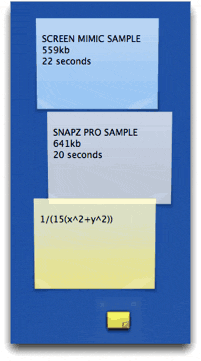
And in a category so saturated with good apps and widgets that you’d think there couldn’t possibly be another great idea, a YWE widget called MemoPad has won a place on my desktop. It does three things well that beats out all other widgets:
- Provides a “file cabinet” where all your sticky notes can go when you want them off the desktop
- Provides a minimized tear-off pad for your stickies that’s so small as to be unobtrusive on even the most cramped desktop, and
- Looks so much like actual sticky notes adorning your monitor screen that you may be likely to try pulling one off in a fuzzy-headed moment.
I haven’t even begun to explore YWE widgets as I’ve done with Dashboard ones, so I’m sure there are many other splendid little goodies waiting in the Yahoo widget gallery.
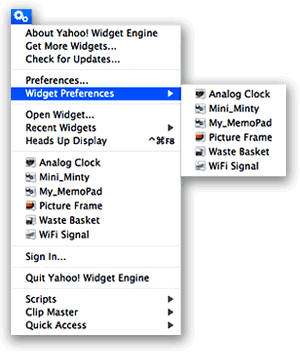
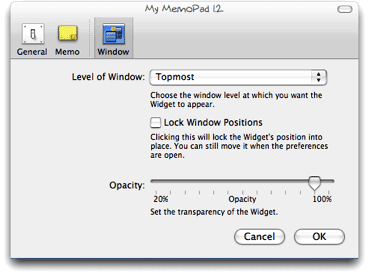
But finding more great widgets isn’t the only thing that’s made YWE a standard part of my desktop. What I really admire is the YWE implementation of widgets, which has firmed up my longstanding view that Apple needs to modify the Dashboard concept to make it more flexible, if they want Mac users to truly embrace widget-dom. The particular traits I admire are nothing new… they were standard in Konfabulator, and there’s one application for Mac OS X called Amnesty that will emulate the concept. I have stubbornly refused to pay the $20 that Mesa Dynamics wants for Amnesty, especially now that I use YWE, which does most of Amnesty’s tricks for free. So what exactly are those tricks?
- Run widgets like normal applications outside of Dashboard
- Easily change a widget’s “window level”–meaning, where it resides starting from the desktop itself up to a window that floats persistently above all regular windows, with several layers in between.
- Ability to lock a widget in place
- Ability to set transparency for a widget.
- Ability to access widgets–and their preferences–from a handy menubar item.
- Ability to stop and start the widget layer as the need arises.
As you can probably tell, I’m completely sold on the utility of widgets… so many of these are at least as useful as some shareware desktop apps or menu extras. But if I were using a laptop or had a 17″ monitor (or smaller), I’d be less inclined to experiment with them. I didn’t fully embrace widgets until I began running them in “developer mode,” which lets you keep your favorite ones handy… right on the desktop. (If you want to try developer mode, check out this article from MacOSXHints, or you can also get this widget to help out.)
Using developer mode requires some compromises, however, since in this mode widgets live in the top layer of your desktop window hierarchy. Unlike YWE, you can’t adjust the window level, so Apple’s widgets always run on top of anything else you’re working on (except for a screen saver). For example, if you run Aperture in full screen mode, your widgets will get in the way of Aperture’s controls…. unless you move them somewhere else.
With a 23″ Cinema Display, I’ve learned to work around this problem by carving out a slice of screen real estate for my widgets. But most Mac users don’t have the luxury of a big monitor, and this, I’m convinced, explains all the grousing about and dissing of widgets that I hear constantly. People may really like this or that particular widget, but they’re never going to take the time to explore the rapidly expanding world of widgets if they don’t like having to switch to the Dashboard layer every time they want to use one. After all, if widgets are actually replacing desktop apps or docklets or menubar items, the Dashboard actually makes those functions a click or two farther away (unless you spend most of your time in the Dashboard layer, which I doubt). Not only that, but quite often starting Dashboard takes precious seconds while you wait for the widgets you have activated to “wake up” (unless you happen to know about and are using the handy, free Dashboard Kickstart utility).Â
 Why would anyone use Dashboard for a calculator when they can summon Apple’s own desktop Calculator in one click of the Dock (or many other handy places one can store commonly used apps), or, like me, summon Quicksilver for a quick calculation? The answer is, “They won’t.” And since they won’t do that, they’re likely to dismiss the entire concept and the over 2,000 widgets that have been developed for Dashboard–many of which simply don’t have desktop equivalents, and nearly all of which are free!
No, YWE gets it right, and Apple needs to get it, too. After all, YWE runs on both Mac OS X and Windows, and we all know what percentage of the world’s desktops Windows holds, don’t we? At last count, Dashboard can claim a total of 2,088 widgets for its platform, but Yahoo! now has 2,891… having surpassed Apple and growing fast. Apple needs to keep its system competitive in features if it wants to maintain leadership in this technology. After all, you-know-who is planning to release its own widget system for Vista, and once that happens, who knows? One thing I see that Vista has right is letting users keep their widgets persistent on the desktop. As I understand it, the Microsoft way is inferior to the Yahoo! way, but it’s arguably better than the Dashboard layer alone.
Also expanding the “widget front” is Opera 9, whose users now have access to some very fine widgets thanks to Opera’s embrace of this technology. In Opera’s case, the widgets only work as long as you have Opera running, but that’s no problem if you’re an Opera user. Like YWE, Opera widgets can run on various window layers, and they share with all the other widget implementations the same open, standards-based underlying technologies. As of this writing, there are already over 400 Opera widgets! And if you think Opera developers are just trolling the same over-hunted territory where Apple and Yahoo widget developers have been, get a load of this little baby, which is one of several unique Opera widgets by Australian developer Benjamin Joffe.
In the end, I’m hoping all these widgets can coexist happily on my desktop (well, except for Microsoft’s widgets, which no doubt will only work on Windows). After all, one of the best things about widgets is that they’re just HTML, JavaScript, CSS, XML, and a few images. (Yes, they can have other things, too, some of which may be proprietary to a particular OS… but they don’t have to have anything but those basic open-standard components.) This means that if you can build a cool web page, you can build a cool widget… and there are a lot more people who can build web pages–for any platform–than can build Cocoa apps!
So a tool I’m hoping someone releases soon is a widget converter, which could convert Mac OS X widgets to run in YWE, for example, or Opera widgets to run in Dashboard. In the meantime, I’m perfectly happy to run Yahoo! Widget Engine alongside my desktop-handy Dashboard widgets. In fact, running YWE is likely to make me even more impatient to see Apple get on the ball and include a better widget system in Mac OS X 10.5, Leopard.
BitMemo: Elaborate, Full-Featured Notes Widget
BitMemo: How Widgets Become Full-Fledged Mac OS X Applications
 Downloaded 3/21/06. This is a seriously serious widget, folks! It’s not just a note-taker, it also sends mail, takes screen captures, manages files, does memos, and more! No wonder the author needed to write 10 pages of instructions on it! Very cool what’s going on here.
Update 7/12/06: If you’ve become a fan of the dashboard, this little fella can easily replace Stickies or any number of other note-taking apps you may be using. Plus it’s beautiful to boot! BitMemo uses CoreData to store your text and graphics, and it’s one of the very few that’s done this so far. The author has even provided a plugin for sqlite/core-data that others can use in their own widgets. He’s updated the widget two or three times since I first came across it back in March, each time adding useful new features.
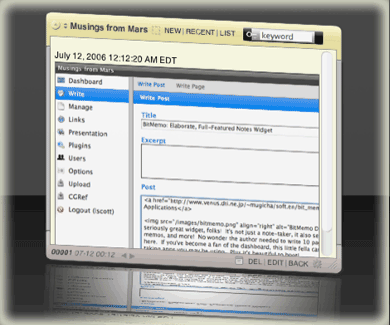
The features of BitMemo as documented on the author’s website are totally accurate, and his web page is chock full of useful tips and hints–with graphics–about BitMemo. He’s also included a complete array of keyboard shortcuts for working with your memos. Here are a few of the BitMemo’s highlights:
- You can drag and drop images into a memo from your web browser.
- You can easily clip part of the screen and paste it into BitMemo, using it as a kind of scrap book.
- BitMemo comes in 8 different color skins.
- It can be minimized, and you can also adjust the transparency when it’s not in use.
 In minimized state, you can still drop text and graphics onto BitMemo, and they’ll be made into separate memo entries.
- You can also drag and drop applications, files, and folders from the Finder. In this case, each item becomes a link that will open the file or folder, or launch the application. In this way, you can use BitMemo as a kind of launcher. In a nice touch, BitMemo stores the icon of each application, file, or folder to accompany the link text.
- Naturally, BitMemo can take URL’s from websites.
- If you hover over an image in BitMemo, you are offered the option of either deleting the file or copying it. If you choose the copy command, BitMemo will actually send the file to the default viewer. On my system, that’s usually Photoshop, so this is a convenient way of touching up graphics stored temporarily in BitMemo.

As if all of that weren’t enough, I discovered a useful feature that the author hasn’t pointed out… perhaps because of the linguistic confusion over what is a “memo” and what is a “memo.” See what I mean?
BitMemo uses the term Memo in two senses… First, it’s like a separate collection of memos, and second, it’s an individual memo item. It turns out that each instance of BitMemo (and you can have as many as you want) can store numerous separate collections of memos, and each collection can have its own title and skin color. This makes the little app a lot “deeper” than it looked before, since each collection can have umpteen separate memos.
Navigating among the various collections and their micro-memos is very simple and straightforward, so it would be hard to get lost. You also get the standard “live” search box in case you end up with a huge collection of collections of memos.
Did I mention that each memo ends up being a file on your hard drive, which you can rename or delete as the need arises? You can also delete whole super-memos and mini-memos from within BitMemo itself.
When you step back and realize that BitMemo costs zippo, you begin to appreciate how much great free software Apple’s Dashboard has provided Mac users. Widgets like BitMemo definitely have graduated from the one-trick pony nature of your average widget, and are clearly full-fledged Mac OS X apps. Enjoy!
Cool, Colorful DHTML Navigation Menu
Is Apple Building “Dashcode”? The iWeb for Widget Developers?
 There are a number of stories circulating today, along with screenshots of the purported app. This article from Dashboard Widgets has all the relevant links.
xCuts Dashboard Widget: Tripping the Light Script.aculo.us
I’ve been writing for some time now about the kinship between Apple’s Dashboard Widgets and web pages. I’ve recently written a time or two about Ajax and the various wonderful dynamic HTML (DHTML) JavaScript libraries that are now available to web developers. And when I first starting compiling the lists of available Ajax/DHTML JavaScript libraries, I was planning to grade Apple’s Widgets library along with all the rest. In explaining why I didn’t, here’s what I wrote last month about Widgets and DHTML pages:
It’s interesting that 2 months after an Adaptive Path essay coined the term “Ajax,” Apple released Mac OS X 10.4 “Tiger”, with its amazing and powerful dashboard widgets system. Within a couple of months, there were over 1,000 widgets available on the web, and these little babies were capable of completely replacing (almost all for free!) a number of system utilities, menubar items, and whole applications on the Mac. I’m tempted to think that awareness of Apple’s widgets helped promote awareness of, and interest in, what could be accomplished with rich Ajax/DHTML toolkits. After all, widgets are simply little Ajax/DHTML programs running in a special layer of Mac OS X called the Dashboard… They use exactly the same technologies as all of the Ajax/DHTML libraries, and in fact you can run them inside of Safari outside of the Dashboard.*
And so, it was fitting that when I finally found time to work on xCuts, a widget I’d been planning to build since last summer, I decided to use one of the leading Ajax/DHTML toolkits rather than Apple’s own, for most of the widget’s functionality. Having done most of my recent DHTML web work with Prototype and its light-hearted, freewheeling sidekick, Script.aculo.us, I naturally turned to those libraries to help me out.
Whenever I use script.aculo.us, I invariably get carried away and overdo the cool effects. (Witness this website!) But I do only use the effects when you’re supposed to–namely, as a visual cue to the user that some page content has changed. Without this visual cue, content can change so fast and smoothly on an Ajax page that users may not realize anything has happened… especially if they’re expecting the link they clicked to cause a page refresh that never comes. As an example, consider this link, which replaces this paragraph with different text stored on the server.
See what I mean? Even though your eyes were actually on the content that changed, the difference was so subtle you might have missed it. Now take a look at the lists of articles and news items in my navigation panels in the sidebar. Without Ajax, one list would give way to another so similar-looking that you might not notice. On the other hand, if you add an effect or two to the change, it’s impossible to miss. For example, try this link, which replaces this paragraph with another one from the server.
Now, having said all that, my primary failing is in going overboard with the effects. Rather than one simple yellow-fade, I prefer a yellow-fade combined with a slide-down, or perhaps a slide-down combined with a scale-up. But hey–don’t blame me! Blame that elvin genius Thomas Fuchs, who keeps thinking these things up. Why, just this week he published an article explaining how to do custom effects, as if the ones that come with script.aculo.us aren’t enough! If you’ve looked at this library, you know that what I’m saying is true. In addition to some powerful Core Effects (opacity, scale, moveby, highlight, and parallel), script.aculo.us comes with a series of Combination Effects, which are built using the core ones. In fact, it’s the “Parallel” core effect that makes this magic possible, allowing a developer to mix and match the core effects as much as their time and imaginations permit.**
But that’s not all! I haven’t even mentioned the possibility of using Callbacks, Transitions, and Effect Queues to fine-tune your effects… As much as I’d like to, I don’t have time right now to go into a full tutorial on the script.aculo.us effects, but fortunately, the script.aculo.us wiki is bursting with useful demos, reference documentation, and sample code to study. I usually start at the wiki’s All Pages view, which links to pages describing all the script.aculo.us functions, most of the relevant prototype functions, and all the demos and other documentation as well.
So I approached building the new xCuts widget as if it were basically a little web page that uses prototype and script.aculo.us to work its Ajax magic.*** Besides the animation, effects, and basic Ajax server calls, the widget incorporates the very popular live search form, which is my first implementation. It was actually surprisingly easy to build using prototype’s Ajax.Update function. Speaking of the search, the input element implements Apple’s HTML extensions, which were actually developed as part of Dashboard but can be used on any website as well. Using them, you can surprise Safari-toting visitors to your website with nice, rounded search forms… you know, the ones with the little magnifying glass filling one end and the spiffy focus, blur, and clear bits Mac OS X users have come to expect from native Cocoa apps. Though they are non-standard, these extensions do no harm to other browsers and merely enhance the web experience for WebKit users.
In addition, at the last minute I found the great DOMinclude library from Chris Heilmann, which came in handy to add the “i”  supplemental information about certain shortcuts. Here’s a case where DHTML (Chris would prefer we start referring to it as DOM scripting, and he has a point, but habits are hard to break…) can come to the rescue: How can you present a lot of information on a keyboard shortcut in a compact space? There are always trade-offs in such a design, but I try to focus the user’s attention on the primary bits of info and provide secondary info in an opt-in format of some kind that doesn’t detract from the presentation or otherwise draw too much attention to itself. As I saw it, I had three options:
- Squeeze the “other info” data column in either a third column of the lists, or as a second paragraph in the second column. The first option ended up squeezing the first two columns too much, which seemed silly since only a few shortcuts need the third column. The second option mingles the “other” info column with the “action” column, which may not be appropriate in many cases. It also makes the whole list longer than necessary.
- Use DHTML to slide in the “other info” data as a new row, just beneath the row for its shortcut. This would have been an effective choice, but was going to take a bit more custom programming and would have caused the whole column to shift up or down a lot, which seemed a bit ungainly.
- Use traditional DHTML tooltips. Searching for a tooltip I liked is what led me to Chris Heilmann’s elegant solution. Before finding it, I was spending way too much time considering all the permutations of possible scripts, time that also involved learning how the script’s code was implemented and ensuring it was compatible with the other JavaScript functions in the widget. I ultimately bookmarked a handful of “tooltip” scripts that made the final running, but decided DOMinclude was perfect for my needs here. Besides its unobtrusive JavaScript foundation, I like the way it emulates the visual appearance of Apple’s Dictionary service.
Another spoonful of “syntactical sugar” I threw into the pot was Justin Palmer’s CSS event:Selector script. On Mars, I have been using Behaviour.js to enable unobtrusive, CSS-event-driven JavaScript functions, but then a month ago a leaner, more powerful script appeared that immediately synched with my brain. As Palmer says, event:Selectors are better integrated with Prototype, so the corresponding event rules require fewer “words.” In addition, they are more flexible, and presumably faster as well. So, I decided to try his script out in building xCuts rather than Behaviour, and I have to say it has an excellent aftertaste! As soon as time permits, I’ll rewrite the CSS Behaviour-style rules on Mars as event:Selector rules. The transition is easy, since, as Justin notes in his blog article, “Behaviour was the inspiration for event:Selectors,” and as such it adopts a similar syntax.
For convenience, I did use the Apple libraries for the flip animation and for the scrollbar and drag animations. Of those, the only one you really need the Apple libraries for is the flip animation, although the JavaScript cube animation script that Kava.net published recently could possibly be a replacement if you’re willing to accept a more jaggedy visual. Another area that prototype and script.aculo.us aren’t particularly strong in is scrollbars… they have no native function for them. On Mars, I’ve cobbled together a thin scrollbar for the navigation “panes”, but I went with a native OS scroll function in the “News Article” window that materializes in the middle of the page because it allows mousewheel scrolling and is much simpler to implement. I could do that with a Dashboard widget, too, but in this case native scrollbars can kind of ruin the look.
One small note is that as I got the widget built out I wanted users to be able to copy and paste from it if they chose. Looking around, I noticed that nearly all Dashboard widgets only had text-selectable sections in form fields. That’s because the onmousedown function that lets you drag widgets around the Dashboard also prevent the widget from understand a “copy” style mouse drag. I finally found one or two widgets that overcame this, and a quick visit to the Apple Dashboard docs revealed that the proprietary CSS code that implements the drag function is DOM-element-specific. In other words, though most developers seem to go with the default example code Apple provides, which applies the “-apple-dashboard-region” style to the whole face of the widget, you can instead restrict the region to whatever parts of the widget you want to be draggable. Cool.
For a back end, I had originally hoped to use Core Data, but I just didn’t have the time to learn how to access Core Data with JavaScript, and Apple doesn’t provide any roadmaps. Core Data would be ideal for this, but instead I fell back on existing skills and just set up a MySQL table and wrote a PHP page to access and format the data. Because of this, you won’t be able to use the widget when you’re disconnected from the Web. I still hope to transition it to Core Data in a future update, mostly for the learning exprience. On the other hand, with the database maintained remotely, I can easily continue to update the data source without having to publish new versions of the widget. Particularly in the first few months–when I have a lot of data I still want to add–that’s probably a good thing!
So… what did I use to build this widget? Gather round, and I’ll share this secret with you. Shhhh!! Here it is:
Find a widget you like, and use its code as a starting point.
 As I pointed out last summer, one of the best things about building widgets is also one of the best things about building web sites: It’s all open-source code, and most developers release under free and open licenses that don’t make you feel like you’re stealing if you borrow a function here or there. That was certainly the case with one of my favorite widgets, SeeSS, a great CSS reference widget. Besides being at my fingertips when needed, I love this widget because it curls up into a tiny ball when you’re done, taking very little screen space. I also admire its overall layout and the fact that you can resize it as needed. By the time I was done, there really wasn’t very much of SeeSS left, but it was a great way to jump-start my work and gave me a nice framework to build from.
 Tools? Definitely Widgetarium from Gandreas Software. I used this program for my first widget last July, and it has grown seriously more powerful since then. First of all, Widgetarium is great because you can start a project by choosing “File/New Project from Widget…”, after which you simply browse to any widget on your system, and select Open. Widgetarium automatically builds a new project for you from the components of that widget, including all image files, scripts, other source code, and–most conveniently–the XML .plist files without which the widget won’t work in Dashboard. After that, you can start tinkering with the code as you please without, of course, affecting the original widget.
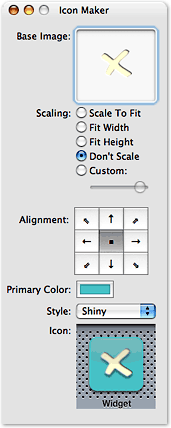
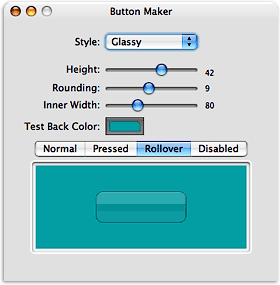
Next, this tool still has that nice transparent window in which the widget builds, so you can stop and restart it all without leaving Widgetarium. As before, it has nice graphics tools for building pieces of the widget, but now you five tools instead of one. Besides the basic Panel Maker, you get a Button Maker, an Icon Maker, a “Roundie” Maker, and a slicing tool that lets you chop a panel into smaller pieces. I still export all the pieces to Photoshop for fine-tuning, and use Photoshop for the overall graphic design of the widget, but unless you’re extremely picky, the graphics tools in Widgetarium will give you a nice jump start on assembling the images you need. (You know, I’m seriously thinking of testing out other graphics editors since Adobe’s taking so long to get Photoshop Intel-ready. Anybody else thinking along those lines?)
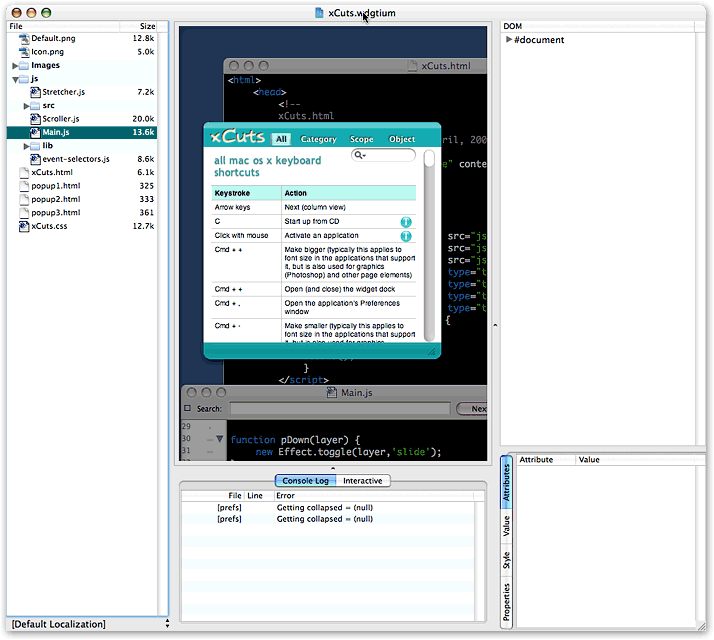
New to Widgetarium is a truly useful JavaScript debugger, which has the usual stop/breakpoint features that let you step through the JavaScript code one function at a time. While doing this, the debugger provides a wealth of information on the variables and the DOM environment you’re working in. In fact, if anything the wealth is a little too much, and without a search feature it can be hard to find the variable you’re looking for. Still, this is a big improvement. In addition, there’s a console panel under the widget area that provides useful error messages, and you can toggle between that and a panel that lets you actually enter an interactive JavaScript session with your widget… testing different DOM calls, CSS properties, and so on, as part of debugging.
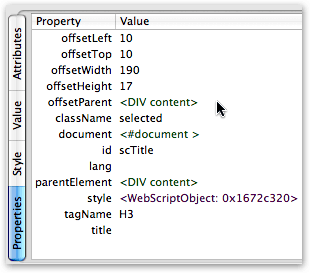
Just as useful is the DOM tree Widgetarium provides. Here, once you navigate down to a particular node, you get 4 panes of info about the node:
- Attributes: The node’s ID and all other attributes (like attached events) visible in the HTML source code
- Value: Only for text nodes, this contains the displayed text
- Style: The node’s CSS style as defined in the project’s style sheet(s), and
- Properties: I invariably find this the most interesting pane. Here you’ll find the node’s offsetParent, its parentElement, and its top and left offset measures (see screenshot).
If you’re developing JavaScript in Firefox,you can get this information in Mozilla’s DOM Inspector, but frankly Widgetarium’s interface is a heckuva lot more useful. What you get in the DOM Inspector is the same kind of thing that Widgetarium’s Debug window provides: Anything and everything, and good luck focusing on what you’re trying to find.
Even better than Widgetarium is the WebKit team’s Web Inspector, which presents the DOM and its nodes and styles in an incredibly compact, useful interface. The only problem with Web Inspector is that it isn’t finished. For now, it provides the Attributes, Value, and Style information you get from the other tools (including the “computed” style that’s so important in debugging), but not the Properties information. Web Inspector has two panes that stand empty as “Not finished” for now: Metrics, and Properties. I can’t wait to get them! Just like Mozilla’s Inspector, WebKit’s highlights the elements you select as you navigate, but Web Inspector has a far superior search interface. If you’re used to the Mozilla DOM Inspector search tool, you’ll be blown away by what you can do in Web Inspector.
Which brings me back to Widgetarium. One of the most glaring weaknesses–which I’ve pointed out to the developer, and he’s working on it–is the inability to search in either the DOM tree or the JavaScript debugger. This means, for example, that each time you want to find a node in the tree you have to manually traverse its parent nodes. Not a problem once, but unfortunately Widgetarium crashes often enough that you find yourself doing this walk way too often.
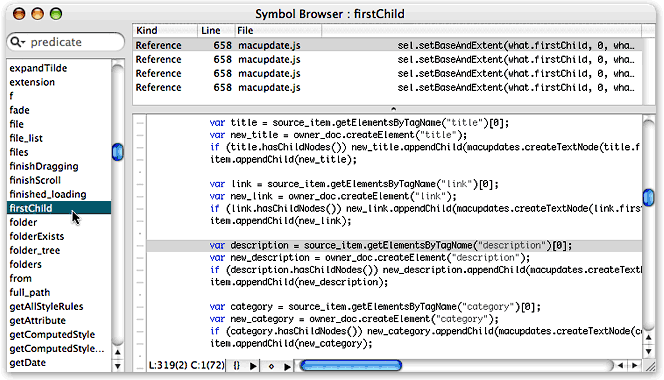 In my use, one of the things that crashed Widgetarium most reliably was trying to use the powerful “Symbol Browser.” How I wish I could have made use of this little puppy, but alas Widgetarium crashed every time I tried. I know it works with other widgets (the screenshot is from the MacUpdate widget), and I can see it would be very useful. What Symbol Browser does is the sort of thing you can do in TextMate and Eclipse in searching across your code base: Namely, Widgetarium compiles a list of all the functions, variables, properties, and methods used in your code, and you can find instances of whatever you’re looking for across all your files. If, like me, you have multiple, interrelated JavaScript files, this could be a real timesaver! The tool not only shows you the lines of code in a search-list format, but also brings up the full source code in a third pane when you select a given line. (Note: Click on the Symbol Browser thumbnail graphic to see the full screenshot.)
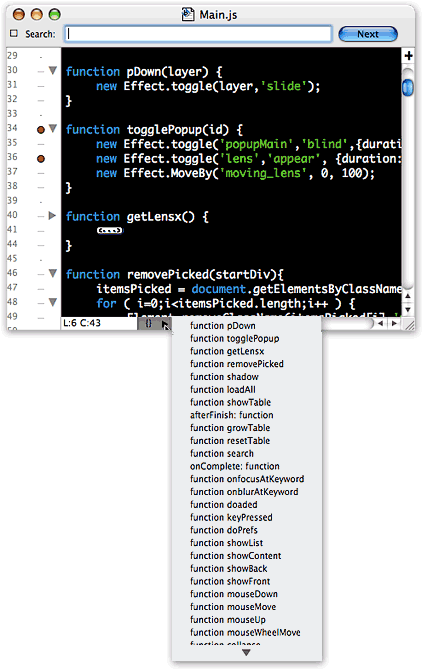 All of the Widgetarium editing screens have four useful features in common:
- A pulldown menu showing all the JavaScript functions (or CSS styles, or HTML elements, etc.) defined in the file, which you can use for quick navigation
- A pulldown showing various options for auto-indent, code-folding, syntax-coloring, line-numbering, and so on.
- A quick “go to line number” search, and
- The ability to split panes–as many times as you could possibly want! There are times I’d like to be able to bring another file into one of the split panes, but that wasn’t possible
The editing environment in Widgetarium is good, but not great. To improve it, my primary suggestion to the developer is to implement a single tabbed window. I find navigating among four or five open source code windows a bit tedious, especially after getting used to tabbed editing in BBEdit, TextMate, Eclipse, etc. Still, I no longer find myself using Widgetarium for some things and BBEdit for others, like I did last year.
There are many more useful features to Widgetarium, which I don’t have time to go into detail about but want to just mention here to whet your appetite (assuming you have one by now):
- Customizable syntax coloring
- Customizable key bindings
- Built-in lint and syntax checkers
- Incremental search option (should be the default, actually)
- Screenshot export options
- Image files viewer
- Top-notch documentation
- Full suite of embedded JavaScript and Dashboard reference material from Apple, the w3c, and elsewhere,
- Built-in extensions for working with audio, speech, AppleScripts, data from Spotlight, the Mac OS X clipboard, the file system, and more.
If it sounds like I’m a Widgetarium fan, you’re right… I am. And if the developer continues to improve this tool, pretty soon I won’t have any quibbles with it at all! At $50, I’m more than glad I shelled out the bucks last summer.
It’s hard to believe I could have so much to say about this simple little widget. As usual, I meant to sit down for an hour and found myself writing for four instead… All without even talking about the widget’s functionality! I guess you’ll have to figure that out for yourself! I hope you find it useful and enjoyable, and please let me know if you think of a good idea for improving it.
But most of all, have some fun building your own Ajax/DHTML widget!****
* Yes, I know that widgets can incorporate many native Mac OS X technologies that web pages can’t–like AppleScript, Core Data, file system calls, Core Image, and so on–and some of them do. But they don’t have to, and most of them don’t.
** And of course, down below, holding the whole structure firmly in place, is prototype.js, which provides the foundation that makes extending and combining JavaScript functions possible.
*** Both libraries were updated to new versions during development, but xCuts 1.0 is behind one or two releases (it uses prototype 1.5.0_pre0 and script.aculo.us so the 1.5.3). I’ll be updating xCuts soon to bring it up to the latest (prototype 1.5.0_rc0 and script.aculo.us 1.6.1).
**** If you want to build for Windows or for a browser other than Safari, check out Yahoo’s free Widget Engine, or Opera’s spanking new
Widgets API, which you can check out in the Opera 9 public beta.
PHP Function Reference Widget
Developing Dashboard Widgets
ShortStat Widget: For Your Stat-Checkin’ Addiction)
 Now this is a cool use of widget technology... First, you install the ShortStat software that plugs site-usage data into your Mysql database. Then, you install a file that "glues" the widget to the database. Then launch the widget, and you've got immediate info on referrers, hits, visits, etc. Not a full-blown stats solution, you understand, but at least as good as the refer plugin to WordPress I'm using now.
JSEclipse: Edit JavaScript with ease.
JSEclipse: Eclipse Plugin for Javascript development
This looks like a pretty useful tool. I’ve never become addicted to programmer IDE’s before, but I think it’s time I tried Eclipse. Besides JSEclipse, the JS-Sorcerer Javascript debugger became available recently, also as an Eclipse plugin. JSEclipse is only $29, too, so it won’t break the bank. Of particular interest is that the tool “knows about” the major JS code libraries, including Dojo and Prototype, and you can browse the code tree while editing. That alone would be worth $29, I think!
Desksaver Plus: Dashboard Widget Runs Screensavers on the Desktop
 This is a dashboard widget that lets you run screensavers as your desktop... It includes a measure of the CPU utilization that displays on the widget's face as it's running... a unique feature. One of the nice things about Desksaver Plus is that it's the only tool of its kind (that I'm aware of) that lets you choose either traditional screen savers (those with the .saver extension) and the newer Quartz-style savers as well (those with a .qtz extension). If you run the widget on your desktop, you've got a handy menu always available to change to another screensaver. The widget provides no other options, and unfortunately doesn't even show its name, so good luck if you forget it! All in all, this is a widget you're going to want if you like running screensaver animations on your desktop. Like the others I'm reviewing (Backdrop, Quartz Desktop, and QC Desktop), it's free.
Noodleboard: Web-Based Collaboration with a Dashboard Widget
The thing–well, one thing–I love about the Mac is all the creative ideas software developers come up with. You’ve gotta try this to understand what it’s about, I think. As they say, it’s sort of a cross between SubEthaEdit and OmniOutliner. Free with dashboard widget…
WikityWidget: A Widget That’s A Wiki, or A Wiki That’s A Widget?
 While trying to find information about Quicksilver's new Constellation (radial) menus, I ran across this amazing-sounding utility. Can't wait to try it out!
Update.... WikityWidget is a great start, but lacks some critical features to make it more than a curiosity. Primary problems for me are:
- You can only use camelcase for links.
- There are no formatting options. The widget can't parse HTML, and some standard wiki structured text syntax common on other systems don't work either.
- There's no back button, and no navigation options other than seeing all wikits at once.
Still, it's a pretty amazing free widget! Definitely worth a download to check it out.
Anyone Can Develop A Dashboard Widget (And They Probably Will)
 Wow! This project really took me back a few years… and forward a few years as well.
The “back a few years” part is a reflection of how long it’s been since I worked on a major javascript/CSS (dynamic HTML) project. I had forgotten how frustrating it can be to debug javascript. When I was doing this nearly full-time earlier in the century (doesn’t that sound odd?), the frustration stemmed partly from trying to build to two totally different “document object models” (DOM)–Netscape’s and Internet Explorer’s. Because Microsoft trounced Netscape in the browser wars, the IE DOM won out, and today it’s pretty much the standard, as defined by the W3C. Developers who remember trying to build dynamic HTML that would work in both browsers are simply relieved that you no longer have to deal with the “Netscape 4 problem,” though some–like me–mourn the good ideas that went down with that model. Now, with Firefox and Safari ascendant and IE waving from the sidelines (anybody remember the Tortoise and the Hare story?), even Microsoft’s proprietary extensions to javascript will hopefully be abandoned by everyone who hasn’t already done so.
That’s the good news. Today, the frustration I felt programming javascript stemmed mostly from the fact that I hadn’t put together a good development toolkit for Safari. In other words, I needed some tools that could show the javascript errors clearly to help me debug them. Once I had these, I wasn’t trying to code in total darkness anymore.
The project took me forward a few years as well, since I got a clear glimpse of what life beyond browser-based HTML will be like a few years from now. I was skeptical at first, but because of both the explosion of Dashboard widgets since May 1 and the amazing usefulness of many of them, I’m now convinced that this new way of getting web information is the future. It’s really the next step beyond Sherlock, and in some ways is just an extension of RSS and an easy way of leveraging web services on your desktop. If I needed any confirmation for my gut feeling on this, Yahoo provided it this week by gobbling up Konfabulator (before Microsoft could get to them, I’m sure)! (More on that later…)
Building this widget also took me back by confirming what I had read about Dashboard widgets–namely, they are really just little web pages that use transparency and run outside of a web browser. They can do more than web pages can do if you get fancy with them, and Apple has added some spectacular animations to Dashboard to make them look cooler than anything a browser can do, but… bottom line… if you know HTML, javascript, CSS, and graphics, you can build a Dashboard widget!
Of course, to get started, I found a couple of good widgets to crib from. Heck, that’s how I learned HTML and javascript in the first place! One of the reasons the web took off like it did is that the underlying code for web pages is totally transparent. All you have to do is “show source”, and there’s the code for you to study. Creative types who like simple programming (Gee, isn’t that what a Mac user is?) were delighted with what they could do as web page design matured, and they’ll be similarly delighted with the widget model.
 With widgets, you have to know how to look inside Mac OS X “packages,” but that’s easy enough to do. Right-click (Ctrl-click) on a widget in the Finder, and select “Show package contents.” Once inside the Contents folder, you’ll see that there are just a few little files–an HTML page, one or more javascript files, a Cascading Style Sheets (CSS) file, some graphics, and some widget-required plist (property list XML) files.
Before I started mucking around with those files, though, I read through Apple’s excellent documentation on the subject. Apple developers are lucky to have such great technical documentation at their disposal, so be sure to utilize it if you head down this path. A quick visit to Apple’s Developing Dashboard Widgets website will orient you much better than anything else
Here are quick links to the main documents I started with:
- “Introduction to Safari JavaScript Programming Topics“
- “Introduction to Dashboard Programming Guide.”
(Note: If you installed the Developer Tools that came with your Tiger discs, you’ve already got these documents on your Mac.) I strongly recommend you start by reading through this material. After that, just start ripping into the code!
And speaking of code to rip into, Apple has also provided a set of example widgets that demonstrate how various kinds of actions work. Here you’ll find standard javascript functions for many of the animated actions you want to program, as well as for functions like looking up and displaying information from elsewhere on the web. There are about a dozen of these example widgets, and you’ll find both a working widget as well as a folder with the code for each, so you don’t have to do the “Show Package Contents” thing. The examples are at the Dashboard Sample Code site from Apple. Note that Apple’s website includes updates to some of the examples that came with Tiger, as well as a new example–the SampleRSS widget–which in my case was very fortuitous.
One of the things I was most interested in trying out was the relatively new “AJAX” web programming method. (AJAX stands for Asynchronous Javascript with XML.) This is the web application model Google has employed so spectacularly on its new Maps site, as well as elsewhere. This model enables richer web applications by allowing web pages to download and display data without having to be reloaded.
A fairly common type of Dashboard widget is one that loads one or more RSS feeds, and this was, in fact, the goal of my project. I wanted to “asynchronously” load the RSS feed from Classic 45’s into my widget, without the widget itself having to be “reloaded.” Whenever my RSS feed is updated, I wanted the widget to just fetch and display it without the user having to do anything. AJAX programming makes this possible. (You can read more about AJAX starting with this essay.)
So off I went… It took about 2 weeks, working around everything else in my life… to get the widget ready for posting on Apple’s website. But what a blast I had! Along the way, I checked out some of the emerging widget development tools and actually ended up forking over a few bucks to the guy who developed Widgetarium. It’s still a young tool that I’m sure will get better, but I paid the shareware fee primarily because I loved the “Panel Maker” that’s built in. This utility makes creating slick widget background images child’s play. Yes, I could’ve done it from scratch in PageMaker, but this was so much easier! He’s since added an “Icon Maker” to the tool. Widgetarium has an embedded Safari WebKit engine that allows you to see and manipulate your widget in a transparent window similar to how it will look in Dashboard itself.
There are many other useful developer add-ons to Safari and widget development tools that are worth checking out, and I’m sure a year from now there will be even more and better ones.
Widgets are simply going to explode in numbers, so it’s great that Apple moved fast to improve Dashboard’s ability to manage them. If you haven’t upgraded, Tiger 10.4.2 includes a Widget Manager in Dashboard that’s a big improvement over the first version that shipped with Tiger.
When I finished my widget on July 6, there were about 700 widgets listed on Apple’s “widget download” site. When I checked just now, the total had climbed to 926! If that rate of growth continues, there will be almost 5,000 widgets a year from now. Nearly all of them are released as freeware, including many that are handy replacements for Mac software you would otherwise have to pay for.
For me, an example of the latter is the DoBeDo widget, which lets me enter to-do items that are synched with iCal. I can assign due dates, priorities, and a description for each item. The widget lets me easily view lists by calendar, and simply checking them off is the same as doing that in iCal. For me, what’s particularly great about this kind of app is that I can have a synchronized to-do list both at work and at home, thanks to my .Mac account. Before DoBeDo, I was using Burnout Menu, a menu item application I had paid for. Actually, I find DoBeDo to be much faster and more stable than Burnout Menu… and it’s free! (Burnout Menu does have a few tricks DoBeDo widget doesn’t, but they aren’t things I need.)
The appeal of widgets is one of the reasons Yahoo snapped up the rights to Konfabulator this week. Windows will need something to compete with Apple’s Dashboard, because widgets will clearly become a source of OS-envy as their popularity spreads. (Yes, Konfabulator did get ported from Mac OS X to Windows last year, but you still had to pay a license fee to use Konfabulator widgets.) Unfortunately for Yahoo, Konfabulator is not nearly as good as Apple’s Dashboard system. Why? The primary problem with Konfabulator is technical… rather than leveraging an existing javascript engine (WebKit), as Dashboard does, Konfabulator runs its own. Why try to maintain your own Javascript engine when everyone who would ever use Konfabulator already has one in the form of their favorite browser? As a result of this, Konfabulator can be a memory and processor hog, whereas Apple has carefully designed Dashboard so that widgets take up no processor cycles or memory when not in use. (Of course, if you’ve set your widget to continue working even when Dashboard is hidden, the widget will do just that.) John Gruber has an excellent article explaining this a lot better than I can on his Daring Fireball blog.
It’s really hard to explain what a Dashboard widget is to a Windows user without showing one. So one of the things I prepared with the launch of my new widget was a little QuickTime movie that shows the widget in action–scaled down, of course. Once I had all of this prepared and fully tested, I submitted information about it to Apple’s web site and also to MacUpdate. A couple of days later (it didn’t take as long as I thought it would), I was the proud owner a whole page on Apple’s Dashboard download site devoted to my new “Sizzling Classic 45’s” widget! Ah, fame.
You can also find this spanking new widget (along with other projects) at my .Mac site: Software Noodling. On Mars, of course, nothing is ever really finished, so I already have the first set of enhancements to the widget on the drawing boards: First, I want to make the widget roll up into a much smaller size when not in use, and Second, I want to let users listen to mp3 snippets from the Classic 45’s “Jukebox” by playing them within the widget itself.
*sigh* A Macintosh Software Noodler’s work is never done… So many cool programming toys, so little time!
Next: Building a Mac OS X “Theme” … stay tuned.


