



News Posts In Category
A Browser for Core Data


Mac Stuff: A wealth of sample code for AppleScript
JSTalk: AppleScript For Cocoa Fans
Here's the latest offshoot of the jsCocoa universe: JSTalk is a scripting language that can be used to easily interact with Cocoa apps. It's what Applescript would be if rewritten today using Cocoa and JavaScript. The download comes with a slew of example scripts and a script editor application.
Nice Library of AppleScripts
There are a lot of useful AppleScripts here, providing functions I haven't seen elsewhere. Definitely worth returning to...
AppleScript: Apple’s “Essential” Sub-Routines
I just discovered this amazing collection of AppleScript templates Apple has provided for building AppleScript apps in Leopard. I can't wait to find the time to explore all of these, which cover such topics as:
- Math routines
- HTML routines
- Sorging routines
- Text manipulation
- Working with lists
- Text encoding/decoding
- Writing to files
- Finder droplets
Thank you, Apple!
Automator Development Tip
Hazel: A Thoughtful Cleanup Assistant
 Originally downloaded 10/27/06. It sounds like Hazel is attempting to do more than most other "house cleaners" you can get for your Mac. Unlike the rest, Hazel is proactive, constantly busying herself in the background as new tasks arise, following your instructions for how to do the cleaning. Hazel can file, create folders, put labels on folders, add notes to files, and so on. The latest version has integration with iLife, Spotlight, and Automator to help integrate Hazel fully into your workflow. Now, this is a concept I can't resist trying out. The key questions will be: How much work does it take to "train" Hazel? Does Hazel really stay out of the way while I'm trying to work? And, Does Hazel make mistakes that require more work to clean up than doing the work myself originally? At $16, Hazel will have to be pretty damn good to entice me to keep her around.
Version as tested: 1.1.
Automator Virtual Input: Extend Automator To Control Mouse and Keyboard
Automator Virtual Input: Take control of your mouse and keyboard via automator
 Originally downloaded 7/13/06. Now this is getting strong:really interesting. Of the three huge new Tiger innovations Apple unleashed on the world in May 2005 (Spotlight, Dashboard, Automator), Automator has been a real sleeper. Though my sense is that it wasn’t embraced immediately by a lot of Mac users, its growth in functionality and scope is perhaps even greater than Dashboard’s, and a few years from now we may look back and realize that Automator was the most revolutionary of the three. Here’s a shareware set of actions that takes Automator where previously only tools like iKey and QuicKeys could go: Deep into Applescript’s user interface controls to make them accessible to ordinary mortals. It’s also precisely the kind of tool you’d need if you really want Automator to take the next leap beyond simple actions that have to be build for each application individually. Here’s a generic set of actions that theoretically will let you do anything to any application… anything a mouse and keyboard can do, that is. You can be sure I’ll give this a try soon, and if it works as advertised, fork over my $25.
Version as tested: 1.0
Tell Me One Thing You Can Do With a Mac that I Can’t Do With Windows! (Part 3)
3. Use Real Productivity Applications To Get Work Done Faster, Easier
As inventors of new tools have done throughout human history, the visionaries who designed and built the first personal computers saw them as tools that would provide an immense boost to human productivity. And they weren’t just thinking about business productivity, folks. They were also thinking of personal productivity: Getting more things done faster so we’d have more leisure time.
 Today, in our Microsoft-Windows dominated world, we use the term “productivity application” to refer to Microsoft Office, and we think of the personal computer as a business tool. (Quick: Do a Google search for that term–”productivity application”–and see what you get.) But has Microsoft Office provided us with more leisure time? Of course not. Microsoft Office is a business tool that replaced prior, non-electronic tools like the typewriter and pencil. If it has enhanced productivity at all (and that is arguable), the productivity gain has come in the form of more output per worker… not more leisure time for the individual. In any case, whatever productivity impact Microsoft Office and its ilk had on the business world was completed many years ago. Yet even for businesses, productivity didn’t stop with improving our ability to prepare reports and memos, or compile numbers in spreadsheets, or do overlays for a presentation in PowerPoint.
Productivity goes up whenever you can suddenly do a task in less time than before, either at home or at work. Since its beginnings with the original Apple computer, Apple has appeared to be pursuing a vision that steadily expands the personal computer’s potential to save you time… to do complicated things simpler. Apple’s operating system recognizes that this kind of productivity gain begins with the simplest interface to the computer: Finding things, opening applications, printing, opening documents, organizing information, and the like. As a result of this vision, Mac OS X has two built-in features that are simply lacking in Windows, and they enable “productivity” applications that are truly the envy of the Windows world:
Applescript and Application Services.
These two technologies work together to make possible software like Quicksilver, Automator, Butler, Launchbar, Proxy, iKey, and many many others that make working with applications, files, and folders on the Mac a joy rather than a headache. In fact, the web is littered with plaintive conversations among Windows users trying to find a Windows app that’s like Quicksilver or Butler. There simply aren’t any such apps. Yet on the Mac, there are numerous apps that are similar to Quicksilver, which itself is still free in its beta mode. Automator and Proxi are also free. So is the amazing Butler. Mac users love to argue amongst themselves about which is better, Quicksilver or Launchbar or Butler, when in fact they’re all simply excellent. On Windows, the options are slim and only half-baked (in that they do only a small subset of what the best Mac OS X tools do):
I’m sure there must be others, but that’s all I could find quickly. On Mac OS X, I could list literally dozens of apps that do what the Windows utilities do, plus a lot more. Quicksilver, Butler, Automator, and the others are simply the cream of the crop.
As a demonstration of this, I went to VersionTracker to compare the number of tools in this category between Windows and Mac OS X. Unfortunately, VersionTracker has no such category… they lump all of these into a “System Utilities” category. On Windows, this means “backup, defray, disk space”, and on the Mac it means “repair, customize, optimize, synchronize, backup.” Even though Windows has 95% of the market for PC’s (supposedly), it has only 1,745 items listed on VersionTracker, where Mac OS X has 949. If the proportions were true to the market share numbers, Mac OS X would have only 87 “System Utilities” apps.
But it gets even more interesting when you try to narrow this category down. I typed “Launcher” into both databases, and on Windows VersionTracker found 82 apps, yet on Mac OS X there are 90 “launcher” apps. Looking for “shortcuts”, I find 30 apps for Windows, but 28 for Mac OS X. The term “workflow” finds 38 Mac apps, 36 Windows ones. How can this be? If the apps were distributed according to market share, Windows would have 1,800 “launcher” apps, 560 “shortcuts” apps, 760 “workflow” apps, and a whopping 18,980 “system utilities.” (Who says Windows has more software?) In this one particular category, the huge difference simply demonstrates how much easier it is to write applications for the Mac that
- Launch applications, open files, and do other related tasks,
- Enable keyboard shortcuts that combine multiple steps across multiple applications into one step, and
- Design workflow systems that do even more complicated sets of inter-Application tasks much more quickly than is possibly with a manual process.
And the reason this is easier is that Apple provides the fundamental building blocks of Applescript and Application Services as part of the Mac OS X operating system.
Before I begin, let me make clear that I am no expert in either of these topics… my admiration for them comes strictly from my perspective as a Mac OS X end-user. Though I have tinkered with a few Applescripts, I have never written one from scratch. All the scripts mentioned here were obtained from the resources cited.
Applescript has been around forever, it seems… at least since I got my first Mac in 1996. (Here’s a nice, concise history of Applescript in the Mac OS.) The closest equivalent on Windows is Visual Basic, but my experience as a programmer makes clear that these are not, in fact, equivalent technologies. For one thing, Applescript is not a compiled language like Visual Basic, and it’s not reliant on process-intensive run-time libraries. More important perhaps, Applescript is designed for programming in natural language rather than machine-talk. From this excellent and very helpful comparison of the two scripting environments on xvsxp.com, here’s a brief example of what a script to display your startup volume’s free disk space looks like in each language:
Mac OS X:
tell application "Finder" to display dialog (free space of startup disk) as string
Windows XP:
Set objWmiService = GetObject("winmgmts:")
Set objLogicalDisk = objWmiService.Get("Win32_LogicalDisk.DeviceID='C:'")
WScript.Echo objLogicalDisk.FreeSpace
Now clearly, Applescript is more concise, easier to read, and easier to build other scripts from than the Windows scripting language. Perhaps this is why Applescript websites are filled to the brim with thousands of scripts, whereas Windows scripting sites such as this one offer just a handful of Visual Basic scripts. On Mac OS X, Applescript is used for inter-application communication, not so much for system administration. For that, Mac users are more likely to use the standard Unix shell scripts or Perl. The Windows Script Host (WSH) that Visual Basic communicates with works primarily at the lower level of the sysadmin rather than the higher level of the end-user.
Further, unlike Windows, which provides nothing for a budding scripter other than Notepad, Apple provides a couple of free first-class tools to help users build Applescripts: Script Editor, and Applescript Studio. These are designed to help prepare scripts of varying complexity, from a simple one-command script to a complex GUI tool that looks like any other Mac OS X application.
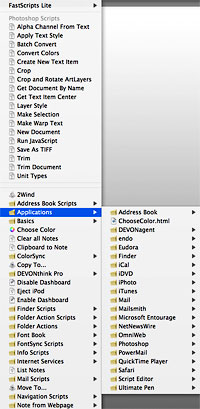 In Mac OS X, you can easily make use of the incredibly huge universe of prebuilt Applescripts and related tools by turning on Apple’s context-aware “Script Menu.” Once enabled, you can fill it up with a vast array of useful productivity scripts by first visiting Apple’s own library and then, as the need arises, explore the many other third-party libraries of AppleScripts. Then, when you’re in Safari, for example, the Script Menu will display Safari-related scripts; when in Mail, mail scripts; when in iTunes, iTunes scripts; and so on. The Script Menu is always present until you turn it off, or replace it with an excellent script menu like FastScripts. Besides this system-level script, many Mac applications come with their own set of Applescripts, which they provide in a separate menu: BBEdit, Adobe Photoshop, Endo, Growl, Soundtrack, DevonThink Pro, PulpFiction, and Ovolab Phlink are just some of the ones I have open at the moment which provide Script menus of their own.
So, what are some examples of scripts I use this menu for? I knew you’d ask!
- Every day I use a script called FinderDuo that takes my jumble of Finder windows and rearranges them per my specifications into two neatly organized windows, one on top of the other. The script also opens the windows to my specified folder and view options.
- Two scripts make it easy to turn Dashboard on and off with the click of a menu item.
- I have separate scripts for Safari, Mail, BBEdit, and others that automatically position and resize the application’s front window per my specifications.
- In iTunes, I have a set of scripts that lets me rate songs from 1 to 5. The set of scripts also lets me start and stop iTunes, move to the next song, increase the volume, etc. For iTunes scripts, be sure to check out the amazing Doug’s Scripts for iTunes.
- I use a script that lets me switch to the Finder by pressing Control-F.
- There are many more, but I want to move on to the next topic, which covers another kind of script.
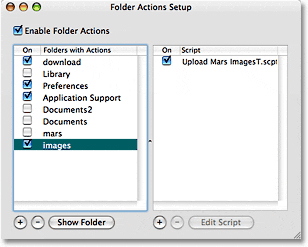
In addition to the Script Menu, you can attach Applescripts to file folders. The advantage of doing this takes awhile to sink in, but once it does… Woah! The possibilities are enormous for enhancing productivity. Apple provides a contextual menu that lets you enable/disable/configure Folder Action scripts for any folder on your file system. You can attach Applescripts (including Automator workflows) to do anything you can dream up. Here are some examples, which I benefit from many times every day:
- FolderOrg. This script automatically organizes any files dropped into a folder by date. It will create a folder for the date the file was added, and add any other files added on that day to the folder. It’s particularly useful for software downloads.
- Growl notification. Growl is another app that has no equivalent on Windows and could be the subject of an entire article. I use a folder action script from Growl that pops up a notification whenever a new preference file is added to my Preferences folder, or a new file is added to the Application Support folder.
- Upload Mars Images. I built this script with Apple’s Automator, and it saves me many steps in uploading images for this website. The script (1) checks to see if the added file is a PNG image, (2) renames it to lowercase and removes spaces, (3) FTP’s it to specific directories on both my test server and my production server, and (4) uses Growl to display a notification when done.
There are many other possibilities for what Windows users think of as “hot folders,” and I’m sure I’ll be expanding my use of them as time permits. On Windows, by the way, the main company that has provided this kind of functionality is Adobe. They were also the first to enable the use of “droplets” on Windows, as well as widespread use of drag and drop. All of these ideas come from Apple’s operating system, building software for which used to be Adobe’s bread and butter.
This brings me to the topic of Automator, the workflow automation tool Apple built as a new feature of Mac OS X 10.4 (”Tiger”). Automator has no equivalent on Windows whatsoever, and it really is a huge leap for improving your productivity with computer tasks. Automator is built on top of Applescript and in fact can be thought of as an “Applescript programming tool for the rest of us.” Like Applescript, Automator has in less than a year produced an entire ecosystem of websites, developers, and tools to take advantage of it. One of the coolest aspects of Automator is that it’s totally free, including nearly all of the prebuilt workflows you can download from the web. This includes the comprehensive set of Automator actions for Photoshop that Ben Long is providing on his digital photography website.
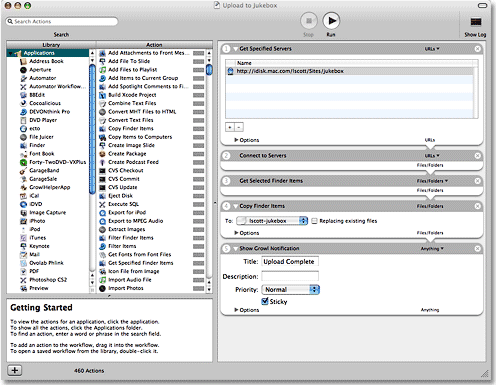
Most Mac OS X applications released these days now provide Automator actions that you can use as building blocks for a workflow. Where before an application would be “scriptable” by publishing its Applescript dictionary, it now also provides prebuilt Applescripts as Automator actions. As a result, my personal library of Automator actions has grown exponentially since Tiger was released last year (I now have 460 actions), and as the library grows, the possibilities of enabling cross-application automation grows likewise.
If you’re a Mac user and haven’t begun to play with Automator, it’s time to do so. Just pick one of these great websites and start reading, learning, and downloading:
If you’re inclined to be a bit more geeky, check out Apple’s “Working with Automator” article on its Developer website. It’s for folks who want to build actions themselves rather than folks who want to build workflows with the actions, but it’s quite informative to understand a bit about what’s going on under Automator’s “hood.”
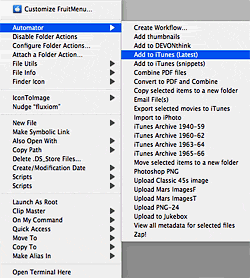 Every time I open Automator, I come out armed with another useful little workflow that shaves a few seconds or minutes off my workday. Those seconds and minutes add up, folks, and they are the true measure of whether an application is improving your productivity. Keep in mind that before Automator, I was never able to learn enough Applescript to write any scripts myself and was reliant on web resources and the kindness of its many Applescript gurus. With Automator, I can now build a custom workflow involving several different applications in a matter of minutes. Here are a few of the workflows I use regularly:
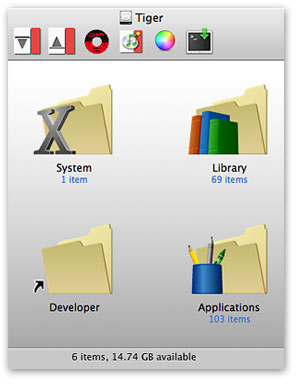
- Upload PNG-24. This workflow is similar to the folder action I built to move files to this website, but for a variety of reasons, I launch the workflow manually rather than automatically through folder changes. I keep the action on my Finder toolbar (see screenshot below), so all I have to do is drag the image I want to move to the toolbar icon, and this launches the workflow. The workflow connects to my Classic 45’s website and FTP’s the file to a particular folder there.
- Unmount Volumes. I built this workflow to unmount two backup partitions on my computer, and I put the workflow in my login items so it’s launched when I log in. Automator can run Unix shell scripts as well as separate Applescripts, and that’s how this one works.
- Musicstack and Froogle. For Classic 45’s, I mirror my inventory of records on both of these websites. I have a PHP script that writes my inventory into a format that works with the Froogle XML API, and that is uploadable to Musicstack through
 their web form. With Froogle, the procedure is to FTP the file to a Froogle server. These Automator workflows (1) run the appropriate PHP scripts, (2) save the resulting browser output to a file on my hard drive, (3) FTP the file to Froogle, and (4) email me a notice that the work has been completed. No more manual inventory updates for Leland! Incidentally, the way this works is through an iCal plugin. Yes, you can save your Automator workflow in various ways, one of which is a plugin to iCal. When you do, you can easily schedule the workflow through iCal. I have the Musicstack and Froogle workflows set to launch on alternating days at 9:00 in the morning. Sweet, eh?
 - Music workflows. I have a couple of workflows for handling new music recordings. In each case, I use Automator’s contextual menu in the Finder to run the workflows, which simply move the AIFF files I record in Soundtrack Pro to particular playlists in iTunes.
- Upload to Jukebox. This workflow, also launched from a Finder contextual menu, connects to a folder on .Mac and moves the file I’ve selected to it. Easier than drag-and-drop!
- Convert to PDF and Combine. Have you ever wanted to combine a bunch of text files into one PDF? I needed to do this one day, so I wrote a workflow and saved it as a Finder plugin. Now all I have to do is select the text files, click the contextual menu item, and Poof! Instant multi-document PDF.
I have more, but hopefully you get the idea. Believe me, these examples just barely scratch the surface, but take a look at the various websites linked here to get other ideas. The possible applications of Automator are literally endless, limited only by your imagination. Now, whenever I think of a way to combine some steps, I don’t have to go hunting the web for an Applescript. I just open up Automator, and 9 times out of 10, I have the actions I need to do the job. I also subscribe to Apple’s RSS feed for new Automator Action downloads as they’re published.
Despite all of its flaws, Apple gains the respect of users when it unleashes advancements in computing like Automator. It opens up enormous new doors to both developers, in devising ways to improve the functionality of their applications, and to users, in taking a fresh look at how we work. Other automation tools for the Mac helped lay the groundwork for this, and I’m still a very heavy user of iKey, for example. But Automator simply expands the automation universe in ways Apple’s customers hadn’t thought possible before.
Recently, Griffin Technologies released a free tool called Proxi that has characteristics similar to Automator. Though it’s optimized for automating Griffin’s own input devices to the Mac–like AirClick, Power-Mate, and RadioShark–it also interacts with dozens of other Mac OS X applications in very different ways. It’s promising to see Proxi released, and it’ll be interesting to see how it develops. From my perspective, Proxi is yet another example of how easy this kind of application is to build and provide for free to Mac customers nowadays.
Apple is understandably proud of both Applescript and Automator, and it’s easy to find information about them on the Apple website. The second broad technology I’ll describe in part two of this article, Application Services (”System Services”), is not so easy to find. I’ll explain why, as well as why, in spite of Apple’s reluctance to “market” them, Services are such a huge boon to Mac users’ productivity. They let us do things that are simply not possible with Windows.
ControllerMate: Automator for Your Input Devices
 OK, here's another idea I haven't seen before. Sure, we've had ways of programming extra mouse buttons, but... creating virtual mice? And then controlling those with a joystick? Having your mouse click run a workflow-like program? Building those programs with tiny "building blocks" (there are 44 different kinds of them) in a beautiful, graphical Cocoa application? I've simply gotta try this one! If it actually works and is useful, $15 doesn't seem like much for all of this.
Automator Workflow Additions: Beef Up Automator’s Smarts
 Mac OS X 10.4 ("Tiger") introduced several new ways for end-users to get delightful, free software from creative developers having fun with the new back-end toys: Dashboard, Automator, and Spotlight. A few intrepid developers have tried to make money from these technologies, but so far, not very much. This set of Automator additions look promising, and certainly the company's Automator-Actions website does a great job of explaining their value. Since I love Automator more each time I use it, I'll have to find out if this set is worth $19.95.
OK... after reading the documentation, downloading and installing the actions, and looking through the example workflows, I'm impressed. Though I haven't yet tried to build anything, I forked over $19.95 because of the sheer beauty of this product... well engineered, great documentation, great setup. A real value add for Automator. I'm sure I'll get around to trying it soon!


