



News Posts In Category
Shortcuts Nirvana, Part 2
Since writing an article on home automations and Shortcuts earlier this year, I have continued to find and make shortcuts and recently passed 800 in my library. I thought this milestone would be a good time to reflect on what I've been doing with these shortcuts and how I managed to gather so many.

First, let me say that many of these shortcuts have really changed my life... for the better, as I'm sure Apple would be glad to hear. I spend more time in my Shortcuts app than I do in any other app on my iPhone at the moment, and having all this information available in one app like this makes it more accessible and rewarding. Sure, I have a lot of shortcuts I don't need, but I'll be focusing in this article on the ones I actually use, any automations associated with them, and what they do for me. You can find the list of folders in the first part of this article.
Quick Links
This folder has a number of shortcuts that act as quick links to actions that would otherwise take more time.
App Launcher: Something I read gave me the idea for this shortcut. It's simply a menu of my most-often-used apps, which I can then launch with a quick selection. I keep this shortcut in my Home Screen folder for ready access. It's much faster than browsing for an app.

Apple Feedback: I keep this shortcut handy because I always have a hard time finding where I can send feedback to Apple. This launches the Feedback Assistant app.

App Store: Arcade: This is simply a quick link to the Arcade section of the App Store.

Shine Light: This handy shortcut toggles on the camera's flash bulb. If you run it again, it turns the flash off.

New! Screenshot: I wrote this simple shortcut because there are times when I'd like to ask Siri to take a screenshot rather than fiddling with the external buttons. It starts by waiting 5 seconds to give you time to get the screenshot set up and then takes a screenshot and saves it to your Recents folder in Photos.

Say Family: This shortcut counts down from 5 to 1, giving people enough time to assemble for a group photo. After it says "Say Cheese," it takes a picture with the back camera and saves it to your photo library. From RoutineHub.

Quick Music
This folder has quite a few shortcuts, all designed to get music playing quickly. I'm only going to describe three of them here.
Automix: This shortcut lets you choose several options for quick music playing. It was originally designed to write a playlist with the selected music, but I've eliminated that part of the shortcut. I'm not sure where I found this, so I'm linking to my copy in iCloud. The choices are "Casual," meaning your whole library, "Artist," letting you select an artist from your library, "Genre", letting you hear music by genre, and "Year," playing songs you added in a certain year. I've modified the shortcut to in all cases play only 5-star songs. By default, the shortcut only returns 50 items, but you can change that behavior in the shortcut.

Latest 5 Stars: This shortcut plays 5-star songs from my library, sorted by the latest additions. This is nice when I sync my library with the iPhone and add a lot of new songs. This lets me hear the new songs first. I have a similar shortcut for 4-star songs.


Quick Music Artists
I have a slew of shortcuts set up to play particular artists. To date, I have shortcuts for the Beach Boys, Chuck Berry, Van Morrison, Neil Diamond, Elton John, the Rolling Stones, Bob Dylan, John Cougar Mellencamp, CCR, the Beatles, James Taylor, the Eagles, and Cat Stevens. I also have one for "Singer-Songwriters," which is a bit different because it plays multiple artists. Most of these have a 5-star version, a 4-star version, and one for both 4 and 5 stars. I'm showing an example using the Rolling Stones shortcuts. These shortcuts are great to use with Siri... a very quick way to start playing your favorite artists.
Rolling Stones: This shortcut gets my 5-star-rated Rolling Stones tunes and starts playing them. I believe this is based on a "Play Artist" shortcut in the Apple Gallery of Shortcuts.

Rolling Stones 4: This shortcut gets my 4-star-rated Rolling Stones tunes and starts playing them.

Rolling Stones All: This shortcut gets my 4- and 5-star-rated Rolling Stones tunes and starts playing them.

Singer Songwriters: This shortcut is a little different from the others in this folder. It searches my library for 5-star singer-songwriters' music and plays it. The artists included in the search are Carole King, James Taylor, Jackson Browne, Cat Stevens, Jim Croce, Carly Simon, Joni Mitchell, Neil Young, Gordon Lightfoot, Graham Nash, Michael Nesmith, Van Morrison, Bob Dylan and Kris Kristofferson.

Quick Music Genres
This folder has a lot of shortcuts designed to play music by genre. I discovered that making some of these is an extension of the "smart playlist" option in iTunes. Many of these shortcuts are "mash-ups" of genres that I've really enjoyed listening to. I'm giving an example of that with the Techno Funk genre. I'm also including a few other shortcuts that in one way or another conglomerates artists and genres into great playlists.
Techno Funk: This is an example of a "mash-up" of genres from my music library. In this case, the shortcut merges my Techno/Synth Pop and Funk/Hip-Hop/Go-Go genres. It's set to play songs rated 5 stars. Other similar shortcuts I have include "Philly Disco", which merges Philly style Soul with Disco, and Southern Soul, which merges Funky Soul and Deep Soul. The following two shortcuts are the same as this one, but for different star ratings.

Techno Funk 4 Stars: This is the same as the previous shortcut, but set to play only songs rated 4 stars.

Techno Funk All: This shortcut is the same as the previous two, but set to play both 4- and 5-star tunes from my library.

Northern Soul: This shortcut is a mash-up of four genres... Philly-style Soul, Motown-style Soul, Other Northern Soul and Soul Instrumentals. It's set to play only 5-star tunes from my library.

Motown: You'd think this would be covered in the Northern Soul shortcut, but I wanted one that's specific to Motown artists, not merely music based on the Motown sound. So this shortcut fetches the following artists and plays 5-star songs of theirs from my library: Marvin Gaye, Supremes, Miracles, Four Tops, Martha & the Vandellas, Elgins, Isley Brothers, Temptations, Gladys Knight & Pips, Velvelettes, Mary Wells, Stevie Wonder, Edwin Starr, Jr. Walker & the All-Stars, David Ruffin, Jackson 5, Spinners, Eddie Holland, Brenda Holloway, and Barrett Strong. Because some of these artists recorded outside the Motown fold, the shortcut also specifies that the genre be Motown soul.

World: I've particularly enjoyed listening to this mash-up of my genres Reggae/Ska, Latin and Calypso. It pulls 5-star-rated songs in those genres from my library.

Settings
This folder contains shortcuts that pertain to the iPhone's settings. It also has some shortcuts for the Mac and the Apple Watch. I have automations set up for my battery life, with an automation every 5% of battery life. Some of these shortcuts are used in managing the battery as well as brightness in these automations.
Open Settings:
This shortcut provides a menu that's a window into the various screens in the Settings app. It's a quick way to navigate to a particular Settings screen. I'm not sure where this one came from.
Display Settings: This shortcut links to the display settings screen in Settings, which is one I seem to refer to more often. I believe this shortcut was made by the next shortcut in this list.

Settings Shortcut Generator: This nifty shortcut can be used to create a new shortcut for a specific screen in the Settings app. I include it as much for the innovative approach as for my use of it. From RoutineHub.

Max Brightness: This shortcut makes your iPhone as bright as it can be, toggling several settings as well as maxing out the brightness. Just the thing for a sunny day, but use sparingly as it will use your battery faster. From RoutineHub.

Brightness To Battery: This brilliant shortcut sets the brightness setting to your battery percentage. I use it with Siri all the time, and it's built into many of my shortcuts for breaks and for the battery automations. It dims your display at the same rate that your battery declines, helping to save battery life. I don't know where I got this one, but I couldn't do without it!

Super Low Brightness: This Siri command simply sets the brightness to a very low (15%) level to save battery life. I usually use it when Super Low Battery Mode is turned on.

Super Low Battery On: This and the next shortcut are based on the Super Low Battery Mode shortcut from ShortcutsGallery.com. This one turns off cellular data, turns on low power mode, sets brightness to 15%, and turns down the volume to 15%. I use this in my Breaks and Battery automations and shortcuts. I also use it from Siri. I left Bluetooth and WiFi on, because my iPhone is pretty much useless without those.

Super Low Battery Off: This and the previous shortcut are based on the Super Low Battery Mode shortcut from ShortcutsGallery.com. This one turns on cellular data, turns off low power mode, runs the Brightness to Battery shortcut, and sets the volume at 50%. I use this in my Breaks and Battery automations and shortcuts. I also use it from Siri.

Set Battery Charge Mode: I use this shortcut for automations when my iPhone is connected and disconnected from power. It lets me choose whether to turn Super Low Battery on or off and runs one of the previous two shortcuts.

Battery Charged: I use this shortcut in my automations for battery levels 90 and 100 percent. If the time is between 7 AM and 7 PM, it speaks the battery level; otherwise, it sends a notification.

When Battery Falls Below 5%: I have this shortcut tied to an automation when my battery level reaches 5%. If during the day, it speaks an urgent warning about connecting to power. If at other times, it sends a notification. It also turns on Super Low Battery mode.

iPhone Disconnected: This is another shortcut that's tied to an automation. In this case, it's run when my iPhone is connected or disconnected from power. It plays the "Approved" sound (see folder Sounds) shortcut (because I like the sound  and runs the Set Battery Charge Mode shortcut so I can decide whether or not to turn on super low batter mode.

Mac Sleep: This shortcut lets you sleep your Mac remotely. For it to work, you need to populate the shortcut's SSH command information and make sure your Mac's sharing settings allow for remote access. Once I got this set up, I find it very handy.

Wake Mac: This shortcut lets you wake your Mac remotely. For it to work, you need to populate the shortcut's SSH command information and make sure your Mac's sharing settings allow for remote access. Once I got this set up, I find it very handy.

Change Watch Face: I use this shortcut as part of my battery automations. I run it every 10% of battery life to change my watch face. I like so many of the watch faces, it's nice to see a different one as the day goes on.

Water Eject: There are a ton of variations of this shortcut out on the web, and some are among the most popular shortcuts. I haven't had a need to use this one yet, but I tested it, and I'm sure it will do a good job of ejecting fluid from my iPhone should the need arise. From RoutineHub.

Share Sheet Only
This folder has shortcuts that can only be run from the Share Sheet. They only take input when you're in some application (like Safari or Photos) and hit the "share" icon.
Zip and Save Encoded: This shortcut takes files as input, and it first zips them up. Then it converts the files to Base64 format, copies the result to the clipboard, and lets you save the file to iCloud. I have a similar shortcut that skips the Base64 step and simply saves the zip file.

Tweet Web Page Info: This shortcut gets the title and URL from the current web page and pastes them into a Twitter message window. You can edit the message before sending it off.

Get Images: This shortcut pulls all the images from the current web page and displays them for you. You can select which photos you want to save to your photo library, after which the photos get saved to the album you specify. I don't know where I found this one, but it does have a credit comment inside.

Find RSS Feed: This shortcut looks into the code of the current web page and returns any RSS feeds it finds. It shows you the title of the RSS feed if it finds one and copies its URL to the clipboard. I couldn't find the original source for this one.

Change Text Case: This shortcut takes input from the share sheet and lets you choose how to change the text's case. It lets you choose Uppercase, lowercase, initial caps, and more. It copies the result to the clipboard and then shows the result in a Quick Look window. I'm linking to my version in iCloud since I don't know where I got this shortcut.

Translate Input: This handy shortcut will translate into English any language it encounters. It shows you the translation and then copies it to the clipboard. I used this heavily in translating non-English shortcuts. Very reliable.

Apple Notes Clipper: This shortcut gets the title and body of the current web page (Safari Article) and shows it to you in Quick Look. It then opens a Notes compose sheet and lets you save to Notes. I believe this one comes from the Apple Gallery in Shortcuts.

Safari Article to Mail: This is the same as the previous shortcut, but instead of saving to notes, it lets you compose an email with the current web page's article.

Get URL: This shortcut simply returns the URL of the current web page and copies it to the clipboard.

Read Selection: This shortcut will speak whatever text you have selected when run from the share sheet.

Read Article: This shortcut finds the body (Safari Article) of the current web page and reads it aloud.

New! Summarize: This shortcut uses the website smmry.com and their AI summarizing algorithm to summarize a given web page. You invoke it from the share sheet in Safari, and it works most of the time, returning a 7-paragraph summary of the given page. I'm not terribly impressed with the summarizing, but it's still a cool shortcut. From RoutineHub.

New! View Source Code: This shortcut saved my hide recently when for some reason Safari on the Mac wouldn't display the source code for my weekly newsletter. With this shortcut, I could easily view the source code in Safari on my iPhone and then share the code with my Mac through AirDrop. Source unknown.

New! Reverse Image Search: This shortcut does a cool trick: It lets you select an image and then do a Google search based on that image. So the results returned are a lot of images and links to the image you searched for, as well as to similar images. From RoutineHub.

Shortcuts Items
This folder has a number of shortcuts websites and feeds for when you're looking for shortcuts. It has others that help when working with shortcuts.
Newest RH Shortcuts: This shortcut returns a list of about 25 of the latest shortcuts added to RoutineHub. Selecting one opens the RoutineHub page in the Safari view controller. This is a German shortcut from RoutineHub. I'm linking to my translated version.

Latest Update RoutineHub: This shortcut returns the list of recently updated shortcuts on RoutineHub. It's a bit slow.

RoutineHub Search Pro: This shortcut lets you enter a term and search RoutineHub for shortcuts. You can also search for shortcut authors. From RoutineHub.

New! Search RoutineHub: I wrote this simple shortcut because the previous one takes longer to produce results. Instead of showing the results in a menu, it loads RoutineHub in the Safari view controller. When launched, you just enter a search term to start the search.

Share Shortcuts Feed: This shortcut displays the RSS feed for the ShareShortcuts.com website. It's nice because it shows the date of the shortcut in the returned list.

Shortcuts RSS: This shortcut gets three feeds at once... From RoutineHub, ShareShortcuts and ShortcutsGallery. It presents a long list, some of which have information about publishing dates, which you can choose from to open a Safari sheet.

Siri Shortcuts Search: This shortcut lets you search across several shortcuts sites, entering a search term and getting a Safari view with the Google results.

New! Shortcuts Searcher: This shortcut uses a custom Google search engine that indexes about 7 different sites with shortcuts. It's similar to the preceding shortcut, but is more comprehensive. You enter a search term, and get results in the Safari view controller.

Shortcuts Websites: This shortcut presents a lengthy list of shortcuts websites. Great when you're looking for new sources of shortcuts.

Open Shortcuts User Guide: This shortcut is a quick link to the Shortcuts User Guide on Apple's website. Definitely worth perusing if you get serious about shortcuts, either from a user or a creator perspective.

Shortcuts Release Notes: This shortcut links to the release notes for the Shortcuts app on Apple's website. It's interesting to see how the capabilities of Shortcuts evolved in the first few years. I'll be interested to see the notes for iOS 15 when they're released.

Open Discord Channel: This shortcut opens a deep link into the Discord app to locate the shorcuts channel, which is pretty active with new shortcuts. I found this one through Matthew Cassinelli's newsletter.

Sounds
This folder has a lot of shortcuts that are mostly for amusement: They simply play sounds of various kinds.
Apple Sounds: This is one of several shortcuts I've collected that play sounds from Apple and its devices. This one is the most comprehensive, covering iOS, watchOS, MacOS, TVOS, and more. From RoutineHub.

iOS Sound Explorer: This one is a comprehensive shortcut for listening to the various sounds your iPhone makes. It's fun to explore, after which it copies the sound file URL to your clipboard. I'm not sure where I got this one.

Mac Startup Chime: Just as you'd suspect, this one simply plays the sound a Mac makes when it starts up. Having to restart my Mac happens so rarely that it's nice to play this now and then. From RoutineHub.

Approved Sound: I use this one in some of my shortcuts, since I like this particular sound, which happens when an ApplePay transaction is approved. I use the sound in my Meditation shortcuts and in my connecting/disconnecting from power shortcut. I think I got this on RoutineHub.

Star Trek Sounds: This shortcut revives such splendid sounds from the original Star Trek series, such as the communicator, the transporter, the bridge, red alert, and more. I'm not sure where this one came from.

Star Wars Sfx: This shortcut has a few iconic sounds — both music and voice — from the Star Wars universe, including the theme and imperial march music. I'm not sure where I got this one.

Iconic Soundtracks: This shortcut plays part of the theme song from some iconic movies, including The Lion King, Mission Impossible, The Good, Bad and Ugly, and Pirates of the Caribbean. This came from RoutineHub, I think, but the site notes that the shortcut has been "abandoned" by the author, so I'm linking to my copy, which seems to work fine.
NASA Soundboard: This shortcut has an incredible array of sounds from NASA missions, including the iconic "Eagle Has Landed" and "A First Step for Man..." from the first landing on the moon. If you're a NASA fan, you'll be delighted with this one. From RoutineHub.

New! Built-in Sounds: It turns out that the iPhone has several hidden "background sounds", and this shortcut gives you access to them. The sounds are things like Rain, Ocean, and Stream. You can optionally set a timer for 15 minutes or for 1-2 hours. From RoutineHub.

Sitcom Laugh: For those moments when a little levity might help, here's a shortcut that plays a typical sitcom laugh track. Not sure where this one came from.

Halloween Evil Laugh: This is Vincent Price's evil laugh, which I believe was used in "Thriller" by Michael Jackson. From RoutineHub.

iFart+: I know... I'm deteriorating into real banality here. But this may get a laugh if played at the right time and with the right people. I couldn't find the original source for this simple, but effective fart sound.

Test and Sample Shortcuts
This folder has a lot of shortcuts that I've started working on but never finished, as well as old versions of current shortcuts. None of these are worth publishing.
Travel and Events
This folder has shortcuts pertaining to travel and events, mostly using the Maps and Calendar apps.
Directions Home: This useful Siri command maps me home from wherever I happen to be. This comes from the Apple Gallery of shortcuts.

Directions To Next Event: This shortcut, great when run from Siri, finds your next event with location information and maps you to it. If you have more than one upcoming event with a location, it will show you the options and let you choose. Also from the Apple Gallery.

New! Where To?: I wrote this simple shortcut recently because I thought it would be faster and easier to ask Siri to find something in Maps than locating the Maps app and entering a search there. When invoked, the shortcut asks where you want to go, and your reply can be a business name, an address, a neighborhood name, a landmark, or a city. The shortcut then opens Maps and shows the location with a Get Directions link. I'm amazed at how flexible the response can be, and Maps will still find what you're looking for.

GPS Pins: This great shortcut lets you "pin" an event and its location to your calendar. You can choose among different kinds of events and give the event a name. The shortcut also lets you navigate to a saved pin. From RoutineHub.

Directions To Picture: This shortcut lets you choose a photo and launches Maps to show you where the photo was taken. This only works for photos that have location information in them, which is true of all the photos you take yourself. I'm not sure where this shortcut came from.

Garage Park: This shortcut lets you enter detailed information about where you parked in a garage... level, lot number etc... and helps you navigate back to your car. From RoutineHub.

Travel Time To Next Event: This shortcut estimates how long and how far you have to drive to your next calendar event with location information. Original source unknown.

Gary's Storage Unit: I have several shortcuts like this one, which simply open Maps and get directions to a specific location. You can make this kind of shortcut by opening Maps and navigating to a location. Then, open Shortcuts and make a new shortcut using Maps actions, and you'll find an action for the location you just entered. Very handy.

Record Stores: I have several shortcuts like this one, which opens Maps and shows me nearby record stores. Again, you can make this with a custom Maps action in Shortcuts.

New! Record Stores Search: The previous shortcut shows you record stores in your current location, but what if you want to search record stores in a different location? Now you can, with this simple shortcut. It asks for a location and then will open Maps and show you record stores in that location.

New! Antique Store Search: This is the same as the previous shortcut, but it searches for antique stores rather than record stores. As you may have guessed, these are two searches my wife and I do when traveling or planning travel. You can modify these to search whatever flips your lid.

Explore Nearby Landmarks: This shortcut searches for Landmarks near your current location and displays a list of sites. Choosing one opens Maps and gets directions. Source unknown.
Charlotte Trip: I made this shortcut for a vacation and shopping trip we took recently. It presents a menu of all the record stores and antique malls we planned to visit on the way to Charlotte, as well as to our location in Charlotte. I arranged the menu in approximately chronological order, ending with our trip to Sunset Beach, NC. Almost all of the actions were made using custom Maps actions as described for Gary's Storage Unit and the Record Stores shortcuts above. This shortcut really saved us time and let us do away with writing down addresses.

Concert Mute: This shortcut simply lets you silence your iPhone when attending a concert or movie. You can turn off the mute settings when you're done by running the shortcut again. From RoutineHub.

Create Event: This shortcut lets you set up an event in your calendar. It asks for title, location, start and end dates, and any notes about the event. Sometimes easier than using Calendar itself.

Upcoming Events: This shortcut pulls the next 5 events from your calendar and displays them in a menu, showing date, time and location for each. Source unknown.

Past Events: This shortcut looks at the last 30 days of your calendar and displays those events with location information. It shows date, time, title and location for each event. Source unknown.

Today's Events: This shortcut shows all the events recorded for the current day in Calendar. I use this during the day to make sure I've taken all my medications and vitamins, which are logged to my calendar. Source unknown.

Holidays and Events: This shortcut has several functions, but I use it mainly to see upcoming National holidays. From RoutineHub.

Special Day Countdown: This shortcut simply takes a date you select and tells you how many days remain until that date. From the Apple Gallery.

New! How Long To: I wrote this shortcut because I was researching destinations for a winter vacation. Instead of using Maps to look up how long it would take to get to a given city, the shortcut simply asks you for a city and returns the information you need. It tells you the route you'll travel, how long it will take to get there, how far the city is, and when you'll arrive if you leave now. Great when run from Siri.

Search Calendar History: This handy shortcut lets you search your calendar history for an event title. Very useful for checking when you started and/or stopped taking a prescription or for seeing how long it's been since you saw the dentist. Source unknown.

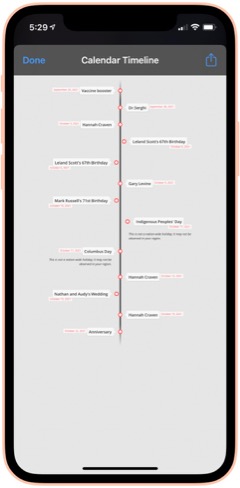
Calendar To Timeline: This shortcut lets you visualize your upcoming calendar events an attractive timeline, which you can save or share. When run, you choose how many months of your calendar to include in the timeline. From RoutineHub.

Utilities
This folder has a variety of shortcuts, most of which involve converting from one thing to another.
Translate: This shortcut lets you enter text or use your clipboard as input. You can convert from English to any other language, and vice versa. At the end, it will pronounce the phrase in the language you choose. The source of this shortcut is unknown, so I'm linking to my iCloud version.

Convert: This shortcut lets you convert between liters and gallons, among other fluid measures. Source unknown.

Convert Length: This shortcut lets you convert between centimeters and inches. We U.S. citizens need all the help with metric measures we can get. Source unknown.

Convert Temperature: This shortcuts lets you convert between Celsius and Fahrenheit. This really helps me at times, because I just can't think in Celsius when it comes to temperature. Source unknown.

Hex To RGB Converter: I've needed this one from time to time. It takes a hex color code and returns the equivalent in RGB values. Source unknown.

Morse Code Converter: This shortcut will convert plain text to dots and dashes and copy the result to your clipboard. It will also convert morse code to plain text. Source unknown.

Utilities Menu: This is an elaborate, all-in-one shortcut that contains a wide variety of utilities for working with text, the web, media, and more. I don't honestly use this one very much, but it's pretty cool. From RoutineHub.

Time Activity: I wrote this shortcut to help me track how long certain activities take. When run, the shortcut will tell you when it started the activity. When run again, it will tell you how long the activity took and ask if you want to start a new activity. The shortcut requires DataJar to store global variables.

New! Currency Converter: It took me forever to find a currency converter app that actually works. This one is the result of merging two shortcuts to get a working product. You simply choose the currency you're converting from, the currency you're converting to, and the amount you want to convert. The shortcut then shows the result and copies it to the clipboard.

Wallpaper
I spend a lot of time working with wallpaper images of various kinds, and I have automations that change my lock screen wallpaper with every 5% change in battery level. This folder has shortcuts that provide images for wallpaper use as well as shortcuts that enhance and modify images for use as wallpaper.
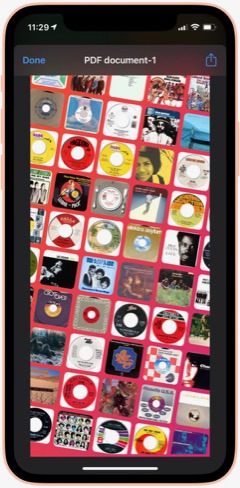
Album Wallpaper: This cool shortcut looks at what I've listened to in the last 14 days, finds the art associated with those songs, and prepares a wallpaper image with the art arrayed in an angled pattern across the screen. I used this for a long time before switching to my current wallpaper "strategy." From RoutineHub

WallCreator Automated: This shortcut generates beautiful gradient images, using two colors and varying direction of the gradient, for use as wallpaper. I've modified it to let me choose whether or not to save the image. If I elect to save, the shortcut will let me apply the wallpaper to my lock or home screen.

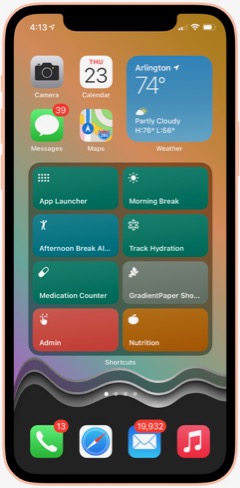
Gradient Paper: This shortcut also generates gradient wallpaper images, but it uses 4 different colors and wider variety of angles and origin points. It automatically previews the image for you and then saves the image to the Recents album and offers to set the home screen wallpaper. I couldn't find the original, so I'm linking to my iCloud version.

Gradient Paper ShowDock: This shortcut combines the Gradient Paper shortcut (above) with parts of the ShowDock shortcut (below). When run, it previews the image, saves it to Recents and then offers to let you add one of three ShowDock images (using the three separate ShowDock shortcuts, below) to the bottom. After that, you can set the Home Screen with the new wallpaper. I use this frequently to update my Home Screen wallpaper, so I keep it in my Home Screen folder for quick access.

ShowDock: This cool shortcut has about 20 different enhancements you can add to your wallpaper. The enhancements are designed to highlight the Dock area of your iPhone home screen and range from ones that fade the bottom of the image out to ones that add colorful and interesting dividers above the Dock area. You select an image and then one of the enhancements, and the shortcut previews the enhanced image before offering to set your home or lock screen with the new wallpaper. I couldn't find the original for this, but it does have a credit comment inside.

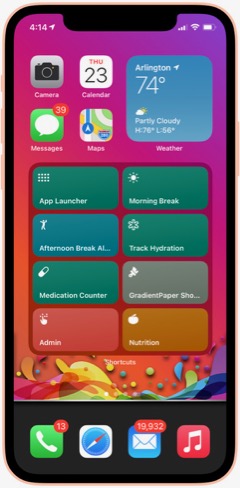
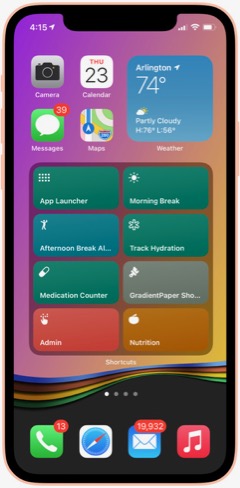
ShowDock Color Splash: This is one of three shortcuts that pull my favorite enhancements from the ShowDock shortcut. I run it inside the Gradient Paper ShowDock shortcut (above). It takes the latest image saved to Recents and applies an enhancement that looks like a splash of a rainbow of colors. It then lets you save the enhanced image as your Home Screen wallpaper.

ShowDock Rainbow: This is one of three shortcuts that pull my favorite enhancements from the ShowDock shortcut. I run it inside the Gradient Paper ShowDock shortcut (above). It takes the latest image saved to Recents and applies an enhancement that looks like wavy rainbow of colors. It then lets you save the enhanced image as your Home Screen wallpaper.

ShowDock Wavy Chrome: This is one of three shortcuts that pull my favorite enhancements from the ShowDock shortcut. I run it inside the Gradient Paper ShowDock shortcut (above). It takes the latest image saved to Recents and applies an enhancement that looks like a chrome wave, which lets in some of the background color. It then lets you save the enhanced image as your Home Screen wallpaper.

Calendar Homescreen: This useful shortcut takes a photo you select and adds the next 7 events from your calendar to the bottom. You can then set the image as your wallpaper. I use a modified version of this shortcut on my lock screen (Calendar on Lock Screen Auto). I couldn't find the original, so I'm linking to my iCloud version.

Calendar on Lock Screen Auto: I call this shortcut from within the "Add Battery Level and Calendar" shortcut. This is an embeddable version of Calendar Homescreen (above), and it keeps my calendar up to date on my lock screen... Very handy!

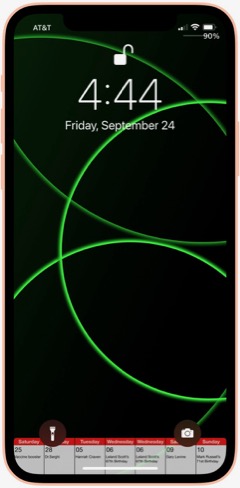
Add Battery Level and Calendar: This shortcut is a modification of one I found that modifies a wallpaper image to add the current battery level below the level indicator on your lock screen. I've missed seeing the percentage since Apple did away with it, and this brings it back. I've combined this shortcut with the Calendar Homescreen shortcut so that it adds my calendar to the lock screen as well. The shortcut contains some logic that pulls wallpapers from 5 different "buckets" that I maintain — NASA images, Landscapes, Cats, Fine Art and Google Earth. It uses the seconds of a minute and picks a wallpaper depending on what second of the minute it is. This shortcut requres Toolbox Pro (I think the paid version) to do the battery level function.

GradCircle Wallpaper: This cool shortcut uses the free app Scriptable to generate stark, modern-looking wallpapers with curving lines of different colors... a sort of mid-century modern look. After previewing the wallpaper, it gives you the option of saving it or setting it as wallpaper. I don't know where I found this.

Set Art Wallpaper: This shortcut pulls a fine art image and lets you use it as your wallpaper. I've modified it so that after a preview you can decide whether to save the image or not. If you save it, the shortcut will then let you set it as wallpaper. Source unknown.

Random Cat Wallpaper: This shortcut pulls an image of cats from a seemingly bottomless supply. I've modified the original to let you choose whether or not to save the image, and you can see it previewed as wallpaper. Source unknown.

Wallpaper Engine: This shortcut lets you search for wallpapers on unsplash.com, or you can choose a random image. You can specify how many images you want to see, after which you can elect to save one or more of them or use them as wallpaper. I use the search function a lot. The shortcut returns images in the proper size for your device's lock or home screen. From RoutineHub.

Daily Wallpaper - Landscapes 4K: This shortcut uses a downloadable zip file of 85 beautiful landscape images and picks a random image from the zip file. I've modified it to let you decide whether or not to keep a given image. If you decide to save the image, you can see the landscape previewed on your lock screen. From RoutineHub.

Resize Images To Wallpaper: I use this shortcut to make all the images I pass to it the height of my iPhone screen. This is part of my process for preparing wallpaper-sized images for the various "buckets" I maintain (NASA, Cats, Landscapes, Fine Art).

Wallz Reborn: This shortcut finishes the job of the "Resize Images To Wallpaper" shortcut, taking images passed to it and cropping them horizontally to wallpaper size. You can also use it to resize to other screen resolutions. From RoutineHub.

Daily NASA Wallpaper: This shortcut contains a downloadable zip file of my NASA wallpapers (about 150 of them). It previews a random image from the zip file and offers to set it as your wallpaper. I use this same basic pattern for the following three shortcuts.

Daily Cats Wallpaper: This shortcut contains a downloadable zip file of my cats wallpapers (about 100 of them). It previews a random image from the zip file and offers to set it as your wallpaper.

Daily Fine Art Wallpaper: This shortcut contains a downloadable zip file of my fine art wallpapers (about 100 of them). It previews a random image from the zip file and offers to set it as your wallpaper.

Daily Landscape Wallpaper: This shortcut contains a downloadable zip file of my landscape wallpapers (about 100 of them). It previews a random image from the zip file and offers to set it as your wallpaper.

New! FStopper PTOD Wallpaper: Always looking for good sources of photos in various categories, this one occasionally has a daily image that grabs me, so I check it daily.

New! Google Earth: I think I discovered this one on RoutineHub, but I made a few changes to it to suit my needs. It turns out that Google Earth satellites take a lot of amazing photos, and you can see some of them through this shortcut. It originally was intended just to make the image your lock screen or home screen wallpaper, with no way of saving the image. I fixed that, so the shortcut now saves a single copy of the image to a specified folder in Photos, in addition to offering to make the photo your wallpaper. I like these images so much I've made them part of my rotation of lock screen papers, as described in the "Add Battery and Calendar" shortcut.

New! LS Weather: This shortcut and the next one are complicated and difficult to set up. They require Scriptable, and you have to find and download a Scriptable script and install it manually in Scriptable. The results are very cool, and I use them both from time to time. Essentially, LS Weather adds weather information in various configurations to your lock screen. It has other functionality as well, but I didn't set it up for that. From RoutineHub.

New! LS Forecast: This shortcut and the previous one are complicated and difficult to set up. They require Scriptable, and you have to find and download a Scriptable script and install it manually in Scriptable. The results are very cool, and I use them both from time to time. Essentially, LS Forecast adds weather forecast information to your lock screen in an attraction manner. From RoutineHub.

New! Wallpaper Mixer: This cool shortcut takes two images from your photo library and crops/combines them horizontally into wallpaper size. You can come up with some interesting effects with the right photos. From RoutineHub.

New! Unsplash Collections: This shortcut pulls images from Unsplash.com's extensive collection. It's organized to find images in certain categories of Unsplash Collections that I collect: Landscapes, Space, Cats, and Fine Art. When run, you select a collection, and the shortcut returns an image, which you can choose to save or not. If you do save, the shortcut will preview your home screen with the photo. If you don't save, the shortcut will ask if you want to search again.

Weather
This folder contains shortcuts that show the weather in various ways.
Total Weather: This is the most comprehensive textual summary of the weather data available for your current location. It also gives a briefer summary of tomorrow's forecast. Useful when run from Siri to have her read the weather for you. From RoutineHub.

New! Feels Like: This handy shortcut (just say, "Hey Siri Feels Like") gets the current temperature and reads it along with the Feels Like temperature and the wind speed. Perfect for when you're heading outside.

My Weather: This simple shortcut opens the Weather app to show weather in your current location.

Weather In City: This shortcut presents a menu of all the cities you've bookmarked in the Weather app and lets you choose which city's weather to view. It then opens the Weather app to the chosen city.

NOAA Multi-Day Forecast: This shortcut lets you choose the length of time in days for the forecast and then pulls up the latest official NOAA forecast for your current location in a Quick Look screen. I often find the NOAA forecast to be more accurate than the source Apple uses, so I like being able to quickly refer to it in this shortcut. From RoutineHub.

Weather Chart: This shortcut uses Charty to present the 12-day forecast as an attractive line chart, showing high, low, and average temperatures expected. Source unknown.

New! Weather Chart With Average High: This is the same as the preceding shortcut, but I've added a data series for Average High, which superimposes on the high/medium/log graph lines. I need to edit the shortcut daily to enter the latest average high temperature data.

New! Log Average High: I decided to start keeping track of the average high temperature, so this shortcut logs the data to my calendar each day.

New! Average High: This shortcut simply reads my calendar and shows me the Average High data for the last 30 days.

New! UV Index: This shortcut gets the UV Index from today's weather and logs it to the Health app.

New! UV Index Chart: This shortcut charts the last 30 days of UV Index data from the health app, using Charty.

Precipitation: This shortcut shows expected precipitation percentages in a bar-type chart. It presents the information for the next 12 days in a menu. Source unknown.

Pollen: This shortcut opens the Pollen.com website in a Safari sheet. It presents the page showing the 5-day allergy forecast for your current location. Source unknown.

Severe Weather: This shortcut was made from a custom Siri action in the News app. It opens News and shows stories about severe weather.

New! U.S. Climate Data: I think I found this shortcut on RoutineHub, but it didn't work when I tried it out. The problem is that the site it pulls data from had changed their chart strategy. The original shortcut was expecting an image to grab, but the new site shows the graph in an interactive manner. So I changed the shortcut to load the final page in the Safari view controller instead. This shortcut lets you choose a State and city and returns a graph showing average, high and low temperatures for the year by month, as well as precipitation amounts.

New! Weather Report For: I modified a shortcut I found that produces a summary of the current weather. Instead of restricting it to finding your current location data, I introduced a search feature that lets you enter any location to find the weather there. I figured out how to make this work for any U.S. city as well as for international cities. You can even enter the name of a neighborhood.

Daily Forecast: This handy shortcut brings up the next 12-day forecast for your location, showing date, temperature and conditions expected. Source unknown.

New! Daily Forecast For: This is the previous shortcut, but it first prompts you to specify a location. The shortcut routes the inputted location through the Maps app to get a location Weather can use. Very handy for getting a daily forecast for some location other than your own.

Hourly Forecast: This shortcut is much like the previous one (same original source, I believe), but it shows the temperature and conditions expected for the next 24 hours.

New! Hourly Forecast For: This is the previous shortcut, but it first prompts you to specify a location. The shortcut routes the inputted location through the Maps app to get a location Weather can use. Very handy for getting an hourly forecast for some location other than your own.

Precipitation Hourly Forecast: I think I made this one based on the previous shortcut. It shows the expected percent chance of precipitation for the next 24 hours.

New! Precipitation Forecast For: This is the same as the preceding shortcut, but it gives you the option to enter a location rather than using your current location by default.

New! U.S. Cities Weather Report: This shortcut runs through about 35 U.S. cities, giving a summary of their weather today and forecast for the next 2 days. It announces the name of the city and state and then presents the information, one city at a time. This substitutes for my long-time habit of perusing the cities weather data in the paper each day.

New! International Weather Report: This is the same as the preceding shortcut, but it fetches data for about 20 international cities instead of for U.S. cities.

Is It Raining: I wrote this shortcut one day when I was sitting in my windowless office and wondering if it was raining outside. It looks at the precipitation chances (in percent) for the current time and tells you whether or not rain is likely. It also gets the chance of rain for the next two hours and reports that as well.

Is It Raining (Conditions): I wrote this shortcut as a different way to answer the question. Instead of looking at percent chance of precipitation, the shortcut uses text matching to see if the current conditions suggest rain. If the conditions match "Thunderstorm," "Rain," or "Showers," it's probably raining. If none of those things match, then the answer is no. I've found this to be a bit more accurate than the previous shortcut.

Web Sites and Feeds
This folder has a number of shortcuts that load web sites or their RSS feeds. I've found "bookmarking" websites by making a shortcut is faster than using Safari.
Mars: This shortcut simply loads this website (Musings from Mars) in a Safari view window. I find shortcuts like this more convenient than going to Safari. An interesting thing about the Safari view window... In the lower right corner is an icon that will load the page in Safari itself if you choose to do that.

Discogs: Here's another website that I load frequently. It's convenient to have it as a shortcut.

Wayback Machine: This shortcut loads the "Wayback Machine" at web.archive.org. This site lets you search the web's past by loading old versions of any website the machine has crawled.

New! White House: This shortcut provides links in a menu to the White House home page, the briefing room, and speeches and remarks pages. I use this with Read Article in the Share Sheet to have the latest releases read to me.

9 To 5 Mac: This shortcut loads the news feed for this Mac-related website.

Mac Stories: This shortcut loads the news feed for this Mac-related website.

C45 Jukebox: This loads the RSS feed for the Classic 45s "Jukebox" podcast. In this version, selecting an item loads the page in the Safari view window.

C45 Jukebox Text: This shortcut also loads the Classic 45s "Jukebox" feed, but instead of taking you to a web page on selecting an item, it pulls the text and image from the feed and presents it in a QuickLook window. I'd like to grab the audio file, too, but haven't figured out how to do that yet.

New! Jukebox: This shortcut finds the latest episodes of the Podcast Classic 45s Jukebox. When you choose an episode, the shortcut starts playing the song and presents the descriptive information included in the Podcast in a preview window.

New! Animal Shelter: I made this simple shortcut when we started looking for a new cat when our much loved Coach died recently. The shortcut simply loads the Arlington, VA, animal shelter's web page, set to screen only male kittens. This is an example of a shortcut that took perhaps a minute to make but saves me time by making it super-quick and easy to load the page, which I check several times a day for new arrivals. You could bookmark the page or save a tab in Safari, but the time required to find and follow the bookmark or find and load the tab in Safari is greater than simply clicking on this shortcut.

New! Google Search for 45s: One of the things I check Google often for is the position of my business in search results listings. So I made a shortcut that does four searches for 45 rpm records, pausing each time to let me view Google results in the Safari view controller, and then proceeding to the next keyword search. It's a very efficient way of quickly seeing whether my business' position has changed.

Shortcuts Nirvana: How I Accumulated 800 Shortcuts
Since writing an article on home automations and Shortcuts earlier this year, I have continued to find and make shortcuts and recently passed 800 in my library. I thought this milestone would be a good time to reflect on what I've been doing with these shortcuts and how I managed to gather so many.
First, let me say that many of these shortcuts have really changed my life... for the better, as I'm sure Apple would be glad to hear. I spend more time in my Shortcuts app than I do in any other app on my iPhone at the moment, and having all this information available in one app like this makes it more accessible and rewarding. Sure, I have a lot of shortcuts I don't need, but I'll be focusing in this article on the ones I actually use, any automations associated with them, and what they do for me.
A quick note about the shortcuts links in this article: Some of my shortcuts came from German and Chinese sources, and I meticulously translated them to English. In these cases, I'll be linking you to my English translation rather than the original version. Where possible, I will link to the actual sources, but many of the links will be to my own iCloud library. Many of the shortcuts were written by me or adapted from third-party shortcuts. All of these shortcuts work in IOS 14. I have been testing them on IOS 15.3, and most work reasonably well. I still find Shortcuts in IOS 15 to be buggy compared with IOS 14, but IOS 15.3 fixed a bug that was keeping the MediaKit Badges shortcut from working. That's the shortcut I use to create the download images for this article, so I'm relieved that it's working again. One of the most annoying bugs is that you can no longer get an iCloud link by asking for it in a shortcut. Shortcuts says the shortcut isn't stored in iCloud, so no link is available. You can get around this by sharing the shortcut and selecting "Get iCloud Link" in the share sheet. But it was so much easier when I could backup my shortcuts to iCloud using a shortcut.
Finding Shortcuts
The first step to finding shortcuts is to check out the "Gallery" tab in the Shortcuts app, where you will find dozens of useful shortcuts made by Apple. I've used many of these and customized others to my personal situation. In addition, there are a lot of websites out there with "galleries" of shortcuts for the taking. (Any non-Apple shortcut is considered "untrusted," and you have to allow untrusted shortcuts to use them in Settings.) The most popular and largest site is RoutineHub, where you will find more than 300 pages of shortcuts. Rather than list all the sites here, I'm going to mention one more, which is kind of a directory of shortcuts information, including many of the gallery sites: Shortcuts Directory.
As you may imagine, there are also a lot of shortcuts that contain links to shortcuts websites, and I use these daily to check what's new. Here are a few of my favorite shortcuts for shortcuts info:
- Newest RH Shortcuts. Displays the latest 20 or so shortcuts added to RoutineHub.
- Shortcuts Websites. Lists a variety of gallery sites as well as providing links to shortcuts groups on YouTube and Reddit.
- Siri Shortcuts Search. This is a link to Sharecuts.com's shortcut for searching Google for shortcuts.
- RoutineHub Search Pro. I use this a lot when searching, because RoutineHub is the richest vein of shortcuts out there.
Building Shortcuts
I've either built from scratch or heavily customized many of the shortcuts I use. Although I do have a programming background, I feel strongly that making shortcuts should be easy for any reasonably intelligent human with a little study and understanding of what your options are and how to use things like actions, variables, menus, and the like. It's a visual interface, and you just click the + sign to start building your shortcut. Apple provides a user guide for Shortcuts, and I recommend you peruse that if you really want to get serious about building your own. I also highly recommend opening up shortcuts made by others and studying how they're made. You can do this by clicking the "..." (three dots) in the top-right corner of any shortcut.
One of the things I love about shortcuts is not only how easy they are to make and share, but how transparent they are. It's easy to examine a shortcut's actions by clicking on the "..." in the icon. I have one shortcut that lets me copy blocks of code from one shortcut and insert it in another: It's not stealing! It's re-using good code. This is the same model that the web is built on. You can see the HTML, JavaScript, CSS, and other source code easily in any browser, so you can learn how things are done.
There are a lot of good tutorials on the web, especially on YouTube, so I won't try to construct one here. Just keep in mind: It's easy! Look inside shortcuts! Reuse code that works!
Third Party Apps Used in My Shortcuts
There are a lot of third-party apps that let you do more with shortcuts than Apple's Shortcuts app alone can. A number of my shortcuts make use of some of these, and I recommend that you download and install them on your iPhone before trying out my shortcuts. All of them are free, though one or two have a for-fee "Pro" option.
- Charty for Shortcuts. Enables charting of data from any source accessible from the Shortcuts app.Some of my shortcuts require the $4.99 "Pro" upgrade for charting.
- Data Jar. A simple database-like app that lets you define Global Variables in shortcuts, among other things.
- Day One. A free journaling app that I've started using since it has rich ties to shortcuts actions.
- Jayson. A free editor for files in the .json format. I use it to edit my "pills" dictionary for one of the shortcuts.
- Scriptable. Enables rich scripting inside shortcuts.
- Toolbox Pro. Adds a host of useful actions for Shortcuts and provides dozens of sample shortcuts demonstrating their use.
My Shortcuts Library
I have 975 shortcuts in my library as I write this today. The number changes daily and always seems to trend upward. Fortunately, Apple lets you organize your shortcuts into folders, and I have made the following folders for my shortcuts (the number beside the folder name is the number of shortcuts in that folder).
- Breaks and TV (24)
- Clipboard and Text (22)
- COVID 19 (9)
- Daily Shortcuts (32)
- Day One and Notes (14)
- Developer Tools (56)
- Emergency (4)
- Family (33)
- Files and iCloud (8)
- For Fun (31)
- Health and Fitness (42)
- Home Screen (8)
- Images and Pictures (62)
- Information (22)
- Mail and Messaging (6)
- Morning Routine (6)
- Music (31)
- News and Stocks (22)
- Nutrition (59)
- Playback and HomePod (13)
- Quick Classical Music (12)
- Quick Leland Music (31)
- Quick Links (14)
- Quick Music (15)
- Quick Music Artists (25)
- Quick Music Genres (34)
- Settings (30)
- Share Sheet Only (28)
- Shortcuts Items (34)
- Sounds (15)
- Test and sample shortcuts (54)
- Travel and Events (40)
- Utilities (26)
- Wallpaper (38)
- Weather (33)
- Web Sites and Feeds (27)
By the way, if you add the numbers up, you won't get to 975, because I have a dozen or so that are unfiled (they aren't in a folder). I think it will be easiest from here to walk you through these folders and let you know what shortcuts I really use and how I use them. I'll be providing links to shortcuts I particularly like or use most often: About 355 shortcuts in all. One big caveat about these shortcuts, especially the ones I'm linking directly from my iCloud library, is that these have only been used on the iPhone with iOS 14 and iOS 15.3.I don't know how they will work on the iPad or on the Mac (Monterey). One big difference I noted right away when I tried a few on my iPad (after upgrading to the latest iPadOS) is that there is no Health app on iPad. This seems like a real miss for Apple, and hopefully they plan to migrate Health to both iPad and the Mac in short order.
Breaks and TV
I use this folder and the various "breaks" shortcuts several times a day as I go through my work routine. Also in here are specific shortcuts for accessing and controlling my Apple TVs.
Morning Break: This shortcut starts my morning break by turning off the Music Room lights, turning on a light in the Great Room, starting some classical music from my library (different for each day of the week), and issuing reminders to take and log some prescriptions. It also sets the brightness on my iPhone and turns off Do Not Disturb, which I have on while I'm working. I built this shortcut pretty much from scratch.
Break Over: I use this shortcut after both my morning and afternoon breaks. It's very simple: Sets the lights on in the Music Room, turns off the Great Room light, turns on Do Not Disturb, and runs my Super-Low Battery On shortcut to enable fast charging while I work.
Afternoon Break Albums: This is a variant of a shortcut I've used for a long time now for my afternoon break. Where earlier, the shortcut relied on the Indie Music shortcut provided by Apple, I've been using the break to listen to one of the 500 Greatest Albums according to Rolling Stone magazine. It incorporates a shortcut you'll meet later in my Music folder, which cycles through the 500 albums. Besides the music, the shortcut turns off Super-Low Battery, sets lighting appropriately, turns off Do Not Disturb, and sets the playback destination to my Kitchen HomePod. It closes by showing me the Apple stock price in the Stocks app.

New! Great Room Break: This is the Afternoon Break Albums shortcut without the call to the 500 Albums shortcut. It lets me start whatever music I like, with playback set to the Kitchen HomePod.

Work Done: I use this shortcut at the end of the work day to turn off lights in the Music Room, turn off Super-Low Battery mode, and turn off Do Not Disturb.

TV Time: I made this simple shortcut to quickly set two groups of lights and turn on the basement Apple TV. It ends by showing the remote for the TV. I use it every day. 
Netflix Basement: I have a variety of shortcuts for my two Apple TVs... ones that simply wake and put them to sleep and others that load specific apps on them. This one simply wakes and loads Netflix on the basement TV and is representative of this type of shortcut. I have ones for HBO and for Fitness+ as well, but you can easily adapt this one to your needs.

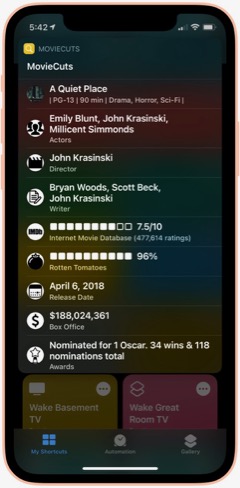
MovieCuts: This is a great third-party shortcut from RoutineHub that ties in to the OMDb API to get IMDB and Rotten Tomatoes information about any movie you search for. You have to get your own free API key, and the page linked below tells you how. It's definitely worth it!

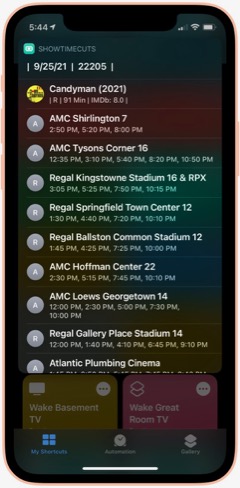
ShowTime Cuts: This shortcut is by the same author who wrote MovieCuts. It lets you search for movie times at local theaters, using your location. You'll have to get a couple of free API keys to make it work, but it's easy and well worth the effort. The only problem I've had is that the menu with specific theater times doesn't properly load Maps to show you the theater location. Also from RoutineHub.

Clipboard and Text
This folder has shortcuts that let you manipulate, save and retrieve your clipboard information, as well as shortcuts for working with text. The clipboard shortcuts are somewhat redundant of each other, but I like each one for different reasons and end up using them all at this point. These are all third-party shortcuts, and I'll provide links to the source when possible.
Save To Clips: I like this one because it's a Siri command that's easy to use. You can also use it from the Share sheet. I couldn't find the source where I found this originally, so I'm linking to my iCloud library. This shortcut works with the "Get Clips" shortcut, and both by default let you save and retrieve up to 15 items from your clipboard, using a file saved to iCloud.

Get Clips: This is the companion command to "Save To Clips" that lets you retrieve your clipboard history, as saved to iCloud. See my description of "Save" above for more about this shortcut.

Clip: This is a relatively new shortcut from RoutineHub that I like a lot. It lets you save clipboard items and give a name to them. You can use it to save the current clipboard or retrieve a saved clip.

Clipboard: I like this one because it lets you edit your clipboard as well as view and share it. For the times when you need to add something to or change your clipboard, it's just right.

Symbols: I'm not sure where I found this shortcut, but it's a good one for the times when you need a special symbol. Just launch and select the symbol, which is then copied to your clipboard.

Word & Character Count: This handy shortcut takes your clipboard or share sheet input and returns the number of words, number of characters, and number of lines in the text. I don't remember where I found this one, so I'm linking you to my iCloud version.

Upside Down Text: This one is just for fun, but it's so cool I just couldn't resist. It lets you type or paste in some text and returns a version with upside-down letters, saved to your clipboard. I like sending messages like this now and then for laughs.

Vertical Text: Another one just for fun, this shortcut takes your clipbaord and arranges the text vertically, one word on each line. It ends by saving the result to your clipboard. I like to do this sometimes in conjunction with the Upside Down Text shortcut.

New! Font Switcher: This new shortcut from RoutineHub has 31 different font effects you can apply to your chosen text. The most comprehensive font utility I've found, it even includes upside down text! You just enter some text and choose which effect to apply, after which it previews the effect and copies it to your clipboard.

New! Save Text As Audio: This nifty shortcut lets you dictate text and then converts it to an audio file, which you can either save or share. You can choose which voice to use for the audio file.

New! Count By Type: This shortcut takes a file or text and calculates the number of words, characters, sentences or lines. From RoutineHub.

Unicode Font Variants: There are a number of shortcuts out there that let you apply different font effects, but this is the best one I've found. It lets you enter some text and then choose from among 15 different font effects to apply to it. From RoutineHub.

Covid-19
This folder has a few shortcuts that return data and charts about the Coronavirus. Sadly, I still find it useful to refer to these occasionally. (When will it end?)
Covid-19 Charts: This shortcut lets you choose a data type (e.g., "confirmed," "deaths") and the countries you want to see charted. It's a bit slow, but it returns a cool chart (using Charty) comparing the countries you've selected.

Corona Stats By State: This shortcut not only lets you choose the States you want to see data for, but you can save your selection for later reuse. It returns a detailed page with data for each State and then offers to chart the data for you. Very handy, though sometimes not up-to-date with the latest information. Available from RoutineHub.

Coronavirus Stats: This shortcut lets you choose any country or group of countries and returns detailed information about Covid-19 there. You can save your country selections for later reuse. From RoutineHub.

Show Vaccine Card: This handy shortcut lets you store a picture of your vaccine card for quick and easy display when needed. You just take a picture of your card, run the shortcut and browse to the picture you just took. From then on, your card will be one click away with no need to search through your photos. I found this one through Matthew Cassinelli's newsletter.

Corona Update: I like this shortcut because it lets you see data for specific countries and U.S. States, which you can enter into the shortcut itself. It grabs the latest 28 days of data on new cases, new deaths, and totals, and it always seems to have the latest data. From RoutineHub.

New! CDC Guidance: This shortcut simply links to the CDC's February 24, 2022, release of county-level guidance on masks. You can lookup any county in the U.S. or see a map of the U.S. showing risk levels of green, yellow, or orange.

New! Dr. Fauci In The News: This shortcut opens a page on the Government's website that has links to remarks made by Dr. Fauci at different forums.

New! CDC News Voice: This shortcut provides easy access to three news feeds from CDC related to COVID-19. Selecting an item will have the shortcut read the text to you.

Daily Shortcuts
This folder has some shortcuts I use every day. Other than daily usage, the shortcuts have little in common. I keep them in this folder for quick access.APOD: I don't know where I got this great shortcut... Perhaps from a Chinese site, after which I meticulously translated the shortcut into English. This shortcut shows the NASA Astronomy Picture of the Day. There are others that do this, but this one is unique in that it lets you go back and retrieve images from any day you like. I've mined the NASA library back to 2014 now and continue to find amazing images of the universe, in stunning, high-def detail. The shortcut also shows the description that accompanies each image on the APOD website.

Random Obscure Fact: This simple shortcut is a delight! Just for fun, it spits out obscure facts on every subject. I have the shortcut set to let me share the fact after I've read it. I couldn't find the source for this, so feel free to download my version.

Today In History: I'm not sure where I got this originally, but I've made some modifications to it that make it more readable for me. This shortcut gets 20 items from the History.com daily news feed and presents them as a single HTML page for easy reading. I've found this to be an enjoyable daily activity.

Today's Historical Events: I'm not sure where this one came from, but I've made a few changes to make it more readable. It's a comprehensive list of historical events for the current day, starting way back in time and going to the present in chronological order.

New! History of Today: This one duplicates some of the items in the previous two shortcuts, but it has a lot of information not available in the others. It returns just one fact from the history of the current day, but if you load it many times it comes up with many facts. I like the way they're presented better than in "Today's Historical Events," although the latter is much more comprehensive. From RoutineHub.

Time Machine: You can find this shortcut in the Apple Shortcuts Gallery. It simply looks at the photos you took a year ago and presents them in a Quick Look window. The only difference I've made is that it looks at one year ago plus 2 months rather than plus 2 weeks as in the Apple original. Again, I've found this to be a pleasurable daily activity.

Quote of the Day: This shortcut gets the latest quote from BrainyQuote.com and lets you view and/or share it. This was adapted from a shortcut I found on RoutineHub.

New! Daily Fact Reading: This shortcut is based on an older one that never worked quite right. It pulls the latest facts submitted to reddit and sends you to one of the sites cited. Instead of loading a web page or trying to show text, this shortcut runs the "Read Article" shortcut you'll encounter in the "Share Sheet Only" folder of shortcuts. It gets the title and body of the submitted web page through Safari's Reader functionality and reads the resulting text to you.

New! National Geographic Daily Photo: This shortcut grabs images from National Geographic's picture of the day web page and filters to the first large image on the page. It displays the latest image in a Quick Look window, and you can save it if desired from the share sheet. Not sure where I found this, but I had to make a few changes to get it to work the way I wanted it, so I'm linking to my iCloud version.

Horoscope+: I don't know why I saved this one, since I don't really believe in astrology. But it's fun to read from time to time. This shortcut lets you set a default sign for quick work, or you can select a sign from the menu. It uses two different data sources and can provide up to 6 different readings for a single day. Available from RoutineHub.

Daily Summary: I have several of these journaling shortcuts, which ask you a number of questions, such as "What did you learn today?", and sticks the questions and answers in your Day One journal. This is the one I use most frequently. Day One is a great, free journaling app, and shortcuts like this one have really encouraged me to keep a journal. I don't know where I found this shortcut, so I'm linking to mine on iCloud.

Meditate: I have several meditation shortcuts now, but this is the first one I downloaded and I still use it. One of the challenges of meditation shortcuts is that Apple hasn't provided a "slideshow" action for your photos. I like to view images while meditating, but I want to require minimal interaction with my phone while doing so. This shortcut uses one workaround — namely, it pulls a random animated GIF from my photos and plays it in Quick Look. I created the animated GIFs using the "HighRes GIFs" shortcut I'll discuss in the Images and Pictures section. The shortcut turns on Do Not Disturb, starts playing some meditation music, sets a timer for the amount of time you provide each time, turns brightness to 100% and logs the time you set to your Mindfulness data in the Health app. It finishes when the timer goes off and you close the Quick Look screen.

Meditate NASA: This shortcut tries to get around several problems in setting up the meditation session. As mentioned before, ideally I would be able to start a slideshow in Shortcuts itself, but since that's not possible, this one attempts to keep the shortcut running while opening Photos to a specified album, where you can start the slideshow manually. Normally, it's very hard to keep shortcuts running when you switch apps for more than 2-3 minutes, so completing the meditation cycle (turning off Do Not Disturb, and stopping the music) is hard for longer meditation sessions. This one gets around the problem by setting up a loop and playing a sound every 30 seconds (in this case, I use the "approved" sound from Apple Pay). It gets it right most of the time, and the shortcut ends by returning you to the Shortcuts app and completing the meditation session. The big shortcoming to this approach is that this shortcut is hard-wired for a 5-minute session. I have a similar shortcut that extends the session to 10 minutes.

Day One and Notes
This folder has some shortcuts that use my Day One journal, as well as shortcuts that work with the Notes app.
Audio Note: This shortcut uses Toolbox Pro to let you quickly record an audio note, which Toolbox Pro transcribes to text. The text is presented in a Quick Look sheet and then added as an entry to Day One. I use this for many additions to my Day One Journal.

New! Listening To: I wrote this shortcut to save myself a little time over using Audio Note (above) when entering my brief reviews of Rolling Stones' Top 500 Albums. Since all my reviews start with "Listening To," I embedded that text in the shortcut, which also adds a tag to the entry to make searching easier. Once run, you just say the name of the album and the artist, followed by your review. This sends the entry to Day One, where you can edit it further or add a photo, etc.

Smoked: I wrote this simple shortcut because I wanted to start keeping track of how often I smoke. Saying "Smoked" to Siri adds the phrase "Smoked at [current time]" to my Day One journal, with a tag of "Smoked" to make searching possible.

New! Smoked History: This simple shortcut finds the last 30 entries in Day One with the tag "Smoked" and shows them in Day One. A very convenient way to see my smoking history.

Great Albums: I started this shortcut as part of my project to listen to the Top 500 albums (according to Rolling Stone magazine). It lets me append to a note called "Great albums from Top 500" any album I deem "great" after listening, thus over time compiling a list of "great" albums.

Find in Notes: This shortcut simply lets me search my Notes for a particular word or phrase. It returns a list of notes by title, and I can then open the note I want.

Developer Tools
This folder has a lot of shortcuts, all of them geared to the work of developing shortcuts. Most of them demonstrate some Shortcuts technique or other, and there are several that help you publish your shortcuts to RoutineHub. I'm only providing a link to one of them, which is the shortcut I used to make the graphics for this article.
MediaKit Badges: This shortcut creates an image suitable for publishing your shortcuts and as noted is the one I used to make the download images you see here. It lets you define the type of image you want, gives you some visual choices for the image, lets you enter a category for the shortcut as well as the shortcut's name. After you navigate your shortcuts to find the one you're creating an image for, it uses the shortcut's image in the newly made "badge" and delivers it in Safari for download. This shortcut comes from RoutineHub and is part of a suite of "MediaKit" shortcuts for publishing there.

Emergency
This folder has a few shortcuts I might need in an emergency.
Find Closest ER: For times when you need it, this is a great little shortcut. It gets your location and then shows you the closest hospitals and emergency rooms. It estimates the time required to get there for you and then opens Maps to show you directions. From RoutineHub.

SOS: This shortcut uses the flash on your camera to blink out an SOS signal. You can set it to repeat more than once. From RoutineHub.

911: This full-featured shortcut lets you text to 911 or call 911, while also sending a note to your chosen emergency contact. It includes other features as well, including a link to the "Find Closest ER" shortcut mentioned above. From RoutineHub.

Family
This folder has shortcuts pertaining to my family, either involving communications with family members, information relevant to family events, or family photos.
I'm Home Safe: This shortcut simply sends a quick message to loved ones letting them know that you've arrived safely home after (usually) extended travel.

Wife Love Notes: I use an automation and this shortcut to send a random love note to my wife every weekday at a certain time. You can populate the shortcut with any number of messages customized to your own relationship. My wife really loves this one! From RoutineHub.

New! Love Poems: From RoutineHub, this shortcut contains 52 short love poems. To set it up, you need to enter a "To" address, and the shortcut will send the poems in listed order to your special loved one. I've set up an automation to send one of these to my wife each week (Tuesday, I think).

Text To Jackie: I have shortcuts like this one set up for my immediate family members. It simply saves some time over using the Messages app and lets you quickly send a message to a loved one.

Call Jackie: Again, I have several shortcuts like this one, which are simply speed-dial actions to specific phone numbers.

Face Jackie: This is another example shortcut I have set up for family members. It lets me quickly set up a FaceTime call to a particular phone number. Shortcuts like this do nothing more than save a few words when communicating with Siri.

Where Should We Eat: For those times when you can't decide where to eat, this shortcut may help. Populate it with the restaurants you visit, and it will surprise you with a random choice.

Scott Family: This is an example shortcut that uses Toolbox Pro to preview images from one of my photo albums.

Family Trips: This is one of several shortcuts I have set up to quickly view particular albums from my Photos library. You set these up with a little Siri magic: Simply navigate to a particular album, then open Shortcuts and create a new shortcut. In the actions for the "Photos" app, you'll find an action for linking to the album you just viewed. Similar magic applies to the Maps app, which I'll get to eventually in this article.

Files and iCloud
This folder has some backup utilities and one file utility.
Backup To iCloud: I use this one once a week or so... it simply writes out a file in iCloud with the iCloud URLs of all your shortcuts. Since I have so many, it can take a few minutes to finish, but this is how I got the download links to my shortcuts in iCloud that I'm providing in this article. Since your shortcuts all reside in the cloud, and Apple doesn't allow writing or loading actual shortcut files, this is a good means of backing up your shortcut set.

Automatic Backup: I have an automation that runs this shortcut every Monday morning at 10:00 a.m. It makes me feel good to know I have a physical backup (in addition to a link) of the files in my shortcuts. This one simply zips the files up and writes out a time-stamped archive to iCloud when it runs. As I understand it, I couldn't actually replace files on the iCloud server with these backups, but I like knowing they're there. From RoutineHub.

Backup Shortcuts: I like this one because it lets me save my shortcuts in zip files according to their folders. This way, I could unzip them into their corresponding folders, which would save me so much time over having to recreate and/or re-populate all of my folders. I'm not sure where I got this one, but the anal part of me likes using it from time to time.

New! Text From PDF: I recently had the need to get a text file from a PDF file I exported from Day One. It was a simple matter to write this shortcut, which lets you select a PDF either through the share sheet in Files or by browsing your iCloud files. Once selected, the shortcut extracts the text from the PDF file and starts a new Note with the contents, which you can edit before saving.

Encode to Base64: It turns out that you can include binary files inside a shortcut by converting the file to Base64. This is used a lot in the shortcuts I have, and I used it myself in the Meditate NASA shortcut to include the "approved" sound from ApplePay. This shortcut can be run from the share sheet or on its own, and it ends by copying the converted file to the clipboard.

For Fun
This folder has some games, random facts, jokes, and other amusements.
Games!: This shortcut includes a dozen or so games and amusements, including Hangman, some memory games, and things like rock-paper-scissors. From RoutineHub.

Tic Tac Toe: This is a really cool implementation of this game in a shortcut. It lets you play against the computer or against a friend. From RoutineHub

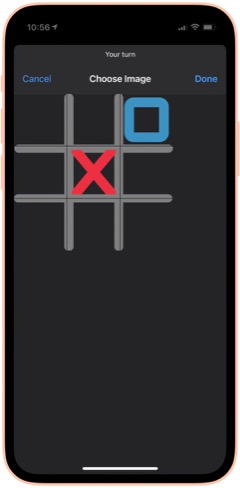
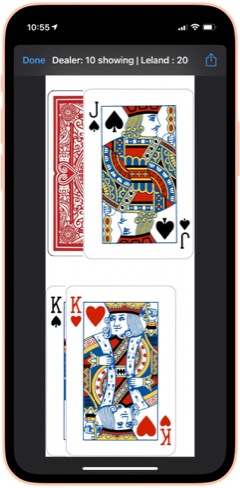
50 States Plus: My wife and I use this on every road trip... great fun! It lets you record a license plate from a list of those you haven't seen. You can also choose to see the license plates you have seen. It's easy to start over when you finally give up on Alaska or Hawaii. From RoutineHub. There is also a voice add-on that I haven't tried yet, available as a separate shortcut.

Blackjack 2: There are a lot of Blackjack shortcuts out there. I like this one because it shows you images of the cards you and the dealer hold. It lets you bet for money, too, though that's not a feature I plan to use. From RoutineHub.

New! Wordles: This shortcut lets you play the popular Wordles game in Shortcuts. You have to guess a 5-letter word, and the shortcut fills in the blanks as you go, indicating place hits and right letter/wrong space.

New! Number Guessing Game: This fun game lets you choose a minimum number and a maximum number, then select how many attempts you want to have. As you guess, the shortcut tells you if you're high or low, so you can tease out the correct number.

Cat Fact: This fun shortcut simply displays a random fact about cats, which you can then choose to share with others. I'm not sure where I found this and the Dog fact companion shortcut, but I enjoy them a lot!

Dog Fact: This fun shortcut simply displays a random fact about dogs, which you can then choose to share with others. I'm not sure where I found this and the Cat fact companion shortcut, but I enjoy them a lot!

Humorz: This shortcut provides a lot of jokes in various categories from Reddit feeds, including at least one that's naughty. A fun diversion, especially in the car. From RoutineHub.

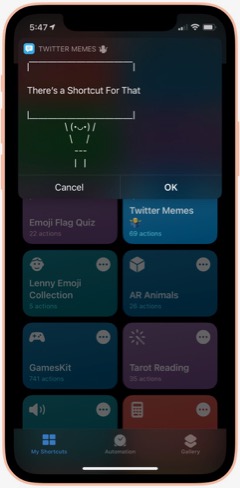

Twitter Memes: This shortcut lets you use one of a large collection of Twitter text memes to share your message. Some of them, such as person holding a sign, are quite cool, and it's impressive how they've implemented the functionality. You can share your meme at the end, and it gets copied to your clipboard. I couldn't find the original shortcut, but the one I'm linking has full credits inside.

AR Animals: This shortcut, which I got from a Chinese website, uses Augmented Reality (AR) to let you view about a dozen different animals. The animals are in motion and incredibly detailed. You can resize them and move them around the room (or whatever else amuses you).

Rude Siri: I made this shortcut from one I found on the web. It simply contains a list of a dozen or so rude things for Siri to say out loud. Quite amusing from time to time, but not in front of children, please!

Health and Fitness
This folder contains a variety of shortcuts for logging, measuring and viewing health and fitness data such as weight, heart rate, sleep, activity and more. It also includes a medication logger.
Log Weight: This is identical to one in the Apple Gallery called "Log My Weight." I may have modified it from that one. In any case, I use this every day to log my weight into the Health app. Doing this has let me keep a good eye on my weight... much better than relying on memory... as you'll see in some of the following shortcuts.

Weight Chart: I use this every day to check my weight for the last 60 days. (I can change the time period to whatever I want... it's set at 60 days at the moment.) The shortcut uses Charty to make an image, pulling data from the Health app, and show that image in a QuickLook screen. I'm not sure where I got this shortcut, but I have several on the same basic pattern. You can customize it to chart any Health-app data that's recorded daily. It makes a nicer graph than what you get in the Health app, in my opinion.

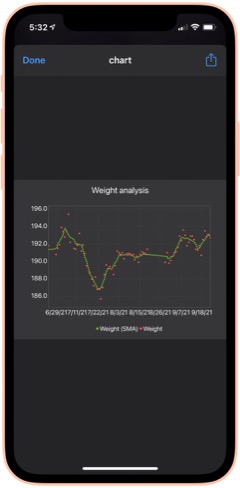
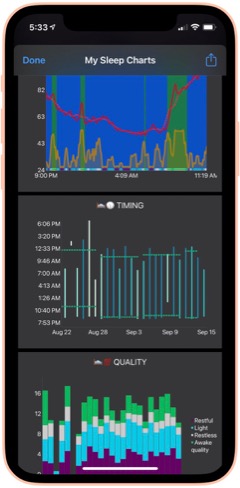
Weight Analysis: I check this shortcut daily also. It uses the same basic pattern as Weight Chart (above), but presents the data in a scatter graph with a moving average line as well. I find it informative in addition to the basic data presented in Weight Chart.

Monthly Weight Report: I check this simple shortcut daily. It gets your current weight and compares it with your weight a month ago, telling you the difference.

Heart Rate Chart: This shortcut uses Charty to conglomerate and present in chart form a daily snapshot of my heart rate data (collected by Apple Watch) for the period beginning in March 2021. For this period, it shows the maximum for each hour of the day, the average and the minimum, respectively. You can change the shortcut to present data for any time period you want to study. I'm not sure where this one came from, but I find it a handy reference.

Heart Rate Analysis Premium: This shortcut uses Charty to present two interesting data sets on my heart health: Resting Heart Rate and Heart Rate Variability. I've found the latter measure to correspond with some health issues I had recently. I couldn't find the source for this one, and there are no credits in the shortcut itself.

Log Nausea: I have some difficulty with morning nausea, so I made this shortcut to help me keep track of it. The shortcut lets me log my nausea on a scale of 1-10, and writes the result to my calendar. It then opens the Health app and lets me add my nausea data there. I do it this way because the Health app only counts "mild", "moderate" and "severe" nausea, or you can mark it present or not present.

Nausea History: This shortcut simply displays my nausea scores by searching my calendar for the last 30 days.

Active Energy Chart: This shortcut pulls data on Active Energy from the Health app and uses Charty to display a bar graph for the last 30 days. It also includes a moving average.

New! Cardio Fitness: This shortcut pulls data collected on your Cardio Fitness and presents it through Charty in a line graph for the last 6 months. The graph includes a moving average. Cardio Fitness data is added to your Health app when you do exercises with an Apple Watch. I decided to start monitoring this measure because the Health app reports that I'm consistently "below average" in Cardio Fitness.

Recent Workouts: This shortcut uses Toolbox Pro to get my latest workout data and present it in a chronological list. It appears to cover about 2 months of data. I believe this is a shortcut that came with Toolbox Pro.

Mindfulness: This shortcut uses Charty to pull data for my Mindful minutes for the last 2 weeks from the Health app and graph them.

Sleep Charts: This is a complex shortcut that spawns half-a-dozen additional shortcuts when you install it. The shortcut analyzes sleep patterns and uses Charty to present data for an overall Sleep Widget, Sleep Progress Rings, Sleep Quality Trend, Sleep Timing Trend, Sleeping Heart Rate Trend and Sleeping Noise Trend. You can have it generate one chart at a time, or you can have it do all 6 at once. It can be a little slow for some of the charts. From RoutineHub.

New! Sleep Widget: This terrific shortcut does a really good job at the hard task of analyzing your sleep data (if you wear your Apple Watch to bed). It presents a comprehensive chart (using Charty) of your sleep data, showing times of restful and light sleep as well as motion and noise. Below the chart is a lengthy textual walk-through of the data. From RoutineHub.

Medication Logger: I use this great shortcut to keep track of my prescriptions. Before you run it, open it and populate the Pills dictionary with the medications you take, entering the amount you have for each. Then, when you use it, the shortcut decrements the amount and logs the medication to your calendar. It includes a reminder for getting refills when you run low. The shortcut uses a file on iCloud called Pills.json, and you will need to use the free utility Jayson to edit the file when you get refills. Again, I don't know where this one came from, and there are no credits in the shortcut itself.

New! Log Sleep: This shortcut works with the next one to log your sleep time. I use an Apple Watch, so I ordinarily don't need this shortcut, but it would be useful if my Watch's battery were low or I otherwise couldn't use my watch. It saves a time to the iCloud drive which is read by the Log Wake Up shortcut.

New! Log Wake Up: When you run this shortcut, it checks the time saved to iCloud by the Log Sleep shortcut and saves the amount of sleep time to the Health App.

New! Record My Workout: This shortcut is useful for recording workouts while not wearing your Apple Watch. It lets you enter the type of activity, the number of active calories burned, and the length of time for the workout. From RoutineHub.

New! Health Report: I found this abandoned shortcut on the web that showed daily Steps data from the Health app. It presents the data in a very nice HTML page. I expanded the shortcut to include other Health data — specifically, Walking distance, Flights climbed, consumption of Sugar, Water, and Fiber, total Calories, Heart Rate, and Weight. For each statistic, the report shows an average for the last 30 days followed by the reading for the current day. I can't take credit for the HTML presentation, which is really nice, but I did build the shortcut out toward what I think the author originally intended.

New! Steps Chart: This shortcut uses Charty to present a chart of the last 30 days of Steps data from the Health app, including a moving average line over the daily bars. It's designed to read data from an Apple Watch, but if you don't use a Watch, you can change that to a different source (e.g., your iPhone) by editing the shortcut.

New! Flights Chart: This shortcut uses Charty to present a bar chart of the last 30 days of your Flights Climbed data from the Health app, including a moving average over the daily bars.

New! Blood Pressure: This shortcut lets you log your systolic and diastolic readings to the Health app. Works great with Siri. I found this one on RoutineHub.

New! Blood Pressure Chart: This shortcut uses Charty to look at the last 30 days of your blood pressure readings in Health and displays a line chart of whatever readings it finds. This may require the upgrade version of Charty.

New! Blood Pressure List: This shortcut presents your blood pressure data in list form. It starts by asking how far back you want to look for data and then displays the results. Same data as shown in the previous shortcut, but in tabular form rather than chart. This comes from RoutineHub.

New! Blood Oxygen Chart: I made this shortcut as a scatter chart using Charty, with a moving average line highlighting significant changes over time. It looks at your last 30 days of your blood Oxygen Saturation data in the Health app. It turns out that if you sleep with your Apple Watch on, as I do, the watch records 4-5 blood oxygen readings during the night. You can also add data by running your watch's Blood Oxygen app.

New! Blood Oxygen Chart Today: This shortcut is much like the previous one, but it only presents your readings for the current day. See note about the Apple Watch in the previous description.

Home Screen
This folder has eight shortcuts that I use frequently and hence are designed to show up in the Shortcuts "widget" on my home screen. I'm describing and linking to the eight in the separate folder sections. They are: App Launcher (Quick Links), Morning Break (Breaks and TV), Afternoon Break Albums (Breaks and TV), Track Hydration (Nutrition), Medication Logger (Health and Fitness), GradientPaper ShowDock (Wallpaper), Admin (Web Sites and Feeds) and Automix (Quick Music).
Images and Pictures
This folder has a lot of shortcuts designed to view, append, or manipulate images as well as to get information about images.
File Images: I wrote this handy shortcut, which I use every day, to keep my photo library straight. If you organize your photos into albums, you will enjoy this one. It looks at my Recent pictures and, after determining which are not in a lengthy list of albums, shows me the "unfiled" images. I have it set to look at the last 30 days, but you can make it a longer time frame if you like. You select one or more images from the viewer and then can file them in one of the many photo albums the shortcut offers. You can also choose to preview an image, or you can elect to delete images using this shortcut. You can customize the shortcut with whatever albums you have set up in the Photos app.

New! Search for Stock Photos: This shortcut uses a paid action from ToolboxPro to search Pexels photo library. It returns a menu of images, which you can then preview and/or save. If you don't like the preview, you can go back, and the shortcut will remember your search term. From RoutineHub.

High Res GIFs: There are a lot of shortcuts out there that convert live photos into animated GIFs, but this is the only one capable of doing it without degrading the original images. I use this also to create an animated GIF of a whole album of images, which I then use in one of my meditation shortcuts (as a workaround to the fact that you can't set up a slide show in shortcuts). The shortcut also lets you convert videos. Available from RoutineHub.

Combine Images: This shortcut simply lets you select a number of images from your photo library and then combine them either horizontally, vertically, or in a grid. The shortcut resizes the photos so they're all the same size. From RoutineHub.

Overlay Text on Image: This shortcut lets you select an image and then enter some text to superimpose on it. The shortcut then shows you the image in an edit window, and you can reposition the text and make other changes to it there. Click Done and you see a preview of your new image, which you can save or share.

Text Above Or Below Image: This shortcut lets you select an image and then add some text to display above or below it. It centers the text in a white banner at the top or bottom of the image, lets you preview the modified image and then offers to save or share it.

MEME Generator: This shortcut does a number of things, but I use it to create image MEMEs. In this mode, you choose an image and then enter the top text and the bottom text. The shortcut then previews the image, which uses large capital letters with a white border for your text, which is overlaid on the image. Quite effective. From RoutineHub.

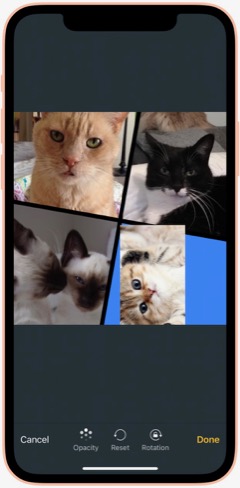

Mosaic: This cool shortcut uses a template for a mosaic of photos. The template has four "slots" for you to overlay images on, and you can resize the images as you position it over the "slot." Once you have all four "slots" full, you can view the mosaic and then save or share it. I think I found it on a non-U.S. website, and it has credits inside, but I can't find the original.

Photo Framer: This shortcut takes an image and adds an iPhone "frame" around it. It's particularly effective for screenshots, which then look like you shot the physical hardware as well as the image. I like this one because you can choose a color for the iPhone "frame." It's also capable of framing images that are not screenshot-sized. From RoutineHub.

Face Thumbnails: This nifty shortcut lets you choose an image with faces in it, and it will process the image to make thumbnails of the faces. You can resize the thumbnails (wide view, full view, etc.) and choose which ones you want to save. It will even straighten crooked faces if you like. Overall, it does a really good job at making full images of faces from group photos. From RoutineHub.

Cartoon Image: This delightful shortcut does its best to make a cartoon out of whatever photo you throw at it. Sometimes it can't do it, but when it can, the results are really cool. By the way, there's another cartoon shortcut out there called Cartoonify, and this one, from a Chinese source, is much better and far less scary.

New! Change Image Background: This cool shortcut requires an API key to work (it's easy to get one). Once you have it set up, the shortcut does an amazing job of removing the background from images with foreground subjects. You can then save that background-free image or choose to combine it with another photo. By combining it with another image, you can achieve some very cool effects. From RoutineHub.

Get Image Size: This simple shortcut lets you choose an image, either from Photos or from the share sheet, and it will return the height and width in pixels.

EXIF Photo Details: This handy shortcut, which lets you browse to a photo or can take one from the share sheet, presents all the details about a given image you could possibly want. It shows modification and creation dates as well as Album information, Camera information, etc. From RoutineHub.

HighRes Artwork (Apple Music): I use this shortcut to get the album art from whatever is playing on my iPhone at the time. I have tried other similar shortcuts, but none are as reliable as this one, and it really does return a high-res image, which you can save and/or share. I think I found this on Reddit.

NASA Wallpaper: This is an example of several shortcuts I have set up to view specific albums in my Photos library. As described earlier under Family, this type of shortcut can be created with a bit of siri magic: Just browse to the folder you want a shortcut for in Photos. Then go to Shortcuts and create a new shortcut. Search for the photos app actions, and you'll find one just for the album you want!

New! Dance!: This fun shortcut has two animations of a dancing person meme, and you get to select a photo and position someone's head in the animation. The result is you or your friends doing the dancing meme, which you can then save or share.

New! Video Trimmer: This shortcut lets you select a video and then divide it into segments. You can select how many segments you want, and then the shortcut presents you with a video editing interface that lets you select your segments to save. You can share the segments, which are saved to your Recents folder in Photos.

New! Join Videos: This shortcut lets you choose two or more videos from your library and combines them with no quality loss. It requires use of the a-shell mini app (a free download from the app store). From RoutineHub.

New! Change Image Size: This shortcut does just what the title suggests: It lets you change the size of any image in your library either to one of about 20 presets or to a custom size. If you choose custom, you can set just the height or just the width or both. After you select, you get to see a preview of the result, which you can save to your photo library if desired. Origin unknown.

New! Invert Image: This shortcut takes a photo and returns it with colors inverted. From RoutineHub.

New! Image Converter: I recently needed to convert an image I downloaded from Google to jpg, because my shortcuts for resizing images wouldn't work on the format the image was in. A quick search yielded this shortcut, which lets you convert an image from your photo library in any format to a range of other supported types.

Information
This folder contains a variety of shortcuts that provide information of one sort or another. There are search tools and shortcuts that retrieve information such as Tides, US Constitution, Cocktails, etc. A couple of the shortcuts would be helpful to writers.
Infinity Search: This all-in-one search shortcut lets you choose from over a dozen sources, including Google and things like Maps, the App Store, iTunes, YouTube and more. From RoutineHub.

Glyph Search: Have you ever wanted to find a glyph but couldn't? This might help... it lets you search Apple's glyph library by name and lets you know what glyphs apply. I really only use this when choosing glyphs for my shortcuts, but there may be other applications as well. From RoutineHub.

Tides: I used this recently while vacationing at the beach. This terrific little shortcut lets you search for tide markers in a nearby radius and then presents a list of places. Select one and you can tell it how many days of information to provide. It ends with the tide information in a jiffy! I'm not sure where I found this one, but it does have a username credit inside.

US Constitution: Yes, this shortcut contains the entire U.S. Constitution, broken up into bite-sized chunks in .json format for quick reference. It's nice to be able to refer to the actual language in this document now and then. If you invoke from Siri, she will read the articles etc. to you. From RoutineHub.

Cocktails: From the sublime to the banal: This shortcut lets you look up a wide range of cocktails. It shows you a picture of the drink and then displays the recipe. No, I'm not a lush, but I thought this would be useful from time to time, especially when on vacation. I'm not sure where this one came from, but it does have a credit inside.

Rhymes: This shortcut produces an astonishing number of word rhymes for any word you give it. It can even do multi-syllable rhymes and near-rhymes. A great resource if you're feeling poetic. Not sure where this one came from, but I'm glad I've got it!

New! Wikipedia Search: This simple shortcut lets you enter natural language queries (without underscores) to search Wikipedia. It then loads Wikipedia in a Safari view controller.

New! The Shortcut Dictionary: Besides serving as a dictionary, this shortcut offers to help you with pronunciation and spelling. It also has a translate tool built in. From RoutineHub.

New! iOS App Release Notes: I found this on MacStories, I believe, but I couldn't get it to work as written. I changed the shortcut to ask for an app name instead of trying to parse a URL for the app ID (as the original shortcut was doing). It isn't perfect, but you can find the latest release notes for most any iOS app as long as the name isn't so common that it misses the mark in retrieving the data, which is presented in a preview window. The shortcut ends by copying the release notes to the clipboard.

What Would Steve Say: This shortcut contains a huge resource of Steve Jobs quotes on various subjects. When you run it, it picks a random quote and presents it. From RoutineHub.

Mail and Messaging
This folder has a few shortcuts pertaining to Mail and Messages.
Send Later: This shortcut lets you create a new shortcut containing a message to somebody. To "send later," you set up an automation to run this shortcut on a specific day and time. You can then delete the temporary shortcut and remove the automation afterwards. From RoutineHub.

Dictate And Share: This shortcut simply lets you dictate a message and send it to a group or individual. I believe this one comes from the Apple Gallery of shortcuts.

Vertical SMS: This fun shortcut takes your message and sends it either one word at a time or one letter at a time. Goofy, but it gets attention if you don't do it too often. I'm not sure where this one came from, but it does have a credit comment inside.

Personal Contacts: This shortcut simply looks in Contacts for those in the Personal Contacts group and displays them in Quick Look.

Move Contact To Group: I wrote this shortcut because there's no way to move a contact to a group on the iPhone. This shortcut lets you choose a contact and add it to one of your contact groups.

Morning Routine
This folder has some shortcuts that I use in my morning routine, before I start work for the day.
I'm Awake: This shortcut is the first thing I say to Siri in the morning. It turns my reading lamp on, runs the Brightness To Battery shortcut (see folder Settings) and runs the Morning Greeting shortcut (see below). Once the morning greeting is over, the shortcut sets the playback destination to the kitchen HomePod and starts playing some classical music (specific to each day of the week).

Morning Greeting: There are a slew of "good morning" shortcuts out there that have Siri give you a day's summary, but I ended up liking this one best. I don't know where I found it, but I've made a few modifications to it over time. The greeting announces the date, the current weather and forecast for the day, and the next item on my calendar. I use this in my "I'm Awake" shortcut (above).

Paper Finished: This simple shortcut turns off the reading lamp and then hands off playback of the classical music in the kitchen to my bedroom HomePod mini, so it's playing there when I head up to get dressed.

Music
This folder contains a number of shortcuts pertaining to music listening and finding tunes on Apple Music.
Add to New List: This shortcut gets the currently playing song and adds it to a playlist in my library called "New Music." I use this to keep track of new songs I hear that I want to hear again. I believe this one came from Apple's Gallery of shortcuts.

Song Info: This shortcut displays information about the currently playing song, including rating, artist, and any art associated with it. I don't know where I found this one, but it does have a credit included in it.

I Am Genius: I use this shortcut to get lyrics for songs. You can get lyrics for the currently playing song, or you can search for a song. You can copy or share the lyrics. From RoutineHub.

500 Albums: This shortcut contains all 500 of Rolling Stone magazine's top albums. When you run it, it starts playing a random album from the list, displays wikipedia info about the album, and logs the album number to a list in Notes. The shortcut keeps track of the albums you've heard so it doesn't repeat an album. I'm not sure the source for this one, so I'm linking to my iCloud library.

Indie Radio: I got this shortcut from Apple's Gallery. It lets you choose one of the Indie Radio genres in Apple Music and starts playing it.

Open Genre Playlists: This shortcut also comes from Apple. It displays a list of all the curated genres in Apple Music and starts playing the one you select.

Electronic Radio: Also from Apple, this shortcut displays a list of Apple Music stations in the Electronic genre and starts playing the one you select.

Dance Radio: Similar to the previous shortcut, but for Dance genres.

Music By Decade: This Apple shortcut displays a list of decades and lets you choose one to start playing in Apple Music.

Playlist Tool: This is a modification of the shortcut Apple Music Tool, which didn't work for me in several respects. This shortcut lets you find duplicates in your playlists and then offers to make a new playlist containing just the duplicates or all the playlist songs minus the duplicate(s). Very useful for finding duplicates in your library. You can also use the shortcut to sort a playlist, writing out a new playlist with the sort order you define.

Shazam This and Share It: This shortcut is the easiest way to share something playing on Apple Music with a friend. Shazam identifies the song, and you can then choose who you want to share it with. Source unknown.

New! Find Duplicate Songs: This shortcut will find all the duplicate songs in your library by comparing artist name and title. It will then make a new playlist containing the duplicates. My library is so big I found I needed to edit the shortcut to look through segments of my library at a time, but it did work as advertised. From RoutineHub.

New! Song.Link: This amazing shortcut lets you shazam or search for a song and then shows you all the streaming services through which it's available. You can then easily share a link to the song or open the link. It includes dozens of services, including all the big ones (Apple, iTunes, Spotify, Amazon, Napster, YouTube). From RoutineHub.

News and Stocks
This folder contains links to sources of news as well as some stock information.
Browse Top News: This shortcut displays half-a-dozen sources of general news (e.g., CNN, New York Times, BBC) and lets you browse their news feeds. Selected a story opens the Safari window in the shortcut. I don't know the source of this one.

New! Browse Top News Voice: This is the same shortcut as the previous one, but instead of opening the chosen item in Safari, it reads the item to you. In this case, the shortcut parses the Safari Reader Article from the chosen item and reads the article title and body.

Tech News: This shortcut displays seven sources of Apple Tech news (e.g., Mac Stories, Mac Rumors, Daring Fireball) and lets you browse their news feeds. Selecting a story opens it in the Safari window. I'm not sure where I got this shortcut.

New! Tech News Voice: This shortcut is the same as the preceding one, but instead of presenting your chosen item in Safari, it reads the item to you. In this case, the shortcut gets the URL from the chosen item and parses the Safari Reader Article, reading the article title and body.

Apple News: This shortcut displays the 20 latest items in the official Apple news feed. Selecting one opens the Safari window in the shortcut.

New! Apple News Voice: This shortcut gets the same news feed as the previous shortcut, but instead of presenting it in Safari, it reads the news item to you. It took me awhile to get this right, but I finally found a regular expression that captures the news release while ignoring all the extraneous information on the page. Trying to get the text from the feed itself doesn't work because that yields only the title and summary paragraph.

New! Apple Investor: I made this simple shortcut because I always have to spend time in Safari finding the tab (if it still exists) or navigating the Apple website when they release earnings. As an Apple shareholder, I wanted a faster way to get there, and that's precisely what this shortcut does: It loads the Apple Investor page in a Safari view controller window.

HomeKit Stories: I made this simple shortcut with a little help from Siri. Like the Maps and Photos apps, the News app will display actions based on your latest activities in the app. After displaying HomeKit stories in News, I found an action for that in Shortcuts. This simply opens the News app and displays stories about HomeKit. You can make shortcuts like this for whatever topic you like. I have another one for Severe Weather.

Any Stock Report: I use this shortcut as a template for ones I made for individual stocks I own. With this generic shortcut, you enter the symbol for a stock you want to look up as well as the number of shares you own. The shortcut will display the latest price for the stock, and if you enter shares it will tell you how much the holding is worth and how much it changed.

Stock Market Indexes: This shortcut is based on the previous one. It simply gets the information for the S&P 500, Dow Jones, and NASDAQ composite and displays the latest values in separate notification windows.

Nutrition
I use the shortcuts in these folders to log, track and view information about what I eat and drink.
Nutrition: This complex shortcut actually comprises about 8 different shortcuts working together. I use it to log my meals, snacks and certain drinks, the detailed ingredients of which get then logged into my Health app data. The shortcut has a flaw that limits its ability to show meal history, but I implemented a workaround that keeps its basic functionality intact. You log meals etc. either through a "Quick Log", which shows you your recent consumption items, or through a longer logging process. The longer process involves either searching (in this case, the shortcut uses the MyFitnessPal database) or scanning a barcode for a particular item. You can choose to log "right now," or specify a particular time and date. This is handy for logging items in a previous day that you forgot to do. I find the search and scanning mechanisms to be fast and easy. By keeping track of my consumption, I'm populating the Health app with a lot of rich data that I can then use other shortcuts to view. From RoutineHub.

Today's Food: This is part of the Nutrition shortcut. It shows you, in a prettified .json format, the nutrients you've consumed on the current day.

Log Water: I think this came from the Apple Gallery in Shortcuts. It simply presents a menu of choices in fluid ounces, and you select the amount you've consumed. I think I added some choices that weren't in the original shortcut, but you can customize it to your liking. I usually use this with Siri.

Log Daily Vitamin: I made this one to log my daily vitamin to the Health app. I believe it's for One-A-Day for Senior Men, but again you can customize it to whatever vitamin you take. I have another one that simply logs Vitamin D, which I take separately. Again, I usually invoke this one from Siri.

Log Meta-Mucil: This and the next three are shortcuts I made for food I consume every day. It became easier to make the shortcut than use Nutrition or Track Hydration to log the items. This one is for the pill version of Meta-Mucil and assumes you take one serving. I log this twice daily and write the info to my calendar as well as the Health app to keep track of my intake.

New! Log Meta-Mucil Gummies: This shortcut logs the gummy version of Meta-Mucil into the Health app. I take this twice a day and substitute it for the previous item in that case.

Log Muscle Milk: This shortcut logs the sugar-free 11-ounce bottle of Muscle Milk to the Health app.

New! Log Muscle Milk Large: This shortcut logs the sugar-free 14-ounce bottle of Muscle Milk to the Health app.

Log V8 Energy: This shortcut logs an 8-ounce can of V8 Energy drink to the Health app.

New! Log Super Coffee: This shortcut logs an 11-ounce can of Super Coffee, sending all the detailed ingredients to the Health app.

Track Hydration. This is another complex third-party shortcut that lets you log drinks (and your weight, but I don't use it for that) of various kinds to the Health app. I use it to log my tea, coffee and alcoholic drinks, as well as the occasional soft drink or juice. It's easy to use, though I think I customized the Tea list because it didn't originally have a bottle of iced tea on the menu. Besides your fluid intake, the shortcut also logs things like caffeine, alcohol, and carbohydrates. I use this one so often I keep it on my Home Screen. From RoutineHub.

Water Today: I usually invoke this one from Siri. It simply tells me how much water I've consumed so far on the current day.

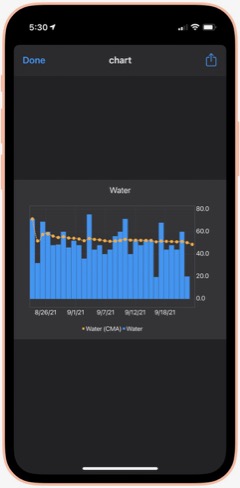
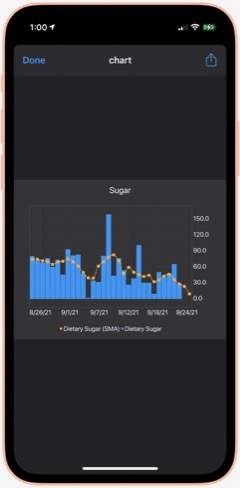
Water Chart: Using Charty, this shortcut shows me my water consumption for the last 30 days as a bar chart, with a moving average line as well. I'm not sure where I got this, but I have replicated it for several other important (to me) metrics.

Sugar Today: Sugar is another important metric for me to track. By using the Nutrition shortcut, all of my sugar consumption gets logged. This shortcut simply tells me how much sugar (in grams) I've consumed so far on the current day. Besides, sugar and water, I also have shortcuts to show me my daily consumption of protein, fiber and caffeine. They all use the pattern in this shortcut, so you can modify it to measure the things that matter most to you.

Sugar Chart: Using Charty, this shortcut shows me my sugar consumption daily for the last 30 days as a bar chart, including a moving average. I've modified this shortcut to chart other metrics that matter to me — specifically, caffeine, fiber, protein and sodium. You can modify this one to measure the things that matter most to you.

Calories Chart: I forgot to mention calories... I have shortcuts to show me Calories Today as well as this one, which shows me my calories (active energy) consumption for the last 30 days as a bar chart, with a moving average line. The data all comes from using the Nutrition shortcut and is stored in the Health app. Speaking of which, I find all of these shortcuts do a better job of helping me visualize my data than what Apple shows in the Health app. Much quicker to get what you're after as well.

Playback and HomePod
The shortcuts in this folder let me control playback on my iPhone and on my HomePods. I have a number of shortcuts specific to certain HomePods, but I see no reason to include them here.
Play/Pause: This shortcut does what its name implies: It either pauses or starts playing music. If you're playing to one or more HomePods, it also pauses playback on those.

New! Silence Audio: This shortcut turns off any background sounds (ocean, rain, etc.) that may be playing.

Change The Volume: This simple shortcut lets you choose among a number of volume settings, which you can customize to your liking. It applies the volume you choose to the music that's playing.

Play On HomePod: This shortcut has only one action: It lets you choose which AirPlay device (in my case, HomePods) to be the "playback destination" for your music.

Hand Back To iPhone: This shortcut stops any HomePods that are playing and redirects the music to your iPhone's speakers.

All HomePods: This shortcut sets each of my HomePods as the "playback destination", thereby turning them all on with one simple command.

Quick Classical Music
This folder simply has links to 11 classical music albums I have stored on my iPhone. It's much easier getting to them here than browsing my Music library. But there's no point in distributing them here, as they are very simple and redundant of some others I will be including.
Quick Leland Music
In my early adult life, I aspired to be a songwriter and made what I eventually compiled into about 8 albums-worth of material, most of it quite rough from a production values standpoint. My music is available on Apple Music, iTunes, and Spotify, for example. You can read more about it on my MarsTunes website. This folder simply has quick links to my music, which I play either through Apple Music or through my library. I'll provide a couple of examples.
I Am The Passenger: This is simply a link to one of my more popular songs in Apple Music. I believe you have to have an Apple Music subscription for this to work, but I'm not sure. That's true for the following two shortcuts as well.

Play Dancing Any: This is a link to the most recent album of demos in the series of eight. The album is called "Dancing In The Sun." The "Any" in the name refers to the fact that the shortcut ends by offering to let you play the music on an AirPlay device if you have one. (The same is true for the following shortcut.)

Play Darkness Any: This is a link to my personal favorite of the eight albums of demos, titled "The Darkness In Love."

This article continues here.
Building Smart Automations With Apple Home, Siri Shortcuts

Over the past few months, I've had a blast building out my smart home, using Apple's Home app as the foundation. Who knew how much fun it would be making things happen in the house without having to move a finger? I'm still at the beginning stages, but I thought it would be useful to document what I've done and learned so far.
Automating your smart home and life makes use of two apps that come with your iPhone: Home and Shortcuts. (The links to each in the following text take you to Apple's User Guide for for each app, which I would recommend perusing if you get lost.)
The Home app is where you add your smart devices, which must be HomeKit-certified. When you add your first device, you assign it a room, and as you build out your home, you add devices and rooms as you go.  Each room can have its own image and settings, and you can easily navigate to each room in the Home app to see the status of your devices. The Home app's home page also displays all your "favorite" devices in one place.
To add a device, you plug it in or otherwise power it and then click the "+" in the Home app and select "Add Accessory." From there, you scan a HomeKit code (with your iPhone camera) that's printed on the device itself as well as on instructions in the box. Once Home establishes a connection to the device, you select a room and, depending on what kind of accessory it is, you might be offered the option to set automations for it.
Note that adding a HomePod to your home is a different process... again, very simple, and more like setting up an Apple watch. But the HomePods still end up in your rooms in the Home app and can be used for automations.
So, what devices have I added to my home so far? Lights, outlets, switches, a camera, and motion sensors. Except for a Wemo 3-way light switch (I'm still trying to get Belkin, which owns Wemo, to fix my problem), all of the devices have been easy to add to the home. Many of the devices have iPhone apps specific for their products, and some of these are useful. For example, Eve (a German company, the successor of Elgato) has an app that lets you customize its devices in ways you can't do in the Home app. The Wemo app is the only way you can update a device's firmware... an approach that has caused me problems, unfortunately. Some of these apps also offer ways to automate their products, but thus far I have stuck to using the Home app and the Shortcuts app for such automations.
A quick word about the devices I've selected... Some HomeKit devices want you to buy a separate "hub" for them to work. An example is the Philips Hue series of light bulbs. I've avoided all such devices, since with Apple Home and an iPhone or HomePod, you don't need a "hub". The HomeKit accessories I've bought and used all work without a dedicated "hub," and I think that's a good approach.
The automations I've set up fall in the following categories:
- Setting schedules for lights going on and off.
- Automatically turning lights on and off using motion sensors.
- Setting music to play to a HomePod at certain times
- Designing Siri Shortcuts to automate activities
Setting schedules for lights going on and off
In the lights category, I have several devices... Smart lights themselves, smart light sockets that take "dumb" bulbs, smart outlets and smart light switches. I started with Home simply by adding some smart bulbs to rooms where I wanted light at certain times of the day. For example, I have a bulb in our "Great Room" that I have coming on at Sunset and going off at 12:30 AM. In my "Music Room," I have a smart outlet that powers my desk lamp, and a bright smart bulb in a different fixture across the room. I have automations set up that turn these lights on at a certain time in the morning (prior to my starting work) and turn them off when my workday is done. To make things even more interesting, I have set up Shortcuts that turn the lamps off when I start a break and back on when the break is over.
Automatically turning lights on and off using motion sensors.
One of my favorite automations is in my Music Room, where I added an Eve motion sensor to a part of the room that would detect motion if I approached my boxes of factory sleeves or my shelves of records. I have an Eve smart switch installed that controls a bank of track lights, as well as a Koogeek bulb that's in an old wall lamp. Now, whenever I approach that part of the room, the lights go on, and I have the timer set (in the Eve app) to turn the lights off after 2 minutes.
I've used motion sensors in other locations with good results. I have one in the kitchen that turns a smart bulb on and off as it detects motion (or the lack thereof). I have one on the patio that turns on a bank of "party" bulbs, made smart by using a Wemo outdoor smart outlet. In this case, I have set the automation to only detect motion starting 30 minutes before Sunset, and I have set the motion sensor to wait 30 minutes before turning off if no motion is detected. Finally, I have one going down to the basement that's supposed to turn on the main lights using a smart Wemo 3-way switch, as well as, at certain times of the day, a bulb installed in a smart socket in another part of the basement. (Unfortunately, I haven't been able to get the Wemo switch to work, and am working with Belkin to resolve the problem. In a nutshell, the problem is that the device wants a firmware upgrade, but the Wemo app can't keep the device "registered" long enough to install the firmware.)
After our recent sojourn in Hilton Head, SC, I realized it would be helpful to have a camera in the kitchen, since no motion should be detected there when we're away. So I added a camera (made by Eufy) that let's me spy on the kitchen remotely.
Setting music to play to a HomePod at certain times
Another of my favorite automations was very simple to set up and brings my wife great joy. You can trigger an action based on when a person arrives or leaves home, so I set one up for Jackie when she gets home: Each time she walks in the door, the kitchen HomePod is playing one of her favorite artists — namely, Bruce Springsteen! I have the HomePod play Bruce's greatest hits, starting with "Born To Run." I can set the volume so it's not overwhelming, too. (Of course, this automation assumes she's carrying her iPhone with her, which is a pretty safe bet.)
We have a HomePod Mini in the bedroom, and I have it set to play music at two different times of the day. At 8:45, the HomePod starts to play "Forest Sounds," some ambient music available through my Apple Music subscription. Then, at 8:05, when my alarm goes off, I have a personal automation that uses a Shortcut to my "Folk/Folk Rock" playlist to start playing it in random order... all set to a reasonably low "going to sleep" and "waking up" volume ambiance.
Finally, I decided I'd like the HomePod Mini pair in my Music Room to be playing music when I start work in the morning, so I set up an automation to have them do just that.
One of the few problems I've had with these automations is that those that control a HomePod sometimes turn "Disabled" for no apparent reason. (You can enable and disable your automations manually in the Home app, but in this case the app disables the automation itself.) Fortunately, it's simple to set them up again, but it's still a nuisance that I hope Apple fixes.
Designing Siri Shortcuts to automate activities
The Shortcuts app presents another opportunity for iPhone users to automate their day. Shortcuts are essentially custom Siri commands that do various things with the apps and data on your iPhone. They can also control devices in your smart Home, since Home is one of the apps on your iPhone. In addition to using voice commands, you can click on the shortcuts in the Shortcuts app to launch them, or you can save them as clickable "apps" on your home screen.
The app comes with a whole "Gallery" of example shortcuts in many different categories, and I encourage you to look at these and try adding a few to see what they do and how shortcuts work. I used a number of example shortcuts as the building blocks for the shortcuts I've set up, though it's quite easy to start from scratch. Essentially, shortcuts string together actions and data to automate commonly performed tasks with your phone.
I've divided my shortcuts into two main groups: Breaks and TV, and Music and Audio.
In the "Breaks and TV" group, I have a shortcut called "Morning Break" that lets me browse my music library for something to play, changes my audio output to the kitchen HomePod, and starts playing the music. The shortcut also turns off the lights in my music room. When my break is over, I have a shortcut called "Break Over," which stops the music and turns the lights on in my music room.
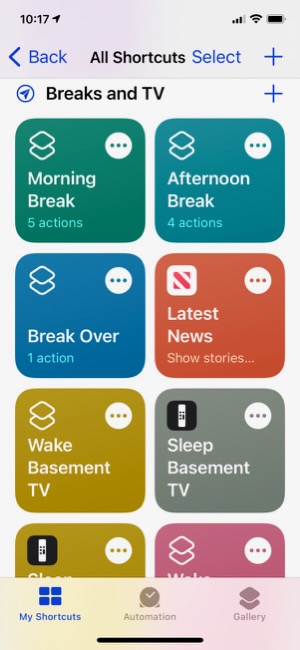
A more complicated shortcut is used for "Afternoon Break," and I've discovered a problem in Apple's implementation at this time that requires me to click the shortcut in the app to get it to work. A voice command to Siri won't cut it, unfortunately. So, I set an automation that launches the Shortcuts app at 3:30 (when my break usually starts), so it'll be there when I'm ready to start my break. The afternoon shortcut does the following things: It turns off the music room lights, turns on the Great Room lamp, runs a shortcut called "Indie Radio" that plays a playlist from Apple Music to my kitchen HomePod, waits 3 seconds and then launches the Stocks app showing the Apple stock price. Again, when I'm ready to go back to work, i say "Break Over," and that sets the lights appropriately and stops the music.
I also have shortcuts to wake and sleep my Apple TVs, which, when they work, will wake the Apple TV, turn on the TV and show the remote for the Apple TV on my iPhone. For some reason, these automations aren't as reliable as the others. I often have to say "Wake Basement TV" more than once to get Siri to do her thing.
In "Music and Audio," I have shortcuts to "Indie Radio," based on an Apple-provided shortcut, one that searches my library for "Beach Boys" and plays what it finds to my bedroom HomePod, one that finds my "Folk/Folk Rock" playlist and plays it, two that play different podcasts, and one that lets me add whatever song is playing to a given playlist.
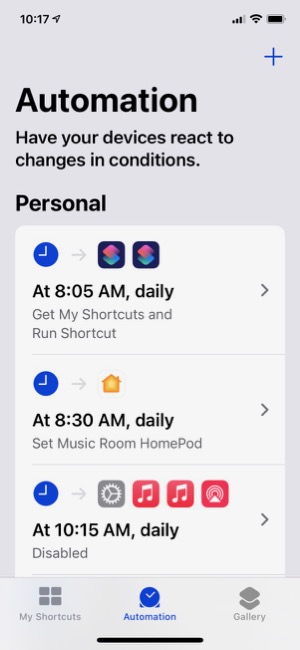
One of the tabs in the Shortcuts app is for setting up automations with your shortcuts. At the top of the screen are Personal automations that are just for you and your iPhone. At the bottom are Home automations, which are the same as those you set up in the Home app.
In addition to the Shortcuts app, you can also create custom Siri commands in the Home app, where they are called "Scenes." For my home, I have several "Scenes," which essentially are commands that control one or more devices at once. For example, I have "I'm Home," which turns on several lights in the house, and "Good Night," which turns lights off. Just for fun, I set up "Reading The Paper," which turns on the floor lamp in the great room, and "Paper Done," which turns it off. Such scenes merely save a few words off saying, for example, "Turn on the floor lamp."
To sum up, my foray into the smart home has been a lot of fun so far. I keep thinking of new ways to save energy and time, and Apple has provided a secure and private platform to use, so I can feel confident that the devices I add to my home maintain the same standards that Apple does. Since all of these devices are WiFi enabled in some way, they present potential targets for hacking by outsiders. It's important to make sure your privacy and security aren't being compromised as you built out your smart home and life. Other HomeKit devices I'd like to set up eventually include a smart thermostat, a smart doorbell with camera, a smart water faucet for auto-sprinkling, and perhaps a smart deadbolt lock.
Balanced Article on “Smart Home” in 2020 Gives Nod to Apple for Privacy/Security
Interesting article. I think it’s fair for the most part. It dings Apple justifiably for staying behind in the smart assistant race, and it’s true that the HomeKit-compatible devices market is much smaller than that for Google or Amazon. But Note that Apple wins in the privacy and security race and comes in as runner-up for 2020 overall. They also seem to think that the HomePod mini is a game changer in Apple’s favor, and they give Apple positive marks for being ahead of the game in privacy and security not only for their products but also for those that run on HomeKit. That isn’t true for the other platforms and their many, often sub-par third-party products.
Can You Fall In Love With A Watch Face?
I recently began exploring all the different faces that are now available for the Apple Watch. There are many cool options these days, but I happened upon one that I simply can't get enough of. It's the kaleidoscope face, which comes with a nice array of image options and several "facet" styles.
After playing with the face and the built-in options for awhile, I discovered that you could use a custom image as the source for the kaleidoscope effects. I chose the one I use on my computer desktop and on my iPhone home screen... It's a photo I took during an especially beautiful sunset at our favorite beach destination in North Carolina. You can check it out here: 
After doing this, I realized I had found watch face nirvana for me. I settled on the radial facet effect, and now I have incredibly beautiful animations as the kaleidoscope cycles through the source image. The animations are sometimes quick, sometimes subtle, but always calming. I find myself looking at my watch now and then as a sort of meditation exercise. My watch is no longer just a great utility — a computer on my wrist! — it's a piece of art that's contantly changing.
During the course of the last week or two, I've screen-captured my watch face, and although some are similar, no two images are alike. I hope you enjoy perusing them as much as I enjoy seeing them on my watch face.
One note to "complications" fans... I keep my fully loaded modular face a swipe away, so I can quickly see things this face can't accommodate. (Note to Apple Watch newbies, once you set up more than one face, you can simply swipe to the left or right on the watch face to cycle through your custom faces.)
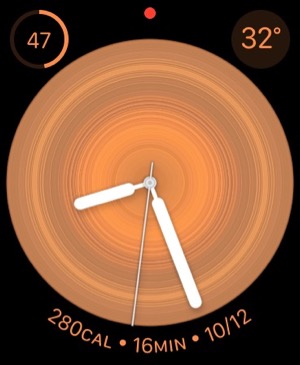
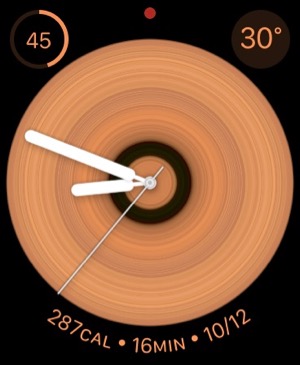
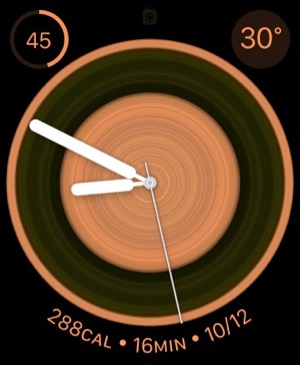
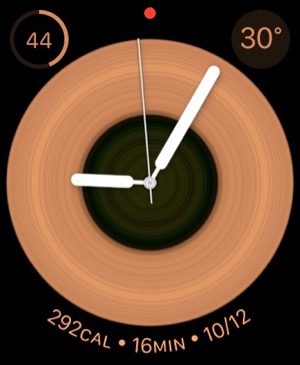
An Audiophile Listening Room with Apple’s HomePod
Apple's HomePod has been the underdog in the "smart speakers" category since its introduction last year. It's more expensive than the offerings from Google and Amazon, and Siri doesn't seem to be as powerful. I haven't used Alexa or the Google AI assistant, so I can't say what the difference may be. But let me just say that HomePod is a revelation in audio quality, and its "smart" features are more than adequate for my needs. The most surprising aspect of HomePod is that it has finally let me put together an audiophile listening room without taking out a second mortgage!
At its most basic, HomePod is a smart speaker with Siri built in and truly gifted sound quality. It's a breeze to set up... you just use your iPhone to pair and copy settings, which takes about a minute. My first use was to add some smart light bulbs to the house, and with Apple's HomeKit app on the iPhone that's a simple matter too. To activate a new device, you just scan an icon on the packaging and then assign it to a "room" in your house. (In HomeKit, you can set up rooms and "scenes" for your devices.) Once set up, it's a simple matter to say "Hey Siri" and then turn on or off a given bulb. HomeKit also makes automation simple, so you can easily have lights come on and off at different times of the day. With scenes, you can automate multiple devices with a single command. For example, when I go to bed, I say, "Hey Siri, Goodnight," and Siri turns off the basement family room light and the foyer light.
I also subscribed to Apple Music as part of my movement to the HomePod, and I've thoroughly enjoyed being able to listen to any given album by voice command. Of course, HomePods are also AirPlay speakers, so you can easily play music to them from your iPhone, iTunes, or other devices. It's simple to play to multiple HomePods at once, and Siri can move the music from room to room by voice command if you so choose.
But the most surprising aspect of HomePod has been its audiophile sound quality. Even bass response is great, which is amazing given the small size of these speakers.
I got a new HomePod for Christmas (I already had two) and decided to put it in the living room. It sounded so wonderful I decided to buy another one and set them up as a stereo pair. That's when the true value of these little speakers became clear.
With two HomePods now in my living room, I finally have achieved an audiophile listening environment at a truly reasonable price. The two little speakers pump out amazing sound, and they only cost me about $700. To replicate a listening environment with traditional high-fidelity speakers would cost at least $2,000, because you need not only the speakers (minimum: $1,000), but also you would need a receiver/amplifier and some components to get music into the system: A CD player or turntable, for example. On top of that, you would need some place in the living room to house the speakers (much larger than HomePods) as well as the stereo components... and that means another piece of furniture as well as considerably more space than my current setup requires.
With my paired HomePods, I just need to plug them into the wall and put them on a shelf. And voila! Instant audiophile listening without all the other setup headaches and at a much lower cost.
And I love the fact that the speakers have Siri built in, which means I can raise or lower the volume by voice, get information on what's playing, skip a song, or repeat... all by simply asking Siri.
The HomePod's audio quality is more than just a differentiating factor when you compare it to Google and Amazon speakers. It truly is great enough to compete with high-end speakers costing much more, and you can easily set up a listening environment that will tickle the ears of even the pickiest audiophile. A surprising punch for such a tiny device.
Apple v. Samsung: The True Story
Introducing Smooth Black: A New Button Theme for CrystalClear Interface
 In my previous article I spoke of a desire to get back to theming, and specifically mentioned a desire to do that "black matte" theme I've been thinking about. I guess the article helped spur me on, because after several weeks of work I'm now ready to release Smooth Black, a new button theme for CrystalClear Interface (CCI).
Smooth Black complements existing CCI components, including its Black Gradient menubar and Smooth Black window theme. It rides on top of existing code that made Crystal Black possible, so the implementation went rather, ah, smoothly.
At this time, the theme is missing graphics for all of the "mini" components in Mac OS X buttons. As a fill-in, Smooth Black incorporates the Black Gloss graphics for the "mini" buttons. On Lion and Mountain Lion, the theme also needs to be fleshed out with a complete set of "small" buttons.
Again, implementing Smooth Black hit a reality wall when time came to take it from Snow Leopard to Lion and Mountain Lion. Because the Lion systems require a tedious manual process to update their buttons, this wasn't any fun. But CCI 2.7.6, released today, does incorporate the buttons for all three operating systems.
Note: Smooth Black owes a debt of gratitude to the authors of the ShapeShifter themes Rhino and Carbon Polymer.
On Theming Mac OS X: How Long Can I Hold On?
CrystalClear Interface and Crystal Black are marvelous, foolhardy, and frivolous experiments in theming the Mac OS X user interface. As they were in the beginning, so they remain today: Elegantly imperfect software products, which will always be buggy. It's just the nature of the experiment. Why? Because they try to do something Apple works hard to prevent, and therefore are outlaw apps: Only able to pop up here and there with a sparkling, think-different approach that just isn't meant to be.
I am the foremost user of these two themes, and I continue to develop them because (1) it's still possible and (2) I really like them. As the author, I'm tolerant of their occasional misbehavior, but I understand that not all observers are so patient. Nobody likes a screaming 3-year-old while enjoying a quiet evening at one's favorite restaurant. I'm no different in that, but I do try to make sure my children learn how to behave as new situations arise that cause them to flare up.
Still, there are always new situations, and, well, children will be children. My children are still quite young, but the day may come when either they are banned from new restaurants for their behavior, or I become too exhausted from apologizing for them to take them out in public any more.
With each release of its operating system, Apple drives me one step closer to that edge. It's not intentional, I'm sure... In the interest of providing a safe OS environment, Apple continues to tighten the knot around inter-application interactions — especially those that allow third-party software, like CrystalClear Interface (CCI), to load itself into other applications, such as the Finder or TextEdit. And yet, without that kind of interaction, CCI and Crystal Black (CB) could not function.
For now, it appears that CCI will survive the transition to Mountain Lion (Mac OS X 10.8), but as with every release of Mac OS X since Tiger (Mac OS X 10.4), the amount of effort to do so is greater. And I fear that as the technologies introduced by Apple for increased security in Lion and Mountain Lion are more widely adopted by software developers, the number of applications that won't run CCI properly will increase.
In some future update, Apple could introduce a change that will turn off the lights for CCI and CB for good, as well as those for AppMenu Magic and my freeware Text Tools. Such a change would mean I could no longer develop the software, let alone support it.
On a personal level, this would mean giving up an obsession that's outlived enormous odds. When I first took up theming for Mac OS X back in 2005, it was strictly a design job, with lots of time spent in Photoshop working with teeny, tiny bits of buttons and other interface elements. And there was a stable theming environment provided by a third-party application called ShapeShifter, which became obsolete when Apple released Mac OS X 10.5 ("Leopard').
CrystalClear Interface became possible only after I learned how to make application windows with transparent-capable backgrounds. And I learned how to do that only by gradually teaching myself how to write programs for Mac OS X using Apple's Cocoa frameworks and its native language, Objective-C.
I didn't sit down tonight to write a history of CCI, so suffice it to say that as CCI evolved, the programming component grew in inverse proportion to the design/graphics component. In fact, the design work is now quite subservient to the code.
This means I can no longer amuse myself by designing new themes. Instead, I spend most of my time making sure the existing theme designs will work on Apple's new Mac OS X releases. I already gave up the Glossy design on Lion, but I'd really love to rescucitate it — And I'll have to if I actually upgrade to Mountain Lion. Why? Because I really like the Glossy theme, and I'd want to use it myself. And then there's the matte black theme I keep dreaming about...
On a side note, have you noticed that in Lion Apple has almost eliminated the Aqua interface? In fact, the button theme they're using for most items looks and works suspiciously like CCI's "Unified Gradient" theme, which I introduced in 2009 to uniformly apply to all interface elements a button style Apple had added to Leopard. In Lion today, the main elements that remain candy-colored are Apple's "stop light" buttons, the progress bars, and odd pieces like the titlebars of list-view tables. Otherwise, Aqua is gone, though not replaced with anything so memorable. And hard-core themers continue to weep and satisfy themselves with such trivia as themes for the Dock (easy) or Menubar (much harder). Some also try theming buttons and such, but with Lion Apple has made even that mundane endeavor mysteriously difficult. (Buttons are composited against window backgrounds in a mysterious way that requires providing whole separate sets of buttons for Snow Leopard and Lion.)
Which brings me to the crux of this overly-long, overly-dreary essay: CrystalClear Interface exists today only because once I had seen how beautiful it could be, I couldn't let that beauty go. I simply can't stand working with gray-gradient windows all day, no matter how elegant they may be. And there are times when I really want/need a dark interface like the Black Gloss theme from Crystal Black.
So either I sever the cord with Apple's future OS X updates, or I sever the cord with CCI. It will have to be one or the other, and I'm not yet sure which that will be.
In the current setting, supporting Lion (and soon, Mountain Lion) has been royally painful. So much so that for the last 6 months I've spent most of my time getting CCI to run on Lion, or merely keeping it running. Not very satisfying for me, since I don't use Lion myself (yet).
An earlier article discussed the grief involved in updating CCI for Lion, and I mention it here because the problems haven't gone away. They've merely formed a continuous obstacle that becomes more and more tedious to work around.
In other words: Most of the fun of developing CCI has been held at bay, and the drudge work of keeping up with Apple has made me wonder how long I can hold out.
My fondest hope is that next time, Apple will make us wait longer than one year before throwing a new OS our way.
The big-talk, no-action Congress
In search for civility online, is the Golden Rule the answer?
The Bother of Biological Bodies
When I came to Earth, I of necessity adopted a human form — in order to be less conspicuous. Little did I know what a mess caring for the human body would be.
The worst part about the tasks required to keep the body from deteriorating too much is that they take so much time. All of these mostly unpleasant activities could — if I let them — gobble up 1-2 hours of my day. Unfortunately, what I've found is that putting off some of these tasks merely means spending more than 1-2 hours when the deterioration has become more annoying than the tasks themselves.
So, what unpleasant and annoying tasks does the biological human body require? Here are the worst, from my perspective (in no particular order):
- Emptying bowels. On Mars, our bodies do this quickly and cleanly, merely be ejecting a small, shiny egglike object when necessary.
- Trimming nails. What a bother! And so prone to error, hangnails being the worst.
- Brushing teeth. Seriously, there's no reason why human teeth should require so much care and expense to maintain. When was the last time you saw a cat brush its teeth?
- Washing hands. Not unpleasant so much as annoying. Yet without frequent washings during the day, the body is vulnerable to attack by malicious microbes — and what a disaster that can be!
- Cutting hair. Some people, I've noticed, actually enjoy this activity. But to me it's merely an annoying time-waster.
- Trimming facial hair. Same as hair-cutting, except I don't think most men actually enjoy the activity.
- Treating fungus. It seems that once you are invaded by fungus, it never goes away. It flares and fades and requires outrageous expenditures on a variety of products, none of which offers a permanent cure.
- Minimizing body odor. Again, some humans enjoy showering, bathing, and the rest ... but to a Martian, this problem is best controlled by other, less time-consuming, means.
Now, granted, there are at least two biological functions that I find enjoyable — even though they both take a good deal of time: Eating, and orgasm. The former is a necessary part of maintaining the biological body, but the latter is not. It's merely a fun option... and one of the best things about living in the human body.
Bye Bye, Google
Mars Themes Website: New Home For Mars Downloads
A few weeks ago, I launched a new website — Mars Themes — as a central repository for all the various themes, app skins, applications, widgets, and so on that I've developed over the years.
These items — all available as free downloads, except for two — were previously in a section of the Mars website linked to the "Downloads" item in the navigation bar. That link now takes you to Mars Themes. (Oh yeah, the two not-free items are the software apps CrystalClear Interface and Crystal Black. They have their own websites, but are also linked to Mars Themes.)
 The new site has all the content previously available here, plus a few more things. The site has a News section where all recent additions or changes are announced, and separate pages for Themes (for ShapeShifter only), Icons, Widgets, App Skins, and "More Freebies."
Not previously available are a set of icons I designed back in 2005, which were included in my ShapeShifter theme DeStyl Ruler. These icons are inspired by the early 20th Century Dutch art movement De Stijl, whose most famous adherent was Piet Mondrian.
Also now available are a set of desktop pictures that accompanied the DeStyl icon set. These designs deconstruct the Schroder House, one of the only examples of De Stijl architecture.
“Just Say No To Flash”
Join The Campaign! Add A Banner To Your Website
 In the past few years, Adobe Flash has become more than an annoyance that some of us have kept in check by using "block Flash" plugins for our web browsers. More and more, entire web sites are being built with Flash, and they have no HTML alternative at all! This goes way beyond annoying, into the realm of crippling.
I had noticed the trend building for quite awhile, but it only really hit home when I realized that Google, of all companies, had redesigned its formerly accessible Analytics site to rely heavily on Flash for displaying content. This wouldn't be absolutely horrible except for the fact that Google provides no HTML alternative. I tried to needle the company through its Analytics forums, but only received assurance that yes, indeed, one must have the Flash plugin running to view the site.
Keep in mind that content like that on Google Analytics is not mere marketing information, like the sales pitch on the Analytics home page.
Those of us who are disturbed by the trend need to be a bit more vocal about our opinion. Hence, I'm starting a "Just Say No To Flash!" campaign, with its own web page, graphics for a banner, and the CSS and HTML code to deploy it on your own web pages.
I've mentioned this to some of my family and friends, and they often come back with: "So, Why should I say no to Flash?" I admit that as a power browser and a programmer geek type who, shall we say, makes more efficient use of the web, I'm more keenly aware of the ways that Flash is chipping away at the foundation of web content.
In the beginning, it seemed harmless: Flash was an alternative to animated GIFs, and an easy way to embed movies on web pages. But then advertisers wrapped their meaty mitts around it, and that's when Flash started to be annoying. However, one could block Flash in the browser, as part of a strategy of shutting out obnoxious advertising.
But publishing content via Flash is just wrong, for a number of reasons.
➠It's A Proprietary Technology
I don't think Flash is what Tim Berners-Lee had in mind when he created the first web browser and the markup language called HTML to run the web. Then, as now, the web is meant to be open to all. It is meant to be built using open standards that belong to no individual or company. The main open formats that should be used to build websites are simply:
- HTML
- CSS
- JavaScript
- Images (open formats)
Open standards for video, audio, vector graphics, virtual 3D graphics, animated graphics, and others are also available to be thrown into the mix.
Adobe PDF is also a common format for distributing final-form documents, and PDF is based on open specifications for both PDF and PostScript that Adobe published back in the 1990s.
➠ It Isn't Backwards-Compatible
If you install a Flash plugin today, there's no guarantee you'll be able to view Flash content created 2 months from now.
If you have a Flash plugin from 5 years ago, it's probably useless today.
Flash is designed with built-in obsolescence, forcing users to repeatedly visit the Adobe website to get an upgrade. This is not only a bother, it forces one company's advertising into the world's face every time it releases a software update.
➠It Can't Be Customized
From time immemorial (well, at least since the beginning of web time), a web page's text could be customized to suit the user's taste and needs. All web browsers provide the tools to increase/decrease the font size, as well as to specify custom fonts for different page elements (headers, paragraphs, etc).
Flash throws all of that out the window with a terse shrug, "Let 'Em Eat Helvetica 10pt."
➠Its Content Is Inaccessible
No, you can't drag and drop images or text from Flash content. This most basic method of interacting with a web page—dragging images off the page, or selecting sections of the page to drag onto an email or text processor—is a non-starter if it's part of a Flash file.
Copy and paste? If the Flash programmer has been thoughtful, you should be able to copy and paste text. But don't even try to copy any other page element.
And that includes copying a link's URL. Right-click (Ctrl-click) anywhere in a block of Flash content, and you get the standard Flash popup menu. Not very helpful.
➠You Can't Save The Page
Another common task many web users take for granted is the ability to save a web page as text, as HTML, or as a format like rich-text format. With Flash, this is impossible.
You may be able to save the file as a web archive, but there's no open standard for a "web archive," and getting at the content inside one is almost as hard as getting inside a Flash movie.
➠Flash Consumes More Of Your Computer
When I'm running Flash — as I am now while shopping at Adobe — my Activity Monitor shows it's consuming a continuous 5-percent of my processing power, and about 130 MB of my RAM.
For What? There's nothing a Flash movie can deliver that can't be delivered using open formats. its heavy resource drain is one reason I keep Flash turned off when browsing the web.
➠You Can't View Flash on an iPhone or iPad
Apple has very good reasons for not supporting Flash on its tiny devices. As the previous point makes clear, Flash isn't a delicate, lightweight technology that your processor and RAM won't notice.
When trying to build hardware and software for small devices that work well and don't lead to memory problems or application crashes, why wouldn't you ditch unnecessary technologies like Flash?
Obviously, Steve Jobs stepped into a hornets nest here, but I think the hornets were wrong.
Make Your Site Say No To Flash
It's easy! Just follow these two steps:
1. Download the Image(s)
You can copy and save one of the following images, or download the Photoshop source and make your own.


2. Add the CSS
Here are two CSS styles for positioning the Just Say No To Flash banner on your web page. One positions the banner at the top-right, and the other at the bottom-right. To use the styles, just copy and paste the following code into the <HEAD> portion of your HTML.
<style>a#noFlash {position: fixed;z-index: 500;right: 0;top: 0;display: block;height: 160px;width: 160px;background: url(images/noFlashTR.png) top right no-repeat;text-indent: -999em;text-decoration: none;}</style>
<style>a#noFlash {position: fixed;z-index: 500;right: 0;bottom: 0;display: block;height: 160px;width: 160px;background: url(images/noFlashTR.png) bottom right no-repeat;text-indent: -999em;text-decoration: none;}</style>
3. Add the HTML
Add the following to the beginning of your HTML, just below the <BODY> tag, or at the end, just before the closing </BODY> tag:
<a id="noFlash" href="http://www.musingsfrommars.org/notoflash/" title="Just Say No To Flash!"> Just Say No To Flash! </a>
Please always link your image to http://www.musingsfrommars.org/notoflash/ so everyone can find the information associated with the image.
Thanks to the "Too Cool for Internet Explorer" campaign run by w3junkies for the concept behind "Say No To Flash," as well as for the general outline of information that campaign provided.
Introducing “Clear Crystal” System Icons for Mac OS X
I'm happy to present a complete, new set of icons for Mac OS X, specifically designed to complement the Crystal Black theme. These icons can be used to replace the default "system" icons for folders, devices, toolbar items, Finder sidebar items, and others. The screenshots below display the icons for each system type.
These "Clear Crystal" icons come in sizes from 256 to 16 pixels. (I'm not a big fan of 512 pixel icons, which is why they're missing.) In the screenshots, the icons are shown at 72 pixels for the first four system groups. The fifth screenshot shows them at 24 pixels, and the screenshot of the Finder sidebar shows them at 16 pixels.
I see no reason to prepare unique icons for every flavor of removable disk one can use these days, mainly because at 16 pixels (which is how they typically appear in the Finder sidebar), the different designs are indistinguishable. Therefore, I've used the same design for CDs, DVDs, BDs, and all their various permutations.
Beginning with Mac OS X 10.6 ("Snow Leopard"), Apple defines a distinct set of icons for the Finder sidebar. Since these mostly duplicate those used for folders, I've chosen to use the same icon set for both. This is possible because icon sizes down to 32 pixels use the full design, while those from 32 pixels and smaller use a simpler design more distinguishable at small sizes.
Note that although I designed the icons for use with Crystal Black, I also tried to make them compatible with the default Aqua theme. They'll look best with dark backgrounds, but light backgrounds will work too. (The screenshots show them in use with Crystal Black.)
At the end of this article is a list of the icon sets that provided either templates or inspiration for the Clear Crystal icons. My sincere thanks to the many great icon designers who provide their work free of charge to the Mac user community.
Enjoy!
Installing the Clear Crystal Icons
This icon set is available as an iContainer for the application CandyBar, which provides a convenient way of quickly installing (or uninstalling) icons for the various system types. In addition, the Clear Crystal icons are available as Apple icon files for those of you who don't want to shell out for CandyBar.
If you have CandyBar, simply double-click the Clear Crystal Icons iContainer file to add them to CandyBar. Follow the instructions in CandyBar to apply the newly added icons.
To install the icons manually, you first select an icon in Finder and open the Info window (Cmd-I). Next, copy the small icon at the top of the Info window (to the left of the icon's name). Then, select the folder or item to which you wish to apply the Clear Crystal icon and open its Info window. Then, paste the copied icon over the small icon at the top of the Info window. Repeat for each icon in the set.
Clear Crystal Icon Set (Download file is 9.1 MB)
Credits
I used the following icon sets to provide templates or inspiration for the overall design and for various individual Clear Crystal icons. I am deeply indebted to those who designed these sets, both for their graphic design skill and for their generosity in providing their icons for free to the Mac user community.
- Albook
- Antares
- Black N White
- G5 System
- Glass Globes Desktop
- Black N White
- Mistikons
- Neige
- Photopro
- TiCons
- Tokens
- XPack
The Sociology of Tornadoes
- Paranoid?
- Envious?
- God-Fearing?
- Intolerant?
- Republican?

In recent days, I've been barraged by friends back on Mars inquiring about what psychological effects the recent spate of tornadoes in the South and Midwest United States must have on the humans there. Their interest got me to thinking, and I suddenly had an insight, which I'm sure has brightened the intellectual glow of many beings (both Martian and human) before me.
The insight encompasses the sociological effects of hurricanes as well, since the two devastating natural phenomena share some common traits... the most obvious being those furiously spinning wind and clouds.
My Martian theory also explains why tornadoes and hurricanes affect humans in ways that volcanoes, tsunamies, and earthquakes do not.
For brevity in the following paragraphs, I'm using the term "Recurring Events of Mass Destruction" (REMD) to refer to tornadoes and hurricanes, and the term "Unpredictable Events of Mass Destruction" (UEMD) to refer to volanoes, tsunamies, and earthquakes.
REMD. The distinguishing characteristics of REMD include:
- They happen every year.
- Though their frequency and severity vary from year to year, their geographical incidence is constant and encompasses huge areas of the country.
- Though you know they'll occur every year, you have no idea where exactly they'll strike.
- When they do strike, they invariably cause severe damage at the strike site.
UEMD. The distinguishing characters of these include:
- They happen whenever. Completely unpredictable.
- Most of the time, their effect on human life and property is minimal. Catastrophic events do occur, but their incidence is rare compared with REMD.
- The geographic range is much more limited and static than for REMD. Only a few States are affected by UEMD.
These widely differing attributes lead me to theorize the following psychological effects on humans who live in areas prone to REMD.
| Dread | The certainty of mass destruction lowers an unconscious web of dread on REMD people. Ongoing dread bends the psyche toward irrational fear of the unknown, as well as paranoia. |
| Envy and Schadenfreude | Although humans like to think otherwise, those who live in an area where one's town can be devastated while a town close by goes unscathed invariably feel envy when this occurs. Likewise, those in the spared town will feel the opposite—schadenfreude. Although this affects victims of UEMD too, the sociological effect is lessened by the lower incidence and narrower geographical confines of UEMD. Over time, envy and schadenfreude become ingrained in a community's collective psyche. |
| The widespread and continuous feelings of envy and schadenfreude can heighten suspicion of "outsiders" and lead to an intolerant, parochial view of the world. It can also make humans more stingy towards those beyond their immediate community. These people are more likely to adopt the philosophy, "Every Man For Himself," and they become incapable of seeing "beyond their own back yard" in terms of understanding people different from themselves. | |
| Religiousness | Throughout human history, people have been driven to religion to explain natural phenomena—both good and bad. If REMD are caused by God, then perhaps fear, dedication and prayer to God will help. Religion in REMD areas would therefore be expected to emphasize the fear factor of God, as well as a greater awareness of God's opposite—Satan, Evil. |
People living with UEMD are also affected by these feelings, but to a much lesser degree. Because of the infrequency and lack of predictable recurrence of UEMD, the emotions do not grip entire communities or regions. The primary psychological effect on humans of UEMD is a sort of Stoic Fatalism, which can be summed up in the philosophy "What Will Be Will Be." Stoicism tends to make humans more tolerant of others and more broad-minded about ideas.
Given these characteristics, it's now worth mapping their effects geographically, in order to see how the incidence of tornadoes correlates with the incidence of humans with those characteristics. Since the psychological makeup of Republican (conservative) humans aligns pretty well with the attitudes of those prone to REMD, I am using voting patterns as a proxy for sociological differences between areas affected by REMD and UEMD. The maps below adopt the paradigm of "blue" and "red" States to view the correlation.
Notes: The data in Map 1 are derived from statistics published by NOAA's Storm Prediction Center, and cover the 5 years from 2000-2004 . To improve focus, it doesn't show incidence numbers lower than 10. The number of States of a particular color on Map 1 is the same as the corresponding number Map 2 (Source: Wikipedia Commons).
This is the color legend for Map 2:
- The Republican candidate carried the State in the last four presidential elections (1996, 2000, 2004, 2008)
- The Republican candidate carried the State in three of the four most recent elections.
- The Republican candidate and the Democratic candidate each carried the State in two of the four most recent elections.
- The Democratic candidate carried the state in three of the four most recent elections.
- The Democratic candidate carried the state in all four most recent elections.
Although not a perfect predictor, tornado frequency correlates pretty closely with election results: The States that lie in the tornado "alleys" of the South and Midwest are almost all populated by Republican-leaning voters.
I should stress that this theory does not postulate that tornadoes are the sole predictor of a State's sociological makeup. For example, the characteristics this theory predicts for humans in REMD areas are also found in small-town and rural areas, which are heavily populated by parochial and intolerant humans. Red States that do not correlate with the tornado data but whose population predominantly lives in small towns and rural areas include Montana, Wyoming, Idaho, and Alaska.
Among the blue States, the biggest outlier is Illinois, which maps as solid red in tornado frequency but solid blue in voting pattern. Though this result seems surprising—as well as contradictory to my theory—it can be explained by noting that the incidence of tornadoes is primarily in the southern part of the State, which is also heavily Republican and has long considered itself part of the South.
It's worth noting that many of the red and pink States on the third map are also those that suffer the most REMD by hurricanes—South Carolina, Georgia, Florida, Mississippi, Alabama, Louisiana, and Texas. Adding hurricanes to the tornado data above would undoubtedly also turn North Carolina red.
And this, my fellow Martians, is my explanation of how tornadoes affect the sociology of the human populations they afflict.
Schadenfreude.
Pleasure derived by someone from another person's misfortune.
Envy.
A feeling of discontented or resentful longing aroused by someone else's possessions, qualities, or luck.
Dread.
Anticipate with great apprehension or fear.
Intolerance.
Not tolerant of others' views, beliefs, or behavior that differ from one's own.
Parochialism.
Having a limited or narrow outlook or scope.
Religiousness.
Believing in and worshiping a superhuman controlling power or powers, esp. a personal God or gods.
Stoicism.
The endurance of pain or hardship without a display of feelings and without complaint.
Fatalism.
A submissive attitude to events, resulting from the belief that all events are predetermined and therefore inevitable.
Broad-minded.
Tolerant or liberal in one's views and reactions; not easily offended.
Republican.
A person who is averse to change and holds to traditional values and attitudes, typically in relation to politics.
God.
The creator and ruler of the universe and source of all moral authority; a superhuman being or spirit worshiped as having power over nature or human fortunes.
Paranoia.
Suspicion and mistrust of people or their actions without evidence or justification.
Theming Snow Leopard:
How Hard Could It Be To Paint A Leopard Black?
Dark interface themes are extremely popular with a small, but very passionate, group of Mac users. Sadly, since Apple introduced Leopard (Mac OS X 10.5), the old, relatively simple method of creating such themes on the Mac can't be used, and it took the theming community a good year and a half to figure out the current, relatively hobbled tools to theme the few bits of the interface that can be themed.
Given the weakened state of theming on the Mac, it's not surprising that the number of themes available has dwindled to a mere handful. And even those only go part of the way compared with what we used to be able to achieve with ShapeShifter. Still, the yearning for Mac themes remains strong among this community, and black themes are virtually nonexistent now.
Black themes have always been a challenge, because the frameworks used to build applications were designed to assume that text would always be black and the color of windows and buttons always light. Apple introduced a dark-theme paradigm a few years ago with its Heads-Up Display window style, which, with its translucent black background actually assumes that text will be white.
Starting with Leopard, developers using Xcode could tap into the HUD window style and use it whenever they want to, but most application windows aren't well suited to this, and Apple's user interface library still assumes that regular windows will be light, with black text.
It's not only desktop applications that make this assumption. Web pages with button widgets also assume that the widgets will be light and their text black. On the Mac, it's becoming common for desktop applications to embed the WebKit for parts of their user interface—meaning that the button widgets are HTML- and CSS-based, not AppKit-based.
In addition to this basic problem, there's also the challenge of handling legacy applications based on Apple's earlier Carbon frameworks, as well as apps that are a blend of Cocoa and Carbon. Complicating this issue is that, as it turns out, applications built for the older PowerPC processor platform use a different part of the system graphics than those built for Intel chips.
If you try to design a theme that introduces black interface controls, you run into another challenge that has nothing to do with text. Many interface widgets use images rather than text to convey their purpose, so what if—as is usually the case—the application designer provides only black images for these buttons? Is a themer supposed to provide white images for every application a themee might want to use?
One specialized case of the images problem is the Mac OS X statusbar. Here, applications represent themselves almost exclusively as images, and nine times out of ten, the images assume that the menubar is light, so they should be black. Some enterprising themers have tried to solve this one by providing alternative white images for the most common statusbar applications, but usability can still suffer if someone using a black menubar launches an application that insists on putting a black icon up there.... one for which no white alternative exists.
Given all this, why would anyone undertake an effort to introduce a fully black theme for Snow Leopard?
I suppose it's because we Martians just can't step back from a challenge. Not to mention the fact that we, too, are afflicted with the passion for dark themes that many Earthlings suffer from. I also have a good starting point, having developed some useful techniques for the challenge through building CrystalClear Interface.
That said, the best I can offer still has compromised usability, which I detail below. But for the most part, I think I've succeeded in bringing to life a useable version of the legendary Cathode theme for ShapeShifter, in a redesign appropriate for Snow Leopard. The theme covers window backgrounds, background colors for tables and outline views, interface buttons, menubar, and text colors. It also coerces various types of windows to theme themselves in HUD style.
To acknowledge the theme's heritage, I've dubbed the theme Crystal Black. Crystal Black will be available for download soon, with a 15-day trial period and a purchase price of $6.00
It's important to note that Crystal Black and CrystalClear Interface can not coexist on the same system. You can't install Crystal Black until you uninstall CCI.
For my own documentation of this work, as well as to highlight the theme's strengths and weaknesses, the following list shows the various unique challenges I've faced in building Crystal Black and the solutions, if any, devised. Other challenges have been faced—and largely solved—in developing CrystalClear Interface, so I won't spend time on them here.
In the list, I've used a small graphic to indicate the degree of success in addressing each challenge:
★ Solid solution
☆ Partial solution
∅ No solution
For Cocoa applications:- Images on buttons and in column headings ★
- Images and icons in the statusbar ★
- Text color of buttons in web pages ★
- Applications that use non-standard buttons and GUI frameworks. ☆
- Text color on Finder items with color labels ∅
Cocoa applications that can't or won't take theming by Crystal Black ☆(Problem solved 4/13/11.)- Cocoa applications that are on the user's "Disabled Applications" list ☆
- Text color for control widgets ☆
- Color of titlebar and toolbar text ∅
- Window and control object background colors ☆
Cocoa applications
- Challenges
-
- All images need to be made white, but without making custom button images for every possible application. Somehow, black images must be inverted as windows load.
- Some images are already "templates," easy to invert. However, other images look like "templates," but aren't, and making them templates isn't a reliable technique.
- Images with color (hue > 0) need to be distinguished from black/white ones. Knowing the image's color space doesn't help.
- Some images are "Core Image" images, which don't have a bitmap representation that can be easily analyzed. In this case, Crystal Black must create a bitmap representation in check it out.
- Images in column headings aren't buttons, so they require extra processing. In many cases, they change often so must be analyzed repeatedly. Some have proven inaccessible.
- Solution
- Each button and column heading in application windows are analyzed as they load to determine whether—and how—they require inverting. If inverting is needed, Crystal Black generates a new image and sets in place of the original.
 Still, there are a few cases that haven't yet been addressed. One is the case where a pull-down menu contains an image. I hope to deal with this in a future update.



- Challenges
-
- For nearly all applications that have a statusbar item and associated image/icon, the image/icon is black in normal state and white when highlighted. This means the image is unreadable against a black menubar.
- Unfortunately, the solution to the problem of images on buttons can't be applied to images and icons in the statusbar. In a few cases, the technique of inverting "template" images works, but applications with statusbar helpers that have invertable images are in a large minority.

- Solution
- Most of your applications that have a presence in the statusbar—including all of Apple's—must have custom-built images. In Crystal Black, these images are installed in the application's Resources folder, while maintaining a backup of the original images. Crystal Black also runs an inversion method that works in a few cases, but can't be relied on for most.
- Challenges
-
- Requires digging through the page's document object model and checking for buttons. Technique for theming push buttons is quite different from that for pop-up buttons.
- Many pages use nonstandard button styles, themed through CSS, and these are much trickier to coerce into using white text.
- Solution
- Crystal Black installs a custom CSS style sheet, which can be used with browsers that support custom style sheets. In the case of Safari, Crystal Black enables the style sheet automatically. Although this works, it manages to destroy a lot of custom-designed buttons along the way...



- Challenges
- Many newer Mac applications have buttons that are subclassed from the standard Cocoa button class and therefore don't respond to theming. Similarly, various open-source frameworks for building windows and buttons are in use, with similar challenges to theming.
- Solution
- Unfortunately, since Crystal Black cannot convert such buttons to its dark theme, it must apply a custom modification for each application to ensure buttons are readable. This means that some apps will have buttons with white text, since they aren't accounted for in Crystal Black.
- Challenges
-
- When the Finder is in column or list view, and these views have the dark background users normally prefer in themes like Crystal Black, the names of files and folders that have colored labels cannot easily be read.
- Despite numerous attempts, I have not discovered any method for changing the colors of these labels to provide ☆suitable contrast for white text.
- In addition, because of the way the Finder's file browser works, it's not possible to coerce a specific file or folder to use black text instead of white, when the item uses a label.
- Solution
- There is no good solution to this problem. To keep Finder's column and list views readable, Crystal Black prevents the background color for these views from darkening to the point that would trigger the use of white text. In other words, the names of files and folders in the Finder will always display as black.
 Challenges
- If a user disables Crystal Black for a specific application, the software no longer has a way to transform text or images from black to white.
Without some action, this would be the same as a user downloading the (free) Crystal Black system graphics files and installing them without the software: You wouldn't be able to read a lot of the interface elements.
 Solution
- The problem can't be totally solved. However, Crystal Black does three things to maintain usability. First, the CB filter module (which is what determines whether to load Crystal Black or not) installs a minimal set of color instructions before declining to load the core software. These colors keep text on buttons readable. Second, the old Extras resources files have a few text-color settings that still have an effect, and these take care of text color on segment tabs. Third, Crystal Black sets some specific defaults for the disabled application that prevent it from using a totally black window frame. These defaults are swapped out if the user re-enables the app for CB.
Carbon applications
Carbon applications are incapable of loading Crystal Black to any meaningful extent. However, some such applications have components built with the Cocoa frameworks, and these components will load Crystal Black (unless the app is in CB's disabled apps list). An example of the latter is Adobe Photoshop CS4, which itself is a Carbon-based lifeform, but may have plugins that are Cocoa-based. In this case, the plugin will load Crystal Black as long as Photoshop itself does not have CB disabled.
At the time of this writing, the Carbon universe is split into two difference species: Those that will only run on PowerPC chips, or under Rosetta on an Intel chip, and those that will run natively on both kinds of chips. The distinction is important, because the different species, it turns out, use different system resources for some of their graphics.
In any case, the challenge for affecting Carbon applications with a dark theme is that it must be done in the "old-fashioned" way—using the graphics files that used to enable theming in the age of ShapeShifter.
- Challenges
- How to enable white text on black buttons and other interface elements without using software or the post-Leopard system resources.
 Solution
- To a large extent, this is solved by relying on the pre-Leopard Extras resources files. Carbon applications make more use of these than Cocoa ones do, and Carbon apps that require Rosetta under Leopard make even more use of them.
 Challenges
- How to enable white text on the labels of toolbar buttons and on window titlebars, without using software or post-Leopard system resources.
- Solution
- No solution found. This is one challenge Crystal Black has been unable to overcome. Since toolbars are an interface element that's uncommon on Carbon applications, the toolbar label problem isn't a huge issue. (The only such app I use is Yummy FTP.) However, nearly all windows have a title, and it remains black against a black background.
 Challenges
-
- The background colors of various objects on a Carbon window are drawn from ancient system resources that aren't straightforward to use and that can mix with unexpected results.
- The elements that must mesh to make a smooth, pleasing, darker-than-white color are nested, and some resources are used for more than one level in the nest.
- One complication that became clear from this exercise is that resources used differ between Universal-binary applications and apps that must run under Rosetta.
- The background color must remain light enough to provide contrast for both white and black text.
- Solution
- Ultimately, this goal required detailed mapping of resource "PPAT" (pattern) objects in the Extras files to observed results. Thereafter, a good deal of trial and error was required to get the colors to mesh—for example, the background color of a "group box" nested in a "tab view", and the background color of buttons and other controls nested inside the "group box."
I couldn't theme some elements to my satisfaction, however. In particular, I wanted the background color of a group box within a tab view to be lighter than that of the tab view. This isn't a problem, but, because the background color of objects within the group box use the same pattern resource as the tab view, the objects have a darker background than that of the group box itself. You can set distinct background colors of control objects that are inside a tab view from those that are outside the tab view, and of those that are in a tab view from those that are nested inside "secondary group boxes" within the tab view. But you can't do the same for objects within the tab view and those within nested group boxes.


Theming A Web Page With Crystal Black:
A CSS Design for Web Inspector
One of the many challenges of building a usable black theme for Mac OS X is making it work with web pages. If you use Safari, the buttons, scrollbars, and other interface widgets on web pages get their marching orders from the system's graphics files—the same ones that regular applications use.
So, if a web page has a pushbutton, the button will by default take on the style of the active theme. If you're running Crystal Black, this means that the button inherits the Crystal Black style. We like this.
Color for the button's text, on the other hand, gets its marching orders from the browser's default Cascading Style Sheet (CSS) file—which, naturally, makes the text black, and therefore unreadable on top of a black button. We don't like this.
On first glance, the solution seems to merely design a special CSS file for Crystal Black and make Safari use it.  And that does work for many web sites and many buttons. However, many folks who design web pages like to fiddle with the CSS style for their pages' buttons, and such fiddling means that there's nothing "mere" about designer a Crystal Black style sheet.
Further, many Mac applications these days have views that are simply embedded web content using Apple's WebKit framework. The practical implication here is that Mac apps don't know how to read a Crystal Black CSS file, so Crystal Black must do some fiddling under the hood to avoid having unreadable buttons in such web views.
Then there's Safari itself. I really wanted to theme the Web Inspector—the incredibly useful built-in website viewer/debugger/designer assistant—with the Crystal Black look and feel, but it wasn't immediately obvious how to do this. I assumed that the tool was just a part of Safari, and therefore built with classes and widgets from the Cocoa AppKit (which is the framework all Cocoa apps are built with). However, when I began to inspect the Inspector, I discovered that everything contained within its borders was simply web content: HTML, CSS, JavaScript, and images.
In other words, the Web Inspector tool is nothing but an intricate, sophisticated, and extremely well designed web page!
Having built a Crystal Black CSS file for web pages in general, and with my past expertise in CSS, I attacked this challenge with relish! It reminded me of the time I realized that Dashboard widgets are, at their core, nothing but little web pages (as are simply apps for the iPhone). In tackling this one, the main question was, How should the various elements look? And the hardest part was inspecting the various parts in of the Inspector in great detail to determine which CSS rules governed their default appearance and behavior.
As I discovered, the WebKit has a a sub-framework called "WebCore," which in turn has a folder of resources specifically for the Web Inspector. In the Inspector folder, among other things, is a suite of CSS files that handle different aspects of the Inspector's design and behavior. Of these, the primary one I needed to tweak was called simply "inspector.css."
Besides controlling the usual attributes of a web page—document elements, text elements, image elements, layout elements, form elements, and so on—this style sheet applies various advanced CSS properties that serve the purpose that in years past would have been handled by many individual images. As I've described this CSS 3.0 magic previously, there's no longer a need for using graphics and JavaScript to add box shadows, rounded box corners, borders, gradients, and reflections to your web pages.
Naturally, since the open-source WebKit project was initiated by Apple, and since that project zoomed ahead of all other browser engines in developing new ways to design with CSS, that's how the Web Inspector is built. This approach—using a command syntax rather than images to design a user interface—is one that Apple has been adopting for its desktop applications. In recent years, Apple has been adding new classes and methods to the AppKit that make it a trivial matter to build a window frame, a border, a toolbar, or a button using code rather than individual graphics.
While this is a logical and efficient approach, it also presents challenges for theming Mac applications, a challenge that Crystal Black is often unable or unwilling to overcome. (The story of all the challenges in building Crystal Black are described in this article.)
Not so with the Web Inspector, fortunately.
The Inspector does use a few images in its design, but most of the toolbar, separators, and section headers are built with CSS gradients. Very cool indeed!
This bit of Crystal Black will eventually be bundled with the whole theme, but for now I offer it as a free download. Admittedly, the audience for such software is small—you have to like Crystal Black, and you have to be a regular user of the Web Inspector—but it might be of interest to others who are curious about how such things are done.
One caveat in viewing the screenshots... The scrollbars that appear, as well as the HUD window style, are part of the overall Crystal Black theme and are not part of the Web Inspector theme itself.
Enjoy!
Update 4/18/11: The full Crystal Black 1.0 theme is now available from the Crystal Black website.
Installing Crystal Black for Web Inspector
The download contains a small application that you can use to install—and to uninstall—the theme. Simply double-click and select "Install" to apply the theme. Or select "Uninstall" to restore the default CSS files and graphics.
After installing or uninstalling the theme, you'll need to quit and restart Safari for the theme to take effect.
Crystal Black for the Web Inspector (Download file is 1.0MB)





A Black Gloss Theme for CoverSutra
I recently posted another member of the coming Crystal Black theme for Snow Leopard on my deviantART site. This new component is a glossy black theme for the popular iTunes controller CoverSutra.
Crystal Black is a theme for Mac OS X "Snow Leopard" that I'm still refining and plan to release eventually. I published a preview of the theme last fall, and a few weeks ago released a Crystal Black theme for iTunes. The skins for both iTunes and CoverSutra will, of course, be included in the full theme once it's out.
One more application-specific Crystal Black theme I plan to release soon will be of interest primarily to web developers: It's a theme for Safari's Web Inspector module. Stay posted for more on that, and for more about Crystal Black as a whole.
Update 4/18/11: The full Crystal Black 1.0 theme is now available from the Crystal Black website.


Installing Crystal Black for CoverSutra
The download contains a little application that installs the Crystal Black theme for CoverSutra. To install, simply doubleclick the application and select "Install." You can also use the app to restore the default CoverSutra theme. To restore, doubleclick the app and select “Uninstall.”
After installing or uninstalling the theme, you'll need to quit and restart CoverSutra for theme theme to take effect.
Also included in the download is a folder containing CoverSutra's default (black) menubar icon, as well as a white alternative for those who use a dark menubar.
Crystal Black for CoverSutra (Download file is 1.5MB)

Crystal Black for iTunes
Last fall, I released an early version of Crystal Black for iTunes 10.1 on my deviantART site and have updated it once or twice since then. This post announces an update of the theme for iTunes 10.1.2 and adds a couple of minor enhancements for 10.1.1.
Crystal Black is a theme for Mac OS X "Snow Leopard" that I'm still refining and plan to release eventually. I published a preview of the theme last fall, and also migrated the theme to iTunes 10 when it came out. Since theming iTunes is  quite a bit easier than theming the entire operating system, I decided to release Crystal Black for iTunes first.
This version of Crystal Black for iTunes continues to improve its usability when iTunes is set with the hidden "High Contrast Mode" option. High Contrast Mode effectively inverts white and black in the iTunes sidebar and playlist contents (see screenshot at right), and looks great with Crystal Black. The high-contrast option is accessible through various utilities you can download to customize "hidden" features of Mac OS X. I use and recommend the free, open-source Secrets for such customizing. Secrets installs an easy-to-use and auto-updated Preference Pane and includes hidden options for a wide variety of third-party apps, in addition to Mac OS X.
One more application-specific Crystal Black theme I plan to release soon will be of interest primarily to web developers: It's a theme for Safari's Web Inspector module. Stay posted for more on that, and for more about Crystal Black as a whole.
Update 4/18/11: The full Crystal Black 1.0 theme is now available from the Crystal Black website.
Installing Crystal Black for iTunes
The download contains a little application that installs the Crystal Black theme for iTunes. To install, simply double-click the application and select "Install." You can also use the app to restore the default iTunes theme. To restore, double-click the app and select “Uninstall.” You will need to authenticate as the admin user to make these changes
After installing or uninstalling the theme, you'll need to quit and restart iTunes for the theme to take effect.
Crystal Black for iTunes (Download file is 24.2MB)
The “Bloated” Federal Bureaucracy:
A Lie That’s Either Malicious Ignorance Or Deliberate Malice

One of the truly bewildering traits of human beings is their ability—and even carefree willingness—to ignore facts that conflict with their current worldview. I touched on this topic in an earlier article, and find it manifested in numerous ways in this most viciously anti-rational political climate.
This article looks at data for a timely topic that's a favorite target for fact distortion: Has the U.S. Federal Government workforce grown too large, or not?
The "Tea Party" politicians, in particular, appear to be masters at the art of selling people willful ignorance, perhaps partly because they themselves drink from that cup religiously. Among the false ideas they consider common knowledge is the idea that the Federal workforce needs to be cut—presumably because it, like the Government as a whole, has grown too big. While they're at it, they'd also like to make sure Federal employees don't have a benefits package better than members of their own congregation do.
Recently, a Republican from Texas, Rep. Kevin Brady, submitted a legislative proposal to cut the Federal workforce by 10 percent. According to a Washington Post article, Brady's reasoning goes like this:
There's not a business in America that's survived this recession without right-sizing its workforce, without having to become more productive with fewer workers. The federal government can't be the exception. We're going to have to find a way to serve our constituents and our taxpayers better and quicker and more accurately with fewer workers. I'm convinced we can do it and we don't have a choice.
Including its overall premise, Brady's short statement includes several fallacies, and on Mars we find it alarming to realize that this guy is chairman of the Joint Economic Committee and a senior member of the House Ways and Means Committee. Where I come from, those are pretty big britches! When someone with authority over such enormously important Government functions gets his facts wrong, one has to wonder whether he is deliberately lying for political reasons, or whether he's maliciously failing to determine the facts—instead shaping them to fit his policy goals.
Joint Economic Committee
The Joint Economic Committee is one of four standing joint committees of the U.S. Congress. The committee was established as a part of the Employment Act of 1946, which deemed the committee responsible for reporting the current economic condition of the United States and for making suggestions for improvement to the economy.
On Mars, such behavior is almost unheard of. When I first revealed it, my fellow Martians had trouble believing that sentient beings could behave this way. And even if someone were to deliberately distort reality, surely Earth's legal systems would be constructed to punish the act.
Apparently, however, this behavior is not only tolerated, it's rewarded by the mere awareness that it's tolerated. After all, if a lie—or deliberate ignorance—by someone in authority isn't challenged, it clearly achieves its purpose. And achieving one's purpose obviously counts as a success. (On Mars, we believe that this is one of the perverse lessons Americans learned from President Richard Nixon's downfall: If you're going to lie, cheat, embezzle, or otherwise commit illegal acts, be sure you aren't caught doing so.)
So, what fallacies does Mr. Brady disseminate in his statement? Here are two obvious ones:
- "There's not a business in America that's survived this recession without right-sizing its workforce." How can this be true? Clearly, as has always been the case, the economic downturn produces not only losers, but winners as well. Yes, the losers will have had to lay off workers, hence the rise in unemployment. But companies in growth sectors will not have done so, and they may even have continued to expand. In this downturn, for example, employment in the oil mining industry increased from 143,000 to 159,000 from 2007 to 2009. A better example is the computer services sector, where employers added 400,000 jobs.
- "The federal government can't be the exception." Someone like Brady who is in charge of National economic policy undoubtedly understands that reducing employment in the Federal sector is never a good thing during a period of slow economic growth. Even economists who aren't sold onKeynesian economics realize that the Federal Government should remain a stable economic player during times like this. Stating otherwise must be a deliberate deception.
Keynesian Economics.
A macroeconomic theory based on the ideas of 20th century British economist John Maynard Keynes. This theory argues that private sector investment decisions periodically lead to inefficiencies that cause economic output to fall and unemployment to rise. It therefore advocates active policy responses by the public sector, including an expansion of the money supply by the central bank and increased spending by the government, in order to stabilize output over this business cycle.
That leaves the notion that the U.S. Government must "right-size" its workforce in order to "become more productive with fewer workers." First of all, what does "right-sizing" a workforce mean? If you read Wikipedia's article on the subject, you come away believing that "right-sizing" is merely a euphemism for "layoffs" or "downsizing."
Some dictionaries, on the other hand, suggest there's a nuance to the term that differentiates it from "layoffs." Webster's, for example, defines the term as follows:
To reduce (as a workforce) to an optimal size
"Right-sizing" (or "rightsizing") is a term first uttered on Earth in 1989, when it was really just jargon to justify the downsizing that became de rigeur during the waning years of the first Bush administration. One of the main reasons companies downsize is that their workforce has bulged after a major merger with or acquisition of another company. And as you may recall, starting in the 1980s corporations did a heckuva lot of merging and acquiring. For awhile, even "rollups" where all the rage on Wall Street.
Rollup.
A Rollup (also "Roll-up" or "Roll up") is a technique used by investors (commonly private equity firms) where multiple small companies in the same market are acquired and merged. The principal aim of a rollup is to reduce costs through economies of scale.
After a merger or major acquisition, it's pretty standard to eliminate inherited workers who do redundant tasks, or those who have a record of poor performance. Companies who downsize for any other reason do so because they're performing poorly, as measured by revenue and profits. In this case, companies downsize to reduce their production costs and make their products or services more competitive.
So, there are two big problems with even suggesting that the Federal Government engage in "right-sizing:"
- Governments are nonprofit institutions, and therefore notions such as competitiveness, profits, and product pricing are meaningless.
- Governments don't merge with or acquire other governments. Well, unless you're talking about conquests, which surely is a special case. Occasionally, governments do split up... for example, when a U.S. State secedes from the Union, or when a country declares its independence from another. In this latter case, of course, the split governments will find the need to "upsize" their workforce rather than downsizing them.
Ah, but what if you believe, as lawmakers such as Brady do, that the cost of the Federal workforce is a major reason why the Federal deficit is ballooning? Well, then I suppose the suggestion does make sense.
 As it turns out—and here I'm finally getting to the crux of my argument—the Federal workforce has not been a contributor to the growth in Federal spending. If you're picking up an axe to cut the budget, hacking at the workforce is not only missing the target, but it will actually increase costs in the long run.
What evidence do I have to support such assertions? Consider the following facts for the 40-year period from 1970 to 2009, as illustrated in the accompanying charts:
- Real (adjusted for inflation) Federal consumption spending increased 56 percent, while total Federal employment fell about 30 percent. Most of the reduction in Federal employment came in the defense sector, but the number of nondefense employees stayed basically flat during this 40-year period while nondefense spending shot up 150% (Chart 1). (Note: The measure of spending shown in chart 1 includes only "current expenditures," which basically counts spending required "to keep the trains running"—that is, to carry out basic agency missions.)
 From 1970 to 2009, total Federal employment shrank from 6.1 million to 4.2 million—again, mostly in defense. The nondefense Federal workforce was 1.96 million in 1970, and 1.95 million in 2009 (Chart 2).
 During these 40 years, Federal employment as a percentage of total U.S. employment dropped from 8.6 percent to 3.5 percent (Chart 3).
These facts make it obvious that the Federal Government has been engaging in "right-sizing" for a very long time. How could Federal employees not be a great deal more efficient and productive today if their numbers haven't changed in the last 40 years, while their workload and output have doubled?
Despite continuous calls for less Federal "intrusion" into taxpayers' lives, taxpayers have simultaneously been demanding and expecting more and more of their National Government. As anyone who has been even marginally observant knows, Federal responsibilities have expanded greatly since 1970. Among its new and expanded assignments are:
- Occupational Safety and Health. The Occupational Safety and Health Administration was created in 1970 to "ensure that employers provide employees with an environment free from recognized hazards, such as exposure to toxic chemicals, excessive noise levels, mechanical dangers, heat or cold stress, or unsanitary conditions."
- Environmental Protection. The Environmental Protection Agency was also created in 1970 and charged with "protecting human health and the environment, by writing and enforcing regulations based on laws passed by Congress."
- National Security. The agencies responsible for ensuring the safety of U.S. citizens have increased employment substantially during this period, especially since the September 11, 2001, attacks by radical Islamic terrorists. The attacks resulted in a reorganization of security functions from various agencies into a new agency, the Office of Homeland Security. The number of Federal security personnel at U.S. airports has also increased, of course.
- Natural Resource Management. In 1973, Congress passed the Endangered Species Act, which requires Federal agencies to ensure that their activities "do not jeopardize the existence of any endangered or threatened species of plant or animal or result in the destruction or deterioration of critical habitat of such species."
- National Park System. Numerous Acts and Executive Orders have expanded the responsibilities of the National Park Service since 1970, including the General Authorities Act of 1970, the National Parks and Recreation Act of 1978, and the Alaska National Interest Lands Conservation Act of 1980.
- Drug Abuse. The Comprehensive Drug Abuse Prevention and Control Act of 1970 expanded and optimized the Federal Government's ability to control use of illegal drugs. Among other components, the legislation included the Controlled Substances Act, which established drug "schedules," into which various substances would be classified and for which misuse penalties would be defined.
- Many other functions, including Immigration Control (yes, we have been spending more money and hired more people for this), Education, Technology Infrastructure, and Information Dissemination.
Regarding Information Dissemination, consider the huge cost and workload involved in building all the great Federal websites we now have—including the many channels to obtaining customized information from Federal databases never before available.
For example, the charts and data shown in this article come from the Bureau of Economic Analysis (BEA), the Commerce Department agency responsible for collecting and analyzing statistics on the U.S. economy. BEA is the organization that produces estimates of Gross Domestic Product, personal income, and much more. Their data is now available through an easy-to-use, customizable web interface that generates data in a variety of formats, including tab-delimited, which can be imported into spreadsheet software.
Yes, the Government does much less printing now than it used to, but as one with first-hand knowledge of Federal publishing, let me assure you it costs much more now to publish on the web than printing ever did. For one thing, many agencies were encouraged to—and did—charge fees for printed publications. Obviously, they collect nothing from use of their websites. For another, nearly all Federal printed documents were required by law to use only black ink, or black and one other color. A tiny fraction used the four-color process that's standard for commercial printing.
However, Federal web publishing has been under no such contraints, and so agencies have spent as freely as they thought necessary to make splashy, flashy, and sexy websites that could have been—and often are—designed by a Madison Avenue ad firm. Such sites look nice, but besides being expensive they too often make usability a secondary consideration to appearance. Where once a small agency might spend $500,000 a year on printing, it's now common for it to spend $1 or $2 million on their websites, while still printing some material. (Note: BEA remains a big exception to the norm. Their website eschews expensive graphics and other flashy flourishes, and is mostly easy-to-navigate textual content.)
OK, so it's undeniable that Federal employment has shrunk in the last 40 years, while spending has grown. Doesn't that suggest that Federal employees are much more productive than they were 40 years ago?
Given the data in Chart 1, it's clear that productivity in the Federal sector has risen considerably. However, something must be missing, because it's nearly impossible for an organization to boost output by 50% while cutting its workforce by 30%. In fact, if you lay these data beside analogous ones for the private sector,  it appears that the Feds have been using some secret productivity weapon that they should now share with the private sector, so that it can downsize as the Feds have done. (Oops... no, that would cause a huge recession, actually.)
Since 1970, output of private industry has shot up 200%, but this was accompanied by a 70% increase in employment (Chart 4). This means that the gain in private output required 70 percent more workers over this period. If you apply that relationship to the public sector, Federal employment should have increased 15-20 percent to support its 50% growth in output over these 40 years.
So how did they do it? How could the Federal sector manage to increase output by 50% while actually reducing employment? The truth is, they couldn't have done, despite what the data show. For even though the data are correct for what they do measure, they are missing a big component of the puzzle, as you'll see.
The Missing Employment Data
Since Jimmy Carter came to office in 1976, every President except for George H.W. Bush has called for either cuts in or freezes on Federal hiring. This explains why Federal employment has remained flat for 40 years... it has been continuously downsized.1
The drops in defense spending and employment reflect both the end of the Draft and the end of the Cold War.
Given this history, today's calls for cuts in Federal employment are either dishonest and politically motivated, or they are misguided and made by ignorant politicians who have no business being in charge of the Nation's business.
The ugly truth is that for every Federal worker who hasn't been hired since 1970, one or two private-sector employees has been. For most of these 40 years, both the Executive and Legislative branches of the U.S. Government, whether led by Republicans or Democrats, have bought into the notion that "contracting out" (or "outsourcing") Federal jobs was a good way of stretching precious Federal dollars.
Contracting Out
In the context of the public sector, contracting out refers to the act of transferring work previously handled by public employees to employees employed by private contractors. Over time, through workforce attrition, this has the effect of replacing public jobs with private ones.
But this is simply not the case, for two simple reasons, which I plan to take up in a future article on Federal contracting:
- Inefficiency. Outsourcing to private companies is often much more expensive than retaining work inhouse. Briefly, this is the result of:
- Additional Overhead. Most large contracts are subcontracted, and even subcontracts are subcontracted. Each layer adds to the overhead cost of every dollar spent.
- Inflexibility. Getting rid of bad Federal contractors can be as difficult as getting rid of a bad Federal employee.
- Incompetence or dishonesty. Scrutiny of the background and expertise of companies hired by the government is much less exacting than that of potential employees. Too often, companies overstate their qualifications for a particular type of work, overstate costs, or both. Even when the private enterprise is at fault, the government agency loses time as work must be redone, and typically must shell out additional funds for the privilege.
- Lack of continuity. When a company is newly hired to assume an existing task, it's far too easy for them to claim that the outgoing contractor had been "doing things wrong." Without continuity, Federal managers can face unmeasured duplication of costs merely because the new contractor has a different way of doing things. Sometimes a change is warranted, but too often it is not. This kind of waste can also occur when Federal managers change, but that happens far less frequently.
- Conflict of interest. Private contractors are motivated by profit rather than by public service, and therefore should never be in charge of making policy or spending decisions that affect taxpayers. This is a clear conflict of interest situation, where the private company's goal is to make as much money as possible, and the Government's goal is to serve the public as best it can within its limited means.
Even if you don't see it the way we do on Mars, you will surely find it strange—and disturbing—that the Federal Government has absolutely no idea how many employees it has in the private sector.
If you walk through any Federal office today, you won't be able to tell which employees are contractors and which are on the Federal payroll. For all appearances, everyone there is a Federal employee. Yet they're not, and nobody keeps tabs on the ones who aren't, except to make sure they have the appropriate network accounts, desks, computers, and security badges. The Labor Department, which is responsible for collecting the Nation's employment data, has never included this information as part of its surveys.
Among other management consequences of this irresponsible lack of data is that it's impossible to know whether the Federal workforce is "right-sized" or not. It's also impossible to measure relative employment costs, or to compare productivity for the two groups.
And why do we not have these necessary data on private contractors?
First, the Paperwork Reduction Act of 1980—one of a series of misguided deregulation moves in the 1980s designed to get the Federal Government "off the backs" of private companies—made it extremely difficult for Federal agencies to add new questions to their existing surveys. And second, the lack of knowledge has been a mutually beneficial "wink" among cash-strapped Federal managers, cash-hungry private companies, and dishonest/ignorant legislators who want to claim they're cutting costs by keeping a lid on Federal employment.
Only in the last few years has the superiority of outsourcing public jobs been openly questioned, and that's been spurred mainly by concerns about the propriety and cost of contracting by the State and Defense Departments to support the War in Iraq. Yet all through the George W. Bush years, Federal agencies were under extreme pressure to "privatize" or "contract-out" any functions that weren't "inherently governmental in nature."
Inherently Governmental
More-or-less officially, an “inherently governmental function” is one that, as a matter of law and policy, must be performed by federal government employees and cannot be contracted out because it is “intimately related to the public interest.” This definition is quoted from a fairly comprehensive recent report (PDF, 822kb) on the term and its implications, published by the Congressional Research Service in February 2010.
Now, I know what "privatizing" means, ugly word though it may be. But no one—including those pushing hardest for it—can explain what an "inherently governmental" function is. If they were honest, such advocates would admit that any public function that becomes the object of lust by some industry group's lobbyists could not possibly be "inherently governmental," and therefore could be a candidate for privatizing or outsourcing.
To hear these people talk, the only "inherently governmental" jobs are those that make and administer budgets and contracts. That means no jobs for
- Clerks
- Scientists
- Engineers
- Computer specialists
- Designers
- Webmasters
- Economists
- Statisticians
- Audio/Video specialists
- Public affairs specialists
- Writers
- Editors
- Security specialists
- Meeting planners
- Travel planners
- Programmers
- Systems designers
- Accountants
- Budget analysts
- Etc.
This leaves jobs only for
- Lawyers
- Administrators
- Managers
- Budget officers
- Contracting officers
- Personnel officers
Myth of the Coddled Federal Worker
One final piece of the puzzle behind the recent calls for Federal downsizing, workforce attrition, and worker pay caps is the myth that Federal workers cost more than their private-sector counterparts, because of their great benefits. Legislators like Brady love to stick this one in their speeches because it's a guaranteed applause line, especially during great recessions.
Trouble is, it's not true.
I'm going to sidestep the whole debate about whether Federal salaries or higher or lower than comparable jobs in the private sector, because it's too complicated for a few paragraphs and perhaps even for an entire book. There are numerous problems with this analysis, including the difficulty of finding consistent data that tracks all the relevant variables —including worker age, education, experience, location, and job descriptions.
Under President George H.W. Bush, Congress passed legislation that granted Federal workers additional pay under a system of "locality adjustments." President Clinton more or less moth-balled the system, and then set one up that was a pale shadow of the original. Here's a link for more information on the topic.
Since the Civil Service Retirement System (CSRS) was mothballed in 1986, all new Federal workers have been in the Federal Employee Retirement System (FERS). FERS does offer a small pension, but it's nothing like the one CSRS retirees enjoy. In addition, FERS workers pay a much higher portion of their salaries for that pension than CSRS workers did.
Instead, a FERS retirement is heavily dependent on the Federal Thrift Plan, which is nothing more than a 401K program for Federal employees. (Federal workers don't have 401K plans.)
Federal employees have health care, sick leave, vacation leave, and other benefits that are comparable to those in any large U.S. company. I'll never forget moving from a Federal job at BEA to Citibank back in 1996, and finding that Citibank's benefits were superior to those I'd had in the government. Not only that, my pay was almost double, and I didn't have any onerous supervisory responsibilities. Citibank's pension system wasn't as generous as that from CSRS, but it was comparable to that of FERS.
Are Federal benefits better than those of your typical small company? Yes, very likely they are. And, given the vast difference between a Federal agency of 100,000 and your typical small company of 50, the difference is appropriate.
In any case, very few Federal contracts are awarded to your typical small company. At least, not directly. Any small companies that share in contract spending get work only through some "prime" contractor, not directly by some Federal manager.
CSRS was abolished not only to reduce the pay of Federal retirees, but also to add the Federal workforce to the Social Security pool. Under CSRS, Feds neither paid Social Security nor received its benefits on retirement. Under FERS, they do both in the same way that private sector workers do.
Another reason why Federal employees still have a decent package of benefits is that they are represented by a Labor Union, the National Federation of Federal Employees. If workers in U.S. companies get desperate enough, perhaps they'll recall that having a Union on your side is a good thing in the fight for decent pay and benefits. That's a lesson that's been lost over the years, especially since President Reagan started kicking Unions in the butt back in 1982.
However, just because workers don't have the pay, benefits, and pension they should have doesn't make it OK for them to demand cuts for those who do.
And politicians like Mr. Brady should know better.
Big Man in a Tiny Bubble Pops In To D.C.

He arrived from the tiny town of Butler, Pennsylviania, as part of the new freshman class of Angry Republican Congressmen. After all the feting and touring that greeted him in Washington, Mike Kelly was asked who had impressed him the most.
"Nobody," he said.
To be impressed by "nobody" must mean this guy is hugely impressed with himself, one would surmise. Well, yes and no:
"I hope I don't sound arrogant about this, but at 62 years old, I've pretty much seen what I need to see.”
Today's article in the Washington Post doesn't explore what exactly Mr. Kelly has seen in his 62 years, but from his attitude and statements, I would venture to guess it isn't much.
You see, Mike Kelly came to Washington because he is angry that the Federal Government "intruded" on the running of his General Motors car dealership, where he'd spent 56 years of creative energy. (I guess that means he'd been working on the business since he was 6. Just kidding.)
And exactly how had it intruded? Why, it was making him sell Chevrolets instead of Cadillacs.
And exactly why was it ruining his business this way? Well, you see, Obama had (personally) taken over General Motors and was (personally) requiring dealerships to restructure as part of an effort to save the company.
"This is America. You can't come in and take my business away from me. . . . Every penny we have is wrapped up in here. I've got 110 people that rely on me every two weeks to be paid. . . . And you call me up and in five minutes try to wipe out 56 years of a business?”
This is a reasonable attitude if you believe that tiny, parochial self-interest should be the motivator of those elected to run a National Government. However, tiny attitudes from Big Men In Their Local Communities have no place in Congress. Indeed, those with tiny, uninformed beliefs who fail to see the big picture are precisely the ones inclined to take actions that will fail the interest of the public they're elected to serve.
They are also the most vulnerable to corruption, since if you believe that self-interest is the highest good, then you are likely to be impressed by visitors who flatter your ego and your opinions... and then offer to pay you huge sums to ensure your reelection or to sway your vote on an issue that serves your own interest.
A lot of Big Men in Tiny Bubbles like Mr. Kelly were frightened and outraged when the Obama administration offered to buy a 61% stake in General Motors in the summer of 2009. After all, wasn't this a "Government Takeover", or worse, a "Nationalization" of a private company?
If you were inclined to take a narrow view, it was. However, if you bothered to take the big view, it clearly was not.
Obama was a reluctant participant in the process of saving General Motors, and his sin was that he insisted that the taxpayers have some control over the process. Rather than just handing $50 billion to a company that had proven itself incapable of turning a profit and had driven itself into bankruptcy, he stipulated that outside ("Government") experts have a say in how that money was used. The restructuring that resulted is what caused Mr. Kelly such pain in his private bubble.
As an article in The Economist—a business journal with no reputation for supporting Government intrusion into the workings of Capitalism—ended up apologizing to Obama for sharing the view that his action was a mistake:
August 19, 2010. Americans expect much from their president, but they do not think he should run car companies. Fortunately, Barack Obama agrees. This week the American government moved closer to getting rid of its stake in General Motors (GM) when the recently ex-bankrupt firm filed to offer its shares once more to the public (see article).
Once a symbol of American prosperity, GM collapsed into the government’s arms last summer. Years of poor management and grabby unions had left it in wretched shape. Efforts to reform came too late. When the recession hit, demand for cars plummeted. GM was on the verge of running out of cash when Uncle Sam intervened, throwing the firm a lifeline of $50 billion in exchange for 61% of its shares.
Many people thought this bail-out (and a smaller one involving Chrysler, an even sicker firm) unwise. Governments have historically been lousy stewards of industry. Lovers of free markets (including The Economist) feared that Mr Obama might use GM as a political tool: perhaps favouring the unions who donate to Democrats or forcing the firm to build smaller, greener cars than consumers want to buy. The label “Government Motors” quickly stuck, evoking images of clunky committee-built cars that burned banknotes instead of petrol—all run by what Sarah Palin might call the socialist-in-chief.
Yet the doomsayers were wrong. Unlike, say, France’s President Nicolas Sarkozy, who used public funds to support Renault and Peugeot-Citroën on condition that they did not close factories in France, Mr Obama has been tough from the start. GM had to promise to slim down dramatically—cutting jobs, shuttering factories and shedding brands—to win its lifeline. The firm was forced to declare bankruptcy. Shareholders were wiped out. Top managers were swept aside. Unions did win some special favours: when Chrysler was divided among its creditors, for example, a union health fund did far better than secured bondholders whose claims should have been senior. Congress has put pressure on GM to build new models in America rather than Asia, and to keep open dealerships in certain electoral districts. But by and large Mr Obama has not used his stakes in GM and Chrysler for political ends. On the contrary, his goal has been to restore both firms to health and then get out as quickly as possible. GM is now profitable again and Chrysler, managed by Fiat, is making progress. Taxpayers might even turn a profit when GM is sold.
GM's payback to U.S. taxpayers has already begun, and as The Economist notes, the total repayment over time will likely exceed the original $50 billion investment.
Yet Mr. Kelly probably doesn't believe any of this. Why? Because he doesn't want to. It's not in his interest to do so. It's more convenient for him to believe it's all a lie.
After all, to change his mind would invalidate his reason for popping in to Washington. Given his arrogant attitude that he is the most impressive person in D.C., he is hardly the sort to question himself, let alone to burst the tiny bubble that brought him here.
Senate Exposes Gaping Hole in Conflict-of-Interest Law
Just days after I opened an exploration of the way humans view conflict of interest, and how their personal self-interest makes understanding the way this topic is approached in different contexts, the Washington Post publishes a front-page article that exposes the kind of conundrum I'm planning to look into.
The Senate, you see, has no laws restricting the investments its members can make into companies whose fortunes their votes may affect. In particular, they may freely invest in companies that are major players in specific industries overseen by Senate committees. In the Post article, the industry is defense, and the committee typically has "inside knowledge" into the defense systems that will be built, and which companies will benefit from their votes.
This seems strange enough, but as the Post article points out, the Congress has passed laws that prohibit such investments by those appointed to run the agencies — such as Defense — that will let the contracts to carry out the Senate's decisions. Not only that, but such laws have long been on the books to regulate investment behavior by rank-and-file Federal employees.
To Act in My Own Interest, Or Not?
How Humans Deal With Conflicts of Interest (Part 1)
For several years now, I've been troubled by how humans define the concept of "conflict of interest." My concern has grown as I've realized the importance humans seem to place on avoiding "it", or, at times, even the "appearance of it." The more thought I've given to the topic, the more confused I've become. My confusion stems from the observation that whether or not someone has a conflict of interest seems to depend on who is asking the question, what the context is, and whether or not the answer is in that person's own interest or not.
Even more confusing is the paradox whereby humans believe that allowing a conflict of interest can be wrong in case A but right in case B. Again, the paradox may only be resolved if one assumes that the perspective of the believer is what determines the judgment of right or wrong.
Let me be a little more specific.
In most situations where humans raise the spectre that someone may have a "conflict of interest," the implicit notion is that having such a conflict is bad and should be avoided. Examples here are cases where a judge may issue a ruling that is in his own interest but not necessarily that of the conflicting parties. Or where a public official makes spending decisions that stand to benefit himself—or his friends, family, supporters, etc.—but not necessarily those who are supposed to benefit from the spending.
Most people I've talked to seem to think that this notion is obvious—that weighing such conflicts of interest in one's favor is wrong and should be avoided. As will become plain later in this essay, I certainly do not disagree with this notion.
On the other hand, either consciously or unconsciously, most humans in modern, West-European-modeled societies entertain notions of conflict of interest that, to my Martian mind, seem antithetical to the the one they espouse publicly. In this less-than-conscious notion, acting in one's own interest is something that society, instead of outlawing, should actually encourage, since acting in one's own interest is a natural human tendency that can't be legislated away. Not only that, but acting in one's own interest is viewed as ultimately the same as acting in everyone's interest.
This belief is the very basis of the dominant economic system of what are called "Western" societies. Capitalism would be far less effective, it is argued, if people were encouraged to consider anything other than their own interest in making personal choices, such as purchase and investment decisions.
In reading literature that explains the rise and rationale of Capitalism, texts keep returning to a writer called Adam Smith, whose 1776 book, The Wealth of Nations, was particularly influential. Phrases from that book are frequently quoted to explain why the motive of self-interest is so beneficial to a strong Capitalist system. For example:
It is not from the benevolence of the butcher, the brewer, or the baker, that we expect our dinner, but from their regard to their own interest. We address ourselves, not to their humanity but to their self-love, and never talk to them of our own necessities but of their advantages.
The most famous quote from Smith's book on this subject puts the notion of self-interest in a macro foundation he famously labeled "The Invisible Hand":
By preferring the support of domestic to that of foreign industry, he intends only his own security; and by directing that industry in such a manner as its produce may be of the greatest value, he intends only his own gain, and he is in this, as in many other cases, led by an invisible hand to promote an end which was no part of his intention. Nor is it always the worse for the society that it was not part of it. By pursuing his own interest he frequently promotes that of the society more effectually than when he really intends to promote it. I have never known much good done by those who affected to trade for the public good. It is an affectation, indeed, not very common among merchants, and very few words need be employed in dissuading them from it.
Smith's promotion of self-interest as a core virtue in economic transactions became one of the central concepts of Capitalism. Unfortunately, the most influential modern spokesmen for Capitalism seize on self-interest as the rallying cry, neglecting various other central ideas Smith expounded in building his argument. Clearly, it is in the self-interest of the wealthiest and most powerful of a Capitalist society to argue that greed (which itself relies on blind self-interest) is a virtue (or, euphemistically, as a "necessary evil"), but it seems surprising that even humans of modest means agree with them. And none of those who subscribe to this argument perceive the central Martian concept that making the pursuit of one's personal interest the foundation of a society's culture is ultimately—and, apparently to most humans, unintuitively—counter to one's ultimate interests.
Again, though Smith is pilloried by many humans who oppose laisse-faire Capitalism, he is hardly the demon of self-centered greed that most of his ardent followers are today. In his first major book, The Theory of Moral Sentiment, which he “always considered ... a much superior work to his Weaith of Nations,” Smith explains that the pursuit of wealth and power is not a worthy goal in itself. Referring to the universal human desire for respect and acclaim by one's peers, Smith writes:
Two different roads are presented to us, equally leading to the attainment of this so much desired object: the one, by the study of wisdom and the practice of virtue; the other, by the acquisition of wealth and greatness. Two different characters are presented to our emulation: the one, of proud ambition and ostentatious avidity; the other, of humble modesty and equitable justice. Two different models, two different pictures, are held out to us, according to which we may fashion our own character and behaviour; the one more gaudy and glittering in its colouring; the other more correct and more exquisitely beautiful in its outline: the one forcing itself upon the notice of every wandering eye; the other, attracting the attention of scarce any body but the most studious and careful observer. They are the wise and the virtuous chiefly, a select, though, I am afraid, but a small party, who are the real and steady admirers of wisdom and virtue. The great mob of mankind are the admirers and worshippers, and, what may seem more extraordinary, most frequently the disinterested admirers and worshippers, of wealth and greatness.
When Smith was formulating his philosophy in the late 18th Century, Christianity defined the dominant moral code in Western Europe—in both religious and political spheres of society—so his ideas naturally reflected that influence. And the idea at the core of Jesus Christ's teachings is that humans should reject self-interest and embrace an affection for one's neighbors and fellow planet dwellers as the highest virtue. At least in his writings, Smith states a contrary, more truly Christian view, which clearly counterbalances the promotion of self-interest in his overall life view:
And hence it is, that to feel much for others and little for ourselves, that to restrain our selfish, and to indulge our benevolent affections, constitutes the perfection of human nature; and can alone produce among mankind that harmony of sentiments and passions in which consists their whole grace and propriety. As to love our neighbour as we love ourselves is the great law of Christianity, so it is the great precept of nature to love ourselves only as we love our neighbour, or what comes to the same thing, as our neighbour is capable of loving us.
That the core teachings of Christianity run so contrary to human nature explains how so many humans can call themselves Christians while simultaneously worshiping at the altar of self-interest, working feverishly to accumulate personal wealth and power—seemingly to the exclusion of all other concerns. Many vocal leaders of the Christian churches provide an easy, self-interested rationale to justify this hypochrisy. In particular, a recently deceased evangelist called Oral Roberts is often cited as the founder of televangelism, based on the notion that there is no moral conflict between the pursuit of wealth and a belief in the teachings of Christ. Roberts apparently based his misguided philosophy on this passage from the Bible's Third Epistle of John:
I wish above all things that thou mayest prosper and be in health, even as thy soul prospereth.
Roberts wasn’t shy about sharing the story whereby as a struggling 29-year-old pastor, he read this passage, decided it meant that being rich was a worthy goal, and, as if to celebrate, bought himself a new Buick the following day.
How could any Christian take Oral Roberts seriously? On Mars, it's clear that a philosophy such as Roberts’ is nothing but a self-serving misdirection from the teachings of the religion's founding prophet. What I didn't understand until recently is that humans who choose to follow ministers like Roberts and his many emulators are simply not interested in being Christians, except in name. Such are delighted to realize that their religion spares them the agony of always keeping their self-interest in check.
This essay is the first of a series that will explore some specific cases where Western societies legislate to prevent "conflict of interest," and perhaps more interestingly, where they do not. The cases will be examined in the light of the way self-interest is perceived by individual humans, as well as by humans grouped into various, possibly overlapping, personal and business relationships.
In reporting these ideas to my Martian peers, I am particularly interested in trying to sort out how humans rationalize the conflict between their own personal interests and the interests of broader layers of society. Is there a boundary that defines the point at which a human will give up pursuing his own self-interest and throw his lot in with the interest of a larger group? If so, there are probably different boundaries for the human clusters of increasing size that radiate outward to encompass the entire planet.
Is there a point beyond which the majority of humans will not pass if it means abandoning their own interests? Or does everyone eventually perceive the point at which personal interests become irrelevant, and mutual interests merge?
Some humans reading this will undoubtedly argue that all of this is perfectly obvious, and such an exploration a waste of time and an unworthy intellectual pursuit.
To those I say, please understand how we Martians think. On a fundamental level, Martian culture reflects some notions that are viewed as "naive" by humans who express their thoughts charitably, or as "sucker-bait," "gullible," or "dupable" by those who don't.
- Before making any decision, from the personal level on up, Martians are expected to consider the decision's possible repercussions on fellow Martians and on the planetary resources on which they depend. The idea of having to make laws to enforce the runaway pursuit of one's self-interest is quite foreign.
- Outside of the pursuit of pleasure, knowledge, and family harmony, the primary motivation of Martians is finding a life's work that suits one's personal gifts, and then working as hard as possible to make sure that the products of one's labor reflect the highest quality one can achieve. It is believed that in this way, one will naturally be rewarded by success and by enough wealth to ensure happiness.
Possible future sources of inquiry in this series include:
- Consider a case where a private company is awarded a contract by a national government agency to help fulfill part of its basic mission. Clearly, the agency's interest is in fulfilling its mission as best it can within the constraints of its budget and its spectrum of resources. The agency's interest, however, is not the same as that of a private contractor, whose primary interest is in maximizing profit.
- When lawmakers for the U.S. Congress make laws, whose interests are they serving? If their expensive campaign was financed by certain private groups, companies, or industry associations, isn't it in the lawmaker's interest to promote the interests of these financiers? If so, what impact does the interest of the broader mass of the legislator's voters make in decisionmaking? What if the lawmaker disagrees with the views of those who financed his campaign? And to what groups does the lawmaker refer when he inveighs against the "special interests"?
- Suppose you're a Congressman who is asked to vote on a law that would reduce your income opportunities, while also restricting your access to fundraisers and lobbyists? If the majority of legislators were to make self-interest the guidepost of their decisionmaking, such a law would never be passed.
- Is it appropriate for a profit-motivated company to be responsible for activities whose purpose is to promote the general welfare? This is a fairly common arrangement in the United States, as far as I can see, but it strikes me as a potentially disastrous conflict-of-interest situation. Obvious examples are private companies engaged in providing basic health care or education to the public.
- What about the widespread situation where a monopoly company, or an oligopoly of companies, fulfills societies basic needs for infrastructure—such as electricity, inter-networking, water, and services distributed by radio waves? How about roads, bridges, airports, rail systems, and air travel? To what extent can these infrastructure requirements be compromised if fulfilled by companies motivated solely by profit?
That's it for now. More later.
Crystal Black Preview: A New Attempt To Put a Dark Skin on Snow Leopard
Like many themers for Mac OS X 10.3 ("Panther"), I was awed by the beta releases of a theme called "Cathode" back in 2004. An artist named Dragun took the theme through a few iterations and then abruptly halted development.
 Those of us who used ShapeShifter to run Cathode on our Macs understood why. Although Cathode was beautiful, in practice it was impractical. There were too many elements of too many applications that resisted a dark theme for buttons and window backgrounds.
For me, however—and I'm sure for many theming fans—the dream of using a beautiful black theme like Cathode was a siren call impossible to forget. Over the years, the dream receded further from our grasp because of roadblocks Apple erected—intentionally or not—to the existing mechanisms of theming Mac OS X.
Starting with Mac OS X 10.5 ("Leopard") in 2007, the main tool for applying Mac themes, ShapeShifter, went bye-bye and has never returned. This is one of the main reasons I continued development of CrystalClear Interface, because it was the only way for me to apply a fully realized theme to Mac OS X.
Since Leopard, themers have been able to finesse the problem by changing the system graphics files that apply buttons, menubar background, basic window shape and color, and a few other items to your window appearance. Despite best efforts to unravel the secrets of the Mac's new ways of drawing itself, this mechanism isn't able to consistently change text color in the many contexts in which it appears in a window, thus making design and use of dark theme impractical.
As I'll describe in a future article, tackling the design of Crystal Black, a new theme inspired by Cathode, has been far from easy. And there remain user interface elements that totally resist its charms. But for me, those elements are few enough to make Crystal Black practical.
At this point, I'm confident that I'll be able to complete Crystal Black and release it at some point for all Mac users of Snow Leopard (Mac OS X 10.6). The theme is an offshoot of CrystalClear Interface (CCI) and uses much of the same code. However, Crystal Black is much simpler, has a smaller impact on the operating system, and is compatible with many more applications than CCI. Also unlike CCI, Crystal Black provides a complete theme for iTunes 10.
During early development of Crystal Black, I had intended it to be a feature of the next major release of CCI—and eventually it will be. In mid-September, though, I got the bright idea of forking Crystal Black as a separate application, mostly because I thought it would simplify its development and allow me to get it into user's hands more quickly.
Like all software development, it seems, the code cooperates only so far, and timelines end up stretching beyond intentions. That's been the case with Crystal Black, but I'm happy to say that not only is it nearing the end of its core development, but a lot of the Crystal Black code will be able to optimize CrystalClear Interface. It's kind of like what Jobs talked about in the recent keynote about Mac OS X and the development of the new Macbook Air: Things I've learned in developing Crystal Black will ultimately make CCI a better product as well.
As an aside to CCI users, I'm planning to put out a minor update soon that will incorporate the Crystal Black-enabled optimizations as well as address bugs and other changes made since the release of version 2.5.6.3 in August.
This post, then, is simply a preview of Crystal Black, showing how it appears in various widely used Mac applications as well as in full desktops. I hope you find it to be as gorgeous as I do!













White House Freezes IT Projects To Revisit Wasteful IT Contracting
Google Ditching Windows?
The Future for Home Computing
Government Going Apple?
Eight New Themes Coming in CrystalClear Interface 2.5
Besides the set of Crystal Document icons previewed recently, another feature of the forthcoming CrystalClear Interface 2.5 is a new set of eight beautiful preset themes, shown below. (Click the images for a closer look.) The themes are designed to complement the eight Frosted Crystals desktop pictures released with CCI 2.2. Of course, you can still set colors, frames, and transparency settings for Mac OS X windows to your own taste, as always. The preset themes are ones I've enjoyed and find a convenient shortcut to designing custom themes.










Introducing Crystal Documents:
A Set of Document Icons for CrystalClear Interface
This is a set of 74 document icons intended to complement CrystalClear Interface and the set of Crystal Albook system and application icons I released a couple of years ago. The set covers most of the document types used by Apple's applications as well as a limited set of document types for third-party applications. The icon set for third-party apps will be augmented substantially as time permits.
These icons are available for download now, and they will be included in the forthcoming release of CrystalClear Interface 2.5 (more on that in another article). In CCI 2.5, you will be able to automatically install and uninstall the various icon sets displayed below, including any of the Crystal Docs icons for any of the third-party applications you use. The new icon install feature will be included in the new CCI Preferences window.
Enjoy!








Introducing Frosted Crystals for CrystalClear Interface
These are snippets of the 9 "Frosted Crystal" desktop pictures that'll be distributed with CrystalClear Interface 2.2. The look of frosted glass looks terrific when viewed through CrystalClear windows! I hope you enjoy using them as much as I have.


















A Gift for Self-Deception
 For a long time now, I've been explaining why the world would have been better off if Apple's computers had come to dominate homes and businesses. I've focused on the virtues of Apple's software almost exclusively, even though Apple has for most of existence been primarily a hardware company, like Dell or Hewlett Packard. Why? Because it's clear to all us Martians that what makes or breaks a computing experience is the software. To paraphrase one of your ex-Presidents, "It's the Software, stupid!"
I've also come to believe that humans are genetically predisposed to self-deception, allowing them to talk themselves into whatever point of view is most convenient, or is perceived as being in their best self-interest. Thus, argument over the relative worth of one technology or another is pointless, because no carefully researched and supported set of facts will ever be enough to persuade someone with the opposite view. Indeed, the truth of this axiom is encapsulated in the common human phrase of folk wisdom,
"You can lead a horse to water, but you can't make him drink."
I've noted that when someone conjures this phrase to explain a colleague or acquaintance's intransigence about something, those listening will nod to each other knowingly and somewhat sadly aver, "So true."
And yet, how many humans really think they're as "stupid" as horses?
The only time a change of opinion occurs is when some circumstance in a person's life changes sufficiently that what was highly dubious before is now patently obvious. This is why you read so many stories of former PC users who, when confronted with the necessity of using a Mac for a period of time, invariably come to understand how far beyond superior the Mac operating system is when compared with Windows.
I spend little time using Windows nowadays, but my wife is still forced to use a PC for her job. As we both work at home, I have become her de facto Help Desk support for tasks that her remote technicians can't handle. So it was that today I managed to raise my green blood pressure far too high for sustainable health, all in the cause of trying to get a scanner to work with her Dell laptop.
Working with Windows is a lot like trying to communicate with automated phone systems. One menu will explain a variety of choices. Then, you find that either none of them are helpful, or some of them promise more than they deliver. For example, in this case Windows let me know that I had attached a new piece of hardware. (Duh!) Then it offered options to (a) let it try to find the driver on its own or (b) insert a CD that contains the driver. I was skeptical of option (a) but decided to try that. Well, of course Windows came back almost immediately to tell me it couldn't find the driver.
On a Mac? Apple keeps hardware drivers current with all of its OS releases, including incremental updates, and I've almost never had to go searching for a driver for common hardware like scanners and printers. (A Windows user at this point will self-deceptively point out how much more hardware is available for the PC, etc. All I can say is, Mac users have more than enough choices in hardware peripherals, thanks.)
Step two was so infuriating that I refuse to explain it in detail. This involved finding and downloading Canon's driver and software. The finding part was easy as pie thanks to Google and Canon's easy-to-use website. The downloading and installation parts, however, were beyond maddening. The experience exposed so many obvious weaknesses in Windows usability that I had to again wonder how PC users put up with it. I said I wasn't going to go into detail, and I'll try not to. But here are a few observations:
- Clicking download doesn't just download the file, as it does on a Mac. Instead, it spawns a dialog box that requires a choice: Download, or "Run". So, I ran. (Again, a Windows guru would say, "But you can avoid having to make that choice each time by..." And I say, "Yes, but you forget how clueless most computer users are. Even though you can do this, it's not the default experience that it should be.")
- So, after running, nothing happened. Nothing. I thought I'd done something wrong, so I downloaded again. My wife noted that Canon's site suggests saving the file rather than running it, so I did that. But where to save it? From the file browser it took far longer than it should to locate the Desktop, which I assumed would be the default location. Even if it's the default, I had to manually choose it. *Groan*
- So once the file was downloaded, I just wanted to click it on the desktop. Guess what? There's no obvious way to expose the desktop. My wife, a 20-year PC user, says she always minimizes all the windows to get there. Good grief. Think of all the lost time in corporate America with clueless users trying to find their desktop. Scary.
- Having installed, I then had to go through another wizard that wanted to help me help Windows connect the hardware with the driver. To get to the wizard, I had to find the control panel for scanners, another task that all its own makes using Windows look hard from a Mac perspective.
Why does this seem ridiculous to Martians? Simply because, using Mac OS X, you just plug your scanner in and... there's no step two. The Mac's built-in Twain driver typically can pair with the scanner even if the company-specific scanner is unavailable. And since this is a core service of the operating system, it works with any Twain-aware software. Isn't that an obvious approach?
This lengthy and agonizing task (don't even get me started on the Windows user interface, and I'm not talking about its relative beauty) reminded me of another tragedy of modern computing, which I've written about before. Namely, the institution of a "Help Desk" in all companies today is not one of the inevitable costs of having computers on every desk. It is quite obviously the result of having IBM PCs running DOS or Windows computers on every desk.
The process of setting up a scanner should be in the skill range of every computer user. In the Mac world, it is. In the PC world, it isn't. It's as simple as that. And you can extrapolate that observation to nearly every other aspect of office computing we have today.
The Help Desk is a huge revenue drain that every PC user simply assumes is necessary, because it has evolved to be so. Today, Help Desks are self-perpetuating organizations, typically driven by contract companies with a clear incentive to make themselves seem indispensable. These folks (or at least, the companies they work for) are at the forefront of the anti-Mac coalition devoted to doing whatever it takes to keep Macs out of the enterprise.
And who is the company that hires the Help Desk to question what the "experts" say? After all, these are the guys who daily keep their computing environment running. Business managers simply aren't qualified to make decisions about their computing infrastructure, so they rely on outside contractors for recommendations. And guess what? Those are the same guys who regularly argue for expanding the Help Desk and who regularly explain why it would be a mistake to let employees start using Macs at the office. (For more on this subject, refer to the third section of my earlier article, Protecting Windows: How PC Malware Became A Way of Life. The third section is called "Change Resisters In Charge.")
In this case, the advocates for the Help Desk aren't deceiving themselves. Many of them fully understand that if Macs came in, many of their jobs would go away. But somehow, the business managers and computer users continue to spend most of their time struggling with simple tasks rather than actually getting work done, all because they're convinced they have no choice. And having to use Windows, the average user continues to perceive their PC as this unpredictable, inscrutable, frustrating device whose only virtue appears to be access to the Web and to iTunes.
I'll never forget my highly intelligent disk jockey friend who purchased a high-end PC with all the bells and whistles for recording and editing audio and video. Not only did it cost more than an iMac with the same basic capabilities, but it sat in his house for over a year before he had the nerve (and time) to figure out how to use it to do the things he bought it for.
I tried to explain to him that... But you know how it goes. Tell a PC user how simple something like recording and editing audio is on a Mac, and either their eyes glaze over or they start to look at you suspiciously. And that's if they're already a friend!
But I'm done with trying to persuade humans of anything. They'll either figure it out, or they won't. Unfortunately, another observation I've made isn't good news for any human figuring out that they're wrong about something:
Changes in human understanding, and the policy implied by that understanding, only occur through crisis.
This observation is directly related to the original premise, because if it's impossible ever to "prove" an idea or even a set of facts to another human or group of humans through cogent argument, how do you manage to change awareness of the virtue of alternative perspectives? I'm taking back to Mars the theory that such changes are only possible after a human undergoes some life-changing crisis, or after a community of humans does the same.
In a followup essay, I'll discuss several other current controversial topics that have quite obvious answers, yet which humans--quite often on both sides of the debate--keep viewing from obviously kooky perspectives.
Well, obvious to any Martian I know, anyway.
Compass: A New Concept for Managing CSS Styles
Taking a Snapshot of the Semantic Web:
Mighty Big, But Still Kinda Blurry
It's still somewhat difficult to get a handle on exactly what is meant by the "Semantic Web," and whether today's technologies are truly able to realize the vision of Tim Berners-Lee, who first articulated it back in 1999. From what I've read, I think there's general agreement that we aren't even close to being "there" yet, but that many of the ongoing Semantic Web activities, technologies, development platforms, and new applications are a big leap beyond the unstructured web that still dominates today.
There is a huge, seemingly endless amount of work being done by thousands of groups all trying to contribute to making the Semantic Web a reality. In my few weeks of research, I still feel as though I've just stepped my toe into that vast lake of semantic experimentation. Partly as a result of the many disparate projects, however, it does become rather difficult to see the entire forest for all the tiny trees. That said, these thousands of groups do appear to be working more or less together on the basis of consensus-based open standards, and they have set up mechanisms to keep everyone abreast of new ideas, solutions, and projects, under the general leadership of the World Wide Web Consortium (W3C)'s Semantic Web Activity. As a starting point for exploration into this topic, the Wikipedia article that describes the Semantic Web Stack is quite good. Among its good overview and many useful links, the article includes the original conception of the Stack as designed by Berners-Lee.
Besides cataloguing the sheer number of different projects all tackling different aspects of building a Semantic Web, it's important to distinguish ongoing projects from those that expired years ago—a distinction that's not always readily apparent to those peering in from the outside. Even excluding these, there are far too many projects to read up on in a few weeks, so this snapshot is necessarily incomplete. But after having the content reviewed by some Semantic Web experts, I'm confident it includes all the most significant threads of this new web, which, as Berners-Lee envisioned it:
As a starting point for exploration into this topic, the Wikipedia article that describes the Semantic Web Stack is quite good. Among its good overview and many useful links, the article includes the original conception of the Stack as designed by Berners-Lee.
Besides cataloguing the sheer number of different projects all tackling different aspects of building a Semantic Web, it's important to distinguish ongoing projects from those that expired years ago—a distinction that's not always readily apparent to those peering in from the outside. Even excluding these, there are far too many projects to read up on in a few weeks, so this snapshot is necessarily incomplete. But after having the content reviewed by some Semantic Web experts, I'm confident it includes all the most significant threads of this new web, which, as Berners-Lee envisioned it:
I have a dream for the Web [in which computers] become capable of analyzing all the data on the Web – the content, links, and transactions between people and computers. A ‘Semantic Web’, which should make this possible, has yet to emerge, but when it does, the day-to-day mechanisms of trade, bureaucracy and our daily lives will be handled by machines talking to machines. The ‘intelligent agents’ people have touted for ages will finally materialize.In my tour of the Semantic Web as it exists today, it's interesting to note that most of the projects are geared not toward machine-to-machine interaction, but rather to the traditional human-to-machine. Humans being by nature anthropocentric, the first steps being taken toward Berners-Lee's vision are to build systems that are semantically neutral with respect to human-to-human communication. Once we can reliably discuss topics without drifting off into semantic misunderstandings, then perhaps we can start teaching machines "what we mean by" ... This paper is an attempt to assess the current state of today's steps, while compiling a list of resources that would prove useful to someone thinking about building a Semantic Web application in 2009. Challenges to Building Semantic Web Applications The process of applying concepts from the Semantic Web to build richer, more knowledge-oriented applications presents developers with several, somewhat challenging prerequisites:
- Taxonomies for the content being published,
- Ontologies for the content, based on the developed taxonomies,
- Content tagged using the developed ontologies,
- Database tools for storing and serving RDF and/or OWL ontologies,
- Database tools for connecting ontologies with the content they describe,
- Application server specializing in querying and formatting semantic content,
- User interface tools to present semantic content in optimum, not necessarily traditional, ways.
- Ontology Development Tools
- Application Development Tools
- Database Tools
- Application Servers
- Semantic Application Demos
- Semantic Website Enhancements
- Other Resources
Ontology Development Tools
Protege- Comes in two "flavors": Version 3.4 handles both OWL and RDF ontologies, while 4.0 is geared toward the latest OWL standards only.
- Impressive software for creating OWL ontologies.
- User interface is well organized, given the complexity of the objects and properties you're dealing with. The interface also must handle multiple views of the information, and it does so quite well.
- Numerous plugins for Protege make specific task work easier. There are many more plugins for Protege 3.4 than for 4.0 at this time.
- One plugin enables database connections, with which you can import entire databases or tables, including their contents. Tables typically become OWL objects, and columns become object properties. Impressively, this tool also creates a complete form with which you can enter new instance information. Each form field can also be customized after creation.
- Protege can also export ontologies to "OWL Document" format, which is a browsable HTML representation of the ontology.
- Stanford is developing a web-based version of Protege. The beta URL is at Web Protege.
- OntoLT. The OntoLT approach aims at a more direct connection between ontology engineering and linguistic analysis. Used with Protege, OntoLT can automatically extract concepts (Protégé classes) and relations (Protégé slots) from linguistically annotated text collections. It provides mapping rules, defined by use of a precondition language that allow for a mapping between linguistic entities in text and class/slot candidates in Protégé. (This plug-in is only available for Protege 3.2.)
- There are a wide array of plug-ins for Protege 3.2, and a much smaller set for 4.0. This page from the "old" Protege wiki has good links to the full library of Protege plug-ins.
- Ontowiki is a tool providing support for agile, distributed knowledge engineering scenarios. It facilitates the visual presentation of a knowledge base as an information map, with different views on instance data. It enables intuitive authoring of semantic content, with an inline editing mode for editing RDF content, similar to WYSIWIG for text documents. Ontowiki is built on the Powl platform. I have downloaded and installed an instance of Ontowiki on my home computer; the installation and configuration was quite simple.
- An online demo of Ontowiki is available.
Application Development Tools
The list in this section is just a small subset of the tools now available for building Semantic Web applications. There are several complete, continuously updated lists on the web, including those at SemWebCentral and the Semantic Web Company. Developer Resources- SemWebCentral is an Open Source development web site for the Semantic Web. It was established in January, 2004 to support the Semantic Web community by providing a free, centralized place for Open Source developers to manage Semantic Web software and content development. Another purpose is to provide resources for developers or other interested parties to learn about the Semantic Web and how to begin developing Semantic Web content and software. SemWebCentral has the following major portals:
- Web Tools by category, a list of 148 projects organized by topic and a wide variety of other attributes.
- Code snippets, an archive of code snippets, scripts, and functions developers have shared with the open source software community.
- Learn About the Semantic Web, a collection of overviews, tutorials, and papers covering Semantic Web topics.
- Programming With RDF is part of the RDF Schemas website. It has links to repositories of programmer resources by programming language, showing the kind of documentation, code, and tutorials covered by the repository.
- Semantic Web Tools is a comprehensive list of over 700 developer tools now available for semantic-web-related projects. There are several such lists on the web, but this one is particularly good since it breaks the list down by category and language, making it much easier to narrow down the list you're interested in. This site is hosted by the Semantic Web Company.
- Developers Guide to Semantic Web Toolkits collects links to Semantic Web toolkits for different programming languages and gives an overview about the features of each toolkit, the strength of the development effort and the toolkit's user community.
-
- Extensions and Plugins
- Rio, a set of parsers and writers for RDF that has been designed with speed and standards-compliance as the main concerns. Currently it supports reading and writing of RDF/XML and N-Triples, and writing of N3. Rio is part of Sesame, but can also be downloaded and used separately.
- Elmo is a toolkit for developing Semantic Web applications using Sesame. Elmo wraps Sesame, providing a dedicated API for a number of well known web ontologies including Dublin Core, RSS and FOAF. The dedicated API makes it easier to work with RDF data for the supported ontologies. Elmo also offers a set of tools related to the supported ontologies, including an RDF crawler, a FOAF smusher and a FOAF validator.
Sesame is an open source Java framework for storing, querying and reasoning with RDF and RDF Schema. It can be used as a database for RDF and RDF Schema, or as a Java library for applications that need to work with RDF internally. Sesame is extremely flexible in how it's used and can work with a variety of data stores, including relational databases and native RDF files. It can be deployed as a server, or as a library incorporated into another application framework. For example, Sesame can be used simply to read a big RDF file, find the relevant information for an application, and use that information. Sesame provides the necessary tools to parse, interpret, query and store all this information, embedded in another application or, if appropriate, in a seperate database or even on a remote server. More generally, Sesame provides application developers a toolbox that contains all the necessary tools for building applications with RDF. Commercial support for Sesame is available from Aduna Software.
Sesame also has a large ecosystem of addons and related toolsets. The following are the main links to these.
- Jess is a rule engine and scripting environment written entirely in Sun's Java language by Ernest Friedman-Hill at Sandia National Laboratories in Livermore, CA. Using Jess, you can build Java software that has the capacity to "reason" using knowledge you supply in the form of declarative rules. Jess is small, light, and one of the fastest rule engines available. Its powerful scripting language gives you access to all of Java's APIs. Jess includes a full-featured development environment based on the award-winning Eclipse platform.
A Jess Plugin for Protege is available, integrating Jess development with your ontology.
-
- ARQ, which is a query engine for Jena. ARQ supports multiple query languages (SPARQL, RDQL, and ARQ, the engine's own language), and besides Jena it can be used with general purpose engines and remote access engines. ARQ can also rewrite queries to SQL.
- Joseki, an HTTP server-based system that support SPARQL queries. Joseki features a WebAPI for the remote query and update of RDF models, including both a client component and an RDF server. The Joseki server can run embedded in an application, as a standalone program, or as a web application inside a suitable application server (such as Tomcat). It provides the operations of query and update on models it hosts.
Jena is a Java framework for building Semantic Web applications. It provides a programmatic environment for RDF, RDFS and OWL, SPARQL and includes a rule-based inference engine. Jena is open source and grown out of work with the HP Labs Semantic Web Programme. Important tools related to the Jena framework include:
-
- RDF/XML parser and writer
- OWL/XML parser and writer
- OWL Functional Syntax parser and writer
- Turtle parser and writer
- KRSS parser
- OBO Flat file format parser
- Support for integration with reasoners such as Pellet and FaCT++
The OWL API is an open-source Java interface and implementation for OWL, focused towards OWL 2 which encompasses OWL-Lite, OWL-DL and some elements of OWL-Full. The OWL API was used to build Protege 4.0 and was developed by Co-Ode, the company that works with Stanford University on the Protege project. It encompasses tool for the following tasks:
- Powl is a web-based platform for building applications designed to support collaborative building and managing of ontologies. It supports many of the features of mature tools like Protege, but for web applications that can be used for team development of ontologies. Powl is an open source project that uses PHP and various RDBMS systems on the back-end. Ontowiki is an example of a collaborative application built using Powl.
- The University of Victoria's Computer Human Interaction & Software Engineering Lab (CHISEL) has developed this visualization tool based on their own Shrimp software. Jamabalaya was developed as a plug-in created for Protégé tool, and uses Shrimp to visualize and query ontologies and knowledge bases the user has created. The University of Georgia (referenced in the next section) built their OntoVista tool using Jambalaya.
- The University of Georgia, as described in the next section of Semantic Applications, has built a large number of interesting semantic software. OntoVista is a particularly useful ontology visualization, navigation, and query tool based on Jambalaya. OntoVista is adaptable to the needs of different domains, especially in the life sciences. The tool provides a semantically enhanced graph display that gives users a more intuitive way of interpreting nodes and their relationships. Additionally, OntoVista provides comfortable interfaces for searching, semantic edge filtering and quick-browsing of ontologies.
- SWRL is intended to be the rule language of the Semantic Web and is based on OWL. It allows users to write rules to reason about OWL instances and to infer new knowledge about those instances.
- Pellet is an open source, OWL DL reasoner in Java that is developed, and commercially supported, by Clark & Parsia LLC. Pellet provides standard and cutting-edge reasoning services. It also incorporates various optimization techniques described in the DL literature and contains several novel optimizations for nominals, conjunctive query answering, and incremental reasoning.
Pronto is an extension of Pellet that enables probabilistic knowledge representation and reasoning in OWL ontologies. Pronto is distributed as a Java library equipped with a command line tool for demonstrating its basic capabilities. It is currently in development stage—more robust and mature than a mere prototype, but less mature than a production-level system like Pellet.
Pronto offers core OWL reasoning services for knowledge bases containing uncertain knowledge; that is, it processes statements like “Bird is a subclass-of Flying Object with probability greater than 90%” or “Tweety is-a Flying Object with probability less than 5%”. The use cases for Pronto include ontology and data alignment, as well as reasoning about uncertain domain knowledge generally; for example, risk factors associated with medical conditions like breast cancer.
-
- This is an online demo of the Validator.
This online tool, developed as part of the WonderWeb Project, attempts to validate an ontology against the different "species" of OWL. Any constructs found which relate to a particular species will be reported. In addition, if requested, the validator will return a description of the classes, properties and individuals in the ontology in terms of the OWL Abstract Syntax.
- Seamark Navigator is part of the commercial Information Access Platform from Siderean. Navigator is the relational navigation server component,which discovers and indexes content, pre-calculates relationships and suggests paths for data exploration. Its primary architectural components include a metadata aggregator, a scalable RDF store, and a relational navigation engine, all within an industry-standard Web services interface.
-
- This online demo takes a URL as input and returns a set of metadata extracted from the page, which developers can use to help develop taxonomies for their content.
The Calais Web Service automatically creates rich semantic metadata for the content you submit – in well under a second. Using natural language processing, machine learning and other methods, Calais analyzes your document and finds the entities within it. Calais goes beyond classic entity identification and returns facts and events hidden within your text as well.
-
- A small online demo shows sample text and entities and actions extracted from it.
Cortex Competitiva employs collectively both state-of-the-art text mining technologies and consolidated techniques in data mining. The main modules of the platform are Information Collection, Information Organization and Collaboration, and Information Use Analysis.
- IdentiFinder Text Suite, a product of BBN Technologies, lets users quickly sift through documents, web pages, and email to discover relevant information. It helps solve the classic problems of text mining: First, how to identify significant documents and then, how to locate the most important information within them.
- DL-Learner is a tool from AKSW for learning concepts in Description Logics (DLs) from user-provided examples. Equivalently, it can be used to learn classes in OWL ontologies from selected objects. The goal of DL-Learner is to construc knowledge about existing data sets. With DL-Learner, users provide positive and negative examples from a knowledge base for a not yet defined concept. The goal of DL-Learner is to derive a concept definition so that when the definition is added to the background knowledge all positive examples follow and none of the negative examples follow. See also the Wikipedia entry for ILP (Inductive Logic Programming). What DL-Learner considers is the the ILP problem applied to Descriptions Logics / OWL.
- GRDDL is a mechanism for Gleaning Resource Descriptions from Dialects of Languages. It is a technique for obtaining RDF data from XML documents and in particular XHTML pages. GRDDL provides an inexpensive set of mechanisms for bootstrapping RDF content from XML and XHTML. GRDDL does this by shifting the burden of formulating RDF away from the author to transformation algorithms written specifically for XML dialects such as XHTML. A repository of transformations is available.
- The Simile project has developed a large number of "RDFizers," which convert various file formats into RDF. This page also contains links to the many RDFizers developed by other organizations to handle even more document types.
Database Tools
Query Languages and Tools SPARQL Query Language for RDF- SPARQL is a w3c specification for querying RDF repositories. It can be used to express queries for native RDF files or for RDF generated from stored ontologies via middleware. he results of SPARQL queries can be results sets or RDF graphs.
- Owlgres is an open source, scalable reasoner for OWL2. Owlgres combines Description Logic reasoning with the data management and performance properties of an RDBMS. Owlgres is intended to be deployed with the open source PostgreSQL database server. Owlgres’s primary service is conjunctive query answering, using SPARQL-DL.
- D2RQ is a declarative language to describe mappings between relational database schema and OWL/RDF ontologies. The D2RQ platform uses these mapping to enables applications to access RDF views on a non-RDF database through the Jena and Sesame APIs, as well as over the Web via the SPARQL Protocol and as Linked Data.
- OntoSynt provides automatic support for extracting from a relational database schema its conceptual view. That is, it extracts semantics "hidden" in the relational sources by wrapping them by means of an ontology. The approach is specifically tailored for semantic information access, enabling queries over an ontology to be answered by using the data residing in its relational sources. Its web interface accepts an XML representation of an RDBMS schema, which can be generated using a tool like SQL Fairy.
- Relational.OWL is an open source application that automatically extracts the semantics of virtually any relational database and transforms this information automatically into RDF/OWL ontologies that can be processed by Semantic Web applications.
- SQL Fairy is a group of Perl modules that manipulate structured data definitions (mostly database schemas) in interesting ways, such as converting among different dialects of CREATE syntax (e.g., MySQL-to-Oracle), visualizations of schemas, automatic code generation, converting non-RDBMS files to SQL schemas (xSV text files, Excel spreadsheets), serializing parsed schemas (e.g., via XML), creating documentation (e.g., HTML), and more.
Application Servers
OpenLink Virtuoso Universal Server- Virtuoso, developed by OpenLink Software, is a complex product that appears to be a total solution for hosting Semantic Web applications, among other uses. In the company's words, from a recent release: "Virtuoso enables end users, systems architects, systems integrators, and developers to interact with data at the conceptual as opposed to the traditional logical level. Data about customers, suppliers, invoices, and orders, stored in existing ODBC- or JDBC-accessible database systems such as Oracle, Informix, Ingres, SQL Server, Sybase, Progress, and MySQL, can be presented in RDF form for use in Semantic Web applications."
- Virtuoso is also available in an Open Source Edition, a very active project that includes a large number of modules for use with various content management systems. The main difference between the open source and commercial editions of Virtuoso is the Virtual Database Engine, which essentially enables an application to incorporate multiple data servers in its queries.
Also available as open source from OpenLink is its OpenLink Ajax Toolkit (OAT), which comes with a wide range of user interface and data widgets, as well as complete applications for building data queries, designing databases, and designing web forms. The OpenLink Data Explorer is one of these standalone OAT applications. Widgets that are part of OAT include:
- Charts
- Tables
- Pivot Tables
- Tree controls
- Docks
- Sidebars
- Timelines
- RDF Visualizer
- Edit-in-place
- Buttons and Sliders
- Windows
- Tag clouds
- Mashups (e.g., data with Google Maps)
- Data modeling
- OpenLink also provides OpenLink Data Spaces (ODS), which run on the Virtuoso server, either the commercial or open-source editions. ODS enables developers to create a presence in the Semantic Web via Data Spaces derived from Weblogs, Wikis, Feed Aggregators, Photo Galleries, Shared Bookmarks, Discussion Forums and more. Data Spaces thus provide a foundation for the creation, processing and dissemination of knowledge for the emerging Semantic Web. ODS is pre-installed as part of the demonstration database bundled with the Virtuoso Open-Source Edition. Existing ODS modules include:
- Blogs
- Wikis
- Briefcase (file-sharing)
- Feed Manager
- Calendar
- Bookmark Manager
- Community (small-group spaces)
- The Cyc Knowledge Server is a very large, multi-contextual knowledge base and inference engine developed by Cycorp. The Cyc technology includes the following components:
- Cycorp also offers an open-source version of Cyc called OpenCyc. OpenCyc contains the full set of (non-proprietary) Cyc terms. The portal for the OpenCyc project, where developers can download the software and learn about ongoing projects and documentation is OpenCyc.org.
- Intelligent Topic Manager (ITM) is a commercial semantic software platform that enables a wide range of applications in enterprise information systems. ITM is designed to help organizations leverage, organize and model content and knowledge, to manage business reference models and taxonomies, to categorize and classify content, and to empower search. The platform consists of the following components and functionalities:
- Terminology, Thesaurus, Taxonomy, Metadata dictionary
- e-Catalog
- Knowledge management software
- Semantic Widgets
- Ontology Management
- Semantic indexing of text, video, image and sound content
- Automated updating of a knowledge base/ontology
- Reasoning and Inference
- Management of Publication Taxonomies for faceted search
- Generating Publication indexes and tables
- Topic Maps
- Oracle Spacial 11g is an open, scalable RDF management platform. Based on a graph data model, RDF triples are persisted, indexed and queried, similar to other object-relational data types. Application developers can use the Oracle server to design and develop a wide range of semantic-enhanced business applications.
- Asio Parliament, released as open source, implements a high-performance storage engine that is compatible with the RDF and OWL standards. However, it is not a complete data management system. Parliament is typically paired with a query processor, such as Sesame or Jena, to implement a complete data management solution that incorporates SPARQL standards. In addition, Parliament includes a high-performance SWRL-compliant rule engine, which serves as an efficient inference engine. An inference engine examines a directed graph of data and adds data to it based on a set of inference rules. This enables Parliament to fill in gaps in the data automatically and transparently, inferring additional facts and relationships in the data to enrich query results.
- Asio Cartographer is a graphical ontology mapper based on SWRL. It utilizes the core functionality of BBN's Snoggle open-source mapping tool to assist in aligning OWL ontologies. It lets users visualize ontologies and then draw mappings between them on an intuitive graphical canvas. Cartographer then transforms those maps into SWRL/RDF or SWRL/XML for use in a knowledge base.
- Asio Scout provides semantic bridges to relational databases and web services that let an organization keep their existing systems in place for as long as necessary to, for example, support ongoing operations. Scout's semantic bridges act like any passive data consumer, but unlike other counterparts, their functionality— in concert with Asio Semantic Query Distribution's high-level perspective—enables consolidated knowledge discovery that wasn't previously conceivable. Scout can be used for web portals, standalone desktop applications, or web-enabled applications.
Semantic Application Demos
Browsers and Search Portals- Disco - Hyperdata Browser is a simple browser for navigating the Semantic Web as an unbound set of data sources. The browser renders in HTML all information that it can find on the Semantic Web about a specific resource. This resource description contains hyperlinks that allow you to navigate between resources. While you move from one resource to another, the browser dynamically retrieves information by dereferencing HTTP URIs and by following rdfs:seeAlso links.
- Here is an online demo of Disco's presentation of DBPedia's Semantic Web database on the concept "Sociobiology."
- Umbel Subject Concepts Explorer is a lightweight ontology structure for relating Web content and data to a standard set of subject concepts. Its purpose is to provide a fixed set of reference points in a global knowledge space. These subject concepts have defined relationships between them, and can act as binding or attachment points for any Web content or data.
- Here is an online demo of Umbel's presentation of the concept "Field of Study."
- Openlink Data Explorer is one product developed from the open-source version of the Virtuoso Universal Server product. This is the platform used by the DBPedia project, including the demos on the DBPedia page. The demo below shows the XHTML view option of a Data Viewer ontology query.
- Here is an online demo of the OpenLink Data Explorer presentation of the concept "speed of light."
- Zitgist DataViewer lets users browse linked data on the web, starting from an RDF or OWL ontology URL.
- Here is an online demo of the Zitgist viewer browsing an ontology on the concept of "music genre."
- The Sindice Semantic Web Index monitors, harvests existing web data published as RDF and Microformats and makes them available under a coherent umbrella of functionalities and services. Its index of data is presented as a search portal much like Google. Sindice is created at DERI, the world’s largest institute for Semantic Web research. It is based on DERI’s unique cluster technology which indexes and operates over terascale semantic data sets (trillions of statements) while also providing very high query throughputs per cluster size. Leveraging unique cluster technologies, Sindice performs sophisticated reasoning which dramatically enhances data reusability, search precision, and recall. It obtains data by focused crawling methods which detects and focuses on metadata rich internet sources.
- Here is an online demo of the Sindice search engine.
- The RKB Explorer is an application built using awards data from the National Science Foundation (NSF). It has used this data to build ontologies around NSF grants, and users can search and browse the data through the Explorer. All URIs on this domain are resolvable, and search results deliver HTML or RDF, depending on the content. The browse interface provides viewing and navigating using RDF triples, and the query interface provides access using SPARQL. I discovered this useful application through a search on "NSF funding" using Sindice.
- Here is an online demo for searching NSF Awards using RKB Explorer.
- Marbles Linked Data Browser is a server-side application that formats Semantic Web content for XHTML clients using Fresnel lenses and formats. Colored dots are used to correlate the origin of displayed data with a list of data sources, hence the name. Marbles provides display and database capabilities for DBpedia Mobile.
- Here is an online demo of the Marbles browser viewer displaying linked data for the National Science Foundation.
- The Cyc Foundation Concept Browser lets users search and browse the content of the OpenCyc knowledge base.
- Brownsauce is a Semantic Web browser that lets users browse RDF files on the web. It runs as a local Java client and has a built-in Jetty web server. Brownsauce uses the Jena Semantic Web framework.
- DBpedia is a community effort to extract structured information from Wikipedia and to make this information available on the Web. DBpedia allows you to ask sophisticated queries against Wikipedia and to link other datasets on the Web to Wikipedia data. DBpedia is one of the projects developed/sponsored by AKSW. A wide variety of articles and publications about DBpedia have been published (see the Resources section of this report).
- jSpace is a WebStart java application that demonstrates how one might search and query a given ontological database. There are several example database available to download for use with jSpace. jSpace's development was apparently inspired by mSpace. (mSpace was an innovative, but now defunct, project that attempted to merge the power of Google with the powerful interface of iTunes. Although the mSpace demo of a classical music explorer is not accessible now, it's well worth checking out the video demos of it.)
- Owlsight is an innovative web application that uses the Google Web Toolkit and the Est JavaScript library to let users navigate OWL ontologies, browsing the relationships between classes, properties, and instances. Owlsight uses the Pellet ontoloty reasoner.
- OpenCyc for the Semantic Web is both a project and an OWL ontology browser. Using this tool, users can access the entire OpenCyc content as downloadable OWL ontologies as well as via Semantic Web endpoints (i.e., permanent URIs). These URIs return RDF representations of each Cyc concept as well as a human-readable version when accessed via a Web Browser.
- Here is an online demo of the the OpenCyc Semantic Web result for "National Science Foundation."
- The KiWi wiki project proposes a new approach to knowledge management that combines the wiki philosophy with the intelligence and methods of the Semantic Web. (KiWi stands for "Knowledge in a Wiki.")
- DeepaMehta is a software platform for knowledge management. Knowledge is represented in a semantic network and is handled collaboratively. The DeepaMehta user interface is completely based on Mind Maps / Concept Maps. Instead of handling information through applications, windows and files, with DeepaMehta the user handles all kind of information directly and individually.
- Here is an online demo of the the DeepaMehta interface on the subject of the computer user interface.
- Semantic MediaWiki and SMW+are extensions to the MediaWiki platform, described elsewhere in this report.
- MIT's Simile project has been extremely creative and productive in applying concepts of linked data, RDF, and the Semantic Web generally to demonstration applications, all available as open source. (Simile is an acronym for "Semantic Interoperability of Metadata and Information in unLike Environments".) Some of its projects are included elsewhere in this report, but here is a list of some others relevant to the Semantic Web:
- Longwell, a server application that applies concepts of faceted browsing with visualizing RDF stores.
- PiggyBank is a Firefox add-on that enables users to develop "mashups" of web data by using "screen scrapers." The software also allows users to tag information found and embed RDF into their content.
- RDFizers, described elsewhere in this report.
- Referee, a server application that creates browsable RDF files from web server logs.
- Welkin, an RDF visualizer built as a client-side java application. (Note: I couldn't get it to run on my Mac, even though MIT makes a Mac OS X disk image available.)
- Fresnel, a vocabulary for displaying RDF.
- Banach, a collection of operators that work on RDF graphs to infer, extend, emerge or otherwise transform a graph into another.
- Data Collecton, a project that aims to develop a collection of RDF data sets that are generally useful for the metadata research and tools community.
- DERI (Digital Enterprise Research Institute) International is the collection of bi-lateral agreements between like minded institutes working on the Semantic Web and Web Science. Its mission is to exploit semantics for people, organizations, and systems to collaborate and interoperate on a global scale. DERI conducts and funds research in Semantic Web technologies, conducts projects that have led to numerous prototype applications, and develops ontologies. The following are a few interesting links from DERI's Irish branch in Galway:
- Research Clusters covering such topics as eLearning, Semantic Reality, Semantic Web Services, Industrial and Scientific Applications of Semantic Web Services, and Social Software. Each cluster has its own website and projects.
- Research Projects, a lengthy list of ongoing projects.
- Tools, a lengthy list of software tools available for download, typically from SourceForge.
- University of Georgia's Large Scale Distributed Information Systems has a wide array of semantic applications available. The online repository has descriptions, downloads, and online demos. The applications cover such functions as visualization, ontology queries, ontology browsing, web services, and more.
- 10 Semantic Apps To Watch From the ReadWriteWeb site, this is an intriguing list of new semantic-web-related applications that are now available out there. The article gives first explains what they mean by a "Semantic Application," and then briefly describes each application's innovative use of this new technology. The ten applications listed are: It's also interesting to read the comments at the end of this article, many of which are from readers pointing out other semantic applications they have discovered.
Semantic Website Enhancements
Semantic Web Crawling: A Sitemap Extension- This specification allows website managers to provide an RDF sitemap which would be visible to users browsing the Semantic Web.
- Triplify is an open-source, light-weight add-on to web applications that can read the content of the application's relational database(s) and expose their inherent semantics. According to the Triplify website, for a typical Web application a configuration for Triplify can be created in less than an hour. Triplify is based on the definition of relational database queries for a specific Web application in order to retrieve valuable information and to convert the results of these queries into RDF, JSON and Linked Data. A "triplified" web application can then provide its data to other applications on the web, enabling use of its information in "mashups."
The Triplify project already has configurations for a variety of widely used content management systems, such as OpenConf, WordPress, Drupal, Joomla!, osCommerce, and phpBB. (The page that has links to these configurations also has a great list of other Semantic Web resources.) Triplify is one of the applications developed by AKSW. (I plan to download Triplify and integrate it in an instance of WordPress on my home computer.)
- Microformats are orthogonally related to the Semantic Web through their use of RDF-like attributes in CSS Class elements. Designed for humans first and machines second, microformats are a set of simple, open data formats built upon existing and widely adopted standards. They are highly correlated with semantic XHTML, sometimes referred to a "real world semantics", or "lossless XHTML." Microformats are designed to enable more/better structured blogging and web publishing. The Microformats site provides an array of code and tools for use in producing markup in microformats.
- RDFa in HTML is a proposed W3C specification that enables markup of RDF-like syntax into XHTML content. RDFa in XHTML provides a set of XHTML attributes to augment human-readable contenta with machine-readable hints. It enables the expression of simple and more complex datasets using RDFa, and in particular turns the existing human-visible text and links into machine-readable data without repeating content. The goals and approach of this specification are similar to that of Microformats, but it extends XHTML by use of and RDF-like syntax rather than using CSS classes.
- Exhibit is a three-tier web application framework written in Javascript, which you can use with various kinds of data files, including JSON and RDF, to produce knowledge-enhancing "mashups" like Google Maps. Exhibit creates interactive user interfaces displaying record data sets on maps, timelines, scatter plots, interactive tables, etc. Exhibit is one of the projects in knowledge management developed by MIT, partly with NSF funding.
- There are several online demos of Exhibit presentations starting here.
- Semantic MediaWiki (SMW) is a free extension of MediaWiki – the wiki system powering Wikipedia – that helps to search, organise, tag, browse, evaluate, and share the wiki's content. While traditional wikis contain only texts that computers can neither understand nor evaluate, SMW adds semantic annotations that bring the power of the Semantic Web to the wiki.
- SMW+ is Ontoprise's production version of the open source Semantic MediaWiki + Halo Extension software, which was originally developed as part of the 2003-04 Halo project for scientific information discovery. SMW+ makes the process of annotating wiki content much easier by adding a variety of useful interface tools, and it also helps writers research information by using the wiki's built-in ontology browser. SMW+ is designed to enable and enhance knowledge collaboration in organizations. It's available as a free download from Sourceforge, or as a reasonably priced bundled version for Windows. Ontoprise also offers service contracts for the product. The impressive detailed list of features on the Ontoprise website gives a good overview of SMW+ capabilities. These include:
- Semantic Toolbar: Lets users create, inspect and alter semantic annotations in the wiki text without knowing the annotation syntax.
- Advanced Annotation Mode: In this mode, wiki pages are displayed in the same way as they are displayed in the standard view mode. However, users can easily add annotations by simply highlighting the word or passage they want to annotate.
- Ontology Browser: Allows easy navigation through the wiki's ontology without the need to access individual articles. It helps the user to understand the ontology and to keep an overview about it.
- Question Formulation Interface: Normally, making queries against the semantic wiki involve knowing and using a complex syntax. The Question Formulation Interface provides a graphical interface that lets inexperienced users easily compose their own queries.
- Auto completion: This tool greatly simplifies users' ability to generate annotations. With auto completion activated, users don't have to care about correct spelling of an article’s or property's name, because the tool extracts possible completions from the semantic context. For example, it checks what attribute values are possible for a particular attribute and show only these to the user. This tool is used in the wiki text editor, the semantic tool bar, the query interface and the combined search.
- ARC is an API for LAMP-based (Linux-Apache-MySQL-PHP) websites. Its goal is to reach out to the larger Web developer community, to enable the combination of efforts like microformats with the utility of selected RDF solutions such as agile data storage, run-time model changes, standardized query interfaces, and mashup chaining. ARC tries to keep things simple and flexible. All features are backed by practical use cases. One of the underlying premises of ARC is that RDF is a productivity booster that can make website implementation much faster if it's used pragmatically.
ARC includes the following capabilities:
- Parsers for RDF/XML, Turtle, SPARQL + SPOG, Legacy XML, HTML "tag soup," RSS 2.0, and others.
- Serializers for N-Triples, RDF/JSON, RDF/XML, Turtle, SPOG dumps.
- RDF Storage using MySQL with support for SPARQL queries
- SemHTML RDF extractors for Duplin Core, eRDF, microformats, OpenID, RDFa
- Use of remote stores, allowing the website to query remote SPARQL endpoints as if they were local stores (results are returned as native PHP arrays)
- SPARQLScript, a SPARQL-based scripting language combined with output templating
- Light-weight inferencing
- dooit - Simple to-do lists
- irs - (i)nterlinking of (r)esources with (s)emantics
- Life Science Identifier (LSID) Tester
- OpenVocab - Community-maintained RDF vocabulary workspace
- paggr - smart data + personalized portals
- Scregg, an "Online Semantic Community Framework"
- SIOC Importer for WordPress
- SMOB - Semantic Microblogging
- SPARQL Endpoint for Library of Congress Subject Headings (2,441,494 triples)
- SPARQLBot - a tiny software agent that simplifies access to linked data and the general Semantic Web
- SparqlPress - WordPress enhanced through use of linked data. Spoogle is a demo site for SparqlPress.
- Talis Applications:
- Trice - A Semantic Web framework (still in development).
- Marmoset, one of several Semantic Web tools from the OpenCalais project, is a simple yet powerful tool that makes it easy for publishers to generate and embed metadata in their content in preparation for Yahoo! Search's new open developer platform, SearchMonkey, as well as other metacrawlers and semantic applications. Marmoset uses the OpenCalais web service, which can provide search engine crawlers with rich semantic data to consider when they index a site's pages. Yahoo!'s search engine can analyze this semantic data, provided in Microformats, and other search engines are likely to follow. As a result, users accessing a Marmoset-enhanced website through search engines will get better targeted results.
Other Resources
Ontology Libraries One of the best features of ontologies is their design for reuse. It's not clear to me what happens when you encounter a dozen ontologies for "person" or "job", etc., in the ontology libraries on the web, but it's certainly useful that you can search for existing ontologies and bring the objects you want to model into your own ontology. There are a few ontologies for commonly used objects that are nearly defacto standards now:- Friend-of-a-Friend (FOAF) for People and Organizations
- Dublin Core for Publications
- Simple Knowledge Organization System (SKOS) for thesauri
- OWL-Time for time intervals
- SIOC (Semantically-Interlinked Online Communities) is commonly used in conjunction with the FOAF vocabulary for expressing personal profile and social networking information.
- Tags, Places, and other specific topics, a repository of ontologies developed by Richard Newman.
- Protege Ontology Library This library is part of the Protege Wiki.
- Simile Ontologies This library includes those developed by MIT as part of the Simile project as well as a list of others that have been used by the project.
- Swoogle Swoogle is a research project being carried out by the ebiquity research group in the Computer Science and Electrical Engineering Department at the University of Maryland
- Google Google can restrict its search to files of type "owl", as this sample search shows.
- OntoSelect Ontology Library This library has an ontology search system with several unique and innovative features, including use of Wikipedia topics as the basis for one type of search.
- BioPortal BioPortal is a sophisticated web application for accessing and sharing biomedical ontologies. It features several advanced search and visualization tools, as well as tools for mapping concepts between different ontologies.
- SchemaWeb This is a comprehensive directory of RDF schemas which, in addition to typical browse-and-search interfaces, also provides an extensive set of web services to be used by software agents for processing RDF data.
- Watson This link points to Watson's terrific web interface, which is one of the best for searching out ontologies that match your topics of interest. Watson also has a Protege plugin, but I haven't been able to make it work. The plugin, when working, would let a developer search and add classes to their ontology directly from within Protege.
- TONES Ontology Repository This repository is primarily designed to be a central location for ontologies that might be of use to ontology tools developers for testing purposes.
- Ping the Semantic Web Developed as a free web service by Zitgist, a company "incubated" by OpenLink, PingtheSemanticWeb (PTSW) is an archive of recently created/updated RDF documents on the web. If one of those documents is created or updated, its author can notify PTSW that the document has been created or updated by pinging the service with the URL of the document. PTSW is used by crawlers or other types of software agents to know when and where the latest updated RDF documents can be found. This dynamically updated library displays the 25 most recently updated ontologies, in real time. Using PTSW's data store, you can retrieve data on all RDF files by namespace or by class, with the option to download the files.
- W3C Semantic Web Activity This portal can be thought of as the Semantic Web's "Home Page." It brings together a vast amount of primary source documentation of the Semantic Web's languages and other standard specifications, including OWL, RDF, RDFa in XHTML, and SPARQL. In addition, this portal gathers all the major ongoing projects involving the Semantic Web and the groups conducting them. The page also lists a large number of publications and presentations on Semantic Web topics.
- Rich Tags This paper describes a proposal/project for developing a system that uses semantic tags for enhancing the searchability of web pages. (The proposal sounds similar to the W3C specification for RDFa in XHTML.)
- Projects That Use Protege This page on the "old" Protege wiki has an extensive list of applications built with Protege.
- Building A Semantic Website This article is a little old (2001), but has a good overview of the steps and components of building a web application using RDF ontologies.
- Ontology Extraction from Text Based on Linguistic Analysis This paper describes the concepts and technical approaches behind the OntoLT Protege plug-in.
- Extracting Ontologies from Relational Databases A detailed, highly technical paper describing the approach adopted and the actual extraction algorithm used by the tool OntoSynt.
- TONES TONES is a European Union research project into the design and use of Thinking ONtologiES. Begun in 2005, it is scheduled to complete its work in 2008. The TONES website has links to all of the outputs of the project, including software tools and research papers. This PDF contains a 2006 presentation overview of the TONES project.
- RapidOWL This methodology for developing OWL ontologies is based on the idea of iterative refinement, annotation and structuring of a knowledge base. A central paradigm for the RapidOWL methodology is the concentration on smallest possible information chunks. The collaborative aspect comes into play, when those information chunks can be selectively added, removed, annotated with comments or ratings. Design rationales for the RapidOWL methodology are to be light-weight, easy-to-implement, and support of spatially distributed and highly collaborative scenarios. This methodology is implemented in the OntoWiki software project.
- Agile Knowledge Engineering and Semantic Web (AKSW) AKSW has been very prolific in providing the Semantic Web community with eye-opening research projects, which have led to several complete applications, including: Powl and OntoWiki, DBPedia, Triplify, and R2D2. Their work has also spawned numerous other public interfaces to the Semantic Web. In addition, the AKSW website publishes a large number of presentations and research papers describing the work leading to their various Semantic Web applications.
- DBPedia information This useful page collects blog posts about DBpedia, publications about the project and related websites.
- Linked Data Comes of Age This very useful article clearly explains what is meant by linked data based on RDF and how it fits into the overarching vision of the Semantic Web.
- Zitgist's Papers and Reports This is a useful list of resources on subjects relevant to Semantic Web research. The Zitgist Lab site also has a good page of documents on Best Practices for RDF.
- RDF Schemas This site has a clear explanation of the various "vocabularies" used to develop ontologies: RDF, RDFS, OWL, and Dublic Core. The site also has a terrific list of resources for programmers.
- Nodalities Magazine Sponsored by Talis, this free, bimonthly online magazine (released in PDF format) tries to bridge the divide between those building the Semantic Web and those interested in applying it to their business requirements. The magazine is supported by the Nodalities blog, podcasts, and Semantic Web development work.
- DERI Papers and Reports This site contains a large collection of research papers and technical reports produced by DERI International.
 BBN is a technology company with a broad range of expertise, services, and products—including support for Semantic Web application development. As an indication of the impressive expertise of this company, BBN was the prime contractor for DARPA (Defense Advanced Research Projects Agency) in development of DAML (DARPA Agent Markup Language), which then led to their development of OWL. BBN also provides the Asio Tool Suite for third-party development and the open source Snoogle and Parliament tools.
 Cycorp is a leading provider of semantic technologies that bring intelligence and common sense reasoning to a wide variety of software applications. The Cyc software combines ontologies and knowledge bases with a powerful reasoning engine and natural language interfaces to enable the development of novel knowledge-intensive applications.
 Clark & Parsia is a small R&D firm—specializing in Semantic Web and advanced systems—based in Washington, DC. They have expertise in a range of semantic-web technologies, including OWL, RDF, reasoning at scale, and ontology development. They offer commercial support for Pellet, a best-of-breed Open Source OWL DL reasoner in Java, and related systems.
 This company helps companies (medium/large with 1,000 to 10,000 employees) migrate to semantically-based SOAs (Service Oriented Architectures).
 Zitgist has a number of interesting products for viewing and querying the Semantic Web, as well as offering services for ontology development, content conversion, and web services. They also provide several open-source products for both consumer and corporate use in furthering use of the Semantic Web.
 The Semantic Web Company (SWC), based in Vienna, Austria, provides companies, institutions and organizations with professional services related to the Semantic Web, semantic technologies and Social Software. They provide services in consulting, education, and project management, among others.Talis has developed its own application development platform—the Talis Platform—and also builds Semantic Web applications for other organizations. To date, Talis' applications have been geared to meeting the needs of libraries and academic institutions.
 Semsol offers a wide range of Semantic Web-related services, from consulting and data modeling to interface design and production. Semsol is a pioneer in bringing Semantic Web technologies to widely deployed server and database environments. Semsol is the company behind development of the open-source tool ARC, as well as for several of the applications built on top of ARC, including Trice, SPARQLBot, and paggr (referenced earlier).
 Cortex's software platform and consulting business is based on their Competitiva system. Cortex’s technology proposes to mine unstructured data on the Web, using Competitiva's intelligent system to automatically convert pages and documents to a semantic format (i.e. RDF). Cortex has an R&D team working to bridge the Semantic Web gap by automatically enriching text with semantic content for themselves and their customers.
A Treasure Trove of iPhone eReader Software Part II:
13 Apps for Managing Documents
This second part of my report on the iPhone application marketplace covers the class of software that, while still falling squarely in the overall eReader category, is designed primarily for storing and managing documents. The primary distinctions between this class and the one covered in Part 1 are that the eReader apps discussed here:
- Handle a wide variety of common file formats found in the workplace, rather than just text and proprietary eBook formats,
- Don't include controls for customizing fonts,
- Don't let users do full-text search on documents,
- Have good embedded browsers and follow web links,
- More easily let users move files to and from their iPhones, and
- Typically let users organize and rename files and folders within their interface.
It still surprises me how rapidly this market is evolving, and that evolution makes keeping tabs on the capabilities of each application--and even on the entire set of applications--quite challenging. As I was finalizing this report, a new application in this class came to market that,
This second installment covers 13 applications:
- Air Sharing
- A.I. Disk
- Annotater
- Briefcase
- Caravan
- DataCase
- File Magnet
- Files
- Folders
- iStorage
- Mobile Studio
- TextGuru
- TouchFS
As was the case for the applications primarily for reading text, none of the eReaders designed primarily for managing documents fully satisfies all of the requirements I've specified for them. Nearly all of them show red blocks in the matrix of capabilities that follows this introduction. There are also too many "light green" blocks in the requirements designed as key (those in boldface with the shiny highlight). If I could conglomerate the best features of each application, however, I'd have what I consider an ideal eReader, one that would satisfy all of the following requirements (in no particular order):
- Handles most native file formats (including documents with images)
- Formats HTML documents appropriately
- Can organize documents into folders or categories
- User can add bookmarks within files
- Handles both portrait and landscape reading modes
- Follows web hyperlinks
- Lets user manage files and folders on the iPhone
- Works offline
- Easy to read and navigate documents
- Easy to add documents
- Provides a "full screen" mode
- Resizes content automatically for both portrait and landscape modes
- Remembers where you stopped reading
Because their orientations are quite different, the set of requirements for these "Document Manager" applications differs as well. Most of the above requirements are pretty self-explanatory, and I explained some of them in Part 1 of this review.
As noted in Part 1, any application that fully succeeds as an eReader must be able to read, navigate and appropriately format HTML documents. Whereas most of the applications covered in Part 1 could do that, only two in this list can. By "appropriately," I refer to the ability to wrap text lines while maintaining a given font size. HTML isn't PDF, and shouldn't be formatted as such. Most of these apps do this "appropriate" formatting for Word documents, and there's no reasons why they can't/shouldn't do this for HTML. That said, if an HTML file has been formatted using a rigid table structure, or if its text elements are set to specific widths using Cascading Style Sheets (CSS), an eReader can be forgiven for not parsing such files into device-agnostic HTML. (However, eReader software should check to see whether an HTML file has a separate "print" CSS style, which typically removes such formatting and can be re-wrapped with a decent font size for the iPhone.)
Unfortunately, nearly all of these applications have a file-size limit, and I used one long test HTML document (about 700kb) that consistently crashed them. The exceptions were applications like TextGuru, which warned me that it couldn't handle such large files rather than trying to load them and then crashing. The file size limit seems to be much higher for some file types (e.g., PDF and web archives) than for others.
By "Easy to read and navigate documents," I mean the extent to which an application presents a document's text at a readable type size, and to which it provides appropriate navigation controls. Relying solely on the iPhone's native "tap" and "swipe" gestures isn't usually sufficient, since such gestures don't necessarily translate into navigation actions. For example, it's typical for a double-tap to mean "expand text view to fit the display," yet some of these programs also expect such a gesture to move a document forward or backward a page. Confusing the two makes navigation pretty difficult. Similarly, some of these applications use a tap gesture to mean "unhide navigation controls" when a user is in full-screen mode. If this is the case, and the user can only navigate by tapping, the full-screen mode becomes worthless. For navigating and reading documents, the best apps in this list are Air Sharing, Briefcase, File Magnet, and Files.
Since a major distinguishing factor of this group of applications is their ability to let users manage documents, it's pretty important that they provide ways for users to do just that. This means not only being able to move folders of files from your desktop computer, but also being able to rearrange and rename files and folders on the iPhone. Otherwise, the software doesn't really work optimally as a document manager. The best applications for this feature are A.I. Disk, iStorage, and MobileStudio.
One of the tantalizing possibilities that these applications offer is the ability to not only browse the web from within their interface, but also to be able to save web documents to the iPhone. Sadly, only one of these (Caravan) can actually do that at this time; hopefully others will take up the challenge eventually. That said, several of the apps have well-designed, integrated web browsers that let users follow links to the web and easily find their way back to the starting document without having to leave the application's interface. Those that have mastered this trick so far are Air Sharing, A.I. Disk, Caravan, iStorage, MobileStudio, and TouchFS.
A general complaint I have about these application is their inability to display PDF files appropriately in either portrait or landscape mode. In both cases, the display should focus on the text or page margins, not on the page borders. Not doing so makes PDF files difficult to read and navigate. The only app that handles PDF files well is Annotater, which specializes in that format. Annotater (yes, it's really spelled that way) at least eliminates the irritating "page border" and focuses on the page margin. It also automatically resizes PDF files in landscape mode, another important factor in PDF readability. PDF readers could be improved, however, by providing a "zoom" feature that would adjust the display to the text, rather than to the margin. It's difficult to do this by pinching, and after that, navigation can suffer if the document display slides off to the right or left.
As the matrix that follows this introduction shows, all 13 of the reviewed applications have something to recommend them. For specialized uses, nearly any one of them would work well. The only ones I can't recommend at this time are Folders, iStorage, TextGuru, and TouchFS. Of these, iStorage has some remarkably good ideas, but they aren't all well executed in the current release. TextGuru is designed primarily as a text/code editor, and its file-management and eReader features clearly haven't been the focus of the developer's attention.
For overall usability as a tool for reading and managing documents on the iPhone, and other textual material, Of the 13 applications reviewed, I found three that are clearly superior, and three others that, while not as good as the top three overall, are certainly good enough to recommend:
- A.I. Disk
- Air Sharing, and
- MobileStudio.
Followed by:
- File Magnet
- Files, and
- DataCase.
If you already have an account with Apple's MobileMe service, or with any other WebDAV service such as Box.net or MyDisk.se, A.I. Disk is an obvious choice. Not only does it integrate seamlessly with such services, but it comes the closest of this group to meeting all of the requirements for applications in this category of eReader. In fact, it is the only one that doesn't fail a single requirement. Incidentally, A.I. Disk is made by the same company, Readdle, that released the excellent ReaddleDocs application, which I rated as one of the top eReaders in the "text reader" category in Part I of this report. (It's worth noting that A.I. Disk was released after I had nearly finished this review, and in fact its release ended up delaying the review so I could include it.) The main weakness with A.I. Disk, however, is that it relies solely on external WebDAV servers for file management, and can't move files directly from your computer.
WebDAV
Web-based Distributed Authoring and Versioning, or WebDAV, is a set of extensions to the Hypertext Transfer Protocol (HTTP) that allows users to collaboratively edit and manage files on remote World Wide Web servers. The group of developers responsible for these extensions was also known by the same name and was a working group of the Internet Engineering Task Force (IETF).
The WebDAV protocol allows "Intercreativity," making the Web a readable and writable medium, in line with Tim Berners-Lee's original vision. It allows users to create, change and move documents on a remote server (typically a web server or "web share"). This is useful for authoring the documents that a web server serves, but it can also be used for storing files on the web, so that the files can be accessed from anywhere. The most important features of the WebDAV protocol are: locking ("overwrite prevention"); properties (creation, removal, and querying of information about author, modified date, etc.); name space management (ability to copy and move Web pages within a server's namespace); and collections (creation, removal, and listing of resources). Most modern operating systems provide built-in support for WebDAV. With a fast network and the right client, it is almost as easy to use files on a WebDAV server as those stored in local directories.Courtesy of Wikipedia
Air Sharing makes the top cut on the strength of its terrific navigation tools and overall ease of use. Those and its ability to share documents directly with other iPhone users overcome its biggest weakness: Air Sharing doesn't let users manage their files and folders directly on the iPhone. Rather, you must set up folder structures and populate them with files on your computer and then sync with the iPhone. Hopefully, the developer will address this problem in a future release.
MobileStudio (originally known as MobileFinder until Apple asked the developer to change it) excels at just the task that Air Sharing leaves out: Creating, moving, copying, and renaming files and folders on the iPhone. MobileStudio was also the first app in this class that lets users create and edit text file. It can even read and write .zip files, and you can set specific permissions on each file or folder--all within its interface. However, MobileStudio is weak in document navigation. Although it offers a full-screen mode, its lack of navigation options in that mode make it functionally useless. (For more information on this, see the detailed description of MobileStudio.)
The next three applications in the recommended list (these are designated with a light-green background in the summary matrix) all have some excellent features that may trump those at the top, depending on the weight you place on each requirement. Files is easy to use and makes reading documents pleasant, but it can't manage files on the iPhone and doesn't have an embedded web browser. File Magnet has the best reading environment of any of these apps, as a result of its innovative "tilt scrolling" and "auto-scroll" mechanisms. Its biggest weaknesses are lack of bookmark support and inability to manage files and folders. DataCase has good built-in navigation controls and automatic "full screen mode." It's also one of the easiest to set up and move files to and from the iPhone. However, it doesn't let users create, rename or rearrange files and folders, it's not particularly good at displaying HTML or handling web links.
The remainder of this report consists of a summary matrix showing the various capabilities and usability features of each application. In the matrix, a green block indicates that the app fully meets the requirement, and light green means a partial score. A red block indicates that the app fails the requirement, and light red means if partially fails. The gloss overlay highlights the core requirements for this category.
Following the matrix are separate descriptions of each application, organized into lists of "Special strengths," "Special weaknesses," and "Other notes."
Summary: e-Readers for Managing Documents (Table 1)
Air Sharing | A.I. Disk | Anno-tater | Brief- case | Caravan | DataCase | File Magnet | |
Capabilities | |||||||
Handles native file formats, including images | |||||||
Formats HTML documents appropriately | |||||||
Can organize documents into folders or categories | |||||||
Has password protection or supports encrypted files | |||||||
Includes search tool | |||||||
User can add bookmarks within files | |||||||
Provides a table of contents | |||||||
Handles both portrait and landscape reading modes | |||||||
Follows web hyperlinks | |||||||
Can browse and download files from the web | |||||||
Lets user customize font faces and sizes | |||||||
Lets user manage files and folders on iPhone | |||||||
Can create and edit text files | |||||||
Works offline | |||||||
Works without external web account | |||||||
Usability | |||||||
Easy to set up | |||||||
Easy to read and navigate documents | |||||||
Easy to add documents | |||||||
Provides a full screen mode | |||||||
Resizes content for both portrait and landscape | |||||||
Remembers where you stopped reading | |||||||
Transfer Methods | |||||||
Includes dedicated desktop software to transfer files | |||||||
File transfers from documents stored on the web | |||||||
File transfers from computer via FTP/Bonjour/WebDav | |||||||
Overall Rating | |||||||
| ✓ | ✓ | ✓ | ✓ | ||||
Summary: e-Readers for Managing Documents (Table 2)
Files | Folders | iStorage | Mobile Studio | TextGuru | TouchFS | |
Capabilities | ||||||
Handles native file formats, including images | ||||||
Formats HTML documents appropriately | ||||||
Can organize documents into folders or categories | ||||||
Has password protection or supports encrypted files | ||||||
Includes search tool | ||||||
User can add bookmarks within files | ||||||
Provides a table of contents | ||||||
Handles both portrait and landscape reading modes | ||||||
Follows web hyperlinks | ||||||
Can browse and download files from the web | ||||||
Lets user customize font faces and sizes | ||||||
Lets user manage files and folders on iPhone | ||||||
Can create and edit text files | ||||||
Works offline | ||||||
Works without external web account | ||||||
Usability | ||||||
Easy to set up | ||||||
Easy to read and navigate documents | ||||||
Easy to add documents | ||||||
Provides a full screen mode | ||||||
Resizes content for both portrait and landscape | ||||||
Remembers where you stopped reading | ||||||
Transfer Methods | ||||||
Includes dedicated desktop software to transfer files | ||||||
File transfers from documents stored on the web | ||||||
File transfers from computer via FTP/Bonjour/WebDav | ||||||
Overall Rating | ||||||
| ✓ | ✓ | |||||

Air Sharing
Version 1.0.3, $6.99 Home Page
- Document lists can be resized by pinching
- Features navigation menu by clicking the top toolbar
- Can connect and share files directly with other iPhone users
- Handy navigation controls overcome some of the limitations of the click/double-click method. The next/last page buttons on the toolbar are especially helpful in navigating PDF files. Air Sharing also has an icon in the top toolbar that takes you back to the beginning of the file� really helpful for long files!
- Air Sharing remembers where you left off reading, and on launch returns you to the folder of the document you were reading last.
- Excellent web browser integration: If you link to a web page, you can continue browsing as needed and then use Air Sharing's back/forward buttons to return to where you started. However, you can't download web pages as you browse them.
- Automatic full-screen mode.
- Very useful built-in Help.
- Support for RTF documents is still very iffy. Often, opening one crashes Air Sharing. When it doesn't,
- formatting can become goofy--for example, everything starts to become underlined, and hyperlinked words or phrases get changed to "hyperlink." However, Air Sharing's documentation lists RTF and RTFD as supported formats.
- Doesn't follow links in PDF files
- Air Sharing doesn't let you set up files and folders on the iPhone, or move files or folders around within the folder hierarchy. To set up folders, you need to design the hierarchy on your desktop computer and then synch with the iPhone.
- Has a little difficulty switching between landscape and portrait modes, often getting stuck in between modes, or changing very slowly.
- Air Sharing supports the file formats that Safari does (including .webarchive files written from Safari), as well as Microsoft Office formats supported on the iPhone. Support for iWork files is limited to the file preview embedded in the file package, and support for RTF/RTFD isn't reliable. One extra class of formats Air Sharing supports is source code, which it can display with appropriate syntax colors.

A.I. Disk
Version 1.0.1, $7.99 Home Page
- Developed by Readdle, makers of the excellent ReaddleDocs reader, A.I. Disk is extremely easy to set up if you have an account with one of the supported WebDAV servers. Out of the box, A.I. Disk can connect to your MobileMe, Box.net, or MyDisk.se accounts, and you can add whatever other WebDAV servers you may use.
- A.I. Disk makes it quite easy to create new folders and to move documents and folders around within its interface.
- You can easily follow hyperlinks to web pages using the build-in browser, and A.I. Disk maintains back/forward buttons so you can find your way "home." Like most other apps in this category, however, you can't save web files to A.I. Disk.
- Supports adding bookmarks within your files.
- You can add an extra layer of security to your document store by setting a separate passkey.
- A.I. Disk offers a handy slider for moving quickly through large files.
- The software adds an "automatic bookmark" to return you to where you left off reading a document, though it always defaults to show you your root library folder when starting up.
- You can email documents from within the software's interface.
- In addition to Microsoft Office, HTML, and PDF formats, A.I. Disk offers full support for Apple-specific formats like those from iWork as well as Safari web archives. Curiously, it can't read RTF files, though.
- For relatively short files, A.I. Disk does an excellent job at resizing to fit both portrait and landscape mode, and it also reformats HTML files appropriately to fit the display (excluding files that have pre-formatted tables or CSS styles).
- A.I. Disk doesn't handle the display of large documents very well. It seems to take an unusually long time to finish loading such files, although it starts to display some of it fairly quickly. I found the early display more frustrating than endearing, since I couldn't use any of the controls or otherwise navigate the document until the entire file was loaded.
- On a related note, although you can manually activate full-screen mode, the change can take quite awhile for long documents, and equally long switching back. In addition, when in landscape view, the control for restoring the navigation bars disappears, so you have to switch back to portrait mode to close the document or do anything else.
- One of A.I. Disk's biggest weaknesses is its inability to transfer files from your computer. If you want to get such a file to A.I. Disk, you must first upload it to your favorite WebDAV account, and then download it to the iPhone.
- It would be nice if A.I. Disk offered a way to upload files to your WebDAV servers, but it doesn't at this point.

Annotater
Version 1.2.619, $4.99 Home Page
- Annotater is unique among the current crop of eBook readers for iPhone in that it is based solely on the PDF format, for which it has the best support. It is the only app that includes full-text search of PDF files, and the only one that supports PDF bookmarks (or the table of contents you can set up in Acrobat).
- Another unique characteristic of Annotater is that it supports PDF annotations, including drawing (in various colors, with your finger), text notes, and bookmarks.
- Annotator is the only application that does a good job of eliminating the screen-real-estate-wasting border that seems to be the default way of presenting PDF files.
- Synchronization through Annotater's desktop "Annotater Service" application is automatic and very fast. Once done, you can browse the files and decide which ones to keep. Whenever you launch the app, you can resynchronize, or add new folders to transfer. If you add more files to a desktop folder, you can have Annotater Service "reindex" the folder, making the iPhone aware of the new documents.
- The desktop app only accepts folders to synchronize with the iPhone, not individual files. The folders, however, can be deeply nested if necessary. You cannot change the folder structure on the iPhone, or in the desktop app. The organization must be set up on your file system. Annotater will only synchronize any PDF files it finds in the folder structure
- To use other file types, you need to first convert them to PDF, as Annotater cannot read HTML or any other native file types.
- Annotater does not support encrypted PDF files.
- No full-screen mode, although Annotater's settings let you define the toolbar's transparency, making it possible to read through.
- The application provides no navigation controls while reading documents.
- Annotater relies on a wireless, Bonjour-aware desktop application ("Annotater Service") that supports only Mac OS X (at the moment). The restriction to Mac OS X support probably reflects the fact that any file on the Mac can be "printed" out to a PDF file.

Briefcase
Version 1.1, $4.99 (Lite version, free) Home Page
- Briefcase is the most impressive application so far with respect to ease of connection to your computer and the ease of transferring files back and forth. You literally have to do nothing but log in. Briefcase identified any Bonjour-enabled computers on your network and presents them instantly in its interface. You have the option of having Briefcase remember your password, but the app warns you to use the iPhone's password-lock tool if you do.
- You can not only connect to local computers, but also to any remote computers on which you have accounts. Even more useful for most users, iPhone users can transfer files among each other, assuming they have appropriate permission to do so.
- Downloads that are interrupted when you quit Briefcase will be automatically resumed the next time the software is started.
- Briefcase remembers where you left off reading and returns you there. But it doesn't remember which file you last had open or offer to reopen it.
- For Mac users, Briefcase offers a plethora of special features for uploading files to your Mac, including:
- Adding image files to iPhoto
- Adding audio files to iTunes
- Opening files automatically on the Mac
- Setting images as your desktop background
- Selecting specific folders to upload files, which you can bookmark in Briefcase for quick access later
- Although you can download folders from your computer to Briefcase, there's no way to move files to folders, create new folders, or rename files or folders from within Briefcase.
- In a typical first-release symptom, Briefcase's interface remains in portrait mode when you switch to landscape, making navigation and bookmark-setting awkward. Also, bookmarks you set in landscape mode don't take you to the same location when in portrait mode.
- In the 1.0 release, I found Briefcase frequently ran out of memory and started acting erratic or bumped me back to the iPhone screen.
- Many of Briefcase's special features are only relevant to Mac users. That doesn't make them any less special, but from the perspective of a Windows user, it makes Briefcase less useful. As the developer explains in his FAQ for Briefcase,
While Briefcase was designed to work optimally with Macs, Windows users (with a solid amount of technical knowledge) can use Briefcase as well. Windows does not support any open standards for remote login out of the box, including SSH which Briefcase uses. This means that one must install and set up an SSH server under Windows before Briefcase can connect.
Presumably, a Windows user would also need to install Bonjour for the automatic network detection to work. - Briefcase has a good built-in web browser that lets you follow links without leaving the app. Two problems, however, that hopefully will be fixed in a future release:
- Once you follow a link, there's no way to get back to your previous page (or to the Briefcase document you started with), and
- You can't save documents you browse to into Briefcase.

Caravan
Version 1.3, $2.99 Home Page
- Caravan is another impressive iPhone app, which provides among the best integration between web, iPhone, and computer desktop. For connectivity to the desktop, Caravan relies on Bonjour and FTP. (Windows users will need to install Bonjour for Windows on their systems in order to use Caravan.) Unlike Mobile Studio, though, Caravan presents your file system on the iPhone, and lets you browse and download contents from within Caravan.
- Using the same Bonjour connection, Caravan also lets users transfer files from the iPhone back to your computer's file system.
- Caravan has among the best embedded web browser solutions in this roundup. Not only is the browser truly "embedded," so you can browse without leaving Caravan, but Caravan provides a "Download" button for every page you visit.
- Caravan has an excellent interface for creating and editing folders on your iPhone. In addition, when downloading files, the user can browse to the correct folder--or even create it--before saving the file. Once downloaded or created, file and folder names can be changed as needed.
- Caravan also lets users create and edit text files within its file system. These files are searchable.
- Caravan has a related feature called "Edit as Text," which can be used to make changes to text files (including HTML) you download from your PC or from the web.
- In addition to Microsoft Office formats, PDF, HTML, .webarchive, and text files, Caravan can also store and play audio and video files, and supports picture viewing.
- A nice feature missing from too many others in this category is that Caravan follows HTML bookmarks within files. (Often, other apps try to reload the entire page to the bookmark which can cause your session to be transferred to the iPhone's web browser.)
- Caravan doesn't let you move files to or from folders once they're created or transferred.
- The "Edit as Text" feature, though great in concept, can destroy Word files if you try to use it with them. In fact, the main weakness in this feature is that it appears as an action for all file formats� even videos and images� whether or not they're actually "editable."
- Caravan has no support for RTF or iWork file formats.
- The application does not have any facility for adding bookmarks or other annotations to files.
- Caravan has no full-screen mode and provides no in-document navigation tools.

DataCase
Version 1.1.1, $6.99 Home Page
- Connects to Mac or Windows through Bonjour, setting up a drive in Finder or Explorer. Users can drag files to the drive(s) like any other folder on their system. This occurred without any action on my part.
- In DataCase, you set up drives on the iPhone, and each drive can have a separate set of permissions, including read/write/browse. You can also set the drive as hidden and can have the contents of the drive backed up via iTunes' normal iPhone backup.
- In addition, you can use a web browser to browse Database's content on the iPhone, using the iPhone's IP address at port 8080. Or, you can connect to DataCase's file store using FTP.
- DataCase lets you filter file your document library by type, and it supports in-document bookmarks.
- DataCase remembers where you left off reading a document, but not which document that was.
Bonjour  Bonjour, formerly Rendezvous, is Apple Inc.'s trade name for its implementation of Zeroconf, a service discovery protocol. Bonjour locates devices such as printers, as well as other computers, and the services that those devices offer on a local network using multicast Domain Name System service records. The software is built into Apple's Mac OS X operating system from version 10.2 onwards, and can be installed onto computers using Microsoft Windows operating systems (it is installed with iTunes, for example).Courtesy of Wikipedia
- Built-in navigation support is OK, with forward/backward and end/beginning buttons in the top toolbar. However, these aren't available in "full screen" mode, and DataCase doesn't support navigation of HTML files in this mode except by swipe. Further, there's no way to initiate full screen mode� it just seems to happen when you resize HTML to fit the display. I couldn't get full-screen mode to activate in PDF files at all.
- Follows web links in files, but doing so takes you outside of DataCase. This will close DataCase's connection with your PC, but DataCase warns you that this will happen.
- DataCase takes a long time, and often freezes, when trying to load long HTML documents. In general, the app is just not reliable for viewing HTML.
- A bug causes the DataCase interface to get confused now and then, with some buttons appearing where they shouldn't, etc. This requires closing and restarting the app.
- Supports standard Office documents (Word, Excel), PDF, HTML, audio, video, and images. (I had no luck with video files, however). It doesn't read RTF files, nor .webarchive files saved from Safari.
- For PDF files, DataCase resizes content when switching from landscape to portrait mode, but doesn't do this for HTML.

File Magnet
Version 1.1, $4.99 Home Page
- Very sophisticated and innovative navigation options, including a (for now) unique feature called "tilt scrolling." Using this method, you just tilt the iPhone to scroll the text� the more you tilt, the faster the scroll. File Magnet also includes a nice "page down" button that animates the text down one page, as well as a horizontal slider for moving quickly through the document.
- File Magnet has a very good embedded web browser that will follow hyperlinks within Word and RTF documents, including links to external PDF files. Within the browser, you can navigate to other web pages, but you can't get back to the document you started with from within this interface.
- File Magnet's file/folder list is better than most, since it provides very good icon previews as well as subtitles indicating file type.
- Though the application doesn't appropriately size text in HTML files, it does do this for RTF and Word documents.
- File Magnet has a very robust, automatic full screen mode, and it resizes documents automatically when switching from portrait to landscape mode.
- File Magnet remembers where you left off reading in all file types it supports, and it also remembers the folder you were last in. Most of the time, it also automatically re-opened the last file I was reading on launch.
- No support for PDF bookmarks or hyperlinks.
- Doesn't support bookmarks within documents.
- File Magnet doesn't support any kind of file or folder organization on the iPhone. Likewise, you can't rename or create files or folders. All of this must be done before adding files through File Magnet's desktop application.
- Uses a simple desktop application, available for both Mac OS X and Windows, for moving files and folders to the iPhone.
- Supports jpeg, gif, tif, png, html, rtf, rtfd, doc, txt, pdf, iPhone compatible movies and audio files. Now also supports native Excel, Powerpoint, and iWork files, as well as .webarchive files.

Files
Version 1.1.1, $6.99 (Lite version, free) Home Page
- Files does an excellent job at handling a very wide variety of file formats. Although it doesn't resize HTML content to fit the display correctly, it does preserve HTML formatting, images, and CSS styles quite accurately. Besides handling the usual baseline of PDF and Microsoft Office formats, Files also fully supports Apple's iWork formats (Numbers, Pages, and Keynote), as well as web archive files.
- Files remembers where you left off reading� an unusual gift in this category of eReaders. However, it doesn't remember which file you last had open or give the option to start there.
- Files has good navigation features� in particular, providing a page up/page down button is useful for content that a user has resized with a pinch-type touch. This keeps the page from sliding left or right and maintains a steady reading view. Files also has "go to page" and bookmark navigation options, and users can move quickly up or down a document by holding the page up/page down buttons rather than tapping them.
- Although Files doesn't win any special points for readability in general, reading PDFs in Files seems to be especially practical. For whatever reason, text in PDF files are very sharp in Files compared with some other apps. That said, it's disappointing that the app doesn't automatically resize PDFs or HTML files when switching from portrait to landscape view.
- Users can add files and folders to Files when uploading from their computer, but there's no way to modify the folder structure or file names on the iPhone. Users can, however, delete files from the iPhone.
- Files can follow web links in HTML and Office documents, but not in PDF or other file types. Further, following links takes the user out of Files, making it difficult to continue reading your original document.
- Files runs a WebDAV-enabled server that users can connect to from their desktop PC. Files provides the WebDAV URL on startup, and connecting to it is a simple matter (apparently a bit more complicated from a Windows PC than from a Mac). Files allows you to start and stop the server from within its interface. Once connected, the Files document store appears as a folder in the Finder or Explorer, and you can move files to the iPhone from this interface.
- To access Files on the iPhone, you must authenticate with a username and password. This security setting is optional and can be configured in the Files options window. In addition, you can optionally password-protect the Files store itself.

Folders
Version 1.4, $1.99 Home Page
- Users can add folders and change the names of files (but not folders).
- Folders provides a built-in web browser that offers the capability of download HTML and other documents from the web. (However, see entry for this function in next section.)
- Folders lets users password-protect individual files and folders� in effect, "hiding" them from intruders.
- Downloading files from web is a great idea but is buggy and not very usable. The app reports an error with each file you try to download, and seems to download some of them multiple times. It wouldn't display a .txt file, but did display a .pdf one. The .html file I tried to download never made it.
- Many screens display a "tool" icon that doesn't work.
- Folders provides no way to transfer files to or from your computer, except by running your computer as a web server and connecting to that. The software description on iTunes speaks of being able to export files to your computer with WiFi, but I found no built-in way of doing that.
- Sometimes you lose the navigation icon back to your "home" list of folders and documents.
- You can't move files from one folder to another, nor can you add nested folders.
- Folders provides nothing in the way of in-document navigation.

iStorage
Version 1.0.4, $5.99 Home Page
- iStorage has the best tools of any of these apps for connecting to network file systems and servers, navigating them, and uploading or downloading files. You can set up numerous network drives, which can read FTP sites, your iDisk (and other WebDAV servers), nearby Bonjour devices (such as other iPhones), and any computers on your local network you have access to. You can define and have iStorage remember the connection information for each server for later use.
- With iStorage, you can bookmark files and/or folders on any of these network drives for quick access later on. The bookmark feature also applies to web pages you might encounter. This capability is unique among these apps, and it's almost enough to overlook iStorage's lack of in-document bookmarks.
- Although the rest of the application's interface is confusing, inconsistent, and just plain buggy, the home screen is very nicely set up and very easy to use.
- It's easy to create new folders (and subfolders) in iStorage and to move files into them.
- iStorage has a number of excellent ideas, poorly executed. It's not clear what kind of application it wants to be. For example:
- You can download HTML files just fine, but you can't view it except as source code. (You can, however, edit the source.) The HTML view provides good tools for zooming in text, but no control over font color (white) and background (black). In any case, since you have to read source code, what's the point?
- iStorage has a nice built-in web browser, and a setting that lets it "Switch To Downloads." However, the interface provides no way to download files using the web browser.
- iStorage has terrific connectivity to various document stores, but every document you try to download generates an error. Even if a document downloads, often the downloads are incomplete.
- The application has poor navigation and toolbar functions. When browsing a network drive, it's easy to completely lose a way back to iStorage's home screen, for example. Likewise, when viewing a document list, there's both an "Edit" button, which only lets you delete files, and an unclear icon on the bottom toolbar, which you must use to move files into folders; as in other similar apps, these should be combined. Finally, one of the icons just duplicates the action of selecting a file from the list.
- iStorage's file format support is weaker than most. In the latest version, I could now read Word and Excel documents in addition to PDF and images. However, that leaves HTML, RTF, .webarchives, and iWork formats, among others, that it can't help you with. Even text files I created on the iPod couldn't be viewed in iStorage.
- Prone to crashing fairly frequently.
- When you follow a hyperlink from a Word document and then close it to return to iStorage, the application returns you to document directory rather than to the document you were reading.
- iStorage doesn't remember where you left off reading, loading each document from scratch on each access. I also found it annoying that you have to go through a set of menu choices when clicking on a file, one of which is to open it. The choices are great ("Info," which is how you'd change the file's name among other things, and "Upload," which lets you move the file to a server), but since I hardly ever used them, I'd rather have my choice of defaults (which would be "open").
- iStorage does a great job with switching from landscape to portrait mode when viewing documents, but it doesn't support this mode when traversing directories or using any other parts of the top-level interface.
- iStorage supports full-screen mode, but it's a manual process that's not totally intuitive.
- iStorage can follow hyperlinks from Word documents, but not from any other file type at this point.
- iStorage has a search feature that lets you search on filenames in a directory.
- For Word documents, iStorage resizes the file content when switching from portrait to landscape modes, but it doesn't do this for other file types that it can read (e.g., PDF).

Mobile Studio
Version 1.1, $1.99 Home Page
- One of the many impressive features of Mobile Studio is the ease with which users can copy, move, create, and rename files and folders, without relying on a desktop application.
- Mobile Studio is also one of the only apps reviewed that lets users create and edit text files within the Mobile Studio hierarchy.
- Mobile Studio also supports zip files. It can decompress zip files, and it can also compress files into zip format.
- This application has excellent security features. It lets you lock the application with a password, in addition to the password lock available for the iPhone itself. In addition, Mobile Studio lets users define whether a given file is readable/writeable/executable, effectively letting you "hide" files from external sources.
- Although it cannot download files from the web, Mobile Studio has an excellent embedded web browser, which lets users browse websites without leaving the app, as well as navigating backwards and forwards among the web pages they visit. Mobile Studio can follow hyperlinks in Word and HTML documents, but not in PDF or iWork files.
- The application provides a very responsive slider control for navigating long documents.
- Mobile Studio remembers where you left off reading (though not which file you last read).
- This app has unique tricks like importing images from your photo library with the option to resize and/or crop them before placing them in MobileStudio. Cool!
- Another unique feature of Mobile Studio is that it maintains a "trash can" that contains all the files and folders you delete� thus letting you restore files if necessary before deleting them for good.
- Mobile Studio does a good job of appropriately resizing Word and plain text document content to fit the iPhone screen, but it fails to do the same with HTML files.
- Users have no way to add bookmarks within their files, and there are no search or sort options.
- Setting up Mobile Studio for file transfer is harder than necessary, and is perhaps the most difficult of this group of apps.
- Navigating documents (I confirmed this in HTML, Word, and PDF) is a bit of a pain, since you can't use any kind of tap gesture to move back or forward. Doing so takes you out of full screen mode to use the slider. For HTML, this is also a problem since a double-tap gesture usually resizes the text to full width if it isn't already there.
- Mobile Studio has a handy "Home" button on the bottom toolbar, but every time I used it I ended up with a black screen and had to exit the application to actually return "Home."
- Mobile Studio relies on FTP (and an FTP client) for transferring files to the iPhone. The app has built-in instructions for doing so from Mac OS X, Windows XP, and Windows Vista.

TextGuru
Version 1.0.7, $4.99 Home Page
- Reading PDF and native Office documents with TextGuru is very good, with both landscape and portrait modes supported. Both of these modes offer full screen view and a slider for fast navigation. (The slider works better for Word documents than for PDFs.)
- TextGuru is first and foremost a text editor, so many of its greatest strengths pertain to those functions. Though irrelevant to its use as an eReader, TextGuru's ability to edit (including search and replace, cut and paste, etc.) HTML and text files is remarkable. Other file formats (such as a test Pages document) can be viewed/edited as ASCII or HEX.
- This application offers full-text search across your document store, and it can also do search and replace for editable files. For editable files, TextGuru navigates to the first instance of the search term and highlights it. However, there's no way to navigate to the subsequent instances.
- TextGuru not only remembers where you left off reading, it remembers which file you last had open and takes you there first by default. You can change this setting in the Settings pane.
- TextGuru is the only application in this review that by default reformat HTML content to a font size appropriate for the iPhone display. (Except, of course, where the HTML content is inflexibly formatted using tables or CSS styles.)
- No landscape mode for HTML files.
- No support for adding folders or editing document names. TextGuru's otherwise nifty FileServer software (available for both Mac OS X and Windows) also cannot share folders.
- The interface can become a little confusing as you switch from document viewing to document editing to document searching. Another confusing aspect is in the search feature for editable files. Doing a search here launches the "Search and Replace" screen, but the implication is that if you just enter a search, the term will be replaced with nothing if you don't enter a "Replace" term. (In fact, that doesn't happen, but this could be much clearer.)
- The search feature promises more than it delivers, in two respects:
- It delivers some false results (for example, a PDF file showed up in a search for the word "bold", but I determined that the word does not in fact exist in that file).
- It doesn't display the instances of the search text in the files when you open them. In the case of files of more than 1 or 2 pages, this renders the search feature less than useful.
- TextGuru reads neither RTF nor web archive files, and to read HTML files you must first bring the file up into its text editor, and then switch to a web preview mode.

TouchFS
Version 1.2, $14.99 Home Page
- TouchFS can follow hyperlinks in Word and HTML documents (but not in PDF files). It has an excellent implementation of an embedded web browser that doesn't take users outside of the TouchFS interface. The interface also lets user navigate backwards and forwards while they are browsing the web.
- For HTML files, TouchFS follows in-document bookmarks as well as external links.
- TouchFS lets users set up a username and password to authenticate against to protect access to the iPhone document store.
- TouchFS offers no ability to annotate or add bookmarks to your files on the iPhone.
- Users can't change the names of files or folders, or create or move them within the TouchFS interface.
- TouchFS has no built-in navigation tools to help users while reading long documents. All navigation relies on swipes, which don't work very well if you've enlarged a particular document (as you frequently want to do with PDF files.) Lack of navigation aids also hinders reading of HTML files, since a double-tap changes the page zoom as often as it causes a page scroll.
- The file list is difficult to use, since icons are so small you can't always tell what file type you're loading, and filenames typically don't display completely with the very large font size.
- TouchFS has no full-screen view.
- TouchFS resizes PDF files when switching from landscape to portrait view, but doesn't do the same for HTML. Like most of the apps in this category, it also doesn't attempt to appropriately format HTML to fit the screen with a readable font size.
- Expensive. Considering how many other, better eReaders there are in this category--all for much less money--TouchFS is clearly overpriced. It's by far the most expensive of the bunch ($14.99, almost twice that of the top-rated app here, A.I. Disk, at $7.99).
- TouchFS supports display of PDF, Microsoft Office documents, HTML, and text files The application will display image files, but won't play audio or video files. It supports iWork formats using the document's PDF preview.
- Like some of the other apps reviewed here, TouchFS uses WebDAV and Bonjour to connect the iPhone to your PC. The user connects to the iPhone server, which sets up a folder in Finder or Explorer from which you can add files and folders.
The summary table below uses some advanced CSS techniques that aren't yet possible with your browser. WebKit, the open-source browser engine underlying Apple's Safari browser (for both Windows and Mac), has implemented numerous features of CSS 3.0, as well as pioneered some candidates for new graphics functions using CSS. (For more information on these, see the Mars article on the subject, or visit CSS3.info.
In particular, the table uses CSS border-radius (which produces the table's rounded edge), CSS box-shadow (which gives the table a drop shadow), CSS gradient (which produces a gradient in the table headers), and CSS background-size together with background-attachment and background-clip (which lets me automatically resize a small tiled image--  --both horizontally and vertically to fit the various-sized table cells).
Here is a screenshot of how the top part of a similar table looks in Safari:
Discover a Treasure Trove of iPhone eReader Software
Part I: Eight Apps for Reading Books
The iPhone application marketplace now offers a tantalizing variety of tools that can be used as eBook readers and file managers. As I concluded in the September 2008 report, "Without Even Trying, Apple's iPhone Takes the eBook Reader Sweepstakes," the iPhone and iPod Touch hardware finally enables truly practical eBooks, and the software now available for the iPhone platform just clinches the deal.
Having worked with the growing number of these applications since the first started appearing in June, I've concluded that the market is clearly divided into two major objectives:
- Applications designed primarily for reading text (books), and
- Applications designed primarily for storing and managing documents.
As I compiled notes and usability data on this group of applications, it became clear that trying to cover all 19 different applications for the iPhone that can serve as e-document readers in one article (a 20th was released just as I was finalizing this report) would be a bit much--for me as well as for readers. As a result, this will be the first of two installments of the overall report. (Note: All of these applications, with one exception, work equally well on both the iPhone and iPod Touch. For simplicity and brevity, I'll use "iPhone" to refer to both devices going forward.)
This first part covers the following iPhone applications, which are primarily aimed at reading text and HTML documents:
The second installment will cover applications that specialize in enabling document repositories on the iPhone: Air Sharing, Annotater, Caravan, DataCase, File Magnet, Files, Folders, iStorage, Mobile Finder, TextGuru, and TouchFS.
It's important to note that like any categories one devises for grouping things, theses two categories of necessity form a Venn Diagram. Some of the applications discussed in this article have characteristics that also make them useful for managing documents, whereas some of the applications that are most useful for managing documents are also quite good at reading text. Hence, my use of the qualifier "primarily" in the article title.
Venn diagram
From Wikipedia, the free encyclopedia
Venn diagrams or set diagrams are diagrams that show all hypothetically possible logical relations between a finite collection of sets (groups of things). Venn diagrams were invented around 1880 by John Venn. They are used in many fields, including set theory, probability, logic, statistics, and computer science.
Although most of these "Reading Text" applications are quite good--especially given how little time they've been in production--one of the frustrating aspects of this crop is that there is no single one that incorporates all of the potentially desirable characteristics. Some of the lacking abilities are, admittedly, optional. However, once you encounter the ability in one app, its absence in others becomes noticeable.
Again, because their overall orientation differs significantly, I found it fairer--and more helpful--to draw up separate sets of basic requirements for the two groups of applications. I'll go into the requirements for the "Document Manager" applications in Part II, but here are the requirements for those reviewed this time (in no particular order):
- Formats HTML documents appropriately
- Can organize documents into folders or categories
- Includes search tool
- User can add bookmarks within files
- Handles both portrait and landscape reading modes
- Lets user customize font faces and sizes
- Easy to read text
- Easy to add documents
- Provides a "full screen" mode
- Resizes content automatically for both portrait and landscape modes
- Remembers where you stopped reading
I think most of these are pretty self-explanatory, but let me elaborate on a couple of them.
To traditional publishers of eBooks, use of HTML as a document format has been troublesome for a variety of reasons, not the least of which is the difficulty of protecting copyrighted content using HTML. HTML is also perceived as being unable to easily handle included images, which some eBooks require. However, both Apple and Microsoft have developed archival formats for web pages, which encode the text and images into a single package. Although the package itself doesn't securely protect the content (there are "un-archivers" for both formats freely available), doing so is probably not beyond technical feasibility.
Sadly, only one of the applications in this review can handle .webarchive files (which you can create by saving web pages from Safari), which is a shame because this is the ideal, unlicensed format that preserves not only text, but also text formatting, tabular material, and images.
Still, a non-negotiable requirement, as far as I'm concerned, is the ability to read and appropriately format HTML. Fortunately, most of the applications in this list can do that.
By "Easy to read text," my main consideration is giving the user some control over the size of type that's displayed. If you can also change the typeface and/or display colors, that's a nice bonus. All of the applications in Part I provide this feature, and it's a major distinguishing factor compared with the applications in Part II, none of which provide any sort of font customization tools.
Finally, after some use I've determined that any e-Reader I'll use must work even if I have no wireless or other network connection. It's simply unreasonable to expect that Internet access will be available during my backpacking trip to Sequoia National Park or while taking in some rays at a remote beach on St. John. And those are just some of the places I'll want to have a good book along with me. A book that simply "stops working" is obviously no good, is it? As a result, I can't recommend some iPhone applications that have otherwise terrific features. My books must work offline. (Frankly, even if you do have wireless Internet, I've found that sometimes the servers hosting my online books report that they're unavailable. When was the last time a book you were reading told you it was busy and couldn't be read right now?)
As the matrix that follows this introduction shows, all 8 of the reviewed applications have something to recommend them. For specialized uses, nearly any one of them would work well. The only exception at this time is iSilo, which is just so badly designed that it's not only hard to navigate, but impossible to use in any practical manner.
For overall usability as a tool for reading books and other textual material, I've found five of the eight good enough to recommend:
Bookshelf and Stanza are both excellent choices for general text reading, though they're quite limited in the range of document formats they support. Stanza has superior annotation capabilities, as well as full-text search that Bookshelf lacks, but Bookshelf makes it much easier to get content onto the iPhone and does a superior job of converting documents. Unfortunately, Stanza's desktop application, still in beta, is unusable for converting non-text document formats (particularly HTML and PDF) to text files, yet it leads users to believe that it can. To use files with Stanza, you really need to convert to plain text format before opening in Stanza Desktop, which is the only way to get personal/business content onto the iPhone.
One of the major weaknesses of both Bookshelf and Stanza is their lack of integration with any kind of commercial e-bookstore. This reflects their current inability to display DRM (digital rights management) content, which of course is the security wrapper commerical bookstores use to protect copyright. This means that your book choices are pretty much limited to public domain classics and other free books. I, however, want a reader that will easily let me buy the latest novels by my favorite authors, and that's the reason eReader is among the recommended applications. eReader has allowed me to completely eliminate reliance on paperbacks and other tree-killing book forms for casual pleasure reading. It's delightful and very reliable for this kind of reading, even though it lacks some of the primary requirements noted earlier. To purchase a book, I log in to the eReader bookstore and buy a book online. This places the book in my online "shelf," and when I launch eReader on my iPhone, the new book is there, waiting to be downloaded.
Readdle is on the recommended list because it's a terrific cross-breed between the text reader category and the document-storage category. Readdle can handle many kinds of native document formats as well as HTML, it excels at folder and file organization, and it has a well integrated web browser with which you can download files to your Readdle library. Readdle users also have an online account, which is a password-protected repository of their files. The repository accepts files through a web form, from email, or, for Mac OS X users, from a simple, drag-and-drop desktop application. Readdle lacks some of the standard features of the best text readers, such as customizable fonts and the ability to remember where you stopped reading. This latter weakness is mitigated, however, by Readdle's excellent bookmark support.
With its latest improvements, Evernote is now one of the applications I recommend in this category. Like ReaddleDocs, Evernote spans the "text reading" and "document management" categories, and it's chock-full of great features for gathering and managing a document and text collection that most of the other applications lack. Besides handling your everyday work or personal documents, Evernote can clip web content (similar to Instapaper) and, using its desktop or web interfaces, be used to create and edit content for the iPhone. Previously, its signature weakness that prevented me from recommending Evernote was its inability to work offline. However, you can now designate "Favorites" to be stored on the iPhone. Unlike any of the other eReader applications for the iPhone, Evernote's desktop software adds greatly to its overall value, with features approaching those of a full-fledged personal information manager. Still, it's not perfect: Evernote doesn't remember where you left off reading, so it isn't good for long documents. In addition, it doesn't support bookmarks or landscape viewing.
I really like Instapaper as well, but its use is limited to clipping web content and can't be used for storing/viewing personal or business documents. That said, Instapaper excels at saving web content for later use, and its ability to specially format HTML content for the iPhone is remarkable. For clipping full articles to read later, nothing beats Instapaper at the moment.
The remainder of this report consists of a summary matrix showing the various capabilities and usability features of each application. In the matrix, a green block indicates that the app fully meets the requirement, and light green means a partial score. The gloss overlay highlights the core requirements for this category, and red blocks show which application fails to meet those requirements.
Following the matrix are separate descriptions of each application, organized into lists of "Special strengths," "Special weaknesses," and "Other notes."
Summary: e-Readers Primarily for Reading
| Book- shelf | Bookz | eReader | Ever- note | Insta- paper | iSilo | Readdle | Stanza | |
| Capabilities | ||||||||
| Handles native file formats, including images | ||||||||
| Formats HTML documents appropriately | ||||||||
| Can organize documents into folders or categories | ||||||||
| Has password protection or supports encrypted files | ||||||||
| Includes search tool | ||||||||
| User can add bookmarks within files | ||||||||
| Provides a table of contents | ||||||||
| Handles both portrait and landscape reading modes | ||||||||
| Follows web hyperlinks | ||||||||
| Can browse and download files from the web | ||||||||
| Lets user customize font faces and sizes | ||||||||
| Lets user manage files and folders on iPhone | ||||||||
| Can create and edit text files | ||||||||
| Works without external web account | ||||||||
| Usability | ||||||||
| Easy to set up | ||||||||
| Easy to read text | ||||||||
| Easy to add documents | ||||||||
| Provides a full screen mode | ||||||||
| Resizes content for both portrait and landscape | ||||||||
| Remembers where you stopped reading | ||||||||
| Transfer Methods | ||||||||
| Includes dedicated desktop software to transfer files | ||||||||
| File transfers from documents stored on the web | ||||||||
| File transfers from computer via FTP/Bonjour/WebDav | ||||||||
| Overall Rating | ||||||||
| ✓ | ✓ | ✓ | ✓ | ✓ | ||||

Bookshelf
Version 1.2.1309, $9.99
- Excellent for reading text and HTML files, since the Bookshelf reader reformats them for the iPhone display and lets the user select font and font size for viewing.
- A recent update added welcome support for RTF files (but not for RTFD).
- Excellent navigation tools. Besides the usual click up and down to move from page to page, Bookshelf now includes a nice slider that lets you skip multiple pages forward or back.
- Has a customizable auto-scroll mode.
- Easy to use bookmarks function, and remembers which document you were reading and where you left off.
- Excellent website support and bug-tracking/feature enhancements section.
- Only supports HTML and text formats, plus some eReader formats (e.g., PalmDocs). Bookshelf tries to convert Word documents, but doesn't do so well enough to be useful.
- Hyperlinks in HTML files do not work.
- Doesn't support image files (in the documents I transferred).
- Although you can organize files into folders prior to transferring them to Bookshelf, after that you can't change the file names, or move them to folders, etc, on the iPhone Touch.
- Uses free Java QuickStart desktop app to move files to iPhone (through a wireless Bonjour connection).

Bookz
Version 1.3.2, $4.99
- Remembers where you left off reading
- Integrated full-text search
- Has cool page-flip animation for turning pages.
- Excellent support for bookmarks and tags.
- Portrait or landscape mode, but must be changed manually with the toolbar button (not by tilting device)
- Very readable with good customization for colors, fonts, and margins.
- Well integrated web browser includes support for bookmarks.
- Useful navigation widget lets you see, by percentage, how much of the document you've read and then use the slider to move backward or forward.
- Provides fine-grained customization for click control. Bookz lets users divide the display into 9 quadrants, each of which can be set to handle next page, previous page, toggle full-screen mode, show bookmarks, or add bookmark.
- Supports only text files for now; displays only source code for HTML.
- No facility for transferring files from computer. (The idea is that you'll get text files from web downloads or from libraries like Project Gutenberg.)
- Can't add folders to device's library
- Uploaded a .txt file to Google's Pages site, but the software wouldn't download it per the developer's instructions
- Can't activate landscape mode when using the web browser.
- Web browser offers to download "web pages," but then the application won't display it (except as source code).

eReader
Version 1.2, Free
- Integrated search, including easy tool for finding next instance, and ability specify the starting page for the search.
- Provides an integrated table of contents, from which you can select the desired chapter.
- Remembers where you left off reading.
- For books purchased from a compatible online store, eReader is the best application available today for overall readability.
- Though it doesn't support the use of folders, eReader has built-in sorting tools for books by name, author, and date.
- Excellent, customizable navigation controls and automatic full-screen mode (toolbars can be re-summoned with a small swipe).
- Besides its own and some other eReader formats, this app only reads HTML, .rtf, and .txt files, and it removes or simplifies formatting in the process. In my test, images were stored but not viewable in the reader. The $30 eBook Studio software with which you can convert files to palmDoc format is outdated and has limited and rather clunky options for compiling eBooks from source files.
- eReader's lack of support for common office file formats makes it unsuitable for business use.
- eReader provides no way to move files to and from your PC/Mac.
- There's no way to edit titles or other metadata (author, date) about the files in your eReader library.

Evernote
Version 1.5, Free Home Page
- Evernote is a multifunction content manager, capable of storing documents as well as text notes. In addition, Evernote can work with the iPhone or desktop computer to take photo, video, or voice notes. Further, it provides a browser "clipper" that lets you capture web pages (or portions of them) to your Evernote store. You can also email documents to add them to Evernote.
- In addition to the Evernote iPhone application, Evernote provides a desktop application for both Mac OS X and Windows, as well as similar functionality on the Evernote website (when you log in). The desktop application and website let you do rich-text editing of notes, and even web pages. All three apps let you add and edit text notes to any kind of document.
- Evernote supports full-text search for PDF, Word, Excel, HTML, and other kinds of documents. In addition to identifying files with search terms in them, the web and desktop versions navigate and display the terms at their locations in the documents. (The iPhone version also displays search terms in HTML files, but has no way to navigate to them.)
- With Evernote, you can access a wide variety of attributes for the files in your collection, including: Information on modification and creation dates, attachments, source of note, and "To Do" information. All of these attributes can be included with search terms, tags, and notebook names as filters for searches on your document store. Such "smart" searches can be stored for reuse.
- Evernote is very good for reading most HTML files, since it rewraps them to fit the display. Using the desktop application, you can further customize the display of HTML and text files by changing text fonts and sizes.
- Evernote is one of the few iPhone apps in this category that does not support landscape as well as portrait mode.
- Evernote's support for PDF viewing is weak. When opening one on the iPhone, Evernote doesn't download and display it automatically. Instead, it shows a small PDF icon that you must press to initiate the download. Once downloaded, Evernote provides no navigation tools or other assistance, so actually reading PDFs is all but impossible.
- Evernote does not provide a way to add bookmarks to documents, nor does it return you to the document--and the location in the document--when you reopen the application.
- To use Evernote, you must set up a password-protected account at the Evernote website. Accounts are free up to 40 MB per month of storage, and there are $5/month and $45/month subscriptions as well.
- With Evernote, users organize documents into "notebooks." This can only be done via the web or desktop interfaces. Although you can't set up "sub-notebooks," Evernote emphasizes the use of tags, which you can use as an organizing tool. You can add and apply tags in all three versions of Evernote.
- In setting up notebooks, you can specify "local" notebooks, which are accessible only on your desktop computer, as well as "public" notebooks, which contain documents you can share over the web. The default is "synchronized" notebooks.

Instapaper
Version 1.2, $9.99 (Free version also available) Home Page
- Excellent readability, since web content is reformatted to a text display on the iPhone.
- Extremely easy and effective bookmarklet for adding content.
- Introduced innovative "tilt-scrolling" feature, soon adopted by FileMagnet, which lets you scroll a document without touching the screen.
- When viewing on the iPhone, you can toggle between the original "web" view, and the reformatted "text" view.
- Instapaper is an excellent tool for gathering web content for later viewing, and its ability to save just portions of a page is very helpful.
- The Pro version remembers where you left off reading and returns you there by default.
- No search feature.
- Only supports HTML and text files.
- Follows hyperlinks, but frustratingly, can't add web content for later reading from the iPhone itself. Also, the application exits Instapaper when following a link.
- Files can be manually added if they are located on a web server, but only from the web version of your Instapaper store not from the iPhone application.
- Can't categorize, tag, or otherwise organize articles, either on the iPhone or on the Instapaper website.
- Instapaper can't handle articles that are published in multiple "pages," which is the norm on commercial websites nowadays. Each page has to be bookmarked separately. I tried bookmarking the "print" view of an article on Information Week, but Instapaper couldn't access it later. (This isn't true of all such "print" views, however.)
- Instapaper does not provide a way to add bookmarks to documents.
- Instapaper requires registration at the Instapaper website, which is the repository for notes you collect from the web. Instapaper is designed to easily save web pages, or snippets of text from them, for later reading.
- A $9.99 Pro version is available which adds some useful features such as "tilt scrolling," remembering where you left off reading, and a few others.

iSilo
Version 1.20, $9.99
- Nice integrated web browsing, though it's unfortunate you can't save documents you browse to.
- Full-text search.
- Conversion from web pages to iSilo format (Palm format) works extremely well in most cases. If the HTML is not well formed or uses "clever" CSS tricks for formatting, the result is not so good. When the HTML result is good, the files are extremely readable.
- From a converted web page, iSilo easily lets you navigate to other linked pages, displaying them in a likewise quite readable format. (Again, it's not clear why iSilo can't save these other pages directly.)
- iSilo attempts to build a table of contents from the page's HTML structure. It loads these into the document's Bookmarks menu.
- iSilo documents can have much richer elements than other eReaders reviewed here, including support for tables, images, linked sections, and others.
- iSiloX, the desktop tool for converting HTML files to iSilo format, does very well when handling well formatted and structured HTML. It did a remarkably good job, for example, with a long Word document that was opened in Open Office and then saved as HTML. I was impressed that the conversion preserved the formatting of tabular data in the file. The conversion also resulted in a useful set of bookmarks for the document's table of contents.
- Navigation and access to options is confusing. In many cases, the options either don't work or are too difficult to use. For example, the option to change a document's font face doesn't work. In another case, the option to enable auto-scrolling must be activated by navigating to another screen; when you return to the document, any click on the screen deactivates auto-scroll, and you must return to the option screen. Even worse, it's impossible to activate both auto-scroll and full-screen view at the same time, since each activation returns you to do the document view, and each access to the options view turns off the other option.
- In general, too many useful options are hidden in submenu screens.
- The application provides no useful navigation tools.
- iSilo utilizes too many non-standard user interface methods that are therefore nonintuitive. As a result, too often I had to resort either to reading the manual or (more often) consulting the company's online support forum. For example, the function to delete files is "hidden" as a popup menu accessible only if you hold your finger on a document's icon in document view. Once you know this, it works fine, but this means there's an unnecessary learning curve and with it additional user support.
- Loading one long document converted from a PDF file consistently froze my iPhone, requiring a reboot.

Readdle
Version 1.0.5, $14.99
- Supports a variety of native office document and image formats, as well as PalmDoc format.
- Has a well integrated web browser from which you can bookmark and/or save documents from the web, including web pages.
- Remembers where you left off reading
- Provides a nifty slider for navigation within documents, as well as a good bookmarking tool. Files can be navigated with a click or double-click at top or bottom of the display.
- Supports "full screen" reading mode.
- Documents can be organized into folders and into subfolders, both within your Readdle Storage area and on the device. You can also move files into any of the folders on your iPhone.
- Readdle lacks support for RTF (despite what they say), RTFD, web archives, and iWork document formats.
- Unfortunately, Readdle can't save web documents that you link to from within one of your saved documents only when you manually switch to its integrated browser. This is an oversight that hopefully will be fixed in a future release.
- No search capabilities.
- To rename your documents or folders, you must visit your Readdle Storage area online.
- Readdle provides a desktop application (Mac OS X only) for uploading content to Readdle's server, or files can be uploaded with a web browser. You can also email documents to your Readdle account to add them to your library. Content stored on the Readdle server is password-protected.
- The Readdle iPhone app synchs with your Readdle storage, and files can be read remotely or downloaded for offline reading. Note that the synchronization isn't really that, since changes made in one repository aren't automatically made in the other. For example, deleting a document on your iPhone won't delete it from your online library.
- Users can register for a free account, which is limited in storage and has some other restrictions. An "optimum" service is $5 a month.

Stanza
Version 1.5, Free iPhone app, beta Desktop app Home Page
- Integrated search.
- User can group documents within the iPhone app and easily add downloaded files to them.
- User can increase or decrease font size, adjust color, font. Also customize background color, margins, justification of text. In addition, Stanza provides various other customization preferences, including navigation and display options.
- The application tries to automatically add chapter information derived from the text, but gives the user no way to change them. However, it does let users add bookmarks to the documents.
- Stanza's navigation mechanisms are terrific. Besides the chapter and/or bookmark options, Stanza has a slider that's particularly useful for moving within large documents. Navigation from page to page is similar to eReader just a tap on the left or right side of the display slides pages into view.
- Stanza has a great online library of content available for download. Besides free books available ubiquitously these days for eReaders, Stanza's library includes content from newspapers and magazines such as the New York Times, Atlantic Monthly, BBC, and Wired. These are all nicely formatted and very readable on the iPhone.
- Remembers where you left off reading, and even returns you by default to the last document you had open.
- Version 1.5 introduces some cool visual features that let users add custom images to their books and then displays them in a Cover flow view (when you switch to landscape mode).
- Stanza's support for standard office document formats is very limited. Its desktop software claims to read Amazon Kindle, Mobipocket, Microsoft LIT, PalmDoc, Microsoft Word, Rich Text Format, HTML, and PDF formats, but in my extensive testing of HTML, RTF, Word, and PDF, Stanza failed to format the content in any reasonable way. Most documents had such badly garbled page elements (headings, line breaks, lists, vertical white space, paragraph breaks) that they were unreadable when transferred to an iPhone.
- Besides page formatting, Stanza strips all documents of all character formatting (font size, color, style), tabular content, and images.
- Stanza provides no mechanism for transferring content from the iPhone back to your computer.
- I was frustrated that although Stanza offers the option of viewing text in left-justified format, all the documents I transferred showed up full-justified. This happened even when I specified left-justification on the Stanza desktop app.
- Stanza relies on a desktop application (currently in beta development) that can be used to open supported files and transfer them wirelessly to the iPhone. The app supports both Mac OS X and Windows. Lexcycle currently plans to charge "a small fee" for the software once released.
The summary table below uses some advanced CSS techniques that aren't yet possible with your browser. WebKit, the open-source browser engine underlying Apple's Safari browser (for both Windows and Mac), has implemented numerous features of CSS 3.0, as well as pioneered some candidates for new graphics functions using CSS. (For more information on these, see the Mars article on the subject, or visit CSS3.info.
In particular, the table uses CSS border-radius (which produces the table's rounded edge), CSS box-shadow (which gives the table a drop shadow), CSS gradient (which produces a gradient in the table headers), and CSS background-size together with background-attachment and background-clip (which lets me automatically resize a small tiled image-- --both horizontally and vertically to fit the various-sized table cells).
Here is a screenshot of how the top part of the table looks in Safari:
Amar Sagoo: Software Design for Usability
I first encountered this programmer several years ago when I downloaded and was awed by his Tofu application. For a very long time, I feared that Sagoo had abandoned the project, but today I was delighted to see that he has put out a new (2.0) version of that little eReading marvel.
In checking out the rest of his site, and some of his newer (freeware) software projects, I also found he's written some very insightful essays on the subject of interface design and usability. Definitely worth bookmarking for future reference...
Meanwhile, I've got to try to convince him to develop an iPhone version of Tofu. It puts similar eReader attempts like Stanza to shame!
Recognizing Self-Evident Truths
This being that most political of years, serious issues of national significance have been on my mind. Sadly, judging from the typical discourse I see Americans engaged in, I can only conclude that most humans seem to think it's best to just ignore serious issues. Why is it that people read body language more seriously than they do written language? And why is it, after so many years of evolution, a pretty face or the color of one's skin is more influential than what that candidate has to say about--oh, you know, energy policy, health care reform, global warming and environmental concerns, economic insecurities, abortion, and so on.
There was an article in the Washington Post recently that finally expressed what has been obvious to me for many years now: Humans have become so cynical that they honestly believe everything is an opinion. There are no facts. If you don't like a particular fact someone presents you with, you simply respond, "Oh, you think everyone should just agree with you!" And likewise, if someone presents you with a lie that you like, you are quite willing to take it as gospel.
There's no facing reality... no desire to really debate issues using facts. Heck, I'm beginning to think that too many Americans don't even know what a fact is. Here's a simple definition:
Fact: The truth about events as opposed to interpretation.
Ah, but now we enter a realm that, for many humans, presents great difficulty: What is Truth?
It is a question that has reverberated throughout the Western world ever since Pontius Pilate asked the question of Jesus. Jesus had referred to a truth, and Pilate's question suggests that he doesn't believe there is such a thing.
But of course, there is. That my cat ran away the day we moved to our new house is a fact. That my wife and I have been married now for almost 25 years is a fact. I have two sisters. That is also a fact.
Extending these to more difficult lines of inquiry, it's clear that changes in earth's atmosphere are causing global temperatures to rise, for the Arctic ice cap to melt, for glaciers around the world to disappear, and for the incidence of hurricanes and droughts to increase. These are facts, and nearly all scientists today agree that the inference from these facts is that Global Warming is a fact. It is the truth, even if it's extremely inconvenient.
On Presidential Lies
Likewise, it is a fact that the Republican candidate for Vice-President, Sarah Palin, did not oppose the "Bridge To Nowhere," as she claims. She ran for Governor on her support for the bridge, as a matter of fact. Only after Congress tabled the earmark Palin wanted for the bridge did she switch sides. Can you say "disingenuous?" She also didn't sell the Governor's jet on eBay, as John McCain has claimed.
In fact, Sarah Palin and her fellow candidate, John McCain, are going down as the most dishonest folks who ever ran for the Presidency (in my lifetime, at least). Think that's hyperbole? I'm sorry to say that it's not. Every day, more evidence of their willingness to bend the truth backwards is showing up, resulting in nearly daily outcries in U.S. newspapers:
- Running on a Lie (Washington Post, 9/16/08)
- The Odd Lies Of Sarah Palin II: The Bridge To Nowhere (Atlantic Online, 9/15/08)
- Campaign check: Lies and half-truths outed (San Francisco Chronicle, 9/13/08)
- Campaign of lies disgraces McCain (St. Petersburg Times, 9/14/08)
- McCain has become a serial liar (SeattlePi, 9/15/08)
- Press picks over litter of lies on the Palin trail (Sydney Morning Herald, 9/16/08)
- New election low: distorting the fact-checking (Los Angeles Times, 9/12/08)
- McCain: Mr. Straight Talk? (MSNBC, 9/12/08)
- Ringing Untrue, Again and Again (New York Times, 9/17/08)
- True Whoppers (Washington Post, 9/17/08)
And the list goes on and on... just search through Google News some time, and you'll see what I mean. Even though this year's persistent falsehoods are the worst yet, there have been plenty of the same by previous Presidents and their staffs. In fact, I'd argue that it's Presidential Lies that got us where we are in the first place. It all started with President Johnson lying about the Vietnam War, followed closely by Richard Nixon lying about the Vietnam War. And then the real whopper that really made Americans suspicious of their leaders: Watergate. But those observations lead to a huge digression that I should leave for another time.
Here are a few examples of lies told by recent U.S. Presidents:
Disingenuous: Not candid or sincere, typically by pretending that one knows less about something than one really does.
- John McCain: He continues to repeat the plain untruth that Barack Obama's tax plan would raise everyone's taxes. This scare tactic usually works, whether it's true or not. In this case, McCain knows it's a lie, yet he keeps saying it. As a matter of fact, Obama's tax plan would only raise taxes for the top 1% of America's richest. For every household that makes less than $250,000 a year, Obama's plan makes quite substantial tax cuts, whereas McCain's plan does not. As with Bush's deficit-busting tax cuts early in his term, McCain's cuts would benefit only the very rich and the corporations they run.
- George W. Bush: Hmmm... Let's see, there have been so many lies, told so well, that on Mars we've determined he's lied more than any President in U.S. history. Everyone knows by know---as a fact---that Iraq never had "weapons of mass destruction," nor did Saddam Hussein have anything whatsoever to do with the terrorist attacks of September 11, 2001. There are hundreds of documented lies by Bush and his administration in support of the larger one, but here's a good one. On October 22, 2002, as the public relations effort to sell the Iraq war to U.S. citizens was heating up, The Washington Post published an article whose title says it all: For Bush, Facts Are MalleableFor Bush, Facts Are Malleable, which cited two lies in two paragraph:
In the president's Oct. 7 speech to the nation from Cincinnati, he introduced several rationales for taking action against Iraq. Describing contacts between al Qaeda and Iraq, [David, Bush] cited "one very senior al Qaeda leader who received medical treatment in Baghdad this year." He asserted that "we have discovered through intelligence that Iraq has a growing fleet" of unmanned aircraft and expressed worry about them "targeting the United States."
Bush's statement about the Iraqi nuclear defector, implying such information was current in 1998, was a reference to Khidhir Hamza. But Hamza, though he spoke publicly about his information in 1998, retired from Iraq's nuclear program in 1991, fled to the Iraqi north in 1994 and left the country in 1995. Finally, Bush's statement that Iraq could attack "on any given day" with terrorist groups was at odds with congressional testimony by the CIA. The testimony, declassified after Bush's speech, rated the possibility as "low" that [Saddam Hussein] would initiate a chemical or biological weapons attack against the United States but might take the "extreme step" of assisting terrorists if provoked by a U.S. attack.
- Bill Clinton: "I did not have sexual relations with that woman, Miss Lewinsky." Yes, that was a lie, unless you don't consider oral relations "sexual." And wow, did Bill pay for that one! Indeed, he was actually impeached for that lie... which, unlike the lies of the Presidents who preceded and successors, had zero impact on the health and welfare of the Nation. From my perspective on Mars, it's inconceivable that one President could waste $500 billion on a war the rationale for which he brazenly lied about, and yet receive no punishment whatsoever, while another President had a brief sexual liaison with another consenting adult and lied about it, a sin that led to his being impeached, for only the second time in U.S. history.
- George H.W. Bush: George H. W. Bush's best known lie is, of course, "Read my lips, no new taxes." He said that during the campaign for President, and then proceeded to break that promise. But a far more serious lie is the one he repeatedly told the American people about negotiating with terrorists:
Only problem is, even as he made such pronouncement, he and the Reagan administration were secretly selling arms to Iran, in exchange for the release of hostages. They then turned around and supported the Nicaraguan Contra rebels with the profits from the secret Iran sales. This is all a matter of public record... it is fact, and yet, perhaps because of the complexity of the issues, or perhaps because of the popularity of Ronald Reagan and the transition of his administration to that of George H.W. Bush, the lie and the secret deal managed to wash over Americans' minds without really registering.Today I am proud to deliver to the American people the result of the six months effort to review our policies and our capabilities to deal with terrorism. Our policy is clear, concise, unequivocal. We will offer no concession to terrorists, because that only leads to more terrorism. States that practice terrorism, or actively support it, will not be allowed to do so without consequence.
- Ronald Reagan: On Mars, we found it hard to believe that anyone so misinformed could rise to become President of the most powerful country on Earth. We debated among ourselves whether Reagan's many factual errors were truly lies, or whether they reflected a fundamentally weak brain. Ultimately, we determined that Reagan was actually smart, and that he told lies in such an aw-shucks manner that the average American not only would believe him, but would never suspect he was lying. Besides lying about the Iran-Contra affair, like Bush, there are so many examples it's hard to narrow the list down. Here's one of our short favorites:
"All the waste in a year from a nuclear power plant can be stored under a desk." --Ronald Reagan (Republican candidate for president), quoted in the Burlington (Vermont) Free Press, February 15, 1980.
As a matter of fact, even taking an estimate from nuclear industry sources, the typical nuclear power plant produces about 500 pounds of waste each year. I don't think that would fit under Reagan's desk, do you?
This year, the spreading of lies and innuendo about the candidates--particularly, as usual--has become more brazen than ever. An example of this came to my attention a few weeks ago when someone on a mailing list I (used to) follow sent everyone a column spreading demonstrably false information about Barack Obama. This is only one such rumor that's been spreading virally through the web in attempts to smear Obama. Perhaps the dirtiest is the assertion that Obama is Muslim, because his middle name is Hussein. Well, no. If you read Obama's biography that will be clear, but the folks who make this up aren't trying to spread facts... they're trying to spread fear. I only wish more humans would see through their lies and punish the candidate who abides such evil to an extent that future candidates will think twice before adopting lies as a method of campaigning for President.
On Obama
All of which leads me to the lies taking place in 2008, nearly all of which are directed from the Republican candidates toward Barack Obama, the Democratic candidate for President. A particularly inflammatory lie that has been making the rounds of right-wing religious groups on the Internet is the one that passed through my email recently. As part of an anti-Obama, viral web campaign, someone called Matt Barber of the Liberty Council published an article called "Obamacide." (Nice title, don't you think, for someone claiming to be a Christian?) The article accuses Obama of supporting "partial birth" abortion, using language that refers to Obama's "love affair" with the practice, which even Pro-Choice supporters do not condone. Here's an excerpt from Barber's libelous diatribe:
While serving in the Illinois state senate, he led the fight against a state version of Born Alive that was substantively identical to the federal BAIPA. In 2002, BAIPA passed the U.S. Senate with unanimous, bipartisan support; yet, Obama vehemently opposed its Illinois twin. This places him on the furthest fringe of pro-abortion extremes. The man's devotion to the pro-abortion industry is so fixed that he would rather allow the murder of newborn babies than give an inch to the sanctity of human life.
And Barber was just warming up at that point... there's much more in the article.
If I may say so, this is precisely the kind of character assassination that Barack Obama is trying to eliminate from our national discourse.
First of all, to oppose Obama strictly on the issue of abortion is to ignore the many other important issues the United States faces. My impression is that even many anti-abortion Christians are beginning to understand that.
Most important, the charges made in Matt Barber's opinion piece are false. They are being spread around the web simply to make Obama look bad, and unfortunately many otherwise intelligent Americans are buying this baloney without question.
After researching the source documents for what really happened, I determined the facts are as follows:
- Obama's Illinois senate votes in 2001-02 were on legislation that was radically different from the U.S. Senate's Born Alive Infants Protection Act (BAIPA) in 2002. How?
- Illinois already had in place a ban on partial birth abortions, dating back to 1975. If you don't believe me, check out the Illinois code on this law.
- Therefore, the Illinois bills were not, in fact, geared to providing the protection against partial-birth abortions that the Federal law was. To compare the two is simply deceitful on the part of writers like Barber.
- The Illinois votes, which were joined by 40% of the Senate including several Republicans, were against proposals that would:
- Provide damages to the family to the cost of raising the child, an obviously irresponsible open-ended liability. This included punitive damages against the hospital that delivered the child. Keep in mind that we're talking about a live birth that is protected under the law... not an abortion.
- Redefine "live birth abortion" to include any non-viable fetus that showed signs of life after abortion. This would effectively ban abortion, since it's not restricted to the third trimester of pregnancy. The Federal BAIPA law requires that the "live birth" be a viable child... one that is capable of living outside the womb.
- Obama's statement that he would have supported BAIPA if he had been in the U.S. Senate in 2002 is not at all disingenuous. Although Barber calls BAIPA the "twin" of the Illinois votes, if you bother to learn the facts it's clear that they are not. To call them "twin" votes is to merely try to make Obama look bad. Is Barber and his ilk really the kind of authority you want to base your opinions on?
On Communists
In reaction to this obviously false information from Matt Barber, another reader of the email thread reacted this way:
The last times we had the Communist party try and put a person in the white house, she was black. Now they are doing it again with a man of color and the blessing of the media. We've gotten worse than Sodom and Gomorra with trying to get someone to represent us in the white house who is left of left with a Marxist attitude and no respect for life.
In a followup email, this person clarified his belief that "Communist = Socialist = Liberal."
For a few minutes, my mind was in a state of serious cognitive dissonance as a result of that paragraph, because it so flagrantly violated my understanding of U.S. history and of its political realities. Here was someone I had exchanged numerous emails with opining that Obama and the Democrats were Communists.
The notion that Obama is a Communist or Marxist is clearly a lie, a propaganda-motivated scare tactic at its very worst. It's the same sort of charge that was leveled against Franklin D. Roosevelt by Republicans during his term(s). To the hatemongers who spread this kind of crazy talk, folks from Obama's and Roosevelt's side of the aisle are guilty of one major, unforgivable sin: They believe that U.S. citizens deserve better living conditions than most of you have, and they believe the Federal Government can actually do something to help. There's nothing whatsoever Marxist, or Communist, about this approach. If those who spread such lies would ever bother to read Karl Marx, they would understand that. But they never will, because (I think) they believe Marx's writings were the work of the Devil himself.
Cognitive dissonance: An uncomfortable feeling or stress caused by holding two contradictory ideas simultaneously. The theory of cognitive dissonance proposes that people have a fundamental cognitive drive to reduce this dissonance by modifying an existing belief, or rejecting one of the contradictory ideas.
Chief among Obama's "Marxist" ideas is that the U.S. should join the rest of the developed world in having universal health care. If you haven't seen Michael Moore's Sicko, you should. Even if you don't like Michael Moore or think he's some kind of left-wing nut, humans who want to form an opinion of him and of his movies like "Sicko" should really take the time to see them and judge for yourselves. Don't just take some right-wing nut's word for it.
Obama also believes the Federal Government should be investing heavily in alternative (non-carbon) energy in order to become free of dependence on foreign oil in 10 years. Ridiculous? Perhaps... but at least it's a goal worth pursuing. One historical parallel you should recall in determining the idea's ridiculous-ness is the Federal Government's investment in the Interstate Highway System.
Can you imagine our country without such a vital transportation network? And yet, if the government hadn't built it, who would? It was a huge investment, championed by Republican President Dwight D. Eisenhower, that changed the lives of all Americans for the better.
By investing in solar and other alternative technologies, the Federal Government, as the nation's largest consumer, has the ability to vastly expand that market, thereby lowering prices, increasing production, and improving the technology. Isn't this worth doing in order to make the United States less dependent on foreign oil? After all, would you have invaded Iraq if it weren't one of your biggest oil suppliers? Just consider how much money that war has cost, and the many better ways the government could have spent that money. I don't know about you, but the thought makes us Martians feel not only incredulous, but also incredibly angry.
Incredulous: Unwilling to admit or accept what is offered as true.
Incredibly: To a great degree; extremely or unusually
Another major goal of Obama's is to address the issue of Global Warming. Don't you think this problem trumps abortion on the list of the Earth's ills? By abandoning carbon fuels, and enacting legislation like the one Bush vetoed recently that would have required reduced emissions, humans might have a chance to turn this around.
On Abortion
Regarding Christianity and one's position on abortion, it's clear that Christ would not have approved of the practice, as neither do the Catholic nor Protestant churches. However, it's important to understand and respect the fact that one of the singular, founding principles of the United States was--and is--the separation of Church and State.
This means that the Government cannot pass laws that enforce the views of any particular religious group, and since opposition to abortion stems primarily from religious beliefs about the point in time when a zygote/embryo/fetus becomes a "person," anti-abortion laws such as those supported by Right To Life groups are clearly unconstitutional.
The Religious Right, however, does not believe that the Separation of Church and State was ever a constitutional principle. In some ways, such an argument is in the same league as a belief that the Holocaust never occurred, or that the Earth is flat, or that humans have been abducted by Martians for scientific experiments. Poppycock! We would never do such a thing, my friends. Ours is a thoroughly peace-loving, generous, and thoughtful society. If we needed to learn something from a human's body, we'd ask them to participate in one of our studies: By choice, not by deceit.
That said, there is certainly a great deal of interpretation that goes on in understanding when and how the principle of Separation became part of the U.S. Constitution. It's true that the literal phrase 'separation of church and state' does not appear in the Constitution, but clearly the concept is there, ingrained in the American psyche through its founders' strong belief in religious liberty. The First Amendment says "Congress shall make no law respecting an establishment of religion or prohibiting the free exercise thereof...."
Two of the great thinkers at the time the Constitution was enacted had this to say on the subject of religious liberty. In making these declarations, the United States became the first country in the history of the world to propose religious liberty as a founding principle of a Nation:
- In 1776, Thomas Paine wrote, in his famous pamphlet, Common Sense:
- "As to religion, I hold it to be the indispensable duty of all government, to protect all conscientious professors thereof, and I know of no other business which government hath to do therewith"
- In 1779, the Virginia Statute for Religious Freedom, written by Thomas Jefferson, proclaimed:
- "[N]o man shall be compelled to frequent or support any religious worship, place, or ministry whatsoever, nor shall be enforced, restrained, molested, or burthened in his body or goods, nor shall otherwise suffer, on account of his religious opinions or belief; but that all men shall be free to profess, and by argument to maintain, their opinions in matters of religion, and that the same shall in no wise diminish, enlarge, or affect their civil capacities."
- Later, as President, Jefferson wrote a letter to the Danbury (Conn.) Baptist Association that is the origin of the controversial phrase itself:
- "Believing with you that religion is a matter which lies solely between man & his god, that he owes account to none other for his faith or his worship, that the legitimate powers of government reach actions only, and not opinions, I contemplate with sovereign reverence that act of the whole American people which declared that their legislature should make no law respecting an establishment of religion, or prohibiting the free exercise thereof, thus building a wall of separation between church and state. "
I think it's also important for Christians, as well as all humanity, to consider the many other forms of violence that occur in the world. There are many examples I could choose from -- human rights abuses, genocide, starvation, eviscerating the environment -- but a very pertinent one to the debate over abortion is the rate of child abuse in the U.S.
Eviscerate: Deprive (something) of its essential content.
One could easily argue that the violence inflicted on living children as a result of parental abuse inflicts far more damage on society than the violence of abortion. Not only are these children themselves the victims of often horrifying violence, but the impact of this violence on these children's' personality development will live on for years. Studies show that nearly all of the adults who victimize others--their wives, husbands, children, or others--were themselves the victim of violence as children. Thus, beating up your chienvironmentld causes a chain reaction of events that reverberates far beyond that single incident. According to Health and Human Services (HHS) statistics, there were 3.6 million referrals for incidents of child abuse in the U.S. in 2006--about 3 times the number of abortions. After investigation of all the referrals, it was ultimately determined that about 1 million children were the victims of abuse that year.
There are many causes for outrage among those who abhor violence in this world. Abortion is one of them, child abuse another. But there are many others as well. My original point was that as Christians it's a mistake to make political decisions based on abortion alone, since it's not the only thing Christ cares about. I'm sure Jesus Christ would also abhor the alarming economic disparity between rich and poor in this country and many others throughout the world. As an anti-materialist philosophy at heart, Christianity has too often been mute to the economic violence meted out by greed, and has failed to join the battle against those who celebrate greed and become successful from it. Do Christians who stand by in the face of such injustice assume that the meek won't get their due until the Second Coming? If so, it's hard for us on Mars to understand how such seekers of monetary wealth can call themselves Christians. We fear that these are the same hypocrites who can't recognize a lie when they hear one, or, on learning it's a lie, continue to believe it true.
I fear for Mankind, and for all of God's glorious creation, if these are the people who will inherit the Earth.


