



News Posts In Category
Shortcuts Nirvana, Part 2
Since writing an article on home automations and Shortcuts earlier this year, I have continued to find and make shortcuts and recently passed 800 in my library. I thought this milestone would be a good time to reflect on what I've been doing with these shortcuts and how I managed to gather so many.

First, let me say that many of these shortcuts have really changed my life... for the better, as I'm sure Apple would be glad to hear. I spend more time in my Shortcuts app than I do in any other app on my iPhone at the moment, and having all this information available in one app like this makes it more accessible and rewarding. Sure, I have a lot of shortcuts I don't need, but I'll be focusing in this article on the ones I actually use, any automations associated with them, and what they do for me. You can find the list of folders in the first part of this article.
Quick Links
This folder has a number of shortcuts that act as quick links to actions that would otherwise take more time.
App Launcher: Something I read gave me the idea for this shortcut. It's simply a menu of my most-often-used apps, which I can then launch with a quick selection. I keep this shortcut in my Home Screen folder for ready access. It's much faster than browsing for an app.

Apple Feedback: I keep this shortcut handy because I always have a hard time finding where I can send feedback to Apple. This launches the Feedback Assistant app.

App Store: Arcade: This is simply a quick link to the Arcade section of the App Store.

Shine Light: This handy shortcut toggles on the camera's flash bulb. If you run it again, it turns the flash off.

New! Screenshot: I wrote this simple shortcut because there are times when I'd like to ask Siri to take a screenshot rather than fiddling with the external buttons. It starts by waiting 5 seconds to give you time to get the screenshot set up and then takes a screenshot and saves it to your Recents folder in Photos.

Say Family: This shortcut counts down from 5 to 1, giving people enough time to assemble for a group photo. After it says "Say Cheese," it takes a picture with the back camera and saves it to your photo library. From RoutineHub.

Quick Music
This folder has quite a few shortcuts, all designed to get music playing quickly. I'm only going to describe three of them here.
Automix: This shortcut lets you choose several options for quick music playing. It was originally designed to write a playlist with the selected music, but I've eliminated that part of the shortcut. I'm not sure where I found this, so I'm linking to my copy in iCloud. The choices are "Casual," meaning your whole library, "Artist," letting you select an artist from your library, "Genre", letting you hear music by genre, and "Year," playing songs you added in a certain year. I've modified the shortcut to in all cases play only 5-star songs. By default, the shortcut only returns 50 items, but you can change that behavior in the shortcut.

Latest 5 Stars: This shortcut plays 5-star songs from my library, sorted by the latest additions. This is nice when I sync my library with the iPhone and add a lot of new songs. This lets me hear the new songs first. I have a similar shortcut for 4-star songs.


Quick Music Artists
I have a slew of shortcuts set up to play particular artists. To date, I have shortcuts for the Beach Boys, Chuck Berry, Van Morrison, Neil Diamond, Elton John, the Rolling Stones, Bob Dylan, John Cougar Mellencamp, CCR, the Beatles, James Taylor, the Eagles, and Cat Stevens. I also have one for "Singer-Songwriters," which is a bit different because it plays multiple artists. Most of these have a 5-star version, a 4-star version, and one for both 4 and 5 stars. I'm showing an example using the Rolling Stones shortcuts. These shortcuts are great to use with Siri... a very quick way to start playing your favorite artists.
Rolling Stones: This shortcut gets my 5-star-rated Rolling Stones tunes and starts playing them. I believe this is based on a "Play Artist" shortcut in the Apple Gallery of Shortcuts.

Rolling Stones 4: This shortcut gets my 4-star-rated Rolling Stones tunes and starts playing them.

Rolling Stones All: This shortcut gets my 4- and 5-star-rated Rolling Stones tunes and starts playing them.

Singer Songwriters: This shortcut is a little different from the others in this folder. It searches my library for 5-star singer-songwriters' music and plays it. The artists included in the search are Carole King, James Taylor, Jackson Browne, Cat Stevens, Jim Croce, Carly Simon, Joni Mitchell, Neil Young, Gordon Lightfoot, Graham Nash, Michael Nesmith, Van Morrison, Bob Dylan and Kris Kristofferson.

Quick Music Genres
This folder has a lot of shortcuts designed to play music by genre. I discovered that making some of these is an extension of the "smart playlist" option in iTunes. Many of these shortcuts are "mash-ups" of genres that I've really enjoyed listening to. I'm giving an example of that with the Techno Funk genre. I'm also including a few other shortcuts that in one way or another conglomerates artists and genres into great playlists.
Techno Funk: This is an example of a "mash-up" of genres from my music library. In this case, the shortcut merges my Techno/Synth Pop and Funk/Hip-Hop/Go-Go genres. It's set to play songs rated 5 stars. Other similar shortcuts I have include "Philly Disco", which merges Philly style Soul with Disco, and Southern Soul, which merges Funky Soul and Deep Soul. The following two shortcuts are the same as this one, but for different star ratings.

Techno Funk 4 Stars: This is the same as the previous shortcut, but set to play only songs rated 4 stars.

Techno Funk All: This shortcut is the same as the previous two, but set to play both 4- and 5-star tunes from my library.

Northern Soul: This shortcut is a mash-up of four genres... Philly-style Soul, Motown-style Soul, Other Northern Soul and Soul Instrumentals. It's set to play only 5-star tunes from my library.

Motown: You'd think this would be covered in the Northern Soul shortcut, but I wanted one that's specific to Motown artists, not merely music based on the Motown sound. So this shortcut fetches the following artists and plays 5-star songs of theirs from my library: Marvin Gaye, Supremes, Miracles, Four Tops, Martha & the Vandellas, Elgins, Isley Brothers, Temptations, Gladys Knight & Pips, Velvelettes, Mary Wells, Stevie Wonder, Edwin Starr, Jr. Walker & the All-Stars, David Ruffin, Jackson 5, Spinners, Eddie Holland, Brenda Holloway, and Barrett Strong. Because some of these artists recorded outside the Motown fold, the shortcut also specifies that the genre be Motown soul.

World: I've particularly enjoyed listening to this mash-up of my genres Reggae/Ska, Latin and Calypso. It pulls 5-star-rated songs in those genres from my library.

Settings
This folder contains shortcuts that pertain to the iPhone's settings. It also has some shortcuts for the Mac and the Apple Watch. I have automations set up for my battery life, with an automation every 5% of battery life. Some of these shortcuts are used in managing the battery as well as brightness in these automations.
Open Settings:
This shortcut provides a menu that's a window into the various screens in the Settings app. It's a quick way to navigate to a particular Settings screen. I'm not sure where this one came from.
Display Settings: This shortcut links to the display settings screen in Settings, which is one I seem to refer to more often. I believe this shortcut was made by the next shortcut in this list.

Settings Shortcut Generator: This nifty shortcut can be used to create a new shortcut for a specific screen in the Settings app. I include it as much for the innovative approach as for my use of it. From RoutineHub.

Max Brightness: This shortcut makes your iPhone as bright as it can be, toggling several settings as well as maxing out the brightness. Just the thing for a sunny day, but use sparingly as it will use your battery faster. From RoutineHub.

Brightness To Battery: This brilliant shortcut sets the brightness setting to your battery percentage. I use it with Siri all the time, and it's built into many of my shortcuts for breaks and for the battery automations. It dims your display at the same rate that your battery declines, helping to save battery life. I don't know where I got this one, but I couldn't do without it!

Super Low Brightness: This Siri command simply sets the brightness to a very low (15%) level to save battery life. I usually use it when Super Low Battery Mode is turned on.

Super Low Battery On: This and the next shortcut are based on the Super Low Battery Mode shortcut from ShortcutsGallery.com. This one turns off cellular data, turns on low power mode, sets brightness to 15%, and turns down the volume to 15%. I use this in my Breaks and Battery automations and shortcuts. I also use it from Siri. I left Bluetooth and WiFi on, because my iPhone is pretty much useless without those.

Super Low Battery Off: This and the previous shortcut are based on the Super Low Battery Mode shortcut from ShortcutsGallery.com. This one turns on cellular data, turns off low power mode, runs the Brightness to Battery shortcut, and sets the volume at 50%. I use this in my Breaks and Battery automations and shortcuts. I also use it from Siri.

Set Battery Charge Mode: I use this shortcut for automations when my iPhone is connected and disconnected from power. It lets me choose whether to turn Super Low Battery on or off and runs one of the previous two shortcuts.

Battery Charged: I use this shortcut in my automations for battery levels 90 and 100 percent. If the time is between 7 AM and 7 PM, it speaks the battery level; otherwise, it sends a notification.

When Battery Falls Below 5%: I have this shortcut tied to an automation when my battery level reaches 5%. If during the day, it speaks an urgent warning about connecting to power. If at other times, it sends a notification. It also turns on Super Low Battery mode.

iPhone Disconnected: This is another shortcut that's tied to an automation. In this case, it's run when my iPhone is connected or disconnected from power. It plays the "Approved" sound (see folder Sounds) shortcut (because I like the sound  and runs the Set Battery Charge Mode shortcut so I can decide whether or not to turn on super low batter mode.

Mac Sleep: This shortcut lets you sleep your Mac remotely. For it to work, you need to populate the shortcut's SSH command information and make sure your Mac's sharing settings allow for remote access. Once I got this set up, I find it very handy.

Wake Mac: This shortcut lets you wake your Mac remotely. For it to work, you need to populate the shortcut's SSH command information and make sure your Mac's sharing settings allow for remote access. Once I got this set up, I find it very handy.

Change Watch Face: I use this shortcut as part of my battery automations. I run it every 10% of battery life to change my watch face. I like so many of the watch faces, it's nice to see a different one as the day goes on.

Water Eject: There are a ton of variations of this shortcut out on the web, and some are among the most popular shortcuts. I haven't had a need to use this one yet, but I tested it, and I'm sure it will do a good job of ejecting fluid from my iPhone should the need arise. From RoutineHub.

Share Sheet Only
This folder has shortcuts that can only be run from the Share Sheet. They only take input when you're in some application (like Safari or Photos) and hit the "share" icon.
Zip and Save Encoded: This shortcut takes files as input, and it first zips them up. Then it converts the files to Base64 format, copies the result to the clipboard, and lets you save the file to iCloud. I have a similar shortcut that skips the Base64 step and simply saves the zip file.

Tweet Web Page Info: This shortcut gets the title and URL from the current web page and pastes them into a Twitter message window. You can edit the message before sending it off.

Get Images: This shortcut pulls all the images from the current web page and displays them for you. You can select which photos you want to save to your photo library, after which the photos get saved to the album you specify. I don't know where I found this one, but it does have a credit comment inside.

Find RSS Feed: This shortcut looks into the code of the current web page and returns any RSS feeds it finds. It shows you the title of the RSS feed if it finds one and copies its URL to the clipboard. I couldn't find the original source for this one.

Change Text Case: This shortcut takes input from the share sheet and lets you choose how to change the text's case. It lets you choose Uppercase, lowercase, initial caps, and more. It copies the result to the clipboard and then shows the result in a Quick Look window. I'm linking to my version in iCloud since I don't know where I got this shortcut.

Translate Input: This handy shortcut will translate into English any language it encounters. It shows you the translation and then copies it to the clipboard. I used this heavily in translating non-English shortcuts. Very reliable.

Apple Notes Clipper: This shortcut gets the title and body of the current web page (Safari Article) and shows it to you in Quick Look. It then opens a Notes compose sheet and lets you save to Notes. I believe this one comes from the Apple Gallery in Shortcuts.

Safari Article to Mail: This is the same as the previous shortcut, but instead of saving to notes, it lets you compose an email with the current web page's article.

Get URL: This shortcut simply returns the URL of the current web page and copies it to the clipboard.

Read Selection: This shortcut will speak whatever text you have selected when run from the share sheet.

Read Article: This shortcut finds the body (Safari Article) of the current web page and reads it aloud.

New! Summarize: This shortcut uses the website smmry.com and their AI summarizing algorithm to summarize a given web page. You invoke it from the share sheet in Safari, and it works most of the time, returning a 7-paragraph summary of the given page. I'm not terribly impressed with the summarizing, but it's still a cool shortcut. From RoutineHub.

New! View Source Code: This shortcut saved my hide recently when for some reason Safari on the Mac wouldn't display the source code for my weekly newsletter. With this shortcut, I could easily view the source code in Safari on my iPhone and then share the code with my Mac through AirDrop. Source unknown.

New! Reverse Image Search: This shortcut does a cool trick: It lets you select an image and then do a Google search based on that image. So the results returned are a lot of images and links to the image you searched for, as well as to similar images. From RoutineHub.

Shortcuts Items
This folder has a number of shortcuts websites and feeds for when you're looking for shortcuts. It has others that help when working with shortcuts.
Newest RH Shortcuts: This shortcut returns a list of about 25 of the latest shortcuts added to RoutineHub. Selecting one opens the RoutineHub page in the Safari view controller. This is a German shortcut from RoutineHub. I'm linking to my translated version.

Latest Update RoutineHub: This shortcut returns the list of recently updated shortcuts on RoutineHub. It's a bit slow.

RoutineHub Search Pro: This shortcut lets you enter a term and search RoutineHub for shortcuts. You can also search for shortcut authors. From RoutineHub.

New! Search RoutineHub: I wrote this simple shortcut because the previous one takes longer to produce results. Instead of showing the results in a menu, it loads RoutineHub in the Safari view controller. When launched, you just enter a search term to start the search.

Share Shortcuts Feed: This shortcut displays the RSS feed for the ShareShortcuts.com website. It's nice because it shows the date of the shortcut in the returned list.

Shortcuts RSS: This shortcut gets three feeds at once... From RoutineHub, ShareShortcuts and ShortcutsGallery. It presents a long list, some of which have information about publishing dates, which you can choose from to open a Safari sheet.

Siri Shortcuts Search: This shortcut lets you search across several shortcuts sites, entering a search term and getting a Safari view with the Google results.

New! Shortcuts Searcher: This shortcut uses a custom Google search engine that indexes about 7 different sites with shortcuts. It's similar to the preceding shortcut, but is more comprehensive. You enter a search term, and get results in the Safari view controller.

Shortcuts Websites: This shortcut presents a lengthy list of shortcuts websites. Great when you're looking for new sources of shortcuts.

Open Shortcuts User Guide: This shortcut is a quick link to the Shortcuts User Guide on Apple's website. Definitely worth perusing if you get serious about shortcuts, either from a user or a creator perspective.

Shortcuts Release Notes: This shortcut links to the release notes for the Shortcuts app on Apple's website. It's interesting to see how the capabilities of Shortcuts evolved in the first few years. I'll be interested to see the notes for iOS 15 when they're released.

Open Discord Channel: This shortcut opens a deep link into the Discord app to locate the shorcuts channel, which is pretty active with new shortcuts. I found this one through Matthew Cassinelli's newsletter.

Sounds
This folder has a lot of shortcuts that are mostly for amusement: They simply play sounds of various kinds.
Apple Sounds: This is one of several shortcuts I've collected that play sounds from Apple and its devices. This one is the most comprehensive, covering iOS, watchOS, MacOS, TVOS, and more. From RoutineHub.

iOS Sound Explorer: This one is a comprehensive shortcut for listening to the various sounds your iPhone makes. It's fun to explore, after which it copies the sound file URL to your clipboard. I'm not sure where I got this one.

Mac Startup Chime: Just as you'd suspect, this one simply plays the sound a Mac makes when it starts up. Having to restart my Mac happens so rarely that it's nice to play this now and then. From RoutineHub.

Approved Sound: I use this one in some of my shortcuts, since I like this particular sound, which happens when an ApplePay transaction is approved. I use the sound in my Meditation shortcuts and in my connecting/disconnecting from power shortcut. I think I got this on RoutineHub.

Star Trek Sounds: This shortcut revives such splendid sounds from the original Star Trek series, such as the communicator, the transporter, the bridge, red alert, and more. I'm not sure where this one came from.

Star Wars Sfx: This shortcut has a few iconic sounds — both music and voice — from the Star Wars universe, including the theme and imperial march music. I'm not sure where I got this one.

Iconic Soundtracks: This shortcut plays part of the theme song from some iconic movies, including The Lion King, Mission Impossible, The Good, Bad and Ugly, and Pirates of the Caribbean. This came from RoutineHub, I think, but the site notes that the shortcut has been "abandoned" by the author, so I'm linking to my copy, which seems to work fine.
NASA Soundboard: This shortcut has an incredible array of sounds from NASA missions, including the iconic "Eagle Has Landed" and "A First Step for Man..." from the first landing on the moon. If you're a NASA fan, you'll be delighted with this one. From RoutineHub.

New! Built-in Sounds: It turns out that the iPhone has several hidden "background sounds", and this shortcut gives you access to them. The sounds are things like Rain, Ocean, and Stream. You can optionally set a timer for 15 minutes or for 1-2 hours. From RoutineHub.

Sitcom Laugh: For those moments when a little levity might help, here's a shortcut that plays a typical sitcom laugh track. Not sure where this one came from.

Halloween Evil Laugh: This is Vincent Price's evil laugh, which I believe was used in "Thriller" by Michael Jackson. From RoutineHub.

iFart+: I know... I'm deteriorating into real banality here. But this may get a laugh if played at the right time and with the right people. I couldn't find the original source for this simple, but effective fart sound.

Test and Sample Shortcuts
This folder has a lot of shortcuts that I've started working on but never finished, as well as old versions of current shortcuts. None of these are worth publishing.
Travel and Events
This folder has shortcuts pertaining to travel and events, mostly using the Maps and Calendar apps.
Directions Home: This useful Siri command maps me home from wherever I happen to be. This comes from the Apple Gallery of shortcuts.

Directions To Next Event: This shortcut, great when run from Siri, finds your next event with location information and maps you to it. If you have more than one upcoming event with a location, it will show you the options and let you choose. Also from the Apple Gallery.

New! Where To?: I wrote this simple shortcut recently because I thought it would be faster and easier to ask Siri to find something in Maps than locating the Maps app and entering a search there. When invoked, the shortcut asks where you want to go, and your reply can be a business name, an address, a neighborhood name, a landmark, or a city. The shortcut then opens Maps and shows the location with a Get Directions link. I'm amazed at how flexible the response can be, and Maps will still find what you're looking for.

GPS Pins: This great shortcut lets you "pin" an event and its location to your calendar. You can choose among different kinds of events and give the event a name. The shortcut also lets you navigate to a saved pin. From RoutineHub.

Directions To Picture: This shortcut lets you choose a photo and launches Maps to show you where the photo was taken. This only works for photos that have location information in them, which is true of all the photos you take yourself. I'm not sure where this shortcut came from.

Garage Park: This shortcut lets you enter detailed information about where you parked in a garage... level, lot number etc... and helps you navigate back to your car. From RoutineHub.

Travel Time To Next Event: This shortcut estimates how long and how far you have to drive to your next calendar event with location information. Original source unknown.

Gary's Storage Unit: I have several shortcuts like this one, which simply open Maps and get directions to a specific location. You can make this kind of shortcut by opening Maps and navigating to a location. Then, open Shortcuts and make a new shortcut using Maps actions, and you'll find an action for the location you just entered. Very handy.

Record Stores: I have several shortcuts like this one, which opens Maps and shows me nearby record stores. Again, you can make this with a custom Maps action in Shortcuts.

New! Record Stores Search: The previous shortcut shows you record stores in your current location, but what if you want to search record stores in a different location? Now you can, with this simple shortcut. It asks for a location and then will open Maps and show you record stores in that location.

New! Antique Store Search: This is the same as the previous shortcut, but it searches for antique stores rather than record stores. As you may have guessed, these are two searches my wife and I do when traveling or planning travel. You can modify these to search whatever flips your lid.

Explore Nearby Landmarks: This shortcut searches for Landmarks near your current location and displays a list of sites. Choosing one opens Maps and gets directions. Source unknown.
Charlotte Trip: I made this shortcut for a vacation and shopping trip we took recently. It presents a menu of all the record stores and antique malls we planned to visit on the way to Charlotte, as well as to our location in Charlotte. I arranged the menu in approximately chronological order, ending with our trip to Sunset Beach, NC. Almost all of the actions were made using custom Maps actions as described for Gary's Storage Unit and the Record Stores shortcuts above. This shortcut really saved us time and let us do away with writing down addresses.

Concert Mute: This shortcut simply lets you silence your iPhone when attending a concert or movie. You can turn off the mute settings when you're done by running the shortcut again. From RoutineHub.

Create Event: This shortcut lets you set up an event in your calendar. It asks for title, location, start and end dates, and any notes about the event. Sometimes easier than using Calendar itself.

Upcoming Events: This shortcut pulls the next 5 events from your calendar and displays them in a menu, showing date, time and location for each. Source unknown.

Past Events: This shortcut looks at the last 30 days of your calendar and displays those events with location information. It shows date, time, title and location for each event. Source unknown.

Today's Events: This shortcut shows all the events recorded for the current day in Calendar. I use this during the day to make sure I've taken all my medications and vitamins, which are logged to my calendar. Source unknown.

Holidays and Events: This shortcut has several functions, but I use it mainly to see upcoming National holidays. From RoutineHub.

Special Day Countdown: This shortcut simply takes a date you select and tells you how many days remain until that date. From the Apple Gallery.

New! How Long To: I wrote this shortcut because I was researching destinations for a winter vacation. Instead of using Maps to look up how long it would take to get to a given city, the shortcut simply asks you for a city and returns the information you need. It tells you the route you'll travel, how long it will take to get there, how far the city is, and when you'll arrive if you leave now. Great when run from Siri.

Search Calendar History: This handy shortcut lets you search your calendar history for an event title. Very useful for checking when you started and/or stopped taking a prescription or for seeing how long it's been since you saw the dentist. Source unknown.

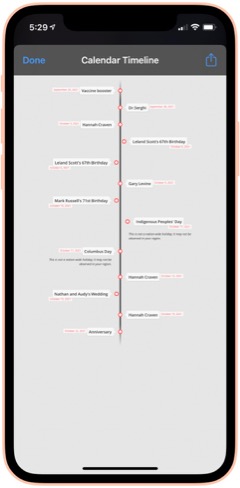
Calendar To Timeline: This shortcut lets you visualize your upcoming calendar events an attractive timeline, which you can save or share. When run, you choose how many months of your calendar to include in the timeline. From RoutineHub.

Utilities
This folder has a variety of shortcuts, most of which involve converting from one thing to another.
Translate: This shortcut lets you enter text or use your clipboard as input. You can convert from English to any other language, and vice versa. At the end, it will pronounce the phrase in the language you choose. The source of this shortcut is unknown, so I'm linking to my iCloud version.

Convert: This shortcut lets you convert between liters and gallons, among other fluid measures. Source unknown.

Convert Length: This shortcut lets you convert between centimeters and inches. We U.S. citizens need all the help with metric measures we can get. Source unknown.

Convert Temperature: This shortcuts lets you convert between Celsius and Fahrenheit. This really helps me at times, because I just can't think in Celsius when it comes to temperature. Source unknown.

Hex To RGB Converter: I've needed this one from time to time. It takes a hex color code and returns the equivalent in RGB values. Source unknown.

Morse Code Converter: This shortcut will convert plain text to dots and dashes and copy the result to your clipboard. It will also convert morse code to plain text. Source unknown.

Utilities Menu: This is an elaborate, all-in-one shortcut that contains a wide variety of utilities for working with text, the web, media, and more. I don't honestly use this one very much, but it's pretty cool. From RoutineHub.

Time Activity: I wrote this shortcut to help me track how long certain activities take. When run, the shortcut will tell you when it started the activity. When run again, it will tell you how long the activity took and ask if you want to start a new activity. The shortcut requires DataJar to store global variables.

New! Currency Converter: It took me forever to find a currency converter app that actually works. This one is the result of merging two shortcuts to get a working product. You simply choose the currency you're converting from, the currency you're converting to, and the amount you want to convert. The shortcut then shows the result and copies it to the clipboard.

Wallpaper
I spend a lot of time working with wallpaper images of various kinds, and I have automations that change my lock screen wallpaper with every 5% change in battery level. This folder has shortcuts that provide images for wallpaper use as well as shortcuts that enhance and modify images for use as wallpaper.
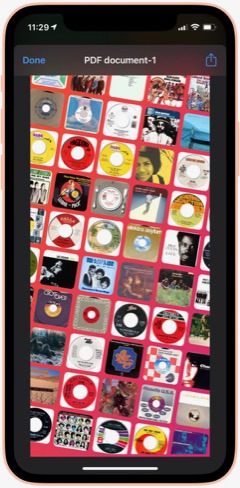
Album Wallpaper: This cool shortcut looks at what I've listened to in the last 14 days, finds the art associated with those songs, and prepares a wallpaper image with the art arrayed in an angled pattern across the screen. I used this for a long time before switching to my current wallpaper "strategy." From RoutineHub

WallCreator Automated: This shortcut generates beautiful gradient images, using two colors and varying direction of the gradient, for use as wallpaper. I've modified it to let me choose whether or not to save the image. If I elect to save, the shortcut will let me apply the wallpaper to my lock or home screen.

Gradient Paper: This shortcut also generates gradient wallpaper images, but it uses 4 different colors and wider variety of angles and origin points. It automatically previews the image for you and then saves the image to the Recents album and offers to set the home screen wallpaper. I couldn't find the original, so I'm linking to my iCloud version.

Gradient Paper ShowDock: This shortcut combines the Gradient Paper shortcut (above) with parts of the ShowDock shortcut (below). When run, it previews the image, saves it to Recents and then offers to let you add one of three ShowDock images (using the three separate ShowDock shortcuts, below) to the bottom. After that, you can set the Home Screen with the new wallpaper. I use this frequently to update my Home Screen wallpaper, so I keep it in my Home Screen folder for quick access.

ShowDock: This cool shortcut has about 20 different enhancements you can add to your wallpaper. The enhancements are designed to highlight the Dock area of your iPhone home screen and range from ones that fade the bottom of the image out to ones that add colorful and interesting dividers above the Dock area. You select an image and then one of the enhancements, and the shortcut previews the enhanced image before offering to set your home or lock screen with the new wallpaper. I couldn't find the original for this, but it does have a credit comment inside.

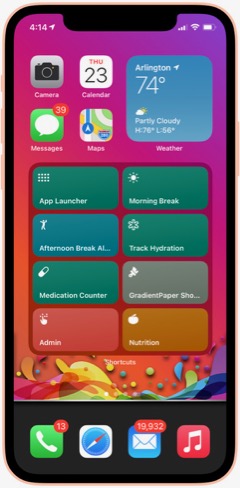
ShowDock Color Splash: This is one of three shortcuts that pull my favorite enhancements from the ShowDock shortcut. I run it inside the Gradient Paper ShowDock shortcut (above). It takes the latest image saved to Recents and applies an enhancement that looks like a splash of a rainbow of colors. It then lets you save the enhanced image as your Home Screen wallpaper.

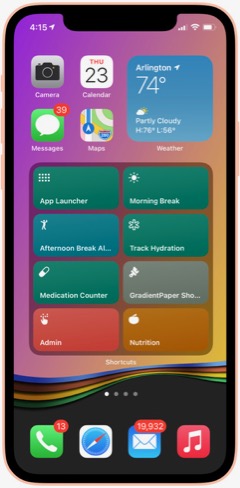
ShowDock Rainbow: This is one of three shortcuts that pull my favorite enhancements from the ShowDock shortcut. I run it inside the Gradient Paper ShowDock shortcut (above). It takes the latest image saved to Recents and applies an enhancement that looks like wavy rainbow of colors. It then lets you save the enhanced image as your Home Screen wallpaper.

ShowDock Wavy Chrome: This is one of three shortcuts that pull my favorite enhancements from the ShowDock shortcut. I run it inside the Gradient Paper ShowDock shortcut (above). It takes the latest image saved to Recents and applies an enhancement that looks like a chrome wave, which lets in some of the background color. It then lets you save the enhanced image as your Home Screen wallpaper.

Calendar Homescreen: This useful shortcut takes a photo you select and adds the next 7 events from your calendar to the bottom. You can then set the image as your wallpaper. I use a modified version of this shortcut on my lock screen (Calendar on Lock Screen Auto). I couldn't find the original, so I'm linking to my iCloud version.

Calendar on Lock Screen Auto: I call this shortcut from within the "Add Battery Level and Calendar" shortcut. This is an embeddable version of Calendar Homescreen (above), and it keeps my calendar up to date on my lock screen... Very handy!

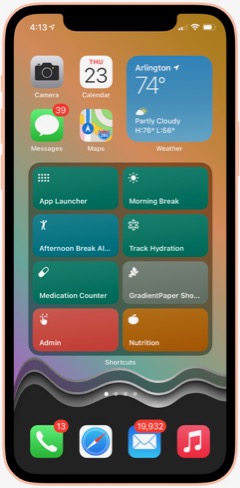
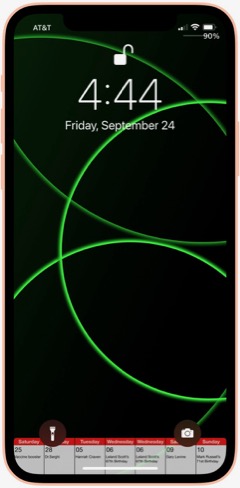
Add Battery Level and Calendar: This shortcut is a modification of one I found that modifies a wallpaper image to add the current battery level below the level indicator on your lock screen. I've missed seeing the percentage since Apple did away with it, and this brings it back. I've combined this shortcut with the Calendar Homescreen shortcut so that it adds my calendar to the lock screen as well. The shortcut contains some logic that pulls wallpapers from 5 different "buckets" that I maintain — NASA images, Landscapes, Cats, Fine Art and Google Earth. It uses the seconds of a minute and picks a wallpaper depending on what second of the minute it is. This shortcut requres Toolbox Pro (I think the paid version) to do the battery level function.

GradCircle Wallpaper: This cool shortcut uses the free app Scriptable to generate stark, modern-looking wallpapers with curving lines of different colors... a sort of mid-century modern look. After previewing the wallpaper, it gives you the option of saving it or setting it as wallpaper. I don't know where I found this.

Set Art Wallpaper: This shortcut pulls a fine art image and lets you use it as your wallpaper. I've modified it so that after a preview you can decide whether to save the image or not. If you save it, the shortcut will then let you set it as wallpaper. Source unknown.

Random Cat Wallpaper: This shortcut pulls an image of cats from a seemingly bottomless supply. I've modified the original to let you choose whether or not to save the image, and you can see it previewed as wallpaper. Source unknown.

Wallpaper Engine: This shortcut lets you search for wallpapers on unsplash.com, or you can choose a random image. You can specify how many images you want to see, after which you can elect to save one or more of them or use them as wallpaper. I use the search function a lot. The shortcut returns images in the proper size for your device's lock or home screen. From RoutineHub.

Daily Wallpaper - Landscapes 4K: This shortcut uses a downloadable zip file of 85 beautiful landscape images and picks a random image from the zip file. I've modified it to let you decide whether or not to keep a given image. If you decide to save the image, you can see the landscape previewed on your lock screen. From RoutineHub.

Resize Images To Wallpaper: I use this shortcut to make all the images I pass to it the height of my iPhone screen. This is part of my process for preparing wallpaper-sized images for the various "buckets" I maintain (NASA, Cats, Landscapes, Fine Art).

Wallz Reborn: This shortcut finishes the job of the "Resize Images To Wallpaper" shortcut, taking images passed to it and cropping them horizontally to wallpaper size. You can also use it to resize to other screen resolutions. From RoutineHub.

Daily NASA Wallpaper: This shortcut contains a downloadable zip file of my NASA wallpapers (about 150 of them). It previews a random image from the zip file and offers to set it as your wallpaper. I use this same basic pattern for the following three shortcuts.

Daily Cats Wallpaper: This shortcut contains a downloadable zip file of my cats wallpapers (about 100 of them). It previews a random image from the zip file and offers to set it as your wallpaper.

Daily Fine Art Wallpaper: This shortcut contains a downloadable zip file of my fine art wallpapers (about 100 of them). It previews a random image from the zip file and offers to set it as your wallpaper.

Daily Landscape Wallpaper: This shortcut contains a downloadable zip file of my landscape wallpapers (about 100 of them). It previews a random image from the zip file and offers to set it as your wallpaper.

New! FStopper PTOD Wallpaper: Always looking for good sources of photos in various categories, this one occasionally has a daily image that grabs me, so I check it daily.

New! Google Earth: I think I discovered this one on RoutineHub, but I made a few changes to it to suit my needs. It turns out that Google Earth satellites take a lot of amazing photos, and you can see some of them through this shortcut. It originally was intended just to make the image your lock screen or home screen wallpaper, with no way of saving the image. I fixed that, so the shortcut now saves a single copy of the image to a specified folder in Photos, in addition to offering to make the photo your wallpaper. I like these images so much I've made them part of my rotation of lock screen papers, as described in the "Add Battery and Calendar" shortcut.

New! LS Weather: This shortcut and the next one are complicated and difficult to set up. They require Scriptable, and you have to find and download a Scriptable script and install it manually in Scriptable. The results are very cool, and I use them both from time to time. Essentially, LS Weather adds weather information in various configurations to your lock screen. It has other functionality as well, but I didn't set it up for that. From RoutineHub.

New! LS Forecast: This shortcut and the previous one are complicated and difficult to set up. They require Scriptable, and you have to find and download a Scriptable script and install it manually in Scriptable. The results are very cool, and I use them both from time to time. Essentially, LS Forecast adds weather forecast information to your lock screen in an attraction manner. From RoutineHub.

New! Wallpaper Mixer: This cool shortcut takes two images from your photo library and crops/combines them horizontally into wallpaper size. You can come up with some interesting effects with the right photos. From RoutineHub.

New! Unsplash Collections: This shortcut pulls images from Unsplash.com's extensive collection. It's organized to find images in certain categories of Unsplash Collections that I collect: Landscapes, Space, Cats, and Fine Art. When run, you select a collection, and the shortcut returns an image, which you can choose to save or not. If you do save, the shortcut will preview your home screen with the photo. If you don't save, the shortcut will ask if you want to search again.

Weather
This folder contains shortcuts that show the weather in various ways.
Total Weather: This is the most comprehensive textual summary of the weather data available for your current location. It also gives a briefer summary of tomorrow's forecast. Useful when run from Siri to have her read the weather for you. From RoutineHub.

New! Feels Like: This handy shortcut (just say, "Hey Siri Feels Like") gets the current temperature and reads it along with the Feels Like temperature and the wind speed. Perfect for when you're heading outside.

My Weather: This simple shortcut opens the Weather app to show weather in your current location.

Weather In City: This shortcut presents a menu of all the cities you've bookmarked in the Weather app and lets you choose which city's weather to view. It then opens the Weather app to the chosen city.

NOAA Multi-Day Forecast: This shortcut lets you choose the length of time in days for the forecast and then pulls up the latest official NOAA forecast for your current location in a Quick Look screen. I often find the NOAA forecast to be more accurate than the source Apple uses, so I like being able to quickly refer to it in this shortcut. From RoutineHub.

Weather Chart: This shortcut uses Charty to present the 12-day forecast as an attractive line chart, showing high, low, and average temperatures expected. Source unknown.

New! Weather Chart With Average High: This is the same as the preceding shortcut, but I've added a data series for Average High, which superimposes on the high/medium/log graph lines. I need to edit the shortcut daily to enter the latest average high temperature data.

New! Log Average High: I decided to start keeping track of the average high temperature, so this shortcut logs the data to my calendar each day.

New! Average High: This shortcut simply reads my calendar and shows me the Average High data for the last 30 days.

New! UV Index: This shortcut gets the UV Index from today's weather and logs it to the Health app.

New! UV Index Chart: This shortcut charts the last 30 days of UV Index data from the health app, using Charty.

Precipitation: This shortcut shows expected precipitation percentages in a bar-type chart. It presents the information for the next 12 days in a menu. Source unknown.

Pollen: This shortcut opens the Pollen.com website in a Safari sheet. It presents the page showing the 5-day allergy forecast for your current location. Source unknown.

Severe Weather: This shortcut was made from a custom Siri action in the News app. It opens News and shows stories about severe weather.

New! U.S. Climate Data: I think I found this shortcut on RoutineHub, but it didn't work when I tried it out. The problem is that the site it pulls data from had changed their chart strategy. The original shortcut was expecting an image to grab, but the new site shows the graph in an interactive manner. So I changed the shortcut to load the final page in the Safari view controller instead. This shortcut lets you choose a State and city and returns a graph showing average, high and low temperatures for the year by month, as well as precipitation amounts.

New! Weather Report For: I modified a shortcut I found that produces a summary of the current weather. Instead of restricting it to finding your current location data, I introduced a search feature that lets you enter any location to find the weather there. I figured out how to make this work for any U.S. city as well as for international cities. You can even enter the name of a neighborhood.

Daily Forecast: This handy shortcut brings up the next 12-day forecast for your location, showing date, temperature and conditions expected. Source unknown.

New! Daily Forecast For: This is the previous shortcut, but it first prompts you to specify a location. The shortcut routes the inputted location through the Maps app to get a location Weather can use. Very handy for getting a daily forecast for some location other than your own.

Hourly Forecast: This shortcut is much like the previous one (same original source, I believe), but it shows the temperature and conditions expected for the next 24 hours.

New! Hourly Forecast For: This is the previous shortcut, but it first prompts you to specify a location. The shortcut routes the inputted location through the Maps app to get a location Weather can use. Very handy for getting an hourly forecast for some location other than your own.

Precipitation Hourly Forecast: I think I made this one based on the previous shortcut. It shows the expected percent chance of precipitation for the next 24 hours.

New! Precipitation Forecast For: This is the same as the preceding shortcut, but it gives you the option to enter a location rather than using your current location by default.

New! U.S. Cities Weather Report: This shortcut runs through about 35 U.S. cities, giving a summary of their weather today and forecast for the next 2 days. It announces the name of the city and state and then presents the information, one city at a time. This substitutes for my long-time habit of perusing the cities weather data in the paper each day.

New! International Weather Report: This is the same as the preceding shortcut, but it fetches data for about 20 international cities instead of for U.S. cities.

Is It Raining: I wrote this shortcut one day when I was sitting in my windowless office and wondering if it was raining outside. It looks at the precipitation chances (in percent) for the current time and tells you whether or not rain is likely. It also gets the chance of rain for the next two hours and reports that as well.

Is It Raining (Conditions): I wrote this shortcut as a different way to answer the question. Instead of looking at percent chance of precipitation, the shortcut uses text matching to see if the current conditions suggest rain. If the conditions match "Thunderstorm," "Rain," or "Showers," it's probably raining. If none of those things match, then the answer is no. I've found this to be a bit more accurate than the previous shortcut.

Web Sites and Feeds
This folder has a number of shortcuts that load web sites or their RSS feeds. I've found "bookmarking" websites by making a shortcut is faster than using Safari.
Mars: This shortcut simply loads this website (Musings from Mars) in a Safari view window. I find shortcuts like this more convenient than going to Safari. An interesting thing about the Safari view window... In the lower right corner is an icon that will load the page in Safari itself if you choose to do that.

Discogs: Here's another website that I load frequently. It's convenient to have it as a shortcut.

Wayback Machine: This shortcut loads the "Wayback Machine" at web.archive.org. This site lets you search the web's past by loading old versions of any website the machine has crawled.

New! White House: This shortcut provides links in a menu to the White House home page, the briefing room, and speeches and remarks pages. I use this with Read Article in the Share Sheet to have the latest releases read to me.

9 To 5 Mac: This shortcut loads the news feed for this Mac-related website.

Mac Stories: This shortcut loads the news feed for this Mac-related website.

C45 Jukebox: This loads the RSS feed for the Classic 45s "Jukebox" podcast. In this version, selecting an item loads the page in the Safari view window.

C45 Jukebox Text: This shortcut also loads the Classic 45s "Jukebox" feed, but instead of taking you to a web page on selecting an item, it pulls the text and image from the feed and presents it in a QuickLook window. I'd like to grab the audio file, too, but haven't figured out how to do that yet.

New! Jukebox: This shortcut finds the latest episodes of the Podcast Classic 45s Jukebox. When you choose an episode, the shortcut starts playing the song and presents the descriptive information included in the Podcast in a preview window.

New! Animal Shelter: I made this simple shortcut when we started looking for a new cat when our much loved Coach died recently. The shortcut simply loads the Arlington, VA, animal shelter's web page, set to screen only male kittens. This is an example of a shortcut that took perhaps a minute to make but saves me time by making it super-quick and easy to load the page, which I check several times a day for new arrivals. You could bookmark the page or save a tab in Safari, but the time required to find and follow the bookmark or find and load the tab in Safari is greater than simply clicking on this shortcut.

New! Google Search for 45s: One of the things I check Google often for is the position of my business in search results listings. So I made a shortcut that does four searches for 45 rpm records, pausing each time to let me view Google results in the Safari view controller, and then proceeding to the next keyword search. It's a very efficient way of quickly seeing whether my business' position has changed.



Shortcuts Nirvana: How I Accumulated 800 Shortcuts
Since writing an article on home automations and Shortcuts earlier this year, I have continued to find and make shortcuts and recently passed 800 in my library. I thought this milestone would be a good time to reflect on what I've been doing with these shortcuts and how I managed to gather so many.
First, let me say that many of these shortcuts have really changed my life... for the better, as I'm sure Apple would be glad to hear. I spend more time in my Shortcuts app than I do in any other app on my iPhone at the moment, and having all this information available in one app like this makes it more accessible and rewarding. Sure, I have a lot of shortcuts I don't need, but I'll be focusing in this article on the ones I actually use, any automations associated with them, and what they do for me.
A quick note about the shortcuts links in this article: Some of my shortcuts came from German and Chinese sources, and I meticulously translated them to English. In these cases, I'll be linking you to my English translation rather than the original version. Where possible, I will link to the actual sources, but many of the links will be to my own iCloud library. Many of the shortcuts were written by me or adapted from third-party shortcuts. All of these shortcuts work in IOS 14. I have been testing them on IOS 15.3, and most work reasonably well. I still find Shortcuts in IOS 15 to be buggy compared with IOS 14, but IOS 15.3 fixed a bug that was keeping the MediaKit Badges shortcut from working. That's the shortcut I use to create the download images for this article, so I'm relieved that it's working again. One of the most annoying bugs is that you can no longer get an iCloud link by asking for it in a shortcut. Shortcuts says the shortcut isn't stored in iCloud, so no link is available. You can get around this by sharing the shortcut and selecting "Get iCloud Link" in the share sheet. But it was so much easier when I could backup my shortcuts to iCloud using a shortcut.
Finding Shortcuts
The first step to finding shortcuts is to check out the "Gallery" tab in the Shortcuts app, where you will find dozens of useful shortcuts made by Apple. I've used many of these and customized others to my personal situation. In addition, there are a lot of websites out there with "galleries" of shortcuts for the taking. (Any non-Apple shortcut is considered "untrusted," and you have to allow untrusted shortcuts to use them in Settings.) The most popular and largest site is RoutineHub, where you will find more than 300 pages of shortcuts. Rather than list all the sites here, I'm going to mention one more, which is kind of a directory of shortcuts information, including many of the gallery sites: Shortcuts Directory.
As you may imagine, there are also a lot of shortcuts that contain links to shortcuts websites, and I use these daily to check what's new. Here are a few of my favorite shortcuts for shortcuts info:
- Newest RH Shortcuts. Displays the latest 20 or so shortcuts added to RoutineHub.
- Shortcuts Websites. Lists a variety of gallery sites as well as providing links to shortcuts groups on YouTube and Reddit.
- Siri Shortcuts Search. This is a link to Sharecuts.com's shortcut for searching Google for shortcuts.
- RoutineHub Search Pro. I use this a lot when searching, because RoutineHub is the richest vein of shortcuts out there.
Building Shortcuts
I've either built from scratch or heavily customized many of the shortcuts I use. Although I do have a programming background, I feel strongly that making shortcuts should be easy for any reasonably intelligent human with a little study and understanding of what your options are and how to use things like actions, variables, menus, and the like. It's a visual interface, and you just click the + sign to start building your shortcut. Apple provides a user guide for Shortcuts, and I recommend you peruse that if you really want to get serious about building your own. I also highly recommend opening up shortcuts made by others and studying how they're made. You can do this by clicking the "..." (three dots) in the top-right corner of any shortcut.
One of the things I love about shortcuts is not only how easy they are to make and share, but how transparent they are. It's easy to examine a shortcut's actions by clicking on the "..." in the icon. I have one shortcut that lets me copy blocks of code from one shortcut and insert it in another: It's not stealing! It's re-using good code. This is the same model that the web is built on. You can see the HTML, JavaScript, CSS, and other source code easily in any browser, so you can learn how things are done.
There are a lot of good tutorials on the web, especially on YouTube, so I won't try to construct one here. Just keep in mind: It's easy! Look inside shortcuts! Reuse code that works!
Third Party Apps Used in My Shortcuts
There are a lot of third-party apps that let you do more with shortcuts than Apple's Shortcuts app alone can. A number of my shortcuts make use of some of these, and I recommend that you download and install them on your iPhone before trying out my shortcuts. All of them are free, though one or two have a for-fee "Pro" option.
- Charty for Shortcuts. Enables charting of data from any source accessible from the Shortcuts app.Some of my shortcuts require the $4.99 "Pro" upgrade for charting.
- Data Jar. A simple database-like app that lets you define Global Variables in shortcuts, among other things.
- Day One. A free journaling app that I've started using since it has rich ties to shortcuts actions.
- Jayson. A free editor for files in the .json format. I use it to edit my "pills" dictionary for one of the shortcuts.
- Scriptable. Enables rich scripting inside shortcuts.
- Toolbox Pro. Adds a host of useful actions for Shortcuts and provides dozens of sample shortcuts demonstrating their use.
My Shortcuts Library
I have 975 shortcuts in my library as I write this today. The number changes daily and always seems to trend upward. Fortunately, Apple lets you organize your shortcuts into folders, and I have made the following folders for my shortcuts (the number beside the folder name is the number of shortcuts in that folder).
- Breaks and TV (24)
- Clipboard and Text (22)
- COVID 19 (9)
- Daily Shortcuts (32)
- Day One and Notes (14)
- Developer Tools (56)
- Emergency (4)
- Family (33)
- Files and iCloud (8)
- For Fun (31)
- Health and Fitness (42)
- Home Screen (8)
- Images and Pictures (62)
- Information (22)
- Mail and Messaging (6)
- Morning Routine (6)
- Music (31)
- News and Stocks (22)
- Nutrition (59)
- Playback and HomePod (13)
- Quick Classical Music (12)
- Quick Leland Music (31)
- Quick Links (14)
- Quick Music (15)
- Quick Music Artists (25)
- Quick Music Genres (34)
- Settings (30)
- Share Sheet Only (28)
- Shortcuts Items (34)
- Sounds (15)
- Test and sample shortcuts (54)
- Travel and Events (40)
- Utilities (26)
- Wallpaper (38)
- Weather (33)
- Web Sites and Feeds (27)
By the way, if you add the numbers up, you won't get to 975, because I have a dozen or so that are unfiled (they aren't in a folder). I think it will be easiest from here to walk you through these folders and let you know what shortcuts I really use and how I use them. I'll be providing links to shortcuts I particularly like or use most often: About 355 shortcuts in all. One big caveat about these shortcuts, especially the ones I'm linking directly from my iCloud library, is that these have only been used on the iPhone with iOS 14 and iOS 15.3.I don't know how they will work on the iPad or on the Mac (Monterey). One big difference I noted right away when I tried a few on my iPad (after upgrading to the latest iPadOS) is that there is no Health app on iPad. This seems like a real miss for Apple, and hopefully they plan to migrate Health to both iPad and the Mac in short order.
Breaks and TV
I use this folder and the various "breaks" shortcuts several times a day as I go through my work routine. Also in here are specific shortcuts for accessing and controlling my Apple TVs.
Morning Break: This shortcut starts my morning break by turning off the Music Room lights, turning on a light in the Great Room, starting some classical music from my library (different for each day of the week), and issuing reminders to take and log some prescriptions. It also sets the brightness on my iPhone and turns off Do Not Disturb, which I have on while I'm working. I built this shortcut pretty much from scratch.
Break Over: I use this shortcut after both my morning and afternoon breaks. It's very simple: Sets the lights on in the Music Room, turns off the Great Room light, turns on Do Not Disturb, and runs my Super-Low Battery On shortcut to enable fast charging while I work.
Afternoon Break Albums: This is a variant of a shortcut I've used for a long time now for my afternoon break. Where earlier, the shortcut relied on the Indie Music shortcut provided by Apple, I've been using the break to listen to one of the 500 Greatest Albums according to Rolling Stone magazine. It incorporates a shortcut you'll meet later in my Music folder, which cycles through the 500 albums. Besides the music, the shortcut turns off Super-Low Battery, sets lighting appropriately, turns off Do Not Disturb, and sets the playback destination to my Kitchen HomePod. It closes by showing me the Apple stock price in the Stocks app.

New! Great Room Break: This is the Afternoon Break Albums shortcut without the call to the 500 Albums shortcut. It lets me start whatever music I like, with playback set to the Kitchen HomePod.

Work Done: I use this shortcut at the end of the work day to turn off lights in the Music Room, turn off Super-Low Battery mode, and turn off Do Not Disturb.

TV Time: I made this simple shortcut to quickly set two groups of lights and turn on the basement Apple TV. It ends by showing the remote for the TV. I use it every day. 
Netflix Basement: I have a variety of shortcuts for my two Apple TVs... ones that simply wake and put them to sleep and others that load specific apps on them. This one simply wakes and loads Netflix on the basement TV and is representative of this type of shortcut. I have ones for HBO and for Fitness+ as well, but you can easily adapt this one to your needs.

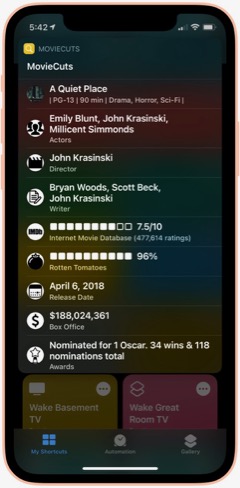
MovieCuts: This is a great third-party shortcut from RoutineHub that ties in to the OMDb API to get IMDB and Rotten Tomatoes information about any movie you search for. You have to get your own free API key, and the page linked below tells you how. It's definitely worth it!

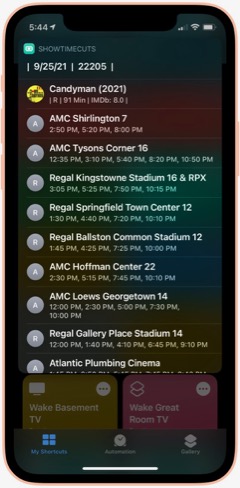
ShowTime Cuts: This shortcut is by the same author who wrote MovieCuts. It lets you search for movie times at local theaters, using your location. You'll have to get a couple of free API keys to make it work, but it's easy and well worth the effort. The only problem I've had is that the menu with specific theater times doesn't properly load Maps to show you the theater location. Also from RoutineHub.

Clipboard and Text
This folder has shortcuts that let you manipulate, save and retrieve your clipboard information, as well as shortcuts for working with text. The clipboard shortcuts are somewhat redundant of each other, but I like each one for different reasons and end up using them all at this point. These are all third-party shortcuts, and I'll provide links to the source when possible.
Save To Clips: I like this one because it's a Siri command that's easy to use. You can also use it from the Share sheet. I couldn't find the source where I found this originally, so I'm linking to my iCloud library. This shortcut works with the "Get Clips" shortcut, and both by default let you save and retrieve up to 15 items from your clipboard, using a file saved to iCloud.

Get Clips: This is the companion command to "Save To Clips" that lets you retrieve your clipboard history, as saved to iCloud. See my description of "Save" above for more about this shortcut.

Clip: This is a relatively new shortcut from RoutineHub that I like a lot. It lets you save clipboard items and give a name to them. You can use it to save the current clipboard or retrieve a saved clip.

Clipboard: I like this one because it lets you edit your clipboard as well as view and share it. For the times when you need to add something to or change your clipboard, it's just right.

Symbols: I'm not sure where I found this shortcut, but it's a good one for the times when you need a special symbol. Just launch and select the symbol, which is then copied to your clipboard.

Word & Character Count: This handy shortcut takes your clipboard or share sheet input and returns the number of words, number of characters, and number of lines in the text. I don't remember where I found this one, so I'm linking you to my iCloud version.

Upside Down Text: This one is just for fun, but it's so cool I just couldn't resist. It lets you type or paste in some text and returns a version with upside-down letters, saved to your clipboard. I like sending messages like this now and then for laughs.

Vertical Text: Another one just for fun, this shortcut takes your clipbaord and arranges the text vertically, one word on each line. It ends by saving the result to your clipboard. I like to do this sometimes in conjunction with the Upside Down Text shortcut.

New! Font Switcher: This new shortcut from RoutineHub has 31 different font effects you can apply to your chosen text. The most comprehensive font utility I've found, it even includes upside down text! You just enter some text and choose which effect to apply, after which it previews the effect and copies it to your clipboard.

New! Save Text As Audio: This nifty shortcut lets you dictate text and then converts it to an audio file, which you can either save or share. You can choose which voice to use for the audio file.

New! Count By Type: This shortcut takes a file or text and calculates the number of words, characters, sentences or lines. From RoutineHub.

Unicode Font Variants: There are a number of shortcuts out there that let you apply different font effects, but this is the best one I've found. It lets you enter some text and then choose from among 15 different font effects to apply to it. From RoutineHub.

Covid-19
This folder has a few shortcuts that return data and charts about the Coronavirus. Sadly, I still find it useful to refer to these occasionally. (When will it end?)
Covid-19 Charts: This shortcut lets you choose a data type (e.g., "confirmed," "deaths") and the countries you want to see charted. It's a bit slow, but it returns a cool chart (using Charty) comparing the countries you've selected.

Corona Stats By State: This shortcut not only lets you choose the States you want to see data for, but you can save your selection for later reuse. It returns a detailed page with data for each State and then offers to chart the data for you. Very handy, though sometimes not up-to-date with the latest information. Available from RoutineHub.

Coronavirus Stats: This shortcut lets you choose any country or group of countries and returns detailed information about Covid-19 there. You can save your country selections for later reuse. From RoutineHub.

Show Vaccine Card: This handy shortcut lets you store a picture of your vaccine card for quick and easy display when needed. You just take a picture of your card, run the shortcut and browse to the picture you just took. From then on, your card will be one click away with no need to search through your photos. I found this one through Matthew Cassinelli's newsletter.

Corona Update: I like this shortcut because it lets you see data for specific countries and U.S. States, which you can enter into the shortcut itself. It grabs the latest 28 days of data on new cases, new deaths, and totals, and it always seems to have the latest data. From RoutineHub.

New! CDC Guidance: This shortcut simply links to the CDC's February 24, 2022, release of county-level guidance on masks. You can lookup any county in the U.S. or see a map of the U.S. showing risk levels of green, yellow, or orange.

New! Dr. Fauci In The News: This shortcut opens a page on the Government's website that has links to remarks made by Dr. Fauci at different forums.

New! CDC News Voice: This shortcut provides easy access to three news feeds from CDC related to COVID-19. Selecting an item will have the shortcut read the text to you.

Daily Shortcuts
This folder has some shortcuts I use every day. Other than daily usage, the shortcuts have little in common. I keep them in this folder for quick access.APOD: I don't know where I got this great shortcut... Perhaps from a Chinese site, after which I meticulously translated the shortcut into English. This shortcut shows the NASA Astronomy Picture of the Day. There are others that do this, but this one is unique in that it lets you go back and retrieve images from any day you like. I've mined the NASA library back to 2014 now and continue to find amazing images of the universe, in stunning, high-def detail. The shortcut also shows the description that accompanies each image on the APOD website.

Random Obscure Fact: This simple shortcut is a delight! Just for fun, it spits out obscure facts on every subject. I have the shortcut set to let me share the fact after I've read it. I couldn't find the source for this, so feel free to download my version.

Today In History: I'm not sure where I got this originally, but I've made some modifications to it that make it more readable for me. This shortcut gets 20 items from the History.com daily news feed and presents them as a single HTML page for easy reading. I've found this to be an enjoyable daily activity.

Today's Historical Events: I'm not sure where this one came from, but I've made a few changes to make it more readable. It's a comprehensive list of historical events for the current day, starting way back in time and going to the present in chronological order.

New! History of Today: This one duplicates some of the items in the previous two shortcuts, but it has a lot of information not available in the others. It returns just one fact from the history of the current day, but if you load it many times it comes up with many facts. I like the way they're presented better than in "Today's Historical Events," although the latter is much more comprehensive. From RoutineHub.

Time Machine: You can find this shortcut in the Apple Shortcuts Gallery. It simply looks at the photos you took a year ago and presents them in a Quick Look window. The only difference I've made is that it looks at one year ago plus 2 months rather than plus 2 weeks as in the Apple original. Again, I've found this to be a pleasurable daily activity.

Quote of the Day: This shortcut gets the latest quote from BrainyQuote.com and lets you view and/or share it. This was adapted from a shortcut I found on RoutineHub.

New! Daily Fact Reading: This shortcut is based on an older one that never worked quite right. It pulls the latest facts submitted to reddit and sends you to one of the sites cited. Instead of loading a web page or trying to show text, this shortcut runs the "Read Article" shortcut you'll encounter in the "Share Sheet Only" folder of shortcuts. It gets the title and body of the submitted web page through Safari's Reader functionality and reads the resulting text to you.

New! National Geographic Daily Photo: This shortcut grabs images from National Geographic's picture of the day web page and filters to the first large image on the page. It displays the latest image in a Quick Look window, and you can save it if desired from the share sheet. Not sure where I found this, but I had to make a few changes to get it to work the way I wanted it, so I'm linking to my iCloud version.

Horoscope+: I don't know why I saved this one, since I don't really believe in astrology. But it's fun to read from time to time. This shortcut lets you set a default sign for quick work, or you can select a sign from the menu. It uses two different data sources and can provide up to 6 different readings for a single day. Available from RoutineHub.

Daily Summary: I have several of these journaling shortcuts, which ask you a number of questions, such as "What did you learn today?", and sticks the questions and answers in your Day One journal. This is the one I use most frequently. Day One is a great, free journaling app, and shortcuts like this one have really encouraged me to keep a journal. I don't know where I found this shortcut, so I'm linking to mine on iCloud.

Meditate: I have several meditation shortcuts now, but this is the first one I downloaded and I still use it. One of the challenges of meditation shortcuts is that Apple hasn't provided a "slideshow" action for your photos. I like to view images while meditating, but I want to require minimal interaction with my phone while doing so. This shortcut uses one workaround — namely, it pulls a random animated GIF from my photos and plays it in Quick Look. I created the animated GIFs using the "HighRes GIFs" shortcut I'll discuss in the Images and Pictures section. The shortcut turns on Do Not Disturb, starts playing some meditation music, sets a timer for the amount of time you provide each time, turns brightness to 100% and logs the time you set to your Mindfulness data in the Health app. It finishes when the timer goes off and you close the Quick Look screen.

Meditate NASA: This shortcut tries to get around several problems in setting up the meditation session. As mentioned before, ideally I would be able to start a slideshow in Shortcuts itself, but since that's not possible, this one attempts to keep the shortcut running while opening Photos to a specified album, where you can start the slideshow manually. Normally, it's very hard to keep shortcuts running when you switch apps for more than 2-3 minutes, so completing the meditation cycle (turning off Do Not Disturb, and stopping the music) is hard for longer meditation sessions. This one gets around the problem by setting up a loop and playing a sound every 30 seconds (in this case, I use the "approved" sound from Apple Pay). It gets it right most of the time, and the shortcut ends by returning you to the Shortcuts app and completing the meditation session. The big shortcoming to this approach is that this shortcut is hard-wired for a 5-minute session. I have a similar shortcut that extends the session to 10 minutes.

Day One and Notes
This folder has some shortcuts that use my Day One journal, as well as shortcuts that work with the Notes app.
Audio Note: This shortcut uses Toolbox Pro to let you quickly record an audio note, which Toolbox Pro transcribes to text. The text is presented in a Quick Look sheet and then added as an entry to Day One. I use this for many additions to my Day One Journal.

New! Listening To: I wrote this shortcut to save myself a little time over using Audio Note (above) when entering my brief reviews of Rolling Stones' Top 500 Albums. Since all my reviews start with "Listening To," I embedded that text in the shortcut, which also adds a tag to the entry to make searching easier. Once run, you just say the name of the album and the artist, followed by your review. This sends the entry to Day One, where you can edit it further or add a photo, etc.

Smoked: I wrote this simple shortcut because I wanted to start keeping track of how often I smoke. Saying "Smoked" to Siri adds the phrase "Smoked at [current time]" to my Day One journal, with a tag of "Smoked" to make searching possible.

New! Smoked History: This simple shortcut finds the last 30 entries in Day One with the tag "Smoked" and shows them in Day One. A very convenient way to see my smoking history.

Great Albums: I started this shortcut as part of my project to listen to the Top 500 albums (according to Rolling Stone magazine). It lets me append to a note called "Great albums from Top 500" any album I deem "great" after listening, thus over time compiling a list of "great" albums.

Find in Notes: This shortcut simply lets me search my Notes for a particular word or phrase. It returns a list of notes by title, and I can then open the note I want.

Developer Tools
This folder has a lot of shortcuts, all of them geared to the work of developing shortcuts. Most of them demonstrate some Shortcuts technique or other, and there are several that help you publish your shortcuts to RoutineHub. I'm only providing a link to one of them, which is the shortcut I used to make the graphics for this article.
MediaKit Badges: This shortcut creates an image suitable for publishing your shortcuts and as noted is the one I used to make the download images you see here. It lets you define the type of image you want, gives you some visual choices for the image, lets you enter a category for the shortcut as well as the shortcut's name. After you navigate your shortcuts to find the one you're creating an image for, it uses the shortcut's image in the newly made "badge" and delivers it in Safari for download. This shortcut comes from RoutineHub and is part of a suite of "MediaKit" shortcuts for publishing there.

Emergency
This folder has a few shortcuts I might need in an emergency.
Find Closest ER: For times when you need it, this is a great little shortcut. It gets your location and then shows you the closest hospitals and emergency rooms. It estimates the time required to get there for you and then opens Maps to show you directions. From RoutineHub.

SOS: This shortcut uses the flash on your camera to blink out an SOS signal. You can set it to repeat more than once. From RoutineHub.

911: This full-featured shortcut lets you text to 911 or call 911, while also sending a note to your chosen emergency contact. It includes other features as well, including a link to the "Find Closest ER" shortcut mentioned above. From RoutineHub.

Family
This folder has shortcuts pertaining to my family, either involving communications with family members, information relevant to family events, or family photos.
I'm Home Safe: This shortcut simply sends a quick message to loved ones letting them know that you've arrived safely home after (usually) extended travel.

Wife Love Notes: I use an automation and this shortcut to send a random love note to my wife every weekday at a certain time. You can populate the shortcut with any number of messages customized to your own relationship. My wife really loves this one! From RoutineHub.

New! Love Poems: From RoutineHub, this shortcut contains 52 short love poems. To set it up, you need to enter a "To" address, and the shortcut will send the poems in listed order to your special loved one. I've set up an automation to send one of these to my wife each week (Tuesday, I think).

Text To Jackie: I have shortcuts like this one set up for my immediate family members. It simply saves some time over using the Messages app and lets you quickly send a message to a loved one.

Call Jackie: Again, I have several shortcuts like this one, which are simply speed-dial actions to specific phone numbers.

Face Jackie: This is another example shortcut I have set up for family members. It lets me quickly set up a FaceTime call to a particular phone number. Shortcuts like this do nothing more than save a few words when communicating with Siri.

Where Should We Eat: For those times when you can't decide where to eat, this shortcut may help. Populate it with the restaurants you visit, and it will surprise you with a random choice.

Scott Family: This is an example shortcut that uses Toolbox Pro to preview images from one of my photo albums.

Family Trips: This is one of several shortcuts I have set up to quickly view particular albums from my Photos library. You set these up with a little Siri magic: Simply navigate to a particular album, then open Shortcuts and create a new shortcut. In the actions for the "Photos" app, you'll find an action for linking to the album you just viewed. Similar magic applies to the Maps app, which I'll get to eventually in this article.

Files and iCloud
This folder has some backup utilities and one file utility.
Backup To iCloud: I use this one once a week or so... it simply writes out a file in iCloud with the iCloud URLs of all your shortcuts. Since I have so many, it can take a few minutes to finish, but this is how I got the download links to my shortcuts in iCloud that I'm providing in this article. Since your shortcuts all reside in the cloud, and Apple doesn't allow writing or loading actual shortcut files, this is a good means of backing up your shortcut set.

Automatic Backup: I have an automation that runs this shortcut every Monday morning at 10:00 a.m. It makes me feel good to know I have a physical backup (in addition to a link) of the files in my shortcuts. This one simply zips the files up and writes out a time-stamped archive to iCloud when it runs. As I understand it, I couldn't actually replace files on the iCloud server with these backups, but I like knowing they're there. From RoutineHub.

Backup Shortcuts: I like this one because it lets me save my shortcuts in zip files according to their folders. This way, I could unzip them into their corresponding folders, which would save me so much time over having to recreate and/or re-populate all of my folders. I'm not sure where I got this one, but the anal part of me likes using it from time to time.

New! Text From PDF: I recently had the need to get a text file from a PDF file I exported from Day One. It was a simple matter to write this shortcut, which lets you select a PDF either through the share sheet in Files or by browsing your iCloud files. Once selected, the shortcut extracts the text from the PDF file and starts a new Note with the contents, which you can edit before saving.

Encode to Base64: It turns out that you can include binary files inside a shortcut by converting the file to Base64. This is used a lot in the shortcuts I have, and I used it myself in the Meditate NASA shortcut to include the "approved" sound from ApplePay. This shortcut can be run from the share sheet or on its own, and it ends by copying the converted file to the clipboard.

For Fun
This folder has some games, random facts, jokes, and other amusements.
Games!: This shortcut includes a dozen or so games and amusements, including Hangman, some memory games, and things like rock-paper-scissors. From RoutineHub.

Tic Tac Toe: This is a really cool implementation of this game in a shortcut. It lets you play against the computer or against a friend. From RoutineHub

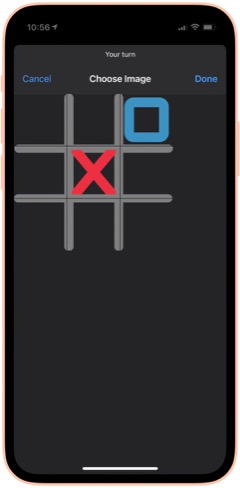

50 States Plus: My wife and I use this on every road trip... great fun! It lets you record a license plate from a list of those you haven't seen. You can also choose to see the license plates you have seen. It's easy to start over when you finally give up on Alaska or Hawaii. From RoutineHub. There is also a voice add-on that I haven't tried yet, available as a separate shortcut.

Blackjack 2: There are a lot of Blackjack shortcuts out there. I like this one because it shows you images of the cards you and the dealer hold. It lets you bet for money, too, though that's not a feature I plan to use. From RoutineHub.

New! Wordles: This shortcut lets you play the popular Wordles game in Shortcuts. You have to guess a 5-letter word, and the shortcut fills in the blanks as you go, indicating place hits and right letter/wrong space.

New! Number Guessing Game: This fun game lets you choose a minimum number and a maximum number, then select how many attempts you want to have. As you guess, the shortcut tells you if you're high or low, so you can tease out the correct number.

Cat Fact: This fun shortcut simply displays a random fact about cats, which you can then choose to share with others. I'm not sure where I found this and the Dog fact companion shortcut, but I enjoy them a lot!

Dog Fact: This fun shortcut simply displays a random fact about dogs, which you can then choose to share with others. I'm not sure where I found this and the Cat fact companion shortcut, but I enjoy them a lot!

Humorz: This shortcut provides a lot of jokes in various categories from Reddit feeds, including at least one that's naughty. A fun diversion, especially in the car. From RoutineHub.

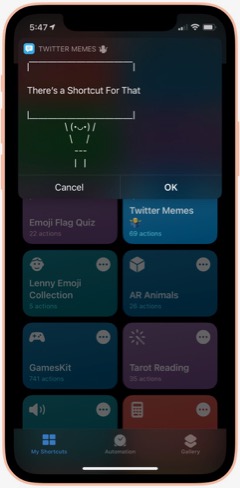

Twitter Memes: This shortcut lets you use one of a large collection of Twitter text memes to share your message. Some of them, such as person holding a sign, are quite cool, and it's impressive how they've implemented the functionality. You can share your meme at the end, and it gets copied to your clipboard. I couldn't find the original shortcut, but the one I'm linking has full credits inside.

AR Animals: This shortcut, which I got from a Chinese website, uses Augmented Reality (AR) to let you view about a dozen different animals. The animals are in motion and incredibly detailed. You can resize them and move them around the room (or whatever else amuses you).

Rude Siri: I made this shortcut from one I found on the web. It simply contains a list of a dozen or so rude things for Siri to say out loud. Quite amusing from time to time, but not in front of children, please!

Health and Fitness
This folder contains a variety of shortcuts for logging, measuring and viewing health and fitness data such as weight, heart rate, sleep, activity and more. It also includes a medication logger.
Log Weight: This is identical to one in the Apple Gallery called "Log My Weight." I may have modified it from that one. In any case, I use this every day to log my weight into the Health app. Doing this has let me keep a good eye on my weight... much better than relying on memory... as you'll see in some of the following shortcuts.

Weight Chart: I use this every day to check my weight for the last 60 days. (I can change the time period to whatever I want... it's set at 60 days at the moment.) The shortcut uses Charty to make an image, pulling data from the Health app, and show that image in a QuickLook screen. I'm not sure where I got this shortcut, but I have several on the same basic pattern. You can customize it to chart any Health-app data that's recorded daily. It makes a nicer graph than what you get in the Health app, in my opinion.

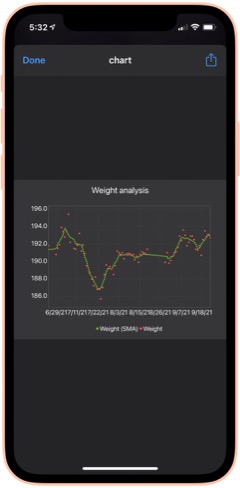
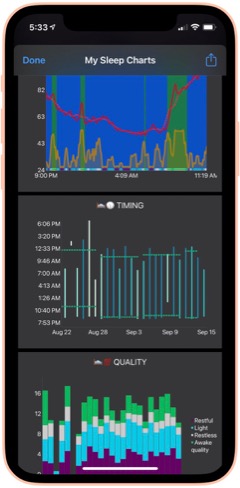
Weight Analysis: I check this shortcut daily also. It uses the same basic pattern as Weight Chart (above), but presents the data in a scatter graph with a moving average line as well. I find it informative in addition to the basic data presented in Weight Chart.

Monthly Weight Report: I check this simple shortcut daily. It gets your current weight and compares it with your weight a month ago, telling you the difference.

Heart Rate Chart: This shortcut uses Charty to conglomerate and present in chart form a daily snapshot of my heart rate data (collected by Apple Watch) for the period beginning in March 2021. For this period, it shows the maximum for each hour of the day, the average and the minimum, respectively. You can change the shortcut to present data for any time period you want to study. I'm not sure where this one came from, but I find it a handy reference.

Heart Rate Analysis Premium: This shortcut uses Charty to present two interesting data sets on my heart health: Resting Heart Rate and Heart Rate Variability. I've found the latter measure to correspond with some health issues I had recently. I couldn't find the source for this one, and there are no credits in the shortcut itself.

Log Nausea: I have some difficulty with morning nausea, so I made this shortcut to help me keep track of it. The shortcut lets me log my nausea on a scale of 1-10, and writes the result to my calendar. It then opens the Health app and lets me add my nausea data there. I do it this way because the Health app only counts "mild", "moderate" and "severe" nausea, or you can mark it present or not present.

Nausea History: This shortcut simply displays my nausea scores by searching my calendar for the last 30 days.

Active Energy Chart: This shortcut pulls data on Active Energy from the Health app and uses Charty to display a bar graph for the last 30 days. It also includes a moving average.

New! Cardio Fitness: This shortcut pulls data collected on your Cardio Fitness and presents it through Charty in a line graph for the last 6 months. The graph includes a moving average. Cardio Fitness data is added to your Health app when you do exercises with an Apple Watch. I decided to start monitoring this measure because the Health app reports that I'm consistently "below average" in Cardio Fitness.

Recent Workouts: This shortcut uses Toolbox Pro to get my latest workout data and present it in a chronological list. It appears to cover about 2 months of data. I believe this is a shortcut that came with Toolbox Pro.

Mindfulness: This shortcut uses Charty to pull data for my Mindful minutes for the last 2 weeks from the Health app and graph them.

Sleep Charts: This is a complex shortcut that spawns half-a-dozen additional shortcuts when you install it. The shortcut analyzes sleep patterns and uses Charty to present data for an overall Sleep Widget, Sleep Progress Rings, Sleep Quality Trend, Sleep Timing Trend, Sleeping Heart Rate Trend and Sleeping Noise Trend. You can have it generate one chart at a time, or you can have it do all 6 at once. It can be a little slow for some of the charts. From RoutineHub.

New! Sleep Widget: This terrific shortcut does a really good job at the hard task of analyzing your sleep data (if you wear your Apple Watch to bed). It presents a comprehensive chart (using Charty) of your sleep data, showing times of restful and light sleep as well as motion and noise. Below the chart is a lengthy textual walk-through of the data. From RoutineHub.

Medication Logger: I use this great shortcut to keep track of my prescriptions. Before you run it, open it and populate the Pills dictionary with the medications you take, entering the amount you have for each. Then, when you use it, the shortcut decrements the amount and logs the medication to your calendar. It includes a reminder for getting refills when you run low. The shortcut uses a file on iCloud called Pills.json, and you will need to use the free utility Jayson to edit the file when you get refills. Again, I don't know where this one came from, and there are no credits in the shortcut itself.

New! Log Sleep: This shortcut works with the next one to log your sleep time. I use an Apple Watch, so I ordinarily don't need this shortcut, but it would be useful if my Watch's battery were low or I otherwise couldn't use my watch. It saves a time to the iCloud drive which is read by the Log Wake Up shortcut.

New! Log Wake Up: When you run this shortcut, it checks the time saved to iCloud by the Log Sleep shortcut and saves the amount of sleep time to the Health App.

New! Record My Workout: This shortcut is useful for recording workouts while not wearing your Apple Watch. It lets you enter the type of activity, the number of active calories burned, and the length of time for the workout. From RoutineHub.

New! Health Report: I found this abandoned shortcut on the web that showed daily Steps data from the Health app. It presents the data in a very nice HTML page. I expanded the shortcut to include other Health data — specifically, Walking distance, Flights climbed, consumption of Sugar, Water, and Fiber, total Calories, Heart Rate, and Weight. For each statistic, the report shows an average for the last 30 days followed by the reading for the current day. I can't take credit for the HTML presentation, which is really nice, but I did build the shortcut out toward what I think the author originally intended.

New! Steps Chart: This shortcut uses Charty to present a chart of the last 30 days of Steps data from the Health app, including a moving average line over the daily bars. It's designed to read data from an Apple Watch, but if you don't use a Watch, you can change that to a different source (e.g., your iPhone) by editing the shortcut.

New! Flights Chart: This shortcut uses Charty to present a bar chart of the last 30 days of your Flights Climbed data from the Health app, including a moving average over the daily bars.

New! Blood Pressure: This shortcut lets you log your systolic and diastolic readings to the Health app. Works great with Siri. I found this one on RoutineHub.

New! Blood Pressure Chart: This shortcut uses Charty to look at the last 30 days of your blood pressure readings in Health and displays a line chart of whatever readings it finds. This may require the upgrade version of Charty.

New! Blood Pressure List: This shortcut presents your blood pressure data in list form. It starts by asking how far back you want to look for data and then displays the results. Same data as shown in the previous shortcut, but in tabular form rather than chart. This comes from RoutineHub.

New! Blood Oxygen Chart: I made this shortcut as a scatter chart using Charty, with a moving average line highlighting significant changes over time. It looks at your last 30 days of your blood Oxygen Saturation data in the Health app. It turns out that if you sleep with your Apple Watch on, as I do, the watch records 4-5 blood oxygen readings during the night. You can also add data by running your watch's Blood Oxygen app.

New! Blood Oxygen Chart Today: This shortcut is much like the previous one, but it only presents your readings for the current day. See note about the Apple Watch in the previous description.

Home Screen
This folder has eight shortcuts that I use frequently and hence are designed to show up in the Shortcuts "widget" on my home screen. I'm describing and linking to the eight in the separate folder sections. They are: App Launcher (Quick Links), Morning Break (Breaks and TV), Afternoon Break Albums (Breaks and TV), Track Hydration (Nutrition), Medication Logger (Health and Fitness), GradientPaper ShowDock (Wallpaper), Admin (Web Sites and Feeds) and Automix (Quick Music).
Images and Pictures
This folder has a lot of shortcuts designed to view, append, or manipulate images as well as to get information about images.
File Images: I wrote this handy shortcut, which I use every day, to keep my photo library straight. If you organize your photos into albums, you will enjoy this one. It looks at my Recent pictures and, after determining which are not in a lengthy list of albums, shows me the "unfiled" images. I have it set to look at the last 30 days, but you can make it a longer time frame if you like. You select one or more images from the viewer and then can file them in one of the many photo albums the shortcut offers. You can also choose to preview an image, or you can elect to delete images using this shortcut. You can customize the shortcut with whatever albums you have set up in the Photos app.

New! Search for Stock Photos: This shortcut uses a paid action from ToolboxPro to search Pexels photo library. It returns a menu of images, which you can then preview and/or save. If you don't like the preview, you can go back, and the shortcut will remember your search term. From RoutineHub.

High Res GIFs: There are a lot of shortcuts out there that convert live photos into animated GIFs, but this is the only one capable of doing it without degrading the original images. I use this also to create an animated GIF of a whole album of images, which I then use in one of my meditation shortcuts (as a workaround to the fact that you can't set up a slide show in shortcuts). The shortcut also lets you convert videos. Available from RoutineHub.

Combine Images: This shortcut simply lets you select a number of images from your photo library and then combine them either horizontally, vertically, or in a grid. The shortcut resizes the photos so they're all the same size. From RoutineHub.

Overlay Text on Image: This shortcut lets you select an image and then enter some text to superimpose on it. The shortcut then shows you the image in an edit window, and you can reposition the text and make other changes to it there. Click Done and you see a preview of your new image, which you can save or share.

Text Above Or Below Image: This shortcut lets you select an image and then add some text to display above or below it. It centers the text in a white banner at the top or bottom of the image, lets you preview the modified image and then offers to save or share it.

MEME Generator: This shortcut does a number of things, but I use it to create image MEMEs. In this mode, you choose an image and then enter the top text and the bottom text. The shortcut then previews the image, which uses large capital letters with a white border for your text, which is overlaid on the image. Quite effective. From RoutineHub.

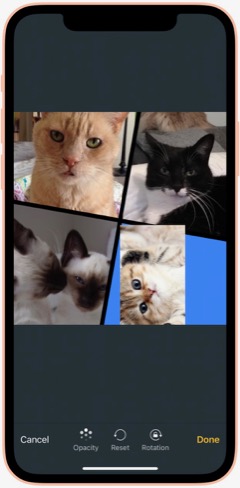

Mosaic: This cool shortcut uses a template for a mosaic of photos. The template has four "slots" for you to overlay images on, and you can resize the images as you position it over the "slot." Once you have all four "slots" full, you can view the mosaic and then save or share it. I think I found it on a non-U.S. website, and it has credits inside, but I can't find the original.

Photo Framer: This shortcut takes an image and adds an iPhone "frame" around it. It's particularly effective for screenshots, which then look like you shot the physical hardware as well as the image. I like this one because you can choose a color for the iPhone "frame." It's also capable of framing images that are not screenshot-sized. From RoutineHub.

Face Thumbnails: This nifty shortcut lets you choose an image with faces in it, and it will process the image to make thumbnails of the faces. You can resize the thumbnails (wide view, full view, etc.) and choose which ones you want to save. It will even straighten crooked faces if you like. Overall, it does a really good job at making full images of faces from group photos. From RoutineHub.

Cartoon Image: This delightful shortcut does its best to make a cartoon out of whatever photo you throw at it. Sometimes it can't do it, but when it can, the results are really cool. By the way, there's another cartoon shortcut out there called Cartoonify, and this one, from a Chinese source, is much better and far less scary.

New! Change Image Background: This cool shortcut requires an API key to work (it's easy to get one). Once you have it set up, the shortcut does an amazing job of removing the background from images with foreground subjects. You can then save that background-free image or choose to combine it with another photo. By combining it with another image, you can achieve some very cool effects. From RoutineHub.

Get Image Size: This simple shortcut lets you choose an image, either from Photos or from the share sheet, and it will return the height and width in pixels.

EXIF Photo Details: This handy shortcut, which lets you browse to a photo or can take one from the share sheet, presents all the details about a given image you could possibly want. It shows modification and creation dates as well as Album information, Camera information, etc. From RoutineHub.

HighRes Artwork (Apple Music): I use this shortcut to get the album art from whatever is playing on my iPhone at the time. I have tried other similar shortcuts, but none are as reliable as this one, and it really does return a high-res image, which you can save and/or share. I think I found this on Reddit.

NASA Wallpaper: This is an example of several shortcuts I have set up to view specific albums in my Photos library. As described earlier under Family, this type of shortcut can be created with a bit of siri magic: Just browse to the folder you want a shortcut for in Photos. Then go to Shortcuts and create a new shortcut. Search for the photos app actions, and you'll find one just for the album you want!

New! Dance!: This fun shortcut has two animations of a dancing person meme, and you get to select a photo and position someone's head in the animation. The result is you or your friends doing the dancing meme, which you can then save or share.

New! Video Trimmer: This shortcut lets you select a video and then divide it into segments. You can select how many segments you want, and then the shortcut presents you with a video editing interface that lets you select your segments to save. You can share the segments, which are saved to your Recents folder in Photos.

New! Join Videos: This shortcut lets you choose two or more videos from your library and combines them with no quality loss. It requires use of the a-shell mini app (a free download from the app store). From RoutineHub.

New! Change Image Size: This shortcut does just what the title suggests: It lets you change the size of any image in your library either to one of about 20 presets or to a custom size. If you choose custom, you can set just the height or just the width or both. After you select, you get to see a preview of the result, which you can save to your photo library if desired. Origin unknown.

New! Invert Image: This shortcut takes a photo and returns it with colors inverted. From RoutineHub.

New! Image Converter: I recently needed to convert an image I downloaded from Google to jpg, because my shortcuts for resizing images wouldn't work on the format the image was in. A quick search yielded this shortcut, which lets you convert an image from your photo library in any format to a range of other supported types.

Information
This folder contains a variety of shortcuts that provide information of one sort or another. There are search tools and shortcuts that retrieve information such as Tides, US Constitution, Cocktails, etc. A couple of the shortcuts would be helpful to writers.
Infinity Search: This all-in-one search shortcut lets you choose from over a dozen sources, including Google and things like Maps, the App Store, iTunes, YouTube and more. From RoutineHub.

Glyph Search: Have you ever wanted to find a glyph but couldn't? This might help... it lets you search Apple's glyph library by name and lets you know what glyphs apply. I really only use this when choosing glyphs for my shortcuts, but there may be other applications as well. From RoutineHub.

Tides: I used this recently while vacationing at the beach. This terrific little shortcut lets you search for tide markers in a nearby radius and then presents a list of places. Select one and you can tell it how many days of information to provide. It ends with the tide information in a jiffy! I'm not sure where I found this one, but it does have a username credit inside.

US Constitution: Yes, this shortcut contains the entire U.S. Constitution, broken up into bite-sized chunks in .json format for quick reference. It's nice to be able to refer to the actual language in this document now and then. If you invoke from Siri, she will read the articles etc. to you. From RoutineHub.

Cocktails: From the sublime to the banal: This shortcut lets you look up a wide range of cocktails. It shows you a picture of the drink and then displays the recipe. No, I'm not a lush, but I thought this would be useful from time to time, especially when on vacation. I'm not sure where this one came from, but it does have a credit inside.

Rhymes: This shortcut produces an astonishing number of word rhymes for any word you give it. It can even do multi-syllable rhymes and near-rhymes. A great resource if you're feeling poetic. Not sure where this one came from, but I'm glad I've got it!

New! Wikipedia Search: This simple shortcut lets you enter natural language queries (without underscores) to search Wikipedia. It then loads Wikipedia in a Safari view controller.

New! The Shortcut Dictionary: Besides serving as a dictionary, this shortcut offers to help you with pronunciation and spelling. It also has a translate tool built in. From RoutineHub.

New! iOS App Release Notes: I found this on MacStories, I believe, but I couldn't get it to work as written. I changed the shortcut to ask for an app name instead of trying to parse a URL for the app ID (as the original shortcut was doing). It isn't perfect, but you can find the latest release notes for most any iOS app as long as the name isn't so common that it misses the mark in retrieving the data, which is presented in a preview window. The shortcut ends by copying the release notes to the clipboard.

What Would Steve Say: This shortcut contains a huge resource of Steve Jobs quotes on various subjects. When you run it, it picks a random quote and presents it. From RoutineHub.

Mail and Messaging
This folder has a few shortcuts pertaining to Mail and Messages.
Send Later: This shortcut lets you create a new shortcut containing a message to somebody. To "send later," you set up an automation to run this shortcut on a specific day and time. You can then delete the temporary shortcut and remove the automation afterwards. From RoutineHub.

Dictate And Share: This shortcut simply lets you dictate a message and send it to a group or individual. I believe this one comes from the Apple Gallery of shortcuts.

Vertical SMS: This fun shortcut takes your message and sends it either one word at a time or one letter at a time. Goofy, but it gets attention if you don't do it too often. I'm not sure where this one came from, but it does have a credit comment inside.

Personal Contacts: This shortcut simply looks in Contacts for those in the Personal Contacts group and displays them in Quick Look.

Move Contact To Group: I wrote this shortcut because there's no way to move a contact to a group on the iPhone. This shortcut lets you choose a contact and add it to one of your contact groups.

Morning Routine
This folder has some shortcuts that I use in my morning routine, before I start work for the day.
I'm Awake: This shortcut is the first thing I say to Siri in the morning. It turns my reading lamp on, runs the Brightness To Battery shortcut (see folder Settings) and runs the Morning Greeting shortcut (see below). Once the morning greeting is over, the shortcut sets the playback destination to the kitchen HomePod and starts playing some classical music (specific to each day of the week).

Morning Greeting: There are a slew of "good morning" shortcuts out there that have Siri give you a day's summary, but I ended up liking this one best. I don't know where I found it, but I've made a few modifications to it over time. The greeting announces the date, the current weather and forecast for the day, and the next item on my calendar. I use this in my "I'm Awake" shortcut (above).

Paper Finished: This simple shortcut turns off the reading lamp and then hands off playback of the classical music in the kitchen to my bedroom HomePod mini, so it's playing there when I head up to get dressed.

Music
This folder contains a number of shortcuts pertaining to music listening and finding tunes on Apple Music.
Add to New List: This shortcut gets the currently playing song and adds it to a playlist in my library called "New Music." I use this to keep track of new songs I hear that I want to hear again. I believe this one came from Apple's Gallery of shortcuts.

Song Info: This shortcut displays information about the currently playing song, including rating, artist, and any art associated with it. I don't know where I found this one, but it does have a credit included in it.

I Am Genius: I use this shortcut to get lyrics for songs. You can get lyrics for the currently playing song, or you can search for a song. You can copy or share the lyrics. From RoutineHub.

500 Albums: This shortcut contains all 500 of Rolling Stone magazine's top albums. When you run it, it starts playing a random album from the list, displays wikipedia info about the album, and logs the album number to a list in Notes. The shortcut keeps track of the albums you've heard so it doesn't repeat an album. I'm not sure the source for this one, so I'm linking to my iCloud library.

Indie Radio: I got this shortcut from Apple's Gallery. It lets you choose one of the Indie Radio genres in Apple Music and starts playing it.

Open Genre Playlists: This shortcut also comes from Apple. It displays a list of all the curated genres in Apple Music and starts playing the one you select.

Electronic Radio: Also from Apple, this shortcut displays a list of Apple Music stations in the Electronic genre and starts playing the one you select.

Dance Radio: Similar to the previous shortcut, but for Dance genres.

Music By Decade: This Apple shortcut displays a list of decades and lets you choose one to start playing in Apple Music.

Playlist Tool: This is a modification of the shortcut Apple Music Tool, which didn't work for me in several respects. This shortcut lets you find duplicates in your playlists and then offers to make a new playlist containing just the duplicates or all the playlist songs minus the duplicate(s). Very useful for finding duplicates in your library. You can also use the shortcut to sort a playlist, writing out a new playlist with the sort order you define.

Shazam This and Share It: This shortcut is the easiest way to share something playing on Apple Music with a friend. Shazam identifies the song, and you can then choose who you want to share it with. Source unknown.

New! Find Duplicate Songs: This shortcut will find all the duplicate songs in your library by comparing artist name and title. It will then make a new playlist containing the duplicates. My library is so big I found I needed to edit the shortcut to look through segments of my library at a time, but it did work as advertised. From RoutineHub.

New! Song.Link: This amazing shortcut lets you shazam or search for a song and then shows you all the streaming services through which it's available. You can then easily share a link to the song or open the link. It includes dozens of services, including all the big ones (Apple, iTunes, Spotify, Amazon, Napster, YouTube). From RoutineHub.

News and Stocks
This folder contains links to sources of news as well as some stock information.
Browse Top News: This shortcut displays half-a-dozen sources of general news (e.g., CNN, New York Times, BBC) and lets you browse their news feeds. Selected a story opens the Safari window in the shortcut. I don't know the source of this one.

New! Browse Top News Voice: This is the same shortcut as the previous one, but instead of opening the chosen item in Safari, it reads the item to you. In this case, the shortcut parses the Safari Reader Article from the chosen item and reads the article title and body.

Tech News: This shortcut displays seven sources of Apple Tech news (e.g., Mac Stories, Mac Rumors, Daring Fireball) and lets you browse their news feeds. Selecting a story opens it in the Safari window. I'm not sure where I got this shortcut.

New! Tech News Voice: This shortcut is the same as the preceding one, but instead of presenting your chosen item in Safari, it reads the item to you. In this case, the shortcut gets the URL from the chosen item and parses the Safari Reader Article, reading the article title and body.

Apple News: This shortcut displays the 20 latest items in the official Apple news feed. Selecting one opens the Safari window in the shortcut.

New! Apple News Voice: This shortcut gets the same news feed as the previous shortcut, but instead of presenting it in Safari, it reads the news item to you. It took me awhile to get this right, but I finally found a regular expression that captures the news release while ignoring all the extraneous information on the page. Trying to get the text from the feed itself doesn't work because that yields only the title and summary paragraph.

New! Apple Investor: I made this simple shortcut because I always have to spend time in Safari finding the tab (if it still exists) or navigating the Apple website when they release earnings. As an Apple shareholder, I wanted a faster way to get there, and that's precisely what this shortcut does: It loads the Apple Investor page in a Safari view controller window.

HomeKit Stories: I made this simple shortcut with a little help from Siri. Like the Maps and Photos apps, the News app will display actions based on your latest activities in the app. After displaying HomeKit stories in News, I found an action for that in Shortcuts. This simply opens the News app and displays stories about HomeKit. You can make shortcuts like this for whatever topic you like. I have another one for Severe Weather.

Any Stock Report: I use this shortcut as a template for ones I made for individual stocks I own. With this generic shortcut, you enter the symbol for a stock you want to look up as well as the number of shares you own. The shortcut will display the latest price for the stock, and if you enter shares it will tell you how much the holding is worth and how much it changed.

Stock Market Indexes: This shortcut is based on the previous one. It simply gets the information for the S&P 500, Dow Jones, and NASDAQ composite and displays the latest values in separate notification windows.

Nutrition
I use the shortcuts in these folders to log, track and view information about what I eat and drink.
Nutrition: This complex shortcut actually comprises about 8 different shortcuts working together. I use it to log my meals, snacks and certain drinks, the detailed ingredients of which get then logged into my Health app data. The shortcut has a flaw that limits its ability to show meal history, but I implemented a workaround that keeps its basic functionality intact. You log meals etc. either through a "Quick Log", which shows you your recent consumption items, or through a longer logging process. The longer process involves either searching (in this case, the shortcut uses the MyFitnessPal database) or scanning a barcode for a particular item. You can choose to log "right now," or specify a particular time and date. This is handy for logging items in a previous day that you forgot to do. I find the search and scanning mechanisms to be fast and easy. By keeping track of my consumption, I'm populating the Health app with a lot of rich data that I can then use other shortcuts to view. From RoutineHub.

Today's Food: This is part of the Nutrition shortcut. It shows you, in a prettified .json format, the nutrients you've consumed on the current day.

Log Water: I think this came from the Apple Gallery in Shortcuts. It simply presents a menu of choices in fluid ounces, and you select the amount you've consumed. I think I added some choices that weren't in the original shortcut, but you can customize it to your liking. I usually use this with Siri.

Log Daily Vitamin: I made this one to log my daily vitamin to the Health app. I believe it's for One-A-Day for Senior Men, but again you can customize it to whatever vitamin you take. I have another one that simply logs Vitamin D, which I take separately. Again, I usually invoke this one from Siri.

Log Meta-Mucil: This and the next three are shortcuts I made for food I consume every day. It became easier to make the shortcut than use Nutrition or Track Hydration to log the items. This one is for the pill version of Meta-Mucil and assumes you take one serving. I log this twice daily and write the info to my calendar as well as the Health app to keep track of my intake.

New! Log Meta-Mucil Gummies: This shortcut logs the gummy version of Meta-Mucil into the Health app. I take this twice a day and substitute it for the previous item in that case.

Log Muscle Milk: This shortcut logs the sugar-free 11-ounce bottle of Muscle Milk to the Health app.

New! Log Muscle Milk Large: This shortcut logs the sugar-free 14-ounce bottle of Muscle Milk to the Health app.

Log V8 Energy: This shortcut logs an 8-ounce can of V8 Energy drink to the Health app.

New! Log Super Coffee: This shortcut logs an 11-ounce can of Super Coffee, sending all the detailed ingredients to the Health app.

Track Hydration. This is another complex third-party shortcut that lets you log drinks (and your weight, but I don't use it for that) of various kinds to the Health app. I use it to log my tea, coffee and alcoholic drinks, as well as the occasional soft drink or juice. It's easy to use, though I think I customized the Tea list because it didn't originally have a bottle of iced tea on the menu. Besides your fluid intake, the shortcut also logs things like caffeine, alcohol, and carbohydrates. I use this one so often I keep it on my Home Screen. From RoutineHub.

Water Today: I usually invoke this one from Siri. It simply tells me how much water I've consumed so far on the current day.

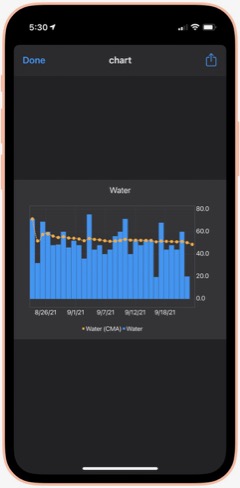
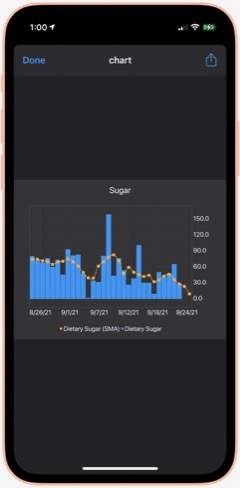
Water Chart: Using Charty, this shortcut shows me my water consumption for the last 30 days as a bar chart, with a moving average line as well. I'm not sure where I got this, but I have replicated it for several other important (to me) metrics.

Sugar Today: Sugar is another important metric for me to track. By using the Nutrition shortcut, all of my sugar consumption gets logged. This shortcut simply tells me how much sugar (in grams) I've consumed so far on the current day. Besides, sugar and water, I also have shortcuts to show me my daily consumption of protein, fiber and caffeine. They all use the pattern in this shortcut, so you can modify it to measure the things that matter most to you.

Sugar Chart: Using Charty, this shortcut shows me my sugar consumption daily for the last 30 days as a bar chart, including a moving average. I've modified this shortcut to chart other metrics that matter to me — specifically, caffeine, fiber, protein and sodium. You can modify this one to measure the things that matter most to you.

Calories Chart: I forgot to mention calories... I have shortcuts to show me Calories Today as well as this one, which shows me my calories (active energy) consumption for the last 30 days as a bar chart, with a moving average line. The data all comes from using the Nutrition shortcut and is stored in the Health app. Speaking of which, I find all of these shortcuts do a better job of helping me visualize my data than what Apple shows in the Health app. Much quicker to get what you're after as well.

Playback and HomePod
The shortcuts in this folder let me control playback on my iPhone and on my HomePods. I have a number of shortcuts specific to certain HomePods, but I see no reason to include them here.
Play/Pause: This shortcut does what its name implies: It either pauses or starts playing music. If you're playing to one or more HomePods, it also pauses playback on those.

New! Silence Audio: This shortcut turns off any background sounds (ocean, rain, etc.) that may be playing.

Change The Volume: This simple shortcut lets you choose among a number of volume settings, which you can customize to your liking. It applies the volume you choose to the music that's playing.

Play On HomePod: This shortcut has only one action: It lets you choose which AirPlay device (in my case, HomePods) to be the "playback destination" for your music.

Hand Back To iPhone: This shortcut stops any HomePods that are playing and redirects the music to your iPhone's speakers.

All HomePods: This shortcut sets each of my HomePods as the "playback destination", thereby turning them all on with one simple command.

Quick Classical Music
This folder simply has links to 11 classical music albums I have stored on my iPhone. It's much easier getting to them here than browsing my Music library. But there's no point in distributing them here, as they are very simple and redundant of some others I will be including.
Quick Leland Music
In my early adult life, I aspired to be a songwriter and made what I eventually compiled into about 8 albums-worth of material, most of it quite rough from a production values standpoint. My music is available on Apple Music, iTunes, and Spotify, for example. You can read more about it on my MarsTunes website. This folder simply has quick links to my music, which I play either through Apple Music or through my library. I'll provide a couple of examples.
I Am The Passenger: This is simply a link to one of my more popular songs in Apple Music. I believe you have to have an Apple Music subscription for this to work, but I'm not sure. That's true for the following two shortcuts as well.

Play Dancing Any: This is a link to the most recent album of demos in the series of eight. The album is called "Dancing In The Sun." The "Any" in the name refers to the fact that the shortcut ends by offering to let you play the music on an AirPlay device if you have one. (The same is true for the following shortcut.)

Play Darkness Any: This is a link to my personal favorite of the eight albums of demos, titled "The Darkness In Love."

This article continues here.
Building Smart Automations With Apple Home, Siri Shortcuts

Over the past few months, I've had a blast building out my smart home, using Apple's Home app as the foundation. Who knew how much fun it would be making things happen in the house without having to move a finger? I'm still at the beginning stages, but I thought it would be useful to document what I've done and learned so far.
Automating your smart home and life makes use of two apps that come with your iPhone: Home and Shortcuts. (The links to each in the following text take you to Apple's User Guide for for each app, which I would recommend perusing if you get lost.)
The Home app is where you add your smart devices, which must be HomeKit-certified. When you add your first device, you assign it a room, and as you build out your home, you add devices and rooms as you go. 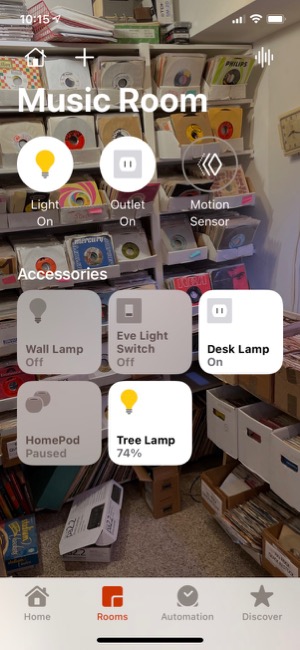 Each room can have its own image and settings, and you can easily navigate to each room in the Home app to see the status of your devices. The Home app's home page also displays all your "favorite" devices in one place.
To add a device, you plug it in or otherwise power it and then click the "+" in the Home app and select "Add Accessory." From there, you scan a HomeKit code (with your iPhone camera) that's printed on the device itself as well as on instructions in the box. Once Home establishes a connection to the device, you select a room and, depending on what kind of accessory it is, you might be offered the option to set automations for it.
Note that adding a HomePod to your home is a different process... again, very simple, and more like setting up an Apple watch. But the HomePods still end up in your rooms in the Home app and can be used for automations.
So, what devices have I added to my home so far? Lights, outlets, switches, a camera, and motion sensors. Except for a Wemo 3-way light switch (I'm still trying to get Belkin, which owns Wemo, to fix my problem), all of the devices have been easy to add to the home. Many of the devices have iPhone apps specific for their products, and some of these are useful. For example, Eve (a German company, the successor of Elgato) has an app that lets you customize its devices in ways you can't do in the Home app. The Wemo app is the only way you can update a device's firmware... an approach that has caused me problems, unfortunately. Some of these apps also offer ways to automate their products, but thus far I have stuck to using the Home app and the Shortcuts app for such automations.
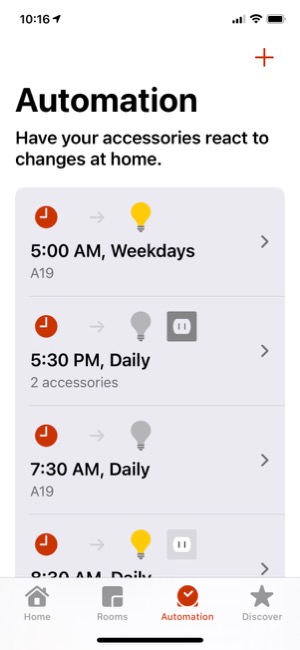
A quick word about the devices I've selected... Some HomeKit devices want you to buy a separate "hub" for them to work. An example is the Philips Hue series of light bulbs. I've avoided all such devices, since with Apple Home and an iPhone or HomePod, you don't need a "hub". The HomeKit accessories I've bought and used all work without a dedicated "hub," and I think that's a good approach.
The automations I've set up fall in the following categories:
- Setting schedules for lights going on and off.
- Automatically turning lights on and off using motion sensors.
- Setting music to play to a HomePod at certain times
- Designing Siri Shortcuts to automate activities
Setting schedules for lights going on and off
In the lights category, I have several devices... Smart lights themselves, smart light sockets that take "dumb" bulbs, smart outlets and smart light switches. I started with Home simply by adding some smart bulbs to rooms where I wanted light at certain times of the day. For example, I have a bulb in our "Great Room" that I have coming on at Sunset and going off at 12:30 AM. In my "Music Room," I have a smart outlet that powers my desk lamp, and a bright smart bulb in a different fixture across the room. I have automations set up that turn these lights on at a certain time in the morning (prior to my starting work) and turn them off when my workday is done. To make things even more interesting, I have set up Shortcuts that turn the lamps off when I start a break and back on when the break is over.
Automatically turning lights on and off using motion sensors.
One of my favorite automations is in my Music Room, where I added an Eve motion sensor to a part of the room that would detect motion if I approached my boxes of factory sleeves or my shelves of records. I have an Eve smart switch installed that controls a bank of track lights, as well as a Koogeek bulb that's in an old wall lamp. Now, whenever I approach that part of the room, the lights go on, and I have the timer set (in the Eve app) to turn the lights off after 2 minutes.
I've used motion sensors in other locations with good results. I have one in the kitchen that turns a smart bulb on and off as it detects motion (or the lack thereof). I have one on the patio that turns on a bank of "party" bulbs, made smart by using a Wemo outdoor smart outlet. In this case, I have set the automation to only detect motion starting 30 minutes before Sunset, and I have set the motion sensor to wait 30 minutes before turning off if no motion is detected. Finally, I have one going down to the basement that's supposed to turn on the main lights using a smart Wemo 3-way switch, as well as, at certain times of the day, a bulb installed in a smart socket in another part of the basement. (Unfortunately, I haven't been able to get the Wemo switch to work, and am working with Belkin to resolve the problem. In a nutshell, the problem is that the device wants a firmware upgrade, but the Wemo app can't keep the device "registered" long enough to install the firmware.)
After our recent sojourn in Hilton Head, SC, I realized it would be helpful to have a camera in the kitchen, since no motion should be detected there when we're away. So I added a camera (made by Eufy) that let's me spy on the kitchen remotely.
Setting music to play to a HomePod at certain times
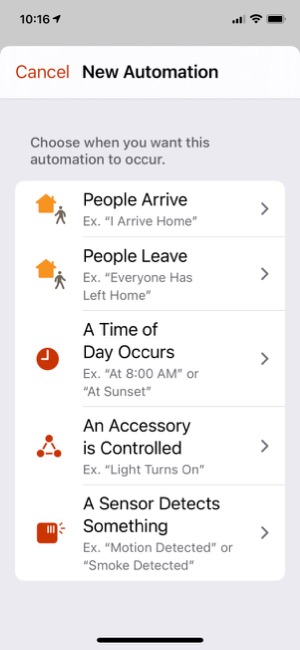
Another of my favorite automations was very simple to set up and brings my wife great joy. You can trigger an action based on when a person arrives or leaves home, so I set one up for Jackie when she gets home: Each time she walks in the door, the kitchen HomePod is playing one of her favorite artists — namely, Bruce Springsteen! I have the HomePod play Bruce's greatest hits, starting with "Born To Run." I can set the volume so it's not overwhelming, too. (Of course, this automation assumes she's carrying her iPhone with her, which is a pretty safe bet.)
We have a HomePod Mini in the bedroom, and I have it set to play music at two different times of the day. At 8:45, the HomePod starts to play "Forest Sounds," some ambient music available through my Apple Music subscription. Then, at 8:05, when my alarm goes off, I have a personal automation that uses a Shortcut to my "Folk/Folk Rock" playlist to start playing it in random order... all set to a reasonably low "going to sleep" and "waking up" volume ambiance.
Finally, I decided I'd like the HomePod Mini pair in my Music Room to be playing music when I start work in the morning, so I set up an automation to have them do just that.
One of the few problems I've had with these automations is that those that control a HomePod sometimes turn "Disabled" for no apparent reason. (You can enable and disable your automations manually in the Home app, but in this case the app disables the automation itself.) Fortunately, it's simple to set them up again, but it's still a nuisance that I hope Apple fixes.
Designing Siri Shortcuts to automate activities
The Shortcuts app presents another opportunity for iPhone users to automate their day. Shortcuts are essentially custom Siri commands that do various things with the apps and data on your iPhone. They can also control devices in your smart Home, since Home is one of the apps on your iPhone. In addition to using voice commands, you can click on the shortcuts in the Shortcuts app to launch them, or you can save them as clickable "apps" on your home screen.
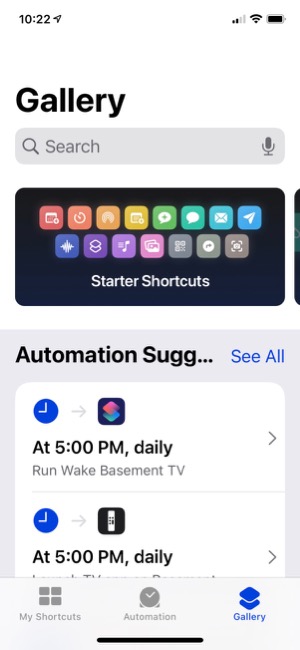
The app comes with a whole "Gallery" of example shortcuts in many different categories, and I encourage you to look at these and try adding a few to see what they do and how shortcuts work. I used a number of example shortcuts as the building blocks for the shortcuts I've set up, though it's quite easy to start from scratch. Essentially, shortcuts string together actions and data to automate commonly performed tasks with your phone.
I've divided my shortcuts into two main groups: Breaks and TV, and Music and Audio.
In the "Breaks and TV" group, I have a shortcut called "Morning Break" that lets me browse my music library for something to play, changes my audio output to the kitchen HomePod, and starts playing the music. The shortcut also turns off the lights in my music room. When my break is over, I have a shortcut called "Break Over," which stops the music and turns the lights on in my music room.
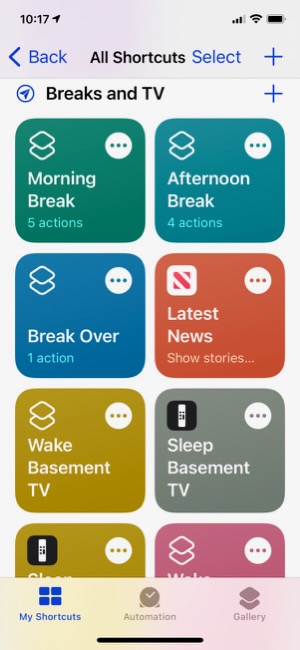
A more complicated shortcut is used for "Afternoon Break," and I've discovered a problem in Apple's implementation at this time that requires me to click the shortcut in the app to get it to work. A voice command to Siri won't cut it, unfortunately. So, I set an automation that launches the Shortcuts app at 3:30 (when my break usually starts), so it'll be there when I'm ready to start my break. The afternoon shortcut does the following things: It turns off the music room lights, turns on the Great Room lamp, runs a shortcut called "Indie Radio" that plays a playlist from Apple Music to my kitchen HomePod, waits 3 seconds and then launches the Stocks app showing the Apple stock price. Again, when I'm ready to go back to work, i say "Break Over," and that sets the lights appropriately and stops the music.
I also have shortcuts to wake and sleep my Apple TVs, which, when they work, will wake the Apple TV, turn on the TV and show the remote for the Apple TV on my iPhone. For some reason, these automations aren't as reliable as the others. I often have to say "Wake Basement TV" more than once to get Siri to do her thing.
In "Music and Audio," I have shortcuts to "Indie Radio," based on an Apple-provided shortcut, one that searches my library for "Beach Boys" and plays what it finds to my bedroom HomePod, one that finds my "Folk/Folk Rock" playlist and plays it, two that play different podcasts, and one that lets me add whatever song is playing to a given playlist.
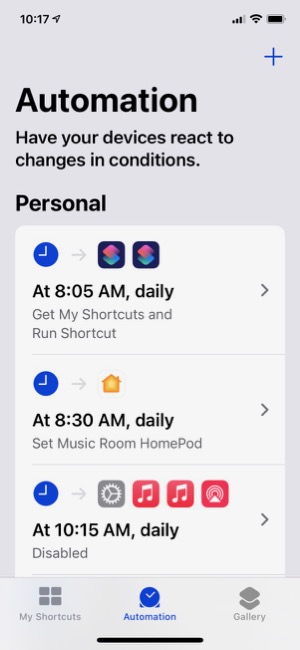
One of the tabs in the Shortcuts app is for setting up automations with your shortcuts. At the top of the screen are Personal automations that are just for you and your iPhone. At the bottom are Home automations, which are the same as those you set up in the Home app.
In addition to the Shortcuts app, you can also create custom Siri commands in the Home app, where they are called "Scenes." For my home, I have several "Scenes," which essentially are commands that control one or more devices at once. For example, I have "I'm Home," which turns on several lights in the house, and "Good Night," which turns lights off. Just for fun, I set up "Reading The Paper," which turns on the floor lamp in the great room, and "Paper Done," which turns it off. Such scenes merely save a few words off saying, for example, "Turn on the floor lamp."
To sum up, my foray into the smart home has been a lot of fun so far. I keep thinking of new ways to save energy and time, and Apple has provided a secure and private platform to use, so I can feel confident that the devices I add to my home maintain the same standards that Apple does. Since all of these devices are WiFi enabled in some way, they present potential targets for hacking by outsiders. It's important to make sure your privacy and security aren't being compromised as you built out your smart home and life. Other HomeKit devices I'd like to set up eventually include a smart thermostat, a smart doorbell with camera, a smart water faucet for auto-sprinkling, and perhaps a smart deadbolt lock.
Balanced Article on “Smart Home” in 2020 Gives Nod to Apple for Privacy/Security
Interesting article. I think it’s fair for the most part. It dings Apple justifiably for staying behind in the smart assistant race, and it’s true that the HomeKit-compatible devices market is much smaller than that for Google or Amazon. But Note that Apple wins in the privacy and security race and comes in as runner-up for 2020 overall. They also seem to think that the HomePod mini is a game changer in Apple’s favor, and they give Apple positive marks for being ahead of the game in privacy and security not only for their products but also for those that run on HomeKit. That isn’t true for the other platforms and their many, often sub-par third-party products.
Can You Fall In Love With A Watch Face?
I recently began exploring all the different faces that are now available for the Apple Watch. There are many cool options these days, but I happened upon one that I simply can't get enough of. It's the kaleidoscope face, which comes with a nice array of image options and several "facet" styles.
After playing with the face and the built-in options for awhile, I discovered that you could use a custom image as the source for the kaleidoscope effects. I chose the one I use on my computer desktop and on my iPhone home screen... It's a photo I took during an especially beautiful sunset at our favorite beach destination in North Carolina. You can check it out here: 
After doing this, I realized I had found watch face nirvana for me. I settled on the radial facet effect, and now I have incredibly beautiful animations as the kaleidoscope cycles through the source image. The animations are sometimes quick, sometimes subtle, but always calming. I find myself looking at my watch now and then as a sort of meditation exercise. My watch is no longer just a great utility — a computer on my wrist! — it's a piece of art that's contantly changing.
During the course of the last week or two, I've screen-captured my watch face, and although some are similar, no two images are alike. I hope you enjoy perusing them as much as I enjoy seeing them on my watch face.
One note to "complications" fans... I keep my fully loaded modular face a swipe away, so I can quickly see things this face can't accommodate. (Note to Apple Watch newbies, once you set up more than one face, you can simply swipe to the left or right on the watch face to cycle through your custom faces.)

An Audiophile Listening Room with Apple’s HomePod
Apple's HomePod has been the underdog in the "smart speakers" category since its introduction last year. It's more expensive than the offerings from Google and Amazon, and Siri doesn't seem to be as powerful. I haven't used Alexa or the Google AI assistant, so I can't say what the difference may be. But let me just say that HomePod is a revelation in audio quality, and its "smart" features are more than adequate for my needs. The most surprising aspect of HomePod is that it has finally let me put together an audiophile listening room without taking out a second mortgage!
At its most basic, HomePod is a smart speaker with Siri built in and truly gifted sound quality. It's a breeze to set up... you just use your iPhone to pair and copy settings, which takes about a minute. My first use was to add some smart light bulbs to the house, and with Apple's HomeKit app on the iPhone that's a simple matter too. To activate a new device, you just scan an icon on the packaging and then assign it to a "room" in your house. (In HomeKit, you can set up rooms and "scenes" for your devices.) Once set up, it's a simple matter to say "Hey Siri" and then turn on or off a given bulb. HomeKit also makes automation simple, so you can easily have lights come on and off at different times of the day. With scenes, you can automate multiple devices with a single command. For example, when I go to bed, I say, "Hey Siri, Goodnight," and Siri turns off the basement family room light and the foyer light.
I also subscribed to Apple Music as part of my movement to the HomePod, and I've thoroughly enjoyed being able to listen to any given album by voice command. Of course, HomePods are also AirPlay speakers, so you can easily play music to them from your iPhone, iTunes, or other devices. It's simple to play to multiple HomePods at once, and Siri can move the music from room to room by voice command if you so choose.
But the most surprising aspect of HomePod has been its audiophile sound quality. Even bass response is great, which is amazing given the small size of these speakers.
I got a new HomePod for Christmas (I already had two) and decided to put it in the living room. It sounded so wonderful I decided to buy another one and set them up as a stereo pair. That's when the true value of these little speakers became clear.
With two HomePods now in my living room, I finally have achieved an audiophile listening environment at a truly reasonable price. The two little speakers pump out amazing sound, and they only cost me about $700. To replicate a listening environment with traditional high-fidelity speakers would cost at least $2,000, because you need not only the speakers (minimum: $1,000), but also you would need a receiver/amplifier and some components to get music into the system: A CD player or turntable, for example. On top of that, you would need some place in the living room to house the speakers (much larger than HomePods) as well as the stereo components... and that means another piece of furniture as well as considerably more space than my current setup requires.
With my paired HomePods, I just need to plug them into the wall and put them on a shelf. And voila! Instant audiophile listening without all the other setup headaches and at a much lower cost.
And I love the fact that the speakers have Siri built in, which means I can raise or lower the volume by voice, get information on what's playing, skip a song, or repeat... all by simply asking Siri.
The HomePod's audio quality is more than just a differentiating factor when you compare it to Google and Amazon speakers. It truly is great enough to compete with high-end speakers costing much more, and you can easily set up a listening environment that will tickle the ears of even the pickiest audiophile. A surprising punch for such a tiny device.
Trying To Tame Mountain Lion Without A Hat
 Remember my angst about whether I should migrate my computing life to Mountain Lion? Well, that story's now over, and Mountain Lion has won.
Once I had the Mountain Lion virtual disk, I could import that as a new virtual instance in Parallels on Snow Leopard. Doing so was simple and straightforward, and I don't recall running into any glitches. After the import, I could "boot" into Mountain Lion as an instance of Parallels desktop, and then switch back and forth between the two OS's as I would between two applications.
The reason I abandoned this effort is that when I installed CrystalClear Interface (CCI) or Crystal Black (CB) on the Mountain Lion instance, Safari would repeatedly crash. Disabling CCI for Safari made no difference. Only by uninstalling my software would Safari work again. I tried various other tricks to overcome this, but failed. Since debugging Safari on Mountain Lion was one of the primary goals of this whole effort, this failure effectively shut the project down.
At that point, I was stalled on CCI vs. Mountain Lion, so I turned my attention to migrating from the old Quicken 2007 for the Mac, because it won't run on Mountain Lion. That migration could be an article on its own.
In those few moments, the unthinkable happened. Suddenly, the dark shade of death descended from the top of the screen, signaling the warning that all the busy bits we rely on to keep the trains running on our Macs had given up and gone home — and we had better do so as well.
Well OK... no big deal, right? I've experienced this kind of kernal panic message before and come out unscathed after a restart. But not this time.
This time, after the reboot, rather than returning to Snow Leopard, I found myself in Mountain Lion.
How could that be? And why couldn't I find the regular volume for Snow Leopard in the Finder? Likewise, why did Disk Utility show new partition names for the volume that used to have Snow Leopard on it? And why couldn't Disk Utility mount either of the two partitions on that volume?
It turns out that the volume files — the ones that store information about the folders and files on the volume — had been corrupted, and none of the tools I used to try to repair the partitions or volume worked.
Anybody who wants to bail on the rest of this story now are well advised to do so, since it's just going to get more boring from here. I'm doing this mostly so I can remember what happened and what I did... just in case.
Eventually I gave up on the old volume, and after confirming that Time Machine had the files I'd need to restore, I proceeded to set up the two partitions anew. Though I thought I'd be able to restore everything, I was hardly feeling nonchalant as I clicked the button that erased all my files and settings for my old Snow Leopard partition.
I was able to restore all the files on the second partition, which houses most of my third-party apps, but when I attempted to reinstall Snow Leopard on its partition, I realized my stay in Mountain Lion would be even longer than I'd imagined.
It turns out that my install disk for Snow Leopard was corrupted, and I had no other way of getting Snow Leopard onto my Mac.
On the phone with Apple support, I paid $19 for a one-time technical support incident. The upshot of that call was that Apple would express-mail new install disks to me for Snow Leopard — at their expense. As nice as this was, it was late on a Friday afternoon, and I knew it would be at least Monday before the disks arrived.
Fortunately, as it turns out, most things I need to do daily work fine on Mountain Lion. There are just enough "gotchas" that I still don't feel quite at home here, but it's working out better than I'd feared. Which is a good thing, because after the Snow Leopard disks appeared and I reinstalled the OS on my old partition, I discovered that restoring my user account was not going to be easy.
Normally, on the Mac you use an app called Migration Assistant to restore user accounts and files from another Mac, another partition, or Time Machine, and it's a painless and reliable process. That's how I set up my user account on Mountain Lion — I cloned it from my user account on Snow Leopard.
I had planned to do the restore from my Time Machine backup, but when I attempted this, Migration Assistant couldn't find any user accounts on the Snow Leopard backup. The only accounts it found were on other partitions on my Mac, including my account on Mountain Lion.
After much gnashing of teeth, I decided to try to restore my account from the one on Mountain Lion. Since this was a clone of my Snow Leopard account, I thought this might work.
The restore did indeed work, and I thought I was a little closer to returning to my beloved Snow Leopard.
Unfortunately, the restore didn't move all the files needed for various applications to work, and it contained Mountain-Lion-specific preferences that merely confused some apps. This meant I had to try manually restoring files from Time Machine, a time-consuming and error-prone exercise that took several hours. Most of the files I was trying to restore reside in the top-level /Library folder, which is why they didn't get properly migrated with my home Library.
I finally got my iWork apps to run, but Photoshop simply wouldn't. "Your license has stopped working," is the error message Photoshop gives me. Now, I could reinstall Photoshop, but this might screw up Mountain Lion, where Photoshop works pretty much as expected. (I'm still using Photoshop CS4.) On the other hand, my developer tools — Xcode and Interface Builder (I'm still using Xcode 3.x) — worked fine on Snow Leopard. All of my projects could be opened and compiled, and each still had its whole history of "snapshots," which I use to track changes in the code. On Mountain Lion, by contrast, I keep running into permissions problems in editing project files, and compiling fails with inscrutable messages. Just as serious, Xcode refuses to read the Snapshots disk image for my projects, so I have no code history.
At this point, there is really only one barrier to my feeling completely comfortable on Mountain Lion: Xcode. If I can get Xcode to behave reliably on Mountain Lion, I'd have no compelling reason to boot into Snow Leopard. But as it is, I have to do all my design work on Mountain Lion and then compile code on Snow Leopard. When time permits, I'm going to figure out what I need to do to reconnect my snapshots to Xcode, and then Snow Leopard will be as obsolete for me as Leopard, Tiger, Panther, and Jaguar before it. (If any reader knows how to reconnect Xcode snapshots on a new volume, let me know!)
So, what does this mean for CrystalClear Interface and Crystal Black?
For now, the MarsThemes software is in maintenance mode, meaning I'll be releasing updates to keep the software working, but not adding any new features. Bug fixes will be included in maintenance releases, but without my Snow Leopard debugging power I can't address any application-specific bugs. On Mountain Lion, Safari remains an enigma, and it troubles me that I have to keep CCI and CB disabled for it to run. It's extremely frustrating to not be able to debug Safari on Mountain Lion, but that was a problem before I found myself facing Mountain Lion without my lion-tamer hat.
So here I am, using Mountain Lion as my default OS and running back to Snow Leopard to use Quicken and Xcode. It's not the migration I would have planned — if I decided to migrate at all — but at least I'm through the worst of it and have survived.
The good news is that CCI and CB both run reasonably well on Mountain Lion, and I now go weeks without having to provide customer support. Who knows... maybe in a few more months I'll actually learn to love my new OS. I just hope Apple waits longer this time around before trying to move everyone to a new platform!
Still Thinking About It: Can You Mount A Lion Virtually?
Now that I've effectively passed Lion by, I'm thinking again about whether or not to upgrade from Snow Leopard (Mac OS X 10.6). As noted in an earlier article explaining why I've avoided Lion, this is the first time since Mac OS X debuted in 2001 that I've hesitated to upgrade. So here it is again: Should I? Why not?
Apple did improve Lion during the course of its life, and Mountain Lion seems like a logical and relatively smooth update. Most of the reasons I had for not liking Lion still stand, but a couple have been remedied. In addition, I've found more things to like. For example:
- Windows resizable from all sides.
- Quick Look feature in Spotlight: You can preview docs right from the Spotlight results list.
- Improved Mail client: Many improvements, including finally providing the option to show previews on the right-hand side.
- Change in default setting for opening new windows on login. Now the default is off, and Apple has provided a system preference option to help control this behavior as well.
- Improved search/replace in TextEdit.
- Improved CharacterPalette app.
- Nicer full screen Quick Look mode.
- Safari improvements: Tabs, downloads, among others.
- Spotlight is searchable while it's building the index.
- Improved Cocoa text tools.
- Mountain Lion: Finder sidebar lets users decide how to organize the sections.
One of the main reasons to upgrade is to take advantage of iCloud, which has become a more serious need now that Apple took MobileMe away from us. I can no longer sync my Safari bookmarks automagically, for example. However, I'm still pissed that Apple hasn't made a version of iCloud available for the many folks still on Snow Leopard.
Speaking of which, what exactly is the breakdown of Mac users in August 2012? It's only been a month since Mountain Lion was released, but clearly upgrading is happening pretty quickly. According to the stats from NetApplications.com, Lion users account for about 35% of the market, Snow Leopard users about 34%, and Mountain Lion users about 20%. There are still about 10% of users hanging on to Leopard. That Snow Leopard figure is pretty damn high considering how long Lion has been out, and is one that Apple should be paying more attention to.
For me, the most daunting task of upgrading to Mountain Lion will be migrating all of my apps, their settings, and their licenses. Because Lion doesn't support Rosetta, I have to abandon any old PowerPC apps hanging around. The most significant of these is Quicken 2007, but I also have to upgrade my license for MaxBulk Mailer and a couple of others. Finding a replacement for Quicken remains a challenge, though I finally did find one that seemed worth buying: iBank. I haven't actually moved from Quicken yet for monthly financial balancing, but I think iBank will do the trick once I do.
To give you (and me) an idea of the application burden I'm looking at, I've compiled the following list, organized by major categories and subcategories. The colored cells on the far right represent how often I use each app — from light green (daily) to orange (quarterly). Apps I don't touch more often than quarterly aren't represented in the table, nor are apps that are part of Mac OS X (including iLife).
| Category | Subcategory | App Name | License | Issues | Use |
| Audio | |||||
|
|
Recording & Editing |
Amadeus Pro | C |
|
|
| ClickRepair | C |
|
|
||
| DeNoise | C |
|
|
||
| Logic Express | C |
|
|
||
| iTunes Software | Bowtie | F |
|
|
|
| CoverSutra | C |
|
|
||
| Animation & 3D | |||||
|
|
3D Tools | Live Interior 3D | C |
Needs reinstall |
|
| Animation | Morph Age | C |
|
|
|
| Business | |||||
|
|
Advertising | GarageSale | C |
|
|
| MaxBulk Mailer X | C |
Rosetta - Upgrade |
|
||
| Product Delivery | Endicia | S |
|
|
|
| Spreadsheets | Numbers | C |
|
|
|
| Presentation | Keynote | C |
|
|
|
| Office Suites | iWork | C |
|
|
|
| Customization | |||||
|
|
Desktop | Wallsaver | F |
|
|
| GeekTool | F |
|
|
||
|
Interface Enhancements |
CandyBar | C |
|
|
|
| ThemePark 3 | F |
|
|
||
| ThemePark | F |
|
|
||
| Visor | F |
|
|
||
|
Software Preferences |
AppHack | F |
|
|
|
| OpenPListCM | F |
|
|
||
| PlistEdit Pro | C |
|
|
||
| TinkerTool System | C |
|
|
||
| System Extensions | CrystalClear Interface | C |
|
|
|
| DefaultFolder X | C |
|
|
||
| LiteSwitch X | C |
|
|
||
| TotalFinder | C |
|
|
||
| XtraFinder | F |
|
|
||
| Design & Graphics | |||||
|
|
Color Utilities | iPalette | F |
|
|
| paintersPicker | C | 32bit |
|
||
|
Drawing & Painting |
VectorDesigner | C |
|
|
|
| Image Editors |
Adobe Photoshop CS4 |
C |
|
||
| Back In Focus | C |
|
|
||
|
Image Management |
Icon2Image | C | 32bit |
|
|
| Aperture | C |
|
|
||
| Screen Capture | LittleSnapper | C |
|
|
|
| Web Design | Flux | C |
|
|
|
| Developer Tools | |||||
|
|
AppleScript | Sdef Editor | F |
|
|
|
Cocoa Development |
Platypus | F |
|
|
|
| Packages | F |
Needed install |
|
||
| Code Editors |
Xcode |
OS X |
|
|
|
| Code Management | Code Collector Pro | C |
|
|
|
| svnX | F |
|
|
||
| Databases | Querious | C |
|
|
|
|
Debugging & Testing |
Xcode | OS X |
|
|
|
| Hacking | F-Script Anywhere | F | Interactivity |
|
|
| Pacifist | C |
|
|
||
| AppHack | F |
|
|
||
| SymbolExplorer | F |
Contrast problem |
|
||
| Web Development | Espresso | C |
|
|
|
| File & Disk Management | |||||
|
|
Disk Utilities | Drive Genius | C |
|
|
|
File Browsers & Managers |
Path Finder | C |
|
|
|
| File Utilities | Springy | C |
|
|
|
| Disk Inventory X | F |
|
|
||
| File Juicer | C |
|
|
||
|
Managing Digital Formats |
Pavtube Blu-Ray Ripper |
C |
|
|
|
|
Software Management |
RapidoSerial | F |
|
|
|
| Home & Learning | |||||
|
|
Mail & Print Tools | Endicia | C |
Dymo printer needed new driver |
|
| Personal Finance | Quicken | C |
Rosetta - Need alt |
|
|
| iBank | C |
|
|
||
| Powersnipe | F |
|
|
||
|
Photos & Slideshows |
PhotoPresenter | C | 32bit |
|
|
| Reference | MacTracker | F |
|
|
|
| Google Earth | F |
|
|
||
| Information Management | |||||
|
|
Bookmarking & Tagging |
Leap | C |
|
|
| Fresh | C |
|
|
||
|
Personal Information Mgmt |
DEVONthink Pro | C |
|
|
|
| Evernote | F |
|
|
||
| Yep | C |
|
|
||
| Securing Content | 1Password | C |
|
|
|
| Internet Tools | |||||
|
|
File Transfer Tools |
MacTubes | F |
|
|
| Xtorrent | C |
Note: Works with CB on Lion. |
|
||
| Yummy FTP | C |
|
|
||
|
News & Podcast Readers |
Times | C |
|
|
|
|
Web Browsers |
Camino | O |
|
|
|
| Firefox | O |
|
|
||
| Flock | F |
|
|
||
| Chrome | O |
|
|
||
| Opera | F |
|
|
||
| Safari | F |
|
|
||
| WebKit | O |
|
|
||
|
Browser Add-Ons |
Flash Cache Server | F |
|
|
|
| SafariStand | F |
|
|
||
|
Web Research |
DevonAgent | C |
|
|
|
|
Voice & Chat |
Adium | O |
|
|
|
| Skype | F |
|
|
||
| Productivity | |||||
|
|
Application Services |
KavaServices | C |
|
|
|
Clipboard Utilities |
ClawMenu | C |
|
|
|
|
Launchers |
Quicksilver | O |
|
|
|
| ClawMenu | C |
|
|
||
| DragThing | C |
|
|
||
| iKey | C |
|
|
||
|
Quick Access Tools |
Fresh | C |
|
|
|
| MenuPop | C |
|
|
||
| FolderGlance | C |
|
|
||
| OMC | F |
Required upgrade to beta version |
|
||
| QuickAccessCM | F |
|
|
||
| OpenMenu X | C |
|
|
||
|
Shortcuts & Automation |
Autopilot | C |
|
|
|
| Hazel | C |
|
|
||
| Shortcuts | F |
|
|
||
| Spark | F |
|
|
||
| TextExpander | C |
|
|
||
| OpenMenu X | C |
|
|
||
| A Better Finder Rename | C |
|
|
||
| System Administration | |||||
|
|
Backup & Synchronization |
Carbon Copy Cloner | F |
|
|
| Chronosync | C |
|
|
||
|
Configuration |
Lingon | F |
|
|
|
| TinkerTool System | C |
|
|
||
| Secrets | F |
|
|
||
|
System Maintenance |
CleanApp | C |
|
|
|
| Data Rescue | C |
|
|
||
| iFreeMem | C |
|
|
||
| VacuumMail | F |
|
|
||
| What’s Keeping Me | F |
|
|
||
|
System Monitors |
BackTrack | C |
Main App wouldn’t open from statusbar item |
|
|
| BwanaDik | F |
|
|
||
| Growl | F |
CB Not Loading |
|
||
| MemoryStick | F |
|
|
||
| Sloth | F |
|
|
||
|
Terminal & Unix Tools |
ManOpen | F |
|
|
|
| Task Management | |||||
|
|
Notes & Reminders |
Edgies | C |
|
|
| Sticky Notes | C |
|
|
||
|
Outlining & Mind Mapping |
MindNode Pro | C |
|
|
|
| MyMind | F |
Rosetta |
|
||
|
Personal Organizers |
MenuCalendarClock iCal | C |
|
|
|
| Edgies | C |
|
|
||
|
Search |
Leap | C |
|
|
|
| DEVONagent | C |
|
|
||
| EasyFind | F |
|
|
||
|
Time & Schedules |
QuartzClocks | F |
|
|
|
| MenuCalendarClock iCal | C |
|
|
||
| Video | |||||
|
|
Screen Video |
ScreenFlow | C |
|
|
| Voila | C |
|
|
||
|
Video Players |
MacTubes | F |
|
|
|
| VLC | O |
|
|
||
| Writing & Publishing | |||||
|
|
Rich Text Editors |
Bean | F |
|
|
|
Screencasting |
ScreenFlow | C |
|
|
|
|
Text Utilities |
TextSoap | C |
|
|
|
|
Other Web Sharing |
Twitterrific | C |
|
|
|
|
Word Processors |
Bean | F |
|
|
|
| Pages | C |
|
|
||
The most compelling argument for upgrading, quite frankly, is my need to stay current with users of my software, CrystalClear Interface and Crystal Black primarily. Since I don't live in Lion or Mountain Lion, it's difficult to quickly test any bugs users report, and I'm not finding any on my own, as I typically do while using Snow Leopard. In addition, the burden of testing and quality assurance is much more difficult when I have to cover three operating systems, though that burden will remain so long as Snow Leopard has such a big market share.
Besides the issues I've already stated, the biggest argument against upgrading is that my software doesn't work as well on Lion or Mountain Lion as it does on Snow Leopard. For me, that's a big pain in the butt, and it doesn't let me enjoy the theming as fully. For reasons why this is an issue, see the recent brief article I wrote on the subject.
So, bottom line: I'm still on the fence. One possible compromise, if I can confirm it will work, is to run Mountain Lion as a virtual OS, as one can do with MIcrosoft Windows or Linux. If I can run Mountain Lion inside Parallels Desktop, for example, I could keep it handy for testing while running Snow Leopard as my primary OS.
Or, I could do the reverse: Upgrade to Mountain Lion and run Snow Leopard in virtual mode. I've read that these things are possible, but haven't gone down the path of actually trying them out yet.
If I can make the virtual OS route work, that's probably where I'm going to end up — at least until Apple releases its next big Feline.
Apple v. Samsung: The True Story
Searchlight: Spotlight for Your Network
 This sounds like an idea I wish I had thought of! What a great one, too. I haven't tried it yet, but apparently the idea is that you run Spotlight on Macs you'd like searchable across the network, and Searchlight provides a web interface to Spotlight searching on that system. It also lets you subscribe, through RSS, to particular files, do saved searches, etc. At only $30, this is a winner if it works as advertised!
Update 8/18/12. It took me awhile, but I finally found Searchlight on another site (something called CASEapps.com). It appears to be abandonware, now presented as freeware. No mention of a price or registration on the website or the downloaded disk image. That being the case, I'm saving myself some time by deciding to leave this one where I found it.
On Theming Mac OS X: How Long Can I Hold On?
CrystalClear Interface and Crystal Black are marvelous, foolhardy, and frivolous experiments in theming the Mac OS X user interface. As they were in the beginning, so they remain today: Elegantly imperfect software products, which will always be buggy. It's just the nature of the experiment. Why? Because they try to do something Apple works hard to prevent, and therefore are outlaw apps: Only able to pop up here and there with a sparkling, think-different approach that just isn't meant to be.
I am the foremost user of these two themes, and I continue to develop them because (1) it's still possible and (2) I really like them. As the author, I'm tolerant of their occasional misbehavior, but I understand that not all observers are so patient. Nobody likes a screaming 3-year-old while enjoying a quiet evening at one's favorite restaurant. I'm no different in that, but I do try to make sure my children learn how to behave as new situations arise that cause them to flare up.
Still, there are always new situations, and, well, children will be children. My children are still quite young, but the day may come when either they are banned from new restaurants for their behavior, or I become too exhausted from apologizing for them to take them out in public any more.
With each release of its operating system, Apple drives me one step closer to that edge. It's not intentional, I'm sure... In the interest of providing a safe OS environment, Apple continues to tighten the knot around inter-application interactions — especially those that allow third-party software, like CrystalClear Interface (CCI), to load itself into other applications, such as the Finder or TextEdit. And yet, without that kind of interaction, CCI and Crystal Black (CB) could not function.
For now, it appears that CCI will survive the transition to Mountain Lion (Mac OS X 10.8), but as with every release of Mac OS X since Tiger (Mac OS X 10.4), the amount of effort to do so is greater. And I fear that as the technologies introduced by Apple for increased security in Lion and Mountain Lion are more widely adopted by software developers, the number of applications that won't run CCI properly will increase.
In some future update, Apple could introduce a change that will turn off the lights for CCI and CB for good, as well as those for AppMenu Magic and my freeware Text Tools. Such a change would mean I could no longer develop the software, let alone support it.
On a personal level, this would mean giving up an obsession that's outlived enormous odds. When I first took up theming for Mac OS X back in 2005, it was strictly a design job, with lots of time spent in Photoshop working with teeny, tiny bits of buttons and other interface elements. And there was a stable theming environment provided by a third-party application called ShapeShifter, which became obsolete when Apple released Mac OS X 10.5 ("Leopard').
CrystalClear Interface became possible only after I learned how to make application windows with transparent-capable backgrounds. And I learned how to do that only by gradually teaching myself how to write programs for Mac OS X using Apple's Cocoa frameworks and its native language, Objective-C.
I didn't sit down tonight to write a history of CCI, so suffice it to say that as CCI evolved, the programming component grew in inverse proportion to the design/graphics component. In fact, the design work is now quite subservient to the code.
This means I can no longer amuse myself by designing new themes. Instead, I spend most of my time making sure the existing theme designs will work on Apple's new Mac OS X releases. I already gave up the Glossy design on Lion, but I'd really love to rescucitate it — And I'll have to if I actually upgrade to Mountain Lion. Why? Because I really like the Glossy theme, and I'd want to use it myself. And then there's the matte black theme I keep dreaming about...
On a side note, have you noticed that in Lion Apple has almost eliminated the Aqua interface? In fact, the button theme they're using for most items looks and works suspiciously like CCI's "Unified Gradient" theme, which I introduced in 2009 to uniformly apply to all interface elements a button style Apple had added to Leopard. In Lion today, the main elements that remain candy-colored are Apple's "stop light" buttons, the progress bars, and odd pieces like the titlebars of list-view tables. Otherwise, Aqua is gone, though not replaced with anything so memorable. And hard-core themers continue to weep and satisfy themselves with such trivia as themes for the Dock (easy) or Menubar (much harder). Some also try theming buttons and such, but with Lion Apple has made even that mundane endeavor mysteriously difficult. (Buttons are composited against window backgrounds in a mysterious way that requires providing whole separate sets of buttons for Snow Leopard and Lion.)
Which brings me to the crux of this overly-long, overly-dreary essay: CrystalClear Interface exists today only because once I had seen how beautiful it could be, I couldn't let that beauty go. I simply can't stand working with gray-gradient windows all day, no matter how elegant they may be. And there are times when I really want/need a dark interface like the Black Gloss theme from Crystal Black.
So either I sever the cord with Apple's future OS X updates, or I sever the cord with CCI. It will have to be one or the other, and I'm not yet sure which that will be.
In the current setting, supporting Lion (and soon, Mountain Lion) has been royally painful. So much so that for the last 6 months I've spent most of my time getting CCI to run on Lion, or merely keeping it running. Not very satisfying for me, since I don't use Lion myself (yet).
An earlier article discussed the grief involved in updating CCI for Lion, and I mention it here because the problems haven't gone away. They've merely formed a continuous obstacle that becomes more and more tedious to work around.
In other words: Most of the fun of developing CCI has been held at bay, and the drudge work of keeping up with Apple has made me wonder how long I can hold out.
My fondest hope is that next time, Apple will make us wait longer than one year before throwing a new OS our way.
Too Tame To Tempt: Eleven Things That Keep Me From Upgrading to Lion (Mac OS X 10.7)

As anyone who reads any of my voluminous writing on the subject over the years can attest, I am a big admirer of Apple, Steve Jobs, and Mac OS X. This is one of the only negative articles about Mac OS X I've ever felt need to publish. (The only previous one I can think of was about Spaces, which is still a flawed implementation of virtual desktops.)
However, as much as I've tried to, I just don't like Mac OS X 10.7 ("Lion") — certainly not enough to upgrade to it from Snow Leopard. Unlike every previous update to Apple's Unix-based operating system, there's really nothing in Lion that's truly compelling or will make me more productive on my Mac, and lot that isn't and won't.
And it's not as though I'm just waiting until a "stable" version of Lion is released, as some folks do. In the past, I was always the first on the new boat. It's been almost 9 months for me to take the plunge, and now, in another three months, I'll have another Lion to consider. So why bother with Mac OS X 10.7?
Perhaps some of Apple's vision for Lion will be better realized when Mountain Lion (Mac OS X 10.8) is released this summer... but most of what I've seen is filling in gaps with apps that are available on the iPad/iPhone and don't have Mac equivalents (from Apple).
Still, I've heard nothing of such previous must-have new ideas and features that Apple regularly blessed operating system upgrades with, such as:
- 2003: Expose (10.3, "Panther")
- 2005: Spotlight (10.4, "Tiger")
- 2005: Dashboard (10.4, "Tiger")
- 2007: Time Machine (10.5, "Leopard")
- 2007: QuickLook (10.5, "Leopard")
Though Snow Leopard didn't introduce any new "wow" technologies, it was much faster and more stable than Leopard, made useful enhancements to existing features, and was well worth the upgrade.
Here is a brief list of the things I really don't like about Lion (in no particular order):
- Scrollbars. Because your way of scrolling on a touch device is "natural" on that device doesn't mean it's "natural" on the Mac. Yet Apple has declared that it is, and made what is an upside-down method of scrolling with a mouse the default on Lion.
- User library. For some reason, Apple thinks it's OK for users to access its System Library folder and the OS installation's Library folder, but not the user's personal Library folder. By default on Lion, the user's Library is invisible, and you have to bend over backward to find it. This is a huge mistake. Applications often store files there that users may need, and that's where the user's Mail and Preferences files are located, among many, many other useful stuff.
- Autosave. This sounded like a good idea when I first read about it, but in practice it's flawed. I think Mountain Lion may improve the feature, but for now it's more of a pain than it's worth.
- Launchpad. Totally unnecessary — a bit of screen fluff transported from the iPod and masquerading as a new, useful app. In fact, users already have ways of organizing and accessing their apps: They're called folders.
To expound on this a bit, it worries me that Apple will be migrating its iPad/iPod vision to the Mac a bit too far as time goes on. Apple's touch devices do not have file systems, and on those devices Apple correctly encourages a way of thinking about files and apps that doesn't require knowing where they are in some file hierarchy on the device.
The Mac, however, is not a touch device, and it's far more complicated than an iPad. On the Mac, users need a file system or some other way of organizing files/folders/apps/etc. One way I've tried, but which which I've personally found too difficult to implement, is the use of tags. I use tags for content within certain apps, but generally not for items in the Finder.
If Apple ever seriously considers replacing the Finder with something like Launchpad, I definitely will not be moving with them. Frankly, it reminds me of the Simple Finder, which you can make available as a way to give the user access to only certain apps, and to not much of the file system. - Preserving open windows/apps. There are times when this feature — which reopens all the windows and apps that were open when you logged out or restarted — is useful. However, as implemented, Apple defaults to forcing the behavior on the user, who must think quickly when logging out if they want to avoid it. When restarting your Mac, there's no way around it. Apple should provide a system option for users to control this behavior.
- iCloud. Apple pitches this feature as being available only to users of Lion, yet it should be a no-brainer and much more friendly to its large base of non-Lion users for Apple to provide a version of iCloud for earlier versions of Mac OS X.
- App Store. I really don't like the App Store. It has only a tiny fraction of the apps that users can find on sites like MacUpdate, and it doesn't let developers provide demo copies to download. As on the iPad/iPhone, the App Store makes you pay up front for everything you download, based solely on the developer's blurb and user ratings. For a $4.99 app, this may be appropriate, but for a $74.99 app it's not. Nor is it appropriate for anything much above $10. Yes, I have the App Store on Snow Leopard, but only because I downloaded it as a trial. On Lion, it's a built-in "feature." And one of the App Store's major features — it's ability to keep your apps in sync with new releases — is already handled for most apps by developers using Sparkle or some other "Update" notification mechanism.
- Full-screen apps. I've written previously about how unnecessary "full-screen" apps are now that screen resolution and physical displays are so large. That said, it's certainly appropriate for some apps — like Photoshop, iPhoto, iMovie, and Logic — to provide a full-screen mode. It's just silly to tout this a useful feature of the operating system. Can you imagine a full-screen version of, say, Calculator? Or Safari? Or iTunes? What's the point? With a 23-inch display, apps that don't need the full-screen real estate and just harder to use. "App menu in the upper left hand corner — Check! Window close button in the upper right corner — Check! Text lines too long to be readable — Check!"
- Finder features. On Lion, Apple decided to reverse the section of the sidebar devoted to disk drives, partitions, DVDs, etc., with the one devoted to custom shortcuts ("favorites"). And some of the stuff in the shortcuts section can't be moved ("All My Files") for example. Then there's the new "sorting" feature. Confusing, disorienting, too much trouble than it's worth.
- QuickLook. Why mess with an already perfect technology? Yet QuickLook on Lion is different — and inferior — to that on Snow Leopard.
- Toolbars. On Lion, Apple has removed the toolbar-toggle button at the window's upper right-hand corner. Why? It's frequently useful to temporarily close the toolbar, and this is a lot simpler than using the app's "View" menu to do it. Why remove a feature like this that's not doing anybody any harm?
There are, I think, a few things about Lion that are improvements over Snow Leopard. For example, I like the progress bars and the color blue in Aqua better. The window animations are pretty cool. I like being able to resize windows from any edge rather than just the lower right corner.
But as far as being tempted to upgrade, I think you can see where my pros/cons list has led me.
Text Tools for Mac OS X: Free At Last!
Some variation of these text tools have been included in CrystalClear Interface, as well as Crystal Black, since those applications were first released. However, the tools have nothing to do with the theming of buttons and windows, or with the general appearance of Mac OS X. I added them because they address a real need of mine, which no other software could do.
As a writer, I need ready access to a range of text functions, and I need them in whatever application in which I happen to be writing. In most of the rich text editors I use, those functions are available somewhere in the app’s menus, but typically they're in different places within each app. Some apps don’t include one or two key functions at all.
Mac OS X has a rich text framework that provides just the set of editing tools I require, and it would be extremely handy to be able to access those tools consistently across apps. This is precisely what the MarsThemes Text Tools do: Grant easy access to the key Cocoa text tools that writers and editors need but can’t find.
So, what text tools am I talking about? Here’s a list of the key tools:
- Tables. I often find formatting content into rows and columns an extremely useful way of organizing information, but few RTF applications seem to agree with me. Mac OS X includes a quite functional table-editing tool that I can quickly use when needed without opening a
 professional word processor such as Pages, or reaching for a spreadsheet app like Numbers.
 - Lists. From time immemorial, both humans and Martians have found organizing information as lists to be an essential tool for viewing and encapsulating that information. Again, finding the built-in list feature can be a problem, especially in apps that don’t let you access Mac OS X’s RTF “Ruler” tool (more on that momentarily).
- Links. In the internet age, writers often need to add hyperlinks to their documents, yet finding the built-in hyperlinking tool can be a challenge. The tool either isn’t there, it’s buried in a set of menus, or it’s somewhere that doesn’t make sense.
- The Ruler. If you’ve ever used a Mac OS X RTF editor such as TextEdit or Bean, or some kind of information management application like DevonThink Pro, EagleFiler, or Journler, you’re probably familiar with The Ruler (though didn’t know it had a name). The Ruler is the strip of tools that appears above whatever text document you’re working on. It contains a menu of handy (and customizable) text styles, alignment tools, a customizable menu for setting line and paragraph spacing, a menu for setting and customizing lists, and a group of tools for setting margins, tabs, and indentation. Sometimes The Ruler appears automatically, but other times you must hunt for access to it. Unfortunately, many applications feel the need to replicate these functions in some quirky unique way (such apps include Evernote and MacJournal). In my ideal editing environment, I want to summon The Ruler when needed, and dismiss it when it’s not.
- Strikethrough. Oddly, the only straightforward way of striking through text (a very useful thing to do!) is to open the Mac OS X Font panel, which has a menu that includes strikethrough and underlining functions.
- Copy and Paste text styles. Yes, there are standard keyboard shortcuts for these functions, but I find they don’t work in all applications, and I often forget what they are. Yet I use the functions frequently.
One of my favorite uses of the Text Tools is in applications or text fields that support rich text but provide no access to RTF editing tools. An obvious example of this is Apple’s Stickies application, which apparently assumes that users only want to type paragraphs with no formatting. Using the Text Tools, you can add The Ruler, a table, and all the rest.
Other note-taking apps I use heavily likewise provide no way to toggle The Ruler or add a table are Edgies and Sticky Notes. Both have some of the Text Tools accessible in their menus, but using their menus may be awkward. Since the MarsThemes Tools provide a contextual menu, the tools are always at your fingertips.
Other examples I like to point out are the Comments field in Xcode’s snapshots window and in the application Packages, the Notes field in Interface Builder, any text view you’re formatting in Interface Builder’s edit window, the image description field in Little Snapper, and various others. (For my developer colleagues, I should point out that using the tools in Interface Builder is especially nice, because it lets you enter attributed text without having to format it in an external RTF editor and then copying/pasting it into IB. Note also that I still use Xcode 3.2, so IB is a separate application.)
Then there are applications like Yojimbo, which should provide a way to format text, but don't. Here, the Text Tools let you add The Ruler, a table, etc.
As mentioned, the Text Tools are activated as a contextual menu — using either a right-click or a Ctrl-click — in the field or document you want to edit. The Tools also provide a keyboard shortcut — ^⌥ Y — to pop up the menu. The shortcut is particularly handy in fields  (such as those in Interface Builder) that usurp the field’s normal contextual menu.
The MarsThemes Text Tools have only two user options, which you can access from the “Manage tools” item in the Text Tools menu, or from the “Text Tools” item in the application’s menu. The two options are:
- Show more text tools
- Show Manage Tools menu at top.
 Selecting the first option adds the following tools to the menu:
- Styles (used for adding a custom style to your personal list)
- A “More Tools” menu, which includes the Capitalize functions, which normally appear in a submenu, as well as access to two handy formatting tools to control inter-letter spacing and baseline setting.
- Access to the Substitutions setting panel.
- A link to open the very handy Special Characters panel.
 By default, the Manage Tools menu appears at the bottom of the Text Tools menu, but you can change that.
The Manage Tools menu also includes functions for checking updates, uninstalling, and getting help.
Finally, the Text Tools application is programmed so that it only loads into software that it detects has some kind of editing functionality. There’s no use loading the Text Tools into System Preferences or the Finder, for example. This keeps its overall footprint on your Mac as small as possible.
Text Tools is freeware, so give it a try! Hope you enjoy it as much as I do.
The software will be added as a premanent item on the MarsThemes website, under Software. You can download it here.
The Text Tools run as a plugin to the Mars Theme Loader (MTL) framework. If you do not have MTL installed, the Text Tools installer will do that for you. If you uninstall the Text Tools, the uninstaller will disable the MTL agent at that time.
There are very few components to the Mars Text Tools:
- The plugin (TTFilter.bundle) located at /Library/Application Support/MarsThemes/plugins, and
- A folder containing this document (as a PDF file) and the Uninstall program. That folder is at /Library/Application Support/MarsThemes/TextTools
To uninstall the Text Tools, open an application where they're active, open the Text Tools menu (easiest way is from the Application's main menu) and select "Uninstall Text Tools." If you have trouble finding an application that's running the Tools, open the folder referenced above and run the UninstallTextTools application.
Crystal Black for iTunes
Last fall, I released an early version of Crystal Black for iTunes 10.1 on my deviantART site and have updated it once or twice since then. This post announces an update of the theme for iTunes 10.1.2 and adds a couple of minor enhancements for 10.1.1.
Crystal Black is a theme for Mac OS X "Snow Leopard" that I'm still refining and plan to release eventually. I published a preview of the theme last fall, and also migrated the theme to iTunes 10 when it came out. Since theming iTunes is  quite a bit easier than theming the entire operating system, I decided to release Crystal Black for iTunes first.
This version of Crystal Black for iTunes continues to improve its usability when iTunes is set with the hidden "High Contrast Mode" option. High Contrast Mode effectively inverts white and black in the iTunes sidebar and playlist contents (see screenshot at right), and looks great with Crystal Black. The high-contrast option is accessible through various utilities you can download to customize "hidden" features of Mac OS X. I use and recommend the free, open-source Secrets for such customizing. Secrets installs an easy-to-use and auto-updated Preference Pane and includes hidden options for a wide variety of third-party apps, in addition to Mac OS X.
One more application-specific Crystal Black theme I plan to release soon will be of interest primarily to web developers: It's a theme for Safari's Web Inspector module. Stay posted for more on that, and for more about Crystal Black as a whole.
Update 4/18/11: The full Crystal Black 1.0 theme is now available from the Crystal Black website.
Installing Crystal Black for iTunes
The download contains a little application that installs the Crystal Black theme for iTunes. To install, simply double-click the application and select "Install." You can also use the app to restore the default iTunes theme. To restore, double-click the app and select “Uninstall.” You will need to authenticate as the admin user to make these changes
After installing or uninstalling the theme, you'll need to quit and restart iTunes for the theme to take effect.
Crystal Black for iTunes (Download file is 24.2MB)
Google Ditching Windows?
The Future for Home Computing
The Ultimate Solution To Window Clutter:
You Can Call Me SAM
Or, Everything You Always Wanted To Know About Single Application Mode But Didn't Know Who To Ask
One flaw in Single Application Mode (SAM), alluded to but not sufficiently stressed in the article, is its impact on the Mac OS X application switcher (accessed with the keyboard shortcut Cmd-Tab), which is a function of the Dock. When SAM is running (regardless of which software you're using to run SAM), the switcher doesn't automatically toggle to the previously selected application when activated. Instead, it typically defaults to the current app. So if you want to repeatedly toggle between the front two applications, SAM is troublesome.
The solution for me has been to substitute LiteSwitch for the built-in application switcher. With LiteSwitch (which has its own SAM implementation), this problem disappears, and you get a much more powerful app switcher to boot. However, LiteSwitch isn't freeware (I think it's $15). I haven't found a freeware solution, but will keep looking. Perhaps I'll figure out how to build it myself! Stay tuned.
I've observed that one of the most intractable problems bedeviling computer users, which makers of operating system software never seem to solve, is that of "Window Clutter." The inability to …
- Stay focused on the window you're working in, while
- Keep auxiliary windows handy and visible when needed,
- Avoid confusing any of these windows with those of other running applications, and
- Maintain some reasonable level of aesthetic quality to your computer desktop.
… is a nettle that keeps on pricking. At least, judging from continued user grumbling about it and the continued, less-than-satisfactory, though often valiant, solutions that user-interface experts keep offering users as the final salvation from this longstanding hindrance to productivity, I conclude that the nettle is alive and well.
That Window Clutter should still be a topic of conversation among engineers at Apple (I don't think Microsoft has any high-level staff who really care about or understand the issues surrounding interface usability, and Linux developers don't have the time to do so) is testament to their failure to stamp out a problem that appears from Mars to have a fairly simple solution, namely:
- Make it so that only one application's windows are visible at any one time.
Being highly curious creatures, we Martians find it hard to resist interrupting our work to find out more about something unknown, like the peculiar way humans endow the use of words like "nettle," "wazoo," and so on, with meanings they didn't originally have.  Fortunately, doing such a trivial thing on the Mac is so simple it's hardly an interruption. As I wrote at length in an article some years ago, all you need do is right-click on the word that interests you, select "Look Up In Dictionary" from the context menu, and Boom! You've got your definition without having to leave your document. The magical thing is that this works in any application on the Mac that's built with Apple's Cocoa frameworks (which is just about everything nowadays).
Affectionately referred to as Single Application Mode, or SAM, this is the default desktop environment on Mars. It's also widespread on Earth, though its human adherents often practice SAM quietly or even in secret because it's not an official, supported Mac OS X desktop environment.
Still, we find SAM the best way of dealing with today's large monitors, huge RAM capacity, and equally huge software options—all of which spell Window Clutter at a scale never before experienced.
SAM does require some adaptation and adoption of new tools and techniques, which I'll go into in more detail later in the article. If you're interested in SAM but afraid it would be too disruptive to your work habits, let me remind you that one of the proudest characteristics of homo sapiens is your ability to quickly adapt to changes in your environment.
On Mars, we learned to love SAM when using DragThing a few of years ago… We noticed that DragThing offered the option to hide other apps when switching to a new one. Further, it allows you to specify certain apps that you don't want to hide when you switch to other particular ones. After adopting Quicksilver, I discovered that it offered the same option, but without any customization. After that, I started noticing the Single Application Mode option offered in a surprising number of applications. (You can find a large list of such apps later in the article.)
So, if you're not satisfied with Apple's previous attempts to diminish Window Clutter on your Mac (Expose, Spaces, and Visual Differentiation), and if you abhor the idea prevalent among Windows users that one should simply zoom every window to the full size of your display, this article intends to share with you Everything You Always Wanted To Know About SAM (But Didn't Know It Was A Topic).
There's a lot to cover here, so I'll give you just a few hints up front that you should remember even if you don't read the whole tome. By the end of the lesson, you should at least know the meaning of the following terms, and how to use the software they refer to on your Mac:
- Single Application Mode, and how it differs from Single Window Mode.
- Application Switcher, referring to the one built in to Mac OS X.
- Running Dockless, meaning an application that runs without a Dock icon and without a main menu, but which is able to spawn its own windows of various types. The term also covers Dockless applications that run inside other apps.
- Tear-Off Menus, a technology that dates back to the NeXTSTEP operating system, the foundation on which Mac OS X was built.
This article is presented in several sections. Here's a list of the sections so you can easily jump around to one of the topics that particularly interests you.
- How Bad Is Window Clutter, Anyway?
- "Tradition Myths" About SAM
- From Apple's Archives: Single Window Mode and the Dock
- Getting Started With SAM
- Window Clutter: A Little History
- Alternatives To SAM For Slaying Window Clutter
- Glossary of SAM Speak
How Bad Is Window Clutter, Anyway?
The problem of window proliferation today is not so much a factor of the number of windows you have open in a particular app, but rather how many apps you have open. Figure the average user has five or six apps open, each with one or two windows. You can easily end up with 10-15 windows vying for your attention on the screen, and even with monitor resolutions of 1920x1200 or higher, that's a lot of f*cking windows!
By using SAM to limit the number of visible applications to one, you can immediately reduce the number of onscreen windows by a factor of n, where n is the number of running applications that have open windows.
To demonstrate this mathematically (we love algebra on Mars!), consider the Mac OS X computing environment of a typical professional user these days. In this scenario, our user is running the following apps, each with its own set of windows and auxiliary panels (names shown are just typical examples):
| Application | Windows | Panels | Persistent Windows |
|---|---|---|---|
| Finder | 4 (or more) | 0 | 4 |
| 2 | 2 (Activity panel, Preferences) | 4 | |
| iTunes | 1 | 0 | 1 |
| iChat | 1 | 3 (Video preview, buddy lists, etc) | 4 |
| Safari | 1 | 1 (Downloads) | 2 |
| Preview | 1 | 1 (Inspector) | 1 |
| iPhoto | 1 | 2 (Effects, Adjust) | 1 |
| Pages | 1 | 3 (Colors, Fonts, Inspector) | 1 |
| Third-Party App One (DevonThink Pro) | 2 | 1 (Inspector) | 2 |
| Third-Party App Two (Amadeus Pro) | 2 | 3 (Playback, Markers, Actions) | 2 |
| System Preferences | 1 | 0 | 1 |
Note that the calculation of Window Clutter doesn't include any number of other applications that run only from the global Menubar (or Statusbar), and which don't have a main menu of their own. This doesn't stop them from wanting to take up screen real estate, however. Typical applications in this category include:
- menuCalendarClock iCal (may have one persistent window)
- Quicksilver (pops up when summoned)
- CoverSutra (may show current playing tune and/or a tune controller)
- Edgies (may want to keep one of these stickies-like items onscreen)
- A system monitor of some kind (for example, I always keep MemoryStick onscreen)
- Helpful edge-tab tools (e.g., DragThing, Fresh, DevonThink Pro, Yojimbo, the Dock)
We also won't include the multitude of tiny windows called "desktop icons" (yes, they are windows) that users typically keep visible. (Can you feel me shuddering from way down there?) Remind me to share the secret of eliminating that source of Window Clutter as well.
There is another class of applications (of which we dare not speak!) which have no user interface of their own, per se, but rather live inside the interface of other apps. I use some of these religiously, and they all require screen real estate even though they aren't really "there:"
- StepMenus. An invaluable open-source app that provides a movable, "tear-off" copy of an app's main menu.
- CrystalClear Interface. Also invaluable to me—but hey, as the developer I guess I'm biased—as a way of making Mac OS X even more beautiful and functional than it already is.
- SafariStand. This free add-on to Safari has more useful features than you can shake a fistful of Martian sand at. (I devoted a whole article to SafariStand some years back.) This app has several useful panels that I may have open from time to time.
- Visor. A SIMBL plugin that enhances the interface to Apple's Terminal utility.
Now, into our equation we must figure that some auxiliary panels hide themselves when the application to which they belong isn't active. For example, color and font panels are only visible when the app that spawned them is active, or "in front." On the other hand, the very useful "Special Characters" panel persists across apps. (However, most folks don't know that if you click its Maximize button, you actually minimize the panel to a tiny square.) Apple is pretty careful about following its own user interface standards and makes sure that all "Inspector" windows (including the Effects, Image Adjust, and Media Browser panels that typically accompany the iLife apps) only show up when their particular application is active.
Even in Apple's apps, however, exceptions do arise. In Safari, the Downloads panel is visible even when Safari isn't active. In Mail, the Activity panel likewise stays visible. And in virtually all apps, any preferences panels you may have opened stay visible even if they have no relevance to the application you're working in.
So, back to our equation.
Let n = Number of open applications
Let v = Average number of visible windows per app
Let x = Number of persistent windows
Let y = Number of persistent auxiliary panels
Let z = Total number of visible windows
Given these variables,
z = (x1 … xn) + w
v = z/n
For the hypothetical desktop listed previously, this yields:
- z = 23 + w
v = (23 + w) / 11
If we let w = 1, then
v = 24/11 = 2.2
By this calculation, then, in all likelihood there will be 24 visible windows on your desktop under the usual setup. And if you eliminated all but the active application's windows, the total would fall to between 2 and 3 windows.
A dramatic end, indeed, to the problem of Window Clutter… wouldn't you say?
Now, to graphically answer the question posed by this section, let's take a moment to visualize the above scenario. The screenshots below have the same application/window configuration, based on the preceding table: 11 applications running, together generating 24 visible windows. The first image is a default Snow Leopard desktop, without Single Application Mode. The second image has CrystalClear Interface 2.5 running, but with SAM turned off. The last image shows the dramatic difference when SAM is activated.
"Tradition Myths" About SAM
Despite its demonstrable power in dealing with Window Clutter, Single Application Mode is embraced by only a relatively few "power users" and, of course, by Martians everywhere—those of us who live among you as well as those on Mars. However, Martians have no real influence on the way humans interact with their computers, and in fact we have some difficulty articulating our ideas in a way humans refer to as "evangelizing." Therefore, despite its rational foundation, SAM continues to be shunned as a solution by Apple and by influential Mac pundits… Why?
There are several reasons, all of which are based in "tradition myth," and none of which outweigh the true virtues of SAM.
- I need to be able to see windows of other applications so I can drag text from one to the other. No, you don't. Using Apple's Application Switcher (invoked by ⌘-Tab), it's a simple matter to select text in one application and drag it to a given window in another. Simply:
- Select your text.
- ⌘-Tab. While holding ⌘-Tab, select the application you want to drop the text in, using either your mouse or moving the cursor with an arrow key.
- Release -Tab and drop the text where you want it in the other application.
Alternatively, of course, you can copy and paste rather than drag. - I need to be able to drag images or files from one application to another. This is a variation of the first myth and has the same solution.
- I need to be able to see values (numbers, text, colors, images) in two applications at the same time. This is not a myth but is a real need that any solution to Window Clutter must address. Fortunately, virtually all SAM implementations make this relatively simple.
- The base solution is to hold the Shift key while selecting a second (or third, etc) application from the Dock. Just hold the Shift key each time you need to switch from one application to the other while working.
- Better solutions let you define which applications you never want to have hidden while using SAM or, better still (but requiring more configuration), define groups of applications that should remain visible together. Several applications that implement SAM offer this functionality.
- Why bother when I can just use the "Hide Others" keyboard shortcut (Option-⌘-H) as needed? Well, my response is that if you want to use the keyboard shortcut each time you switch apps, then you should be using SAM. SAM is mainly a convenience, automating the task hiding other apps rather than adding the task to your regular workload.
Finally, the most insidious deterrent to the use of SAM is one that arises from ignorance or from age-old blinders that keep their wearers from seeing full 360-degree panoramas about the issue. To explain what I mean by this, I need to take a quick detour into some history about a relative of SAM's called "Single Window Mode."
From Apple's Archives:
Single Window Mode and the Dock
It's strange, but true, that the Mac OS X Dock has a "single application" mode of its own. To try it out, install Secrets, a GUI tool from Blacktree—the company that brought us the incredible open-source workhorse, Quicksilver. Secrets lets you enable the hidden Dock setting for "Single App Mode." You can also activate this Dock setting by typing these two commands in the Terminal (the second command restarts the Dock):
com.apple.dock single-app
killall dock
That the Dock has an implementation of SAM is curious, and it may be useful for some. However, it has several drawbacks from the Martian point of view:
- You have to use the Dock alone (read: click on Dock icons) to launch and switch apps, in order to make other apps hide when you do.
- Launching apps from Spotlight doesn't trigger SAM.
- Launching apps from the Finder—or from any other application launcher—won't trigger SAM.
- Switching apps using the Application Switcher doesn't do it, either.
- Curiously, you don't go into SAM mode even if you launch an app from a Dock Stack, such as one showing recently launched apps.
So, the Dock version of SAM is only useful if you use the Dock for all app launching and switching, which obviously isn't practical or efficient.
 Another tantalizing remnant of Apple's flirtation with SAM is found in the graphics bundle that's been used by Mac OS X since day one. In addition to the usual red/yellow/green "stoplight" indicators at the top of every window, there's a purple one that's never been seen outside the few developers who worked on the earliest builds of Mac OS X… plus all those who saw Steve Jobs' Keynote presentation at MacWorld in January 2000, when Apple first unveiled its new Aqua interface.
For those of us who are fans of SAM, it's validating to listen to Steve extol the virtues of what was then dubbed "Single Window Mode." In fact, he spoke of it at length in a demo that concluded his entire presentation about the coming greatness of Aqua. During that speech, Jobs describes a solution Apple was building into Aqua in order to conquer the challenge of Window Clutter (see video of this segment below):
Let me go ahead and click a button that's on the right side of the top of the window pane. And this button is pretty cool. What it does is it says, "You know, when we have a lot of windows around on our system, it can get rather confusing for beginners, and even for pros.
If you're working back and forth between Illustrator and Photoshop or Photoshop and something else … These things can get very complicated on the screen.
What could we do to make life easier for our pro customers and for beginners? We came up with something pretty neat. You can click it from any window. You can turn it off and on.
And it's called Single Window Mode. So you just click this, and every other window on the screen is miniaturized. And when I click another window… Boom! They switch places.
It's very easy.
Wow… even from Mars we were impressed with Jobs' insight. Here's a guy who really understands user interfaces to software. He understands the needs of computer users, often even before they do. We had observed Steve Jobs and his return in 1997 to the promising company he helped found, and it was clear that this guy knows what he's talking about when he says things like, "Boom!"
What the heck is a wazoo? And what do people mean when declaring something is "out the wazoo?" 
Hmmm… Does "wazoo" really mean "anus"? Now we're really confused! To clarify, I click on the little "More" button in the lower right-hand corner of the pop-up, and I'm whisked to the Dictionary app itself, which explains:

Sure enough, our early impressions of Jobs were correct, and he's clearly not only a transplanted Martian, but that extraordinary Martian who is able to mind-meld successfully with humans. Since then, we've been importing Apple products "out the wazoo," as you say here on Earth.
Sadly, however, Apple didn't pursue this initial idea for a Single Window Mode. From the snapshot we were given, it appears that SWM was somewhat flawed, and I'm not referring to its unfortunate acronym. If SWM worked the way Jobs demoed it, it would have minimized all the other windows in the current application, as well as those in other applications. Clearly, that's not going to work, which may be why Jobs was talked out of it.
As one of the major gurus of Mac-Think, John Gruber gave us a clear explanation for the opposition to SWM in those early days of Mac OS X. This excerpt is from an interview by Marcin Wicary, keeper of the marvelous website covering the history of computer GUIs, Guidebook Gallery, in July-August 2005:
Q: Was single-window mode such a bad idea? Moved from the purple button to the confines of System Preferences, wouldn’t it be useful for beginners or refugees from the Windows world?
A: It might be a good idea for some entirely new system, but I think it was incompatible with the existing Mac UI paradigm. The Mac UI was, and is, meant to revolve around multiple windows. If you’re only going to show one window at a time, what’s the use of even calling it a “window”? Just take up the whole screen.
TiVo, for example, effectively is a computer with a single-window UI paradigm. But it’s screen-based, not window-based. In the same way that it didn’t make sense for Apple to add a single-window mode to Mac OS X, it wouldn’t make sense for TiVo to add a new multiple-windows mode.
As for beginners and Windows refugees, I don’t think they need protection or shielding from the true Mac UI. What would – and does – help them is when the regular UI is consistent, obvious, and intuitive.
My current theory is that this antipathy for SWM has swallowed any official support SAM might have had all these years. And yet, SAM is the solution that SWM was not.
- SAM is SWM evolved.
Getting Started With SAM
But perhaps the best reason SAM isn't more widely adopted is that, especially for experienced Mac users, it takes some getting used to. This is why I refer to it in the CrystalClear Interface Preferences as a "new paradigm." The rewards of embracing SAM are great, but embracing SAM also means unlearning certain behaviors, and learning new ones. If SAM were openly incorporated into Mac OS X, its adoption could be more seamless than it is, of course.
So, OK, say I want to try using SAM. Where do I start?
Despite its relative obscurity, SAM is implemented as an option in a great many Mac OS X applications that have some application-switching functionality. Here are some of the apps I know of that offer SAM as an option. I've personally used Quicksilver, LiteSwitch, and DragThing for this functionality and ultimately settled on LiteSwitch as the best option.
I chose LiteSwitch not just for its SAM-ability, but for its many other irreplaceable virtues. I now use CrystalClear Interface for SAM, but I cherish LiteSwitch because it improves on the Mac OS X switcher in so many ways. Of particular relevance to SAM is LiteSwitch's inherent app-switching behavior.
Apple's switcher doesn't allow you to repeatedly and quickly toggle two applications with one simple ⌘-Tab shortcut. After you toggle once, it forces you to navigate (with arrow key or mouse) to the other application you want to toggle.
For me, this is key, since without the quick toggle, I end up doubling the toggling effort. LiteSwitch doesn't have this drawback, and I would be hard-pressed to do without it. (By all means take a look at the more in-depth review of LiteSwitch I wrote a few years back.)
I am pleased to see that Proteron, the company that built LiteSwitch, appears to be back in business after a 2-year hiatus. What a relief to know that it'll be available and supported once again!
Here's that list of SAM-capable apps I mentioned earlier:
- Application Wizard
- CrystalClear Interface
- Desktopple Pro
- DragThing
- Flying Windows
- Keyboard Maestro
- LiteSwitch
- MenuStrip
- MultiXFinder (free)
- Quicksilver (free)
- Shoo Apps
- Spirited Away (free)
- TransparentDock
- Window Cleaner (free)
- Make the Mac OS X Application Switcher your best friend. Once this mode of switching apps is second nature, SAM will also seem completely natural (if it doesn't at first), and you'll wonder why you suffered so long with all those windows cluttering up your screen! To invoke the Application Switcher, use the keyboard shortcut ⌘-Tab to show all your running applications. As an alternative to Expose, you might also find it convenient to start using ⌘-Tilde, which toggles through the various open windows in your current application.
- Hold the Shift key to add windows of other applications to the visible mix. For me, this requirement pops up when I use an application like the delightful color utility iPalette, and want to capture colors from another window and experiment with them while keeping the source window in view.
- Get used to the idea that drag and drop is just as easy between two windows that can't see each other as it is between two that can (setting aside for a moment the notion that windows can "see"). Think of this technique as an analogue to the Finder's spring-loaded folders, where you drag a file from one visible folder to another that only becomes visible after you've passed through one or more folder "dimensions."
Only, dragging from window to window is easier. To do this, just make your selection and start to drag. Then, switch applications using the Application Switcher (⌘-Tab) and drop the item into your document as you normally would. You can use this technique for dragging text, files, images, etc., just as you would if the two windows were visible at the same time.
One thing that's even nicer about this approach is that you don't have to move windows around to set up the right view for dragging between visible windows. (What a drag that can be! "Oh, Martha, he thinks he's such a wit, don't he?") However, you do have to make sure that the target window is active in the the target application, since you won't be able to switch windows in the target app during the drag.

As those of you who've tried to get used to Spaces know, many attempts to solve Window Clutter create new problems rather than really solving the old ones. This isn't true of SAM, because it really does solve the problem of Window Clutter. However, it does introduce some problems that need to be solved somehow. Fortunately, we Martians have found free and easy solutions to all of them!
- Problem 1.
- Many applications let you set a given window as "floating" so that it stays "on top" of your window hierarchy even when you switch to another application. Only problem is, the window's "floatiness" is tied to the visible window hierarchy itself rather than to your workspace as a whole. As a result, the supposedly "floating" window gets hidden along with its application when you switch apps using SAM.
Typically, this problem occurs with respect to user interface elements that you want to remain visible no matter what other apps are active. Apps in this category typically include:
- Launchers
- Sticky notes
- To-Do lists
- Monitoring tools (e.g., clocks, system info)
- Interfaces with inactive apps
- iTunes controllers
- Screen capture tools
- Automation tools (scripts/shortcuts/workflows)
- Desktop customizers
These kinds of apps play a role similar to the one that the Color and Font panels play in an application. If you open them, you want them to stay open—and not to hide behind other windows or apps—while you're working. In the context of SAM, tools of the categories above are ones you want to remain visible even if you switch to another app.
Apple provides many such interfaces to its own applications, including the following:
Yeah, well, if you rely on iTunes' floating controller, and aren't willing to part with it, SAM won't work for you.  Thankfully, there are dozens of free alternatives that provide more functionality than the iTunes floater, so if you're willing to give one of them a try, you can still use iTunes to the full extent, but control playback with something else. For some ideas, refer to an article I wrote a couple of years back on iTunes controllers. It's out of date now, but still worth a look. Some newer alternatives are listed in the table below.
- The Dock
- Spotlight
- Various statusbar items:
- Airport
- iSync
- Time Machine
- Sound preferences
- Fast user switcher
- Script menu
- Application Switcher
- Dashboard
- Expose
- Time Machine
- Front Row
Solution: Find applications that allow themselves to be removed from the dock and to appear without a Main Menu. Such apps are referred to in the Apple developer documentation as "agent" applications, and many of them make themselves available as a statusbar item. There are quite a few apps that can morph from a regular app to an agent as a user option, and many that are agents from the get-go. Here are some of the apps I've used that I always want to remain visible while open, and which can accommodate that need nicely with SAM without any special effort. (I've organized these according to the category of apps listed above.)
Note: The apps with links in the table are ones that are not linked elsewhere in the article. Other than that, I'm not making any kind of particular statement about them.
| Category | Application |
|---|---|
| Launchers |
Quicksilver ClawMenu DragThing Butler Overflow iKey |
| Sticky notes |
Sticky Notes Edgies |
| Monitoring tools |
Growl BackTrack BwanaDik MenuMeters iStat Menus |
| To-do lists |
MenuCalendarClock iCal Pluto Menubar |
| Persistent interfaces to inactive apps |
DevonThink Pro Yojimbo DropCopy Quicksilver Fresh BackTrack Evernote LiteSwitch |
| iTunes controllers |
CoverSutra YouControl Tunes Butler ClawMenu Quicksilver |
| Screen capture |
Little Snapper Mac OS X keyboard shortcuts |
| Automation tools |
Quicksilver AutoPilot iKey OpenMenu TextExpander Hazel Shortcuts Spark |
| Desktop Customization |
Picture Switcher DeskShade Wallsaver QCDesktop |
- Problem 2.
- What about applications that don't offer an option to run outside the Dock and without a menubar? I have several such apps that I run daily or frequently, and SAM really wouldn't be feasible if I hadn't found an easy way to "bend such apps to my will," so to speak. Here are some of my "problem," essential apps:
- QuartzClocks. A freeware app, this is simply the best desktop clock I've ever seen. Sadly, its developer had abandoned it the last time I looked, but you can still download it from MacUpdate.
- Sticky Notes. There are oodles of sticky-note apps in the Mac universe, but this is one of my favorites. The feature that makes Sticky Notes stand out from the crowd is that you can bind individual notes to particular applications. This is exactly what I want from a notes application… it's like putting a sticky right on the app itself! It's also perfect for SAM, because the notes are always there when the relevant app is open. The only problem arises for notes that aren't tied to a particular app…
- FlySketch. The very best app for annotating screen captures. Incredibly innovative… there's nothing like it.
- PixelStick. Great freeware for measuring screen coordinates when doing pixel-based design.
- iPalette. Terrific freeware for experimenting with colors. For developers, it's a great way to easily get RGB values for NSColor in your apps.
Solution: What you need is an easy way to toggle any app on your system between being a regular Dock/Menubar app and being an "agent" app that doesn't hide when you're using SAM. If you're a programmer or are otherwise technically savvy about the inner workings of Mac OS X, you could do this manually by editing a small file that appears in every Cocoa app's "bundle." But how much fun would that be? Although there aren't many utilities that will perform this feat automatically, there are a couple I know of, both free.
- Dockless does precisely what you want. Dockless is reliable, simple, robust, free, and open-source! (Another cool thing about Dockless is that it also lets you go the other way: Make normally "dockless" (agent) apps appear with a menubar and Dock icon.) (For more words from me about Dockless, refer to my 2006 review.)
- Configure Application Dock Tile has a trés ungainly name, but it can be more useful than Dockless for quick changes. The best way to use this app is to add it to the toolbar of Finder or Path Finder, and then use it as a "droplet." To toggle an app between having a menubar/dock and not having one, just drag the app to the toolbar icon for Configure Application Dock Tile (yuck!), change the checkbox state and save.

- Problem 3.
- If you use Dockless or Configure App… to eliminate an app's menubar, how do you gain access to the menubar when you need to? After all, most such apps have Preferences to set, or Help to access, or various functions that only appear in their menubar. Apps that offer a built-in Dockless mode take this into consideration and make their menu functions available in other ways, but apps that are coerced into running Dockless don't.
 Solution: As with problem #2, there aren't many options that address this. But fortunately, the one I've used for ages still works great on Snow Leopard and, like Dockless, is free and open-source: StepMenus. By default, StepMenus provides a small floating panel that duplicates an app's main menu. You can position this menu panel wherever you like, or you can use the StepMenus System Preferences interface to exclude it from running in a particular application. (If you're a user of CrystalClear Interface, you'll undoubtedly see a similarity between the StepMenus preferences pane and the one for CCI. The similarity isn't accidental: I used some of the StepMenus code for CCI, since it was precisely what I needed for that app.)
Window Clutter: A Brief History
In the beginning, there was the very low resolution monitor for working with graphical operating systems, like the Mac and, eventually, Windows. For a very long time (in computer years), resolution was so low (600x800 pixels or less) that the only sensible way of working was to zoom each window to its maximum extent.
This hardly hindered one's productivity, of course, because it wasn't until the mid-1990s that computers had enough built-in memory to run multiple applications reliably. Still, you quite often needed to have two or more windows open in a given application—for example, in word-processing apps like Microsoft Word or WordPerfect. The number of windows you needed to work with doubled or tripled once sophisticated design applications like Photoshop and PageMaker came on the scene. At this point, working with multiple zoomed windows became a real pain, yet squeezing them to smaller sizes seemed to only make things worse.
For the longest time, it seems that a great deal of my time was spent repositioning windows so I could see what I was doing. Working in a word processor was one thing. Working in Aldus PageMaker was another thing entirely.
In a word processor, it's often desirable to see only one window at a time, as a way of reducing distractions. In fact, a few years ago it became de rigeur (at least in the Mac world) for such apps to enable a full-screen mode for composing text. This became a major selling point for rich-text editors like WriteRoom, and it soon became a standard feature of most apps that included a writing function.
When one is word-processing, having a single window consuming all of your screen real estate is not a bad thing, especially since you can specify margins so the text doesn't spread across the entire area.
As screen resolution rapidly rose through the 1990s, however, the habit of zooming every window to the full size of your monitor began to look pretty silly, and could actually dampen productivity. It's a known fact that humans read less efficiently when a column of text is too wide, because the eye has trouble making its way back to the left-hand margin while keeping each line in sequence. (For examples, see this or this in Google Books.)
When monitor resolution was 640x480, this was not a consideration. But on a 1024x768 monitor, line length in a word processor (or PDF file, web browser, or whatever you may be trying to read) becomes far too great to read efficiently. Still, zooming windows to the max remained the preferred, and expected behavior (especially on Windows)… readability be damned!
The first great idea for dealing with multiple applications and windows on a PC actually appeared first in Microsoft Windows 3.x. It was then (and, I think, still is now) a feature known and used mainly by power users, but it was a brilliantly simple implementation. I refer here to the Alt-Tab keyboard shortcut, which displays a horizontal band of all your currently active apps and windows. The Windows implementation was fairly rudimentary, and it didn't change much (if at all) until the release of Windows Vista.  To navigate the Windows switcher, you had to to everything with those two keys. In other words, you had to hold down the Alt key, press Tab, and then keep pressing Tab to navigate through the items (you could go backwards by throwing a Shift into the mix, but still had to keep holding Alt as well). This was useful, but seemed downright awkward after Apple finally implemented a similar feature in Mac OS X 10.3 (Panther).

Apple's innovations to the application switcher were not only visual (and it was very cool visually), but greatly enhanced functionality as well. You could navigate like in the Windows switcher, but you could also navigate using the arrow keys, select with the mouse, use the scrollwheel to navigate, drag items onto the applications to launch them, and hit Q to quit an application. There are a variety of other keyboard shortcuts as well. (See here.)
I understand that in Windows Vista, Microsoft has incorporated some of Apple's enhancements: You can now navigate through the items with arrow keys or your mouse. Unfortunately, from what I've read, the Windows switcher doesn't expand horizontally beyond its size in earlier versions of Windows; rather, it expands vertically in rows.
One of the most irritating aspects of the Windows switcher is that it displays both documents and applications. Therefore, it's not strictly speaking an application switcher, and there doesn't seem to be any way of making it so. (This is the main reason I can't bring myself to use Witch, an otherwise useful, once-free-but-now-shareware switcher alternative on the Mac. Witch has no way to limit its display to applications, either.)
Instead of displaying both windows and applications at the same time, Apple has sensibly separated the two, providing a different shortcut—⌘-Tilde—to navigate your open windows.
It wasn't long before monitors got bigger not only in resolution but also in physical dimensions. Can you imagine working on a 15-inch monitor nowadays? And yet, this was the standard size throughout the 1990s (unless you were very special indeed). With such a small monitor, most people didn't max out their screen resolution because at 1024x768, for example, screen type becomes way too small to read.
Soon enough, though, monitor size zoomed to 17-inch, then 20-inch, and now 24-inch as the expected standard for your basic computer system. Heck, the current model iMacs sport a 27-inch monitor in the top two configurations. (And here I thought my 23-inch Cinema Display of a few years back was so huge. And it is!)
For creative professionals, the problem of dealing with Window Clutter has long been handled by using multiple monitors. That's fine if you can afford it, but using multiple monitors introduces its own set of problems. I won't go into them now, but those of you who work that way know them all too well.
In the meantime, computer memory soared, so that what application developers, users, and hardware makers considered a baseline standard was an ever-shifting target. And no one ever seemed to get it quite right. Technical standards have simply moved far more swiftly than humans could adapt to them. (I wryly note that this deficiency is not shared by your Martian neighbors.)
It's sobering to actually review the timeline of the amount of random-access memory (RAM) that personal computers have relied on. As we all know, in 1984, Apple Computer introduced the Macintosh—the first commercially available personal computer with a graphical operating system. It was also the first computer to boast 128KB of RAM! By the end of the year, for only $10,000, you could buy AT&T's new microcomputer and luxuriate in a full 512KB of RAM.
The race for more memory had begun, but it seemed to remain in Lilliputian dimensions for a very long time. By the end of 1989, Apple's Macintosh was still in the lead, with its top-end system boasting 4MB of RAM. IBM and Compaq PCs maxed out at 2MB. A decade later, top-of-the-line systems still peaked at 512MB or 1GB of RAM, while consumer systems like the iMac were holding 256-512MB.
Since 2000, It was in the last decade that RAM size really took off. The amount of RAM a desktop computer can consume nowadays seems ridiculously huge, a reflection of the transition to 64-bit operating systems. My 2-year-old Mac Pro can hold 32GB, and I've got 16GB installed. To buy a consumer system with less than 4GB these days is to buy a computer that won't run modern operating systems or the latest versions of the most apps. Heck, the $599 Mac mini has 2GB, and the $799 model has 4GB! The standard RAM for Microsoft Windows-based systems is similar, starting at 2GB for entry-level computers and rising from there.
For the purposes of this article, the main impact of exploding system memory has been to increase the number of applications one can keep open at the same time. It has become habitual for a typical user to leave applications open indefinitely, and then to not understand why their system may be slowing down after a few days. (For a followup to this discussion, refer to the earlier section of this article, How Bad Is Window Clutter, Anyway?)
Alternatives For Slaying Window Clutter
I still think Expose is a visually cool way to view your open windows, but I frankly have never used it much because it just doesn't work for me. Rather than spending many more words explaining Expose, take a look at the preceding link and let Apple do the talking.
Basically, Expose has three modes, with the following default keyboard shortcuts:
- F9. This displays all the windows of all active applications on your system. Curiously, however, this doesn't show windows of applications that are hidden. Therefore, if you're using SAM, there is no difference between F9 and F10. (Perhaps that's one reason I've never taken to Expose…)
- F10. This displays all the windows of your current application.
- F11. This hides all windows and displays your desktop.
A very useful feature of Expose (which may not be widely known) is that whether you start with F9 or F10, you can navigate through your other applications and their windows by hitting the Tab key. Each click of Tab takes you to the next application set. Within an application set, you can navigate using the mouse or the arrow keys.
Still, Expose is at best a useful way of finding windows on your Mac, and is neither a practical application switcher nor a solution to Window Clutter. After all, as soon as you exit Expose, your cluttered Desktop returns, like Cinderella at midnight, to its former unlovely self.
Back in 2006, I opined at great length about why Virtual Desktops as a technique--and why  Spaces in particular--are poorly suited as a solution to Window Clutter. Rather than repeat all those arguments and observations here, I invite you to read the article, "Leopard’s Spaces: Virtual Desktops for the Rest of Us?", which I wrote while having access to developer releases of Mac OS X 10.5.
Even after I discovered Hyperspaces, a marvelous enhancement to Spaces that adds all the features I felt were missing in Apple's implementation, the basic problems inherent in Virtual Desktops remain:
- They simply create more confusion than they eliminate,
- They make it harder for you to find your application windows, and
- They aren't really practical since the idea of segregating your different kinds of work into different desktops is impossible if you have even modestly complex kinds of work involving more than one application.
Apple has progressively enhanced the visual distinction between your active window (typically the one you're typing in or whose controls you're manipulating) and the others in your active application. Windows in inactive applications have a slightly different appearance than inactive windows in your active application. (Say that twice fast.) But practically speaking, it's impossible to tell them apart.
This is why those who don't use SAM either must use something like Expose or ⌘-Tilde, or forever find themselves activating the wrong window.
Even when using SAM (either with or without CrystalClear Interface), distinguishing between your top-level window and the others in your window hierarchy is very important. By default, Apple helps differentiate the active window by adding an extra-huge, 3-D shadow (introduced in Leopard), as well as hints in the button widgets (color vs. no color, or faded vs. active appearance, or bright vs. dim, etc.).
In addition to Apple's visual techniques, CrystalClear Interface lets you further distinguish windows by their transparency, which is completely user-customizable. By default, the front window is mostly opaque, and the inactive windows are 50-60 percent transparent. Utility windows (Find panels, Color panels, and the like) retain the opaque appearance of the main window and are distinctively themed as translucent black (HUD) panels. Besides setting default values for all inactive windows, users can also set the transparency of individual windows that have unique titles to some custom value, retained across sessions.
In addition, CCI provides the option of turning shadows off for your inactive windows. This just takes Apple's approach one step further: Rather than minimized shadows in background windows, you can remove shadows from background windows entirely.
The bottom line is that Visual Differentiation as a strategy of solving Window Clutter is absolutely necessary and quite helpful. However, it is not sufficient to eliminate the problem entirely.
And that explains why here on Mars, we use Single Application Mode as the solution to Window Clutter.
- Agent
- An application that does not show a dock icon or have a Main Menu in the menubar. This type of application sometimes has an icon for accessing its functions and preferences in the Statusbar.
- Dockless
- An application that runs as an Agent.
- Statusbar
- The part of the System Menubar that extends from the Spotlight icon on the right to a point on the left that's not occupied by the current application's Main Menu.
- System Menubar
- The narrow strip at the top of the Mac workspace that contains the application's Main Menu and the Statusbar.
- Main Menu
- The part of the System Menubar occupied by the current application's menu items. The Main Menu usually starts with an item with the application's name, just to the right of the Apple Menu, and extends to an item named "Help" on the right.
- SAM
- Acronym for Single Application Mode.
- Tear-Off Menu
- An item from the Main Menu, or one of its submenus, that can be "torn off" and positioned as a free-floating window.
- Auxiliar Panel
- A window that contains tools used to change settings of various kinds in the main window. Such windows include the Font and Color panels, as well as Inspector panels such as those in Apple's iWork applications, or the ones in Preview and QuickTime.
- Floating panel
- A window that by default always appears above other windows in the application's hierarchy, except those that are also floating panels.
- Single Application Mode
- A Macintosh workspace configured so that only one applications windows are visible at any one time. Other application's windows can be configured to be temporarily visible as well. Any open windows of Agent applications also remain visible.
- Single Window Mode
- A Macintosh workspace configured so that only one window is visible at any one time. SWM exists in concept only.
- Active [Window/Application]
- The Active application is the one the user is currently working in. The Active window is the window of the Active application the user is currently working in, using either the mouse or the keyboard (or some other input device).
Government Going Apple?
ComputerWorld Pits Snow Leopard Against Windows 7 (Again)
As an IT professional, I support both operating systems at work. But I have Macs at home; after all, who wants to troubleshoot computer problems on their own time? My final verdict in this smackdown? It's not even close: Snow Leopard is the better OS.I couldn't have put it better myself.
Analysis Shows Snow Leopard Faster Than Windows 7
WebKit Introduces Styleable Scrollbars
A Gift for Self-Deception
 For a long time now, I've been explaining why the world would have been better off if Apple's computers had come to dominate homes and businesses. I've focused on the virtues of Apple's software almost exclusively, even though Apple has for most of existence been primarily a hardware company, like Dell or Hewlett Packard. Why? Because it's clear to all us Martians that what makes or breaks a computing experience is the software. To paraphrase one of your ex-Presidents, "It's the Software, stupid!"
I've also come to believe that humans are genetically predisposed to self-deception, allowing them to talk themselves into whatever point of view is most convenient, or is perceived as being in their best self-interest. Thus, argument over the relative worth of one technology or another is pointless, because no carefully researched and supported set of facts will ever be enough to persuade someone with the opposite view. Indeed, the truth of this axiom is encapsulated in the common human phrase of folk wisdom,
"You can lead a horse to water, but you can't make him drink."
I've noted that when someone conjures this phrase to explain a colleague or acquaintance's intransigence about something, those listening will nod to each other knowingly and somewhat sadly aver, "So true."
And yet, how many humans really think they're as "stupid" as horses?
The only time a change of opinion occurs is when some circumstance in a person's life changes sufficiently that what was highly dubious before is now patently obvious. This is why you read so many stories of former PC users who, when confronted with the necessity of using a Mac for a period of time, invariably come to understand how far beyond superior the Mac operating system is when compared with Windows.
I spend little time using Windows nowadays, but my wife is still forced to use a PC for her job. As we both work at home, I have become her de facto Help Desk support for tasks that her remote technicians can't handle. So it was that today I managed to raise my green blood pressure far too high for sustainable health, all in the cause of trying to get a scanner to work with her Dell laptop.
Working with Windows is a lot like trying to communicate with automated phone systems. One menu will explain a variety of choices. Then, you find that either none of them are helpful, or some of them promise more than they deliver. For example, in this case Windows let me know that I had attached a new piece of hardware. (Duh!) Then it offered options to (a) let it try to find the driver on its own or (b) insert a CD that contains the driver. I was skeptical of option (a) but decided to try that. Well, of course Windows came back almost immediately to tell me it couldn't find the driver.
On a Mac? Apple keeps hardware drivers current with all of its OS releases, including incremental updates, and I've almost never had to go searching for a driver for common hardware like scanners and printers. (A Windows user at this point will self-deceptively point out how much more hardware is available for the PC, etc. All I can say is, Mac users have more than enough choices in hardware peripherals, thanks.)
Step two was so infuriating that I refuse to explain it in detail. This involved finding and downloading Canon's driver and software. The finding part was easy as pie thanks to Google and Canon's easy-to-use website. The downloading and installation parts, however, were beyond maddening. The experience exposed so many obvious weaknesses in Windows usability that I had to again wonder how PC users put up with it. I said I wasn't going to go into detail, and I'll try not to. But here are a few observations:
- Clicking download doesn't just download the file, as it does on a Mac. Instead, it spawns a dialog box that requires a choice: Download, or "Run". So, I ran. (Again, a Windows guru would say, "But you can avoid having to make that choice each time by..." And I say, "Yes, but you forget how clueless most computer users are. Even though you can do this, it's not the default experience that it should be.")
- So, after running, nothing happened. Nothing. I thought I'd done something wrong, so I downloaded again. My wife noted that Canon's site suggests saving the file rather than running it, so I did that. But where to save it? From the file browser it took far longer than it should to locate the Desktop, which I assumed would be the default location. Even if it's the default, I had to manually choose it. *Groan*
- So once the file was downloaded, I just wanted to click it on the desktop. Guess what? There's no obvious way to expose the desktop. My wife, a 20-year PC user, says she always minimizes all the windows to get there. Good grief. Think of all the lost time in corporate America with clueless users trying to find their desktop. Scary.
- Having installed, I then had to go through another wizard that wanted to help me help Windows connect the hardware with the driver. To get to the wizard, I had to find the control panel for scanners, another task that all its own makes using Windows look hard from a Mac perspective.
Why does this seem ridiculous to Martians? Simply because, using Mac OS X, you just plug your scanner in and... there's no step two. The Mac's built-in Twain driver typically can pair with the scanner even if the company-specific scanner is unavailable. And since this is a core service of the operating system, it works with any Twain-aware software. Isn't that an obvious approach?
This lengthy and agonizing task (don't even get me started on the Windows user interface, and I'm not talking about its relative beauty) reminded me of another tragedy of modern computing, which I've written about before. Namely, the institution of a "Help Desk" in all companies today is not one of the inevitable costs of having computers on every desk. It is quite obviously the result of having IBM PCs running DOS or Windows computers on every desk.
The process of setting up a scanner should be in the skill range of every computer user. In the Mac world, it is. In the PC world, it isn't. It's as simple as that. And you can extrapolate that observation to nearly every other aspect of office computing we have today.
The Help Desk is a huge revenue drain that every PC user simply assumes is necessary, because it has evolved to be so. Today, Help Desks are self-perpetuating organizations, typically driven by contract companies with a clear incentive to make themselves seem indispensable. These folks (or at least, the companies they work for) are at the forefront of the anti-Mac coalition devoted to doing whatever it takes to keep Macs out of the enterprise.
And who is the company that hires the Help Desk to question what the "experts" say? After all, these are the guys who daily keep their computing environment running. Business managers simply aren't qualified to make decisions about their computing infrastructure, so they rely on outside contractors for recommendations. And guess what? Those are the same guys who regularly argue for expanding the Help Desk and who regularly explain why it would be a mistake to let employees start using Macs at the office. (For more on this subject, refer to the third section of my earlier article, Protecting Windows: How PC Malware Became A Way of Life. The third section is called "Change Resisters In Charge.")
In this case, the advocates for the Help Desk aren't deceiving themselves. Many of them fully understand that if Macs came in, many of their jobs would go away. But somehow, the business managers and computer users continue to spend most of their time struggling with simple tasks rather than actually getting work done, all because they're convinced they have no choice. And having to use Windows, the average user continues to perceive their PC as this unpredictable, inscrutable, frustrating device whose only virtue appears to be access to the Web and to iTunes.
I'll never forget my highly intelligent disk jockey friend who purchased a high-end PC with all the bells and whistles for recording and editing audio and video. Not only did it cost more than an iMac with the same basic capabilities, but it sat in his house for over a year before he had the nerve (and time) to figure out how to use it to do the things he bought it for.
I tried to explain to him that... But you know how it goes. Tell a PC user how simple something like recording and editing audio is on a Mac, and either their eyes glaze over or they start to look at you suspiciously. And that's if they're already a friend!
But I'm done with trying to persuade humans of anything. They'll either figure it out, or they won't. Unfortunately, another observation I've made isn't good news for any human figuring out that they're wrong about something:
Changes in human understanding, and the policy implied by that understanding, only occur through crisis.
This observation is directly related to the original premise, because if it's impossible ever to "prove" an idea or even a set of facts to another human or group of humans through cogent argument, how do you manage to change awareness of the virtue of alternative perspectives? I'm taking back to Mars the theory that such changes are only possible after a human undergoes some life-changing crisis, or after a community of humans does the same.
In a followup essay, I'll discuss several other current controversial topics that have quite obvious answers, yet which humans--quite often on both sides of the debate--keep viewing from obviously kooky perspectives.
Well, obvious to any Martian I know, anyway.
Compass: A New Concept for Managing CSS Styles
Another Windows Guru Falls For A Mac
Microsoft’s ‘Apple tax’ claims are ’stupid,’ counters analyst
Mac web share just shy of 10% in January
This impressive news is all over the web since it was released yesterday. It's accompanied by the news that Safari's share has been rising more than any other browser in recent months, climbing over 8% in January.
Apple a Monopolist? Only in Microsoft-Think
I recently read another positive article about Apple in Computerworld, this one covering Apple's 5 Biggest Moments in 2008. Unlike some other Apple coverage in Computerworld, this one was largely a yawn, but don't you know that most of the comments (as usual) were from Windows partisans who were simply angry that Apple was given any positive coverage at all!
Recently, that seems to be the standard for virtually any online article that has something nice to say about Apple. Rather than commenting on the substance of the article, some anti-Apple type will immediately start dissing the company in a totally ignorant and offensive manner. Sometimes, such drivel will be met with commenters defending Apple, but quite often it merely attracts other Apple hecklers.
The Computerworld article cited above was no different, but there was one comment from a guy who, though claiming to have some positive feelings about Apple, levels a charge that comes straight from the Microsoft propaganda machine. This propaganda only started a few years ago, when Apple began to have success with non-computer products like iTunes, the iPod, and now the iPhone. Microsoft loved to spread the word that Apple's products were all "closed," while Microsoft's were "open," and many listeners, without actually thinking about this illogical line of thinking, bought the propaganda and are now spreading it themselves.
So it was with this writer on Computerworld, who stated:
Ok, I have to do some flaming here. Apple is a VERY innovative company. I even own some Apple creations. However; not everything Apple does is golden and I think that was minimized by the article. They are the most controlling monopolistic protectionist company in electronics and media. I am not a Microsoft fan, but I am thinking even M$ worships at the alter of Apple's ability to monopolize. If M$ tried half the things Apple flaunts they would be in courts all over the world - again.
These OS revisions... Bunk. Usually not more then a service pack. True Leopard was an advancement, but with only a .x revision? Whatever. It is a way for Apple to make money that has not sunk in with the M$ lot yet. Yearly $99 updates... Much better then 4-5 year complete revisions overall for the company's bottom line. Apple's UNIX flavor is very friendly to these updates too, unlike the M$ monster.
AppStore. Distribution limited to Apple's discretion? Hefty profit sharing with Apple... There are pro's and con's but MONOPOLY is what it comes down to. The word never came up in the article but that is what it amounts to. Think if MS tried to do that? Or RIM or Palm, etc.
iTunes. True great functionality, but at the same time I have complaints. I want to buy 20 songs at once - still can't REALLY do that. (i.e. Fill a cart and then buy) How about the Apple updater that wants you to install all kinds of invasive apps all the time? It IS very invasive too - the fact that it bloats your OS by running half a dozen services at all times is nuts.
iPods/iPhones. Require iTunes for support... Only work with iTunes to date... MONOPOLY?
I just couldn't let this challenge go unanswered, so I didn't. The following is what I published in response on Computerworld. In a nutshell, it explains why this guy's line of reasoning is bunk, and why, no matter how much Microsoft would like folks to think so, Apple is absolutely not a monopolist in any sense of the term.
Confusion over the term "monopoly"
First up in the comments to this article there was the guy who asserted that Microsoft isn't a monopolist even though they have been convicted as one. They still have a legally defined monopoly on corporate desktops, as well as of office productivity software.
Then there's this guy who thinks Apple has a monopoly just because it owns and runs the iTunes store or the AppStore. This is MicrosoftThink at its greatest. Let's see...
Apple produces iTunes. Apple makes iPods. Apple makes iPhones. Apple makes Macs. Etc.
Apple doesn't let anyone else run the iTunes or Appstores, nor do they let other companies produce iPods, iPhones, or Macs.
Microsoft-Think says this is BAD. Why? Because MS is a software company that doesn't make hardware (well, except for Xbox and they're iPod-wannabe), but lets lots of hardware companies license their OS (with lots of strings attached, of course). This has been a very successful model for MS, but is it an appropriate model to use as the basis for looking at Apple?
Hardly.
Apple has always (well, except for a short period when they were desperate) maintained that ensuring quality products requires that they produce both the hardware and software components. There's nothing whatsoever wrong with this model. In fact, this is the model for nearly all the rest of the industrial market. The MS model is a historical accident resulting from IBM's dumb mistake in letting them provide the software for their PC, and then letting other companies clone said PC.
Consider:Toyota makes cars. Toyota makes trucks.Does Toyota let anyone else make Toyota cars or trucks? Of course not.Does that make Toyota a monopoly? It's really silly to ask.
Or...
General Electric makes refrigerators, microwaves, dishwashers, radios, etc.Does GE license the blueprints for these products to other companies?Like I said, what a silly question!
Or...
Amazon.com runs an online store selling books and thousands of other products, sort of an online department store like Macys.While Amazon lets other sellers market their wares on the Amazon store, they don't let anyone else use the intellectual property they developed to build the store, populate it with goods, process transactions, handle customers, etc. No one but Amazon can run the Amazon store.
In much the same way, Apple lets musicians and software developers market their goods on their iTunes stores. Just like Amazon, Apple screens products and suppliers to make sure their products meet the company's standards.
Or finally...
Another parallel to consider re: the store concept is the brick-and-mortar model. Who do you think buys products for Macys? If you think it's anyone but a Macy's employee, you're seriously out of touch. Of course Macy's buys their own products, and they choose only those that meet Macy's standards.
Why? Well, because it's a Macy's store!
There's nothing at all unusual in this, and if you think there is, you're simply living in a Microsoft-Think universe.
So, learn what a monopoly is, and what it isn't, before you start throwing that term around.
Microsoft Still Spreading Apple FUD on Prices
Anyone who thinks there is a "new" Microsoft, one that isn't primarily interested in cornering even more of its monopoly markets, should heed the bullcrap this Microsoft spokesperson dished out the day before MacWorld. A couple of quick points here...
- Microsoft Office is outrageously priced considering the paltry amount Microsoft spends in its production. If it didn't hold a monopoly of the office productivity market, the price would be down near where Apple's iWork suite now is... $49!
- Microsoft charges way more for its operating system than is warranted by costs. Again, it gets away with this because it holds a monopoly on business desktops. For the business edition of Vista, Amazon.com has a discounted price of $250 (regularly $300), whereas Mac OS X Leopard (which isn't crippled like the "home" versions of Vista) runs $110 for a single license or $145 for a 5-pack.
- Microsoft also gets away with charging outrageous amounts for developers to play in their party. To get the bare minimum necessary for developing with Microsoft's tools, you have to shell out $2,500. For Apple? Zero, zilch. And that's for the entire enchilada, including the iPhone dev tools.
Now, who's actually charging a tax here? Seems very obvious to me.
New Zunes Killing Themselves In Droves
Even for those of us who have long maintained that Microsoft products are second-rate (or, in some cases, third), this is surprising news. Still, as a rational Martian I can't imagine why anyone except, perhaps, Microsoft's desperate shareholders, would think Microsoft--a maker of buggy software--could build a reliable music player. Maybe it's their success with the XBox... ?
Computerworld: 68% of Businesses Say They’ll Add Macs in ‘09
Very interesting news! I hope it comes to pass. This is, as I've predicted, the only way businesses would start supporting the Mac: Their employees are starting to demand it.
iPhone Races Past Blackberry to No. 2 in SmartPhones
A Treasure Trove of iPhone eReader Software Part II:
13 Apps for Managing Documents

This second part of my report on the iPhone application marketplace covers the class of software that, while still falling squarely in the overall eReader category, is designed primarily for storing and managing documents. The primary distinctions between this class and the one covered in Part 1 are that the eReader apps discussed here:
- Handle a wide variety of common file formats found in the workplace, rather than just text and proprietary eBook formats,
- Don't include controls for customizing fonts,
- Don't let users do full-text search on documents,
- Have good embedded browsers and follow web links,
- More easily let users move files to and from their iPhones, and
- Typically let users organize and rename files and folders within their interface.
It still surprises me how rapidly this market is evolving, and that evolution makes keeping tabs on the capabilities of each application--and even on the entire set of applications--quite challenging. As I was finalizing this report, a new application in this class came to market that,
This second installment covers 13 applications:
- Air Sharing
- A.I. Disk
- Annotater
- Briefcase
- Caravan
- DataCase
- File Magnet
- Files
- Folders
- iStorage
- Mobile Studio
- TextGuru
- TouchFS
As was the case for the applications primarily for reading text, none of the eReaders designed primarily for managing documents fully satisfies all of the requirements I've specified for them. Nearly all of them show red blocks in the matrix of capabilities that follows this introduction. There are also too many "light green" blocks in the requirements designed as key (those in boldface with the shiny highlight). If I could conglomerate the best features of each application, however, I'd have what I consider an ideal eReader, one that would satisfy all of the following requirements (in no particular order):
- Handles most native file formats (including documents with images)
- Formats HTML documents appropriately
- Can organize documents into folders or categories
- User can add bookmarks within files
- Handles both portrait and landscape reading modes
- Follows web hyperlinks
- Lets user manage files and folders on the iPhone
- Works offline
- Easy to read and navigate documents
- Easy to add documents
- Provides a "full screen" mode
- Resizes content automatically for both portrait and landscape modes
- Remembers where you stopped reading
Because their orientations are quite different, the set of requirements for these "Document Manager" applications differs as well. Most of the above requirements are pretty self-explanatory, and I explained some of them in Part 1 of this review.
As noted in Part 1, any application that fully succeeds as an eReader must be able to read, navigate and appropriately format HTML documents. Whereas most of the applications covered in Part 1 could do that, only two in this list can. By "appropriately," I refer to the ability to wrap text lines while maintaining a given font size. HTML isn't PDF, and shouldn't be formatted as such. Most of these apps do this "appropriate" formatting for Word documents, and there's no reasons why they can't/shouldn't do this for HTML. That said, if an HTML file has been formatted using a rigid table structure, or if its text elements are set to specific widths using Cascading Style Sheets (CSS), an eReader can be forgiven for not parsing such files into device-agnostic HTML. (However, eReader software should check to see whether an HTML file has a separate "print" CSS style, which typically removes such formatting and can be re-wrapped with a decent font size for the iPhone.)
Unfortunately, nearly all of these applications have a file-size limit, and I used one long test HTML document (about 700kb) that consistently crashed them. The exceptions were applications like TextGuru, which warned me that it couldn't handle such large files rather than trying to load them and then crashing. The file size limit seems to be much higher for some file types (e.g., PDF and web archives) than for others.
By "Easy to read and navigate documents," I mean the extent to which an application presents a document's text at a readable type size, and to which it provides appropriate navigation controls. Relying solely on the iPhone's native "tap" and "swipe" gestures isn't usually sufficient, since such gestures don't necessarily translate into navigation actions. For example, it's typical for a double-tap to mean "expand text view to fit the display," yet some of these programs also expect such a gesture to move a document forward or backward a page. Confusing the two makes navigation pretty difficult. Similarly, some of these applications use a tap gesture to mean "unhide navigation controls" when a user is in full-screen mode. If this is the case, and the user can only navigate by tapping, the full-screen mode becomes worthless. For navigating and reading documents, the best apps in this list are Air Sharing, Briefcase, File Magnet, and Files.
Since a major distinguishing factor of this group of applications is their ability to let users manage documents, it's pretty important that they provide ways for users to do just that. This means not only being able to move folders of files from your desktop computer, but also being able to rearrange and rename files and folders on the iPhone. Otherwise, the software doesn't really work optimally as a document manager. The best applications for this feature are A.I. Disk, iStorage, and MobileStudio.
One of the tantalizing possibilities that these applications offer is the ability to not only browse the web from within their interface, but also to be able to save web documents to the iPhone. Sadly, only one of these (Caravan) can actually do that at this time; hopefully others will take up the challenge eventually. That said, several of the apps have well-designed, integrated web browsers that let users follow links to the web and easily find their way back to the starting document without having to leave the application's interface. Those that have mastered this trick so far are Air Sharing, A.I. Disk, Caravan, iStorage, MobileStudio, and TouchFS.
A general complaint I have about these application is their inability to display PDF files appropriately in either portrait or landscape mode. In both cases, the display should focus on the text or page margins, not on the page borders. Not doing so makes PDF files difficult to read and navigate. The only app that handles PDF files well is Annotater, which specializes in that format. Annotater (yes, it's really spelled that way) at least eliminates the irritating "page border" and focuses on the page margin. It also automatically resizes PDF files in landscape mode, another important factor in PDF readability. PDF readers could be improved, however, by providing a "zoom" feature that would adjust the display to the text, rather than to the margin. It's difficult to do this by pinching, and after that, navigation can suffer if the document display slides off to the right or left.
As the matrix that follows this introduction shows, all 13 of the reviewed applications have something to recommend them. For specialized uses, nearly any one of them would work well. The only ones I can't recommend at this time are Folders, iStorage, TextGuru, and TouchFS. Of these, iStorage has some remarkably good ideas, but they aren't all well executed in the current release. TextGuru is designed primarily as a text/code editor, and its file-management and eReader features clearly haven't been the focus of the developer's attention.
For overall usability as a tool for reading and managing documents on the iPhone, and other textual material, Of the 13 applications reviewed, I found three that are clearly superior, and three others that, while not as good as the top three overall, are certainly good enough to recommend:
- A.I. Disk
- Air Sharing, and
- MobileStudio.
Followed by:
- File Magnet
- Files, and
- DataCase.
If you already have an account with Apple's MobileMe service, or with any other WebDAV service such as Box.net or MyDisk.se, A.I. Disk is an obvious choice. Not only does it integrate seamlessly with such services, but it comes the closest of this group to meeting all of the requirements for applications in this category of eReader. In fact, it is the only one that doesn't fail a single requirement. Incidentally, A.I. Disk is made by the same company, Readdle, that released the excellent ReaddleDocs application, which I rated as one of the top eReaders in the "text reader" category in Part I of this report. (It's worth noting that A.I. Disk was released after I had nearly finished this review, and in fact its release ended up delaying the review so I could include it.) The main weakness with A.I. Disk, however, is that it relies solely on external WebDAV servers for file management, and can't move files directly from your computer.
WebDAV
Web-based Distributed Authoring and Versioning, or WebDAV, is a set of extensions to the Hypertext Transfer Protocol (HTTP) that allows users to collaboratively edit and manage files on remote World Wide Web servers. The group of developers responsible for these extensions was also known by the same name and was a working group of the Internet Engineering Task Force (IETF).
The WebDAV protocol allows "Intercreativity," making the Web a readable and writable medium, in line with Tim Berners-Lee's original vision. It allows users to create, change and move documents on a remote server (typically a web server or "web share"). This is useful for authoring the documents that a web server serves, but it can also be used for storing files on the web, so that the files can be accessed from anywhere. The most important features of the WebDAV protocol are: locking ("overwrite prevention"); properties (creation, removal, and querying of information about author, modified date, etc.); name space management (ability to copy and move Web pages within a server's namespace); and collections (creation, removal, and listing of resources). Most modern operating systems provide built-in support for WebDAV. With a fast network and the right client, it is almost as easy to use files on a WebDAV server as those stored in local directories.Courtesy of Wikipedia
Air Sharing makes the top cut on the strength of its terrific navigation tools and overall ease of use. Those and its ability to share documents directly with other iPhone users overcome its biggest weakness: Air Sharing doesn't let users manage their files and folders directly on the iPhone. Rather, you must set up folder structures and populate them with files on your computer and then sync with the iPhone. Hopefully, the developer will address this problem in a future release.
MobileStudio (originally known as MobileFinder until Apple asked the developer to change it) excels at just the task that Air Sharing leaves out: Creating, moving, copying, and renaming files and folders on the iPhone. MobileStudio was also the first app in this class that lets users create and edit text file. It can even read and write .zip files, and you can set specific permissions on each file or folder--all within its interface. However, MobileStudio is weak in document navigation. Although it offers a full-screen mode, its lack of navigation options in that mode make it functionally useless. (For more information on this, see the detailed description of MobileStudio.)
The next three applications in the recommended list (these are designated with a light-green background in the summary matrix) all have some excellent features that may trump those at the top, depending on the weight you place on each requirement. Files is easy to use and makes reading documents pleasant, but it can't manage files on the iPhone and doesn't have an embedded web browser. File Magnet has the best reading environment of any of these apps, as a result of its innovative "tilt scrolling" and "auto-scroll" mechanisms. Its biggest weaknesses are lack of bookmark support and inability to manage files and folders. DataCase has good built-in navigation controls and automatic "full screen mode." It's also one of the easiest to set up and move files to and from the iPhone. However, it doesn't let users create, rename or rearrange files and folders, it's not particularly good at displaying HTML or handling web links.
The remainder of this report consists of a summary matrix showing the various capabilities and usability features of each application. In the matrix, a green block indicates that the app fully meets the requirement, and light green means a partial score. A red block indicates that the app fails the requirement, and light red means if partially fails. The gloss overlay highlights the core requirements for this category.
Following the matrix are separate descriptions of each application, organized into lists of "Special strengths," "Special weaknesses," and "Other notes."
Summary: e-Readers for Managing Documents (Table 1)
Air Sharing | A.I. Disk | Anno-tater | Brief- case | Caravan | DataCase | File Magnet | |
Capabilities | |||||||
Handles native file formats, including images | |||||||
Formats HTML documents appropriately | |||||||
Can organize documents into folders or categories | |||||||
Has password protection or supports encrypted files | |||||||
Includes search tool | |||||||
User can add bookmarks within files | |||||||
Provides a table of contents | |||||||
Handles both portrait and landscape reading modes | |||||||
Follows web hyperlinks | |||||||
Can browse and download files from the web | |||||||
Lets user customize font faces and sizes | |||||||
Lets user manage files and folders on iPhone | |||||||
Can create and edit text files | |||||||
Works offline | |||||||
Works without external web account | |||||||
Usability | |||||||
Easy to set up | |||||||
Easy to read and navigate documents | |||||||
Easy to add documents | |||||||
Provides a full screen mode | |||||||
Resizes content for both portrait and landscape | |||||||
Remembers where you stopped reading | |||||||
Transfer Methods | |||||||
Includes dedicated desktop software to transfer files | |||||||
File transfers from documents stored on the web | |||||||
File transfers from computer via FTP/Bonjour/WebDav | |||||||
Overall Rating | |||||||
| ✓ | ✓ | ✓ | ✓ | ||||
Summary: e-Readers for Managing Documents (Table 2)
Files | Folders | iStorage | Mobile Studio | TextGuru | TouchFS | |
Capabilities | ||||||
Handles native file formats, including images | ||||||
Formats HTML documents appropriately | ||||||
Can organize documents into folders or categories | ||||||
Has password protection or supports encrypted files | ||||||
Includes search tool | ||||||
User can add bookmarks within files | ||||||
Provides a table of contents | ||||||
Handles both portrait and landscape reading modes | ||||||
Follows web hyperlinks | ||||||
Can browse and download files from the web | ||||||
Lets user customize font faces and sizes | ||||||
Lets user manage files and folders on iPhone | ||||||
Can create and edit text files | ||||||
Works offline | ||||||
Works without external web account | ||||||
Usability | ||||||
Easy to set up | ||||||
Easy to read and navigate documents | ||||||
Easy to add documents | ||||||
Provides a full screen mode | ||||||
Resizes content for both portrait and landscape | ||||||
Remembers where you stopped reading | ||||||
Transfer Methods | ||||||
Includes dedicated desktop software to transfer files | ||||||
File transfers from documents stored on the web | ||||||
File transfers from computer via FTP/Bonjour/WebDav | ||||||
Overall Rating | ||||||
| ✓ | ✓ | |||||

Air Sharing
Version 1.0.3, $6.99 Home Page
- Document lists can be resized by pinching
- Features navigation menu by clicking the top toolbar
- Can connect and share files directly with other iPhone users
- Handy navigation controls overcome some of the limitations of the click/double-click method. The next/last page buttons on the toolbar are especially helpful in navigating PDF files. Air Sharing also has an icon in the top toolbar that takes you back to the beginning of the file� really helpful for long files!
- Air Sharing remembers where you left off reading, and on launch returns you to the folder of the document you were reading last.
- Excellent web browser integration: If you link to a web page, you can continue browsing as needed and then use Air Sharing's back/forward buttons to return to where you started. However, you can't download web pages as you browse them.
- Automatic full-screen mode.
- Very useful built-in Help.
- Support for RTF documents is still very iffy. Often, opening one crashes Air Sharing. When it doesn't,
- formatting can become goofy--for example, everything starts to become underlined, and hyperlinked words or phrases get changed to "hyperlink." However, Air Sharing's documentation lists RTF and RTFD as supported formats.
- Doesn't follow links in PDF files
- Air Sharing doesn't let you set up files and folders on the iPhone, or move files or folders around within the folder hierarchy. To set up folders, you need to design the hierarchy on your desktop computer and then synch with the iPhone.
- Has a little difficulty switching between landscape and portrait modes, often getting stuck in between modes, or changing very slowly.
- Air Sharing supports the file formats that Safari does (including .webarchive files written from Safari), as well as Microsoft Office formats supported on the iPhone. Support for iWork files is limited to the file preview embedded in the file package, and support for RTF/RTFD isn't reliable. One extra class of formats Air Sharing supports is source code, which it can display with appropriate syntax colors.

A.I. Disk
Version 1.0.1, $7.99 Home Page
- Developed by Readdle, makers of the excellent ReaddleDocs reader, A.I. Disk is extremely easy to set up if you have an account with one of the supported WebDAV servers. Out of the box, A.I. Disk can connect to your MobileMe, Box.net, or MyDisk.se accounts, and you can add whatever other WebDAV servers you may use.
- A.I. Disk makes it quite easy to create new folders and to move documents and folders around within its interface.
- You can easily follow hyperlinks to web pages using the build-in browser, and A.I. Disk maintains back/forward buttons so you can find your way "home." Like most other apps in this category, however, you can't save web files to A.I. Disk.
- Supports adding bookmarks within your files.
- You can add an extra layer of security to your document store by setting a separate passkey.
- A.I. Disk offers a handy slider for moving quickly through large files.
- The software adds an "automatic bookmark" to return you to where you left off reading a document, though it always defaults to show you your root library folder when starting up.
- You can email documents from within the software's interface.
- In addition to Microsoft Office, HTML, and PDF formats, A.I. Disk offers full support for Apple-specific formats like those from iWork as well as Safari web archives. Curiously, it can't read RTF files, though.
- For relatively short files, A.I. Disk does an excellent job at resizing to fit both portrait and landscape mode, and it also reformats HTML files appropriately to fit the display (excluding files that have pre-formatted tables or CSS styles).
- A.I. Disk doesn't handle the display of large documents very well. It seems to take an unusually long time to finish loading such files, although it starts to display some of it fairly quickly. I found the early display more frustrating than endearing, since I couldn't use any of the controls or otherwise navigate the document until the entire file was loaded.
- On a related note, although you can manually activate full-screen mode, the change can take quite awhile for long documents, and equally long switching back. In addition, when in landscape view, the control for restoring the navigation bars disappears, so you have to switch back to portrait mode to close the document or do anything else.
- One of A.I. Disk's biggest weaknesses is its inability to transfer files from your computer. If you want to get such a file to A.I. Disk, you must first upload it to your favorite WebDAV account, and then download it to the iPhone.
- It would be nice if A.I. Disk offered a way to upload files to your WebDAV servers, but it doesn't at this point.

Annotater
Version 1.2.619, $4.99 Home Page
- Annotater is unique among the current crop of eBook readers for iPhone in that it is based solely on the PDF format, for which it has the best support. It is the only app that includes full-text search of PDF files, and the only one that supports PDF bookmarks (or the table of contents you can set up in Acrobat).
- Another unique characteristic of Annotater is that it supports PDF annotations, including drawing (in various colors, with your finger), text notes, and bookmarks.
- Annotator is the only application that does a good job of eliminating the screen-real-estate-wasting border that seems to be the default way of presenting PDF files.
- Synchronization through Annotater's desktop "Annotater Service" application is automatic and very fast. Once done, you can browse the files and decide which ones to keep. Whenever you launch the app, you can resynchronize, or add new folders to transfer. If you add more files to a desktop folder, you can have Annotater Service "reindex" the folder, making the iPhone aware of the new documents.
- The desktop app only accepts folders to synchronize with the iPhone, not individual files. The folders, however, can be deeply nested if necessary. You cannot change the folder structure on the iPhone, or in the desktop app. The organization must be set up on your file system. Annotater will only synchronize any PDF files it finds in the folder structure
- To use other file types, you need to first convert them to PDF, as Annotater cannot read HTML or any other native file types.
- Annotater does not support encrypted PDF files.
- No full-screen mode, although Annotater's settings let you define the toolbar's transparency, making it possible to read through.
- The application provides no navigation controls while reading documents.
- Annotater relies on a wireless, Bonjour-aware desktop application ("Annotater Service") that supports only Mac OS X (at the moment). The restriction to Mac OS X support probably reflects the fact that any file on the Mac can be "printed" out to a PDF file.

Briefcase
Version 1.1, $4.99 (Lite version, free) Home Page
- Briefcase is the most impressive application so far with respect to ease of connection to your computer and the ease of transferring files back and forth. You literally have to do nothing but log in. Briefcase identified any Bonjour-enabled computers on your network and presents them instantly in its interface. You have the option of having Briefcase remember your password, but the app warns you to use the iPhone's password-lock tool if you do.
- You can not only connect to local computers, but also to any remote computers on which you have accounts. Even more useful for most users, iPhone users can transfer files among each other, assuming they have appropriate permission to do so.
- Downloads that are interrupted when you quit Briefcase will be automatically resumed the next time the software is started.
- Briefcase remembers where you left off reading and returns you there. But it doesn't remember which file you last had open or offer to reopen it.
- For Mac users, Briefcase offers a plethora of special features for uploading files to your Mac, including:
- Adding image files to iPhoto
- Adding audio files to iTunes
- Opening files automatically on the Mac
- Setting images as your desktop background
- Selecting specific folders to upload files, which you can bookmark in Briefcase for quick access later
- Although you can download folders from your computer to Briefcase, there's no way to move files to folders, create new folders, or rename files or folders from within Briefcase.
- In a typical first-release symptom, Briefcase's interface remains in portrait mode when you switch to landscape, making navigation and bookmark-setting awkward. Also, bookmarks you set in landscape mode don't take you to the same location when in portrait mode.
- In the 1.0 release, I found Briefcase frequently ran out of memory and started acting erratic or bumped me back to the iPhone screen.
- Many of Briefcase's special features are only relevant to Mac users. That doesn't make them any less special, but from the perspective of a Windows user, it makes Briefcase less useful. As the developer explains in his FAQ for Briefcase,
While Briefcase was designed to work optimally with Macs, Windows users (with a solid amount of technical knowledge) can use Briefcase as well. Windows does not support any open standards for remote login out of the box, including SSH which Briefcase uses. This means that one must install and set up an SSH server under Windows before Briefcase can connect.
Presumably, a Windows user would also need to install Bonjour for the automatic network detection to work. - Briefcase has a good built-in web browser that lets you follow links without leaving the app. Two problems, however, that hopefully will be fixed in a future release:
- Once you follow a link, there's no way to get back to your previous page (or to the Briefcase document you started with), and
- You can't save documents you browse to into Briefcase.

Caravan
Version 1.3, $2.99 Home Page
- Caravan is another impressive iPhone app, which provides among the best integration between web, iPhone, and computer desktop. For connectivity to the desktop, Caravan relies on Bonjour and FTP. (Windows users will need to install Bonjour for Windows on their systems in order to use Caravan.) Unlike Mobile Studio, though, Caravan presents your file system on the iPhone, and lets you browse and download contents from within Caravan.
- Using the same Bonjour connection, Caravan also lets users transfer files from the iPhone back to your computer's file system.
- Caravan has among the best embedded web browser solutions in this roundup. Not only is the browser truly "embedded," so you can browse without leaving Caravan, but Caravan provides a "Download" button for every page you visit.
- Caravan has an excellent interface for creating and editing folders on your iPhone. In addition, when downloading files, the user can browse to the correct folder--or even create it--before saving the file. Once downloaded or created, file and folder names can be changed as needed.
- Caravan also lets users create and edit text files within its file system. These files are searchable.
- Caravan has a related feature called "Edit as Text," which can be used to make changes to text files (including HTML) you download from your PC or from the web.
- In addition to Microsoft Office formats, PDF, HTML, .webarchive, and text files, Caravan can also store and play audio and video files, and supports picture viewing.
- A nice feature missing from too many others in this category is that Caravan follows HTML bookmarks within files. (Often, other apps try to reload the entire page to the bookmark which can cause your session to be transferred to the iPhone's web browser.)
- Caravan doesn't let you move files to or from folders once they're created or transferred.
- The "Edit as Text" feature, though great in concept, can destroy Word files if you try to use it with them. In fact, the main weakness in this feature is that it appears as an action for all file formats� even videos and images� whether or not they're actually "editable."
- Caravan has no support for RTF or iWork file formats.
- The application does not have any facility for adding bookmarks or other annotations to files.
- Caravan has no full-screen mode and provides no in-document navigation tools.

DataCase
Version 1.1.1, $6.99 Home Page
- Connects to Mac or Windows through Bonjour, setting up a drive in Finder or Explorer. Users can drag files to the drive(s) like any other folder on their system. This occurred without any action on my part.
- In DataCase, you set up drives on the iPhone, and each drive can have a separate set of permissions, including read/write/browse. You can also set the drive as hidden and can have the contents of the drive backed up via iTunes' normal iPhone backup.
- In addition, you can use a web browser to browse Database's content on the iPhone, using the iPhone's IP address at port 8080. Or, you can connect to DataCase's file store using FTP.
- DataCase lets you filter file your document library by type, and it supports in-document bookmarks.
- DataCase remembers where you left off reading a document, but not which document that was.
Bonjour  Bonjour, formerly Rendezvous, is Apple Inc.'s trade name for its implementation of Zeroconf, a service discovery protocol. Bonjour locates devices such as printers, as well as other computers, and the services that those devices offer on a local network using multicast Domain Name System service records. The software is built into Apple's Mac OS X operating system from version 10.2 onwards, and can be installed onto computers using Microsoft Windows operating systems (it is installed with iTunes, for example).Courtesy of Wikipedia
- Built-in navigation support is OK, with forward/backward and end/beginning buttons in the top toolbar. However, these aren't available in "full screen" mode, and DataCase doesn't support navigation of HTML files in this mode except by swipe. Further, there's no way to initiate full screen mode� it just seems to happen when you resize HTML to fit the display. I couldn't get full-screen mode to activate in PDF files at all.
- Follows web links in files, but doing so takes you outside of DataCase. This will close DataCase's connection with your PC, but DataCase warns you that this will happen.
- DataCase takes a long time, and often freezes, when trying to load long HTML documents. In general, the app is just not reliable for viewing HTML.
- A bug causes the DataCase interface to get confused now and then, with some buttons appearing where they shouldn't, etc. This requires closing and restarting the app.
- Supports standard Office documents (Word, Excel), PDF, HTML, audio, video, and images. (I had no luck with video files, however). It doesn't read RTF files, nor .webarchive files saved from Safari.
- For PDF files, DataCase resizes content when switching from landscape to portrait mode, but doesn't do this for HTML.

File Magnet
Version 1.1, $4.99 Home Page
- Very sophisticated and innovative navigation options, including a (for now) unique feature called "tilt scrolling." Using this method, you just tilt the iPhone to scroll the text� the more you tilt, the faster the scroll. File Magnet also includes a nice "page down" button that animates the text down one page, as well as a horizontal slider for moving quickly through the document.
- File Magnet has a very good embedded web browser that will follow hyperlinks within Word and RTF documents, including links to external PDF files. Within the browser, you can navigate to other web pages, but you can't get back to the document you started with from within this interface.
- File Magnet's file/folder list is better than most, since it provides very good icon previews as well as subtitles indicating file type.
- Though the application doesn't appropriately size text in HTML files, it does do this for RTF and Word documents.
- File Magnet has a very robust, automatic full screen mode, and it resizes documents automatically when switching from portrait to landscape mode.
- File Magnet remembers where you left off reading in all file types it supports, and it also remembers the folder you were last in. Most of the time, it also automatically re-opened the last file I was reading on launch.
- No support for PDF bookmarks or hyperlinks.
- Doesn't support bookmarks within documents.
- File Magnet doesn't support any kind of file or folder organization on the iPhone. Likewise, you can't rename or create files or folders. All of this must be done before adding files through File Magnet's desktop application.
- Uses a simple desktop application, available for both Mac OS X and Windows, for moving files and folders to the iPhone.
- Supports jpeg, gif, tif, png, html, rtf, rtfd, doc, txt, pdf, iPhone compatible movies and audio files. Now also supports native Excel, Powerpoint, and iWork files, as well as .webarchive files.

Files
Version 1.1.1, $6.99 (Lite version, free) Home Page
- Files does an excellent job at handling a very wide variety of file formats. Although it doesn't resize HTML content to fit the display correctly, it does preserve HTML formatting, images, and CSS styles quite accurately. Besides handling the usual baseline of PDF and Microsoft Office formats, Files also fully supports Apple's iWork formats (Numbers, Pages, and Keynote), as well as web archive files.
- Files remembers where you left off reading� an unusual gift in this category of eReaders. However, it doesn't remember which file you last had open or give the option to start there.
- Files has good navigation features� in particular, providing a page up/page down button is useful for content that a user has resized with a pinch-type touch. This keeps the page from sliding left or right and maintains a steady reading view. Files also has "go to page" and bookmark navigation options, and users can move quickly up or down a document by holding the page up/page down buttons rather than tapping them.
- Although Files doesn't win any special points for readability in general, reading PDFs in Files seems to be especially practical. For whatever reason, text in PDF files are very sharp in Files compared with some other apps. That said, it's disappointing that the app doesn't automatically resize PDFs or HTML files when switching from portrait to landscape view.
- Users can add files and folders to Files when uploading from their computer, but there's no way to modify the folder structure or file names on the iPhone. Users can, however, delete files from the iPhone.
- Files can follow web links in HTML and Office documents, but not in PDF or other file types. Further, following links takes the user out of Files, making it difficult to continue reading your original document.
- Files runs a WebDAV-enabled server that users can connect to from their desktop PC. Files provides the WebDAV URL on startup, and connecting to it is a simple matter (apparently a bit more complicated from a Windows PC than from a Mac). Files allows you to start and stop the server from within its interface. Once connected, the Files document store appears as a folder in the Finder or Explorer, and you can move files to the iPhone from this interface.
- To access Files on the iPhone, you must authenticate with a username and password. This security setting is optional and can be configured in the Files options window. In addition, you can optionally password-protect the Files store itself.

Folders
Version 1.4, $1.99 Home Page
- Users can add folders and change the names of files (but not folders).
- Folders provides a built-in web browser that offers the capability of download HTML and other documents from the web. (However, see entry for this function in next section.)
- Folders lets users password-protect individual files and folders� in effect, "hiding" them from intruders.
- Downloading files from web is a great idea but is buggy and not very usable. The app reports an error with each file you try to download, and seems to download some of them multiple times. It wouldn't display a .txt file, but did display a .pdf one. The .html file I tried to download never made it.
- Many screens display a "tool" icon that doesn't work.
- Folders provides no way to transfer files to or from your computer, except by running your computer as a web server and connecting to that. The software description on iTunes speaks of being able to export files to your computer with WiFi, but I found no built-in way of doing that.
- Sometimes you lose the navigation icon back to your "home" list of folders and documents.
- You can't move files from one folder to another, nor can you add nested folders.
- Folders provides nothing in the way of in-document navigation.

iStorage
Version 1.0.4, $5.99 Home Page
- iStorage has the best tools of any of these apps for connecting to network file systems and servers, navigating them, and uploading or downloading files. You can set up numerous network drives, which can read FTP sites, your iDisk (and other WebDAV servers), nearby Bonjour devices (such as other iPhones), and any computers on your local network you have access to. You can define and have iStorage remember the connection information for each server for later use.
- With iStorage, you can bookmark files and/or folders on any of these network drives for quick access later on. The bookmark feature also applies to web pages you might encounter. This capability is unique among these apps, and it's almost enough to overlook iStorage's lack of in-document bookmarks.
- Although the rest of the application's interface is confusing, inconsistent, and just plain buggy, the home screen is very nicely set up and very easy to use.
- It's easy to create new folders (and subfolders) in iStorage and to move files into them.
- iStorage has a number of excellent ideas, poorly executed. It's not clear what kind of application it wants to be. For example:
- You can download HTML files just fine, but you can't view it except as source code. (You can, however, edit the source.) The HTML view provides good tools for zooming in text, but no control over font color (white) and background (black). In any case, since you have to read source code, what's the point?
- iStorage has a nice built-in web browser, and a setting that lets it "Switch To Downloads." However, the interface provides no way to download files using the web browser.
- iStorage has terrific connectivity to various document stores, but every document you try to download generates an error. Even if a document downloads, often the downloads are incomplete.
- The application has poor navigation and toolbar functions. When browsing a network drive, it's easy to completely lose a way back to iStorage's home screen, for example. Likewise, when viewing a document list, there's both an "Edit" button, which only lets you delete files, and an unclear icon on the bottom toolbar, which you must use to move files into folders; as in other similar apps, these should be combined. Finally, one of the icons just duplicates the action of selecting a file from the list.
- iStorage's file format support is weaker than most. In the latest version, I could now read Word and Excel documents in addition to PDF and images. However, that leaves HTML, RTF, .webarchives, and iWork formats, among others, that it can't help you with. Even text files I created on the iPod couldn't be viewed in iStorage.
- Prone to crashing fairly frequently.
- When you follow a hyperlink from a Word document and then close it to return to iStorage, the application returns you to document directory rather than to the document you were reading.
- iStorage doesn't remember where you left off reading, loading each document from scratch on each access. I also found it annoying that you have to go through a set of menu choices when clicking on a file, one of which is to open it. The choices are great ("Info," which is how you'd change the file's name among other things, and "Upload," which lets you move the file to a server), but since I hardly ever used them, I'd rather have my choice of defaults (which would be "open").
- iStorage does a great job with switching from landscape to portrait mode when viewing documents, but it doesn't support this mode when traversing directories or using any other parts of the top-level interface.
- iStorage supports full-screen mode, but it's a manual process that's not totally intuitive.
- iStorage can follow hyperlinks from Word documents, but not from any other file type at this point.
- iStorage has a search feature that lets you search on filenames in a directory.
- For Word documents, iStorage resizes the file content when switching from portrait to landscape modes, but it doesn't do this for other file types that it can read (e.g., PDF).

Mobile Studio
Version 1.1, $1.99 Home Page
- One of the many impressive features of Mobile Studio is the ease with which users can copy, move, create, and rename files and folders, without relying on a desktop application.
- Mobile Studio is also one of the only apps reviewed that lets users create and edit text files within the Mobile Studio hierarchy.
- Mobile Studio also supports zip files. It can decompress zip files, and it can also compress files into zip format.
- This application has excellent security features. It lets you lock the application with a password, in addition to the password lock available for the iPhone itself. In addition, Mobile Studio lets users define whether a given file is readable/writeable/executable, effectively letting you "hide" files from external sources.
- Although it cannot download files from the web, Mobile Studio has an excellent embedded web browser, which lets users browse websites without leaving the app, as well as navigating backwards and forwards among the web pages they visit. Mobile Studio can follow hyperlinks in Word and HTML documents, but not in PDF or iWork files.
- The application provides a very responsive slider control for navigating long documents.
- Mobile Studio remembers where you left off reading (though not which file you last read).
- This app has unique tricks like importing images from your photo library with the option to resize and/or crop them before placing them in MobileStudio. Cool!
- Another unique feature of Mobile Studio is that it maintains a "trash can" that contains all the files and folders you delete� thus letting you restore files if necessary before deleting them for good.
- Mobile Studio does a good job of appropriately resizing Word and plain text document content to fit the iPhone screen, but it fails to do the same with HTML files.
- Users have no way to add bookmarks within their files, and there are no search or sort options.
- Setting up Mobile Studio for file transfer is harder than necessary, and is perhaps the most difficult of this group of apps.
- Navigating documents (I confirmed this in HTML, Word, and PDF) is a bit of a pain, since you can't use any kind of tap gesture to move back or forward. Doing so takes you out of full screen mode to use the slider. For HTML, this is also a problem since a double-tap gesture usually resizes the text to full width if it isn't already there.
- Mobile Studio has a handy "Home" button on the bottom toolbar, but every time I used it I ended up with a black screen and had to exit the application to actually return "Home."
- Mobile Studio relies on FTP (and an FTP client) for transferring files to the iPhone. The app has built-in instructions for doing so from Mac OS X, Windows XP, and Windows Vista.

TextGuru
Version 1.0.7, $4.99 Home Page
- Reading PDF and native Office documents with TextGuru is very good, with both landscape and portrait modes supported. Both of these modes offer full screen view and a slider for fast navigation. (The slider works better for Word documents than for PDFs.)
- TextGuru is first and foremost a text editor, so many of its greatest strengths pertain to those functions. Though irrelevant to its use as an eReader, TextGuru's ability to edit (including search and replace, cut and paste, etc.) HTML and text files is remarkable. Other file formats (such as a test Pages document) can be viewed/edited as ASCII or HEX.
- This application offers full-text search across your document store, and it can also do search and replace for editable files. For editable files, TextGuru navigates to the first instance of the search term and highlights it. However, there's no way to navigate to the subsequent instances.
- TextGuru not only remembers where you left off reading, it remembers which file you last had open and takes you there first by default. You can change this setting in the Settings pane.
- TextGuru is the only application in this review that by default reformat HTML content to a font size appropriate for the iPhone display. (Except, of course, where the HTML content is inflexibly formatted using tables or CSS styles.)
- No landscape mode for HTML files.
- No support for adding folders or editing document names. TextGuru's otherwise nifty FileServer software (available for both Mac OS X and Windows) also cannot share folders.
- The interface can become a little confusing as you switch from document viewing to document editing to document searching. Another confusing aspect is in the search feature for editable files. Doing a search here launches the "Search and Replace" screen, but the implication is that if you just enter a search, the term will be replaced with nothing if you don't enter a "Replace" term. (In fact, that doesn't happen, but this could be much clearer.)
- The search feature promises more than it delivers, in two respects:
- It delivers some false results (for example, a PDF file showed up in a search for the word "bold", but I determined that the word does not in fact exist in that file).
- It doesn't display the instances of the search text in the files when you open them. In the case of files of more than 1 or 2 pages, this renders the search feature less than useful.
- TextGuru reads neither RTF nor web archive files, and to read HTML files you must first bring the file up into its text editor, and then switch to a web preview mode.

TouchFS
Version 1.2, $14.99 Home Page
- TouchFS can follow hyperlinks in Word and HTML documents (but not in PDF files). It has an excellent implementation of an embedded web browser that doesn't take users outside of the TouchFS interface. The interface also lets user navigate backwards and forwards while they are browsing the web.
- For HTML files, TouchFS follows in-document bookmarks as well as external links.
- TouchFS lets users set up a username and password to authenticate against to protect access to the iPhone document store.
- TouchFS offers no ability to annotate or add bookmarks to your files on the iPhone.
- Users can't change the names of files or folders, or create or move them within the TouchFS interface.
- TouchFS has no built-in navigation tools to help users while reading long documents. All navigation relies on swipes, which don't work very well if you've enlarged a particular document (as you frequently want to do with PDF files.) Lack of navigation aids also hinders reading of HTML files, since a double-tap changes the page zoom as often as it causes a page scroll.
- The file list is difficult to use, since icons are so small you can't always tell what file type you're loading, and filenames typically don't display completely with the very large font size.
- TouchFS has no full-screen view.
- TouchFS resizes PDF files when switching from landscape to portrait view, but doesn't do the same for HTML. Like most of the apps in this category, it also doesn't attempt to appropriately format HTML to fit the screen with a readable font size.
- Expensive. Considering how many other, better eReaders there are in this category--all for much less money--TouchFS is clearly overpriced. It's by far the most expensive of the bunch ($14.99, almost twice that of the top-rated app here, A.I. Disk, at $7.99).
- TouchFS supports display of PDF, Microsoft Office documents, HTML, and text files The application will display image files, but won't play audio or video files. It supports iWork formats using the document's PDF preview.
- Like some of the other apps reviewed here, TouchFS uses WebDAV and Bonjour to connect the iPhone to your PC. The user connects to the iPhone server, which sets up a folder in Finder or Explorer from which you can add files and folders.
The summary table below uses some advanced CSS techniques that aren't yet possible with your browser. WebKit, the open-source browser engine underlying Apple's Safari browser (for both Windows and Mac), has implemented numerous features of CSS 3.0, as well as pioneered some candidates for new graphics functions using CSS. (For more information on these, see the Mars article on the subject, or visit CSS3.info.
In particular, the table uses CSS border-radius (which produces the table's rounded edge), CSS box-shadow (which gives the table a drop shadow), CSS gradient (which produces a gradient in the table headers), and CSS background-size together with background-attachment and background-clip (which lets me automatically resize a small tiled image--  --both horizontally and vertically to fit the various-sized table cells).
Here is a screenshot of how the top part of a similar table looks in Safari:
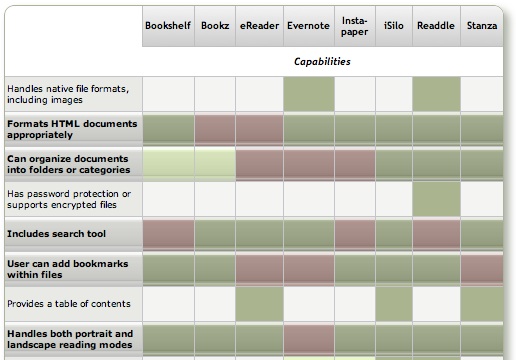
Discover a Treasure Trove of iPhone eReader Software
Part I: Eight Apps for Reading Books

The iPhone application marketplace now offers a tantalizing variety of tools that can be used as eBook readers and file managers. As I concluded in the September 2008 report, "Without Even Trying, Apple's iPhone Takes the eBook Reader Sweepstakes," the iPhone and iPod Touch hardware finally enables truly practical eBooks, and the software now available for the iPhone platform just clinches the deal.
Having worked with the growing number of these applications since the first started appearing in June, I've concluded that the market is clearly divided into two major objectives:
- Applications designed primarily for reading text (books), and
- Applications designed primarily for storing and managing documents.
As I compiled notes and usability data on this group of applications, it became clear that trying to cover all 19 different applications for the iPhone that can serve as e-document readers in one article (a 20th was released just as I was finalizing this report) would be a bit much--for me as well as for readers. As a result, this will be the first of two installments of the overall report. (Note: All of these applications, with one exception, work equally well on both the iPhone and iPod Touch. For simplicity and brevity, I'll use "iPhone" to refer to both devices going forward.)
This first part covers the following iPhone applications, which are primarily aimed at reading text and HTML documents:
The second installment will cover applications that specialize in enabling document repositories on the iPhone: Air Sharing, Annotater, Caravan, DataCase, File Magnet, Files, Folders, iStorage, Mobile Finder, TextGuru, and TouchFS.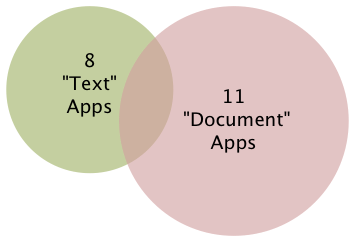
It's important to note that like any categories one devises for grouping things, theses two categories of necessity form a Venn Diagram. Some of the applications discussed in this article have characteristics that also make them useful for managing documents, whereas some of the applications that are most useful for managing documents are also quite good at reading text. Hence, my use of the qualifier "primarily" in the article title.
Venn diagram
From Wikipedia, the free encyclopedia
Venn diagrams or set diagrams are diagrams that show all hypothetically possible logical relations between a finite collection of sets (groups of things). Venn diagrams were invented around 1880 by John Venn. They are used in many fields, including set theory, probability, logic, statistics, and computer science.
Although most of these "Reading Text" applications are quite good--especially given how little time they've been in production--one of the frustrating aspects of this crop is that there is no single one that incorporates all of the potentially desirable characteristics. Some of the lacking abilities are, admittedly, optional. However, once you encounter the ability in one app, its absence in others becomes noticeable.
Again, because their overall orientation differs significantly, I found it fairer--and more helpful--to draw up separate sets of basic requirements for the two groups of applications. I'll go into the requirements for the "Document Manager" applications in Part II, but here are the requirements for those reviewed this time (in no particular order):
- Formats HTML documents appropriately
- Can organize documents into folders or categories
- Includes search tool
- User can add bookmarks within files
- Handles both portrait and landscape reading modes
- Lets user customize font faces and sizes
- Easy to read text
- Easy to add documents
- Provides a "full screen" mode
- Resizes content automatically for both portrait and landscape modes
- Remembers where you stopped reading
I think most of these are pretty self-explanatory, but let me elaborate on a couple of them.
To traditional publishers of eBooks, use of HTML as a document format has been troublesome for a variety of reasons, not the least of which is the difficulty of protecting copyrighted content using HTML. HTML is also perceived as being unable to easily handle included images, which some eBooks require. However, both Apple and Microsoft have developed archival formats for web pages, which encode the text and images into a single package. Although the package itself doesn't securely protect the content (there are "un-archivers" for both formats freely available), doing so is probably not beyond technical feasibility.
Sadly, only one of the applications in this review can handle .webarchive files (which you can create by saving web pages from Safari), which is a shame because this is the ideal, unlicensed format that preserves not only text, but also text formatting, tabular material, and images.
Still, a non-negotiable requirement, as far as I'm concerned, is the ability to read and appropriately format HTML. Fortunately, most of the applications in this list can do that.
By "Easy to read text," my main consideration is giving the user some control over the size of type that's displayed. If you can also change the typeface and/or display colors, that's a nice bonus. All of the applications in Part I provide this feature, and it's a major distinguishing factor compared with the applications in Part II, none of which provide any sort of font customization tools.
Finally, after some use I've determined that any e-Reader I'll use must work even if I have no wireless or other network connection. It's simply unreasonable to expect that Internet access will be available during my backpacking trip to Sequoia National Park or while taking in some rays at a remote beach on St. John. And those are just some of the places I'll want to have a good book along with me. A book that simply "stops working" is obviously no good, is it? As a result, I can't recommend some iPhone applications that have otherwise terrific features. My books must work offline. (Frankly, even if you do have wireless Internet, I've found that sometimes the servers hosting my online books report that they're unavailable. When was the last time a book you were reading told you it was busy and couldn't be read right now?)
As the matrix that follows this introduction shows, all 8 of the reviewed applications have something to recommend them. For specialized uses, nearly any one of them would work well. The only exception at this time is iSilo, which is just so badly designed that it's not only hard to navigate, but impossible to use in any practical manner.
For overall usability as a tool for reading books and other textual material, I've found five of the eight good enough to recommend:
Bookshelf and Stanza are both excellent choices for general text reading, though they're quite limited in the range of document formats they support. Stanza has superior annotation capabilities, as well as full-text search that Bookshelf lacks, but Bookshelf makes it much easier to get content onto the iPhone and does a superior job of converting documents. Unfortunately, Stanza's desktop application, still in beta, is unusable for converting non-text document formats (particularly HTML and PDF) to text files, yet it leads users to believe that it can. To use files with Stanza, you really need to convert to plain text format before opening in Stanza Desktop, which is the only way to get personal/business content onto the iPhone.
One of the major weaknesses of both Bookshelf and Stanza is their lack of integration with any kind of commercial e-bookstore. This reflects their current inability to display DRM (digital rights management) content, which of course is the security wrapper commerical bookstores use to protect copyright. This means that your book choices are pretty much limited to public domain classics and other free books. I, however, want a reader that will easily let me buy the latest novels by my favorite authors, and that's the reason eReader is among the recommended applications. eReader has allowed me to completely eliminate reliance on paperbacks and other tree-killing book forms for casual pleasure reading. It's delightful and very reliable for this kind of reading, even though it lacks some of the primary requirements noted earlier. To purchase a book, I log in to the eReader bookstore and buy a book online. This places the book in my online "shelf," and when I launch eReader on my iPhone, the new book is there, waiting to be downloaded.
Readdle is on the recommended list because it's a terrific cross-breed between the text reader category and the document-storage category. Readdle can handle many kinds of native document formats as well as HTML, it excels at folder and file organization, and it has a well integrated web browser with which you can download files to your Readdle library. Readdle users also have an online account, which is a password-protected repository of their files. The repository accepts files through a web form, from email, or, for Mac OS X users, from a simple, drag-and-drop desktop application. Readdle lacks some of the standard features of the best text readers, such as customizable fonts and the ability to remember where you stopped reading. This latter weakness is mitigated, however, by Readdle's excellent bookmark support.
With its latest improvements, Evernote is now one of the applications I recommend in this category. Like ReaddleDocs, Evernote spans the "text reading" and "document management" categories, and it's chock-full of great features for gathering and managing a document and text collection that most of the other applications lack. Besides handling your everyday work or personal documents, Evernote can clip web content (similar to Instapaper) and, using its desktop or web interfaces, be used to create and edit content for the iPhone. Previously, its signature weakness that prevented me from recommending Evernote was its inability to work offline. However, you can now designate "Favorites" to be stored on the iPhone. Unlike any of the other eReader applications for the iPhone, Evernote's desktop software adds greatly to its overall value, with features approaching those of a full-fledged personal information manager. Still, it's not perfect: Evernote doesn't remember where you left off reading, so it isn't good for long documents. In addition, it doesn't support bookmarks or landscape viewing.
I really like Instapaper as well, but its use is limited to clipping web content and can't be used for storing/viewing personal or business documents. That said, Instapaper excels at saving web content for later use, and its ability to specially format HTML content for the iPhone is remarkable. For clipping full articles to read later, nothing beats Instapaper at the moment.
The remainder of this report consists of a summary matrix showing the various capabilities and usability features of each application. In the matrix, a green block indicates that the app fully meets the requirement, and light green means a partial score. The gloss overlay highlights the core requirements for this category, and red blocks show which application fails to meet those requirements.
Following the matrix are separate descriptions of each application, organized into lists of "Special strengths," "Special weaknesses," and "Other notes."
Summary: e-Readers Primarily for Reading
| Book- shelf | Bookz | eReader | Ever- note | Insta- paper | iSilo | Readdle | Stanza | |
| Capabilities | ||||||||
| Handles native file formats, including images | ||||||||
| Formats HTML documents appropriately | ||||||||
| Can organize documents into folders or categories | ||||||||
| Has password protection or supports encrypted files | ||||||||
| Includes search tool | ||||||||
| User can add bookmarks within files | ||||||||
| Provides a table of contents | ||||||||
| Handles both portrait and landscape reading modes | ||||||||
| Follows web hyperlinks | ||||||||
| Can browse and download files from the web | ||||||||
| Lets user customize font faces and sizes | ||||||||
| Lets user manage files and folders on iPhone | ||||||||
| Can create and edit text files | ||||||||
| Works without external web account | ||||||||
| Usability | ||||||||
| Easy to set up | ||||||||
| Easy to read text | ||||||||
| Easy to add documents | ||||||||
| Provides a full screen mode | ||||||||
| Resizes content for both portrait and landscape | ||||||||
| Remembers where you stopped reading | ||||||||
| Transfer Methods | ||||||||
| Includes dedicated desktop software to transfer files | ||||||||
| File transfers from documents stored on the web | ||||||||
| File transfers from computer via FTP/Bonjour/WebDav | ||||||||
| Overall Rating | ||||||||
| ✓ | ✓ | ✓ | ✓ | ✓ | ||||

Bookshelf
Version 1.2.1309, $9.99
- Excellent for reading text and HTML files, since the Bookshelf reader reformats them for the iPhone display and lets the user select font and font size for viewing.
- A recent update added welcome support for RTF files (but not for RTFD).
- Excellent navigation tools. Besides the usual click up and down to move from page to page, Bookshelf now includes a nice slider that lets you skip multiple pages forward or back.
- Has a customizable auto-scroll mode.
- Easy to use bookmarks function, and remembers which document you were reading and where you left off.
- Excellent website support and bug-tracking/feature enhancements section.
- Only supports HTML and text formats, plus some eReader formats (e.g., PalmDocs). Bookshelf tries to convert Word documents, but doesn't do so well enough to be useful.
- Hyperlinks in HTML files do not work.
- Doesn't support image files (in the documents I transferred).
- Although you can organize files into folders prior to transferring them to Bookshelf, after that you can't change the file names, or move them to folders, etc, on the iPhone Touch.
- Uses free Java QuickStart desktop app to move files to iPhone (through a wireless Bonjour connection).

Bookz
Version 1.3.2, $4.99
- Remembers where you left off reading
- Integrated full-text search
- Has cool page-flip animation for turning pages.
- Excellent support for bookmarks and tags.
- Portrait or landscape mode, but must be changed manually with the toolbar button (not by tilting device)
- Very readable with good customization for colors, fonts, and margins.
- Well integrated web browser includes support for bookmarks.
- Useful navigation widget lets you see, by percentage, how much of the document you've read and then use the slider to move backward or forward.
- Provides fine-grained customization for click control. Bookz lets users divide the display into 9 quadrants, each of which can be set to handle next page, previous page, toggle full-screen mode, show bookmarks, or add bookmark.
- Supports only text files for now; displays only source code for HTML.
- No facility for transferring files from computer. (The idea is that you'll get text files from web downloads or from libraries like Project Gutenberg.)
- Can't add folders to device's library
- Uploaded a .txt file to Google's Pages site, but the software wouldn't download it per the developer's instructions
- Can't activate landscape mode when using the web browser.
- Web browser offers to download "web pages," but then the application won't display it (except as source code).

eReader
Version 1.2, Free
- Integrated search, including easy tool for finding next instance, and ability specify the starting page for the search.
- Provides an integrated table of contents, from which you can select the desired chapter.
- Remembers where you left off reading.
- For books purchased from a compatible online store, eReader is the best application available today for overall readability.
- Though it doesn't support the use of folders, eReader has built-in sorting tools for books by name, author, and date.
- Excellent, customizable navigation controls and automatic full-screen mode (toolbars can be re-summoned with a small swipe).
- Besides its own and some other eReader formats, this app only reads HTML, .rtf, and .txt files, and it removes or simplifies formatting in the process. In my test, images were stored but not viewable in the reader. The $30 eBook Studio software with which you can convert files to palmDoc format is outdated and has limited and rather clunky options for compiling eBooks from source files.
- eReader's lack of support for common office file formats makes it unsuitable for business use.
- eReader provides no way to move files to and from your PC/Mac.
- There's no way to edit titles or other metadata (author, date) about the files in your eReader library.

Evernote
Version 1.5, Free Home Page
- Evernote is a multifunction content manager, capable of storing documents as well as text notes. In addition, Evernote can work with the iPhone or desktop computer to take photo, video, or voice notes. Further, it provides a browser "clipper" that lets you capture web pages (or portions of them) to your Evernote store. You can also email documents to add them to Evernote.
- In addition to the Evernote iPhone application, Evernote provides a desktop application for both Mac OS X and Windows, as well as similar functionality on the Evernote website (when you log in). The desktop application and website let you do rich-text editing of notes, and even web pages. All three apps let you add and edit text notes to any kind of document.
- Evernote supports full-text search for PDF, Word, Excel, HTML, and other kinds of documents. In addition to identifying files with search terms in them, the web and desktop versions navigate and display the terms at their locations in the documents. (The iPhone version also displays search terms in HTML files, but has no way to navigate to them.)
- With Evernote, you can access a wide variety of attributes for the files in your collection, including: Information on modification and creation dates, attachments, source of note, and "To Do" information. All of these attributes can be included with search terms, tags, and notebook names as filters for searches on your document store. Such "smart" searches can be stored for reuse.
- Evernote is very good for reading most HTML files, since it rewraps them to fit the display. Using the desktop application, you can further customize the display of HTML and text files by changing text fonts and sizes.
- Evernote is one of the few iPhone apps in this category that does not support landscape as well as portrait mode.
- Evernote's support for PDF viewing is weak. When opening one on the iPhone, Evernote doesn't download and display it automatically. Instead, it shows a small PDF icon that you must press to initiate the download. Once downloaded, Evernote provides no navigation tools or other assistance, so actually reading PDFs is all but impossible.
- Evernote does not provide a way to add bookmarks to documents, nor does it return you to the document--and the location in the document--when you reopen the application.
- To use Evernote, you must set up a password-protected account at the Evernote website. Accounts are free up to 40 MB per month of storage, and there are $5/month and $45/month subscriptions as well.
- With Evernote, users organize documents into "notebooks." This can only be done via the web or desktop interfaces. Although you can't set up "sub-notebooks," Evernote emphasizes the use of tags, which you can use as an organizing tool. You can add and apply tags in all three versions of Evernote.
- In setting up notebooks, you can specify "local" notebooks, which are accessible only on your desktop computer, as well as "public" notebooks, which contain documents you can share over the web. The default is "synchronized" notebooks.

Instapaper
Version 1.2, $9.99 (Free version also available) Home Page
- Excellent readability, since web content is reformatted to a text display on the iPhone.
- Extremely easy and effective bookmarklet for adding content.
- Introduced innovative "tilt-scrolling" feature, soon adopted by FileMagnet, which lets you scroll a document without touching the screen.
- When viewing on the iPhone, you can toggle between the original "web" view, and the reformatted "text" view.
- Instapaper is an excellent tool for gathering web content for later viewing, and its ability to save just portions of a page is very helpful.
- The Pro version remembers where you left off reading and returns you there by default.
- No search feature.
- Only supports HTML and text files.
- Follows hyperlinks, but frustratingly, can't add web content for later reading from the iPhone itself. Also, the application exits Instapaper when following a link.
- Files can be manually added if they are located on a web server, but only from the web version of your Instapaper store not from the iPhone application.
- Can't categorize, tag, or otherwise organize articles, either on the iPhone or on the Instapaper website.
- Instapaper can't handle articles that are published in multiple "pages," which is the norm on commercial websites nowadays. Each page has to be bookmarked separately. I tried bookmarking the "print" view of an article on Information Week, but Instapaper couldn't access it later. (This isn't true of all such "print" views, however.)
- Instapaper does not provide a way to add bookmarks to documents.
- Instapaper requires registration at the Instapaper website, which is the repository for notes you collect from the web. Instapaper is designed to easily save web pages, or snippets of text from them, for later reading.
- A $9.99 Pro version is available which adds some useful features such as "tilt scrolling," remembering where you left off reading, and a few others.

iSilo
Version 1.20, $9.99
- Nice integrated web browsing, though it's unfortunate you can't save documents you browse to.
- Full-text search.
- Conversion from web pages to iSilo format (Palm format) works extremely well in most cases. If the HTML is not well formed or uses "clever" CSS tricks for formatting, the result is not so good. When the HTML result is good, the files are extremely readable.
- From a converted web page, iSilo easily lets you navigate to other linked pages, displaying them in a likewise quite readable format. (Again, it's not clear why iSilo can't save these other pages directly.)
- iSilo attempts to build a table of contents from the page's HTML structure. It loads these into the document's Bookmarks menu.
- iSilo documents can have much richer elements than other eReaders reviewed here, including support for tables, images, linked sections, and others.
- iSiloX, the desktop tool for converting HTML files to iSilo format, does very well when handling well formatted and structured HTML. It did a remarkably good job, for example, with a long Word document that was opened in Open Office and then saved as HTML. I was impressed that the conversion preserved the formatting of tabular data in the file. The conversion also resulted in a useful set of bookmarks for the document's table of contents.
- Navigation and access to options is confusing. In many cases, the options either don't work or are too difficult to use. For example, the option to change a document's font face doesn't work. In another case, the option to enable auto-scrolling must be activated by navigating to another screen; when you return to the document, any click on the screen deactivates auto-scroll, and you must return to the option screen. Even worse, it's impossible to activate both auto-scroll and full-screen view at the same time, since each activation returns you to do the document view, and each access to the options view turns off the other option.
- In general, too many useful options are hidden in submenu screens.
- The application provides no useful navigation tools.
- iSilo utilizes too many non-standard user interface methods that are therefore nonintuitive. As a result, too often I had to resort either to reading the manual or (more often) consulting the company's online support forum. For example, the function to delete files is "hidden" as a popup menu accessible only if you hold your finger on a document's icon in document view. Once you know this, it works fine, but this means there's an unnecessary learning curve and with it additional user support.
- Loading one long document converted from a PDF file consistently froze my iPhone, requiring a reboot.

Readdle
Version 1.0.5, $14.99
- Supports a variety of native office document and image formats, as well as PalmDoc format.
- Has a well integrated web browser from which you can bookmark and/or save documents from the web, including web pages.
- Remembers where you left off reading
- Provides a nifty slider for navigation within documents, as well as a good bookmarking tool. Files can be navigated with a click or double-click at top or bottom of the display.
- Supports "full screen" reading mode.
- Documents can be organized into folders and into subfolders, both within your Readdle Storage area and on the device. You can also move files into any of the folders on your iPhone.
- Readdle lacks support for RTF (despite what they say), RTFD, web archives, and iWork document formats.
- Unfortunately, Readdle can't save web documents that you link to from within one of your saved documents only when you manually switch to its integrated browser. This is an oversight that hopefully will be fixed in a future release.
- No search capabilities.
- To rename your documents or folders, you must visit your Readdle Storage area online.
- Readdle provides a desktop application (Mac OS X only) for uploading content to Readdle's server, or files can be uploaded with a web browser. You can also email documents to your Readdle account to add them to your library. Content stored on the Readdle server is password-protected.
- The Readdle iPhone app synchs with your Readdle storage, and files can be read remotely or downloaded for offline reading. Note that the synchronization isn't really that, since changes made in one repository aren't automatically made in the other. For example, deleting a document on your iPhone won't delete it from your online library.
- Users can register for a free account, which is limited in storage and has some other restrictions. An "optimum" service is $5 a month.

Stanza
Version 1.5, Free iPhone app, beta Desktop app Home Page
- Integrated search.
- User can group documents within the iPhone app and easily add downloaded files to them.
- User can increase or decrease font size, adjust color, font. Also customize background color, margins, justification of text. In addition, Stanza provides various other customization preferences, including navigation and display options.
- The application tries to automatically add chapter information derived from the text, but gives the user no way to change them. However, it does let users add bookmarks to the documents.
- Stanza's navigation mechanisms are terrific. Besides the chapter and/or bookmark options, Stanza has a slider that's particularly useful for moving within large documents. Navigation from page to page is similar to eReader just a tap on the left or right side of the display slides pages into view.
- Stanza has a great online library of content available for download. Besides free books available ubiquitously these days for eReaders, Stanza's library includes content from newspapers and magazines such as the New York Times, Atlantic Monthly, BBC, and Wired. These are all nicely formatted and very readable on the iPhone.
- Remembers where you left off reading, and even returns you by default to the last document you had open.
- Version 1.5 introduces some cool visual features that let users add custom images to their books and then displays them in a Cover flow view (when you switch to landscape mode).
- Stanza's support for standard office document formats is very limited. Its desktop software claims to read Amazon Kindle, Mobipocket, Microsoft LIT, PalmDoc, Microsoft Word, Rich Text Format, HTML, and PDF formats, but in my extensive testing of HTML, RTF, Word, and PDF, Stanza failed to format the content in any reasonable way. Most documents had such badly garbled page elements (headings, line breaks, lists, vertical white space, paragraph breaks) that they were unreadable when transferred to an iPhone.
- Besides page formatting, Stanza strips all documents of all character formatting (font size, color, style), tabular content, and images.
- Stanza provides no mechanism for transferring content from the iPhone back to your computer.
- I was frustrated that although Stanza offers the option of viewing text in left-justified format, all the documents I transferred showed up full-justified. This happened even when I specified left-justification on the Stanza desktop app.
- Stanza relies on a desktop application (currently in beta development) that can be used to open supported files and transfer them wirelessly to the iPhone. The app supports both Mac OS X and Windows. Lexcycle currently plans to charge "a small fee" for the software once released.
The summary table below uses some advanced CSS techniques that aren't yet possible with your browser. WebKit, the open-source browser engine underlying Apple's Safari browser (for both Windows and Mac), has implemented numerous features of CSS 3.0, as well as pioneered some candidates for new graphics functions using CSS. (For more information on these, see the Mars article on the subject, or visit CSS3.info.
In particular, the table uses CSS border-radius (which produces the table's rounded edge), CSS box-shadow (which gives the table a drop shadow), CSS gradient (which produces a gradient in the table headers), and CSS background-size together with background-attachment and background-clip (which lets me automatically resize a small tiled image-- --both horizontally and vertically to fit the various-sized table cells).
Here is a screenshot of how the top part of the table looks in Safari:
Microsoft IT Shops Upset At Apple’s “Patch Process”
This is clearly a case of limited-brain humans thinking that something different is something bad. Also a bit of Microsoft-minded FUD here, with statements about Mac OS X's "aging code base" (huh?) and Microsoft being "way ahead" of Apple in its security-patching (huh?).
Why should a company like Apple, which has never had even a minor security incident affecting its users, follow the lead of a company like Microsoft, which defined the way to Not build a secure operating system?
Without Even Trying, Apple’s iPhone Takes the eBook Reader Sweepstakes
I recently decided it was time to look again at the state-of-the-art in eBook reader hardware. It seems like I've waited forever for a company to design one I could really use in place of the traditional paper-filled parallelepiped. I first got excited by the possibility while implementing the PDF format for a magazine on CD-ROM back in 1995. "Wow!," I thought, "Whoever wrestles PDF onto a small electronic device is going to make a mint!"
This article utilizes some WebKit-specific CSS coolness, which those of you running Firefox, Opera, or other browsers will miss out on. (Even users of Safari 3.1 can't see the image reflections... that CSS feature is as yet only available in the latest versions of WebKit.) These CSS 3.0 tricks eliminate the need for a whole slew of graphics, JavaScript, and other code that were previously needed to produce them. Instead, with one simple CSS style element, I can add shadows to page elements (like tables or boxes), set elements with rounded corners (even table cells!), and set reflections on images. It not only makes the page download faster, but it saves me a heckuva lot of time to boot! I'll be documenting more of these CSS advances in the ongoing Mars article, WebKit/Safari Keep Blazing the Trail to CSS 3.0.
Here are some screenshots in case you can't see what I'm talking about: Fancy image, Fancy table, Fancy box.
Of course, PDF turned out to be not particularly well suited to small viewing screens, since publishers would have to make a special layout for the PDF version. And so, years went by, with talk of E-Ink, electrowetting, electronic paper, and other exotic technologies appearing to be on the verge of practicality.
What most of the would-be designers of eBook readers have seemingly failed to grasp, however, is that to replace paper books, eBooks must be nearly as light and portable as a paperback. They must work without cords, and be compatible companions to one's daily trip to the little boy's room. (I've honestly never met a woman who reads in the john, but it seems nearly all men do.) They must be able to accompany you to the beach, the pool, or the mountains. I'd really like something I could read while holding it in one hand, like I do a paperback. I don't want a reader that will break the bank, either. And most of all, an eBook reader needs to be comfortable to use in bed or in your favorite armchair.
Even today, with devices shrinking towards the ideal size and weight, nearly all fail to meet my needs for one reason or another. Quite surprisingly, one device has in fact replaced books for me, and it's not one I ever thought would or could. Because I had bought the device for another purpose entirely, this eBook reader has actually cost me nothing whatsoever.
This article covers five eBook reader devices, including two that are full-fledged personal computers serving as an eBook reader by way of third-party software, and another that is a multifunction "smart phone" with eBook reader capabilities. All five devices have strongly positive characteristics, and two of of them possess the full range that would allow them to serve as portable eBook readers for organizations that need access to technical and policy documentation. Even though I personally need a reader that's useful for novels and such, I'm evaluating these based on their utility as devices for storing and reading technical and other documentation rather than literature, each of which have quite different requirements for eBook reading. The five devices reviewed are:
Of these five devices, the one that emerged as the runaway winner for both literature and documentation--much to my surprise--is Apple's iPhone or iPod Touch. The iPhone's small display, it turns out, is plenty big for comfortable reading, and its form factor make it the ideal eBook reader I've been looking for. Given its numerous other capabilities besides eBook reading, the iPhone / iPod Touch is an obvious choice. Among its virtues are its
- Ability to manage all the relevant native-format files an organization is likely to produce,
- Instantaneous availability,
- Easy navigation,
- Wide variety of eBook reader software,
- Simple and powerful connectivity,
- Integrated web browser and mail client,
- Bright screen,
- Excellent readability, and
- Advanced security.
In addition to its use as an eBook reader, the iPhone has many other enterprise uses, not the least of which are its built-in cellular phone, Bluetooth receiver, GPS, and synchronized email. The iPhone also has excellent support for Windows users and can be centrally managed by an IT organization to enforce configuration and security standards.
 For personnel who require a highly portable, full-featured PC, the Eee PC is an excellent choice. Given its very reasonable price, this device is an engineering marvel:
- Tiny, yet with a decent-sized keyboard,
- External controls for essentials like screen resolution and brightness,
- Built-in state-of-the-art Wi-Fi and Bluetooth,
- Ethernet port and 3 USB 2.0 hubs,
- Video camera and microphone.
With dedicated eBook reading software such as MobiPocket installed on the Eee PC's Windows XP operating system, this micro-laptop can serve users well as an eBook Reader. The only downside is the eBook reader software's lack of support for native document formats, which must be converted to the MobiPocket format (and many cannot be so converted). For users who do not need the resources of a full-blown PC, the iPhone or iPod Touch would be a better solution.
 The Iliad's primary virtue is its wonderfully readable e-Ink text display, and it also has a good, portable form factor and hardware navigation controls. The Iliad also allows users to set a PIN number to protect content stored on it. Beyond those positive characteristics, there's not much to recommend the Iliad as an eBook reader for use in storing and accessing documents other than literature. And the price one has to pay for this one-trick pony, literature-only reader is far too high, in my opinion.
The Amazon Kindle is an impressive dedicated eBook Reader. The device's
- Reading software,
- Navigation ease,
- Annotation support,
- Searchability,
- Readability,
- Rapid start-up time, and
- Form factor
 access to content stored on it. The Kindle does not accept USB "sticks," either, so the possibility of storing sensitive documents externally is limited to Amazon's online Kindle service. Unfortunately, in my testing, that service was not always available, so in emergency situations I would not want to rely on it (for now, at least). Like the Iliad, the Kindle serves no purpose other than as an eBook reader, and as such its price seems quite high.
The Samsung micro-laptop gets excellent scores for search, document-format support, ease of adding documents, bookmarking, networking, and eBook navigation. However, all of these scores reflect attributes of the top-notch MobiPocket reader software, as well as its accompanying Creator software, which does a good job at converting common office-type files to HTML and/or Mobi format. Unfortunately, the Samsung hardware, combined with its reliance on the underlying Windows XP operating system, make this a poor choice as a portable eBook reader. The device is very slow to start up, has a very tiny and hard-to-use keyboard, and offers navigation options that aren't suitable for the onscreen software. The Samsung supports touch control, but the display targets that one must interact with to navigate are much too small. The same problem holds for the device's  wand, which requires a very steady hand and precise accuracy to reliably trigger onscreen controls. The device's external keypad is horrible and requires far too much effort for an emergency operation. Using a portable keyboard is probably not a practical alternative, either, since it requires the user to have access to a table and chair to enter data or navigate the Samsung. Finally, when not plugged in to an electrical outlet, the display's screen is so dim that I had to bring out a magnifying glass in order to navigate. I won't even mention here how ridiculously expensive the Samsung is, since it can also be used (*wink* *wink*) as a portable PC.
The summary table below presents a matrix of the various attributes used for this review. Items in light green indicate the basic criteria were met, and items in the darker gradient green indicate that the device excelled in fulfilling that particular requirement. White cells are those where the given reader failed to meet a requirement. Following the summary table are detailed tables for each of the five devices, with my review notes organized into Pros and Cons for each.
Functions/Usability Matrix
| Device Characteristics | Iliad | Kindle | Samsung w/ MobiPocket | iPhone | EeePC w/ MobiPocket |
| Supports native formats including images | |||||
| Can organize documents into folders | |||||
| Is password protected or supports encryption | |||||
| Enables full-text search | |||||
| Documents can be easily transferred from a computer | |||||
| Bookmarks can be added within files | |||||
| Documents can have a table of contents | |||||
| Provides both portrait and landscape modes | |||||
| Support web hyperlinks | |||||
| Can browse and download files from the web | |||||
| Font faces and sizes can be customized | |||||
| Accessing and navigating content is easy | |||||
| Documents are easy to read | |||||
| Hardware design is well suited to reading | |||||
| Has easy connectivity to local networks, or supports USB | |||||
| Provides speedy access in emergencies | |||||
| Has good hardware navigation (pen, keypad, touch screen, other controls) |
Eee PC 901
(with MobiPocket Reader Software)
| Pros | Cons |
|---|---|
|
|
Irex Iliad
| Pros | Cons |
|---|---|
|
|
iPhone/iPod Touch
| Pros | Cons |
|---|---|
|
|
Amazon Kindle
| Pros | Cons |
|---|---|
|
|
Samsung Q1 Ultra Premium
(with MobiPocket Reader Software)
| Pros | Cons |
|---|---|
|
|
Image Reflections with CSS
Box Shadows and Rounded Corners with CSS
Box Shadows and Rounded Corners with CSS
Monopoly Charge Against Apple Signals Rising Respect For Mac OS X
It's amazing to me how strongly the readers of Computerworld agree with the monopoly charge and disagree with the views of those, like me, who believe Psystar is just frustrated at not being able to use Mac OS X on its hardware. Apple a monopoly? Hardly. But, as I said in my comment on Computerworld, it may seem so to those who think the Microsoft model of computing is both inevitable and superior to the Apple one:
Let's face it, the whole paradigm of computing is unprecedented in the history of manufacturing. And it's only... what... 30 years old at best? During that time, the two competing models that have emerged are:
- Make operating system software and convince hardware makers to use your product (the Microsoft model), or
- Make the computer hardware as well as the operating system needed to run it (the Apple model)
Obviously, the former has had much more success in the marketplace. But that doesn't mean it's the better model. Why? Well, for one thing, in this case the market didn't really make the decision... IBM did.
IBM was already a monopoly when it started making personal computers, and Microsoft just happened to be the lucky company chosen to make (or rather, buy) the operating system to run on it. That IBM chose Microsoft had much more to do with the sales savvy of Bill Gates than about the quality of their software.
Once Microsoft was in the door with IBM's PC, which was destined to dominate the business market because of IBM's existing standing in the corporate world, that market was simply theirs to lose. Since Microsoft never made hardware to begin with, they only stood to benefit when the IBM "clone" market developed. IBM protested, if you'll remember, but ultimately, since they'd published the specs already, there wasn't anything they could do about it.
Given this actual history, it's clear that Microsoft no more created the model that ultimately gave them a monopoly on corporate desktops than the market made a decision to adopt that model. It was just a fortuitous circumstance for Microsoft, and a reflection of the fact that their business model was in making software alone (until the Xbox and Zune).
On the other hand, Apple was a hardware maker that also made the operating system to run it. With only one brief period, the company has persisted with that model, and I believe they honestly think it's the only way to make truly great computers.
The issue today is that Mac OS X is becoming more popular, and other companies would like a piece of the action. That's well and good, but since Mac OS X is an Apple creation, they are in no way obliged to license it to others. It's like copying machines... Xerox created the market and the hardware, but ultimately other companies reverse-engineered it and made their own versions. Xerox was then forced to compete with other copying machines.
If anyone wants to compete with Apple's OS X, they'll have to build not just a hardware clone, but more importantly a software clone as well.
Because of the complexity and astounding sophistication of Mac OS X and its universe of frameworks, it would be very hard to clone. But ultimately, that's where the competition has to take place. Unless Apple agrees, they are in no way obliged to sell, lease, or share their intellectual capital with any other company.
That doesn't constitute a monopoly, folks. It just constitutes excellent product development and excellent engineering. It has nothing to do with monopoly at all, since there are plenty of competing computers on the market, and in fact Apple has a small minority share of that market.
Sadly, so many people simply forget history, or make up their own to suit their beliefs. Sad, and scary, too.
Phishing and Safari (Part 2): A Sheep in Wolf’s Clothing
And to think I used to like Consumer Reports!
They keep writing me to "come back" and resubscribe, but I've told them that won't happen until they become objective and truly knowledgeable about the Mac... at least as knowledgeable as they are about Windows PCs.
And now, it turns out they're recommending that Mac users "dump Safari," which just happens to be the best web browser on the Mac platform. Oh, and since this article also appears on ZDNet, while other industry journals gave it little play, I begin to conclude that ZDNet is a rats nest of Microsoft zealots.
So, here's the little note I left them today about their latest phishing/Safari scare tactic:
There is nothing in common between phishing and viruses, adware, spyware, or other malware. Phishing is just an old-fashioned scam dressed up in new HTML clothing. Consumers need to be educated about it, and no anti-phishing technology is going to save them. For one thing, most phishing schemes come to consumers through their email client, not their browsers.
Oh, and 6 or 7 years ago, why didn't Consumer Reports advise Windows users to ditch IE? That would have been the single best way for them to avoid Internet malware, but I never heard them do such a thing. The phishing problem pales in comparison to the security nightmares we experienced after IE6 was released (and before SP2), and which millions of Windows users continue to experience today. Active/X is the most dangerous technology out there as far as security is concerned, but is MS being pressured to remove it from IE?
Unfortunately, I don't think we've heard the last of this... At least, until Apple goes ahead and joins the other browsers in adding "anti-phishing technology" to Safari. Like I noted above, it really makes a lot more sense to add this capability to users' mail clients, since phishing is just a form of junk mail in the end.
Phishing and Safari (Part 1): A Sheep in Wolf’s Clothing
There has lately been a rash of articles about how "insecure" Safari is because it has no anti-phishing mechanism. Frankly, I think this is a bunch of hogwash. It's an attempt to show how lax Apple is about security, and, by implication, how great Microsoft is.
It's not that I don't think phishing is a serious problem... I do! It's just that phishing is not a security issue, which is how the anti-Apple, pro-Microsoft (and pro-Firefox) zealots are trying to portray it.
Here's the comment I left on ZDNet's site about this article, dated 7/23/08:
Phishing scams are very bad, but they are not the same as viruses or malware that gets installed on your operating system. Not even in the same category. They are simply a sophisticated con, and unfortunately there are a lot of naive, clueless web users who will click on any link they're offered. Then again, I know people who are so paranoid they won't click on any link in an email at all... even if it comes from a trusted source (like a friend). I'm not at all convinced that anti-phishing software will work any better than junk-mail filters have, though I understand the need to try.
All you guys who are so hot to jump on Apple need to at least know what you're talking about. Though the companies who make money on security vulnerabilities like to lump phishing in with "security" flaws, in my opinion they aren't. Why? Because they pose no threat to the integrity of your computer or to your network.
Later, in reply to a reader who thought I was kidding with this opinion, I wrote:
Of course it's bothersome... on the same plane as the scum who trick old ladies out of their social security checks by conning them into some phony investment.
Phishing is more insidious, but if you have an ounce of common sense, it's easily avoided.
Not so with viruses and spyware, which can invade your system without any action on your part... not even clicking on a link. If following a link loads a virus, that's not phishing, defined as [blockquote] the activity of defrauding an online account holder of financial information by posing as a legitimate company[/blockquote].
My point is, phishing is not so much a security liability as it is a privacy issue... Phishing amounts to identity theft.
I'm not arguing that phishing isn't a serious concern that needs to be addressed. But I'm saying it's not a security issues in that it doesn't install software on your system, invade your network, or propagate itself to others.
I am arguing that it's more like spam, which is likewise a serious problem that can lead individuals to dangerous websites or tempt them into bad decisions. Like spam, I'm doubtful that any software solution to eradicate phishing is possible.
In this light, the urgency to correct a phishing vulnerability is much lower than that to correct a security vulnerability, and the fact that such a vulnerability exists should not alarm users to the same degree.
Turns out this "phishing" scam isn't over with the iPhone or Safari. See more of my ranting in Part 2 of this topic.


