



News Posts In Category
Trying To Tame Mountain Lion Without A Hat
 Remember my angst about whether I should migrate my computing life to Mountain Lion? Well, that story's now over, and Mountain Lion has won.
Once I had the Mountain Lion virtual disk, I could import that as a new virtual instance in Parallels on Snow Leopard. Doing so was simple and straightforward, and I don't recall running into any glitches. After the import, I could "boot" into Mountain Lion as an instance of Parallels desktop, and then switch back and forth between the two OS's as I would between two applications.
The reason I abandoned this effort is that when I installed CrystalClear Interface (CCI) or Crystal Black (CB) on the Mountain Lion instance, Safari would repeatedly crash. Disabling CCI for Safari made no difference. Only by uninstalling my software would Safari work again. I tried various other tricks to overcome this, but failed. Since debugging Safari on Mountain Lion was one of the primary goals of this whole effort, this failure effectively shut the project down.
At that point, I was stalled on CCI vs. Mountain Lion, so I turned my attention to migrating from the old Quicken 2007 for the Mac, because it won't run on Mountain Lion. That migration could be an article on its own. 
In those few moments, the unthinkable happened. Suddenly, the dark shade of death descended from the top of the screen, signaling the warning that all the busy bits we rely on to keep the trains running on our Macs had given up and gone home — and we had better do so as well.
Well OK... no big deal, right? I've experienced this kind of kernal panic message before and come out unscathed after a restart. But not this time.
This time, after the reboot, rather than returning to Snow Leopard, I found myself in Mountain Lion.
How could that be? And why couldn't I find the regular volume for Snow Leopard in the Finder? Likewise, why did Disk Utility show new partition names for the volume that used to have Snow Leopard on it? And why couldn't Disk Utility mount either of the two partitions on that volume?
It turns out that the volume files — the ones that store information about the folders and files on the volume — had been corrupted, and none of the tools I used to try to repair the partitions or volume worked.
Anybody who wants to bail on the rest of this story now are well advised to do so, since it's just going to get more boring from here. I'm doing this mostly so I can remember what happened and what I did... just in case.
Eventually I gave up on the old volume, and after confirming that Time Machine had the files I'd need to restore, I proceeded to set up the two partitions anew. Though I thought I'd be able to restore everything, I was hardly feeling nonchalant as I clicked the button that erased all my files and settings for my old Snow Leopard partition.
I was able to restore all the files on the second partition, which houses most of my third-party apps, but when I attempted to reinstall Snow Leopard on its partition, I realized my stay in Mountain Lion would be even longer than I'd imagined.
It turns out that my install disk for Snow Leopard was corrupted, and I had no other way of getting Snow Leopard onto my Mac.
On the phone with Apple support, I paid $19 for a one-time technical support incident. The upshot of that call was that Apple would express-mail new install disks to me for Snow Leopard — at their expense. As nice as this was, it was late on a Friday afternoon, and I knew it would be at least Monday before the disks arrived.
Fortunately, as it turns out, most things I need to do daily work fine on Mountain Lion. There are just enough "gotchas" that I still don't feel quite at home here, but it's working out better than I'd feared. Which is a good thing, because after the Snow Leopard disks appeared and I reinstalled the OS on my old partition, I discovered that restoring my user account was not going to be easy.
Normally, on the Mac you use an app called Migration Assistant to restore user accounts and files from another Mac, another partition, or Time Machine, and it's a painless and reliable process. That's how I set up my user account on Mountain Lion — I cloned it from my user account on Snow Leopard.
I had planned to do the restore from my Time Machine backup, but when I attempted this, Migration Assistant couldn't find any user accounts on the Snow Leopard backup. The only accounts it found were on other partitions on my Mac, including my account on Mountain Lion.
After much gnashing of teeth, I decided to try to restore my account from the one on Mountain Lion. Since this was a clone of my Snow Leopard account, I thought this might work.
The restore did indeed work, and I thought I was a little closer to returning to my beloved Snow Leopard.
Unfortunately, the restore didn't move all the files needed for various applications to work, and it contained Mountain-Lion-specific preferences that merely confused some apps. This meant I had to try manually restoring files from Time Machine, a time-consuming and error-prone exercise that took several hours. Most of the files I was trying to restore reside in the top-level /Library folder, which is why they didn't get properly migrated with my home Library.
I finally got my iWork apps to run, but Photoshop simply wouldn't. "Your license has stopped working," is the error message Photoshop gives me. Now, I could reinstall Photoshop, but this might screw up Mountain Lion, where Photoshop works pretty much as expected. (I'm still using Photoshop CS4.) On the other hand, my developer tools — Xcode and Interface Builder (I'm still using Xcode 3.x) — worked fine on Snow Leopard. All of my projects could be opened and compiled, and each still had its whole history of "snapshots," which I use to track changes in the code. On Mountain Lion, by contrast, I keep running into permissions problems in editing project files, and compiling fails with inscrutable messages. Just as serious, Xcode refuses to read the Snapshots disk image for my projects, so I have no code history.
At this point, there is really only one barrier to my feeling completely comfortable on Mountain Lion: Xcode. If I can get Xcode to behave reliably on Mountain Lion, I'd have no compelling reason to boot into Snow Leopard. But as it is, I have to do all my design work on Mountain Lion and then compile code on Snow Leopard. When time permits, I'm going to figure out what I need to do to reconnect my snapshots to Xcode, and then Snow Leopard will be as obsolete for me as Leopard, Tiger, Panther, and Jaguar before it. (If any reader knows how to reconnect Xcode snapshots on a new volume, let me know!)
So, what does this mean for CrystalClear Interface and Crystal Black?
For now, the MarsThemes software is in maintenance mode, meaning I'll be releasing updates to keep the software working, but not adding any new features. Bug fixes will be included in maintenance releases, but without my Snow Leopard debugging power I can't address any application-specific bugs. On Mountain Lion, Safari remains an enigma, and it troubles me that I have to keep CCI and CB disabled for it to run. It's extremely frustrating to not be able to debug Safari on Mountain Lion, but that was a problem before I found myself facing Mountain Lion without my lion-tamer hat.
So here I am, using Mountain Lion as my default OS and running back to Snow Leopard to use Quicken and Xcode. It's not the migration I would have planned — if I decided to migrate at all — but at least I'm through the worst of it and have survived.
The good news is that CCI and CB both run reasonably well on Mountain Lion, and I now go weeks without having to provide customer support. Who knows... maybe in a few more months I'll actually learn to love my new OS. I just hope Apple waits longer this time around before trying to move everyone to a new platform!


Still Thinking About It: Can You Mount A Lion Virtually?
Now that I've effectively passed Lion by, I'm thinking again about whether or not to upgrade from Snow Leopard (Mac OS X 10.6). As noted in an earlier article explaining why I've avoided Lion, this is the first time since Mac OS X debuted in 2001 that I've hesitated to upgrade. So here it is again: Should I? Why not?
Apple did improve Lion during the course of its life, and Mountain Lion seems like a logical and relatively smooth update. Most of the reasons I had for not liking Lion still stand, but a couple have been remedied. In addition, I've found more things to like. For example:
- Windows resizable from all sides.
- Quick Look feature in Spotlight: You can preview docs right from the Spotlight results list.
- Improved Mail client: Many improvements, including finally providing the option to show previews on the right-hand side.
- Change in default setting for opening new windows on login. Now the default is off, and Apple has provided a system preference option to help control this behavior as well.
- Improved search/replace in TextEdit.
- Improved CharacterPalette app.
- Nicer full screen Quick Look mode.
- Safari improvements: Tabs, downloads, among others.
- Spotlight is searchable while it's building the index.
- Improved Cocoa text tools.
- Mountain Lion: Finder sidebar lets users decide how to organize the sections.
One of the main reasons to upgrade is to take advantage of iCloud, which has become a more serious need now that Apple took MobileMe away from us. I can no longer sync my Safari bookmarks automagically, for example. However, I'm still pissed that Apple hasn't made a version of iCloud available for the many folks still on Snow Leopard.
Speaking of which, what exactly is the breakdown of Mac users in August 2012? It's only been a month since Mountain Lion was released, but clearly upgrading is happening pretty quickly. According to the stats from NetApplications.com, Lion users account for about 35% of the market, Snow Leopard users about 34%, and Mountain Lion users about 20%. There are still about 10% of users hanging on to Leopard. That Snow Leopard figure is pretty damn high considering how long Lion has been out, and is one that Apple should be paying more attention to.
For me, the most daunting task of upgrading to Mountain Lion will be migrating all of my apps, their settings, and their licenses. Because Lion doesn't support Rosetta, I have to abandon any old PowerPC apps hanging around. The most significant of these is Quicken 2007, but I also have to upgrade my license for MaxBulk Mailer and a couple of others. Finding a replacement for Quicken remains a challenge, though I finally did find one that seemed worth buying: iBank. I haven't actually moved from Quicken yet for monthly financial balancing, but I think iBank will do the trick once I do.
To give you (and me) an idea of the application burden I'm looking at, I've compiled the following list, organized by major categories and subcategories. The colored cells on the far right represent how often I use each app — from light green (daily) to orange (quarterly). Apps I don't touch more often than quarterly aren't represented in the table, nor are apps that are part of Mac OS X (including iLife).
| Category | Subcategory | App Name | License | Issues | Use |
| Audio | |||||
|
|
Recording & Editing |
Amadeus Pro | C |
|
|
| ClickRepair | C |
|
|
||
| DeNoise | C |
|
|
||
| Logic Express | C |
|
|
||
| iTunes Software | Bowtie | F |
|
|
|
| CoverSutra | C |
|
|
||
| Animation & 3D | |||||
|
|
3D Tools | Live Interior 3D | C |
Needs reinstall |
|
| Animation | Morph Age | C |
|
|
|
| Business | |||||
|
|
Advertising | GarageSale | C |
|
|
| MaxBulk Mailer X | C |
Rosetta - Upgrade |
|
||
| Product Delivery | Endicia | S |
|
|
|
| Spreadsheets | Numbers | C |
|
|
|
| Presentation | Keynote | C |
|
|
|
| Office Suites | iWork | C |
|
|
|
| Customization | |||||
|
|
Desktop | Wallsaver | F |
|
|
| GeekTool | F |
|
|
||
|
Interface Enhancements |
CandyBar | C |
|
|
|
| ThemePark 3 | F |
|
|
||
| ThemePark | F |
|
|
||
| Visor | F |
|
|
||
|
Software Preferences |
AppHack | F |
|
|
|
| OpenPListCM | F |
|
|
||
| PlistEdit Pro | C |
|
|
||
| TinkerTool System | C |
|
|
||
| System Extensions | CrystalClear Interface | C |
|
|
|
| DefaultFolder X | C |
|
|
||
| LiteSwitch X | C |
|
|
||
| TotalFinder | C |
|
|
||
| XtraFinder | F |
|
|
||
| Design & Graphics | |||||
|
|
Color Utilities | iPalette | F |
|
|
| paintersPicker | C | 32bit |
|
||
|
Drawing & Painting |
VectorDesigner | C |
|
|
|
| Image Editors |
Adobe Photoshop CS4 |
C |
|
||
| Back In Focus | C |
|
|
||
|
Image Management |
Icon2Image | C | 32bit |
|
|
| Aperture | C |
|
|
||
| Screen Capture | LittleSnapper | C |
|
|
|
| Web Design | Flux | C |
|
|
|
| Developer Tools | |||||
|
|
AppleScript | Sdef Editor | F |
|
|
|
Cocoa Development |
Platypus | F |
|
|
|
| Packages | F |
Needed install |
|
||
| Code Editors |
Xcode |
OS X |
|
|
|
| Code Management | Code Collector Pro | C |
|
|
|
| svnX | F |
|
|
||
| Databases | Querious | C |
|
|
|
|
Debugging & Testing |
Xcode | OS X |
|
|
|
| Hacking | F-Script Anywhere | F | Interactivity |
|
|
| Pacifist | C |
|
|
||
| AppHack | F |
|
|
||
| SymbolExplorer | F |
Contrast problem |
|
||
| Web Development | Espresso | C |
|
|
|
| File & Disk Management | |||||
|
|
Disk Utilities | Drive Genius | C |
|
|
|
File Browsers & Managers |
Path Finder | C |
|
|
|
| File Utilities | Springy | C |
|
|
|
| Disk Inventory X | F |
|
|
||
| File Juicer | C |
|
|
||
|
Managing Digital Formats |
Pavtube Blu-Ray Ripper |
C |
|
|
|
|
Software Management |
RapidoSerial | F |
|
|
|
| Home & Learning | |||||
|
|
Mail & Print Tools | Endicia | C |
Dymo printer needed new driver |
|
| Personal Finance | Quicken | C |
Rosetta - Need alt |
|
|
| iBank | C |
|
|
||
| Powersnipe | F |
|
|
||
|
Photos & Slideshows |
PhotoPresenter | C | 32bit |
|
|
| Reference | MacTracker | F |
|
|
|
| Google Earth | F |
|
|
||
| Information Management | |||||
|
|
Bookmarking & Tagging |
Leap | C |
|
|
| Fresh | C |
|
|
||
|
Personal Information Mgmt |
DEVONthink Pro | C |
|
|
|
| Evernote | F |
|
|
||
| Yep | C |
|
|
||
| Securing Content | 1Password | C |
|
|
|
| Internet Tools | |||||
|
|
File Transfer Tools |
MacTubes | F |
|
|
| Xtorrent | C |
Note: Works with CB on Lion. |
|
||
| Yummy FTP | C |
|
|
||
|
News & Podcast Readers |
Times | C |
|
|
|
|
Web Browsers |
Camino | O |
|
|
|
| Firefox | O |
|
|
||
| Flock | F |
|
|
||
| Chrome | O |
|
|
||
| Opera | F |
|
|
||
| Safari | F |
|
|
||
| WebKit | O |
|
|
||
|
Browser Add-Ons |
Flash Cache Server | F |
|
|
|
| SafariStand | F |
|
|
||
|
Web Research |
DevonAgent | C |
|
|
|
|
Voice & Chat |
Adium | O |
|
|
|
| Skype | F |
|
|
||
| Productivity | |||||
|
|
Application Services |
KavaServices | C |
|
|
|
Clipboard Utilities |
ClawMenu | C |
|
|
|
|
Launchers |
Quicksilver | O |
|
|
|
| ClawMenu | C |
|
|
||
| DragThing | C |
|
|
||
| iKey | C |
|
|
||
|
Quick Access Tools |
Fresh | C |
|
|
|
| MenuPop | C |
|
|
||
| FolderGlance | C |
|
|
||
| OMC | F |
Required upgrade to beta version |
|
||
| QuickAccessCM | F |
|
|
||
| OpenMenu X | C |
|
|
||
|
Shortcuts & Automation |
Autopilot | C |
|
|
|
| Hazel | C |
|
|
||
| Shortcuts | F |
|
|
||
| Spark | F |
|
|
||
| TextExpander | C |
|
|
||
| OpenMenu X | C |
|
|
||
| A Better Finder Rename | C |
|
|
||
| System Administration | |||||
|
|
Backup & Synchronization |
Carbon Copy Cloner | F |
|
|
| Chronosync | C |
|
|
||
|
Configuration |
Lingon | F |
|
|
|
| TinkerTool System | C |
|
|
||
| Secrets | F |
|
|
||
|
System Maintenance |
CleanApp | C |
|
|
|
| Data Rescue | C |
|
|
||
| iFreeMem | C |
|
|
||
| VacuumMail | F |
|
|
||
| What’s Keeping Me | F |
|
|
||
|
System Monitors |
BackTrack | C |
Main App wouldn’t open from statusbar item |
|
|
| BwanaDik | F |
|
|
||
| Growl | F |
CB Not Loading |
|
||
| MemoryStick | F |
|
|
||
| Sloth | F |
|
|
||
|
Terminal & Unix Tools |
ManOpen | F |
|
|
|
| Task Management | |||||
|
|
Notes & Reminders |
Edgies | C |
|
|
| Sticky Notes | C |
|
|
||
|
Outlining & Mind Mapping |
MindNode Pro | C |
|
|
|
| MyMind | F |
Rosetta |
|
||
|
Personal Organizers |
MenuCalendarClock iCal | C |
|
|
|
| Edgies | C |
|
|
||
|
Search |
Leap | C |
|
|
|
| DEVONagent | C |
|
|
||
| EasyFind | F |
|
|
||
|
Time & Schedules |
QuartzClocks | F |
|
|
|
| MenuCalendarClock iCal | C |
|
|
||
| Video | |||||
|
|
Screen Video |
ScreenFlow | C |
|
|
| Voila | C |
|
|
||
|
Video Players |
MacTubes | F |
|
|
|
| VLC | O |
|
|
||
| Writing & Publishing | |||||
|
|
Rich Text Editors |
Bean | F |
|
|
|
Screencasting |
ScreenFlow | C |
|
|
|
|
Text Utilities |
TextSoap | C |
|
|
|
|
Other Web Sharing |
Twitterrific | C |
|
|
|
|
Word Processors |
Bean | F |
|
|
|
| Pages | C |
|
|
||
The most compelling argument for upgrading, quite frankly, is my need to stay current with users of my software, CrystalClear Interface and Crystal Black primarily. Since I don't live in Lion or Mountain Lion, it's difficult to quickly test any bugs users report, and I'm not finding any on my own, as I typically do while using Snow Leopard. In addition, the burden of testing and quality assurance is much more difficult when I have to cover three operating systems, though that burden will remain so long as Snow Leopard has such a big market share.
Besides the issues I've already stated, the biggest argument against upgrading is that my software doesn't work as well on Lion or Mountain Lion as it does on Snow Leopard. For me, that's a big pain in the butt, and it doesn't let me enjoy the theming as fully. For reasons why this is an issue, see the recent brief article I wrote on the subject.
So, bottom line: I'm still on the fence. One possible compromise, if I can confirm it will work, is to run Mountain Lion as a virtual OS, as one can do with MIcrosoft Windows or Linux. If I can run Mountain Lion inside Parallels Desktop, for example, I could keep it handy for testing while running Snow Leopard as my primary OS.
Or, I could do the reverse: Upgrade to Mountain Lion and run Snow Leopard in virtual mode. I've read that these things are possible, but haven't gone down the path of actually trying them out yet.
If I can make the virtual OS route work, that's probably where I'm going to end up — at least until Apple releases its next big Feline.
Searchlight: Spotlight for Your Network
 This sounds like an idea I wish I had thought of! What a great one, too. I haven't tried it yet, but apparently the idea is that you run Spotlight on Macs you'd like searchable across the network, and Searchlight provides a web interface to Spotlight searching on that system. It also lets you subscribe, through RSS, to particular files, do saved searches, etc. At only $30, this is a winner if it works as advertised!
Update 8/18/12. It took me awhile, but I finally found Searchlight on another site (something called CASEapps.com). It appears to be abandonware, now presented as freeware. No mention of a price or registration on the website or the downloaded disk image. That being the case, I'm saving myself some time by deciding to leave this one where I found it.
On Theming Mac OS X: How Long Can I Hold On?
CrystalClear Interface and Crystal Black are marvelous, foolhardy, and frivolous experiments in theming the Mac OS X user interface. As they were in the beginning, so they remain today: Elegantly imperfect software products, which will always be buggy. It's just the nature of the experiment. Why? Because they try to do something Apple works hard to prevent, and therefore are outlaw apps: Only able to pop up here and there with a sparkling, think-different approach that just isn't meant to be.
I am the foremost user of these two themes, and I continue to develop them because (1) it's still possible and (2) I really like them. As the author, I'm tolerant of their occasional misbehavior, but I understand that not all observers are so patient. Nobody likes a screaming 3-year-old while enjoying a quiet evening at one's favorite restaurant. I'm no different in that, but I do try to make sure my children learn how to behave as new situations arise that cause them to flare up.
Still, there are always new situations, and, well, children will be children. My children are still quite young, but the day may come when either they are banned from new restaurants for their behavior, or I become too exhausted from apologizing for them to take them out in public any more.
With each release of its operating system, Apple drives me one step closer to that edge. It's not intentional, I'm sure... In the interest of providing a safe OS environment, Apple continues to tighten the knot around inter-application interactions — especially those that allow third-party software, like CrystalClear Interface (CCI), to load itself into other applications, such as the Finder or TextEdit. And yet, without that kind of interaction, CCI and Crystal Black (CB) could not function.
For now, it appears that CCI will survive the transition to Mountain Lion (Mac OS X 10.8), but as with every release of Mac OS X since Tiger (Mac OS X 10.4), the amount of effort to do so is greater. And I fear that as the technologies introduced by Apple for increased security in Lion and Mountain Lion are more widely adopted by software developers, the number of applications that won't run CCI properly will increase.
In some future update, Apple could introduce a change that will turn off the lights for CCI and CB for good, as well as those for AppMenu Magic and my freeware Text Tools. Such a change would mean I could no longer develop the software, let alone support it.
On a personal level, this would mean giving up an obsession that's outlived enormous odds. When I first took up theming for Mac OS X back in 2005, it was strictly a design job, with lots of time spent in Photoshop working with teeny, tiny bits of buttons and other interface elements. And there was a stable theming environment provided by a third-party application called ShapeShifter, which became obsolete when Apple released Mac OS X 10.5 ("Leopard').
CrystalClear Interface became possible only after I learned how to make application windows with transparent-capable backgrounds. And I learned how to do that only by gradually teaching myself how to write programs for Mac OS X using Apple's Cocoa frameworks and its native language, Objective-C.
I didn't sit down tonight to write a history of CCI, so suffice it to say that as CCI evolved, the programming component grew in inverse proportion to the design/graphics component. In fact, the design work is now quite subservient to the code.
This means I can no longer amuse myself by designing new themes. Instead, I spend most of my time making sure the existing theme designs will work on Apple's new Mac OS X releases. I already gave up the Glossy design on Lion, but I'd really love to rescucitate it — And I'll have to if I actually upgrade to Mountain Lion. Why? Because I really like the Glossy theme, and I'd want to use it myself. And then there's the matte black theme I keep dreaming about...
On a side note, have you noticed that in Lion Apple has almost eliminated the Aqua interface? In fact, the button theme they're using for most items looks and works suspiciously like CCI's "Unified Gradient" theme, which I introduced in 2009 to uniformly apply to all interface elements a button style Apple had added to Leopard. In Lion today, the main elements that remain candy-colored are Apple's "stop light" buttons, the progress bars, and odd pieces like the titlebars of list-view tables. Otherwise, Aqua is gone, though not replaced with anything so memorable. And hard-core themers continue to weep and satisfy themselves with such trivia as themes for the Dock (easy) or Menubar (much harder). Some also try theming buttons and such, but with Lion Apple has made even that mundane endeavor mysteriously difficult. (Buttons are composited against window backgrounds in a mysterious way that requires providing whole separate sets of buttons for Snow Leopard and Lion.)
Which brings me to the crux of this overly-long, overly-dreary essay: CrystalClear Interface exists today only because once I had seen how beautiful it could be, I couldn't let that beauty go. I simply can't stand working with gray-gradient windows all day, no matter how elegant they may be. And there are times when I really want/need a dark interface like the Black Gloss theme from Crystal Black.
So either I sever the cord with Apple's future OS X updates, or I sever the cord with CCI. It will have to be one or the other, and I'm not yet sure which that will be.
In the current setting, supporting Lion (and soon, Mountain Lion) has been royally painful. So much so that for the last 6 months I've spent most of my time getting CCI to run on Lion, or merely keeping it running. Not very satisfying for me, since I don't use Lion myself (yet).
An earlier article discussed the grief involved in updating CCI for Lion, and I mention it here because the problems haven't gone away. They've merely formed a continuous obstacle that becomes more and more tedious to work around.
In other words: Most of the fun of developing CCI has been held at bay, and the drudge work of keeping up with Apple has made me wonder how long I can hold out.
My fondest hope is that next time, Apple will make us wait longer than one year before throwing a new OS our way.
Too Tame To Tempt: Eleven Things That Keep Me From Upgrading to Lion (Mac OS X 10.7)

As anyone who reads any of my voluminous writing on the subject over the years can attest, I am a big admirer of Apple, Steve Jobs, and Mac OS X. This is one of the only negative articles about Mac OS X I've ever felt need to publish. (The only previous one I can think of was about Spaces, which is still a flawed implementation of virtual desktops.)
However, as much as I've tried to, I just don't like Mac OS X 10.7 ("Lion") — certainly not enough to upgrade to it from Snow Leopard. Unlike every previous update to Apple's Unix-based operating system, there's really nothing in Lion that's truly compelling or will make me more productive on my Mac, and lot that isn't and won't.
And it's not as though I'm just waiting until a "stable" version of Lion is released, as some folks do. In the past, I was always the first on the new boat. It's been almost 9 months for me to take the plunge, and now, in another three months, I'll have another Lion to consider. So why bother with Mac OS X 10.7?
Perhaps some of Apple's vision for Lion will be better realized when Mountain Lion (Mac OS X 10.8) is released this summer... but most of what I've seen is filling in gaps with apps that are available on the iPad/iPhone and don't have Mac equivalents (from Apple).
Still, I've heard nothing of such previous must-have new ideas and features that Apple regularly blessed operating system upgrades with, such as:
- 2003: Expose (10.3, "Panther")
- 2005: Spotlight (10.4, "Tiger")
- 2005: Dashboard (10.4, "Tiger")
- 2007: Time Machine (10.5, "Leopard")
- 2007: QuickLook (10.5, "Leopard")
Though Snow Leopard didn't introduce any new "wow" technologies, it was much faster and more stable than Leopard, made useful enhancements to existing features, and was well worth the upgrade.
Here is a brief list of the things I really don't like about Lion (in no particular order):
- Scrollbars. Because your way of scrolling on a touch device is "natural" on that device doesn't mean it's "natural" on the Mac. Yet Apple has declared that it is, and made what is an upside-down method of scrolling with a mouse the default on Lion.
- User library. For some reason, Apple thinks it's OK for users to access its System Library folder and the OS installation's Library folder, but not the user's personal Library folder. By default on Lion, the user's Library is invisible, and you have to bend over backward to find it. This is a huge mistake. Applications often store files there that users may need, and that's where the user's Mail and Preferences files are located, among many, many other useful stuff.
- Autosave. This sounded like a good idea when I first read about it, but in practice it's flawed. I think Mountain Lion may improve the feature, but for now it's more of a pain than it's worth.
- Launchpad. Totally unnecessary — a bit of screen fluff transported from the iPod and masquerading as a new, useful app. In fact, users already have ways of organizing and accessing their apps: They're called folders.
To expound on this a bit, it worries me that Apple will be migrating its iPad/iPod vision to the Mac a bit too far as time goes on. Apple's touch devices do not have file systems, and on those devices Apple correctly encourages a way of thinking about files and apps that doesn't require knowing where they are in some file hierarchy on the device.
The Mac, however, is not a touch device, and it's far more complicated than an iPad. On the Mac, users need a file system or some other way of organizing files/folders/apps/etc. One way I've tried, but which which I've personally found too difficult to implement, is the use of tags. I use tags for content within certain apps, but generally not for items in the Finder.
If Apple ever seriously considers replacing the Finder with something like Launchpad, I definitely will not be moving with them. Frankly, it reminds me of the Simple Finder, which you can make available as a way to give the user access to only certain apps, and to not much of the file system. - Preserving open windows/apps. There are times when this feature — which reopens all the windows and apps that were open when you logged out or restarted — is useful. However, as implemented, Apple defaults to forcing the behavior on the user, who must think quickly when logging out if they want to avoid it. When restarting your Mac, there's no way around it. Apple should provide a system option for users to control this behavior.
- iCloud. Apple pitches this feature as being available only to users of Lion, yet it should be a no-brainer and much more friendly to its large base of non-Lion users for Apple to provide a version of iCloud for earlier versions of Mac OS X.
- App Store. I really don't like the App Store. It has only a tiny fraction of the apps that users can find on sites like MacUpdate, and it doesn't let developers provide demo copies to download. As on the iPad/iPhone, the App Store makes you pay up front for everything you download, based solely on the developer's blurb and user ratings. For a $4.99 app, this may be appropriate, but for a $74.99 app it's not. Nor is it appropriate for anything much above $10. Yes, I have the App Store on Snow Leopard, but only because I downloaded it as a trial. On Lion, it's a built-in "feature." And one of the App Store's major features — it's ability to keep your apps in sync with new releases — is already handled for most apps by developers using Sparkle or some other "Update" notification mechanism.
- Full-screen apps. I've written previously about how unnecessary "full-screen" apps are now that screen resolution and physical displays are so large. That said, it's certainly appropriate for some apps — like Photoshop, iPhoto, iMovie, and Logic — to provide a full-screen mode. It's just silly to tout this a useful feature of the operating system. Can you imagine a full-screen version of, say, Calculator? Or Safari? Or iTunes? What's the point? With a 23-inch display, apps that don't need the full-screen real estate and just harder to use. "App menu in the upper left hand corner — Check! Window close button in the upper right corner — Check! Text lines too long to be readable — Check!"
- Finder features. On Lion, Apple decided to reverse the section of the sidebar devoted to disk drives, partitions, DVDs, etc., with the one devoted to custom shortcuts ("favorites"). And some of the stuff in the shortcuts section can't be moved ("All My Files") for example. Then there's the new "sorting" feature. Confusing, disorienting, too much trouble than it's worth.
- QuickLook. Why mess with an already perfect technology? Yet QuickLook on Lion is different — and inferior — to that on Snow Leopard.
- Toolbars. On Lion, Apple has removed the toolbar-toggle button at the window's upper right-hand corner. Why? It's frequently useful to temporarily close the toolbar, and this is a lot simpler than using the app's "View" menu to do it. Why remove a feature like this that's not doing anybody any harm?
There are, I think, a few things about Lion that are improvements over Snow Leopard. For example, I like the progress bars and the color blue in Aqua better. The window animations are pretty cool. I like being able to resize windows from any edge rather than just the lower right corner.
But as far as being tempted to upgrade, I think you can see where my pros/cons list has led me.
Text Tools for Mac OS X: Free At Last!
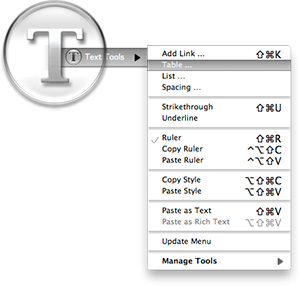
Some variation of these text tools have been included in CrystalClear Interface, as well as Crystal Black, since those applications were first released. However, the tools have nothing to do with the theming of buttons and windows, or with the general appearance of Mac OS X. I added them because they address a real need of mine, which no other software could do.
As a writer, I need ready access to a range of text functions, and I need them in whatever application in which I happen to be writing. In most of the rich text editors I use, those functions are available somewhere in the app’s menus, but typically they're in different places within each app. Some apps don’t include one or two key functions at all.
Mac OS X has a rich text framework that provides just the set of editing tools I require, and it would be extremely handy to be able to access those tools consistently across apps. This is precisely what the MarsThemes Text Tools do: Grant easy access to the key Cocoa text tools that writers and editors need but can’t find.
So, what text tools am I talking about? Here’s a list of the key tools:
- Tables. I often find formatting content into rows and columns an extremely useful way of organizing information, but few RTF applications seem to agree with me. Mac OS X includes a quite functional table-editing tool that I can quickly use when needed without opening a
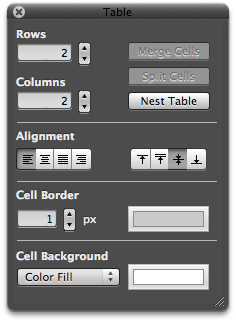 professional word processor such as Pages, or reaching for a spreadsheet app like Numbers.
 - Lists. From time immemorial, both humans and Martians have found organizing information as lists to be an essential tool for viewing and encapsulating that information. Again, finding the built-in list feature can be a problem, especially in apps that don’t let you access Mac OS X’s RTF “Ruler” tool (more on that momentarily).
- Links. In the internet age, writers often need to add hyperlinks to their documents, yet finding the built-in hyperlinking tool can be a challenge. The tool either isn’t there, it’s buried in a set of menus, or it’s somewhere that doesn’t make sense.
- The Ruler. If you’ve ever used a Mac OS X RTF editor such as TextEdit or Bean, or some kind of information management application like DevonThink Pro, EagleFiler, or Journler, you’re probably familiar with The Ruler (though didn’t know it had a name). The Ruler is the strip of tools that appears above whatever text document you’re working on. It contains a menu of handy (and customizable) text styles, alignment tools, a customizable menu for setting line and paragraph spacing, a menu for setting and customizing lists, and a group of tools for setting margins, tabs, and indentation. Sometimes The Ruler appears automatically, but other times you must hunt for access to it. Unfortunately, many applications feel the need to replicate these functions in some quirky unique way (such apps include Evernote and MacJournal). In my ideal editing environment, I want to summon The Ruler when needed, and dismiss it when it’s not.
- Strikethrough. Oddly, the only straightforward way of striking through text (a very useful thing to do!) is to open the Mac OS X Font panel, which has a menu that includes strikethrough and underlining functions.
- Copy and Paste text styles. Yes, there are standard keyboard shortcuts for these functions, but I find they don’t work in all applications, and I often forget what they are. Yet I use the functions frequently.
One of my favorite uses of the Text Tools is in applications or text fields that support rich text but provide no access to RTF editing tools. An obvious example of this is Apple’s Stickies application, which apparently assumes that users only want to type paragraphs with no formatting. Using the Text Tools, you can add The Ruler, a table, and all the rest.
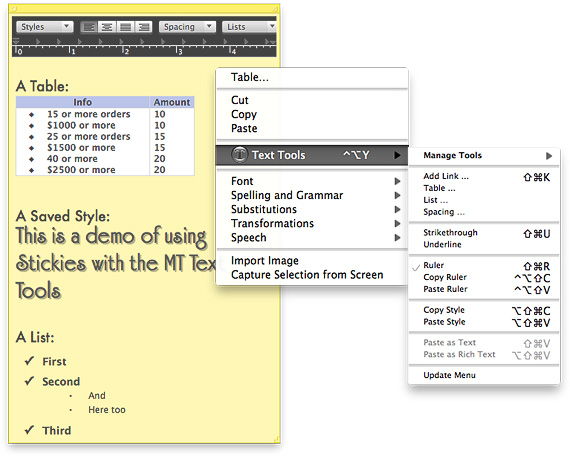
Other note-taking apps I use heavily likewise provide no way to toggle The Ruler or add a table are Edgies and Sticky Notes. Both have some of the Text Tools accessible in their menus, but using their menus may be awkward. Since the MarsThemes Tools provide a contextual menu, the tools are always at your fingertips.
Other examples I like to point out are the Comments field in Xcode’s snapshots window and in the application Packages, the Notes field in Interface Builder, any text view you’re formatting in Interface Builder’s edit window, the image description field in Little Snapper, and various others. (For my developer colleagues, I should point out that using the tools in Interface Builder is especially nice, because it lets you enter attributed text without having to format it in an external RTF editor and then copying/pasting it into IB. Note also that I still use Xcode 3.2, so IB is a separate application.)
Then there are applications like Yojimbo, which should provide a way to format text, but don't. Here, the Text Tools let you add The Ruler, a table, etc.
As mentioned, the Text Tools are activated as a contextual menu — using either a right-click or a Ctrl-click — in the field or document you want to edit. The Tools also provide a keyboard shortcut — ^⌥ Y — to pop up the menu. The shortcut is particularly handy in fields 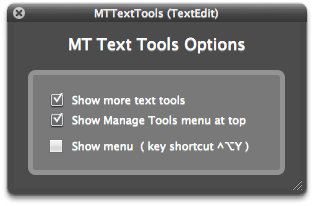 (such as those in Interface Builder) that usurp the field’s normal contextual menu.
The MarsThemes Text Tools have only two user options, which you can access from the “Manage tools” item in the Text Tools menu, or from the “Text Tools” item in the application’s menu. The two options are:
- Show more text tools
- Show Manage Tools menu at top.
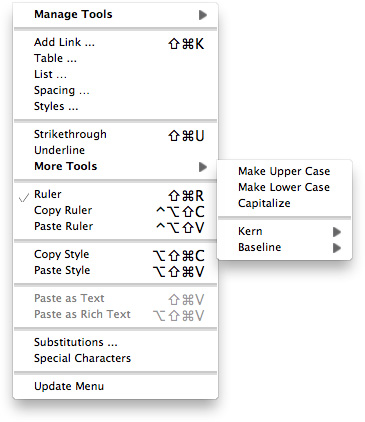 Selecting the first option adds the following tools to the menu:
- Styles (used for adding a custom style to your personal list)
- A “More Tools” menu, which includes the Capitalize functions, which normally appear in a submenu, as well as access to two handy formatting tools to control inter-letter spacing and baseline setting.
- Access to the Substitutions setting panel.
- A link to open the very handy Special Characters panel.
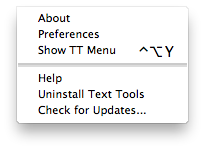 By default, the Manage Tools menu appears at the bottom of the Text Tools menu, but you can change that.
The Manage Tools menu also includes functions for checking updates, uninstalling, and getting help.
Finally, the Text Tools application is programmed so that it only loads into software that it detects has some kind of editing functionality. There’s no use loading the Text Tools into System Preferences or the Finder, for example. This keeps its overall footprint on your Mac as small as possible.
Text Tools is freeware, so give it a try! Hope you enjoy it as much as I do.
The software will be added as a premanent item on the MarsThemes website, under Software. You can download it here.
The Text Tools run as a plugin to the Mars Theme Loader (MTL) framework. If you do not have MTL installed, the Text Tools installer will do that for you. If you uninstall the Text Tools, the uninstaller will disable the MTL agent at that time.
There are very few components to the Mars Text Tools:
- The plugin (TTFilter.bundle) located at /Library/Application Support/MarsThemes/plugins, and
- A folder containing this document (as a PDF file) and the Uninstall program. That folder is at /Library/Application Support/MarsThemes/TextTools
To uninstall the Text Tools, open an application where they're active, open the Text Tools menu (easiest way is from the Application's main menu) and select "Uninstall Text Tools." If you have trouble finding an application that's running the Tools, open the folder referenced above and run the UninstallTextTools application.
Google Ditching Windows?
The Ultimate Solution To Window Clutter:
You Can Call Me SAM
Or, Everything You Always Wanted To Know About Single Application Mode But Didn't Know Who To Ask
One flaw in Single Application Mode (SAM), alluded to but not sufficiently stressed in the article, is its impact on the Mac OS X application switcher (accessed with the keyboard shortcut Cmd-Tab), which is a function of the Dock. When SAM is running (regardless of which software you're using to run SAM), the switcher doesn't automatically toggle to the previously selected application when activated. Instead, it typically defaults to the current app. So if you want to repeatedly toggle between the front two applications, SAM is troublesome.
The solution for me has been to substitute LiteSwitch for the built-in application switcher. With LiteSwitch (which has its own SAM implementation), this problem disappears, and you get a much more powerful app switcher to boot. However, LiteSwitch isn't freeware (I think it's $15). I haven't found a freeware solution, but will keep looking. Perhaps I'll figure out how to build it myself! Stay tuned.
I've observed that one of the most intractable problems bedeviling computer users, which makers of operating system software never seem to solve, is that of "Window Clutter." The inability to …
- Stay focused on the window you're working in, while
- Keep auxiliary windows handy and visible when needed,
- Avoid confusing any of these windows with those of other running applications, and
- Maintain some reasonable level of aesthetic quality to your computer desktop.
… is a nettle that keeps on pricking. At least, judging from continued user grumbling about it and the continued, less-than-satisfactory, though often valiant, solutions that user-interface experts keep offering users as the final salvation from this longstanding hindrance to productivity, I conclude that the nettle is alive and well.
That Window Clutter should still be a topic of conversation among engineers at Apple (I don't think Microsoft has any high-level staff who really care about or understand the issues surrounding interface usability, and Linux developers don't have the time to do so) is testament to their failure to stamp out a problem that appears from Mars to have a fairly simple solution, namely:
- Make it so that only one application's windows are visible at any one time.
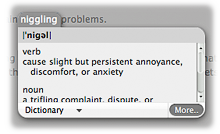
Being highly curious creatures, we Martians find it hard to resist interrupting our work to find out more about something unknown, like the peculiar way humans endow the use of words like "nettle," "wazoo," and so on, with meanings they didn't originally have. 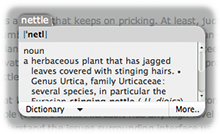 Fortunately, doing such a trivial thing on the Mac is so simple it's hardly an interruption. As I wrote at length in an article some years ago, all you need do is right-click on the word that interests you, select "Look Up In Dictionary" from the context menu, and Boom! You've got your definition without having to leave your document. The magical thing is that this works in any application on the Mac that's built with Apple's Cocoa frameworks (which is just about everything nowadays).
Affectionately referred to as Single Application Mode, or SAM, this is the default desktop environment on Mars. It's also widespread on Earth, though its human adherents often practice SAM quietly or even in secret because it's not an official, supported Mac OS X desktop environment.
Still, we find SAM the best way of dealing with today's large monitors, huge RAM capacity, and equally huge software options—all of which spell Window Clutter at a scale never before experienced.
SAM does require some adaptation and adoption of new tools and techniques, which I'll go into in more detail later in the article. If you're interested in SAM but afraid it would be too disruptive to your work habits, let me remind you that one of the proudest characteristics of homo sapiens is your ability to quickly adapt to changes in your environment.
On Mars, we learned to love SAM when using DragThing a few of years ago… We noticed that DragThing offered the option to hide other apps when switching to a new one. Further, it allows you to specify certain apps that you don't want to hide when you switch to other particular ones. After adopting Quicksilver, I discovered that it offered the same option, but without any customization. After that, I started noticing the Single Application Mode option offered in a surprising number of applications. (You can find a large list of such apps later in the article.)
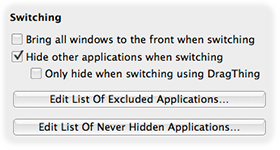
So, if you're not satisfied with Apple's previous attempts to diminish Window Clutter on your Mac (Expose, Spaces, and Visual Differentiation), and if you abhor the idea prevalent among Windows users that one should simply zoom every window to the full size of your display, this article intends to share with you Everything You Always Wanted To Know About SAM (But Didn't Know It Was A Topic).
There's a lot to cover here, so I'll give you just a few hints up front that you should remember even if you don't read the whole tome. By the end of the lesson, you should at least know the meaning of the following terms, and how to use the software they refer to on your Mac:
- Single Application Mode, and how it differs from Single Window Mode.
- Application Switcher, referring to the one built in to Mac OS X.
- Running Dockless, meaning an application that runs without a Dock icon and without a main menu, but which is able to spawn its own windows of various types. The term also covers Dockless applications that run inside other apps.
- Tear-Off Menus, a technology that dates back to the NeXTSTEP operating system, the foundation on which Mac OS X was built.
This article is presented in several sections. Here's a list of the sections so you can easily jump around to one of the topics that particularly interests you.
- How Bad Is Window Clutter, Anyway?
- "Tradition Myths" About SAM
- From Apple's Archives: Single Window Mode and the Dock
- Getting Started With SAM
- Window Clutter: A Little History
- Alternatives To SAM For Slaying Window Clutter
- Glossary of SAM Speak
How Bad Is Window Clutter, Anyway?
The problem of window proliferation today is not so much a factor of the number of windows you have open in a particular app, but rather how many apps you have open. Figure the average user has five or six apps open, each with one or two windows. You can easily end up with 10-15 windows vying for your attention on the screen, and even with monitor resolutions of 1920x1200 or higher, that's a lot of f*cking windows!
By using SAM to limit the number of visible applications to one, you can immediately reduce the number of onscreen windows by a factor of n, where n is the number of running applications that have open windows.
To demonstrate this mathematically (we love algebra on Mars!), consider the Mac OS X computing environment of a typical professional user these days. In this scenario, our user is running the following apps, each with its own set of windows and auxiliary panels (names shown are just typical examples):
| Application | Windows | Panels | Persistent Windows |
|---|---|---|---|
| Finder | 4 (or more) | 0 | 4 |
| 2 | 2 (Activity panel, Preferences) | 4 | |
| iTunes | 1 | 0 | 1 |
| iChat | 1 | 3 (Video preview, buddy lists, etc) | 4 |
| Safari | 1 | 1 (Downloads) | 2 |
| Preview | 1 | 1 (Inspector) | 1 |
| iPhoto | 1 | 2 (Effects, Adjust) | 1 |
| Pages | 1 | 3 (Colors, Fonts, Inspector) | 1 |
| Third-Party App One (DevonThink Pro) | 2 | 1 (Inspector) | 2 |
| Third-Party App Two (Amadeus Pro) | 2 | 3 (Playback, Markers, Actions) | 2 |
| System Preferences | 1 | 0 | 1 |
Note that the calculation of Window Clutter doesn't include any number of other applications that run only from the global Menubar (or Statusbar), and which don't have a main menu of their own. This doesn't stop them from wanting to take up screen real estate, however. Typical applications in this category include:
- menuCalendarClock iCal (may have one persistent window)
- Quicksilver (pops up when summoned)
- CoverSutra (may show current playing tune and/or a tune controller)
- Edgies (may want to keep one of these stickies-like items onscreen)
- A system monitor of some kind (for example, I always keep MemoryStick onscreen)
- Helpful edge-tab tools (e.g., DragThing, Fresh, DevonThink Pro, Yojimbo, the Dock)
We also won't include the multitude of tiny windows called "desktop icons" (yes, they are windows) that users typically keep visible. (Can you feel me shuddering from way down there?) Remind me to share the secret of eliminating that source of Window Clutter as well.
There is another class of applications (of which we dare not speak!) which have no user interface of their own, per se, but rather live inside the interface of other apps. I use some of these religiously, and they all require screen real estate even though they aren't really "there:"
- StepMenus. An invaluable open-source app that provides a movable, "tear-off" copy of an app's main menu.
- CrystalClear Interface. Also invaluable to me—but hey, as the developer I guess I'm biased—as a way of making Mac OS X even more beautiful and functional than it already is.
- SafariStand. This free add-on to Safari has more useful features than you can shake a fistful of Martian sand at. (I devoted a whole article to SafariStand some years back.) This app has several useful panels that I may have open from time to time.
- Visor. A SIMBL plugin that enhances the interface to Apple's Terminal utility.
Now, into our equation we must figure that some auxiliary panels hide themselves when the application to which they belong isn't active. For example, color and font panels are only visible when the app that spawned them is active, or "in front." On the other hand, the very useful "Special Characters" panel persists across apps. (However, most folks don't know that if you click its Maximize button, you actually minimize the panel to a tiny square.) Apple is pretty careful about following its own user interface standards and makes sure that all "Inspector" windows (including the Effects, Image Adjust, and Media Browser panels that typically accompany the iLife apps) only show up when their particular application is active.
Even in Apple's apps, however, exceptions do arise. In Safari, the Downloads panel is visible even when Safari isn't active. In Mail, the Activity panel likewise stays visible. And in virtually all apps, any preferences panels you may have opened stay visible even if they have no relevance to the application you're working in.
So, back to our equation.
Let n = Number of open applications
Let v = Average number of visible windows per app
Let x = Number of persistent windows
Let y = Number of persistent auxiliary panels
Let z = Total number of visible windows
Given these variables,
z = (x1 … xn) + w
v = z/n
For the hypothetical desktop listed previously, this yields:
- z = 23 + w
v = (23 + w) / 11
If we let w = 1, then
v = 24/11 = 2.2
By this calculation, then, in all likelihood there will be 24 visible windows on your desktop under the usual setup. And if you eliminated all but the active application's windows, the total would fall to between 2 and 3 windows.
A dramatic end, indeed, to the problem of Window Clutter… wouldn't you say?
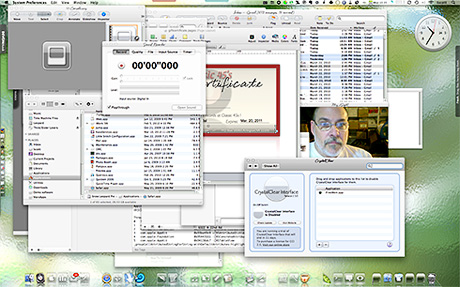
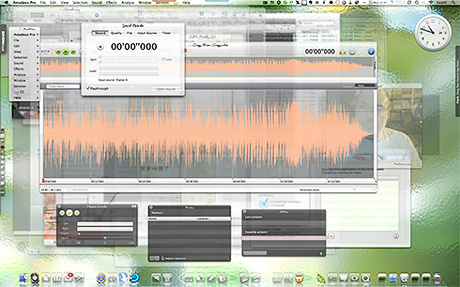
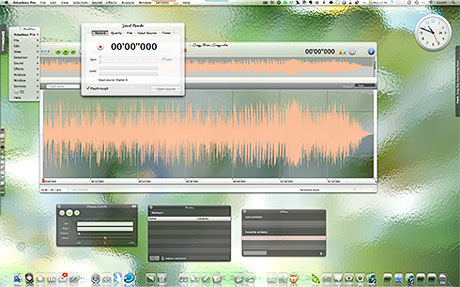
Now, to graphically answer the question posed by this section, let's take a moment to visualize the above scenario. The screenshots below have the same application/window configuration, based on the preceding table: 11 applications running, together generating 24 visible windows. The first image is a default Snow Leopard desktop, without Single Application Mode. The second image has CrystalClear Interface 2.5 running, but with SAM turned off. The last image shows the dramatic difference when SAM is activated.
"Tradition Myths" About SAM
Despite its demonstrable power in dealing with Window Clutter, Single Application Mode is embraced by only a relatively few "power users" and, of course, by Martians everywhere—those of us who live among you as well as those on Mars. However, Martians have no real influence on the way humans interact with their computers, and in fact we have some difficulty articulating our ideas in a way humans refer to as "evangelizing." Therefore, despite its rational foundation, SAM continues to be shunned as a solution by Apple and by influential Mac pundits… Why?
There are several reasons, all of which are based in "tradition myth," and none of which outweigh the true virtues of SAM.
- I need to be able to see windows of other applications so I can drag text from one to the other. No, you don't. Using Apple's Application Switcher (invoked by ⌘-Tab), it's a simple matter to select text in one application and drag it to a given window in another. Simply:
- Select your text.
- ⌘-Tab. While holding ⌘-Tab, select the application you want to drop the text in, using either your mouse or moving the cursor with an arrow key.
- Release -Tab and drop the text where you want it in the other application.
Alternatively, of course, you can copy and paste rather than drag. - I need to be able to drag images or files from one application to another. This is a variation of the first myth and has the same solution.
- I need to be able to see values (numbers, text, colors, images) in two applications at the same time. This is not a myth but is a real need that any solution to Window Clutter must address. Fortunately, virtually all SAM implementations make this relatively simple.
- The base solution is to hold the Shift key while selecting a second (or third, etc) application from the Dock. Just hold the Shift key each time you need to switch from one application to the other while working.
- Better solutions let you define which applications you never want to have hidden while using SAM or, better still (but requiring more configuration), define groups of applications that should remain visible together. Several applications that implement SAM offer this functionality.
- Why bother when I can just use the "Hide Others" keyboard shortcut (Option-⌘-H) as needed? Well, my response is that if you want to use the keyboard shortcut each time you switch apps, then you should be using SAM. SAM is mainly a convenience, automating the task hiding other apps rather than adding the task to your regular workload.
Finally, the most insidious deterrent to the use of SAM is one that arises from ignorance or from age-old blinders that keep their wearers from seeing full 360-degree panoramas about the issue. To explain what I mean by this, I need to take a quick detour into some history about a relative of SAM's called "Single Window Mode."
From Apple's Archives:
Single Window Mode and the Dock
It's strange, but true, that the Mac OS X Dock has a "single application" mode of its own. To try it out, install Secrets, a GUI tool from Blacktree—the company that brought us the incredible open-source workhorse, Quicksilver. Secrets lets you enable the hidden Dock setting for "Single App Mode." You can also activate this Dock setting by typing these two commands in the Terminal (the second command restarts the Dock):
com.apple.dock single-app
killall dock
That the Dock has an implementation of SAM is curious, and it may be useful for some. However, it has several drawbacks from the Martian point of view:
- You have to use the Dock alone (read: click on Dock icons) to launch and switch apps, in order to make other apps hide when you do.
- Launching apps from Spotlight doesn't trigger SAM.
- Launching apps from the Finder—or from any other application launcher—won't trigger SAM.
- Switching apps using the Application Switcher doesn't do it, either.
- Curiously, you don't go into SAM mode even if you launch an app from a Dock Stack, such as one showing recently launched apps.
So, the Dock version of SAM is only useful if you use the Dock for all app launching and switching, which obviously isn't practical or efficient.
 Another tantalizing remnant of Apple's flirtation with SAM is found in the graphics bundle that's been used by Mac OS X since day one. In addition to the usual red/yellow/green "stoplight" indicators at the top of every window, there's a purple one that's never been seen outside the few developers who worked on the earliest builds of Mac OS X… plus all those who saw Steve Jobs' Keynote presentation at MacWorld in January 2000, when Apple first unveiled its new Aqua interface.
For those of us who are fans of SAM, it's validating to listen to Steve extol the virtues of what was then dubbed "Single Window Mode." In fact, he spoke of it at length in a demo that concluded his entire presentation about the coming greatness of Aqua. During that speech, Jobs describes a solution Apple was building into Aqua in order to conquer the challenge of Window Clutter (see video of this segment below):
Let me go ahead and click a button that's on the right side of the top of the window pane. And this button is pretty cool. What it does is it says, "You know, when we have a lot of windows around on our system, it can get rather confusing for beginners, and even for pros.
If you're working back and forth between Illustrator and Photoshop or Photoshop and something else … These things can get very complicated on the screen.
What could we do to make life easier for our pro customers and for beginners? We came up with something pretty neat. You can click it from any window. You can turn it off and on.
And it's called Single Window Mode. So you just click this, and every other window on the screen is miniaturized. And when I click another window… Boom! They switch places.
It's very easy.
Wow… even from Mars we were impressed with Jobs' insight. Here's a guy who really understands user interfaces to software. He understands the needs of computer users, often even before they do. We had observed Steve Jobs and his return in 1997 to the promising company he helped found, and it was clear that this guy knows what he's talking about when he says things like, "Boom!"
What the heck is a wazoo? And what do people mean when declaring something is "out the wazoo?" 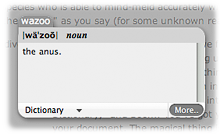
Hmmm… Does "wazoo" really mean "anus"? Now we're really confused! To clarify, I click on the little "More" button in the lower right-hand corner of the pop-up, and I'm whisked to the Dictionary app itself, which explains:

Sure enough, our early impressions of Jobs were correct, and he's clearly not only a transplanted Martian, but that extraordinary Martian who is able to mind-meld successfully with humans. Since then, we've been importing Apple products "out the wazoo," as you say here on Earth.
Sadly, however, Apple didn't pursue this initial idea for a Single Window Mode. From the snapshot we were given, it appears that SWM was somewhat flawed, and I'm not referring to its unfortunate acronym. If SWM worked the way Jobs demoed it, it would have minimized all the other windows in the current application, as well as those in other applications. Clearly, that's not going to work, which may be why Jobs was talked out of it.
As one of the major gurus of Mac-Think, John Gruber gave us a clear explanation for the opposition to SWM in those early days of Mac OS X. This excerpt is from an interview by Marcin Wicary, keeper of the marvelous website covering the history of computer GUIs, Guidebook Gallery, in July-August 2005:
Q: Was single-window mode such a bad idea? Moved from the purple button to the confines of System Preferences, wouldn’t it be useful for beginners or refugees from the Windows world?
A: It might be a good idea for some entirely new system, but I think it was incompatible with the existing Mac UI paradigm. The Mac UI was, and is, meant to revolve around multiple windows. If you’re only going to show one window at a time, what’s the use of even calling it a “window”? Just take up the whole screen.
TiVo, for example, effectively is a computer with a single-window UI paradigm. But it’s screen-based, not window-based. In the same way that it didn’t make sense for Apple to add a single-window mode to Mac OS X, it wouldn’t make sense for TiVo to add a new multiple-windows mode.
As for beginners and Windows refugees, I don’t think they need protection or shielding from the true Mac UI. What would – and does – help them is when the regular UI is consistent, obvious, and intuitive.
My current theory is that this antipathy for SWM has swallowed any official support SAM might have had all these years. And yet, SAM is the solution that SWM was not.
- SAM is SWM evolved.
Getting Started With SAM
But perhaps the best reason SAM isn't more widely adopted is that, especially for experienced Mac users, it takes some getting used to. This is why I refer to it in the CrystalClear Interface Preferences as a "new paradigm." The rewards of embracing SAM are great, but embracing SAM also means unlearning certain behaviors, and learning new ones. If SAM were openly incorporated into Mac OS X, its adoption could be more seamless than it is, of course.
So, OK, say I want to try using SAM. Where do I start?
Despite its relative obscurity, SAM is implemented as an option in a great many Mac OS X applications that have some application-switching functionality. Here are some of the apps I know of that offer SAM as an option. I've personally used Quicksilver, LiteSwitch, and DragThing for this functionality and ultimately settled on LiteSwitch as the best option.
I chose LiteSwitch not just for its SAM-ability, but for its many other irreplaceable virtues. I now use CrystalClear Interface for SAM, but I cherish LiteSwitch because it improves on the Mac OS X switcher in so many ways. Of particular relevance to SAM is LiteSwitch's inherent app-switching behavior.
Apple's switcher doesn't allow you to repeatedly and quickly toggle two applications with one simple ⌘-Tab shortcut. After you toggle once, it forces you to navigate (with arrow key or mouse) to the other application you want to toggle.
For me, this is key, since without the quick toggle, I end up doubling the toggling effort. LiteSwitch doesn't have this drawback, and I would be hard-pressed to do without it. (By all means take a look at the more in-depth review of LiteSwitch I wrote a few years back.)
I am pleased to see that Proteron, the company that built LiteSwitch, appears to be back in business after a 2-year hiatus. What a relief to know that it'll be available and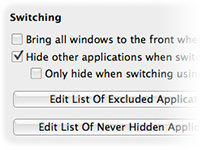 supported once again!
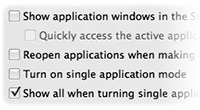
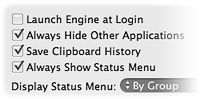
Here's that list of SAM-capable apps I mentioned earlier:
- Application Wizard
- CrystalClear Interface
- Desktopple Pro
- DragThing
- Flying Windows
- Keyboard Maestro
- LiteSwitch
- MenuStrip
- MultiXFinder (free)
- Quicksilver (free)
- Shoo Apps
- Spirited Away (free)
- TransparentDock
- Window Cleaner (free)
- Make the Mac OS X Application Switcher your best friend. Once this mode of switching apps is second nature, SAM will also seem completely natural (if it doesn't at first), and you'll wonder why you suffered so long with all those windows cluttering up your screen! To invoke the Application Switcher, use the keyboard shortcut ⌘-Tab to show all your running applications. As an alternative to Expose, you might also find it convenient to start using ⌘-Tilde, which toggles through the various open windows in your current application.
- Hold the Shift key to add windows of other applications to the visible mix. For me, this requirement pops up when I use an application like the delightful color utility iPalette, and want to capture colors from another window and experiment with them while keeping the source window in view.
- Get used to the idea that drag and drop is just as easy between two windows that can't see each other as it is between two that can (setting aside for a moment the notion that windows can "see"). Think of this technique as an analogue to the Finder's spring-loaded folders, where you drag a file from one visible folder to another that only becomes visible after you've passed through one or more folder "dimensions."
Only, dragging from window to window is easier. To do this, just make your selection and start to drag. Then, switch applications using the Application Switcher (⌘-Tab) and drop the item into your document as you normally would. You can use this technique for dragging text, files, images, etc., just as you would if the two windows were visible at the same time.
One thing that's even nicer about this approach is that you don't have to move windows around to set up the right view for dragging between visible windows. (What a drag that can be! "Oh, Martha, he thinks he's such a wit, don't he?") However, you do have to make sure that the target window is active in the the target application, since you won't be able to switch windows in the target app during the drag.

As those of you who've tried to get used to Spaces know, many attempts to solve Window Clutter create new problems rather than really solving the old ones. This isn't true of SAM, because it really does solve the problem of Window Clutter. However, it does introduce some problems that need to be solved somehow. Fortunately, we Martians have found free and easy solutions to all of them!
- Problem 1.
- Many applications let you set a given window as "floating" so that it stays "on top" of your window hierarchy even when you switch to another application. Only problem is, the window's "floatiness" is tied to the visible window hierarchy itself rather than to your workspace as a whole. As a result, the supposedly "floating" window gets hidden along with its application when you switch apps using SAM.
Typically, this problem occurs with respect to user interface elements that you want to remain visible no matter what other apps are active. Apps in this category typically include:
- Launchers
- Sticky notes
- To-Do lists
- Monitoring tools (e.g., clocks, system info)
- Interfaces with inactive apps
- iTunes controllers
- Screen capture tools
- Automation tools (scripts/shortcuts/workflows)
- Desktop customizers
These kinds of apps play a role similar to the one that the Color and Font panels play in an application. If you open them, you want them to stay open—and not to hide behind other windows or apps—while you're working. In the context of SAM, tools of the categories above are ones you want to remain visible even if you switch to another app.
Apple provides many such interfaces to its own applications, including the following:
Yeah, well, if you rely on iTunes' floating controller, and aren't willing to part with it, SAM won't work for you.  Thankfully, there are dozens of free alternatives that provide more functionality than the iTunes floater, so if you're willing to give one of them a try, you can still use iTunes to the full extent, but control playback with something else. For some ideas, refer to an article I wrote a couple of years back on iTunes controllers. It's out of date now, but still worth a look. Some newer alternatives are listed in the table below.
- The Dock
- Spotlight
- Various statusbar items:
- Airport
- iSync
- Time Machine
- Sound preferences
- Fast user switcher
- Script menu
- Application Switcher
- Dashboard
- Expose
- Time Machine
- Front Row
Solution: Find applications that allow themselves to be removed from the dock and to appear without a Main Menu. Such apps are referred to in the Apple developer documentation as "agent" applications, and many of them make themselves available as a statusbar item. There are quite a few apps that can morph from a regular app to an agent as a user option, and many that are agents from the get-go. Here are some of the apps I've used that I always want to remain visible while open, and which can accommodate that need nicely with SAM without any special effort. (I've organized these according to the category of apps listed above.)
Note: The apps with links in the table are ones that are not linked elsewhere in the article. Other than that, I'm not making any kind of particular statement about them.
| Category | Application |
|---|---|
| Launchers |
Quicksilver ClawMenu DragThing Butler Overflow iKey |
| Sticky notes |
Sticky Notes Edgies |
| Monitoring tools |
Growl BackTrack BwanaDik MenuMeters iStat Menus |
| To-do lists |
MenuCalendarClock iCal Pluto Menubar |
| Persistent interfaces to inactive apps |
DevonThink Pro Yojimbo DropCopy Quicksilver Fresh BackTrack Evernote LiteSwitch |
| iTunes controllers |
CoverSutra YouControl Tunes Butler ClawMenu Quicksilver |
| Screen capture |
Little Snapper Mac OS X keyboard shortcuts |
| Automation tools |
Quicksilver AutoPilot iKey OpenMenu TextExpander Hazel Shortcuts Spark |
| Desktop Customization |
Picture Switcher DeskShade Wallsaver QCDesktop |
- Problem 2.
- What about applications that don't offer an option to run outside the Dock and without a menubar? I have several such apps that I run daily or frequently, and SAM really wouldn't be feasible if I hadn't found an easy way to "bend such apps to my will," so to speak. Here are some of my "problem," essential apps:
- QuartzClocks. A freeware app, this is simply the best desktop clock I've ever seen. Sadly, its developer had abandoned it the last time I looked, but you can still download it from MacUpdate.
- Sticky Notes. There are oodles of sticky-note apps in the Mac universe, but this is one of my favorites. The feature that makes Sticky Notes stand out from the crowd is that you can bind individual notes to particular applications. This is exactly what I want from a notes application… it's like putting a sticky right on the app itself! It's also perfect for SAM, because the notes are always there when the relevant app is open. The only problem arises for notes that aren't tied to a particular app…
- FlySketch. The very best app for annotating screen captures. Incredibly innovative… there's nothing like it.
- PixelStick. Great freeware for measuring screen coordinates when doing pixel-based design.
- iPalette. Terrific freeware for experimenting with colors. For developers, it's a great way to easily get RGB values for NSColor in your apps.
Solution: What you need is an easy way to toggle any app on your system between being a regular Dock/Menubar app and being an "agent" app that doesn't hide when you're using SAM. If you're a programmer or are otherwise technically savvy about the inner workings of Mac OS X, you could do this manually by editing a small file that appears in every Cocoa app's "bundle." But how much fun would that be? Although there aren't many utilities that will perform this feat automatically, there are a couple I know of, both free.
- Dockless does precisely what you want. Dockless is reliable, simple, robust, free, and open-source! (Another cool thing about Dockless is that it also lets you go the other way: Make normally "dockless" (agent) apps appear with a menubar and Dock icon.) (For more words from me about Dockless, refer to my 2006 review.)
- Configure Application Dock Tile has a trés ungainly name, but it can be more useful than Dockless for quick changes. The best way to use this app is to add it to the toolbar of Finder or Path Finder, and then use it as a "droplet." To toggle an app between having a menubar/dock and not having one, just drag the app to the toolbar icon for Configure Application Dock Tile (yuck!), change the checkbox state and save.

- Problem 3.
- If you use Dockless or Configure App… to eliminate an app's menubar, how do you gain access to the menubar when you need to? After all, most such apps have Preferences to set, or Help to access, or various functions that only appear in their menubar. Apps that offer a built-in Dockless mode take this into consideration and make their menu functions available in other ways, but apps that are coerced into running Dockless don't.
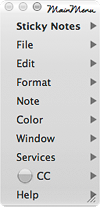 Solution: As with problem #2, there aren't many options that address this. But fortunately, the one I've used for ages still works great on Snow Leopard and, like Dockless, is free and open-source: StepMenus. By default, StepMenus provides a small floating panel that duplicates an app's main menu. You can position this menu panel wherever you like, or you can use the StepMenus System Preferences interface to exclude it from running in a particular application. (If you're a user of CrystalClear Interface, you'll undoubtedly see a similarity between the StepMenus preferences pane and the one for CCI. The similarity isn't accidental: I used some of the StepMenus code for CCI, since it was precisely what I needed for that app.)
Window Clutter: A Brief History
In the beginning, there was the very low resolution monitor for working with graphical operating systems, like the Mac and, eventually, Windows. For a very long time (in computer years), resolution was so low (600x800 pixels or less) that the only sensible way of working was to zoom each window to its maximum extent.
This hardly hindered one's productivity, of course, because it wasn't until the mid-1990s that computers had enough built-in memory to run multiple applications reliably. Still, you quite often needed to have two or more windows open in a given application—for example, in word-processing apps like Microsoft Word or WordPerfect. The number of windows you needed to work with doubled or tripled once sophisticated design applications like Photoshop and PageMaker came on the scene. At this point, working with multiple zoomed windows became a real pain, yet squeezing them to smaller sizes seemed to only make things worse.
For the longest time, it seems that a great deal of my time was spent repositioning windows so I could see what I was doing. Working in a word processor was one thing. Working in Aldus PageMaker was another thing entirely.
In a word processor, it's often desirable to see only one window at a time, as a way of reducing distractions. In fact, a few years ago it became de rigeur (at least in the Mac world) for such apps to enable a full-screen mode for composing text. This became a major selling point for rich-text editors like WriteRoom, and it soon became a standard feature of most apps that included a writing function.
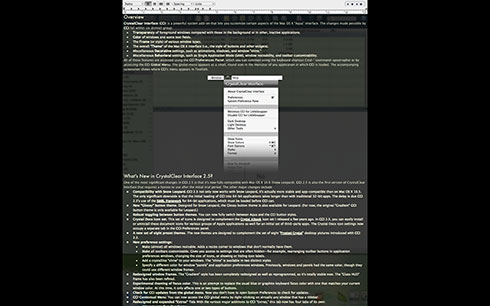
When one is word-processing, having a single window consuming all of your screen real estate is not a bad thing, especially since you can specify margins so the text doesn't spread across the entire area.
As screen resolution rapidly rose through the 1990s, however, the habit of zooming every window to the full size of your monitor began to look pretty silly, and could actually dampen productivity. It's a known fact that humans read less efficiently when a column of text is too wide, because the eye has trouble making its way back to the left-hand margin while keeping each line in sequence. (For examples, see this or this in Google Books.)
When monitor resolution was 640x480, this was not a consideration. But on a 1024x768 monitor, line length in a word processor (or PDF file, web browser, or whatever you may be trying to read) becomes far too great to read efficiently. Still, zooming windows to the max remained the preferred, and expected behavior (especially on Windows)… readability be damned!
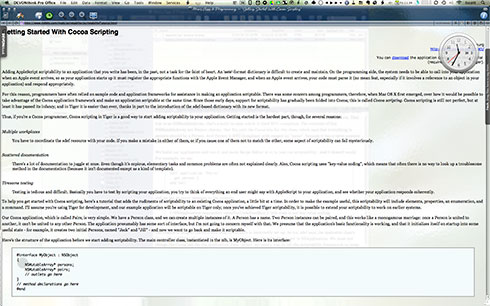
The first great idea for dealing with multiple applications and windows on a PC actually appeared first in Microsoft Windows 3.x. It was then (and, I think, still is now) a feature known and used mainly by power users, but it was a brilliantly simple implementation. I refer here to the Alt-Tab keyboard shortcut, which displays a horizontal band of all your currently active apps and windows. The Windows implementation was fairly rudimentary, and it didn't change much (if at all) until the release of Windows Vista.  To navigate the Windows switcher, you had to to everything with those two keys. In other words, you had to hold down the Alt key, press Tab, and then keep pressing Tab to navigate through the items (you could go backwards by throwing a Shift into the mix, but still had to keep holding Alt as well). This was useful, but seemed downright awkward after Apple finally implemented a similar feature in Mac OS X 10.3 (Panther).

Apple's innovations to the application switcher were not only visual (and it was very cool visually), but greatly enhanced functionality as well. You could navigate like in the Windows switcher, but you could also navigate using the arrow keys, select with the mouse, use the scrollwheel to navigate, drag items onto the applications to launch them, and hit Q to quit an application. There are a variety of other keyboard shortcuts as well. (See here.)
I understand that in Windows Vista, Microsoft has incorporated some of Apple's enhancements: You can now navigate through the items with arrow keys or your mouse. Unfortunately, from what I've read, the Windows switcher doesn't expand horizontally beyond its size in earlier versions of Windows; rather, it expands vertically in rows.
One of the most irritating aspects of the Windows switcher is that it displays both documents and applications. Therefore, it's not strictly speaking an application switcher, and there doesn't seem to be any way of making it so. (This is the main reason I can't bring myself to use Witch, an otherwise useful, once-free-but-now-shareware switcher alternative on the Mac. Witch has no way to limit its display to applications, either.)
Instead of displaying both windows and applications at the same time, Apple has sensibly separated the two, providing a different shortcut—⌘-Tilde—to navigate your open windows.
It wasn't long before monitors got bigger not only in resolution but also in physical dimensions. Can you imagine working on a 15-inch monitor nowadays? And yet, this was the standard size throughout the 1990s (unless you were very special indeed). With such a small monitor, most people didn't max out their screen resolution because at 1024x768, for example, screen type becomes way too small to read.
Soon enough, though, monitor size zoomed to 17-inch, then 20-inch, and now 24-inch as the expected standard for your basic computer system. Heck, the current model iMacs sport a 27-inch monitor in the top two configurations. (And here I thought my 23-inch Cinema Display of a few years back was so huge. And it is!)
For creative professionals, the problem of dealing with Window Clutter has long been handled by using multiple monitors. That's fine if you can afford it, but using multiple monitors introduces its own set of problems. I won't go into them now, but those of you who work that way know them all too well.
In the meantime, computer memory soared, so that what application developers, users, and hardware makers considered a baseline standard was an ever-shifting target. And no one ever seemed to get it quite right. Technical standards have simply moved far more swiftly than humans could adapt to them. (I wryly note that this deficiency is not shared by your Martian neighbors.)
It's sobering to actually review the timeline of the amount of random-access memory (RAM) that personal computers have relied on. As we all know, in 1984, Apple Computer introduced the Macintosh—the first commercially available personal computer with a graphical operating system. It was also the first computer to boast 128KB of RAM! By the end of the year, for only $10,000, you could buy AT&T's new microcomputer and luxuriate in a full 512KB of RAM.
The race for more memory had begun, but it seemed to remain in Lilliputian dimensions for a very long time. By the end of 1989, Apple's Macintosh was still in the lead, with its top-end system boasting 4MB of RAM. IBM and Compaq PCs maxed out at 2MB. A decade later, top-of-the-line systems still peaked at 512MB or 1GB of RAM, while consumer systems like the iMac were holding 256-512MB.
Since 2000, It was in the last decade that RAM size really took off. The amount of RAM a desktop computer can consume nowadays seems ridiculously huge, a reflection of the transition to 64-bit operating systems. My 2-year-old Mac Pro can hold 32GB, and I've got 16GB installed. To buy a consumer system with less than 4GB these days is to buy a computer that won't run modern operating systems or the latest versions of the most apps. Heck, the $599 Mac mini has 2GB, and the $799 model has 4GB! The standard RAM for Microsoft Windows-based systems is similar, starting at 2GB for entry-level computers and rising from there.
For the purposes of this article, the main impact of exploding system memory has been to increase the number of applications one can keep open at the same time. It has become habitual for a typical user to leave applications open indefinitely, and then to not understand why their system may be slowing down after a few days. (For a followup to this discussion, refer to the earlier section of this article, How Bad Is Window Clutter, Anyway?)
Alternatives For Slaying Window Clutter
I still think Expose is a visually cool way to view your open windows, but I frankly have never used it much because it just doesn't work for me. Rather than spending many more words explaining Expose, take a look at the preceding link and let Apple do the talking.
Basically, Expose has three modes, with the following default keyboard shortcuts:
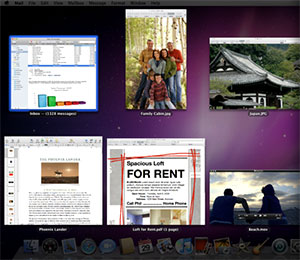
- F9. This displays all the windows of all active applications on your system. Curiously, however, this doesn't show windows of applications that are hidden. Therefore, if you're using SAM, there is no difference between F9 and F10. (Perhaps that's one reason I've never taken to Expose…)
- F10. This displays all the windows of your current application.
- F11. This hides all windows and displays your desktop.
A very useful feature of Expose (which may not be widely known) is that whether you start with F9 or F10, you can navigate through your other applications and their windows by hitting the Tab key. Each click of Tab takes you to the next application set. Within an application set, you can navigate using the mouse or the arrow keys.
Still, Expose is at best a useful way of finding windows on your Mac, and is neither a practical application switcher nor a solution to Window Clutter. After all, as soon as you exit Expose, your cluttered Desktop returns, like Cinderella at midnight, to its former unlovely self.
Back in 2006, I opined at great length about why Virtual Desktops as a technique--and why  Spaces in particular--are poorly suited as a solution to Window Clutter. Rather than repeat all those arguments and observations here, I invite you to read the article, "Leopard’s Spaces: Virtual Desktops for the Rest of Us?", which I wrote while having access to developer releases of Mac OS X 10.5.
Even after I discovered Hyperspaces, a marvelous enhancement to Spaces that adds all the features I felt were missing in Apple's implementation, the basic problems inherent in Virtual Desktops remain:
- They simply create more confusion than they eliminate,
- They make it harder for you to find your application windows, and
- They aren't really practical since the idea of segregating your different kinds of work into different desktops is impossible if you have even modestly complex kinds of work involving more than one application.
Apple has progressively enhanced the visual distinction between your active window (typically the one you're typing in or whose controls you're manipulating) and the others in your active application. Windows in inactive applications have a slightly different appearance than inactive windows in your active application. (Say that twice fast.) But practically speaking, it's impossible to tell them apart.
This is why those who don't use SAM either must use something like Expose or ⌘-Tilde, or forever find themselves activating the wrong window.
Even when using SAM (either with or without CrystalClear Interface), distinguishing between your top-level window and the others in your window hierarchy is very important. By default, Apple helps differentiate the active window by adding an extra-huge, 3-D shadow (introduced in Leopard), as well as hints in the button widgets (color vs. no color, or faded vs. active appearance, or bright vs. dim, etc.).
In addition to Apple's visual techniques, CrystalClear Interface lets you further distinguish windows by their transparency, which is completely user-customizable. By default, the front window is mostly opaque, and the inactive windows are 50-60 percent transparent. Utility windows (Find panels, Color panels, and the like) retain the opaque appearance of the main window and are distinctively themed as translucent black (HUD) panels. Besides setting default values for all inactive windows, users can also set the transparency of individual windows that have unique titles to some custom value, retained across sessions.
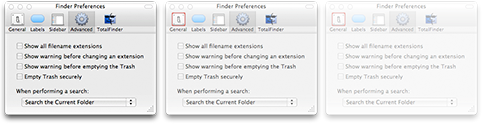
In addition, CCI provides the option of turning shadows off for your inactive windows. This just takes Apple's approach one step further: Rather than minimized shadows in background windows, you can remove shadows from background windows entirely.
The bottom line is that Visual Differentiation as a strategy of solving Window Clutter is absolutely necessary and quite helpful. However, it is not sufficient to eliminate the problem entirely.
And that explains why here on Mars, we use Single Application Mode as the solution to Window Clutter.
- Agent
- An application that does not show a dock icon or have a Main Menu in the menubar. This type of application sometimes has an icon for accessing its functions and preferences in the Statusbar.
- Dockless
- An application that runs as an Agent.
- Statusbar
- The part of the System Menubar that extends from the Spotlight icon on the right to a point on the left that's not occupied by the current application's Main Menu.
- System Menubar
- The narrow strip at the top of the Mac workspace that contains the application's Main Menu and the Statusbar.
- Main Menu
- The part of the System Menubar occupied by the current application's menu items. The Main Menu usually starts with an item with the application's name, just to the right of the Apple Menu, and extends to an item named "Help" on the right.
- SAM
- Acronym for Single Application Mode.
- Tear-Off Menu
- An item from the Main Menu, or one of its submenus, that can be "torn off" and positioned as a free-floating window.
- Auxiliar Panel
- A window that contains tools used to change settings of various kinds in the main window. Such windows include the Font and Color panels, as well as Inspector panels such as those in Apple's iWork applications, or the ones in Preview and QuickTime.
- Floating panel
- A window that by default always appears above other windows in the application's hierarchy, except those that are also floating panels.
- Single Application Mode
- A Macintosh workspace configured so that only one applications windows are visible at any one time. Other application's windows can be configured to be temporarily visible as well. Any open windows of Agent applications also remain visible.
- Single Window Mode
- A Macintosh workspace configured so that only one window is visible at any one time. SWM exists in concept only.
- Active [Window/Application]
- The Active application is the one the user is currently working in. The Active window is the window of the Active application the user is currently working in, using either the mouse or the keyboard (or some other input device).
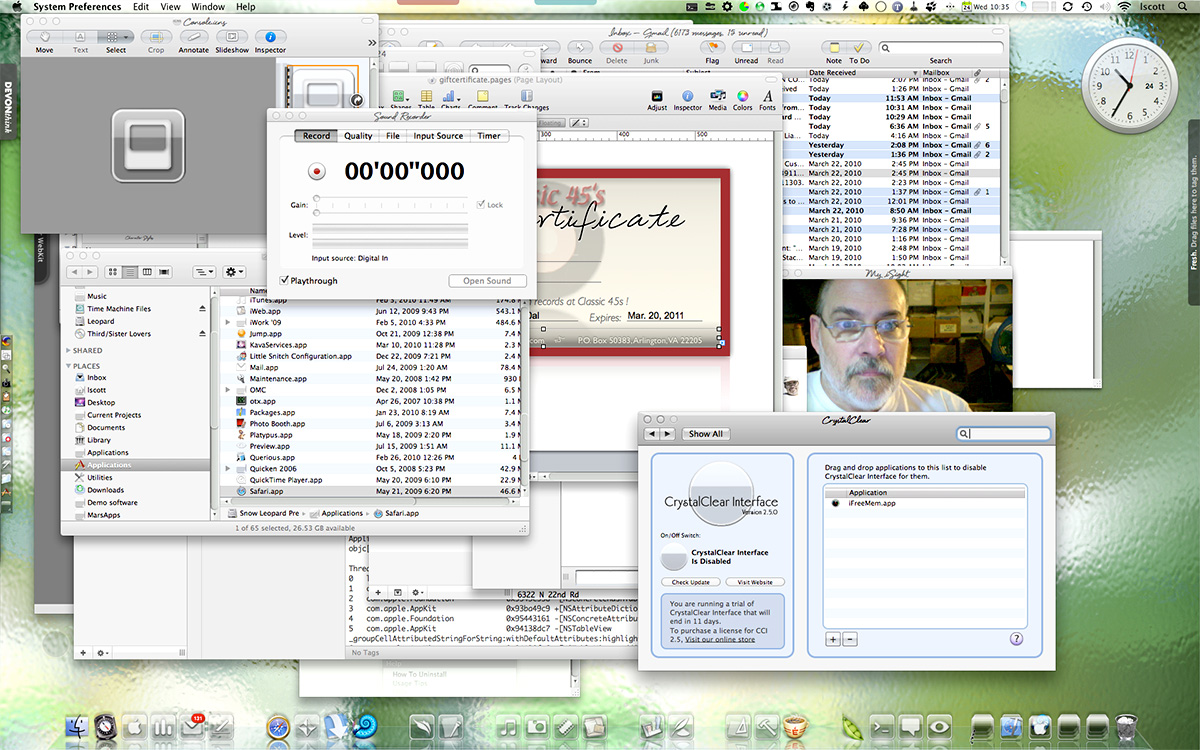
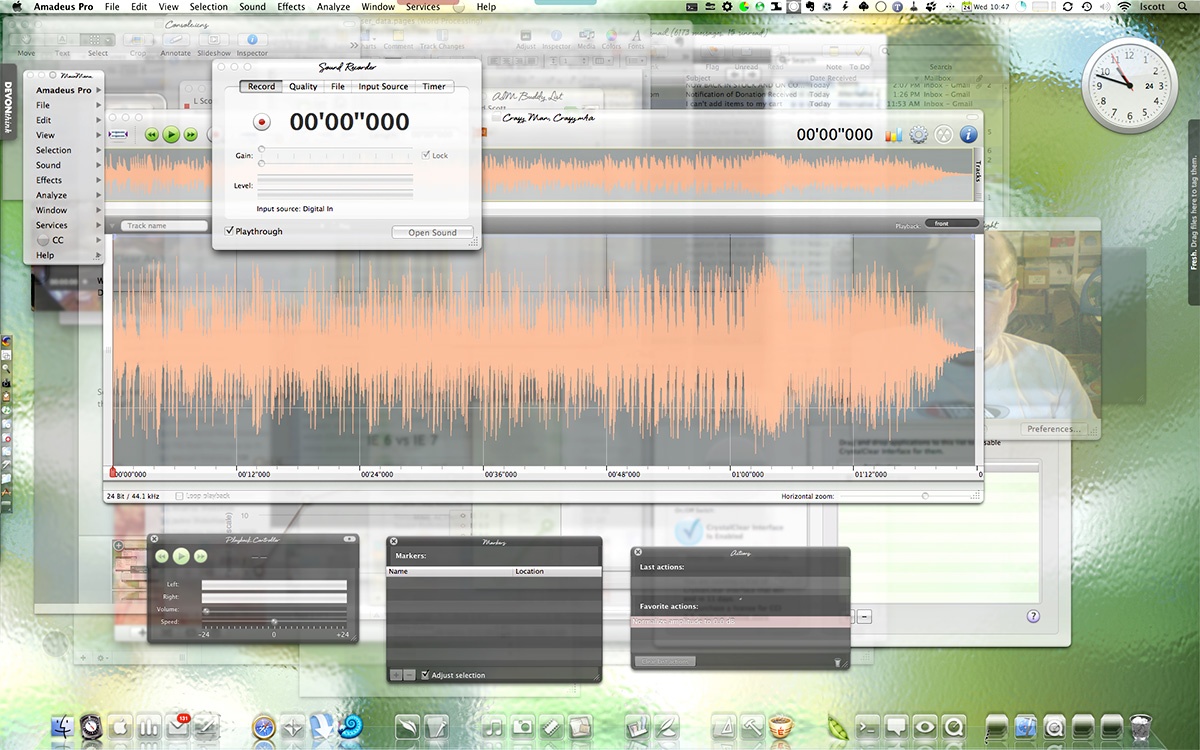
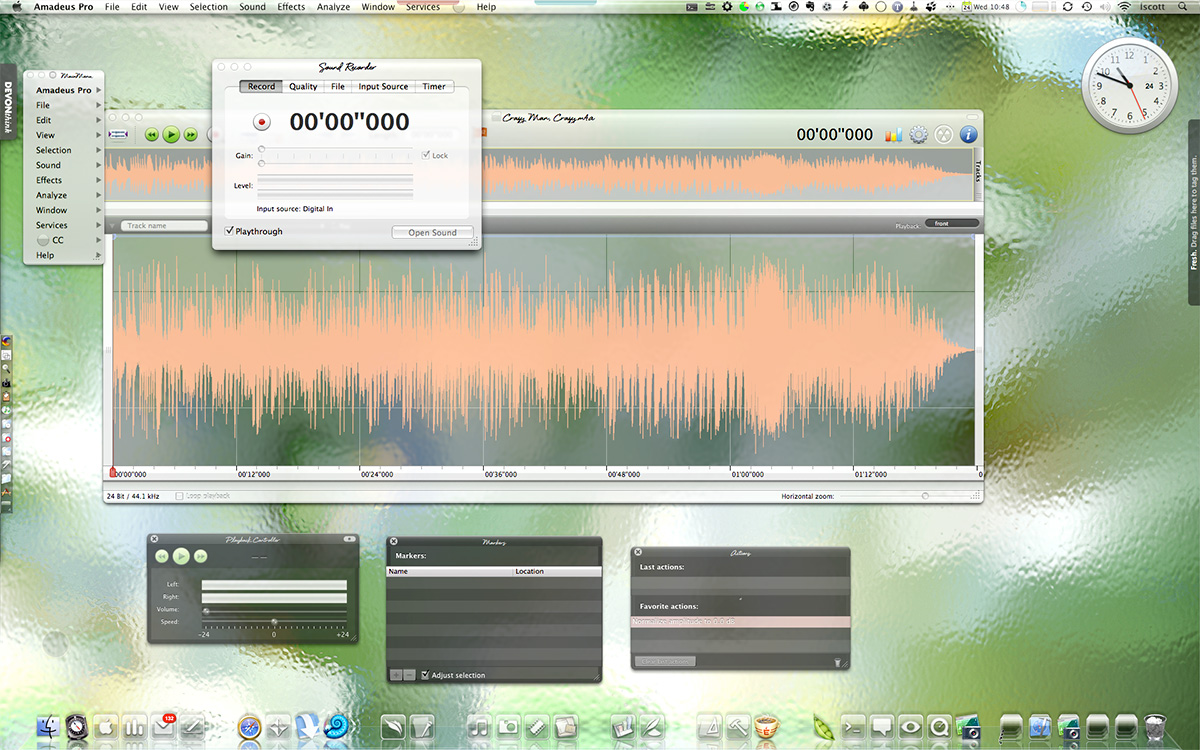
ComputerWorld Pits Snow Leopard Against Windows 7 (Again)
As an IT professional, I support both operating systems at work. But I have Macs at home; after all, who wants to troubleshoot computer problems on their own time? My final verdict in this smackdown? It's not even close: Snow Leopard is the better OS.I couldn't have put it better myself.
Analysis Shows Snow Leopard Faster Than Windows 7
Another Windows Guru Falls For A Mac
Microsoft’s ‘Apple tax’ claims are ’stupid,’ counters analyst
InfoWorld Article Dispels Many Enterprise Mac Myths
My only quibble is the author's assertion that enteprise reliance on Microsoft Office means unequal time for Macs. He points out that OpenOffice is a viable alternative but makes no mention of Apple's own terrific iWork suite, which is quite compatible with the basic aspects of Microsoft Office. Likewise, he fails to acknowledge Apple's effective collaboration suite in the form of iCal, Mail, iChat, and Address Book. Perhaps it's because those aren't cross-platform. However, even if that's the case, since they are able to interoperate with Office, they should be considered by businesses seeking to support their growing numbers of Mac users.
Mac Hack Makes for Good Headlines, But…
Even if you believe these things would have happened if Apple's OS held the monopoly (which is a demonstrably false opinion), the burden of computer security has fallen exclusively on Windows users over the last 7 years. Exclusively... not just 90-95% of the burden. I have never spent a dime on security software or subscriptions, nor have I spent a moment worrying about going online. I've never had my machine hijacked by malware, or had my browser go haywire because I visited the "wrong" website. I take sensible precautions about suspicious emails, and I don't download files from suspicious websites.
If someone has developed a true exploit for hacking Mac OS X, I'm sure it'll be quickly squashed by Apple. And one or two such exploits in 7 years is a far more intelligent risk than dealing with thousands of such exploits a year over that period, don't you think?
In Praise of Third-Party Mac OS X System Enhancements: Hats Off to Mighty APEs, Incredible InputManagers, and Satisfying SIMBLs!
Honestly, as both a developer and user, I find this kind of internecine backbiting very disheartening. The APE guys have been attacked for so long, and lumped into the same camp as the SIMBL/InputManagers guys that Slava and Rosyna do a “gasp!” “don’t mention InputManagers to us!” thing in a kind of knee-jerk dance every time the topic comes up. I can understand the chip on their shoulders–they’re outlaws, after all, unsupported (thwarted?) by Apple and frowned upon by “official” Mac bloggers, who seem to feel they are the only legitimate Mac OS X evangelists out there. Those guys have never blessed APE, so APE is bad.
Bull****. Their ire is equally great at InputManagers and SIMBL. Those who are actually coders will also rant about the dangers of code-posing and method swizzling, both of which are legitimate features of Cocoa. Can APEs, InputManagers, and other “outlaw” enhancements to Mac OS X be used for malware? Certainly, but so can a text editor!
APE is probably the most secure of the bunch, since all third-party APEs must adhere to Unsanity’s carefully developed API, and they plug in to the APE framework. One of the best things about that framework from a user perspective is the ease with which you can turn the whole bunch off when trying to identify a system problem. Equally great is how easy it is to disable an APE in a given application. And this functioinality comes with the framework… it’s not something an APE developer need worry about.
InputManagers are definitely rogue fellows. They adhere to a loose, old Apple API that was intended more for uses like TextExtras than Inquisitor. However, what they provide–and the reason why I as a user love them–is some serious, across-the-board enhancements to my Cocoa applications that I’m not getting from Apple.
By the way, SIMBL is an API that attempts to bring some order to InputManagers by providing a common framework and unifying some commonly used methods. However, to both users and “gasp! SIMBL!” writers it can appear mostly confusing. (Is it an InputManager, or not?) The guy who developed SIMBL had a great idea, and initially there was some good adoption of SIMBL. But it probably needed continued development and more support to become the “APE” of InputManager-dom.
In that sense, they arise from the same impulse that drives Unsanity’s haxies… and it’s why the two types of “system add-ons” are lumped together. The guys who develop InputManagers (or SIMBL plugins) are trying to provide system-level functionality that will work in all applications. There is no other way to do this than through APE or InputManager that I know of. Well… you could go below APE and use “mach inject”, which is what APE does below the surface. That is, it injects code at the mach level, whereas InputManagers inject code at the Cocoa level. One of the biggest differences, functionally, between the two methods is that InputManagers have no effect on Carbon-based apps like Finder, iTunes, or Photoshop, because only Cocoa apps are able to load them.
One thing I find amusing about the whole anti-InputManager crowd (including Unsanity) is that there’s a lot of similarity between InputManagers and two other system-level add-ons that you don’t hear folks worrying about from a security perspective: Contextual Menu Items, and PreferencePanes.
Actually, what I said earlier about there being no way other than InputManagers or APE to add system-level functionality to applications on OS X was incorrect. Both Contextual Menu Items and PreferencePanes share with InputManagers the fundamental Cocoa building block known as NSBundle. These are all bits of code that get loaded into the Cocoa framework in order to do things. The main differences are that
- CMs must use a context menu interface. But they aren’t limited to that functionality.
- Preference Panes have a defined API and user visibility that the other two types of NSBundles do not. Typically, preference pane apps can be turned on and off, just like regular apps. But they aren’t regular apps beneath the hood.
- Unlike the other two types, InputManagers can show up pretty much wherever the developer chooses in the interface. Typically, they appear in the main menubar or a submenu, but some, like Inquisitor, are restricted to run only in a given application. I suspect that the relative “invisibility” of InputManagers makes them more likely targets for the “anti-system-add-on” evangelists.
With respect to security, Apple has indeed made InputManagers more secure this time around, but I think they can and should go further… without destroying the positive virtues of InputManagers and other system enhancements. In Leopard, InputManagers must be installed at the system level folder, with strict permissions that only allow write access by the root user. This alone helps ensure that none gets installed without the user’s permission.
One thing that never gets said in these discussions, however, is that if a malware writer wanted to wreak havoc among helpless Mac users, it would be a simple matter to write a badly formed Cocoa application, put up a pretty website, and invite users to try it out. The app could do all sorts of nasty things before the bad code consumed all your memory and crashed the system. On rebooting, you don’t necessarily restart the app, but it’s installed a daemon process that runs automatically, again leading to a system meltdown in 10-15 minutes.
This is purely hypothetical, but very feasible. Ultimately, your system security depends on the user applying some common sense and on the developer community having rational, realistic discussions with Apple about some of the risk factors.
No one wants to destroy the creativity that drives people to the Apple platform–developers as well as users. Make the platform too locked up, and it won’t be any fun to develop on. But make it too thin, and it’s dangerous for everyone.
Both APEs and InputManagers/ContextualMenuItems/PreferencePanes have their place at this table, and I for one hope the backbiting stops. No, APEs aren’t InputManagers. We get that. But their purposes have a lot in common, and the purposes of both are good.
If I were to propose an improvement for InputManagers to Apple, I’d suggest they add features to the System Preferences API. I think it would be a big improvement if InputManagers could be turned on and off in a System Preference pane, which gets installed with much user visibility. I’d support taking away the InputManagers folder if as a developer I could provide the same functionality through a System preference pane. The key difference, as I understand it, is that as an InputManager, I get to load into every application that passes by, actually becoming part of them. It’s understandable that some developers would find that notion a bit quease-producing… if you’re prone to anthropomorphizing your apps anyway.
So why bother defending the “evil” InputManager? Because here’s a list of ‘em I couldn’t live without… nearly all of which are free, by the way:
- Inquisitor. A terrific enhancement for Safari’s web search field. (Here’s a short review from my Software Addicts section of Mars.)
- SafariBlock. An ad blocker for Safari.
- TextExtras. Adds a slew of useful text-input options in all your apps. (Note for developers: Source code available as well.)
- StepMenus. Enables tear-off menus for your application’s main menu, and is a model of how I’d like all InputManagers to work: It provides a System Preference pane for use in turning it on and off and configuring it. (Note for developers: Source code available as well.)
- HotService. Puts the Services Menu in your main menubar, which makes it much easier to use. Only when you do this do you begin to realize the power of application services.
- OCSmartHacks. Provides many functions, but I use it mainly for popping up main menus in apps that don’t have them, and for easily resizing and dragging windows. It’s one of the few here that I actually had to pay for, and I also devoted quite a few keystrokes and brain cells to it when I finally decided it was worth the dough.
- MenuExtraEnabler. An InputManager from Unsanity that overcomes limitations in Statusbar menu extras that Apple introduced in Jaguar (Mac OS X 10.2). Lets me use menu extras like MenuMeters. From what I can tell, it does the same thing that the open source MenuCracker bundle does, though MenuCracker can work outside of the InputManagers folder. MenuCracker comes built in to some great Menu extras like MenuMeters.
- Edit in WriteRoom. If you use WriteRoom, you know how useful this is… it adds a menu item so you can switch to WriteRoom’s full-screen editing interface from any app where you’re entering text. It seamlessly puts the edited text back where it came from when you’re done. How cool is that? (WriteRoom itself is a text editor, but it includes the InputManager as an optional module. Here’s my review of the software if you’d like more info.
- SafariStand. The best Swiss-Armyknife for Safari that exists.(Saft? bah!) and Stand is free, too. It runs as a SIMBL plugin. This software is so great I devoted a whole article to it last fall.
- SetAlphaValue. Lets you customize window transparency uniquely for any app… I’m currently morphing that code, which I’d earlier customized for my own ShapeShifter theme, Crystal Clear, into a new plugin called CrystalClear Interface. It will do the transparency thing and a lot more besides.
- Visor. From Blacktree (the Quicksilver guys), it’s just a way-cool interface to your Terminal window. Runs as a SIMBL plugin. (Here’s my review from last year.)
- MegaZoomer. A freebie SIMBL plugin that lets you zoom the entire window if you want. (Note for developers: Source code available as well.)
- SafariScript. Adds an AppleScript menu to Safari, utilizing Jay Tuley’s open source CocoaScriptMenu framework. The developer website also hosts a great repository of Safari-related scripts you can use.
- SIMBL. Of course, you need the SIMBL InputManager if you want to run any SIMBL plugins! (Note for developers: Source code available as well.)
Those are the ones I currently have active. Others (including ones in the SIMBL family) that I’ve used in the past and enjoy are:
- CocoaSuite. Includes many useful enhancements–including gestures, mnemonics, and menu shortcuts. It isn’t free, but it does have a new Leopard-compatible version available as well as an “InputManagersManager” application that you can use to disable CocoaSuite in specific apps. (Update 11/1/07: As I’d hoped, InputManagersManager provides an API so that other developers of InputManagers–including SIMBL plugins–can utilize it. Why do this? Quite simply, it provides two excellent benefits to users: First, with it developers can make their InputManagers self-installable, and Second, both developers and users can utilize it to restrict InputManagers to specific applications or to disable them in specific apps. Developers interested in learning more can read about this remarkable new tool here. If you’re an InputManager user, just download the software, follow the simple instructions, and begin taking advantage of it to organize your InputManagers collection!)
- GreaseKit (formerly Creammonkey). This little InputManager plugin lets you run some Greasemonkey scripts in Safari. A new version was just released, but I’m getting two GreaseKit menu items in Leopard.

- MaxiMice. A nice add-on that enhances your mouse, but it’s not free. (Note: I reviewed MaxiMice along with a dozen other such apps in the May 2007 article, “Window Tricks: Extending Your Power Over Mac Applications.”)
- TabExpose. An inexpensive add-on to Safari that lets you see all tabs, Expose style, as Shiira does.
- SafariTidy. A terrific add-on that runs Tidy on any web page source code and displays the results in Safari. It was recently updated for Leopard. If it’s working again, I’ll be moving it to the “active” list for sure.
- AcidSearch. A SIMBL plugin that I was in love with until it stopped working in WebKit and Safari 3.0… And then Inquisitor came along…
- Graffiti. A SIMBL plugin simply too cool for words… and a great parlor trick. It lets you flip over any window in your Cocoa apps and write on them. Like, notes and stuff. You can even save what you write before quitting the app! If you want more words from me on Graffiti, here’s a short review.(Note for developers: Source code available as well.)
OK, so that’s a quick rundown on some really useful and/or fun InputManager/SIMBL apps that I’ve enjoyed, and I’m sure there are others out there as well. (Not to mention the ones I’ve tried and simply didn’t enjoy or find useful.) But not to leave APE’s out of the party… and again to demonstrate the similarity in the intent behind them, here are the APE’s I currently have running in Tiger. (Though not, of course, in Leopard — envision smoldering anger here, since the same thing happened in May 2005 when Tiger came out. I’m sympathetic to Unsanity and hugely appreciative — in dollars as well as pleasure — of the work Unsanity’s engineers have done with their fine products. However, they always seem to be the last developers to get their products ready for a new OS release. Since I actually was in the developer program this year and got all the seeds, it’s not clear to me why that had to be the case. My suspicion is that they suffered a bad surprise in some earlier OS update and now have a policy of ignoring everything but the final release. Silly, when you think about it, since 10.5.0 will soon be followed by 10.5.1… Anyhoo… Here are the APEs I can’t use right now but would like to. Not all are from Unsanity, of course.)
- FruitMenu. A marvelously rich tool for customizing your Apple menu as well as your contextual menus. Plus it puts an icon in the menubar instead of the application name, and that’s the most-asked question I get when I publish screenshots of my desktop. How did you do that?
- MenuMaster. Despite Apple’s improvement in the Keyboard Shortcuts preference pane, and despite many competing solutions that exist, I still find MenuMaster to be the easiest and most reliable way to add keyboard shortcuts to menu items in my applications.
- WindowShade. Yep, it’s cool. Why hasn’t Apple taken Unsanity’s lead and brought this one back? WindowShade adds a number of other great ideas to the concept as well, including one of my favorites: Customizing your window shadows.
- ShapeShifter. Nobody’s ever made money from building themes for Mac OS X, but ShapeShifter and its sidekick, ThemePark (now free), have certainly provided a rich playground for us design-control freaks out there. (And we know who we are!) Not to mention all the time wasted and visual pleasure derived from this activity by Mac users who download and install our themes. We don’t hate Aqua, you know. We just think we can do better.
- WindowDragon. I wrote a review of this one recently, and I’m happy to see the developer has put out an update since then. WindowDragon is a great, free add-on that gives you more power over moving and resizing your windows. (Note for developers: Source code available as well.)
- DesktopSweeper. This free APE is how I (used to) keep my desktop free of icons, except when I wanted to see them.
- Slider. This freebie just does a cool visual trick with your windows: It basically animates them in and animates them out, giving you some control over how much effect you want.
- ICeCoffEE. This great APE does many useful tricks, but my favorite is letting you launch a URL by Cmd-clicking it, even if the URL is not formed as a hyperlink. It’s also useful for managing your application services. It’s one of the first things I’ll install once Unsanity releases a Leopard-compatible Application Enhancer.
- Smart Scroll X. Here’s another fine shareware APE I reviewed and recommended last year. Once you get used to whizzing through documents and web pages with this tool’s “Super Wheel” feature, you’ll not want to install Mac OS X without it. Unfortunately, if you’re on Leopard, you’ll have to wait a little while yet. The developer promises a Leopard-compatible version on November 3.
Of course, there are many more “haxies” that are available for Unsanity’s APE framework, including quite a few from Unsanity itself. Taken together, the universe of useful “system enhancements” is quite large, and it would be even larger if there wasn’t so much fear-mongering about them.
It’s a complicated issue, because if I’m a software developer trying to help a customer troubleshoot a problem that appears to arise from my application, it’s tempting to blame the system enhancers she has installed instead of looking at my own code. On the other hand, it might very well be the system enhancer that’s causing the problem.
Certainly, a lot of finger-pointing does no one any good. What’s needed are better logs and crash reports. Unsanity’s tried to help out there with its–you guessed it!–InputManager bundle, Smart Crash Reports. Unsanity has done the whole developer company a huge service with this effort, but adoption requires that we get our minds around the idea that InputManagers can be good for you! Despite that resistence, Unsanity now has 300 developers signed up for using the reports, which come with an amazing web interface. If Apple and more mainstream developers would adopt something like Smart Crash Reports, it would be easier for developers to pinpoint software problems. No more finger pointing! One of the Unsanity developers published a long (a very long) article on this whole subject on the company’s blog last year… well worth the read.
So that’s it… I’ve been sick of the bad press InputManagers, SIMBL plugins, and APEs have gotten for a long time now, and that discussion on the Unsanity website the other day kind of set me off. Good to get it all written down, and I hope somebody else finds it useful, or at least interesting!
And by all means, if you know of a great system enhancement that’s not listed here, add a note in the comments below. When I have time, I’d like to document all the System Preferences and Contextual Menu Items that I use as well, but that would double the length of this article, and I’m frankly now out of time! Back to coding Crystal Clear Interface…
Open Source Mac OS X Code Library, Organized by Author
Apple Releases Public Beta of Safari 3… For Windows, Too!
Leopard’s “Quick Look” Raises the Bar for File Previewing
 Each new operating system that's come out in recent years has tried to make previewing content from your file system easier and easier. Both Mac OS X and Windows have been able to preview images and some other types of documents within their relative file browsers (Finder and Explorer) for several years, and with both Leopard and Vista, the two are once again trying to outdo each other.
Mac OS X has had the upper hand in handling digital media, though, since you can browse and play live audio and video within the Finder as well. As far as I can tell, this functionality, which has never been part of Windows XP, is still left out in the forthcoming Windows Vista.
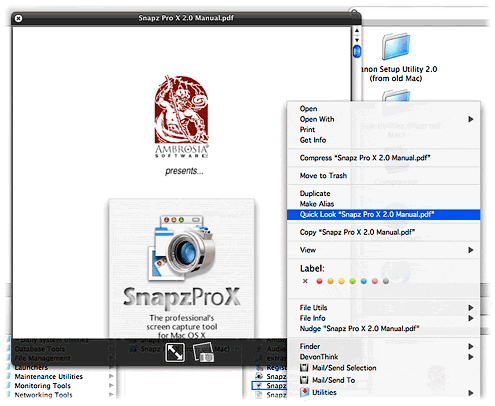 Vista has a document preview pane that lets you scroll through Office documents (and possibly text files), but as far as I can determine it doesn't help you with PDF files. Microsoft has added a number of other features like "smart" folders and live search, which of course come straight from Mac OS X.
But despite Microsoft's attempts to improve Explorer's looks and functions, it mostly seems to keep making Explorer more complicated than anyone really wants or needs. Of course, this is the Windows Way, isn't it? Never miss an opportunity to add an "Advanced" button whenever possible in order to cram in more useless but impressive-looking functions that only a Help Desk person could love.
 This has left the field free for Apple to continue raising the bar on usability, making the Finder more and more indispensable. Although many of us keep hoping they'll rewrite Finder in Cocoa and add useful features like tabs, I have to say I'm pretty delighted with a new feature they've slipped in to the latest build of Leopard.
With "Quick Look," Apple is leaping ahead of the file-previewing game by providing a separate, translucent preview window of amazing flexibility and beauty. It can preview movies at full size or even full screen. It can preview text, HTML, and PDF documents and even let you navigate them. If you select multiple files, Leopard provides an "expose"-like view that lets you navigate among them. Or, if the files are images, you can quickly go into slideshow mode. There's much more... but ain't that enough for now?
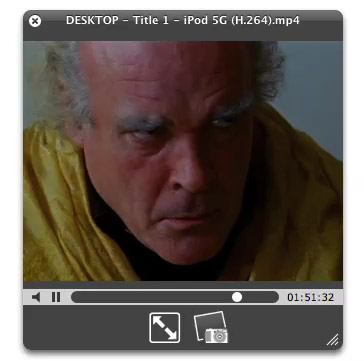
Last night I made three movies of "Quick Look" in action. The first shows simple file browsing with multiple file types--HTML, PDF, and images (including a Photoshop file).
The second one I made while quickly browsing some Apple "Mac vs. PC" ads that I'd downloaded in QuickTime format. In recording the movie, I was simply moving my cursor in the Finder from one video to the next, and somehow Quick Look picked each movie up at the same point in the timeline rather than starting at the beginning each time.
The final movie is a quick snippet of one of my favorite scenes from Stanley Kubrick's A Clockwork Orange. To me, this is the most amazing innovation of Quick Look. Although in Tiger, you can preview movies right in the Finder... it's not much fun, since you can't make them more than about 128 pixels square. In Leopard, you'll be able to resize the Quick Look bezel to full size or even full screen, just as easily!
And of course, Apple has endowed Quick Look with some eye-catching animation techniques, so that it's almost as much fun to invoke as it is to actually employ for previewing your files.
Besides Quick Look, Apple has enhanced file previewing in Leopard in a few other ways. First, you can now set a view preference to see file previews, which makes thumbnails for movies, images, PDF files, text documents, and other types. Of course, Quick Look can be invoked in any Finder view, even icon view. Also, if you're in column mode, you can now resize videos to their full size, whereas in Tiger there is some arbitrary size limit to video resizing, just as there is for images.
Mac Users Are Driving Web 2.0 Adoption
Computerworld Writer Thinks Microsoft Should Fear Apple
Daemons and Agents in Mac OS X: Apple Technical Note
MacEnterprise.org: Support Mac OS X Deployment in Business
 I first wandered into this website through a back door that appeared to have closed in October 2004: MacOSXLabs.Org, the original project the led to MacEnterprise.org. I was excited and relieved to see that the rich archive of resources, tools, scripts, tips, and tricks about administering Mac OS X not only lives on in its new home, but appears to be thriving! This is a great place to stop by to do some research on issues that arise for anyone doing system administration on Mac OS X, but particularly useful if you have a fleet of them to worry about.
Mac Market Share Well Over 6 Percent In New Measures
Pfeiffer Report Measures How Much Worse Windows Vista Is Than Both XP and Mac OS X
Rudix: Great Collection of Popular Unix Apps for Mac OS X
Daring Fireball: Using Dynamic Scripting Languages for Desktop Application Development
Bill Gates Still Telling Hitler-Style Big Lies
 If anybody is confused about whether this guy is honest or not, or thinks he might have turned over a new leaf since his wife is giving lots of money to charity, get a load of what he told Newsweek in a Vista-promo interview:
Nowadays, security guys break the Mac every single day. Every single day, they come out with a total exploit, your machine can be taken over totally. I dare anybody to do that once a month on the Windows machine.
As John Gruber at Daring Fireball points out, "Gates’s claim about Mac OS X security is simply false. Flabbergastingly false." And that's just the latest example. This guy will say anything to win. Is that OK nowadays? Is "unscrupulous" an OK personality trait in today's world? Let's remember what "unscrupulous" means: "having or showing no moral principles; not honest or fair." In my book, that's a bad thing, which is why I continue to boycott Microsoft products and encourage others to do the same.
Just like Hit--you know who--ler, Bill Gates and his buddy Steve Ballmer are masters of telling the Big Lie to get their way. Heck, it's worked for them in the past, so now they're convinced no one will ever call them on it. Just like the Newsweek interviewer, who let the statement roll right on by without question! As Hitler discovered, people will believe Big Lies before they believe small ones. Too bad humanity has advanced so little since that experience that people are still willing to be misled like this.
AppleInsider: Vista dawns, world yawns
iPhone: OK, I’m Impressed… Now Gimme The Goods!
 In these jaded times, it's hard to impress people. But I sincerely doubt that even the most ardent Apple-haters will be able to look at these demos of the new iPhone by Apple, Inc. (yes, they just dropped "computer" from their name!) without giving in to awe... pure, marvelous awe. If the delivered product is half as good as it looks, I'll be standing in line for one, because it so far exceeds my expectations that I'm really, really... impressed! The iPhone is a misnomer, because this is the "convergent" product the market has been anticipating for years. The iPhone is:
- A widescreen iPod for video and audio, synked through iTunes
- A mobile phone (yawn) with integrated camera, voicemail and photo sharing
- A web browser (Safari), including email, Google maps, search, and widgets
- A technological marvel, featuring a new "multitouch" touchscreen system (no buttons), an embedded copy of Mac OS X, wireless computing (bluetooth, 802.11b/g, and Cingular's Edge network, and sophisticated new sensors that do a heckuva lotta cool things just by moving the device around.
Did I mention it comes with a Bluetooth headset?
Help! I can't wait until June!
Linden Labs Releases Second Life Client As Open Source
 It's terrific to see this development... I haven't tried Second Life myself yet, but of course I'm tickled pink that the developers of that hugely popular system are Mac users. It's just another piece of evidence for why the Mac is so much more significant to computing in 2007 than its market share might indicate. Now that I've got this page bookmarked, I'm really going to try to find the time to get my own avatar and join the fun! In fact, it's already inspired me to set up an account and download the software. If you're ever in Second Life and see someone called Mars Fitzgerald, it's probably me. I've also printed out the scripting guide and want to read through that... Maybe I can learn to script my hair back onto the top of my head.
InformationWeek Review Finds Mac OS X Still Way Ahead of Windows Vista
Inspiring Tale of a Microsoft Guy Who Switched to Mac
Leopard’s Spaces: Virtual Desktops for the Rest of Us?
I’ve been intrigued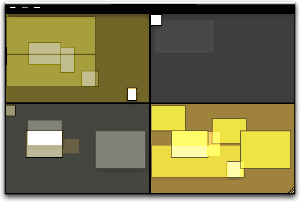 by the concept of virtual desktops since encountering them in a Unix system many years ago (I think it was an SGI Irix system), and then later when I set up Linux about 5 years ago to play around with that OS firsthand. Then, a couple of years ago I saw an early build of Virtue Desktops and thought it was pretty cool. I really loved the nifty transition effects and all the desktop customization you can do with Virtue.
However, Virtue seemed pretty flaky at the time, so I looked around to see what other virtual desktop environments there were for Mac OS X. To my surprise, there were several in addition to Virtue… including some commercial implementations. After trying all the free ones (I wasn’t interested in paying for this feature, since I didn’t even know if I’d like it), I decided Virtue was the best of the bunch.
But I also decided that Virtue’s flakiness was simply adding more time to my routine rather than helping me organize my work, and I finally broke down and decided to try You Control Desktops. Now, it may be a total coincidence, but just after I installed Desktops and restarted my system, the whole OS began to flake out, and I ended up having to trash my hard drive.
Needless to say, whether that was You Desktops’ fault or just a bad hard drive kicking in, it soured me on the whole idea of virtual desktops for awhile.
Then, when Apple announced in August that one of the premier features of its forthcoming Leopard OS would be a virtual desktop system called Spaces, I thought that maybe someone would finally get this thing done right on Mac OS X. Maybe the problem has been that the implementations I’d tried just weren’t intuitive enough, or right-featured enough, to be useful to me. I even said this out loud in an article of video snippets from the WWDC keynote that I published in mid-August.
 Apple’s initiative with Spaces also made me question my previous conclusion that virtual desktops were not worth the effort. If Apple is investing the energy to bring virtual desktops to “the rest of us” someone at Apple must believe that they are a user interface enhancement that will really benefit “us.”
So, I opened my mind once again to the idea of virtual desktops. As a member of the select Apple developer group, I’ve been getting the Leopard “seeds” as they’re released, and I’ve taken the opportunity to try out Spaces along with other new features of Leopard. Given my nondisclosure agreement with Apple, I’m not going to say anything about Spaces that isn’t revealed in Apple’s own presentation of it on the Leopard website. Instead, I’m going to spend a few minutes sharing my impressions of virtual desktops in general and of four other specific VD applications that are already available for Mac OS X:
At the outset, I’ll confess that my note-taking for this exercise wasn’t as rigorous as usual… I didn’t test for the same set of features in each application. Unfortunately, I can’t go back now and refresh my memory for the commercial products, because their demo licenses have expired. The reason for my relatively sloppy approach probably reflects my renewed conviction, after thoroughly testing Spaces, that for most computer users, virtual desktops are a waste of time and effort. Simply put, they’re an idea whose time has passed.
That’s a pretty harsh judgment, I realize, and one likely to make a good number of fellow geeks stop reading right here. After all, some users of virtual desktops feel strongly that they are highly valuable and necessary—for them. And I suspect that’s true. Given the probability for misunderstanding when expressing an opinion on a topic like this, I want to begin by exploring why virtual desktops arose in the first place and what benefits users get (or believe they get) from them. I also want to explore the expectations users have of virtual desktops like Spaces, in the very likely event that they’ve never actually used such a system themselves.
 From what I’ve read of the history of virtual desktops (VDs) and some of the discussions among those who question their value and those who defend their necessity (for links, see the Addendum), I’ve concluded that the reasons for virtual desktops can be summarized as:
- They provide a means of dealing with “window proliferation”—that is, they provide a way for users to segregate certain windows of the same application into different compartments, to make them easier to locate and refer to.
- They are a strategy for compartmentalizing one’s work at the computer. For users who perform several discrete tasks during a computer session that involve specific, mutually exclusive applications, VDs can provide a space for each task. In this case, having VDs set up is kind of like having several computers in one.
- They are a way of eliminating visual clutter, both from windows and from desktop icons. Even with tools like Expose and Dashboard, and with the rise of tabbed applications like Safari, window clutter can easily become both distracting and visually unpleasant. And if you are the type who likes to be able to see your beautiful desktop picture now and then, nothing beats escaping to a VD without all the desktop clutter for a few minutes.
- Closely related to (3), VDs provide a way of dealing with small laptop screens. Visual clutter on laptops is almost unavoidable, but perhaps if you use VDs, you can effectively enlarge your desktop several-fold.
All of these arguments seem perfectly reasonable, and they do hold out intriguing possibilities to the rest of us. However, I’ve concluded that relatively few users will actually benefit from a system like Spaces. Further, I think there’s a much simpler, less complicated solution to some of these problems that Apple would do better to concentrate on. The solution I refer to is already used by a select few who discovered it on their own, whether by accident (like me) or while seeking a more OS-9-like windowing system.
 The users who actually might benefit are probably the same ones who developed virtual desktops to begin with. Remember that VDs proliferated as a desktop paradigm on Unix systems, where most of the users were system administrators working with X-Windows if they were running any GUI tools and with text-based Unix shells, each of which were holding a session with (most likely) some remote system. For system admins who need to monitor multiple systems on one console, I can tell you it’s pretty difficult to distinguish one shell window from another. Further, if you’re responsible for managing and monitoring performance on system X and system T at the same time, it’s much easier to keep a set of windows for system X segregated on a VD and switch back and forth than to try to arrange windows for both systems on one relatively small monitor screen. If you are a real super user and have responsibilities for many more than 2 such systems, VDs become more than just a nice trick–they become a real necessity. Of course, if you switch to using a tabbed terminal app like iTerm together with a tabbed browser, some of the problems system admins faced in earlier years disappear.
I’m sure there are some other types of jobs that fall into this kind of situation–where each VD really does represent a totally different task with its own unique environment and applications–but it’s hard for me to think of any others right now.
Most of us have several applications that we use throughout the day for all the tasks we do, and if you fall in that category, I think you’ll just find VDs confusing. As an example, if you’re someone who needs to keep an email client close at hand for pretty much your whole day, don’t make the mistake of trying to pin that client–or one of its windows–to a particular desktop.
Another such application for many of us is our web browser. I found it impossible to segregate one browser window and its tabs for “task A” and another window for “task B” and one for “personal” etc. Browser tabs and windows are just too unpredictable and hard to control. And the minute you find yourself wasting precious moments trying to remember which desktop you left Gmail on, you’re using up whatever goodwill you allocated to virtual desktops at the beginning of your experiment. Besides, let’s recall that VDs arose before web browsers supported tabs, and now that they do, it’s easy to use tabs to create multiple “desktops” within your browser itself.
 And what about apps like Activity Monitor or Disk Utility? Do they get pinned to a particular desktop, or are they free to float among them? Depending on which VD tool you try, you may or may not find it confusing to get a particular window to show up on all your desktops, and even more difficult to erase it from one while keeping it on the other three. From my experience, the minute you start trying to custom-assign windows to particular desktops, you might begin experiencing flakiness. As I said, if you find yourself going from desktop to desktop searching for a tool like Activity Monitor, you’re working too hard at the whole virtual desktop thing.
There’s also a bit of a catch-22 involved if you have several applications (as I do) that you need to have at your side throughout the day. On the one hand, if you try to put all your “always need them” apps in, say, one desktop, you end up just making them harder to reach than they are now. How? Well, think about it… Using a VD is kind of like using Dashboard: Getting to it requires first some keystroke or mouse movement and the time for a transition effect. Unlike Dashboard, if you use more than one VD, you also have to remember exactly which set of keystrokes will get you there. If you use a “pager” you have to first invoke the pager and then click on it with the mouse or use a keystroke.
One of the main reasons more people don’t use Dashboard, from what I’ve read, is that it exists on a separate layer from the desktop: You have to “travel” to get there, as well as to get back. Not much effort, you say? I fully agree. And yet, it presents an obstacle that many would rather avoid. As much as I love the Dashboard, I don’t keep anything there that I need to refer to more than once or twice a day. Instead, I use the developer mode and move any truly critical widgets to my desktop.
OK, suppose you decide to let your critical apps show up on all of your VDs. So that each VD will have a Finder window or two, a browser window, a mail window, a chat window (if you partake), your VOIP client (ditto), a word processor or spreadsheet, and so on. If you take that route, you’re back to where you started: Window clutter and everything all cozy together on one desktop.
 If you then have discrete tasks like photo editing or moviemaking or audio processing or animation or programming or whatever it may be, you end up with separate virtual desktops for each of these tasks, with each desktop differing only in the one or two apps associated with those tasks. Now, if this is the case, and if you don’t actually need Soundtrack open when you’re using Photoshop, or you don’t need Smultron open when you’re using Aperture, or iMovie can simply sleep when you’re blogging with Ecto, then why not just close them when you’re done and reopen them? Wouldn’t that be easier on the old virtual memory and processor? Keeping a set of applications open just so they’re ready for you when you visit once a day merely puts stress on CPU and ties up virtual memory, thereby reducing efficiency in the applications you’re currently using. On top of that, doing this consumes an extra brain cell or two to remember which desktop applications “belong” in.
So, what did I hope to get from virtual desktops like Spaces? I had most of the hopes expressed in the four rationales stated earlier, but here’s what I learned and the alternatives I’ve adopted for each.
Reducing window proliferation
My solution for window proliferation is Single Application Mode (SAM). SAM isn’t an “official” part of Mac OS X, but there are quite a few tools that support it. What is SAM? Basically, it’s a mode that causes the active application (and all of its windows) to hide automatically when you switch to another app. There are a multitude of applications and utilities that enable this mode, and all of them that I’ve tried define the Shift key as a default override, so that if you don’t want the active app to hide, hold the shift key while you select the next one.
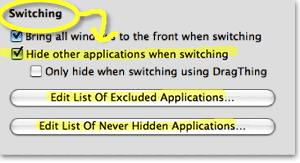 After beginning to write more about SAM at this point in the article, I’ve decided that the topic is too big–and too interesting–to distract from the main topic of this article. So look for another article soon that will take an in-depth look at SAM and its history and uses on Mac OS X.
The bottom line is that SAM keeps your workspace clean and uncluttered. You never have to worry about seeing multiple app windows sprawling across the desktop and trying to find the right one. With SAM, you just use the application switcher (Alt-Tab) or Dock to switch apps, and all apps are readily available on the same desktop. If you need a better way to organize related apps than either the Dock or Finder provide, most users will do better to try one of the many “dock replacement” apps that are out there—apps such as Drag Thing, Overflow, Drop Drawers, or the freeware Yada—or go with a full-service menubar utility like Butler, ClawMenu, MenuStrip, or You Control, which let you easily define your own custom groups of apps and access them from the menubar.
Keeping work spaces separate
This is one of the motivations for VDs that I thought had the most promise starting out. I began by considering the distinct work processes I engage in both at home and at work:
- Blogging (writing articles)
- Programming (writing code)
- Designing (mostly for the web)
- Researching (for any of the above)
- Processing Classic 45s orders
- Adding Classic 45s inventory
- Testing software
- Communicating (with staff, family, friends, colleagues, managers)
- Managing projects (mostly software development)
- Shopping (for work and pleasure)
- Recording music (mostly from my 45 collection)
- Screencasting (mostly for the blog).
- Managing websites (various at work at home)
Contemplating setting up 13 different VDs, however, seemed like too much work… at least until I was convinced of the value of doing so. Instead, I tried starting with three desktops: One for non-Web activities, one for web-related activities, and one for personal activities. The problem with this was that so much of my life got crammed into the web-activities desktop that the others seemed superfluous. The main benefit to this arrangement was that when my manager would pop in, I could quickly switch from my personal desktop to one of the other two, thereby hiding activities I might not want the upper types to know about.
I really couldn’t think of a logical way of dividing my activities into discrete desktops in a way that made sense, because so many of them are interrelated–at least, in terms of the applications they rely on. Let me go through my analysis of this, starting with the above activities list:
- Blogging
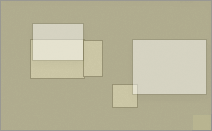
- Safari/WebKit (research)
- Ecto (writing)
- DevonThink Pro (research/testing notes)
- Photoshop (illustrations)
- TextEdit (HTML tools)
- Constrictor (screenshots)
Even if I had only one window for each of these applications open in my Blogging Desktop, it would be so cluttered without SAM as to be no better than no VD at all. Typically when I’m blogging, I keep all of these apps running, as well as some other tools like Activity Monitor, Observation Post, Skype, Ovolab Phlink, and Remote Desktop. And that’s just the ones that have windows! I never know when I’ll need to refer to Activity Monitor, and Observation Post lets me know via Growl when USB connections, network ports, or Bonjour services come and go. Skype is my VOIP phone, and Phlink notifies me via a small bezel who’s calling on the land line. Remote Desktop is just part of my continual duties as household system admin.
- Programming
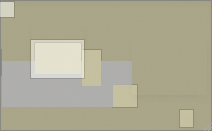
- Smultron (text editor)
- WebKit/Firefox/Opera (testing)
- Photoshop (graphic design)
- PixelStick (graphic design)
- YummyFTP (file transfers)
- CocoaMySQL (database tool)
And that’s just for starters. If I’m working on a Dashboard widget, I might be also running Widgetopia or Dashcode, and if I’m doing heavy CSS coding I’ll have StyleMaster open, as well as a couple of Dashboard widgets running on the desktop (e.g., my PHP reference widget, CSS reference, etc.). Again, this is way too many windows to fit onto any one desktop, and to separate them onto different desktops would make my work harder—not easier.
- Designing web graphics
- Photoshop (graphic design/editing)
- Constrictor/SnapzPro (screenshots)
- Safari/WebKit (preview)
- Smultron/TextEdit (HTML editing)
- PixelStick (graphic ruler)
Again, just the basics. This comes closest to working, but if you try to have all of these visible on the same desktop, you’ll either find yourself constantly arranging the windows to keep your environment from looking like a bad Windows desktop, or you’ll understand why Windows users yearn so for a “true” maximize feature in Mac OS X so they can make the other apps hide by basically creating a full screen view of each app. Sorry, in my book “true maximize” is just another way of achieving single-application mode. Only, you no longer have any desktop real estate for anything else, either aesthetic (like a desktop picture or background Quartz composition) or functional (like Activity Monitor or Dashboard/Yahoo widgets). If what you want is SAM, then do SAM the Mac way!
I think you get the picture by now… certainly, talking through it has only convinced me of the fallacy behind this particular rationale for virtual desktops. And that’s without even considering what to do with apps like iTunes, System Preferences, Mail, and Preview that I’m likely to have open most of the day no matter what I’m doing.
Eliminating visual clutter
Isn’t this the same as “window proliferation”? Well, it’s certainly very closely related. However, when people talk about using virtual desktops to eliminate visual clutter, they’re typically thinking of easily enabling an environment free of desktop icons as well as application windows. Many users need this in order to take clean screenshots of their desktops, while others just want to escape for awhile to a specially designed desktop picture or movie that isn’t compromised by unnecessary visual elements. Unfortunately, from my tests, none of the current crop of virtual desktop apps can eliminate desktop icons, and they don’t let you define specific desktop items for each desktop. Your desktop folder is still your desktop folder, and it shows up even if you can customize the desktop picture for each VD.
To eliminate desktop icons, there are numerous alternatives that are easier to implement and use than virtual desktop software. My choice at the moment is an application enhancer called DesktopSweeper, which simply sweeps away all the desktop icons whenever I navigate away from the Finder. It’s highly customizable and does its thing automatically, without me having to worry about it. This means my one desktop is always free of clutter, unless I’m working in the Finder. And even then, it’s my choice to see the desktop icons when Finder is active. If you don’t want to run Unsanity’s APE, there are other options. One I just discovered recently comes in the unlikely form of the Mac OS X maintenance/customizer utility MacPilot, which has “Show icons on the desktop” as the first checkbox in its Finder pane. Just deselect this checkbox, restart Finder, and you’ll find that all your desktop icons are gone… even when you’re in the Finder! This may be a little extreme for most folks, so I strongly recommend DesktopSweeper.
If you want to temporarily switch desktop pictures, there are again a large number of options. For a fee, you can use DeskShade, which works quite well and also lets you run QuickTime movies on your desktop. A terrific freeware tool that I use is PictureSwitcher, which has pretty much the same basic features as DeskShade, but is actually a bit more convenient to use. If I need to switch to a standard Mac OS X desktop picture, or to a plain white background, PictureSwitcher lets me do this with a couple of clicks on its menubar icon menu. There’s also a fairly new Dashboard widget called Imperium that will do much the same thing.
However, lately I’ve found myself doing that less and less for simple screenshots. Since discovering Constrictor, I don’t need to live by SnapzPro X’s rules anymore. Constrictor has the very neat trick of letting you specify a background color for your screenshots, and it can preserve transparency when saving a TIFF screenshot. This lets you take standard-looking screenshots no matter what desktop picture you’re currently using. In fact, if you use Constrictor this way and set it to open its saved files in Photoshop, you’ll discover that they have no background at all! You have the application window and its generated shadow against a transparent background. From here, you can put whatever you need to in the background when finishing up the shot.
Enlarging small laptop displays
Oops! I said I’d tell you how I’ve dealt with each of these rationales for virtual desktops, didn’t I? I was mistaken… I’ve never used a laptop for any length of time, so I can’t advise you on how to deal with this. I’ll bet having a 15- or 13-inch display really sucks!
If I were in this boat, as I may be if I finally take the laptop plunge in 2007, I’m pretty sure I’d still find SAM a big help, and I know I’d also keep my 23″ monitor for use at home. Nothing beats a large monitor, and you’re going to be mistaken if you think Spaces or any other virtual desktop application can save you from this basic truth.
Conclusion
I still think the concept of VDs is cool, and the most rewarding aspect of using ones like Virtue Desktops is getting to see all those stunning animations as you change desktops. But as a practical tool to make me more productive, Not!
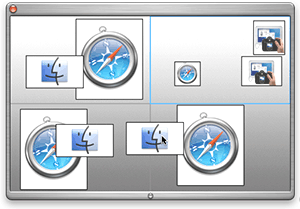 If you’ve read any of my past articles on Mac OS X and Apple, you know I’m not a knee-jerk critic of the fine company in Cupertino. However, in this case I think they’ve chosen the wrong “cool new feature” to promote. That’s not just because the current, pre-release version of Spaces has failed to wow me: It’s because I don’t think VDs are the answer to anyone’s window clutter problems. In fact, VDs have the potential to make Mac OS X more complicated than necessary, which isn’t the way the company usually leads. If someone like me, who lives and breathes Mac software and computers in general, finds VDs confusing, I can only conclude that they don’t have much potential to enhance the overall usability of Mac OS X.
As far as innovation is concerned, there’s also nothing innovative about Spaces, as it turns out. The one innovation I assumed was Apple’s idea was the ability to drag windows and apps around in the “pager,” as the August WWDC demo showed. Certainly, that elicited a lot of “oohs” and “aahs” from the developer audience that day. What I didn’t realize is that both of the current commercial VD implementations—Codetek VDTP and You Control: Desktops—incorporate that feature. So, Apple doesn’t even have decent bragging rights with Spaces. (It’s true that Spaces shows live thumbnails of windows in its elegant pager, which is a distinct improvement.)
Of course, there’s always the possibility that I’m totally off-base here, and that VDs are a lot more valuable than I’m giving them credit for. Perhaps I just haven’t figured out how to use them effectively. Whether I’m right or wrong about them, I promise to keep an open mind, which is just the way I was brought up here on Mars.
Notes on the virtual desktop applications
| Virtual Desktops | Version | Price | Pros | Cons |
|
3.1 |
40 |
|
|
|
|
0.53r260a |
0 |
|
|
|
|
1 |
0 |
|
|
|
|
1.2 |
30 |
|
|
|
|
0.5.3 0.6 beta |
0 |
|
|
Addendum: A few VD Links
- Wikipedia article on virtual desktops
- Wikipedia article on X window managers
- Review of virtual desktops on the Apple Blog
- Article from MacProductive.com
- ATPM Review of Virtue Desktops
- MacMuser Thoughts on Virtual Desktops
- MacZealots article on Mac OS X 10.3 (Panther), followed by a representative discussion of the pros/cons of virtual desktops.
Don’t Miss David Pogue’s Satirical Video About Windows Vista
Selling Vista: Computerworld Makes This OS X Copy Sound Like Microsoft’s Idea
Computerworld Finds Picky Faults With Mac OS X
Windows Expert Calls His Transition To Mac OS X “Superb”
Microsoft’s Windows Chief Allchin “Would Buy a Mac”
ThemePark Becomes Freeware, Adds Support for Intel Macs
 If you have any interest in customizing your Mac's look and feel, you've got to get a copy of ThemePark. I felt that way even before today's news, when Geekspiff decided to release the latest update to ThemePark as freeware! Previously, ThemePark was (I think) about $30. It's a great tool if you ever want to get your hands dirty tweaking teeny tiny graphics. The rewards can be great, of course, if you have enough imagination to build your own theme. This is great news for the future of Mac OS X theming! (Now if only Unsanity will make ShapeShifter free... But they also released an update today, and ShapeShifter---which is the software that lets you easily change from one theme to another---is still a licensed product for $20.) Oh... and I almost forgot to mention the cool new icon that comes with ThemePark 3.1... a big improvement, IMHO.


